

The Setup Wizard
The wizard gets a working discount live in a couple of minutes. Everything it sets can be changed later, so treat it as a quick start.
A fresh activation opens it for you. To run it again, click Setup Wizard under the plugin’s name on the Plugins screen. The wizard has five steps, and Skip Setup leaves it at any point.
Step 1: Welcome
Section titled “Step 1: Welcome”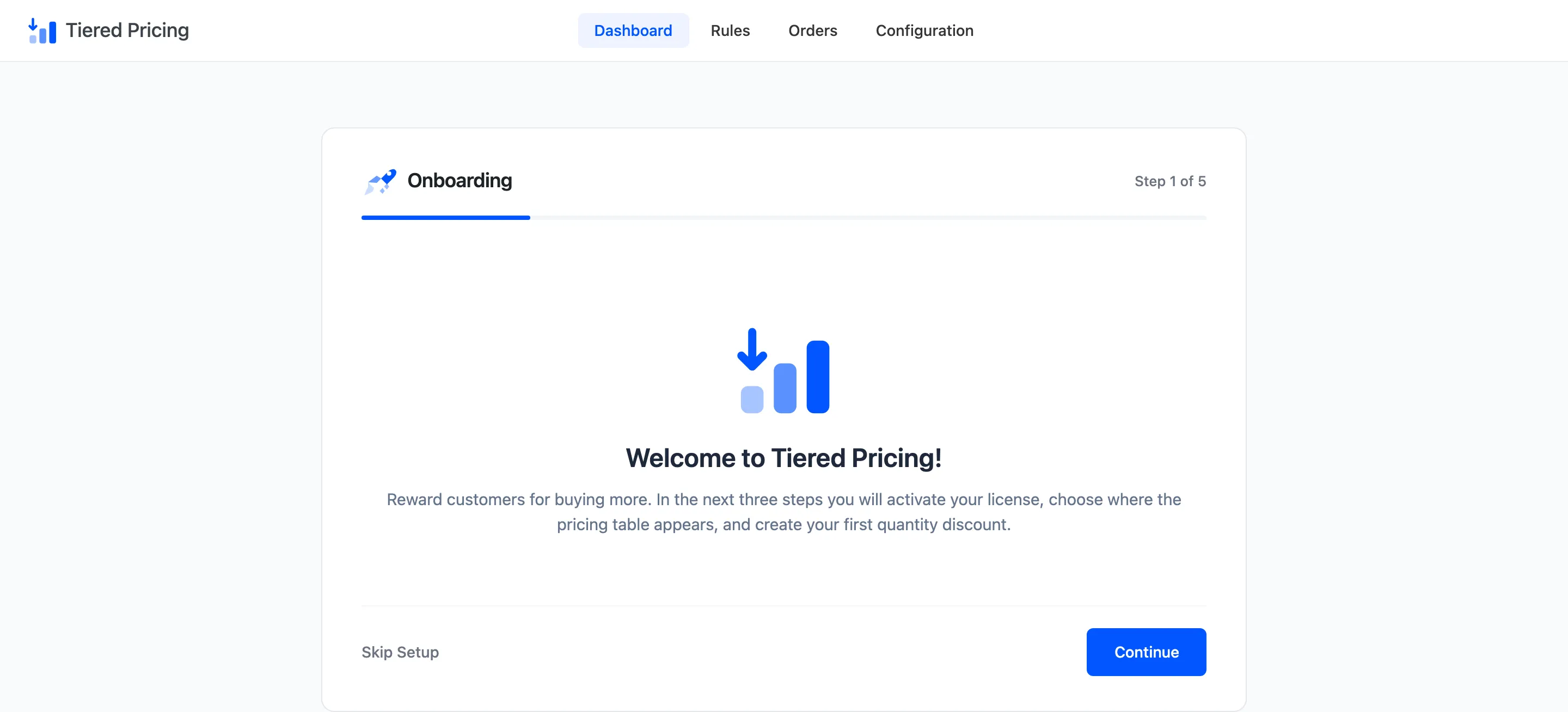
A one-screen summary. It says the next three steps activate your licence, choose where the pricing table appears and create your first quantity discount. Click Continue.
Step 2: License
Section titled “Step 2: License”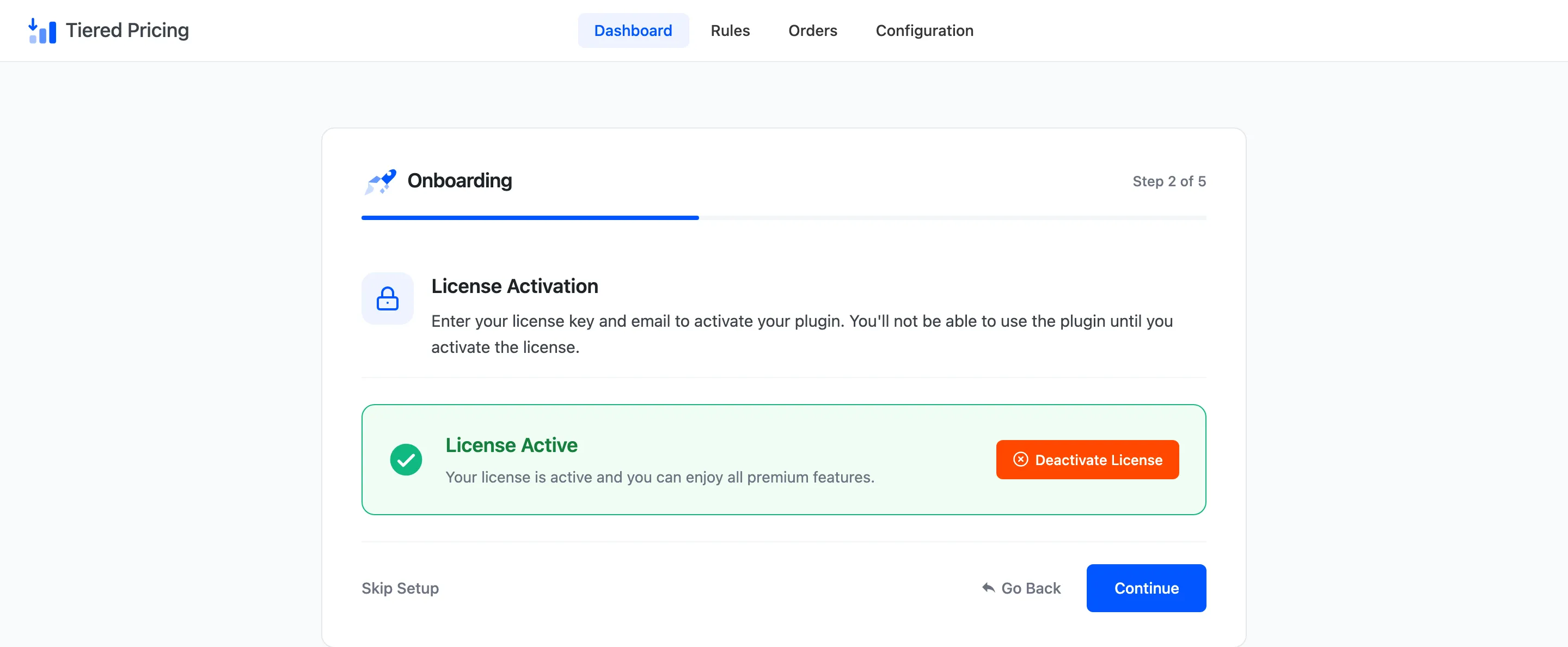
Enter the purchase code and email from your order and click Activate License. The step will not let you continue until the licence is active. If it is already active, the box reads License Active.
Step 3: Display
Section titled “Step 3: Display”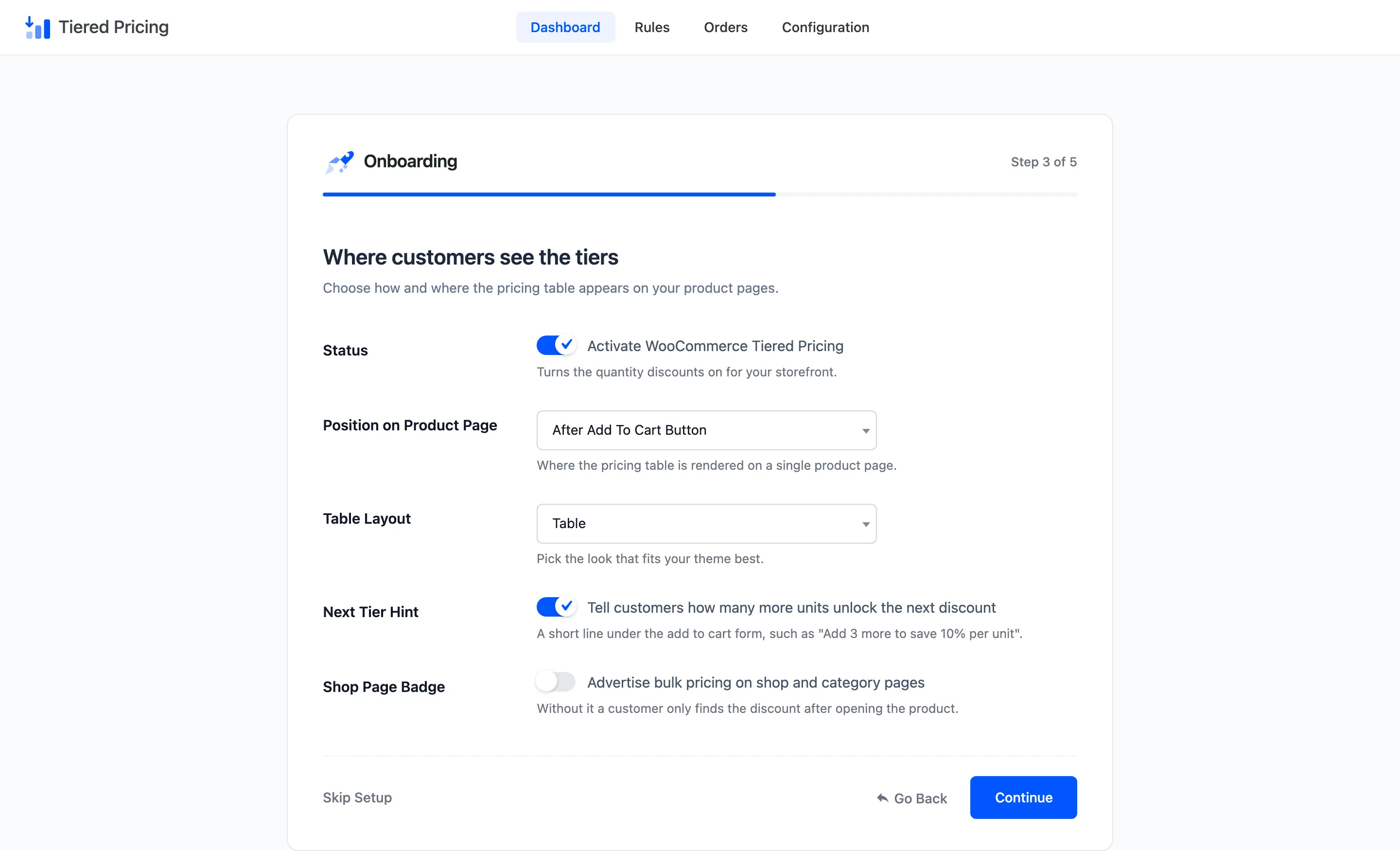
The title is Where customers see the tiers. It holds the five settings that decide whether a customer notices the discount.
- Status: Tick Activate WooCommerce Tiered Pricing to turn quantity discounts on. It is ticked by default.
- Position on Product Page: Where the pricing table sits. A new install starts on Default, which is the end of the product summary.
- Table Layout: Table, Grid of cards or Compact list.
- Next Tier Hint: Tell customers how many more units earn the next discount. It is ticked by default.
- Shop Page Badge: Advertise bulk pricing on shop and category pages. It is off by default.
Without the badge, a customer only finds the discount after opening the product. Switch it on if you want the offer visible earlier.
Step 4: First Rule
Section titled “Step 4: First Rule”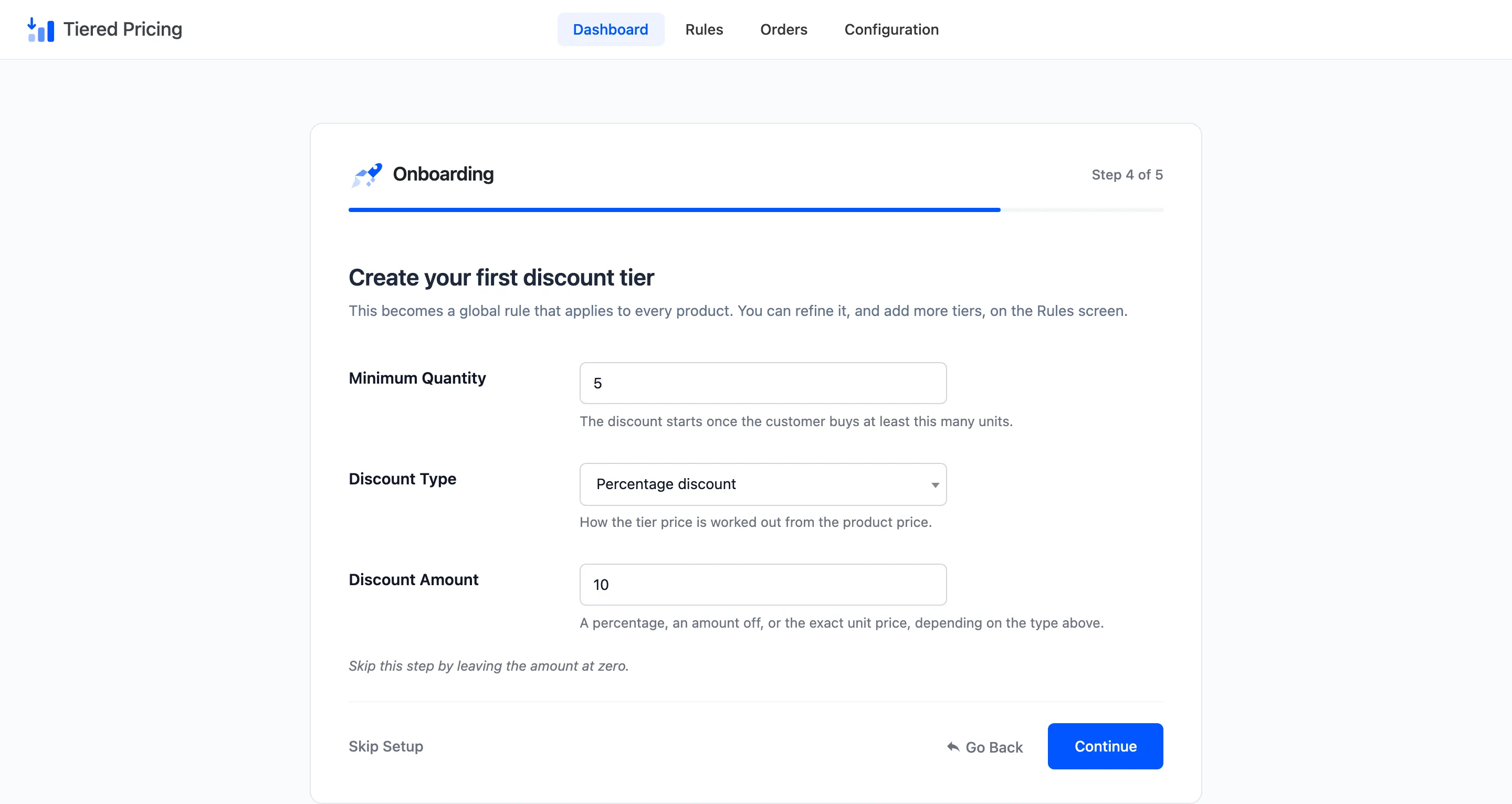
The title is Create your first discount tier. Three fields describe one tier.
- Minimum Quantity: The discount starts once the customer buys at least this many units. The default is 5.
- Discount Type: Percentage discount, Fixed discount per unit or Fixed unit price.
- Discount Amount: A percentage, an amount off each unit, or the exact unit price. The default is 10.
Leave Discount Amount at zero to skip the step and create no rule.
The wizard turns your answers into one rule called Bulk discount. It is active and applies to every product. It has no upper quantity, so it covers “5 or more”.
Priority is 10.
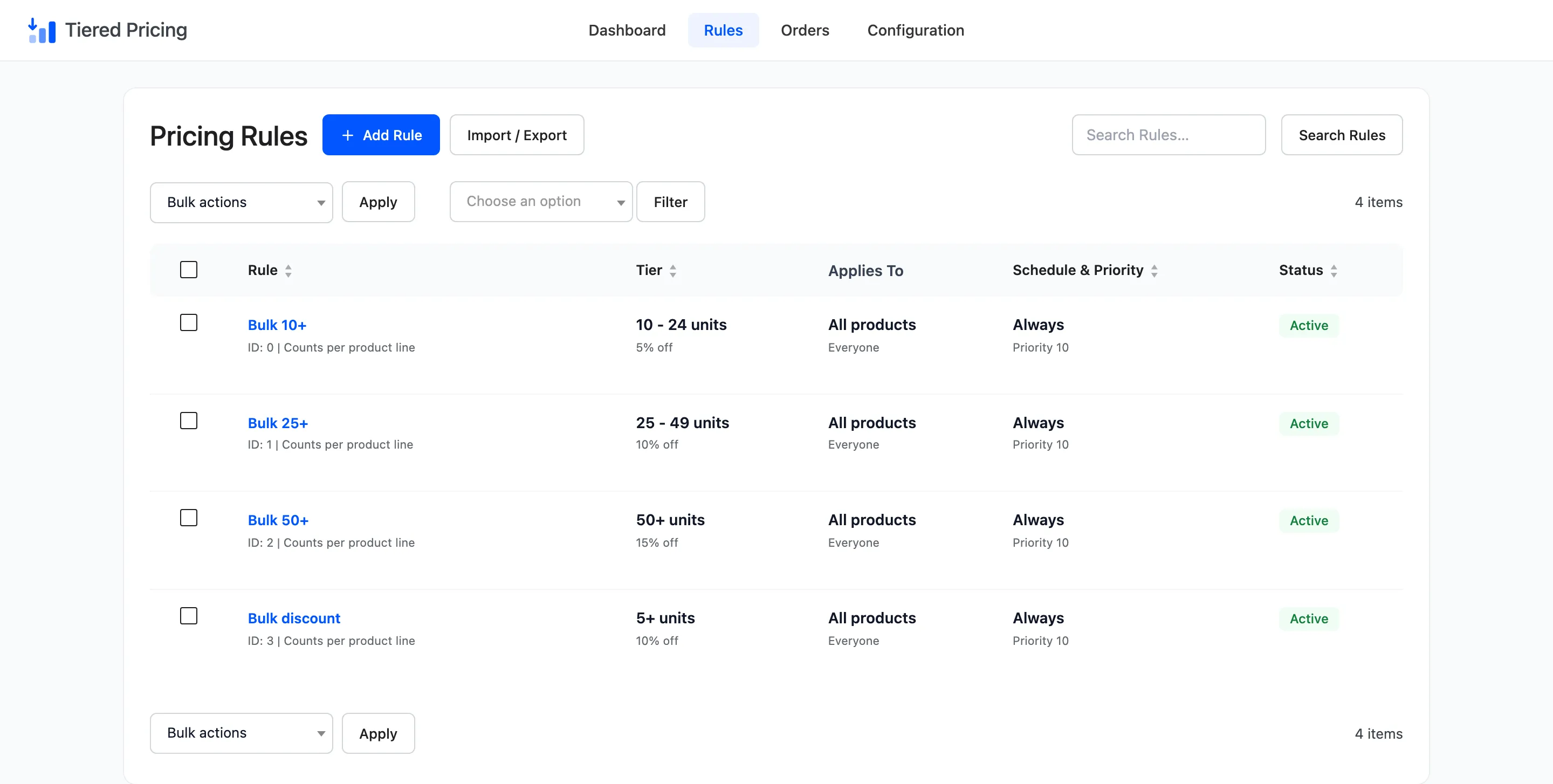
The wizard does not check the new rule against rules you already have. If you run it on a store that has a ladder, the new rule can overlap a tier. Open Rules afterwards and adjust the range or the priority.
How to Build a Multi-Tier Price Ladder shows how.
Step 5: Ready
Section titled “Step 5: Ready”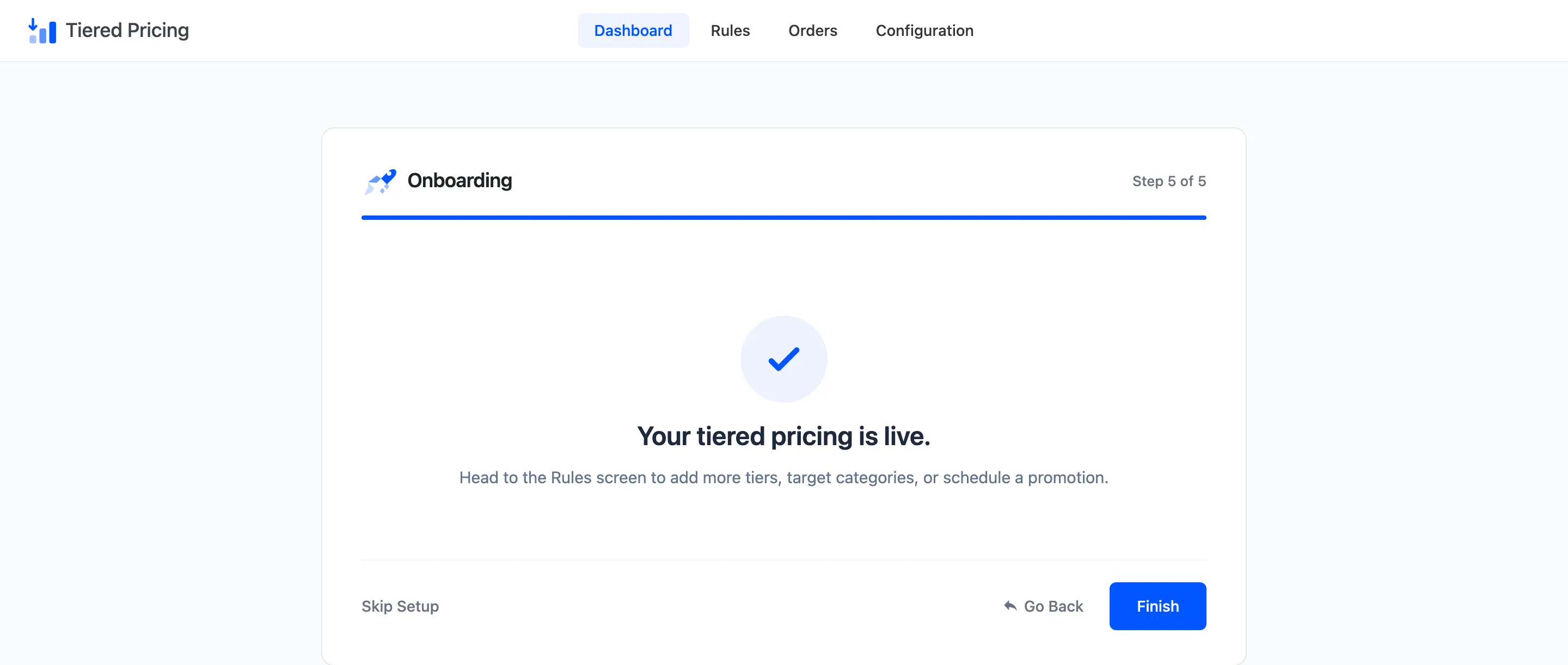
The step reads Your tiered pricing is live, and points you at the Rules screen to add more tiers, target categories or schedule a promotion. Click Finish to land on the dashboard.