The Rule Editor
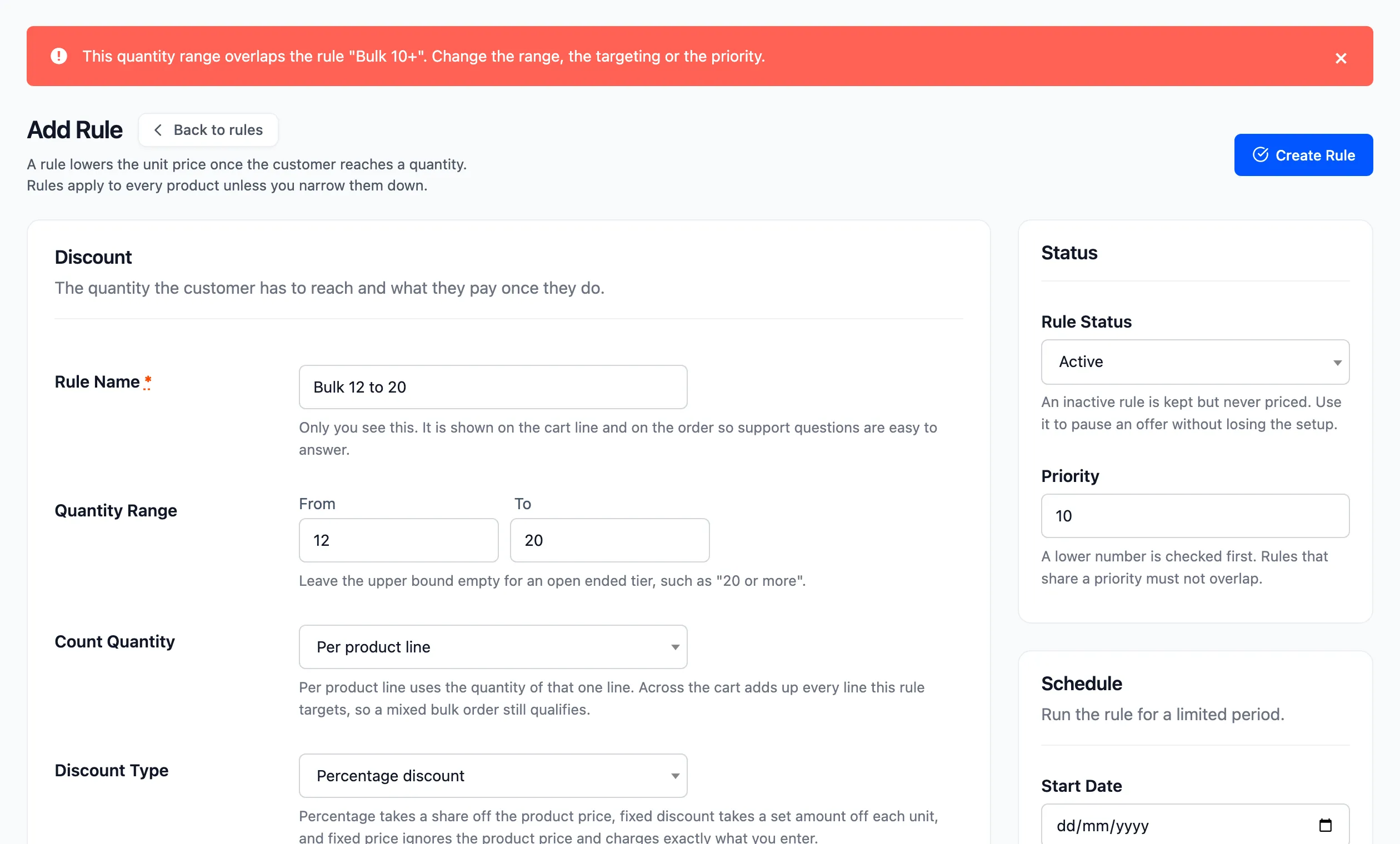
One form creates and edits a rule. A rule is one tier: a quantity range, a price and the products and people it applies to. Open it with Add Rule on the Rules screen, or click a rule’s name to edit it.
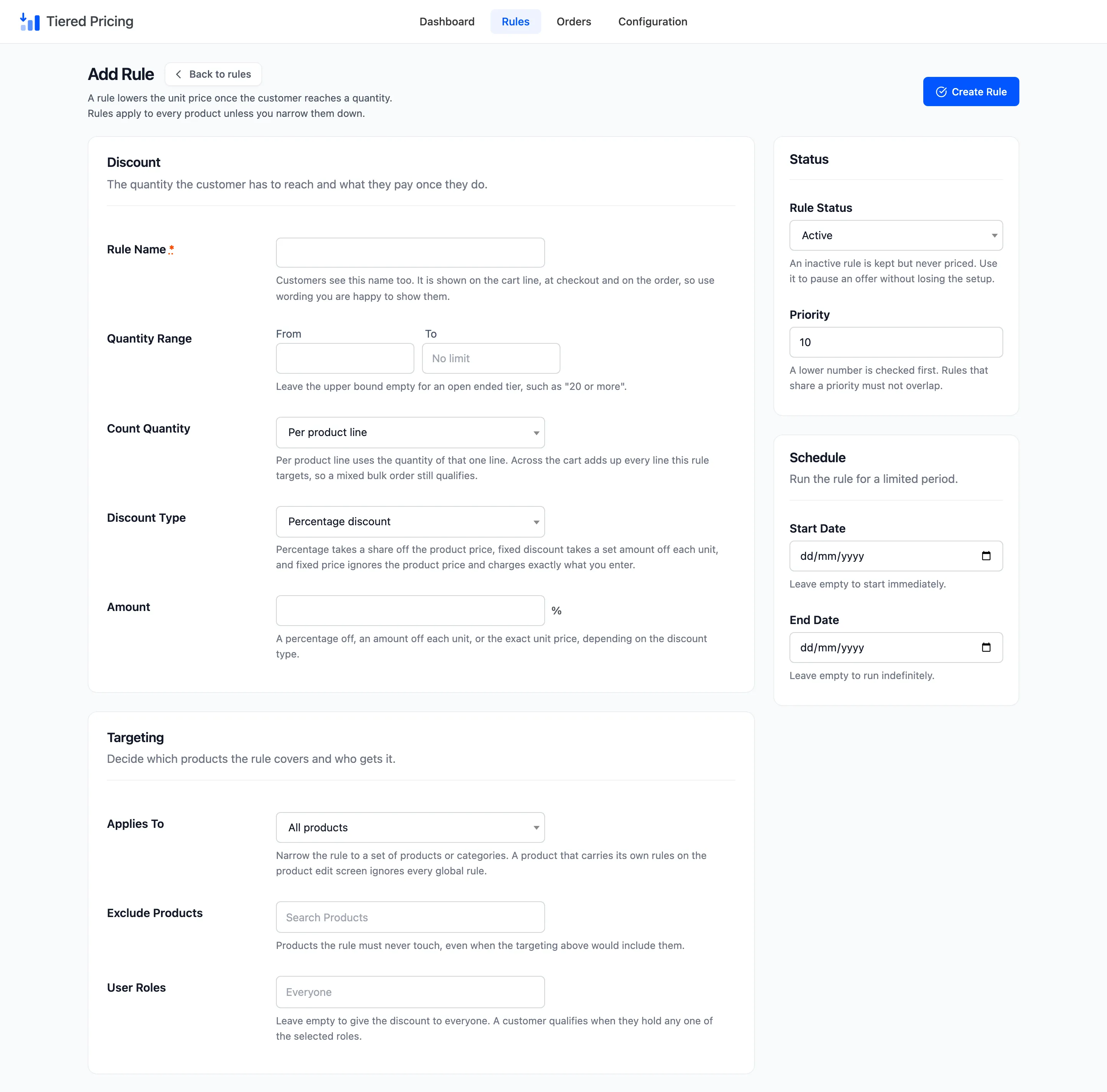
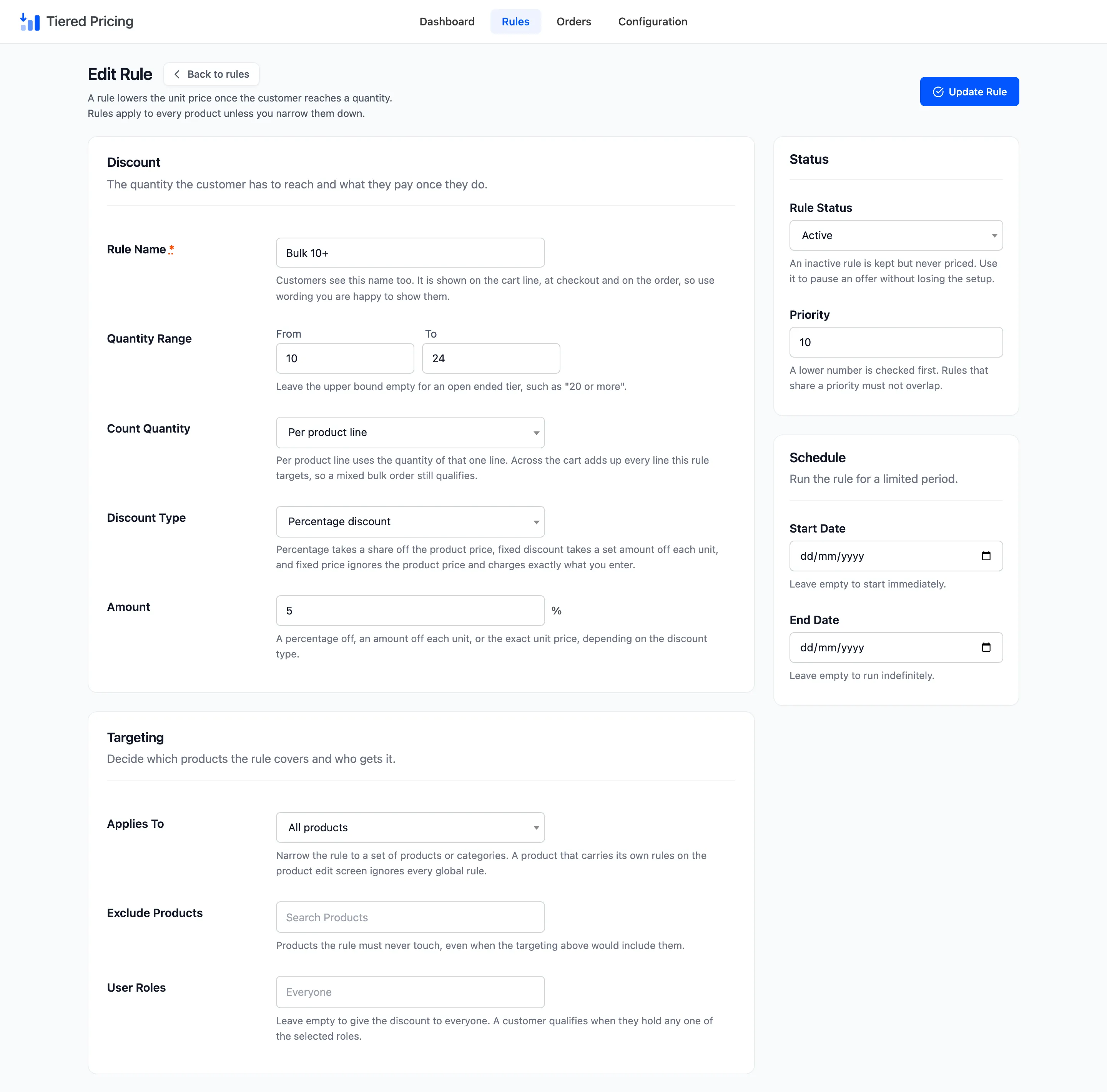
The form has two columns. The main column holds Discount and Targeting. The narrow column on the right holds Status, Priority and the Schedule.
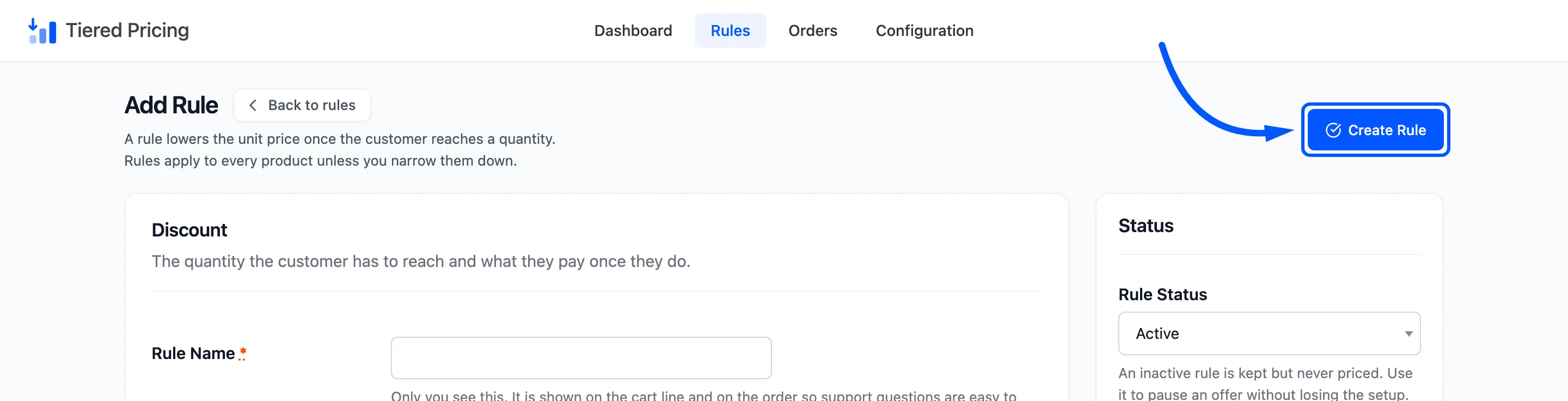
The primary button at the top is Create Rule on a new rule and Update Rule on an existing one. Back to rules returns without saving.
Discount
Section titled “Discount”The quantity the customer has to reach and what they pay once they do.
- Rule Name: Required. Every name must be unique, and capital letters do not count as a difference.
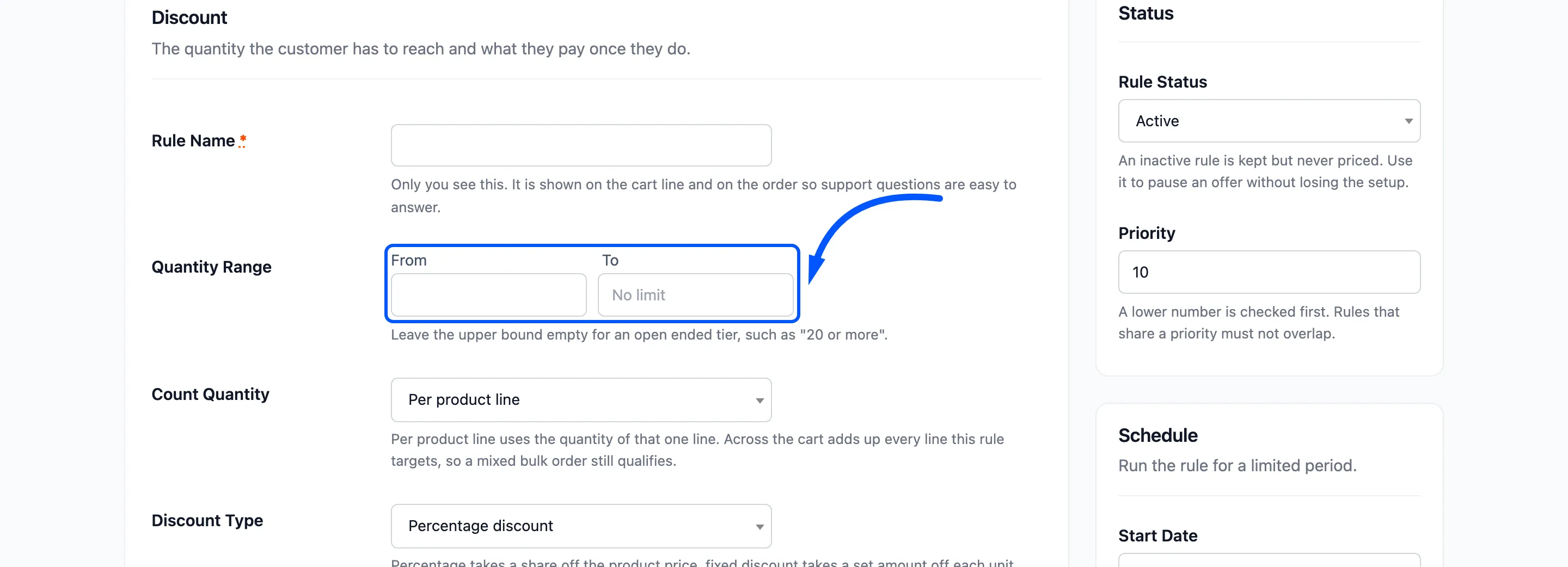
- Quantity Range: From and To. From is required and at least 1. Leave To empty for a tier with no upper limit, such as “20 or more”.
- Count Quantity: Per product line or Across the cart. The default is Per product line.
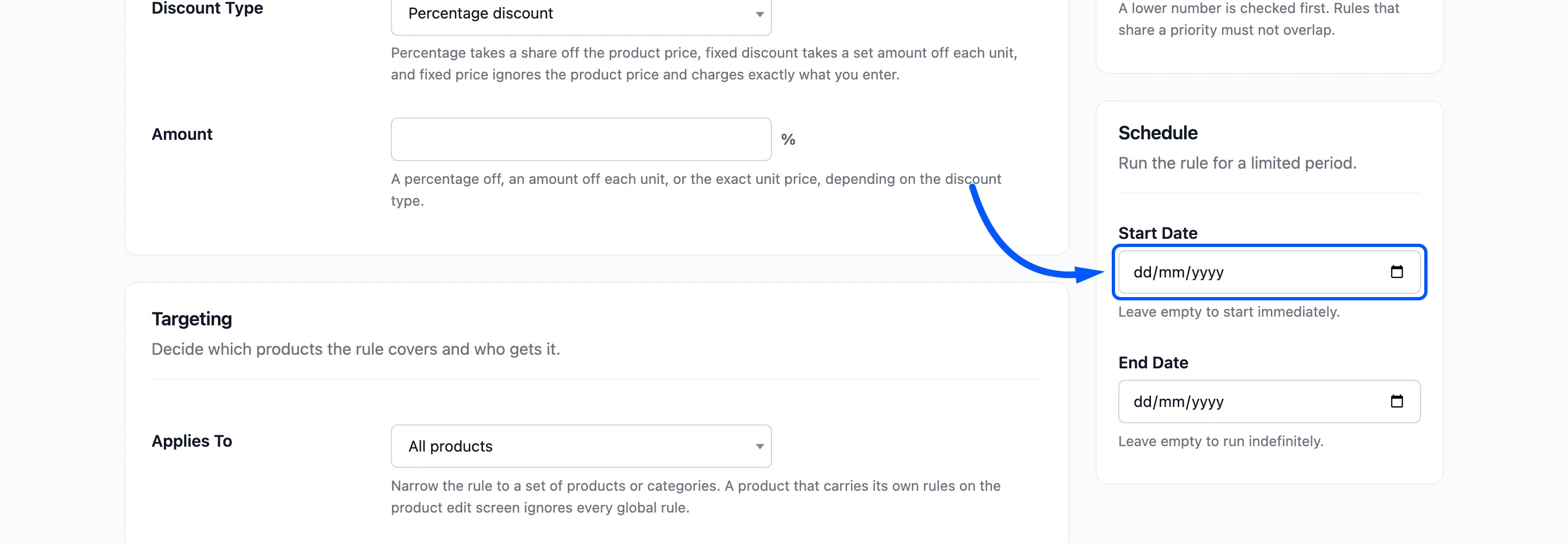
- Discount Type: Percentage discount, Fixed discount per unit or Fixed unit price. The default is Percentage discount.
- Amount: A percentage, an amount off each unit, or the exact unit price, depending on the type. A
suffix beside the box shows
%or your currency symbol.
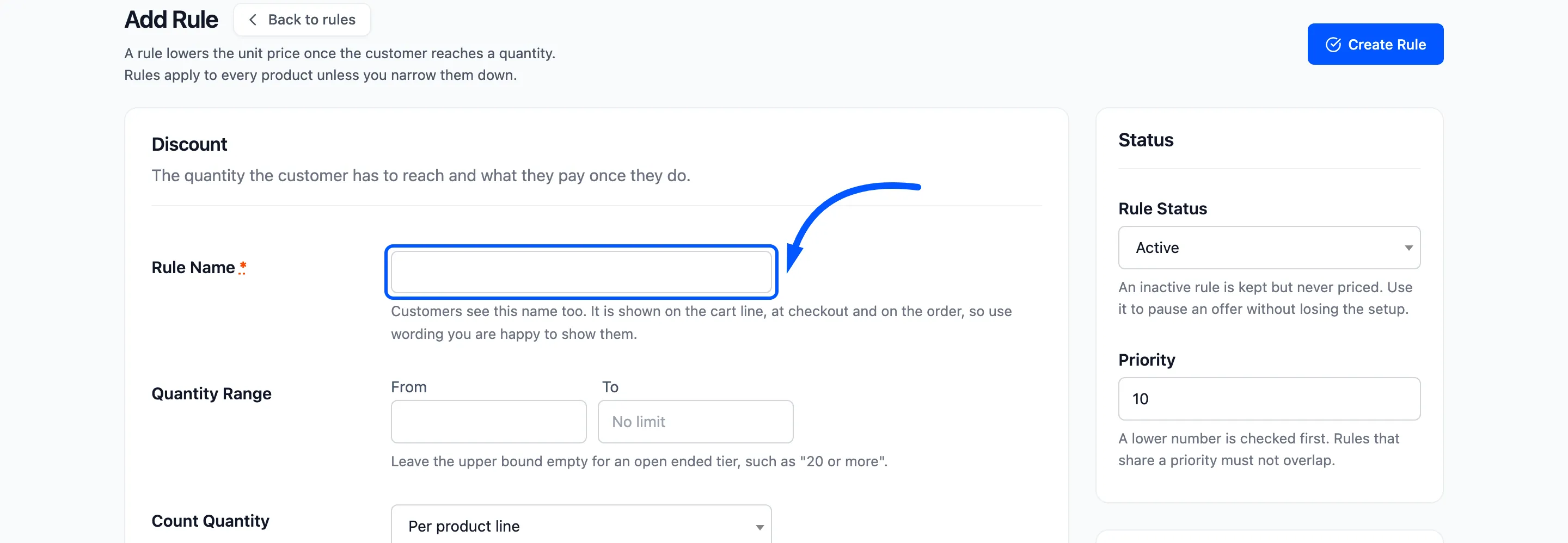
Customers see the rule name. It appears as Tiered pricing: Bulk 25+ under the product in their cart and at checkout, and it is stored on the order. Write a name you are happy to show them.
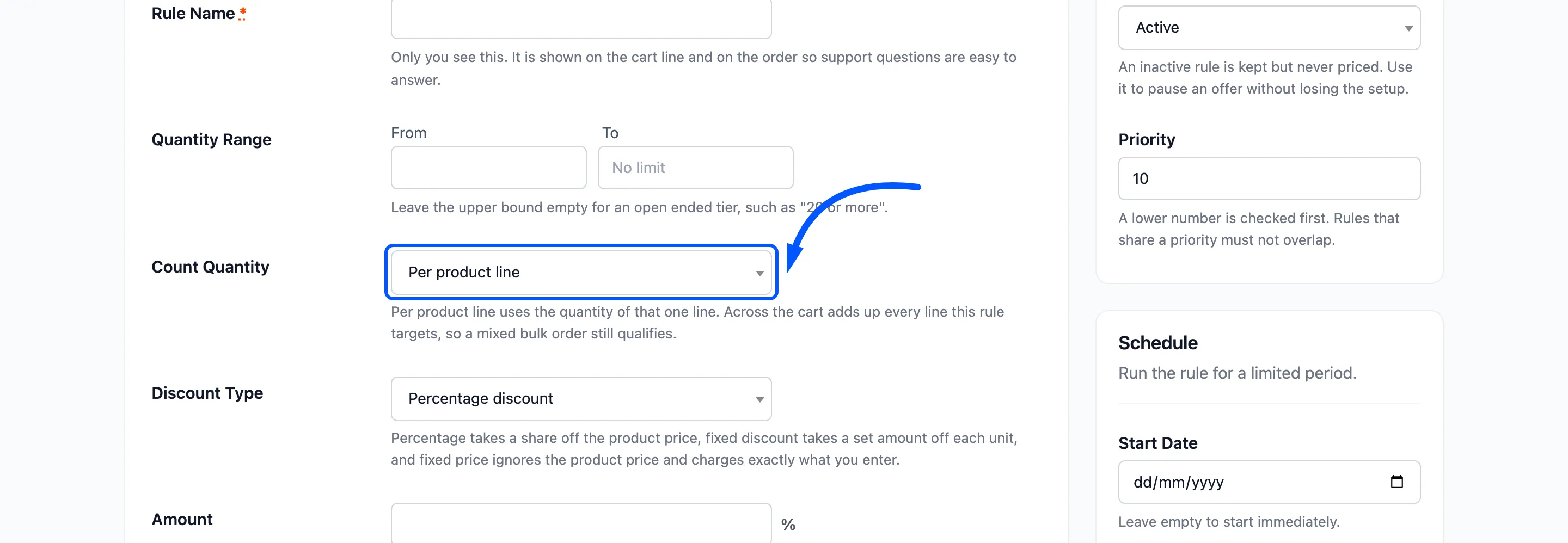
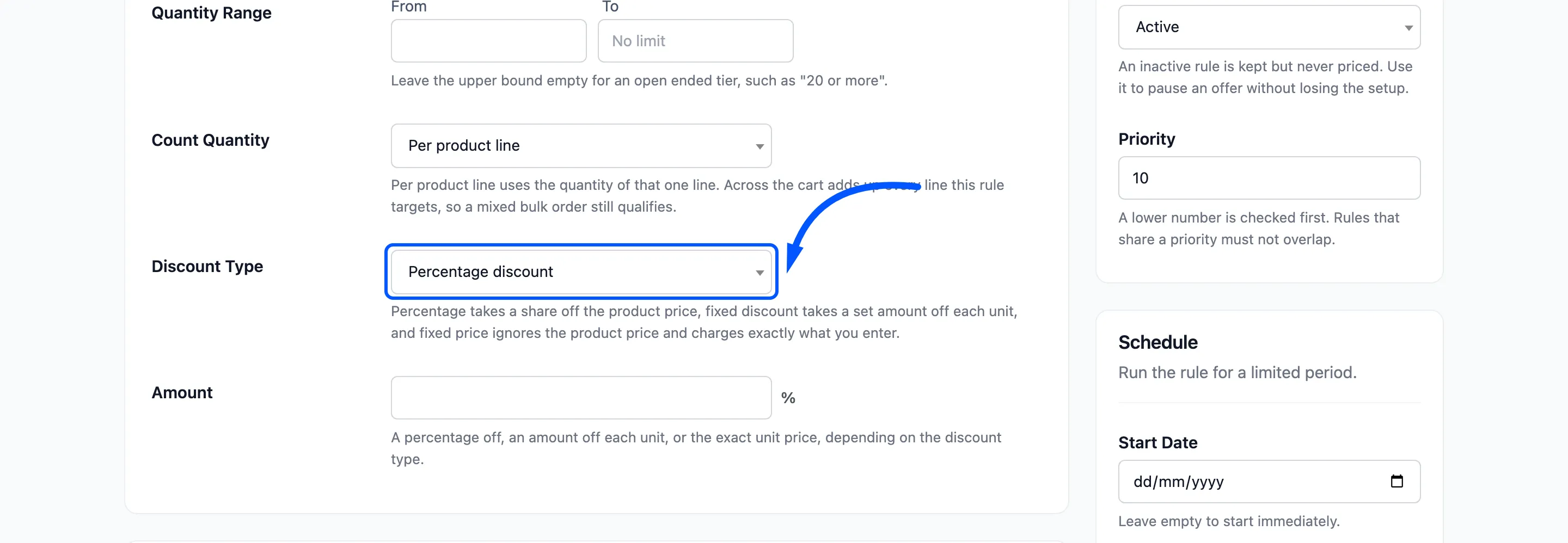
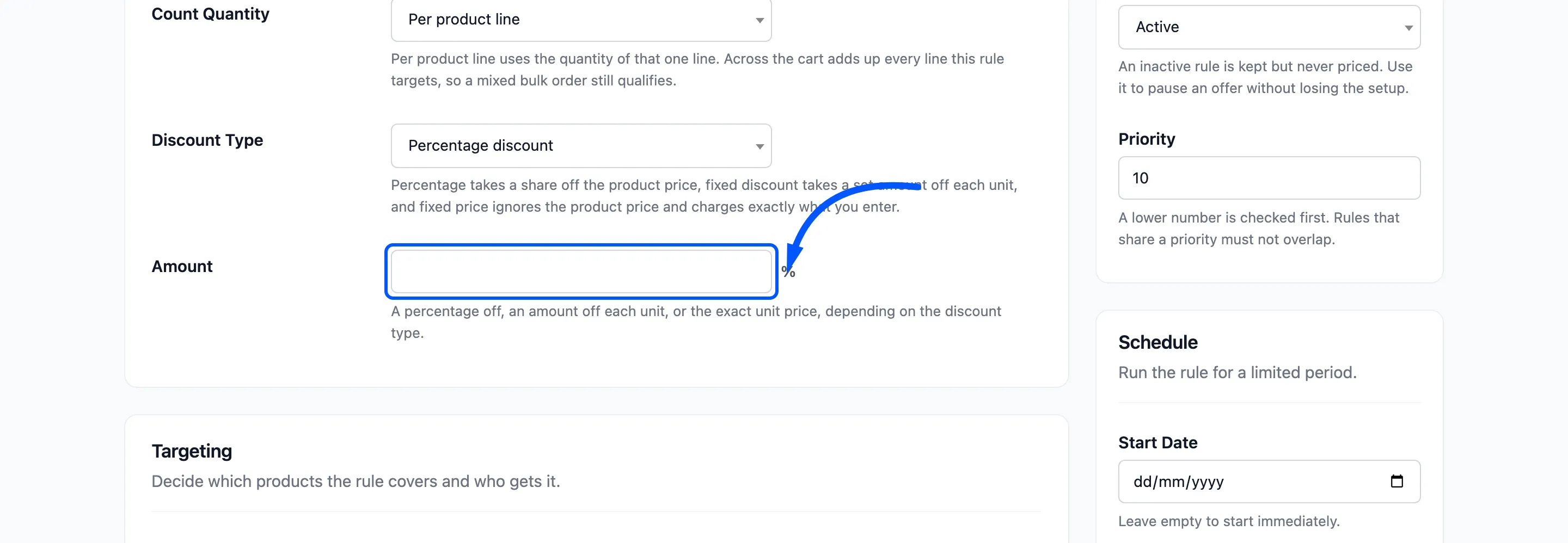
How the three types work out the price is in How Tiered Pricing Works.
Targeting
Section titled “Targeting”Decide which products the rule covers and who gets it.
- Applies To: All products, Selected products or Selected categories. The default is All products.
- Products: Appears for Selected products. Search and pick one or more. The rule also covers their variations.
- Categories: Appears for Selected categories. Search and pick one or more. The rule also covers their sub categories.
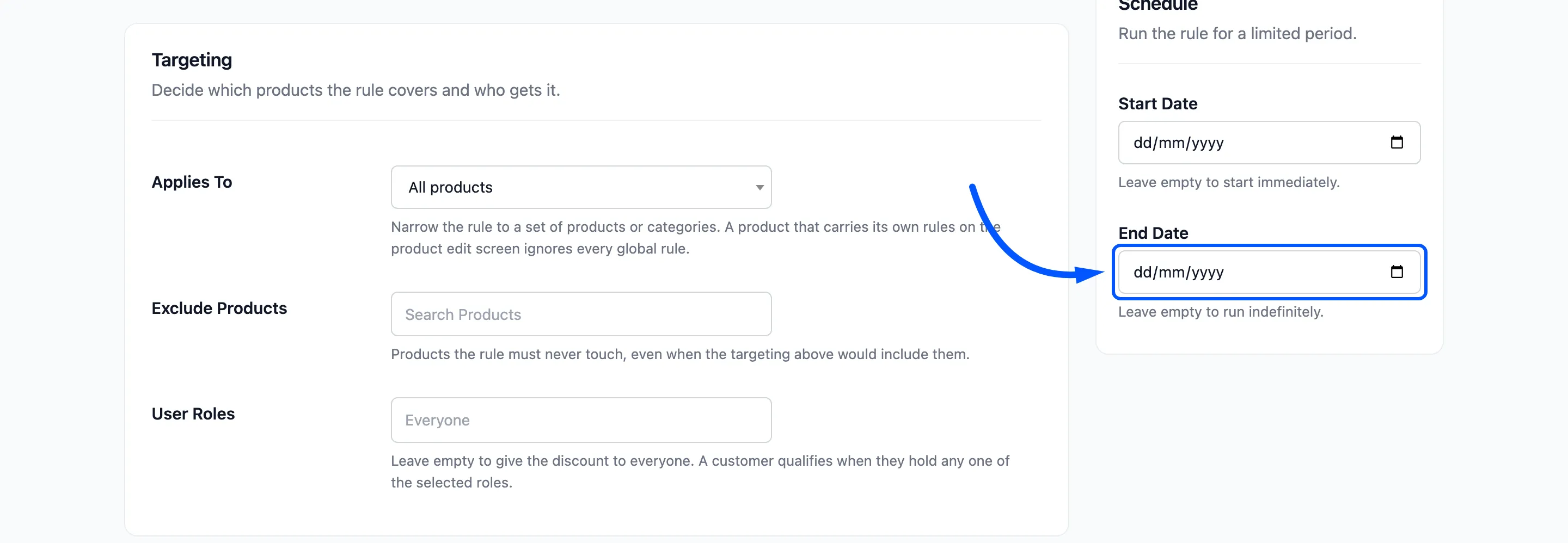
- Exclude Products: Products the rule must never touch, even when the targeting above would include them. It works with every Applies To choice.
- User Roles: Leave it empty to give the discount to everyone. A customer qualifies when they hold any one of the roles you pick. Guest (Not Logged In) is a choice in the list.
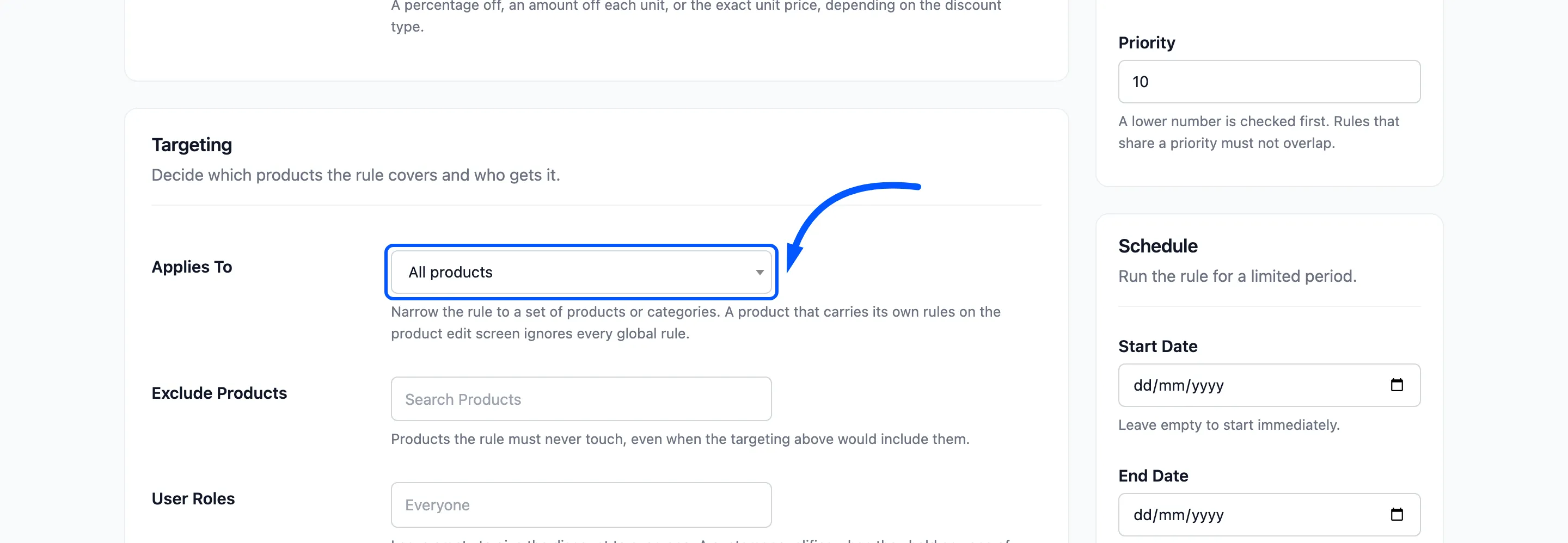
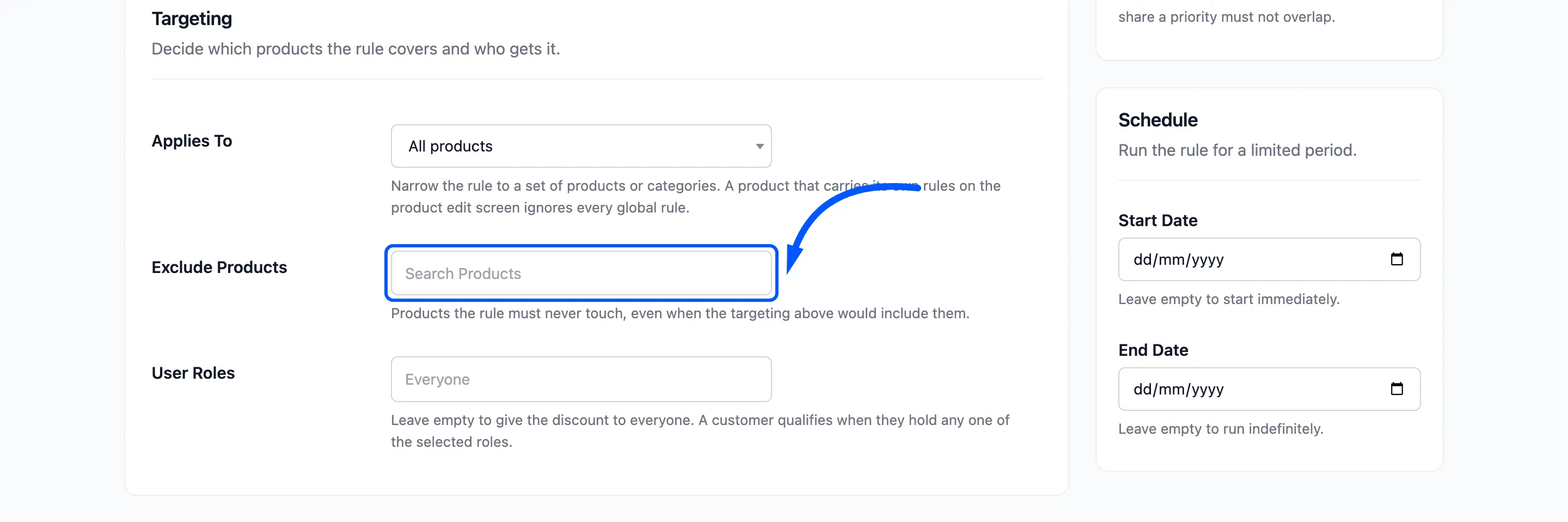
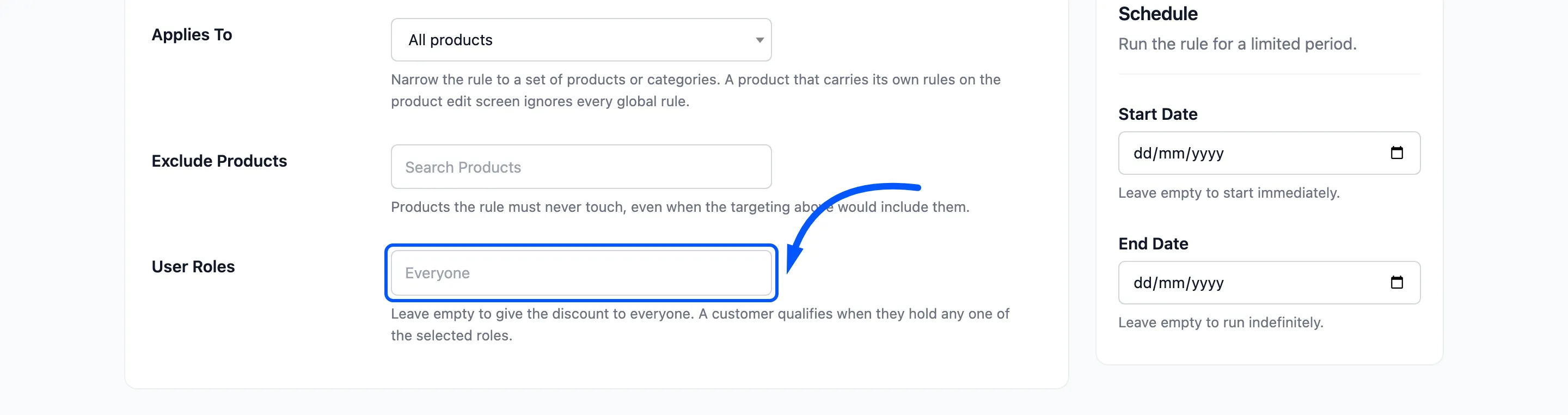
The role list shows the roles your own account is allowed to manage. A shop manager sees no Administrator choice, for example.
Status, Priority and Schedule
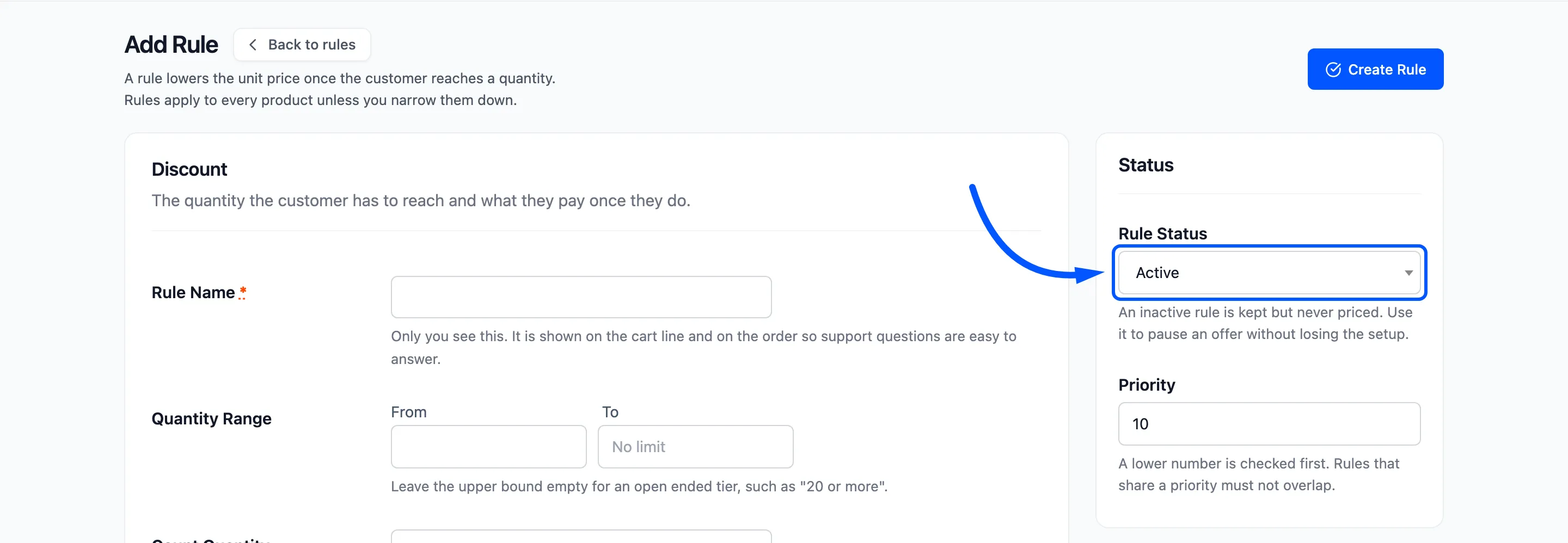
Section titled “Status, Priority and Schedule”- Rule Status: Active or Inactive. An inactive rule is kept but never priced. The default is Active.
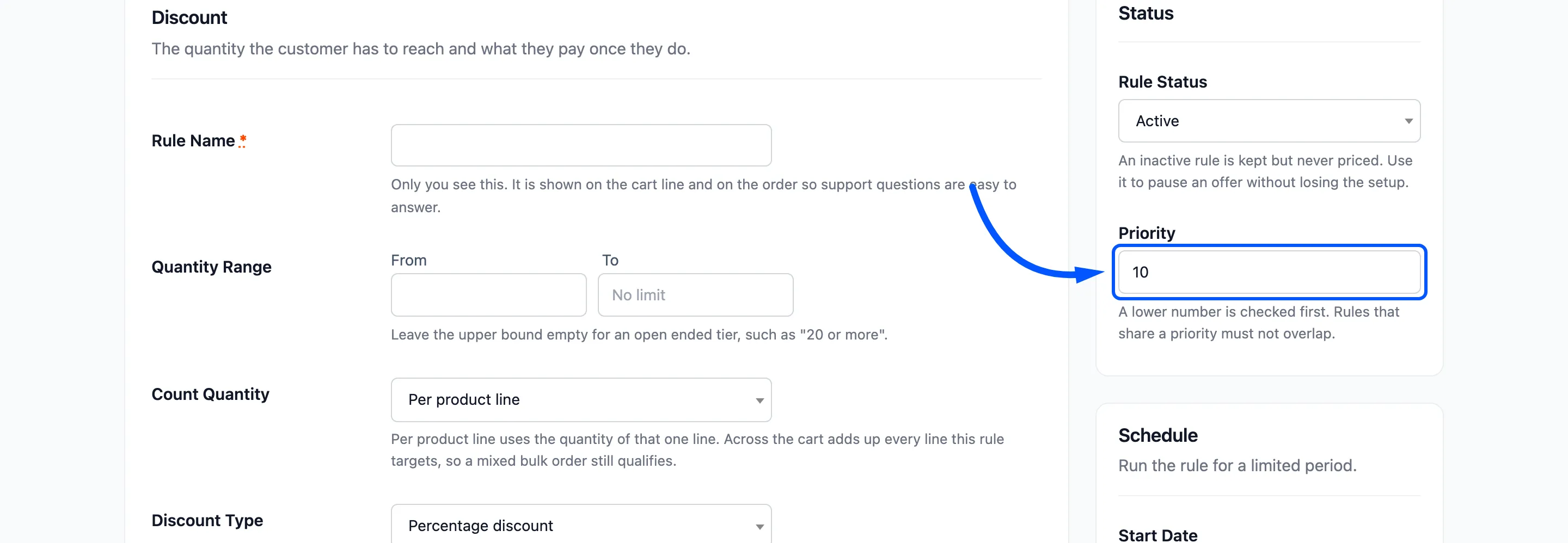
- Priority: A whole number. A lower number is checked first, and the default is 10. Rules that share a priority must not overlap.
- Start Date: Leave it empty to start immediately.
- End Date: Leave it empty to run indefinitely.
Editing an existing rule
Section titled “Editing an existing rule”Click a rule’s name on the Rules screen, or Edit under it. The same form opens with the saved values, and the button at the top reads Update Rule.
Saving
Section titled “Saving”Click Create Rule or Update Rule.
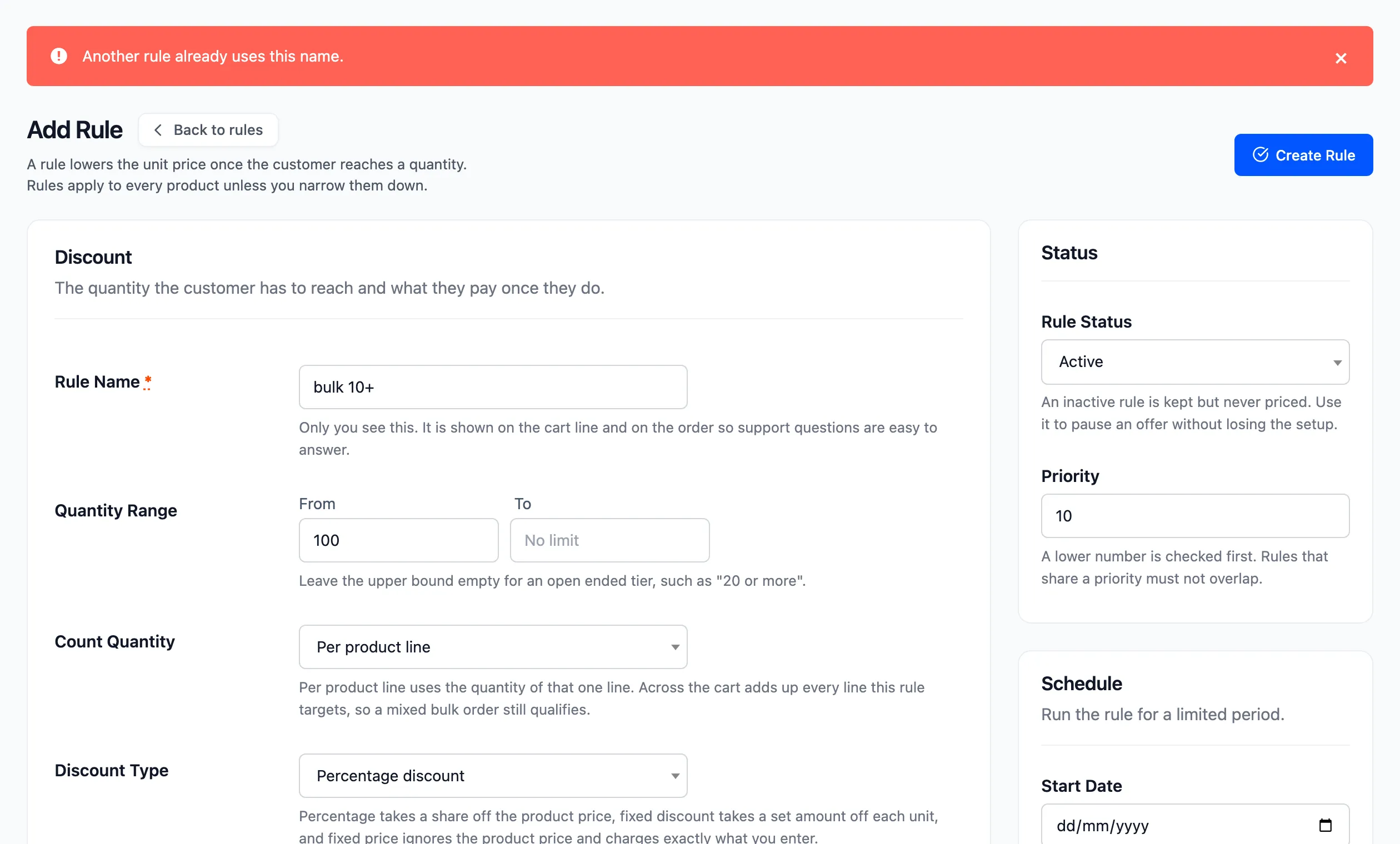
A saved rule returns you to the list with Rule saved successfully. A refused rule keeps you on the form, keeps what you typed, and shows a red message at the top.
Messages the form can show
Section titled “Messages the form can show”- Please enter a rule name.
- Quantity from must be at least 1.
- Quantity to must be greater than or equal to quantity from.
- The discount amount cannot be negative.
- A percentage discount cannot be greater than 100.
- Select at least one product for this rule. Shown when Applies To is Selected products with none chosen.
- Select at least one category for this rule. The same for categories.
- The end date must be after the start date. A rule may start and end on the same day.
- Another rule already uses this name.
- This quantity range overlaps the rule “Name”. Change the range, the targeting or the priority.
When two rules count as overlapping
Section titled “When two rules count as overlapping”The overlap message appears only when three things are true together.
- The two rules have the same Priority.
- Their targeting can reach the same product. All products reaches everything, and two selections overlap when they share a product or category.
- Their quantity ranges share at least one number.
The check does not look at roles, dates or the Count Quantity setting. Two rules for different roles with the same range and priority are still refused. Give one of them another priority.