

How to Give Wholesale Prices to a User Role
A trade customer should not see your retail ladder, and a retail customer should not see the trade price. Roles do this. A rule limited to a role is invisible to everyone else.
This tutorial gives the Customer role a 25 percent trade price from 5 units, and keeps the public ladder for everyone else.
Step 1: Create the role’s rule
Section titled “Step 1: Create the role’s rule”Add a rule called Trade pricing. Set From to 5, leave To empty, choose Percentage discount, and enter 25.
In the narrow column on the right, set Priority to 5. Lower numbers are checked first, so this rule is looked at before the ladder, which sits at 10.
Under Targeting, click User Roles and pick Customer.
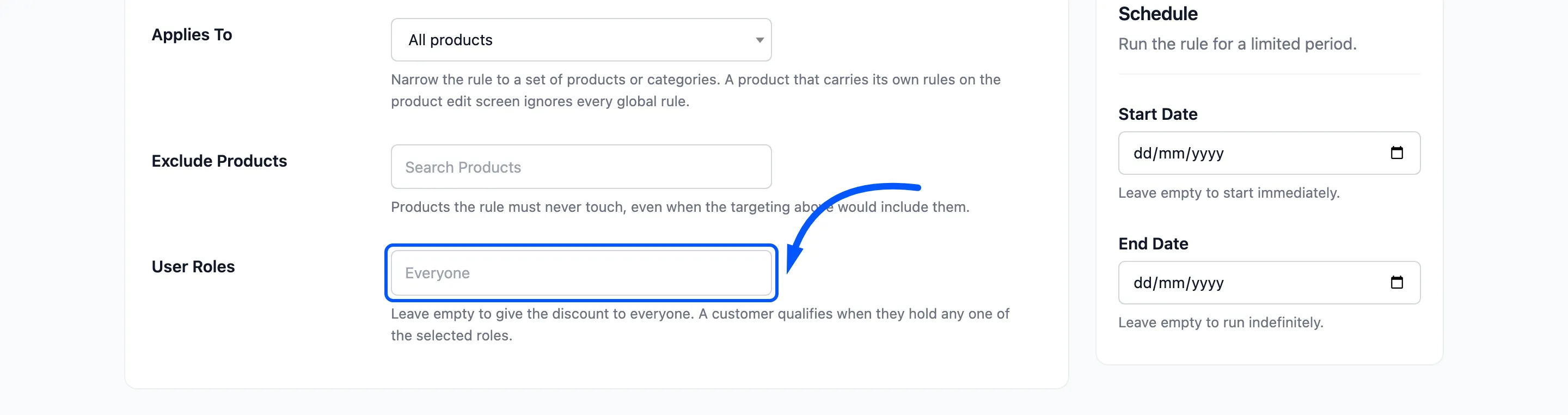
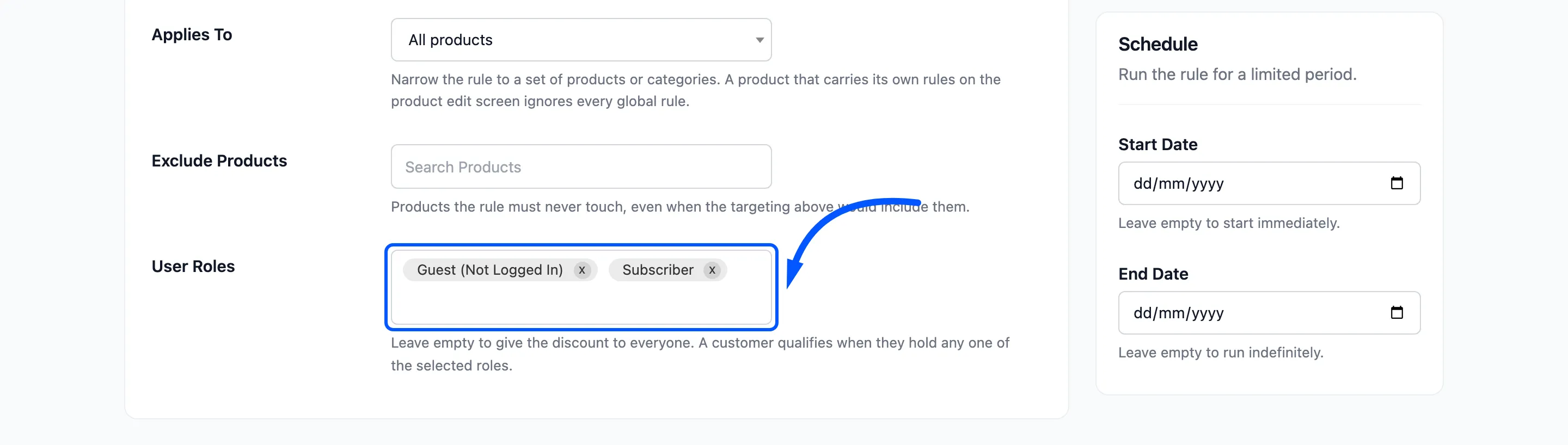
A customer qualifies when they hold any one of the roles you pick. Guest (Not Logged In) is a choice in the list, for visitors with no account. Leave the field empty to give the rule to everyone.
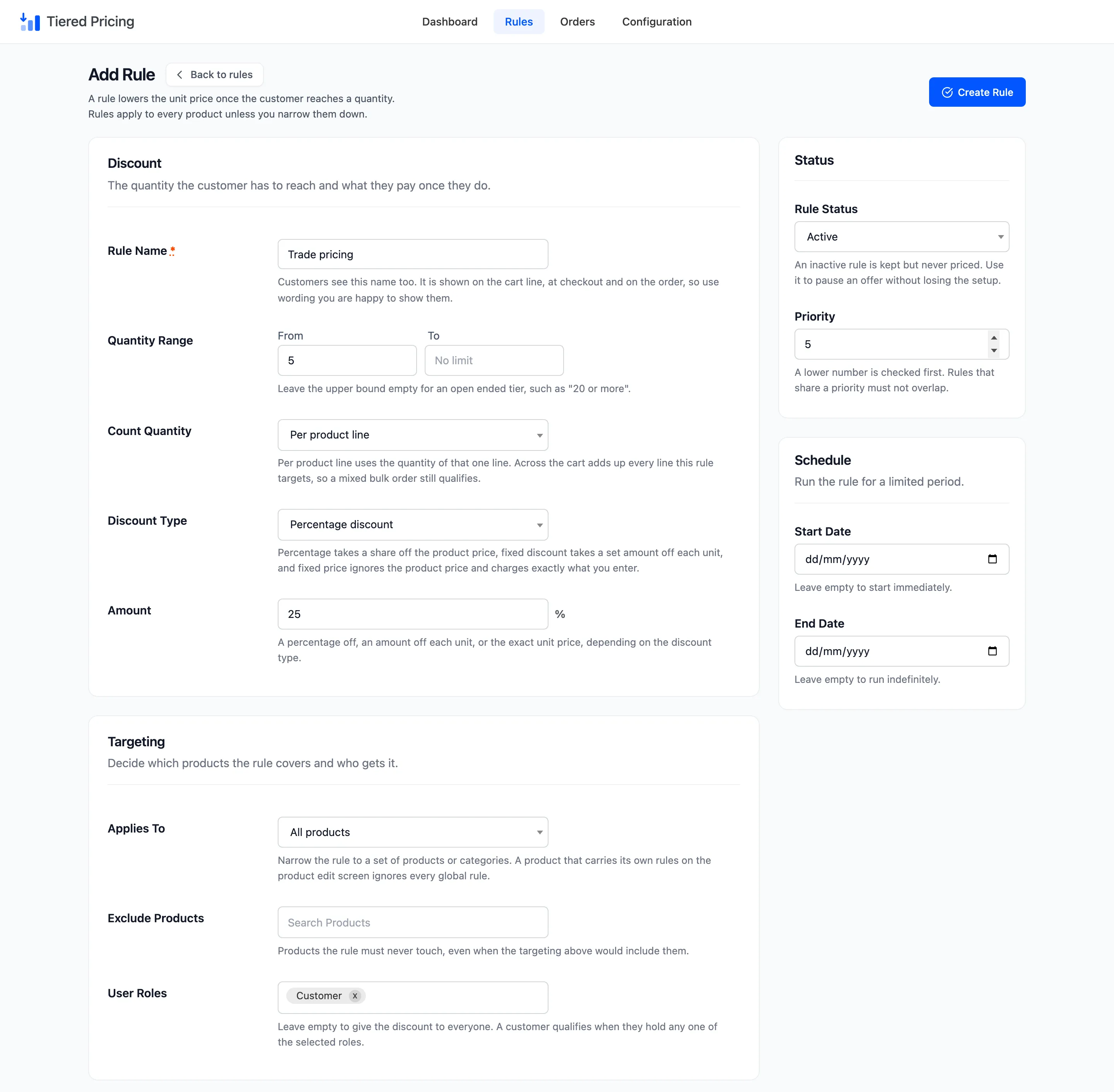
Click Create Rule.
Step 2: Compare what a guest and a customer see
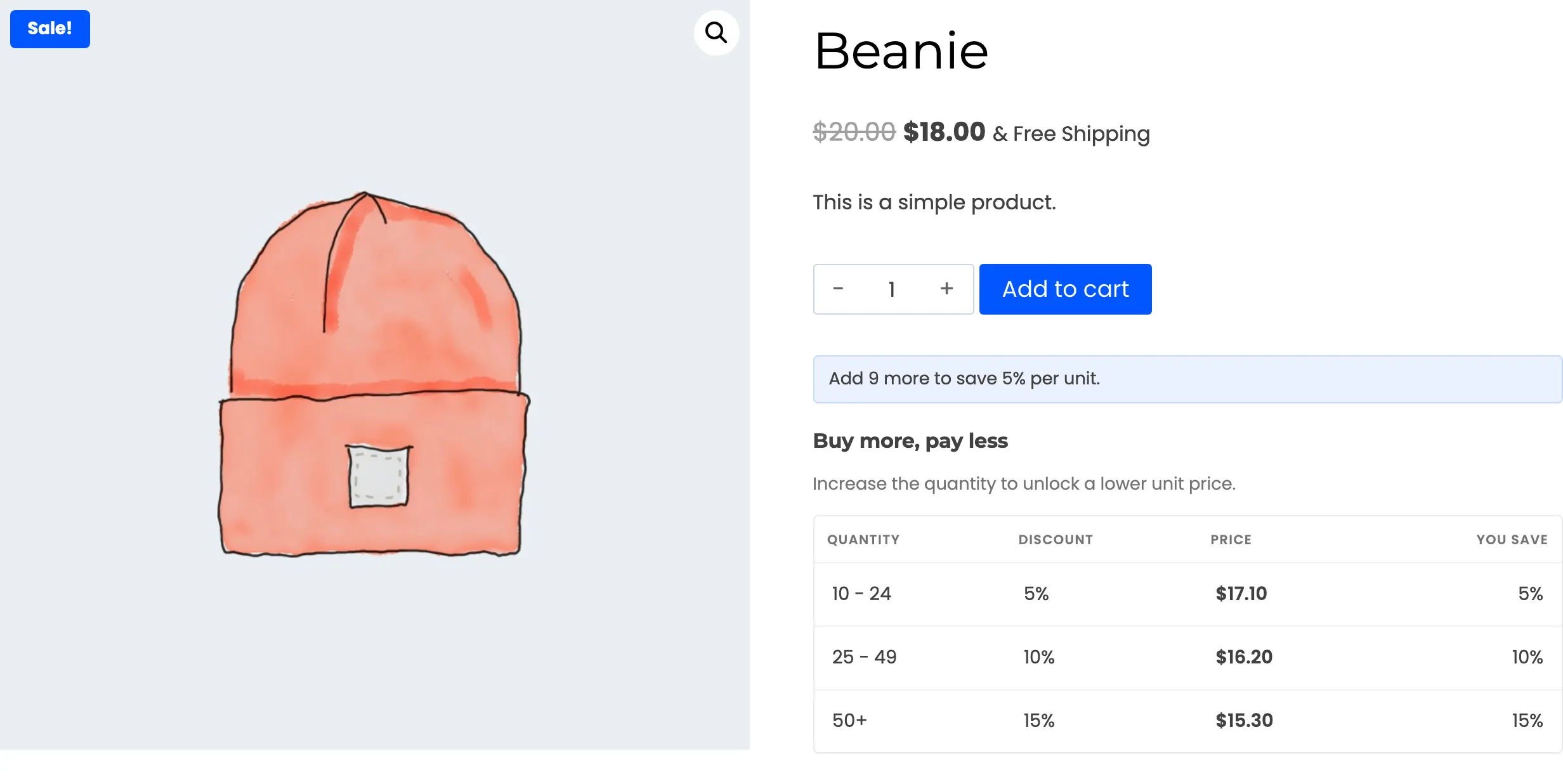
Section titled “Step 2: Compare what a guest and a customer see”Open a product in a private window, logged out. The guest sees only the public ladder.
Now log in as a customer and open the same product. The table has an extra row for the trade tier, and the public tiers are still listed under it.
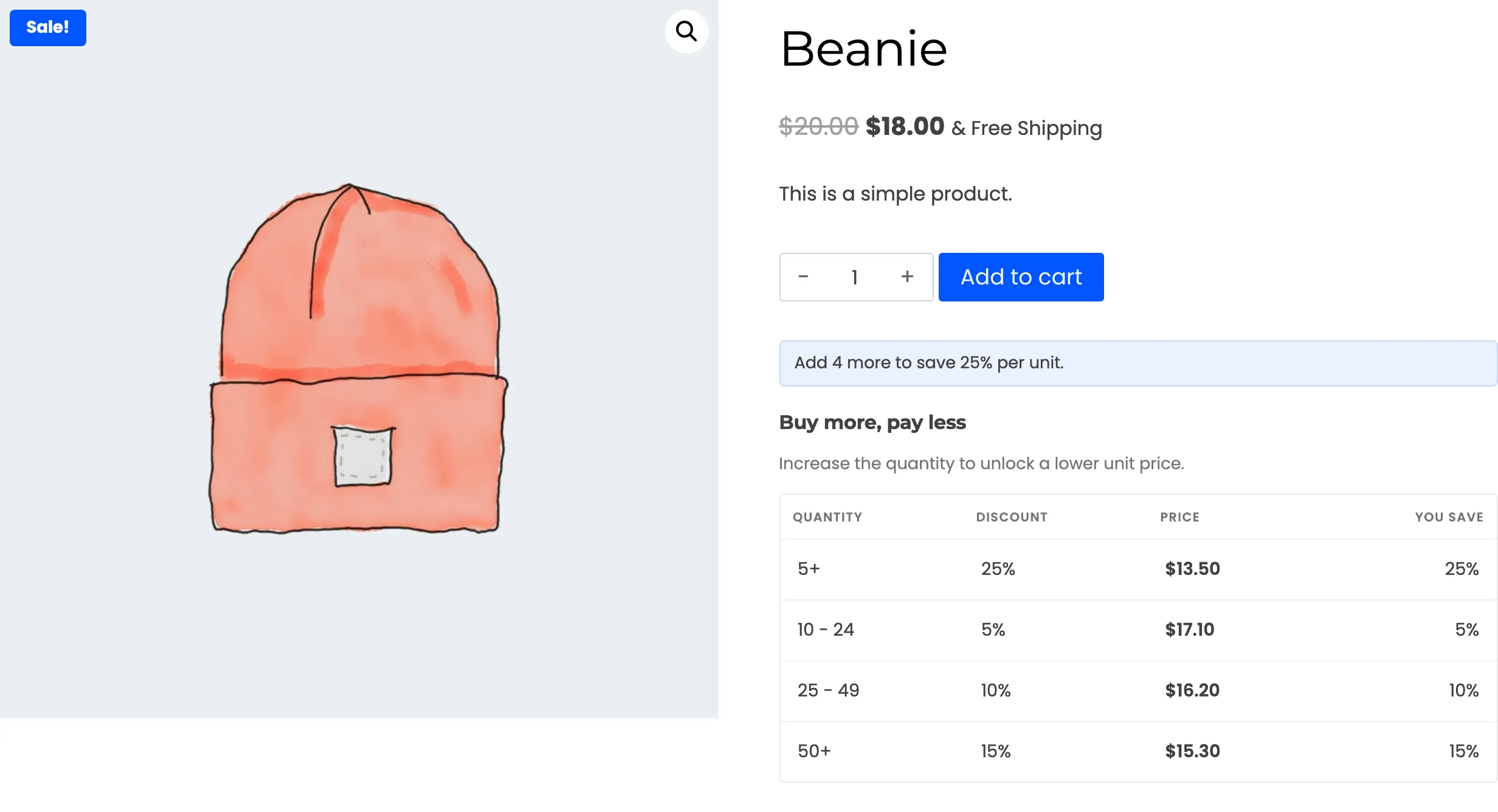
Every tier that applies to a visitor is listed, sorted by quantity. The role is not hidden from the public rules, so the customer sees both ladders.
Step 3: Check the cart price
Section titled “Step 3: Check the cart price”Add 12 to the cart as the customer. The line takes the trade price.
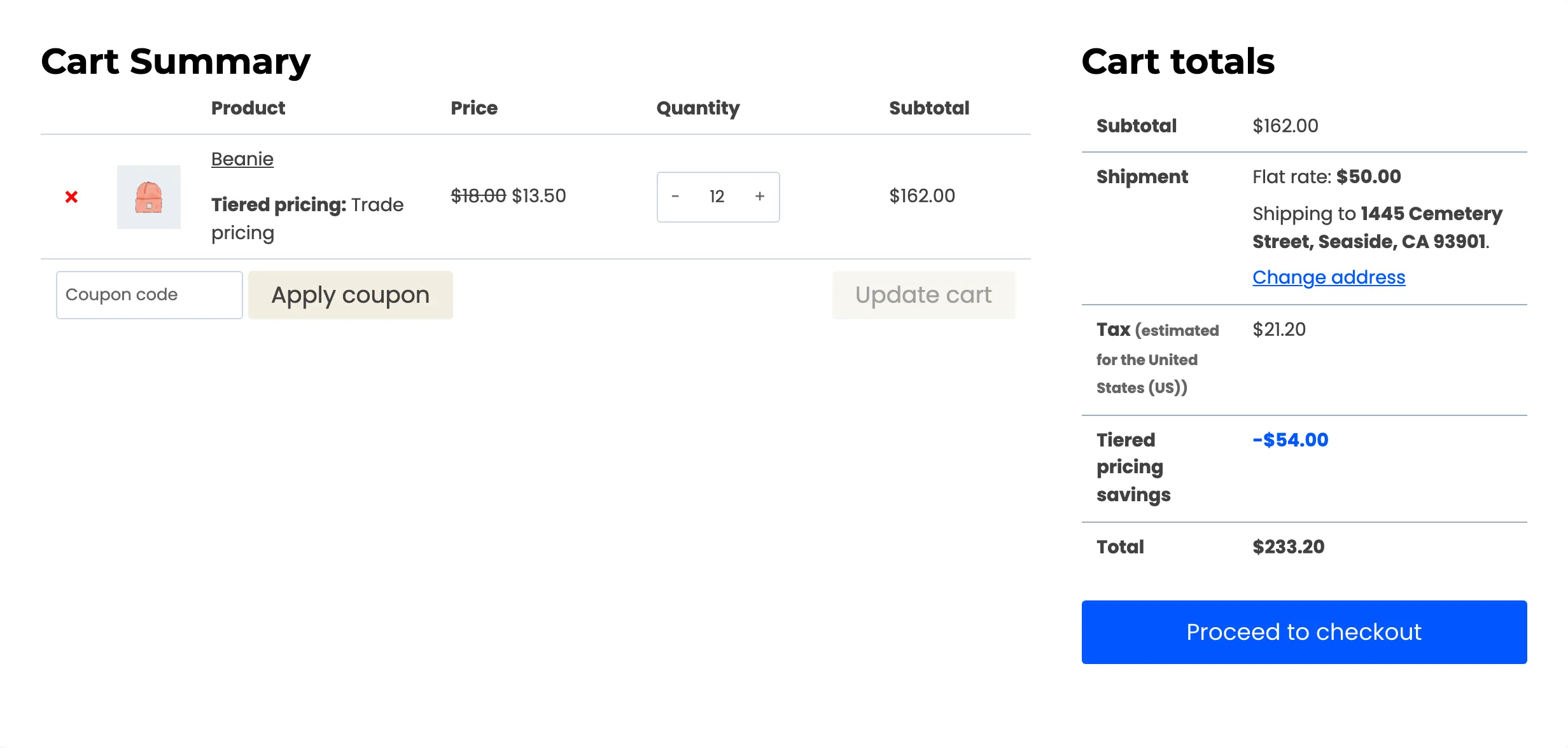
Twelve units fall into both Trade pricing (5 and over) and Bulk 10+ (10 to 24). The trade rule has priority 5, so it is checked first and wins. The price is $13.50 each, 25 percent off the $18.00 sale price, and not the $17.10 of the public tier.
The public tiers never apply to this customer from 5 units up.
Step 4: Limit the public ladder to other roles
Section titled “Step 4: Limit the public ladder to other roles”Having rows that never apply is confusing. To show the customer only their own tier, limit each public rule to the roles that should still use it.
Edit Bulk 10+, and in User Roles pick Guest (Not Logged In) and Subscriber. Do the same for Bulk 25+ and Bulk 50+.
The customer’s table now holds one row.
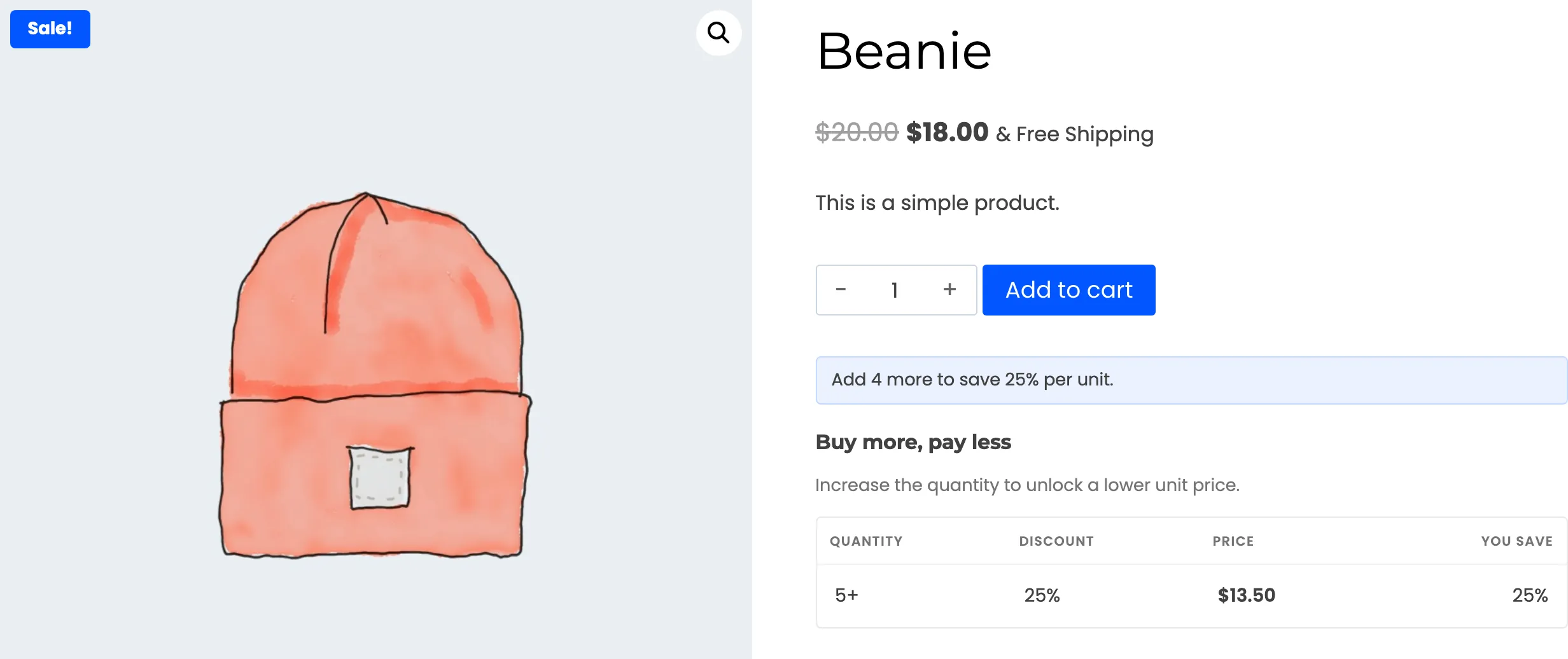
Anyone whose role is not in the list loses the public ladder. A shop manager or an editor browsing the store would see no tiers at all, unless you list their roles too. Decide who the public ladder is for, and pick the roles to match.
Two limits to know
Section titled “Two limits to know”- A role is not a price list. The plugin gives one price per rule. Two roles with different prices need two rules.
- Overlaps ignore roles. A role rule and a public rule with the same priority and overlapping ranges are refused by the form, even though the two never meet. Give them different priorities, as above.