

How to Create Your First Tiered Pricing Rule
A rule is the smallest unit of tiered pricing. This tutorial makes one: buy 10 to 24 of anything and pay 5 percent less. By the end you will have seen it on a product page and in a cart.
You need an active licence and the plugin switched on.
If you ran the setup wizard, you already have a rule called Bulk discount that covers 5 units or more. Change it or delete it first. A new rule for 10 to 24 units at the same priority would overlap it, and the form would refuse to save.
Step 1: Open the Rules screen
Section titled “Step 1: Open the Rules screen”Go to DevDiggers Plugins → Tiered Pricing → Rules and click Add Rule.
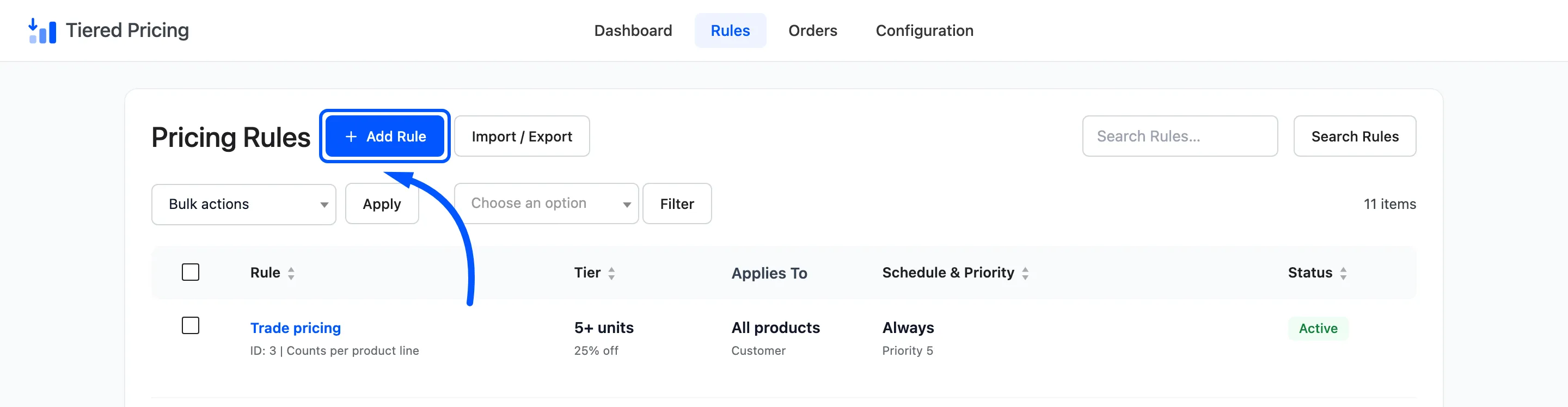
The form opens with a default for every setting. Only the name, the quantities and the amount are yours to fill in.
Step 2: Name the rule
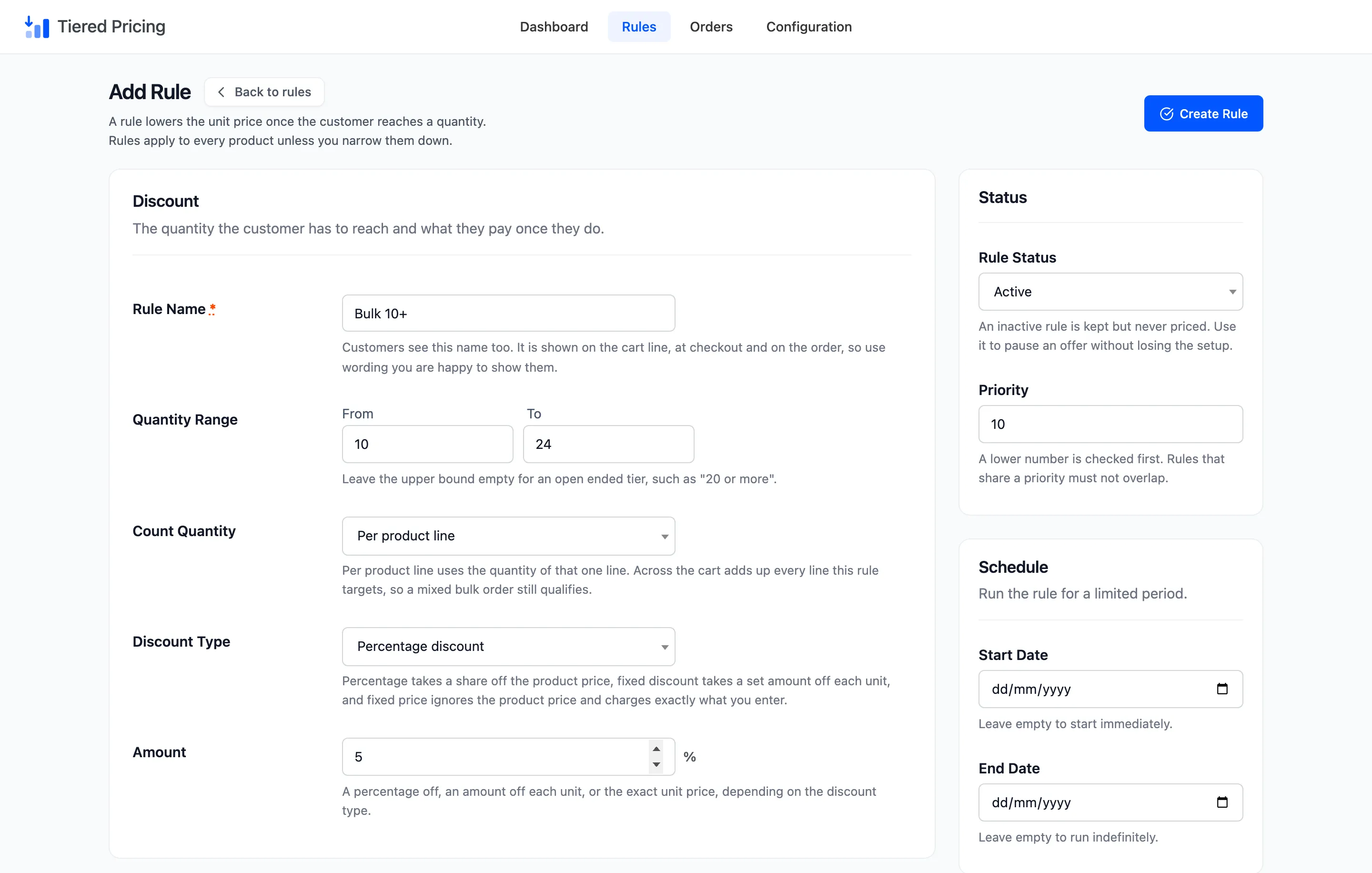
Section titled “Step 2: Name the rule”Type a name in Rule Name. The name is required, and it must be different from every other rule.
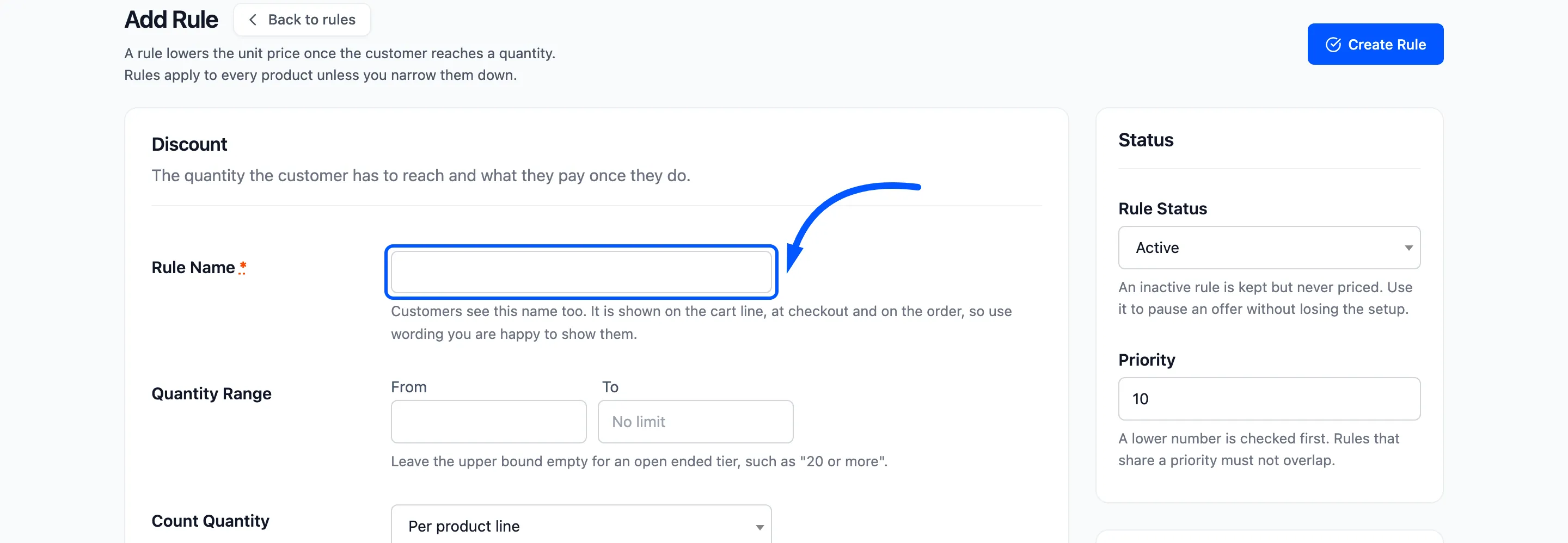
Customers see this name. It appears under the product in their cart as Tiered pricing: Bulk 10+, so write something short that describes the offer. Name the range, not the discount, if you plan to change the percentage later.
Step 3: Set the quantity range
Section titled “Step 3: Set the quantity range”In Quantity Range, enter 10 in From and 24 in To.
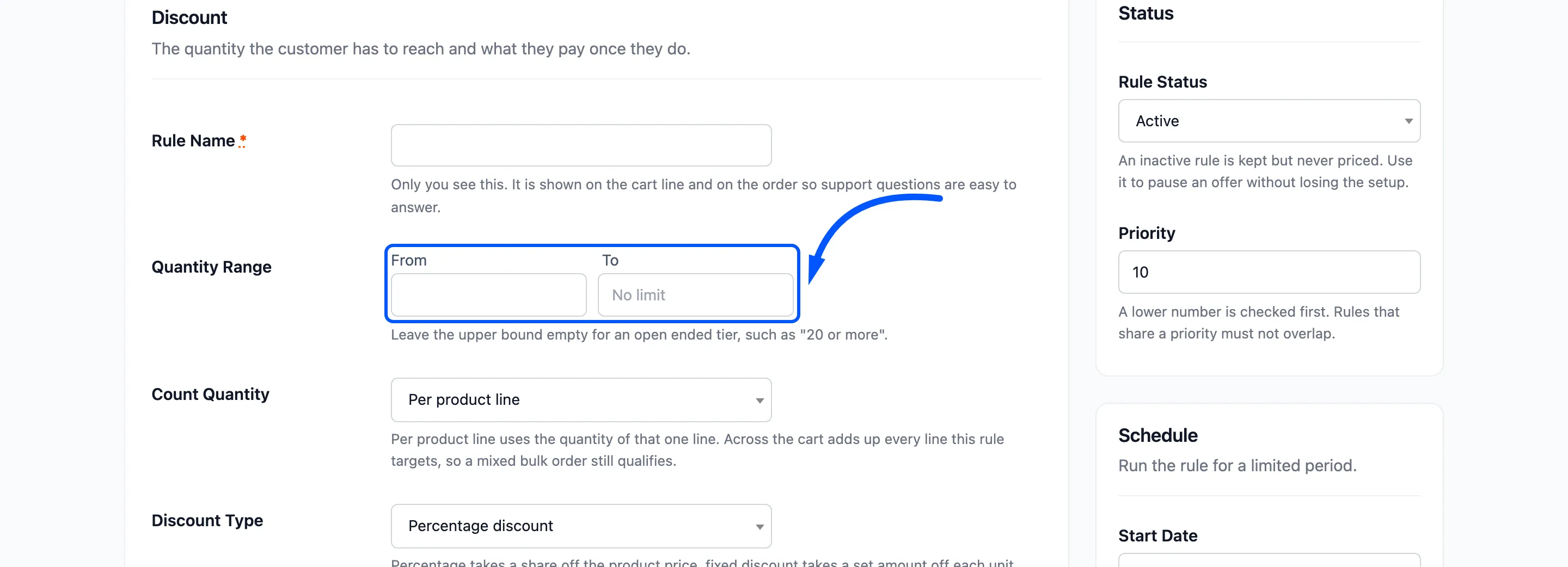
From is the first quantity that gets the price. To is the last. Leave To empty if the tier should have no upper limit, such as “50 or more”.
For a first rule, a closed range keeps the next tutorial simple, because the next tier then starts at 25.
Step 4: Choose the discount
Section titled “Step 4: Choose the discount”Leave Discount Type on Percentage discount and type 5 in Amount. The box shows a %
beside it.
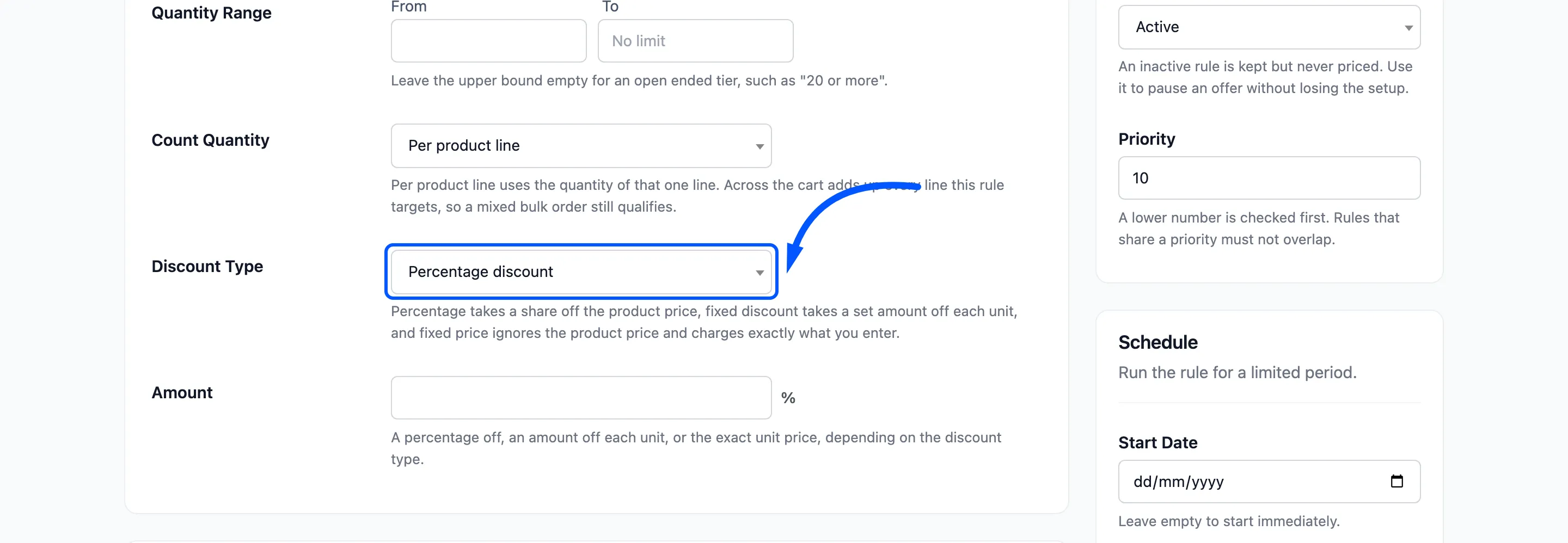
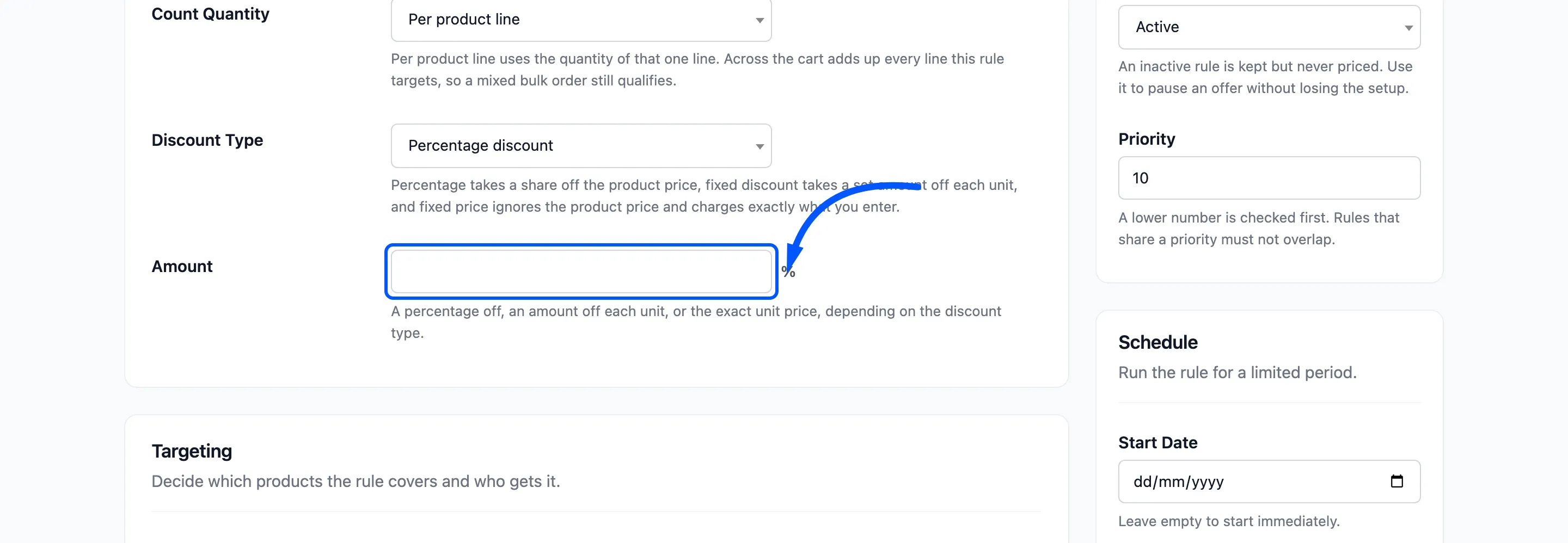
The other two types are a fixed discount per unit and a fixed unit price. They are in How to Offer a Fixed Discount or a Fixed Unit Price.
Leave Applies To on All products, User Roles empty and Rule Status on Active. The rule then covers the whole store and every visitor.
Step 5: Save the rule
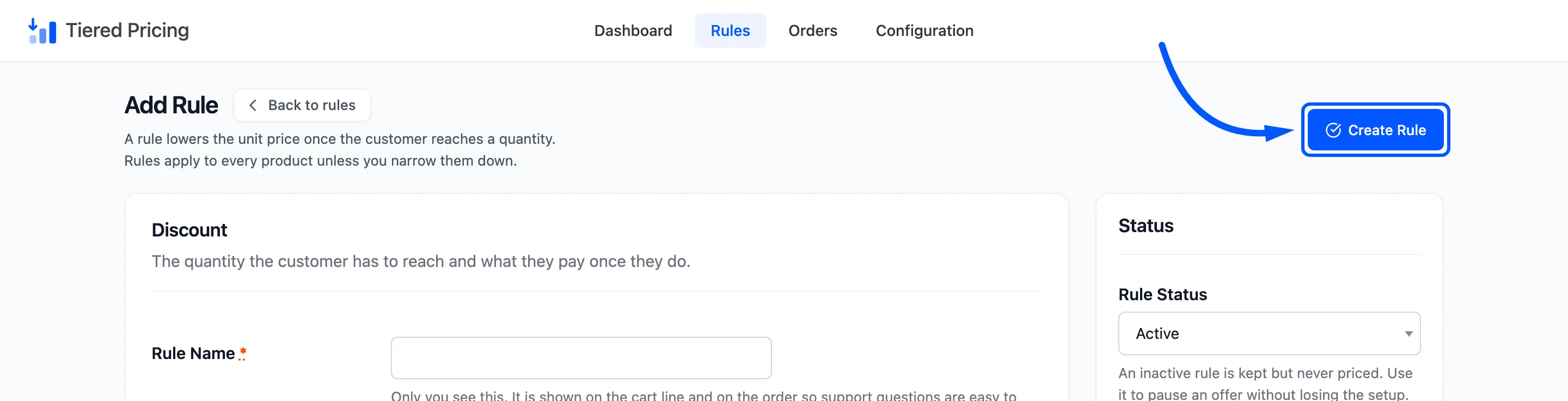
Section titled “Step 5: Save the rule”Click Create Rule at the top right.
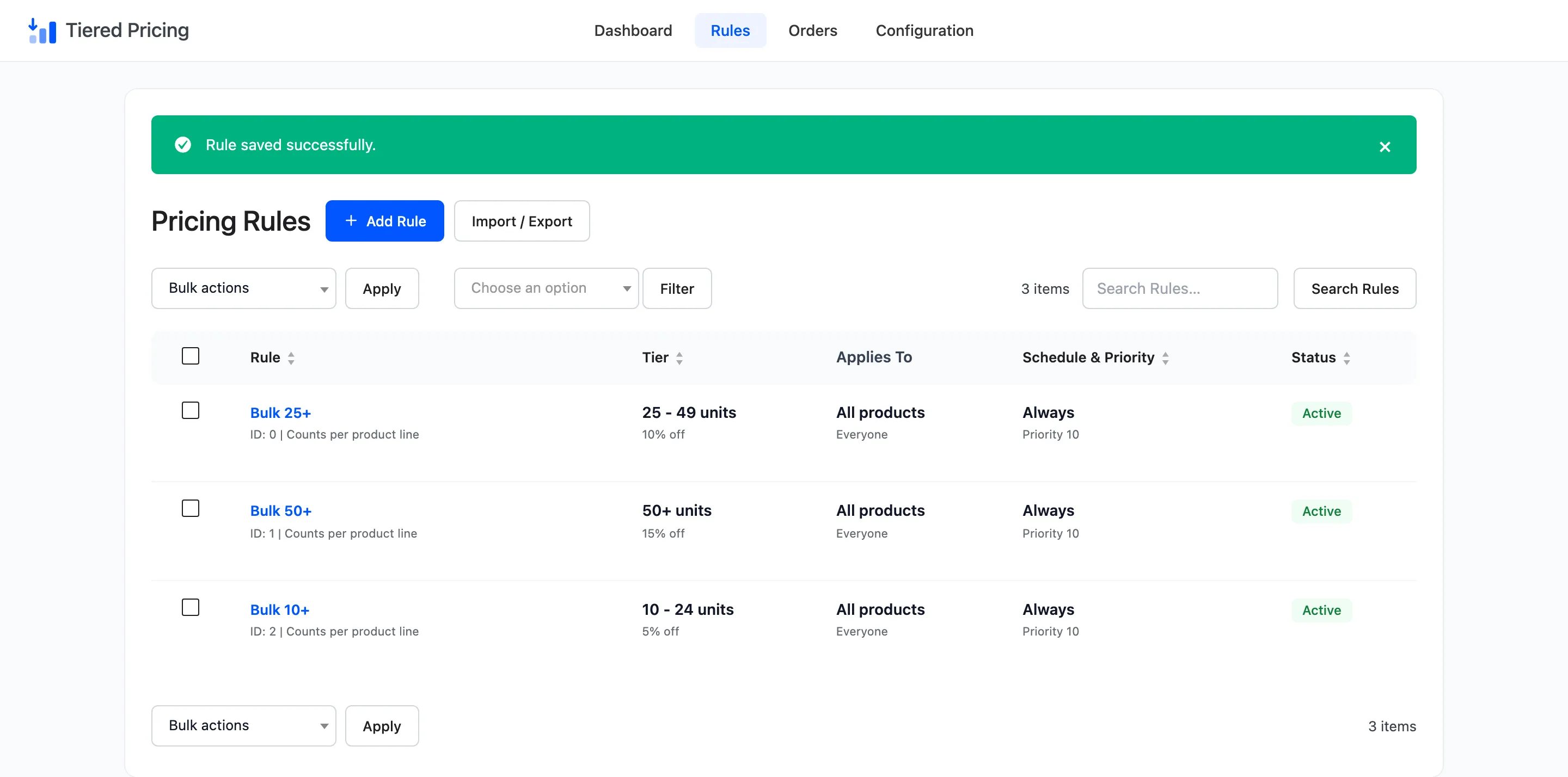
You return to the list with Rule saved successfully. and the new rule in it.
If the form refuses the rule, a red message at the top says why, and what you typed is kept. The full list of messages is in The Rule Editor.
Step 6: Check the storefront
Section titled “Step 6: Check the storefront”Open a simple product in a private window, so you are logged out. The pricing table sits under the Add to cart button.
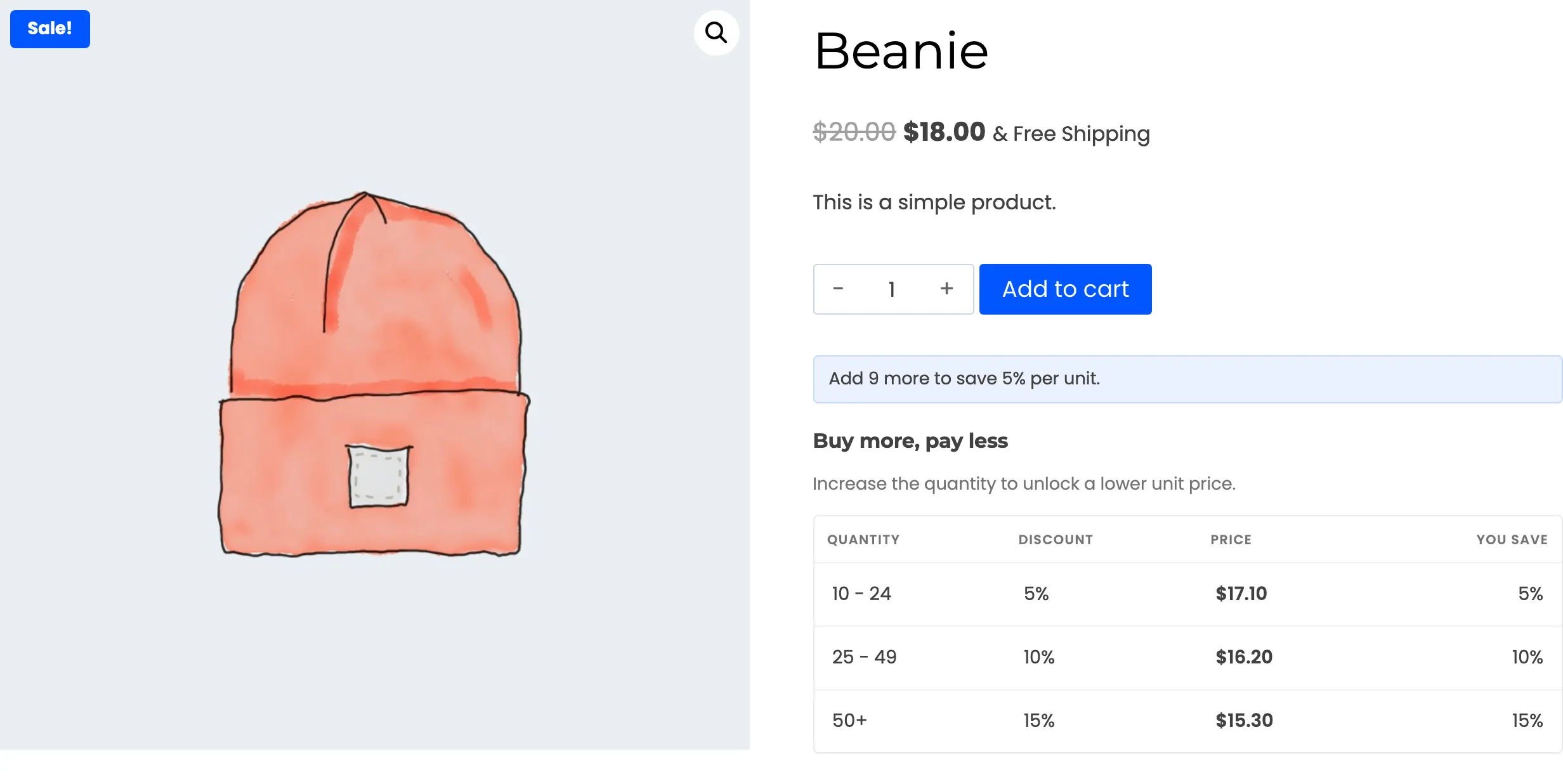
Type 12 in the quantity box. The tier is highlighted, and the hint under the button changes. Add the product to the cart and the line shows the tier price.
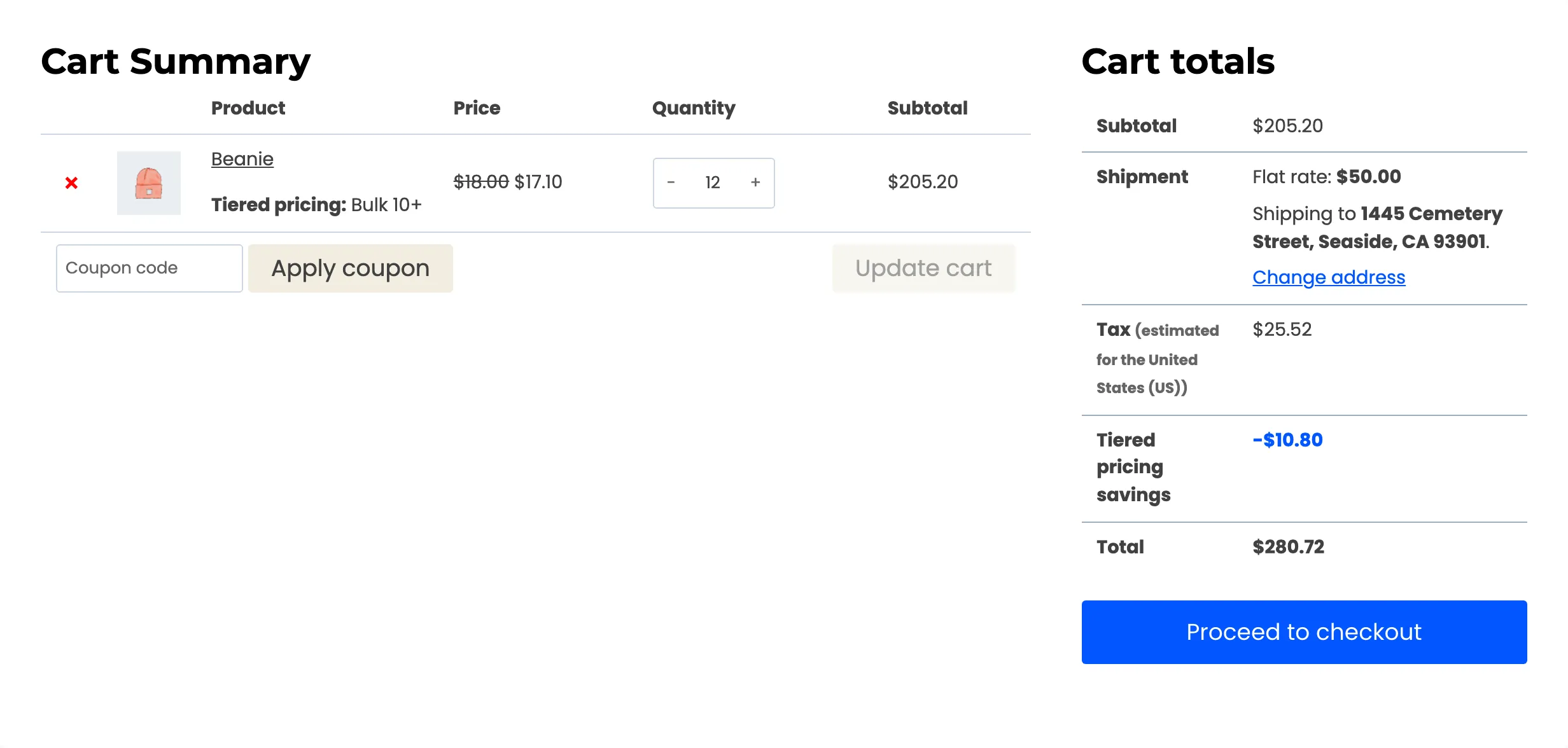
On the demo, a Beanie on sale at $18.00 drops to $17.10 each at 12 units. The saving is $10.80, and the savings row in the totals shows it.
If you do not see the table
Section titled “If you do not see the table”Work through the checks in How to Fix a Tier That Does Not Apply. The two most common causes are an inactive licence and a page your host has cached.