How to Find the Rule Behind an Order
A customer writes: “Why was my total lower than I expected?” Another says: “I bought 30 but only got 5 percent.” The answer is saved on the order. This tutorial finds it in a minute.
Step 1: Find the order
Section titled “Step 1: Find the order”Open DevDiggers Plugins → Tiered Pricing → Orders. If you know the customer, use the search box.
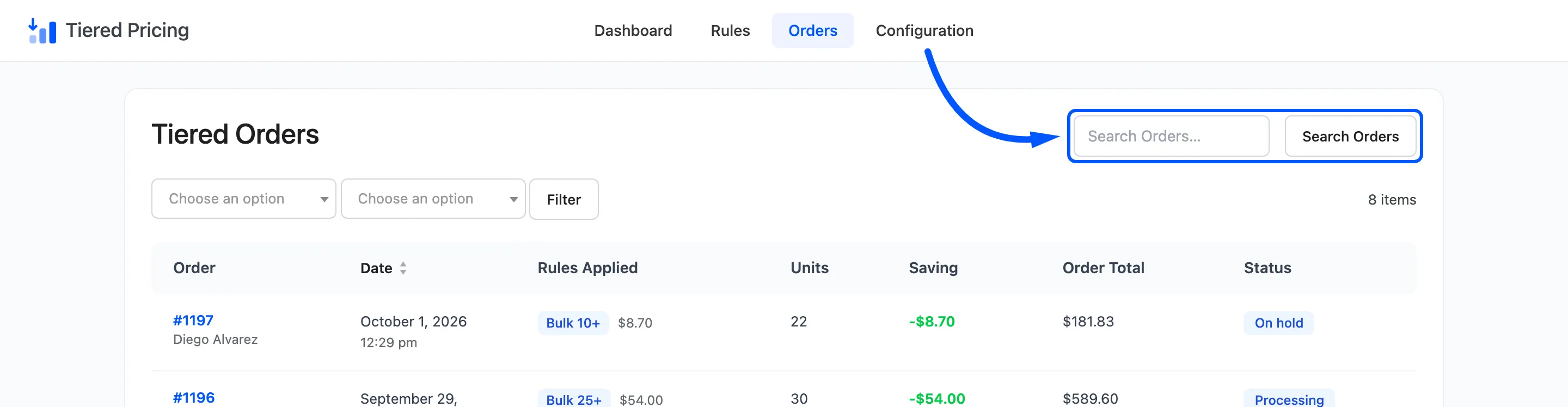
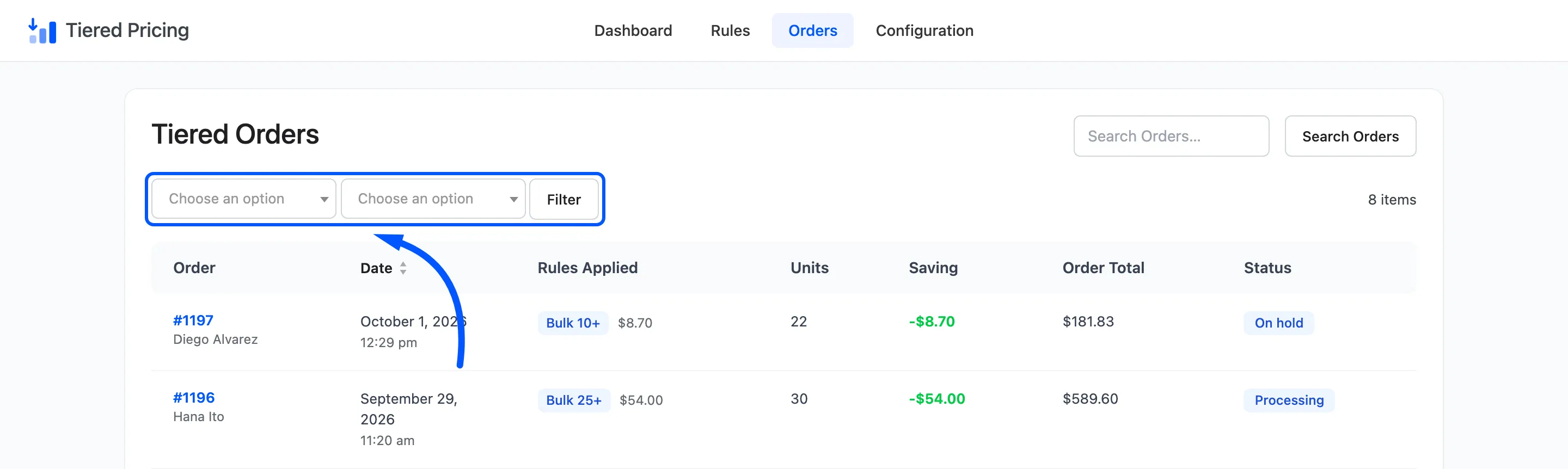
A name, an email address or an order number works. To list a period, use the filters for status and date.
If the order is not in the list, no line on it received a tier price. The customer paid the normal price for everything.
Step 2: Read the rule and the saving
Section titled “Step 2: Read the rule and the saving”The row already holds most of the answer.
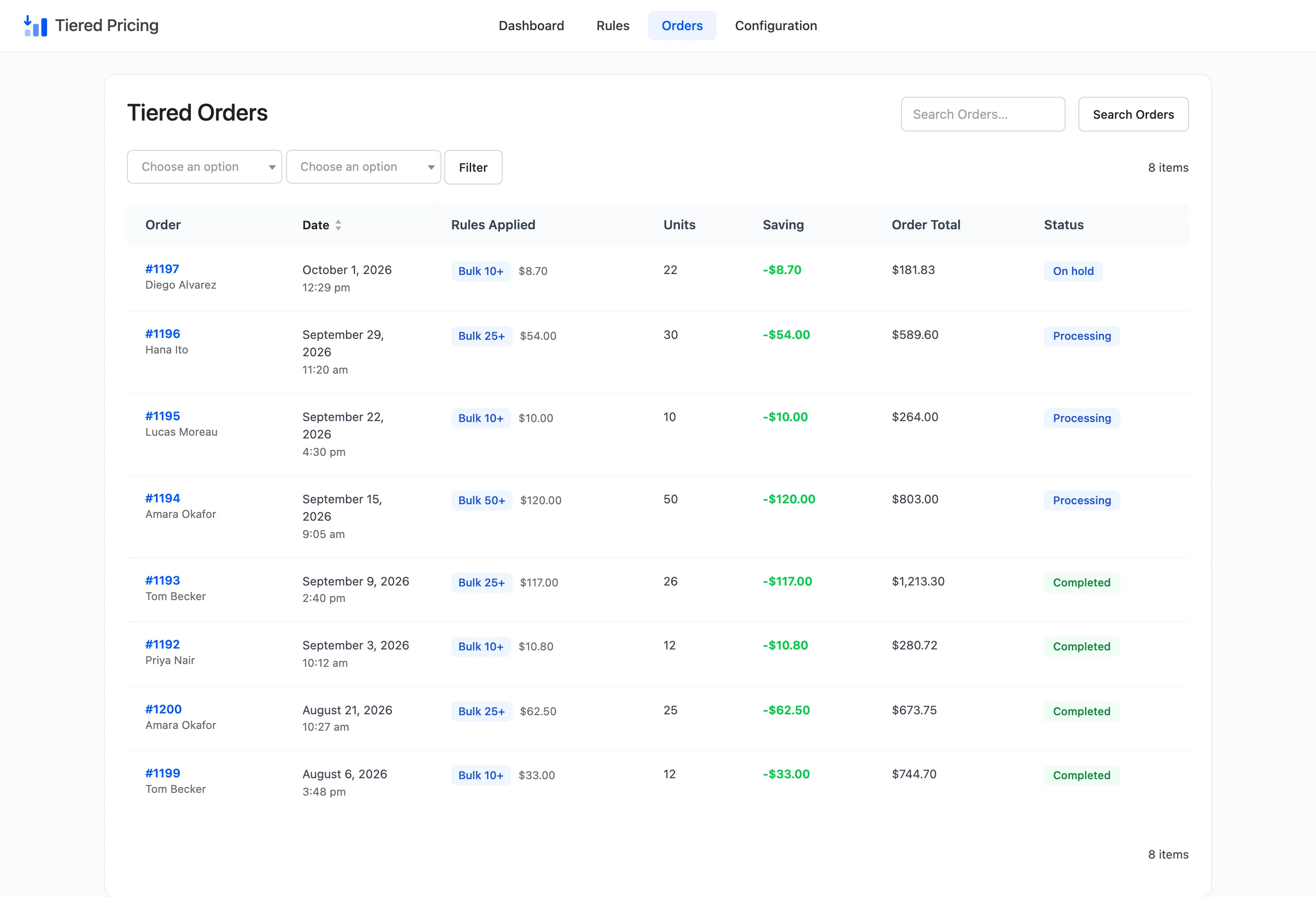
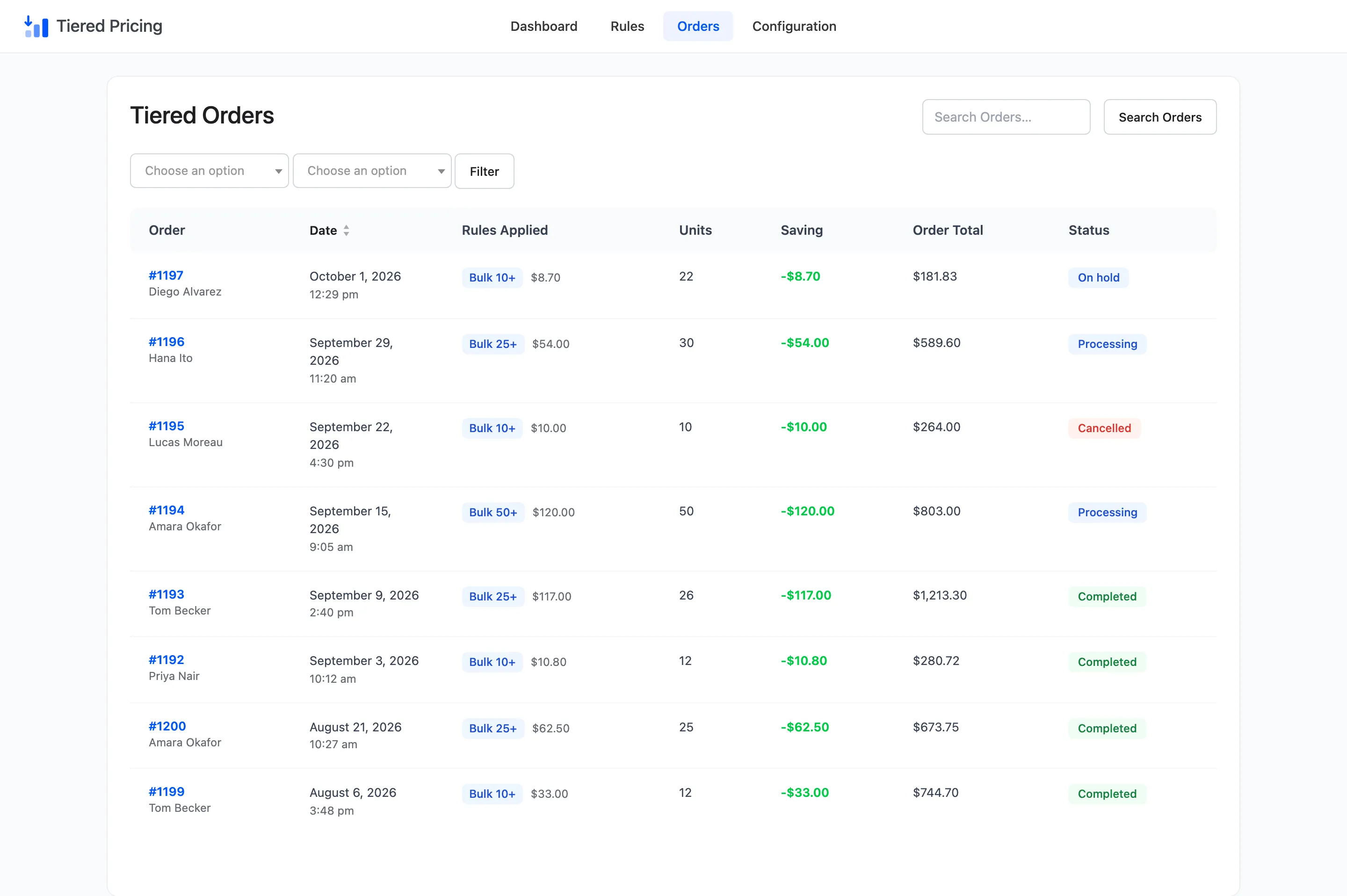
- Rules Applied: The rule name, and under it the amount that rule saved on this order.
- Units: How many units bought at a tier price.
- Saving: The total saved on the whole order.
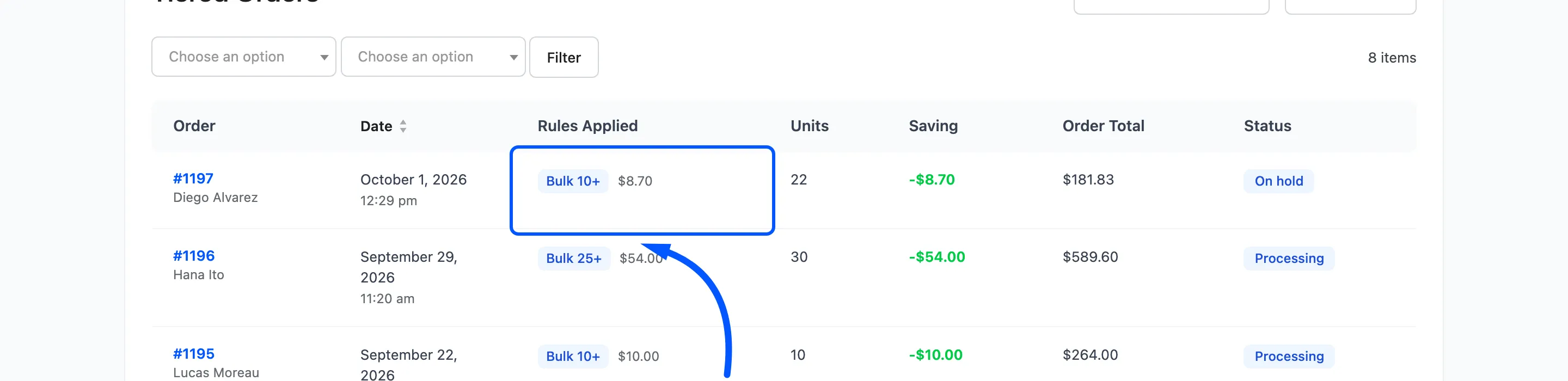
On the demo, order 1193 lists Bulk 25+, with 26 units and a saving of $117.00. That is the customer who bought 26 Hoodies with Zipper. The tier gave 10 percent off a $45.00 price, which is $4.50 a unit.
Step 3: Open the order
Section titled “Step 3: Open the order”Click the order number. Under each discounted product, the order shows the four saved values and a line that reads Tiered pricing: Bulk 25+ (saved $117.00).
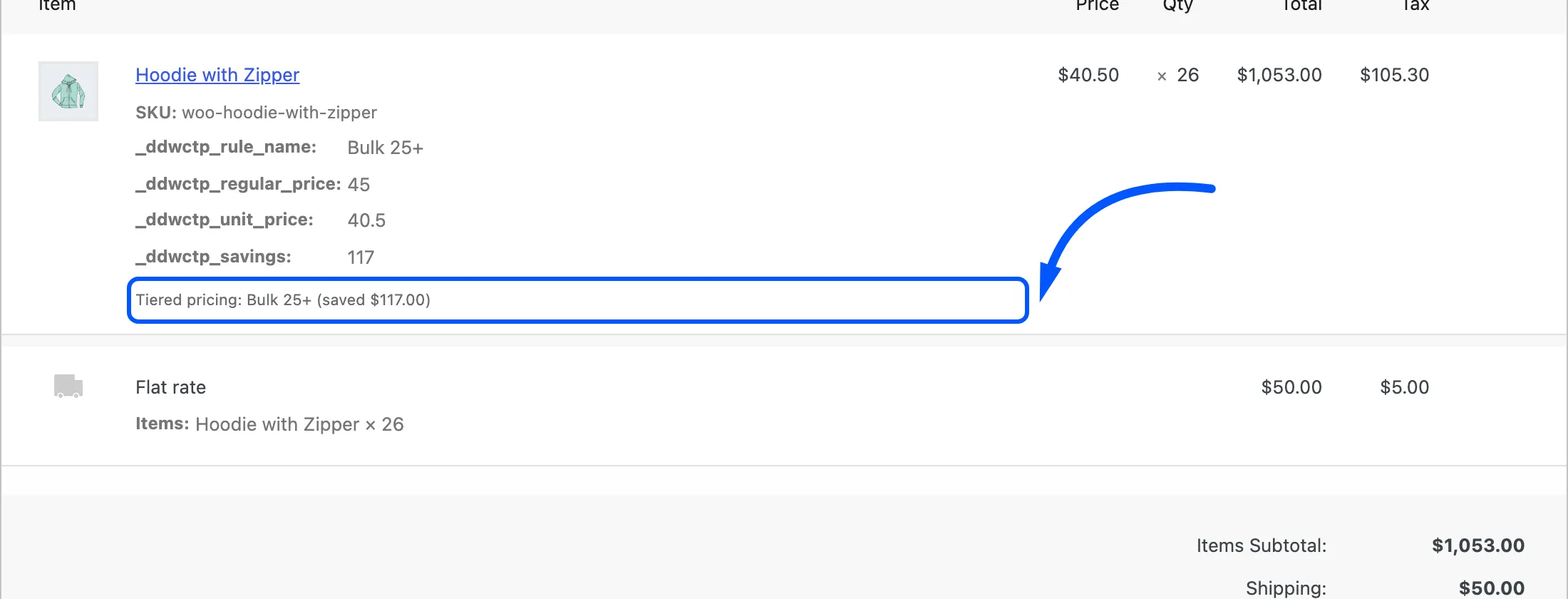
The fields give the normal price at the time, the tier unit price and the saving. They are a frozen copy of what happened. Nothing recalculates them.
Step 4: Check the rule itself
Section titled “Step 4: Check the rule itself”Open Rules and search for the rule name. Two things are worth a look.
- The rule may have changed. The order shows the price at the time of the sale. The rule may now say something different, or be gone. A deleted rule does not alter an old order.
- The customer may have expected another tier. If they bought 30 but “only got 5 percent”, compare their quantity with the ranges. A range such as 10 to 24 does not cover 30. The order tells you which rule matched. The ladder tells you why a deeper one did not.
If the customer thought a tier would apply and it did not, see How to Fix a Tier That Does Not Apply.
Step 5: Reply to the customer
Section titled “Step 5: Reply to the customer”Give three facts: the tier, the quantity and the price for each unit. For order 1193 that is “26 hoodies at the Bulk 25+ tier, $40.50 each instead of $45.00”. The cart showed the same rule name at checkout, so the customer has seen it before.
A note on cancelled orders
Section titled “A note on cancelled orders”The Orders screen lists cancelled orders, marked Cancelled. The dashboard does not count them. When the two disagree, look at the status column.