

Product and Variation Rules
Global rules cover many products at once. Sometimes one product needs a ladder of its own: a hat sold in teams, a cable sold by the hundred. The product editor has a small rules table for that.
Where it is
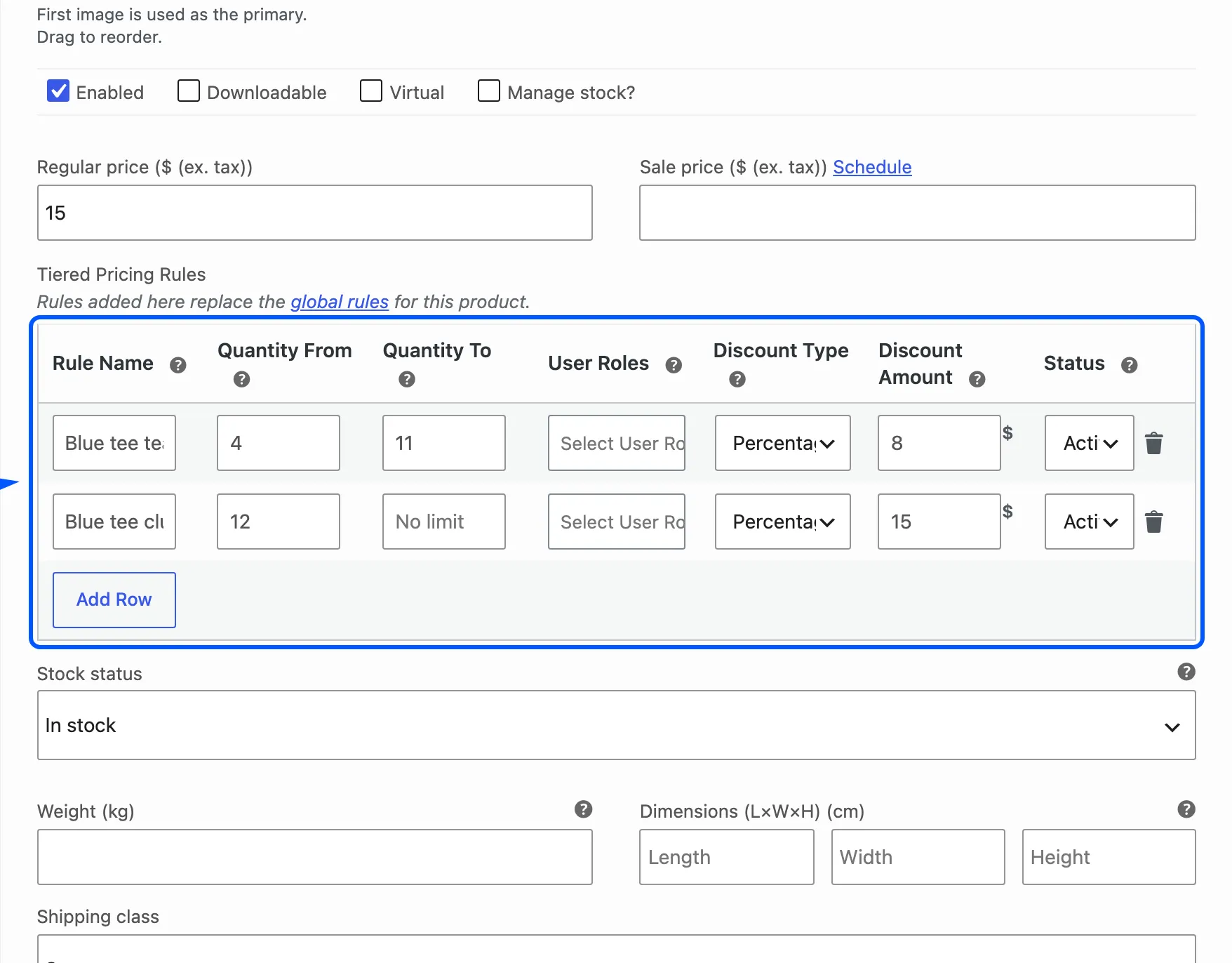
Section titled “Where it is”Open a product from Products → All Products. On the General tab of Product data, under the Regular price and Sale price fields, you will find Tiered Pricing Rules.
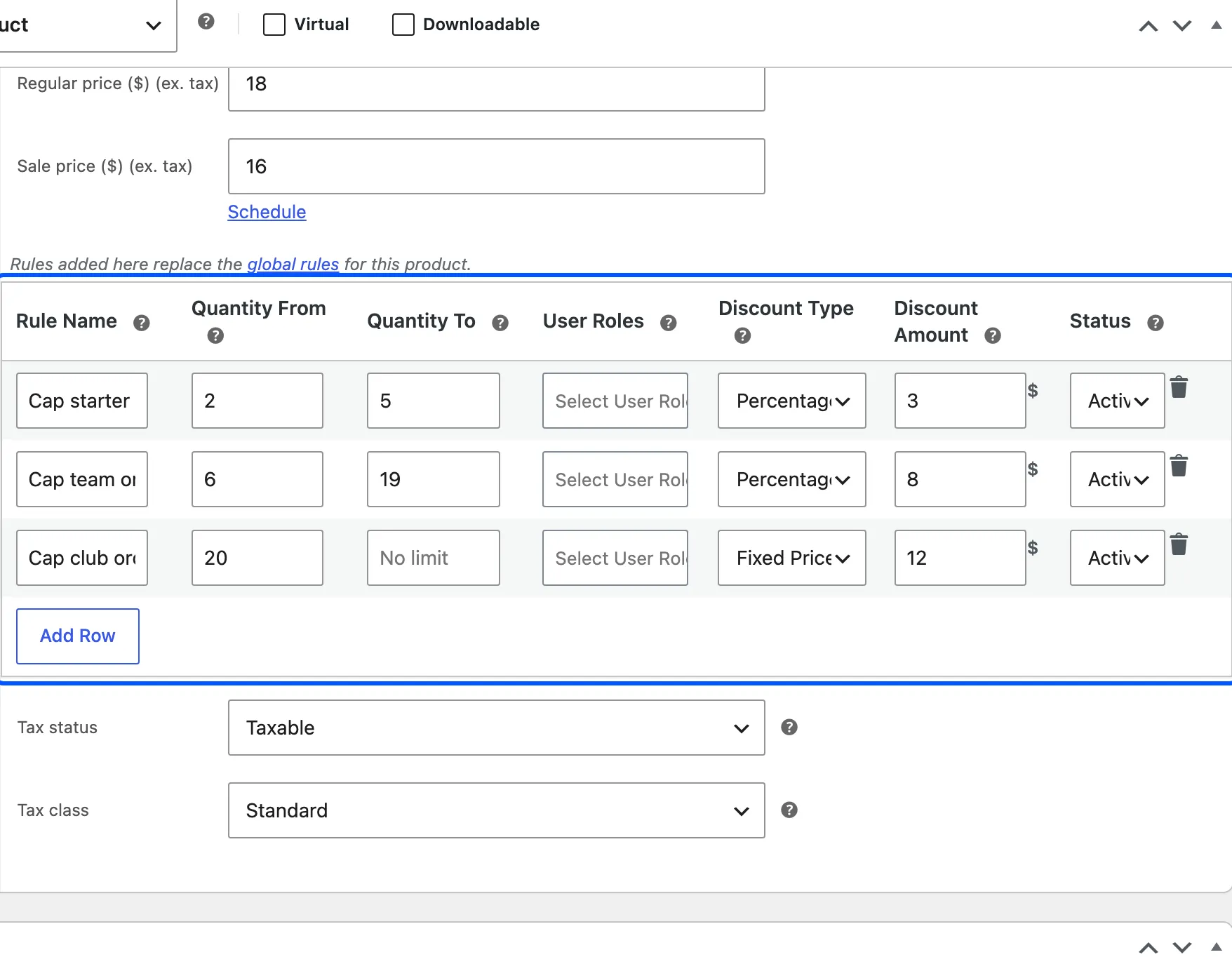
The table appears for simple products. A variable product shows it inside each variation instead, in the Variations tab. See Variations below.
It replaces the global rules
Section titled “It replaces the global rules”The line above the table says it: rules added here replace the global rules for this product. The link in that line opens the Rules screen.
- One row or more: The product uses only its own rows. Every global rule is ignored for it, even a rule that targets this product by name.
- No rows: The product uses the global rules as usual.
The switch is on the number of rows, not on their status. A product whose only row is Inactive gets no tier price at all, and the global rules do not step in. Remove the row to hand the product back to the global rules.
The columns
Section titled “The columns”Each row is one tier.
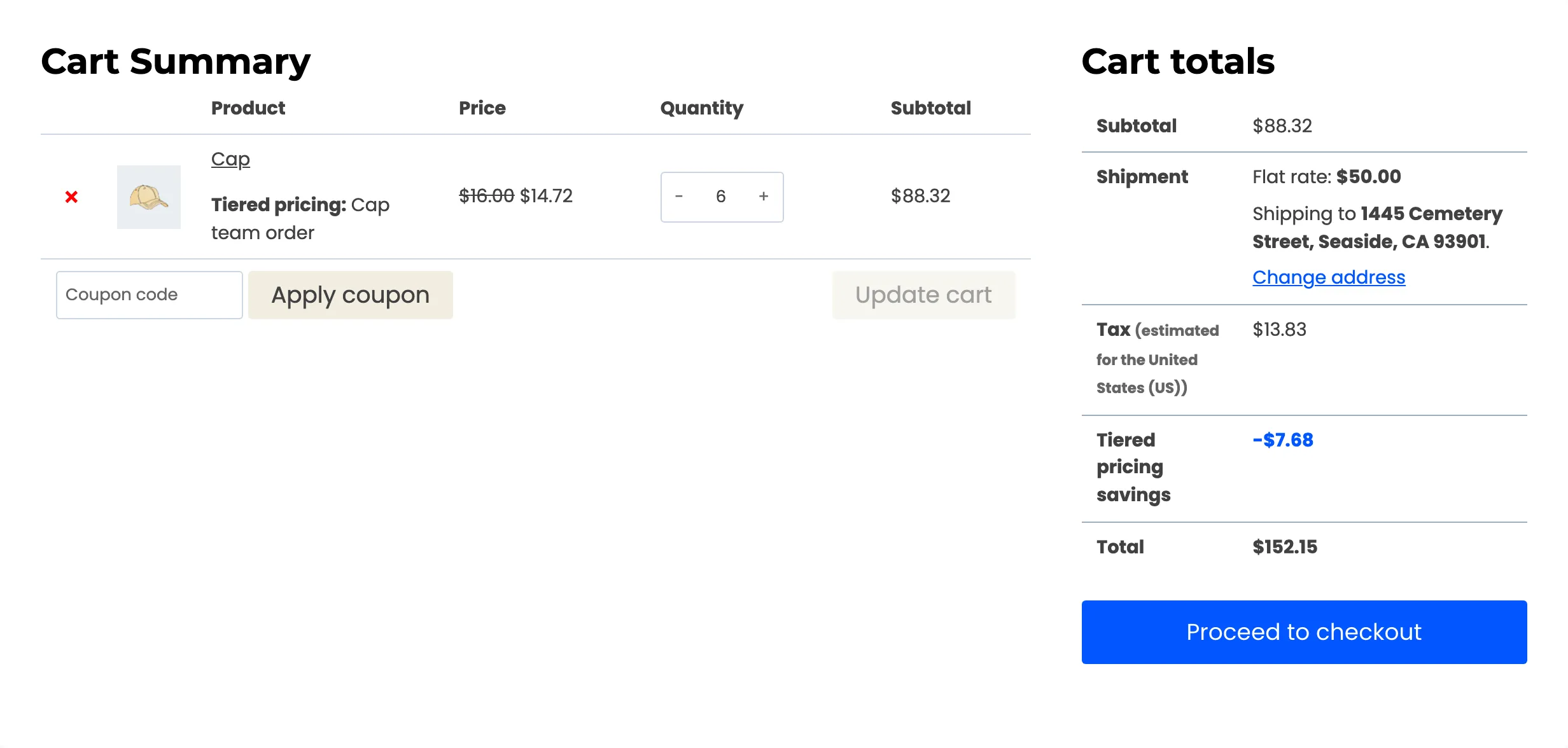
- Rule Name: Required. The customer sees it in the cart as Tiered pricing: Name.
- Quantity From: The first quantity the tier covers. It must be at least 1.
- Quantity To: The last quantity the tier covers. Leave it empty for no upper limit.
- User Roles: Limit the row to one or more roles. Leave it empty for everyone. Guest (Not Logged In) is a choice.
- Discount Type: Percentage Discount, Fixed Discount or Fixed Price.
- Discount Amount: The value, with your currency symbol beside it.
- Status: Active or Inactive.
Click Add Row to add a tier. The bin icon beside a row removes it from the table.
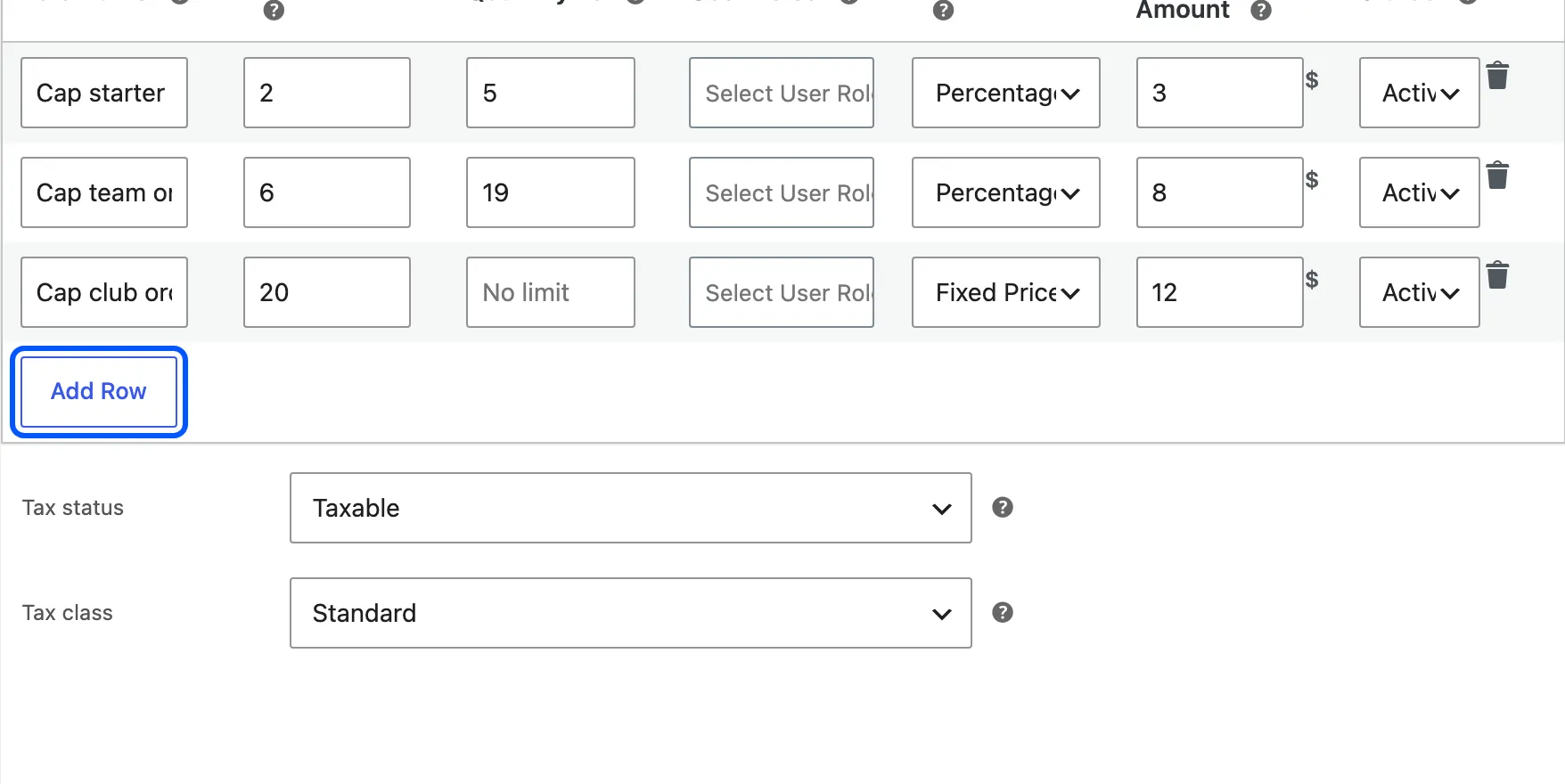
Nothing is saved until you click Update on the product. Product rules have no targeting, no dates and no priority. They count the quantity of the product line, and a row cannot overlap another row.
What a save keeps and drops
Section titled “What a save keeps and drops”When you click Update, the plugin checks each row in order and keeps only the good ones. It drops a row without telling you when:
- The name is empty.
- Quantity From is below 1, or the amount is negative.
- The name matches an earlier row.
- The quantity range overlaps an earlier row.
A table with four rows where the second overlaps the first and the third repeats the first name saves two rows. Check the table after you update. Empty the table and update to remove every rule from the product.
On the product page
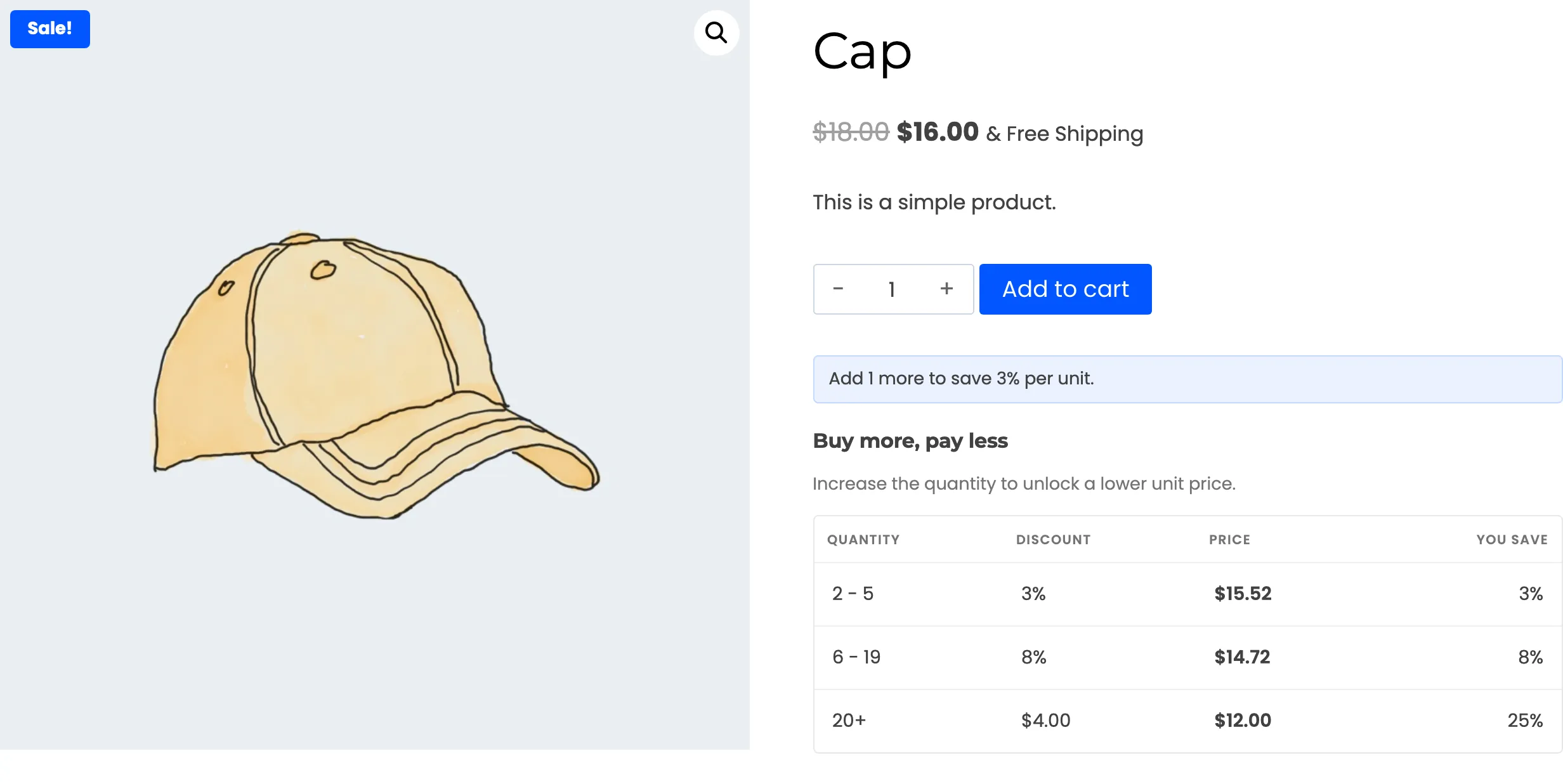
Section titled “On the product page”The product’s table lists only its own rows. The customer sees nothing of the global ladder.
The cart takes the rows in the order you wrote them, and the first matching row wins. Because rows cannot overlap, at most one row matches a quantity.
Variations
Section titled “Variations”A variable product has no table of its own. Each variation does. Open the Variations tab, expand a variation, and the same table sits under its price fields.
Click Save changes on the Variations tab to store the rows. The rules belong to that variation alone. A variation with no rows of its own uses the global rules, which still respect the parent product’s targeting and exclusions.
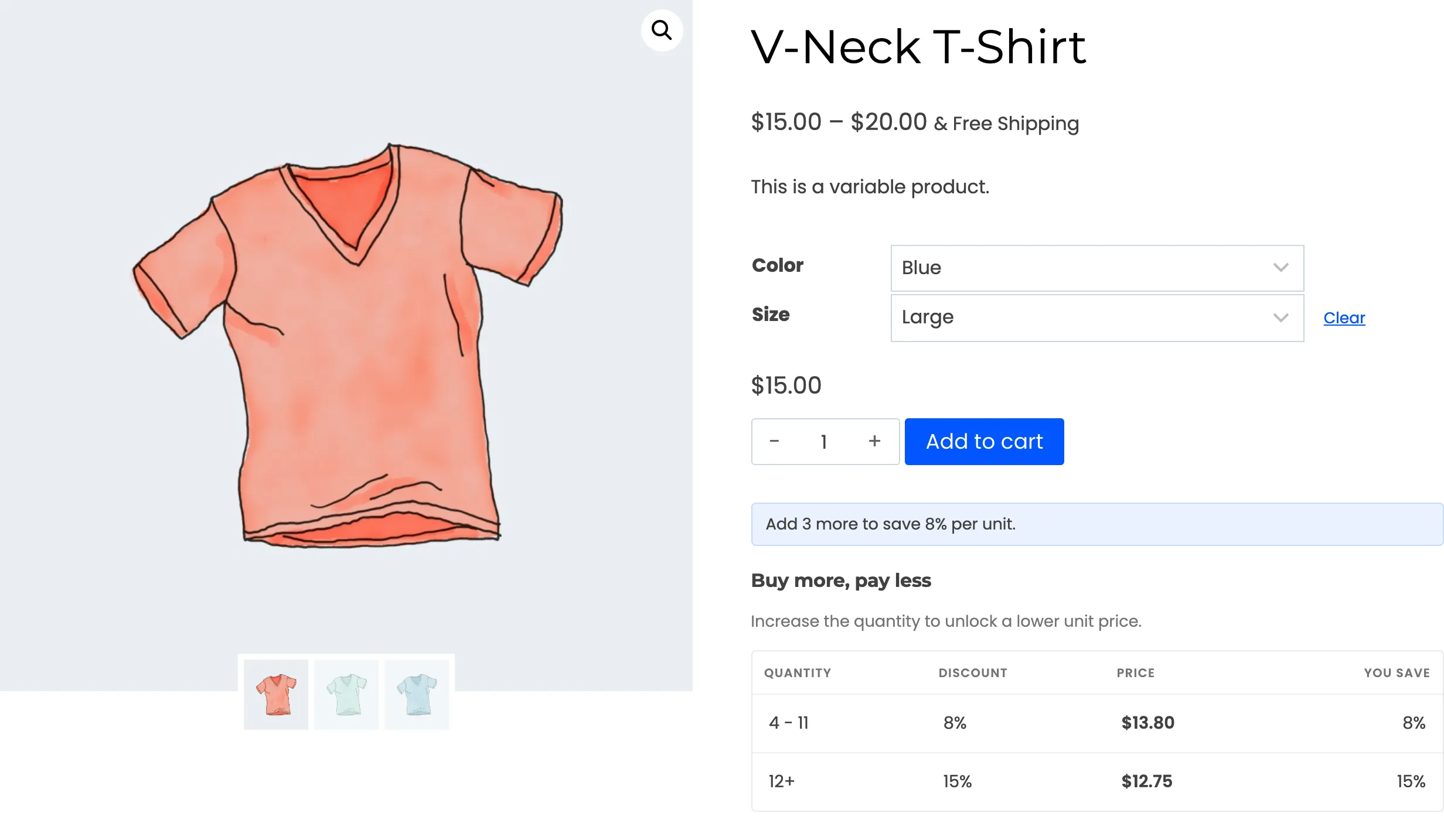
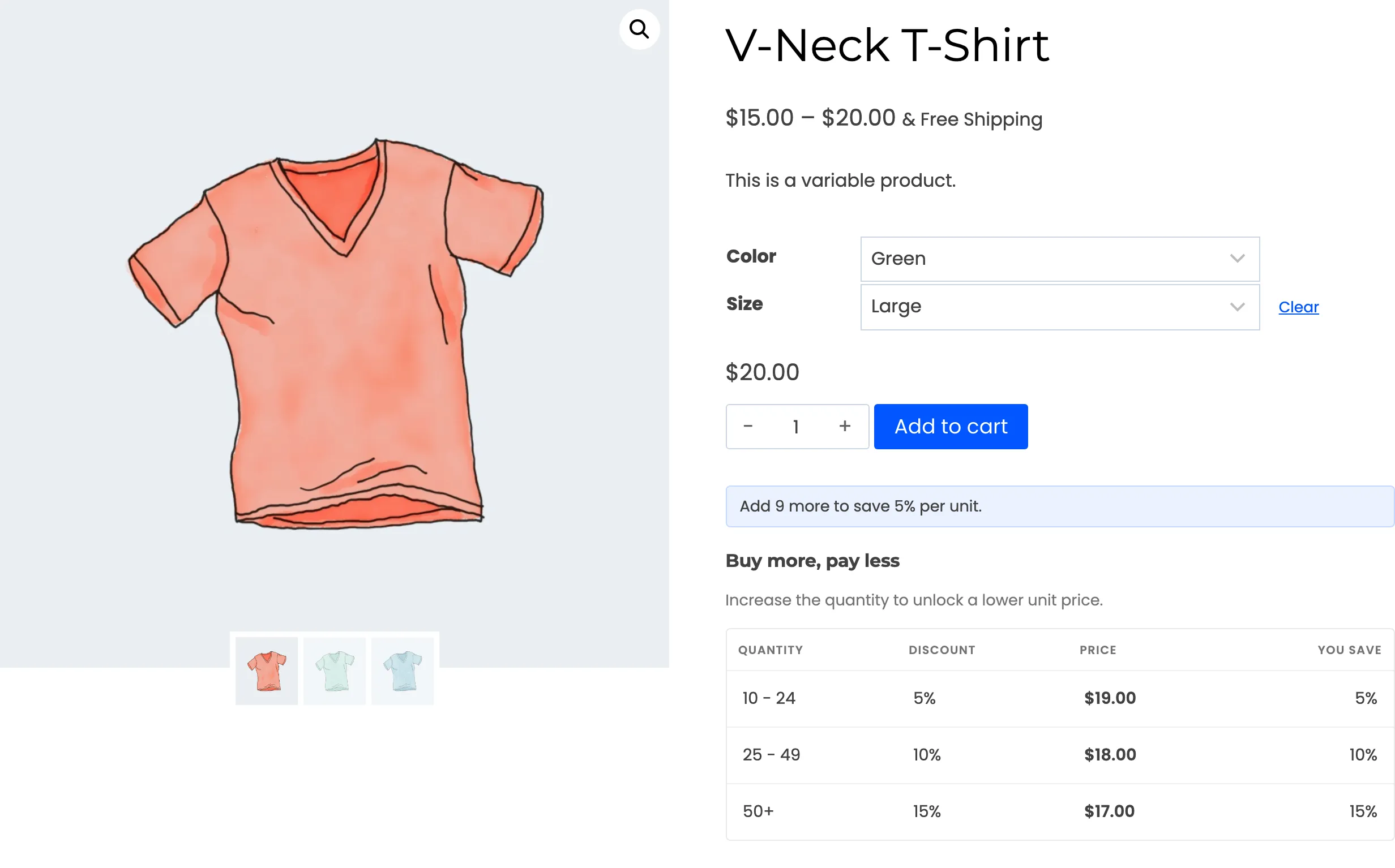
On the product page the table appears once the customer has chosen a variation, and is replaced when they choose another. How to Set Rules on a Single Product or Variation walks through both.
What this does not cover
Section titled “What this does not cover”Product rules are not part of the export. Copy them by hand when you move a store.