

Display Settings
The Display tab decides what a customer sees. Rules decide the price, and this tab decides whether the customer notices. It has five sections: the pricing table, its appearance, the next tier hint, the cart and the shop pages.
Go to DevDiggers Plugins → Tiered Pricing → Configuration → Display.
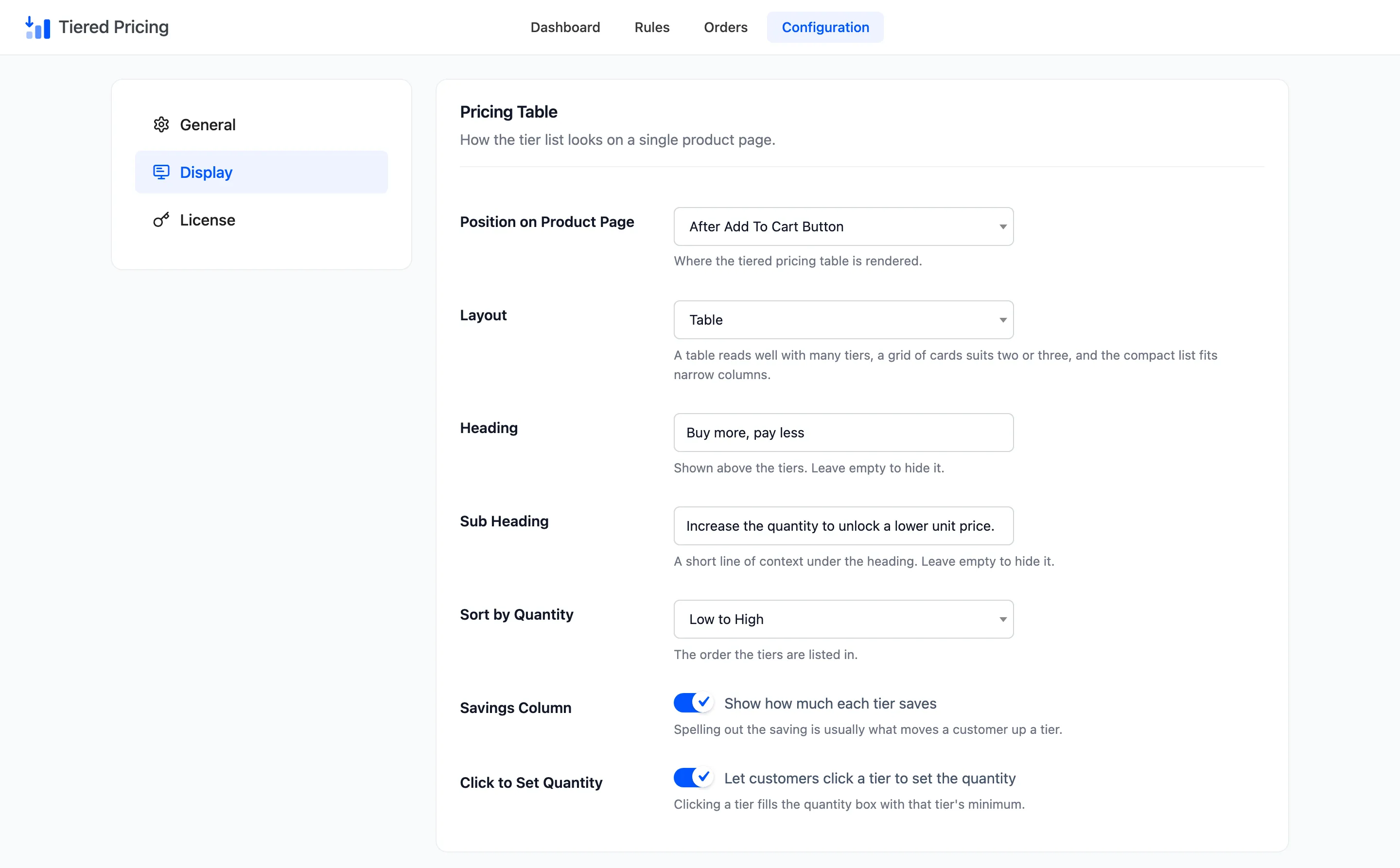
Defaults below are what a fresh install starts with. The settings take effect on the next page load, so reload a product page after saving.
Pricing Table
Section titled “Pricing Table”How the tier list looks on a single product page.
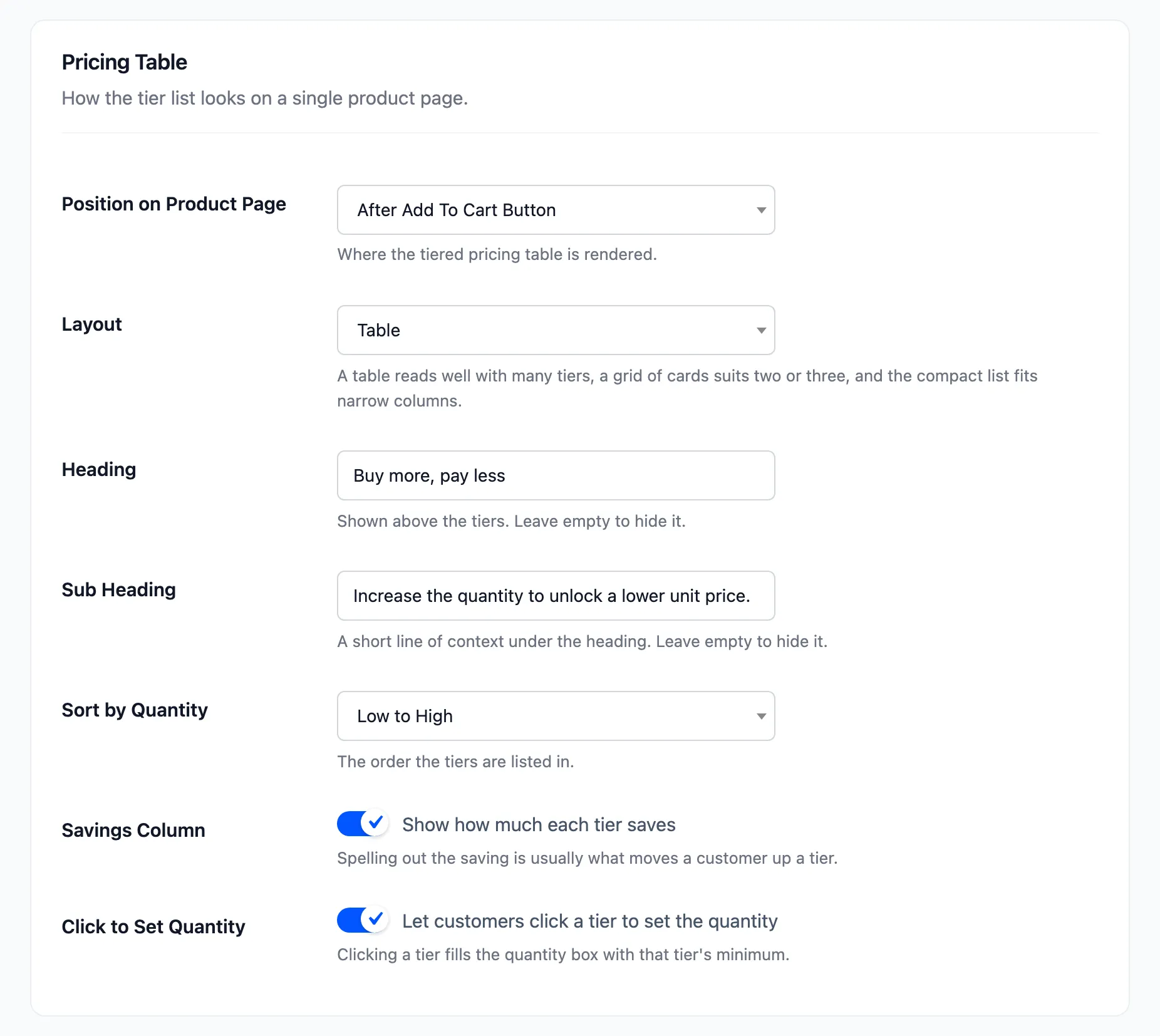
- Position on Product Page: Where the table is placed. Choose Default, After Product Image, After Product Title, Before Product Title, After Short Description, After Add To Cart Button or Before Tab Information. The default is Default, the end of the product summary.
- Layout: Table, Grid of cards or Compact list. A table reads well with many tiers, a grid suits two or three, and the list fits narrow columns. The default is Table.
- Heading: The title above the tiers. The default is Buy more, pay less. Leave it empty to hide it.
- Sub Heading: A line of context under the heading. The default is Increase the quantity to unlock a lower unit price. Leave it empty to hide it.
- Sort by Quantity: Low to High or High to Low. The default is Low to High.
- Savings Column: Tick Show how much each tier saves to add a column with the percentage saved. It is ticked by default.
- Click to Set Quantity: Tick Let customers click a tier to set the quantity. Clicking a tier fills the quantity box with that tier’s minimum. It is ticked by default.
The tier matching the quantity in the box is highlighted and moves as the customer changes it. See How to Choose a Pricing Table Layout and How to Choose Where the Pricing Table Appears.
Appearance
Section titled “Appearance”How the active tier is marked, and how the block is shaped.
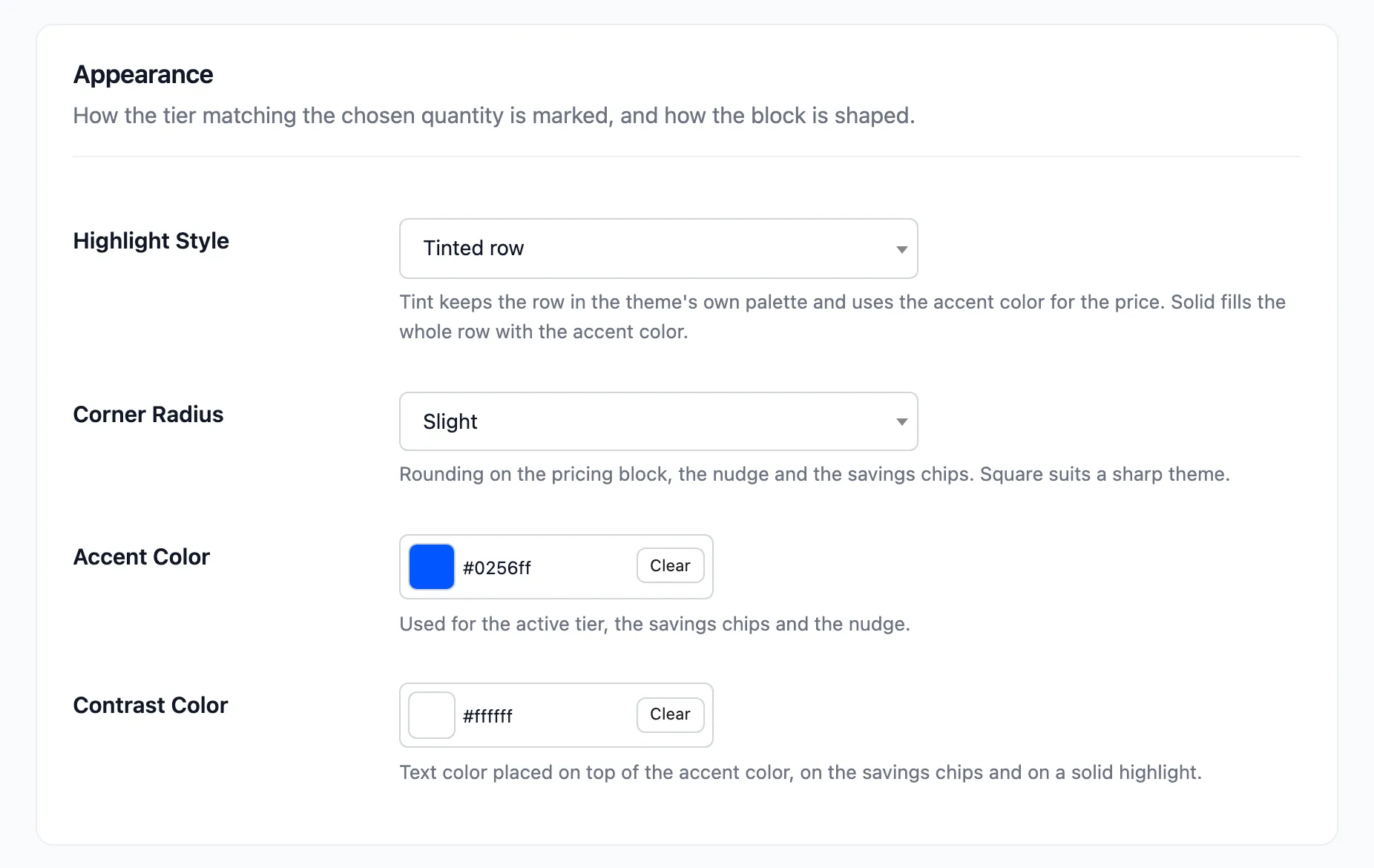
- Highlight Style: Tinted row keeps the row in the theme’s palette and uses the accent colour for the price. Solid fill paints the whole row in the accent colour. The default is Tinted row.
- Corner Radius: Square, Slight or Rounded, which are 0, 4 and 8 pixels. It applies to the pricing block, the hint and the savings chips. The default is Slight.
- Accent Color: Used for the active tier, the savings chips and the hint. The default is
#0256ff. - Contrast Color: The text colour placed on top of the accent colour. It is used on the chips, on a solid
highlight and on the hint in solid mode. The default is
#ffffff.
See How to Match the Pricing Table to Your Theme.
Next Tier Nudge
Section titled “Next Tier Nudge”A line under the Add to cart button telling the customer how close they are to the next discount.
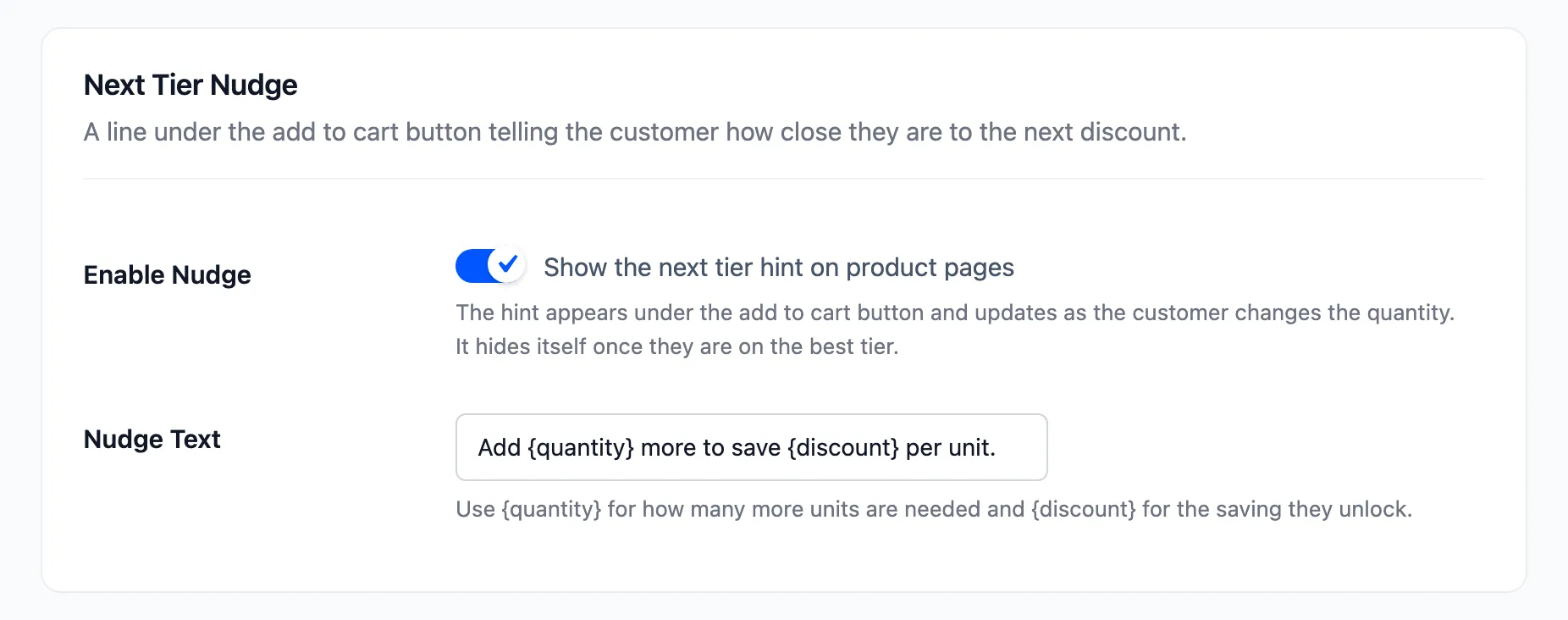
- Enable Nudge: Tick Show the next tier hint on product pages. It updates as the quantity changes and hides itself once the customer is on the best tier. It is ticked by default.
- Nudge Text: The wording. Use
{quantity}for how many more units are needed and{discount}for the saving the next tier gives. The default is Add {quantity} more to save {discount} per unit.
{discount} is always a percentage, even for a fixed discount. See
How to Show the Next Tier Hint.
What the customer sees once the discount has been applied.
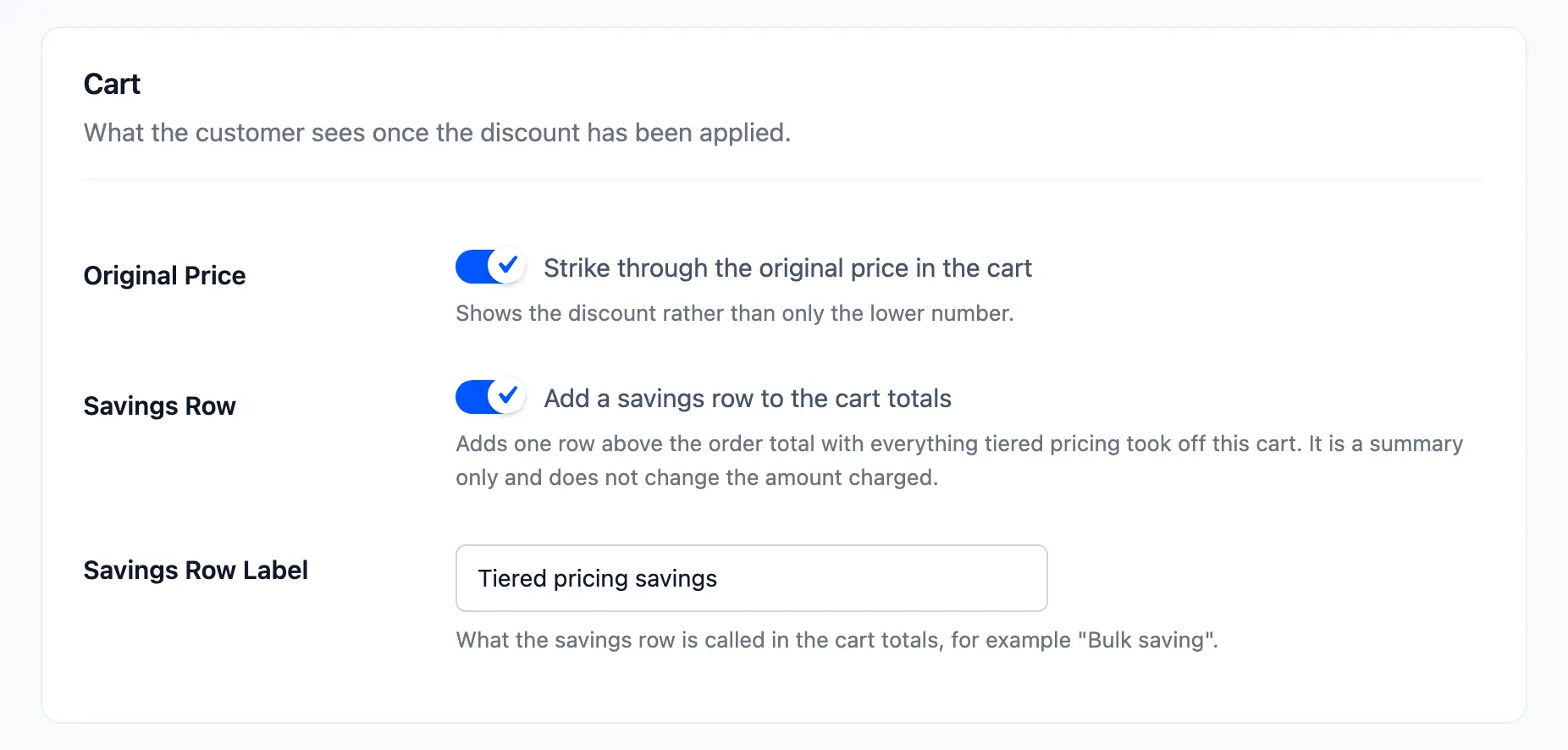
- Original Price: Tick Strike through the original price in the cart to show the normal price crossed out beside the tier price. It is off by default.
- Savings Row: Tick Add a savings row to the cart totals. One row above the order total shows everything tiered pricing took off the cart. It is a summary and does not change the amount charged. It is ticked by default.
- Savings Row Label: What the row is called. The default is Tiered pricing savings.
See How to Show Savings in the Cart.
Shop & Category Pages
Section titled “Shop & Category Pages”Advertise bulk pricing before the customer opens the product.
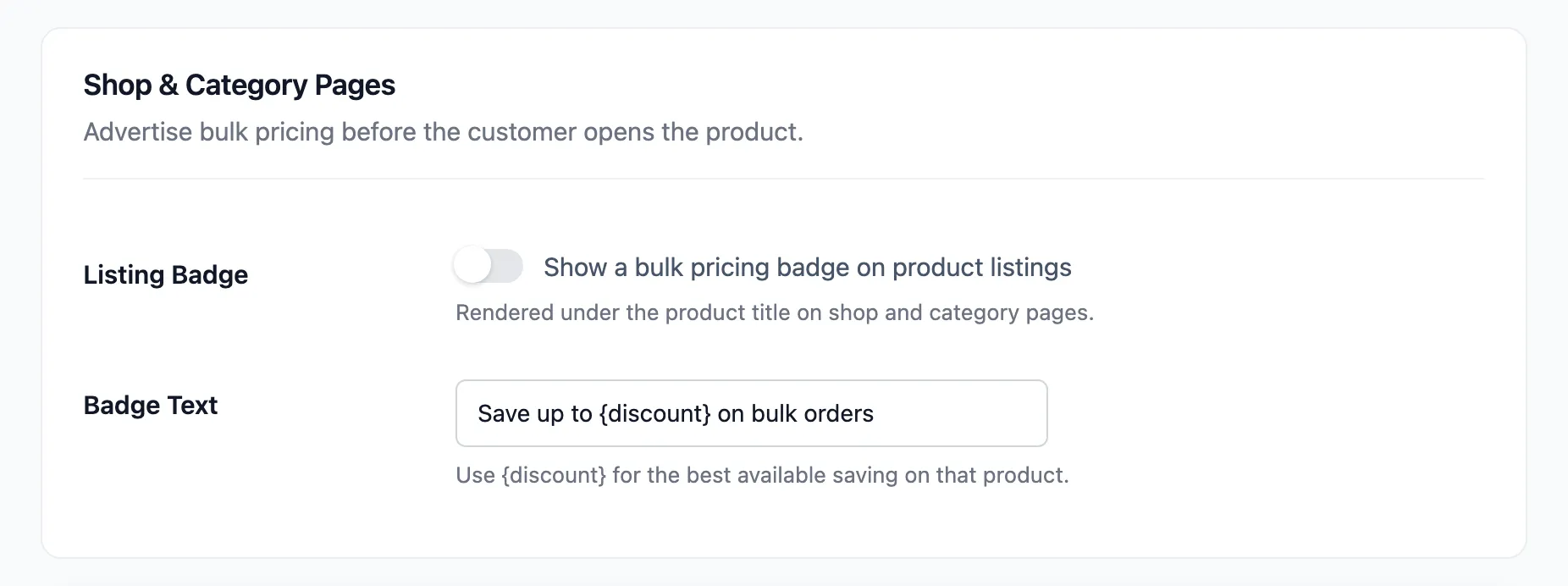
- Listing Badge: Tick Show a bulk pricing badge on product listings. The badge sits under the product title on shop and category pages. It is off by default.
- Badge Text: The wording. Use
{discount}for the best saving available on that product. The default is Save up to {discount} on bulk orders.
A product with no tier for the visitor shows no badge. See How to Advertise Bulk Pricing on Shop Pages.
Saving
Section titled “Saving”Click Save Changes at the bottom of the tab.