

How to Choose Where the Pricing Table Appears
The pricing table only helps if the customer sees it before they click Add to cart. Where it sits is a single setting. Seven places are built in, and a shortcode covers any place the setting does not.
Step 1: Open the Display tab
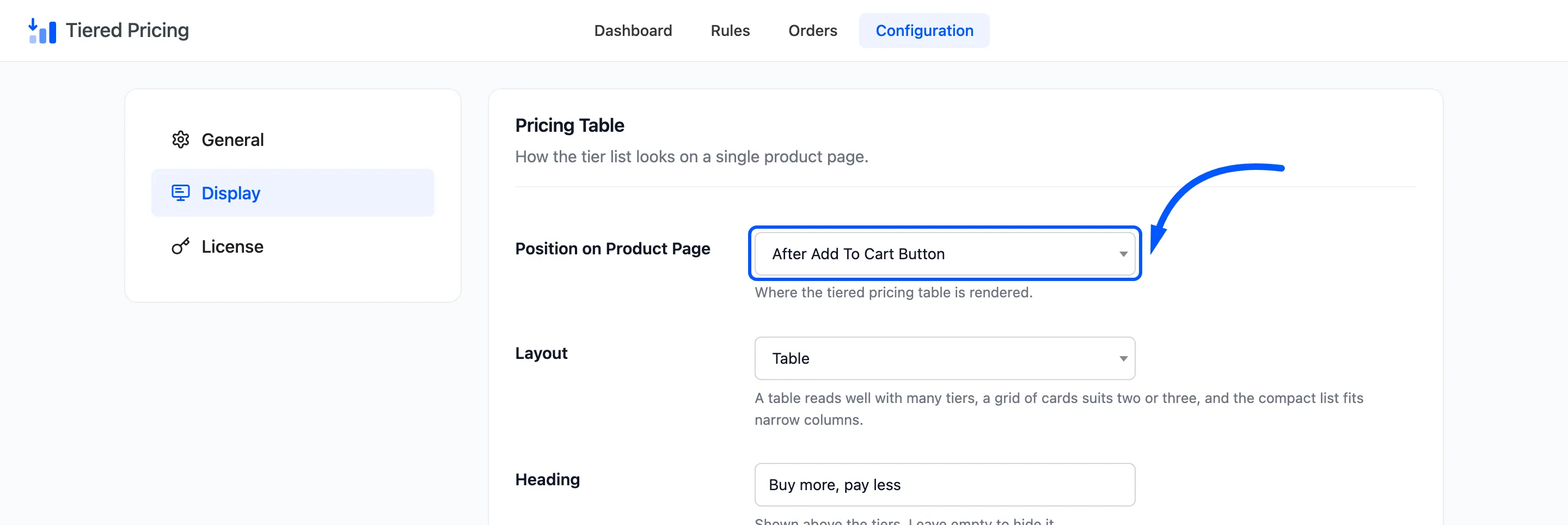
Section titled “Step 1: Open the Display tab”Go to DevDiggers Plugins → Tiered Pricing → Configuration → Display. Position on Product Page is the first field.
Step 2: Pick a position
Section titled “Step 2: Pick a position”The list holds seven choices.
| Position | Where the table lands |
|---|---|
| Default | At the end of the product summary, after the meta and sharing lines |
| After Product Image | Under the product photo |
| After Product Title | Between the title and the price |
| Before Product Title | Above the title |
| After Short Description | Under the short description, above the quantity box |
| After Add To Cart Button | Right under the Add to cart button, below the hint |
| Before Tab Information | Below the product summary, above the Description tab |
Choose one and click Save Changes. A new install starts on Default.
Step 3: Compare the positions on a product
Section titled “Step 3: Compare the positions on a product”Reload a product page after each change. The theme decides how much room each place has, so judge them on your own store. The demo’s theme gives these results.
After Add To Cart Button keeps the table next to the buying decision. It is the most common choice.
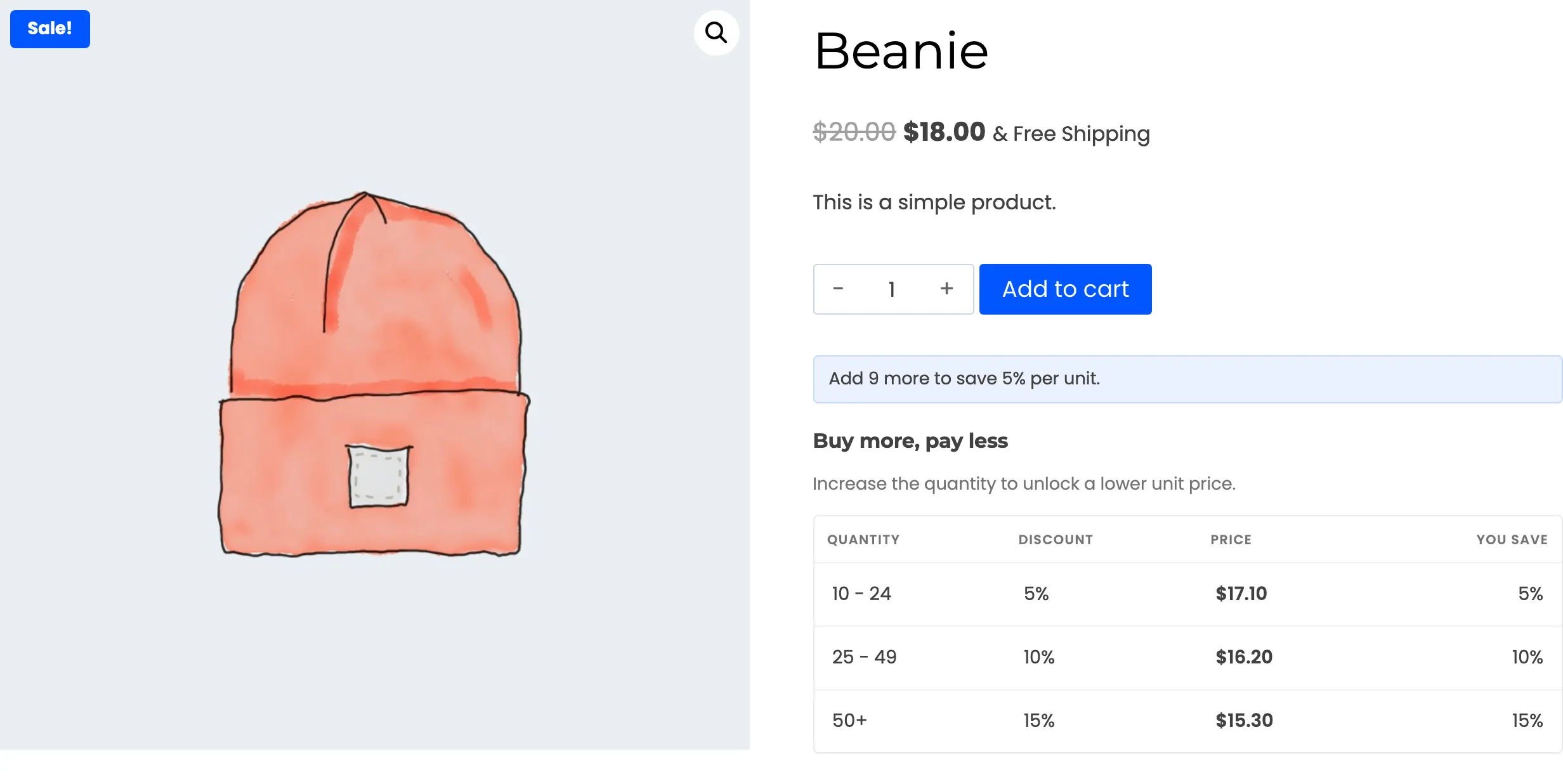
After Short Description puts the table above the quantity box.
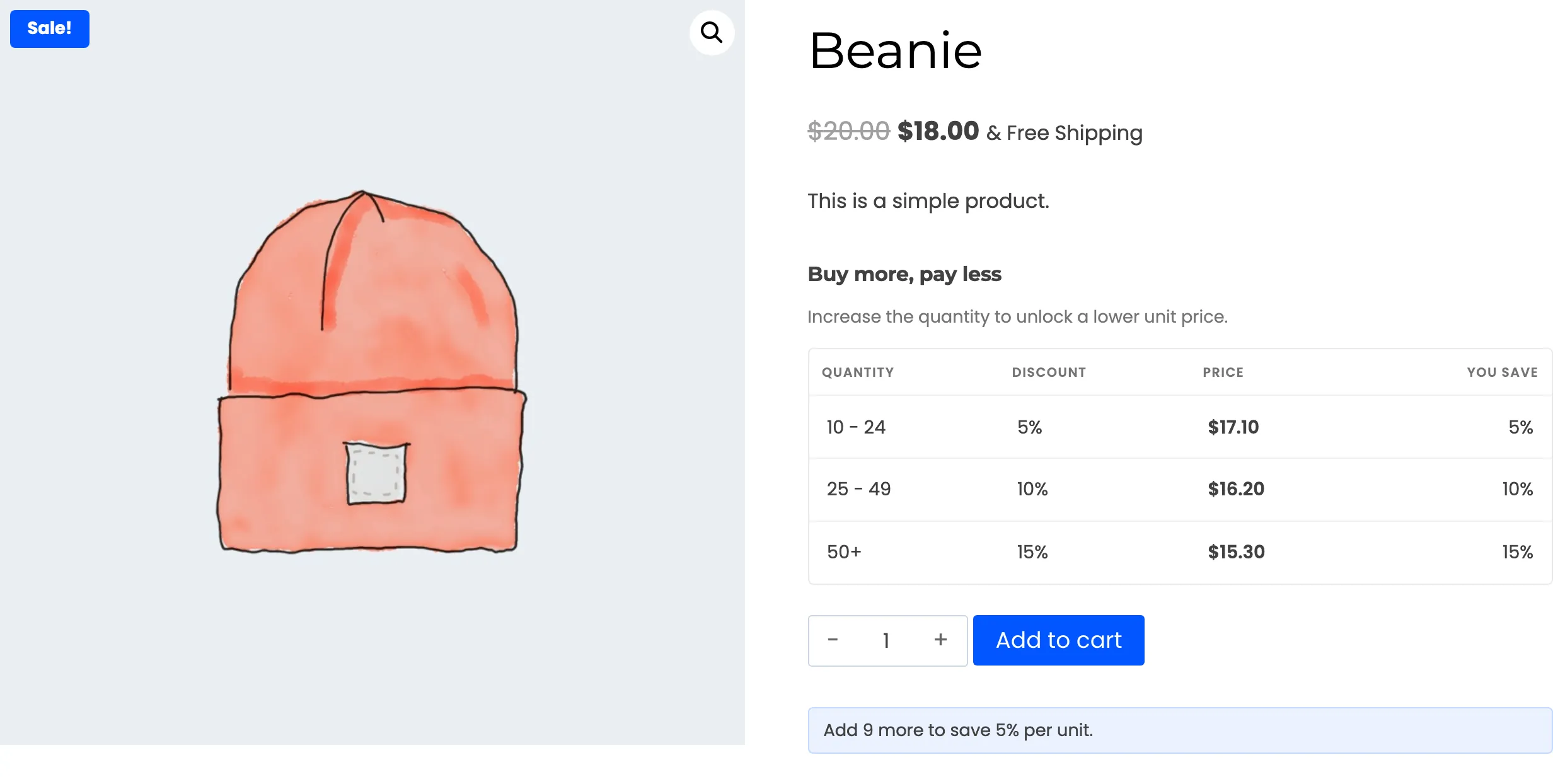
After Product Title pushes the price and the buying form down the page.
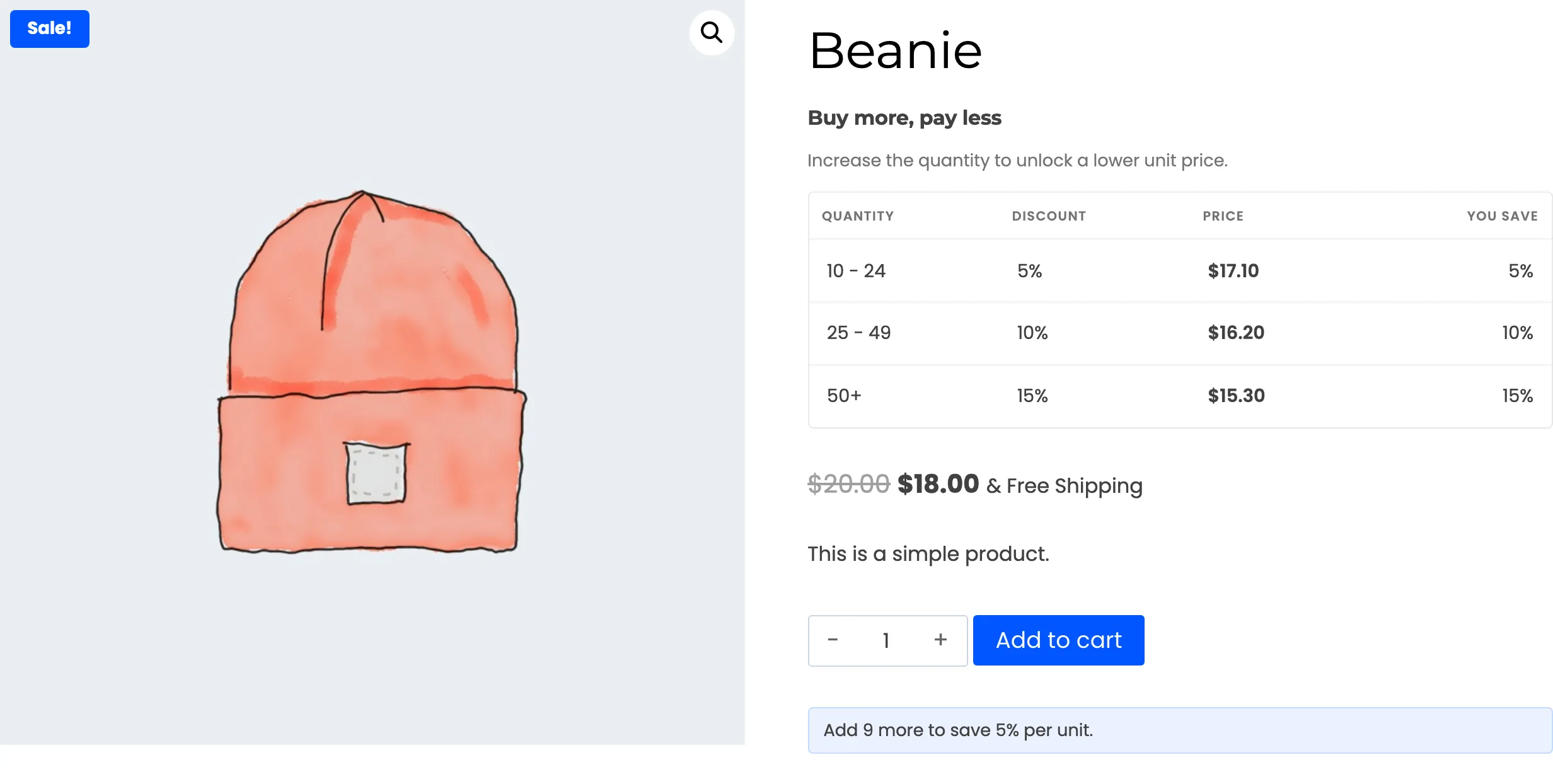
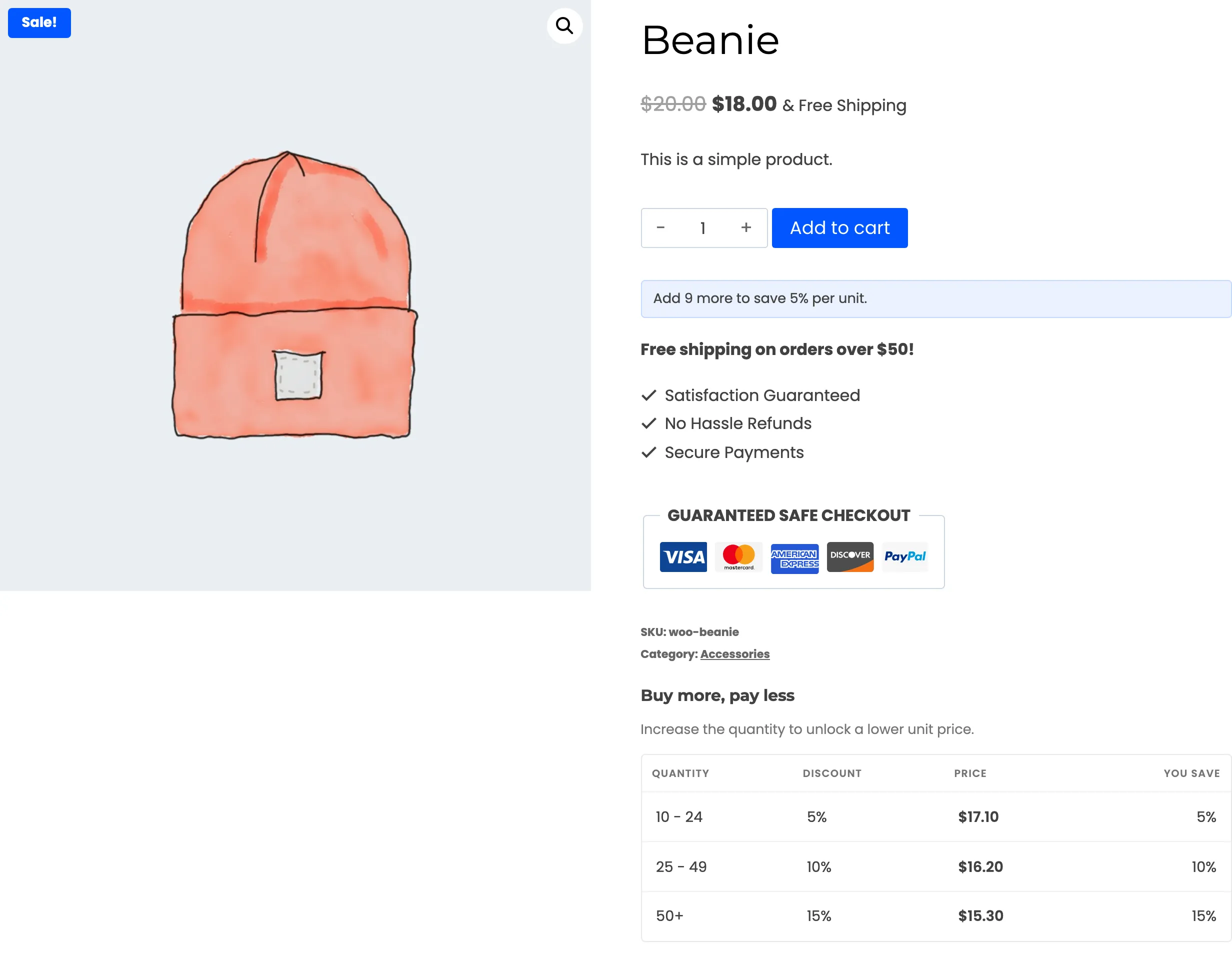
After Product Image puts the table under the photo, on the left of a two column layout.
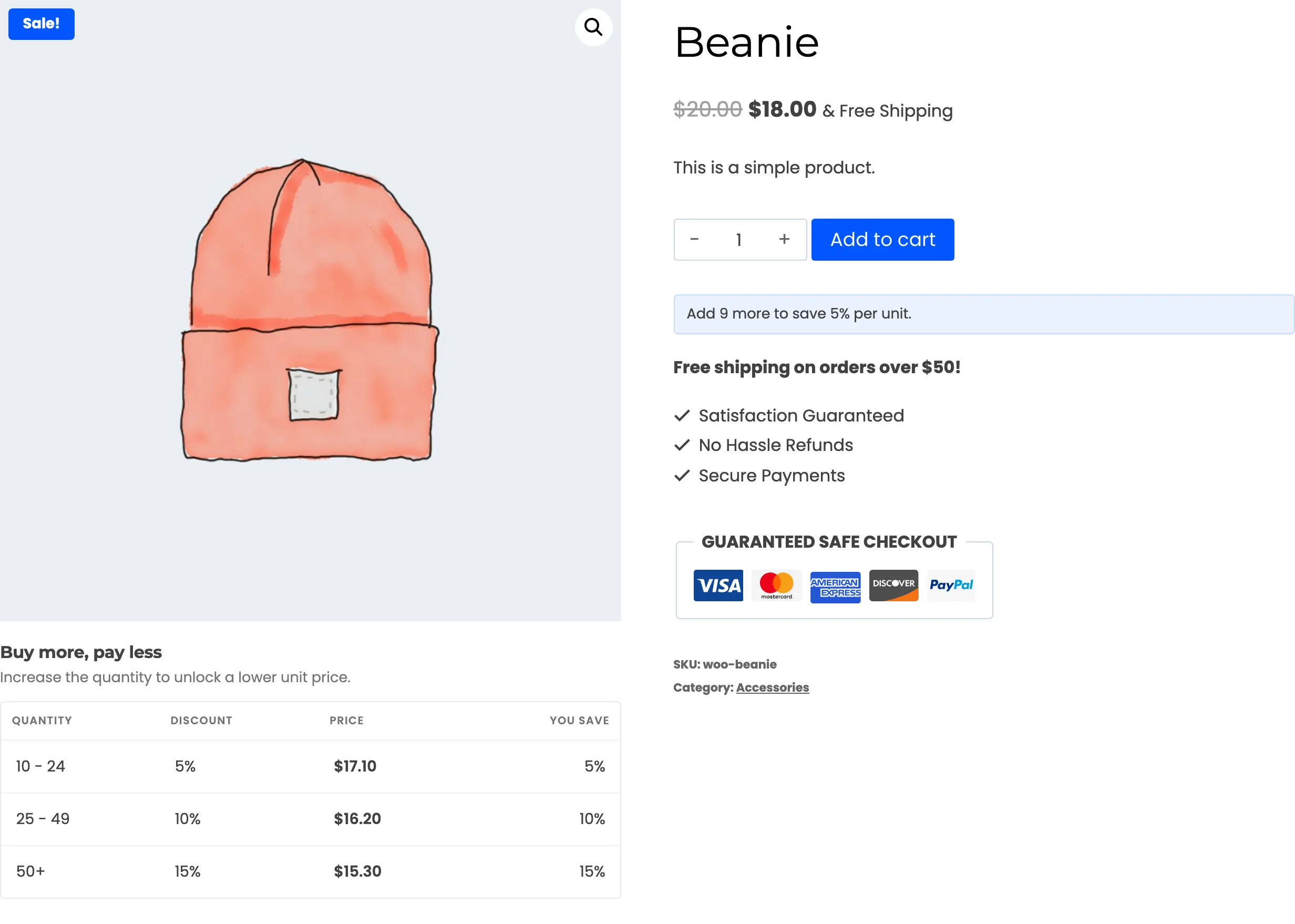
Default puts it after the meta, far from the button.
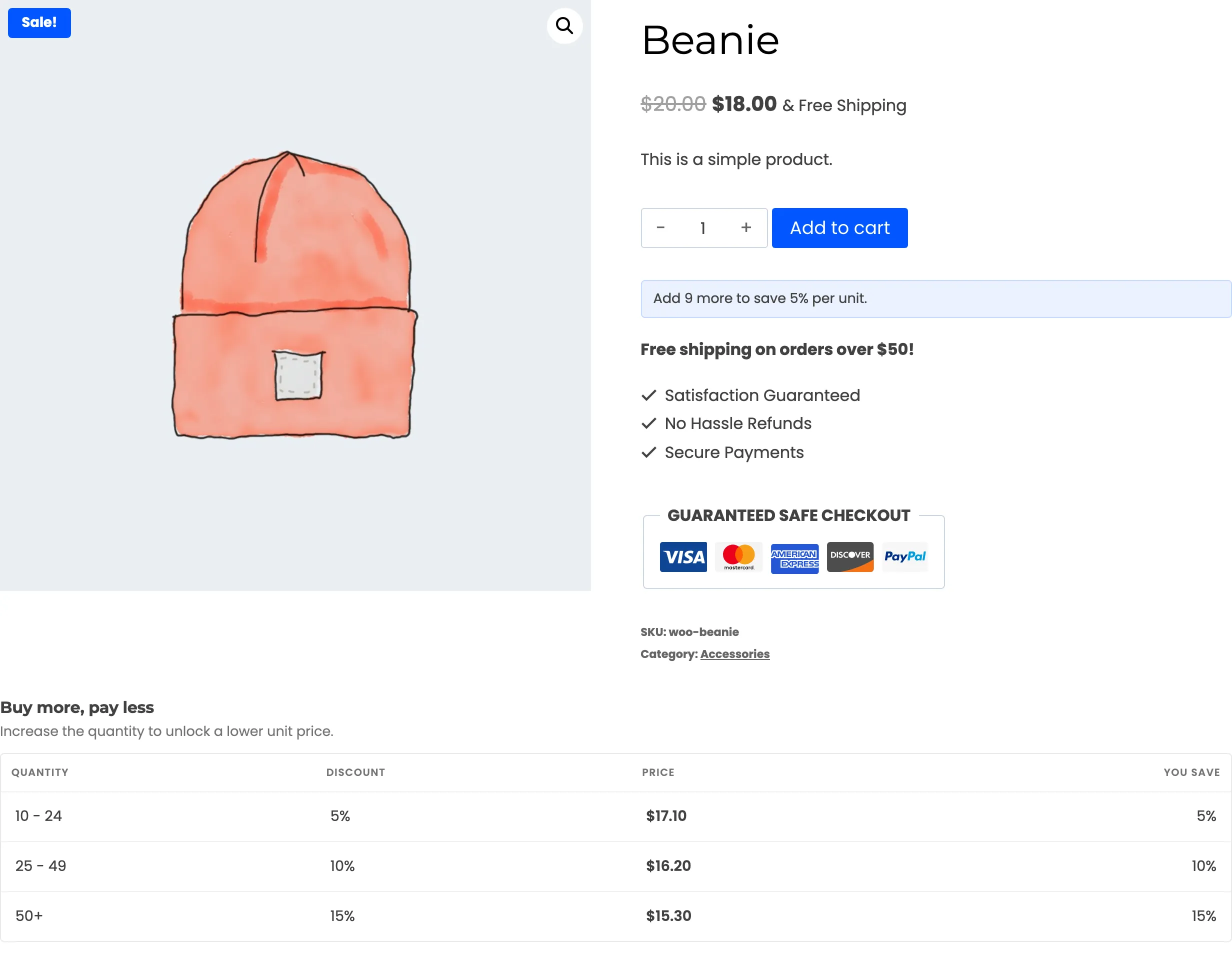
Before Tab Information places it across the full width, under the product summary.
The next tier hint is separate. It always sits right under the Add to cart form, whatever position you choose for the table.
Step 4: Use the shortcode for a custom place
Section titled “Step 4: Use the shortcode for a custom place”The same table can be placed by hand. The shortcode is on the General tab.
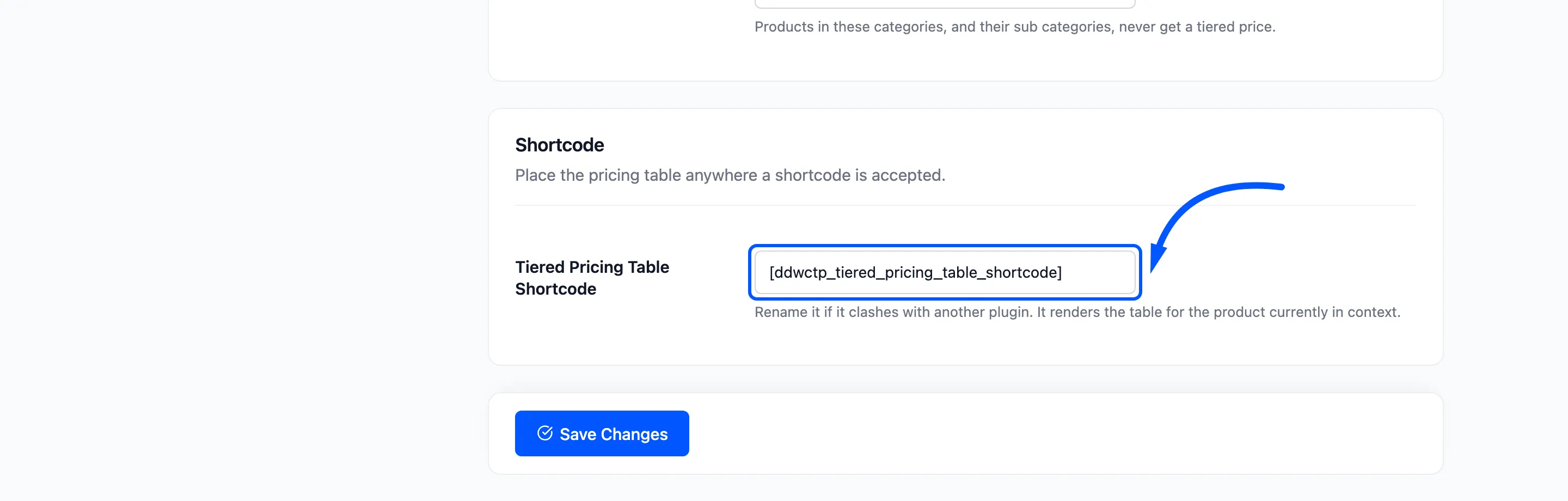
The default is [ddwctp_tiered_pricing_table_shortcode]. It renders the table for the product the page
is about.
Use it where a product is the current item, such as a custom product template or a page builder block built for products. It takes no options.
For example, put the shortcode in a product’s Description. The table then appears inside the Description tab.
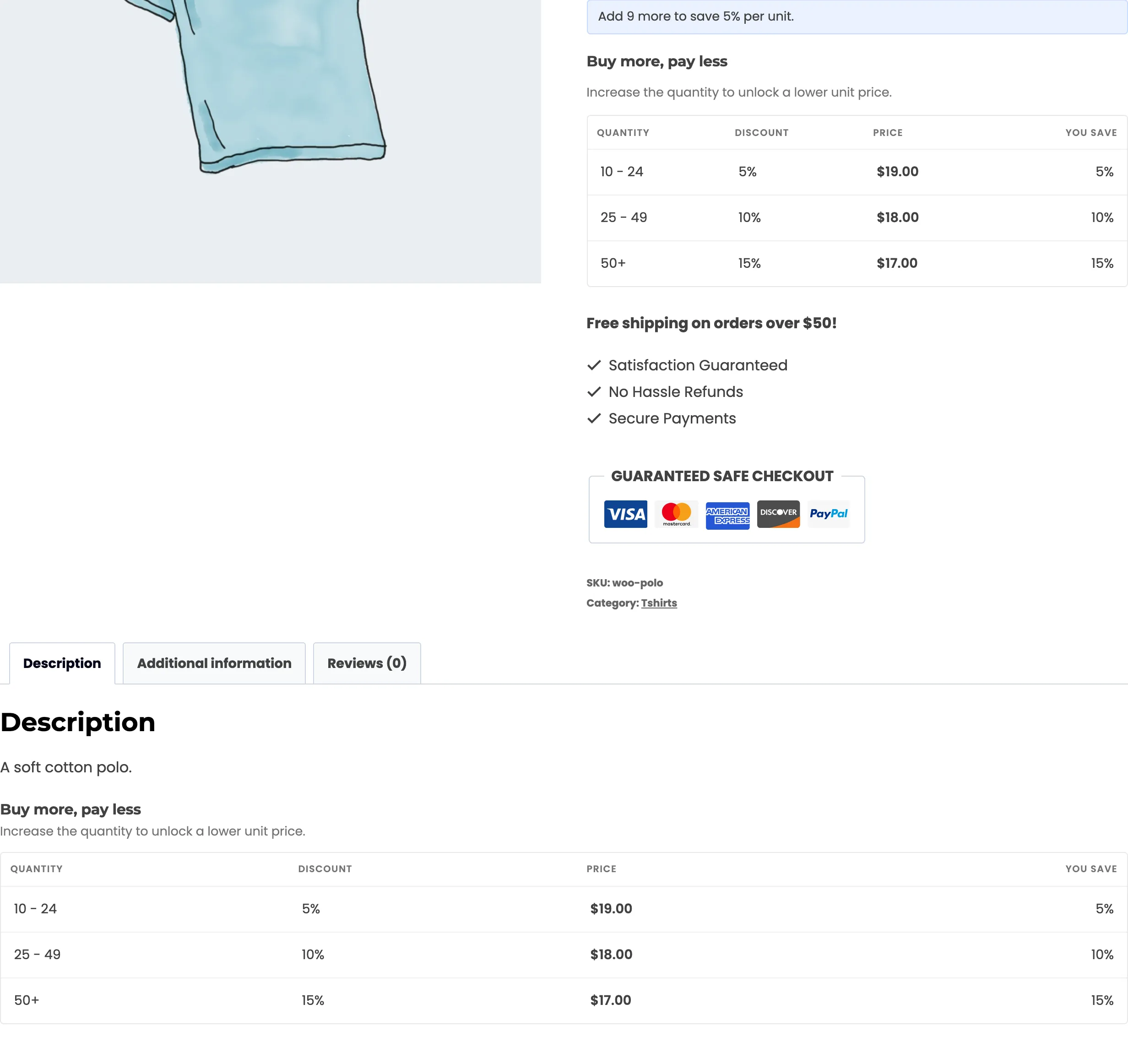
Two things to know:
- The position setting places the table once, whatever the page holds. A shortcode you add yourself shows a second copy, as the picture does. To show the table in one place only, leave the shortcode out.
- If you rename the shortcode on the General tab, use the new name. The position setting follows the rename on its own.