

How to Limit a Rule to Products or Categories
The default rule covers every product. Most real discounts do not. Hoodies might get a starter discount while mugs do not, or one category might run a promotion.
The Targeting section of the rule form decides who gets what.
Step 1: Choose what the rule applies to
Section titled “Step 1: Choose what the rule applies to”Open a new rule, or edit one, and find Applies To under Targeting.
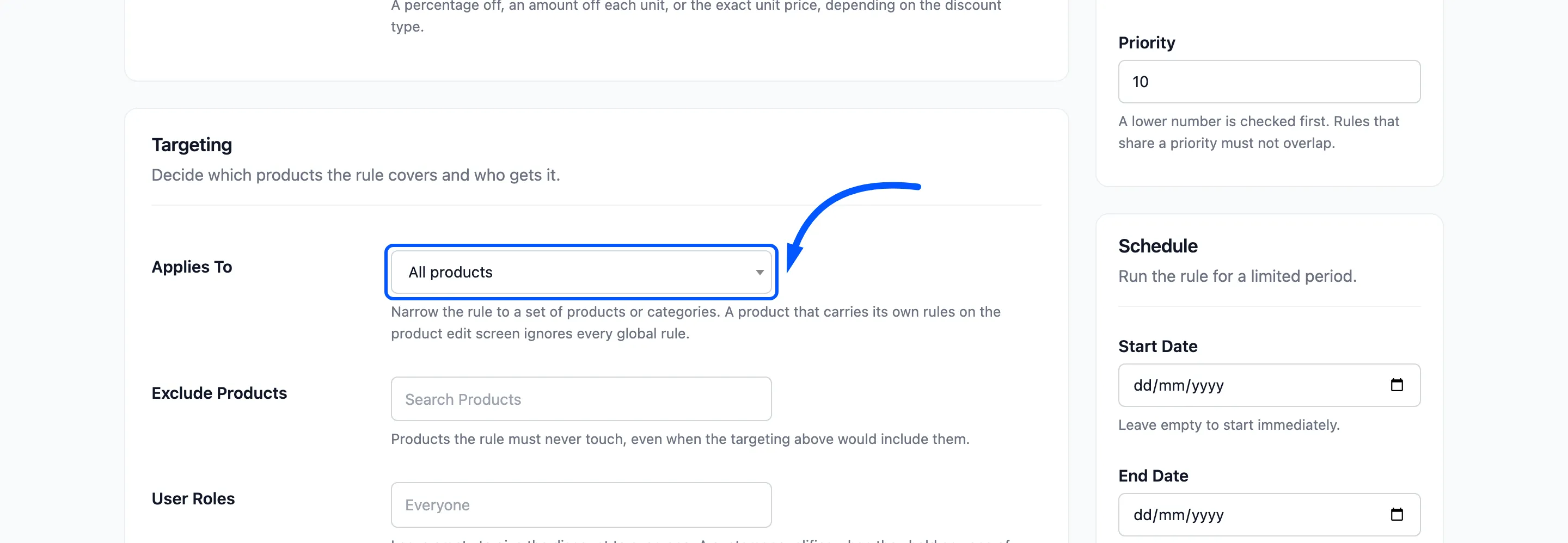
- All products: The default. The rule covers the whole store.
- Selected products: The rule covers the products you pick, and their variations.
- Selected categories: The rule covers products in the categories you pick, and in their sub categories.
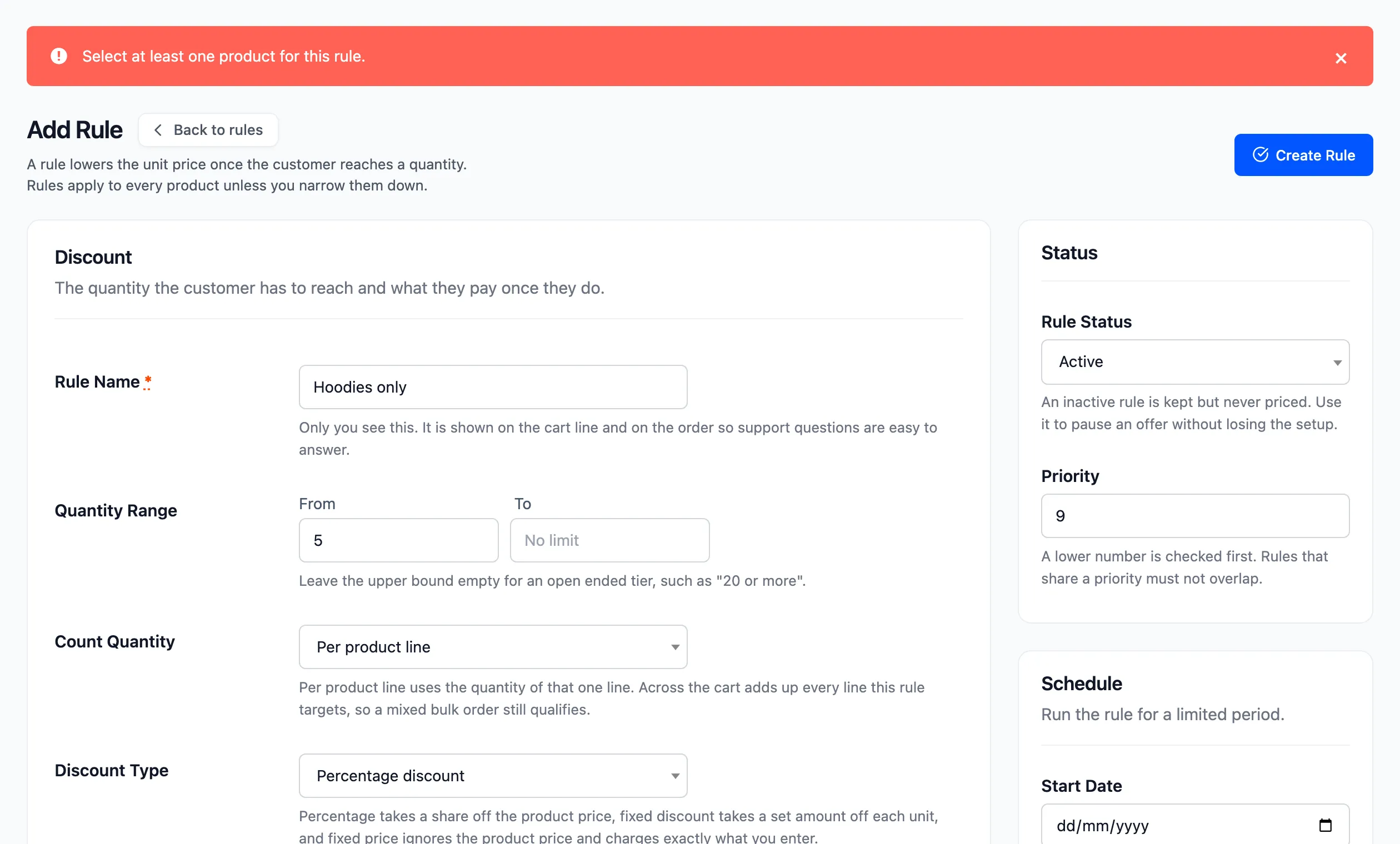
Choosing one of the last two reveals a Products or Categories field underneath. Leave it empty and the form refuses the save.
Step 2: Pick the products or categories
Section titled “Step 2: Pick the products or categories”Click the field and type a few letters. Matches appear, and you click each one to add it.
A rule needs at least one, or the form answers Select at least one product for this rule. or Select at least one category for this rule.
Pick Hoodies for this tutorial. The demo’s category tree puts Hoodies under Clothing. A rule on Clothing would cover Hoodies, Tshirts and Accessories too, because sub categories are included.
Step 3: Exclude a product
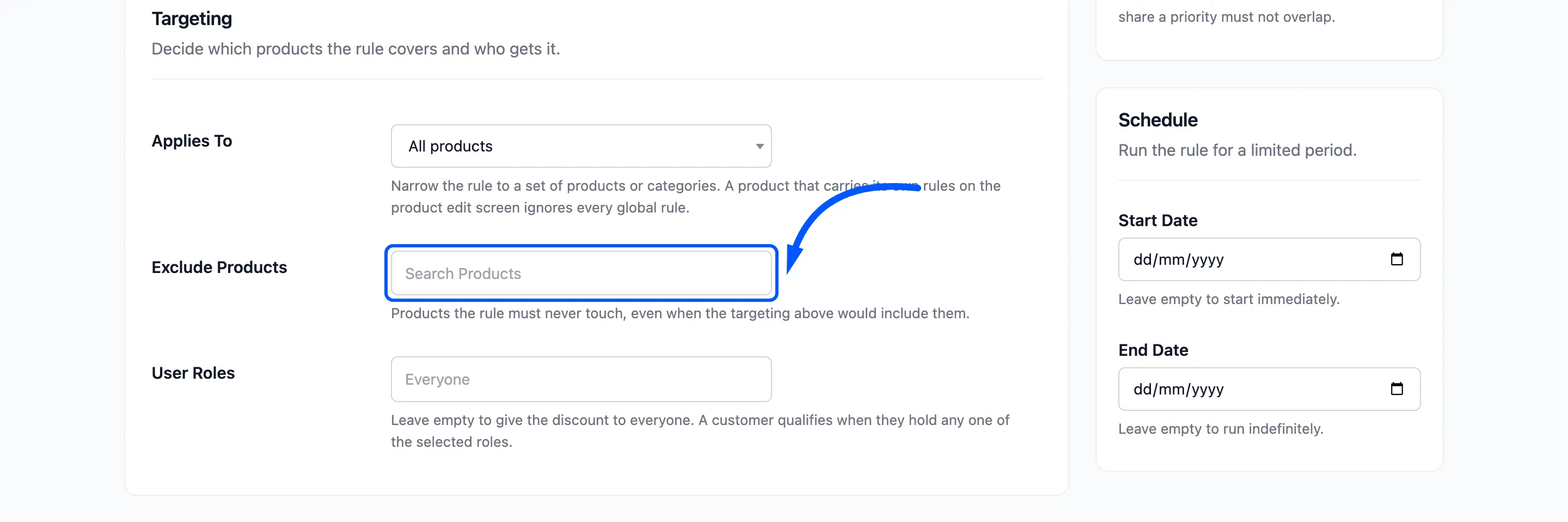
Section titled “Step 3: Exclude a product”Exclude Products keeps single products out of the rule, even when the targeting would include them. Add Hoodie with Pocket to it.
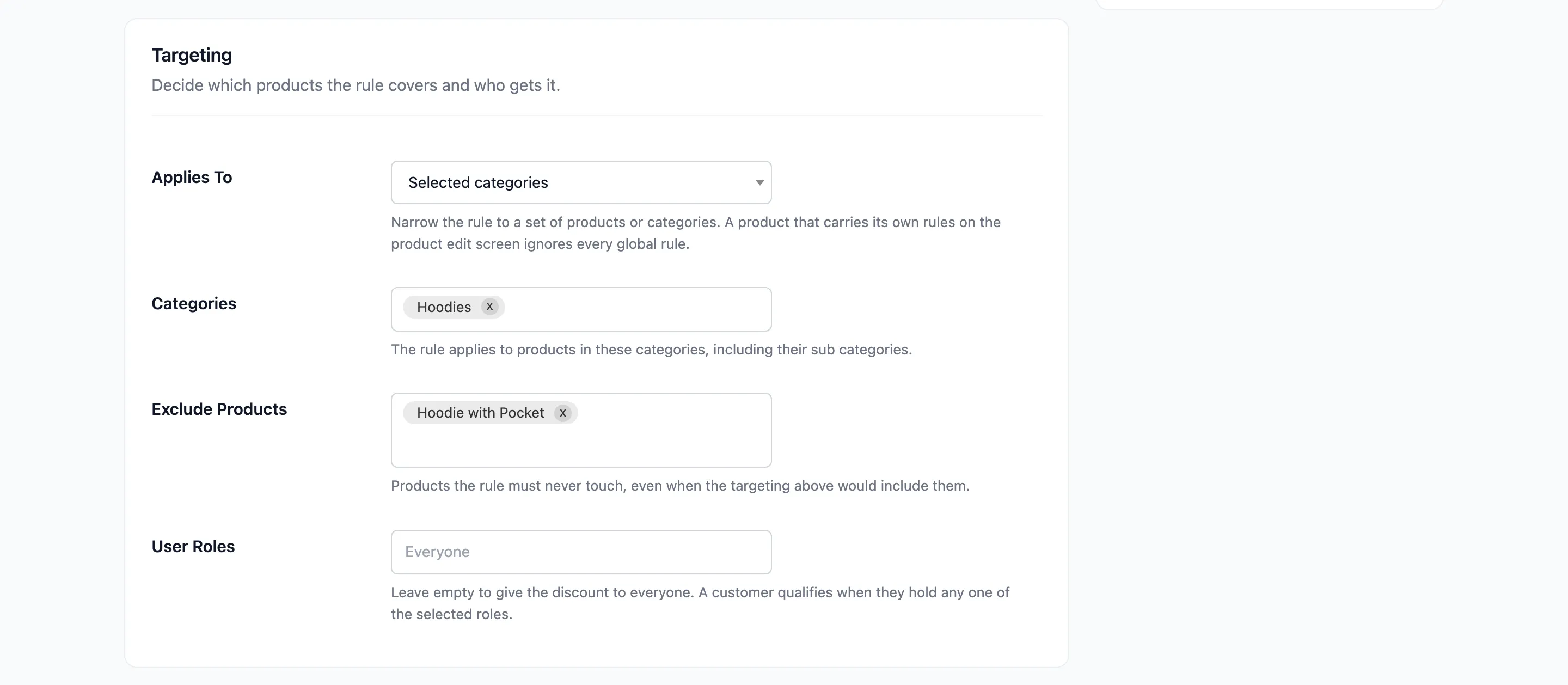
The exclusion belongs to this rule only. The product can still get tiers from other rules. To keep a product out of every rule, use the store wide list instead.
See How to Exclude Products From Tiered Pricing.
Step 4: Save and check three products
Section titled “Step 4: Save and check three products”Save the rule. The Rules screen now shows 1 category in Applies To, and 1 exclusion under the rule name.
Then open three products while logged out.
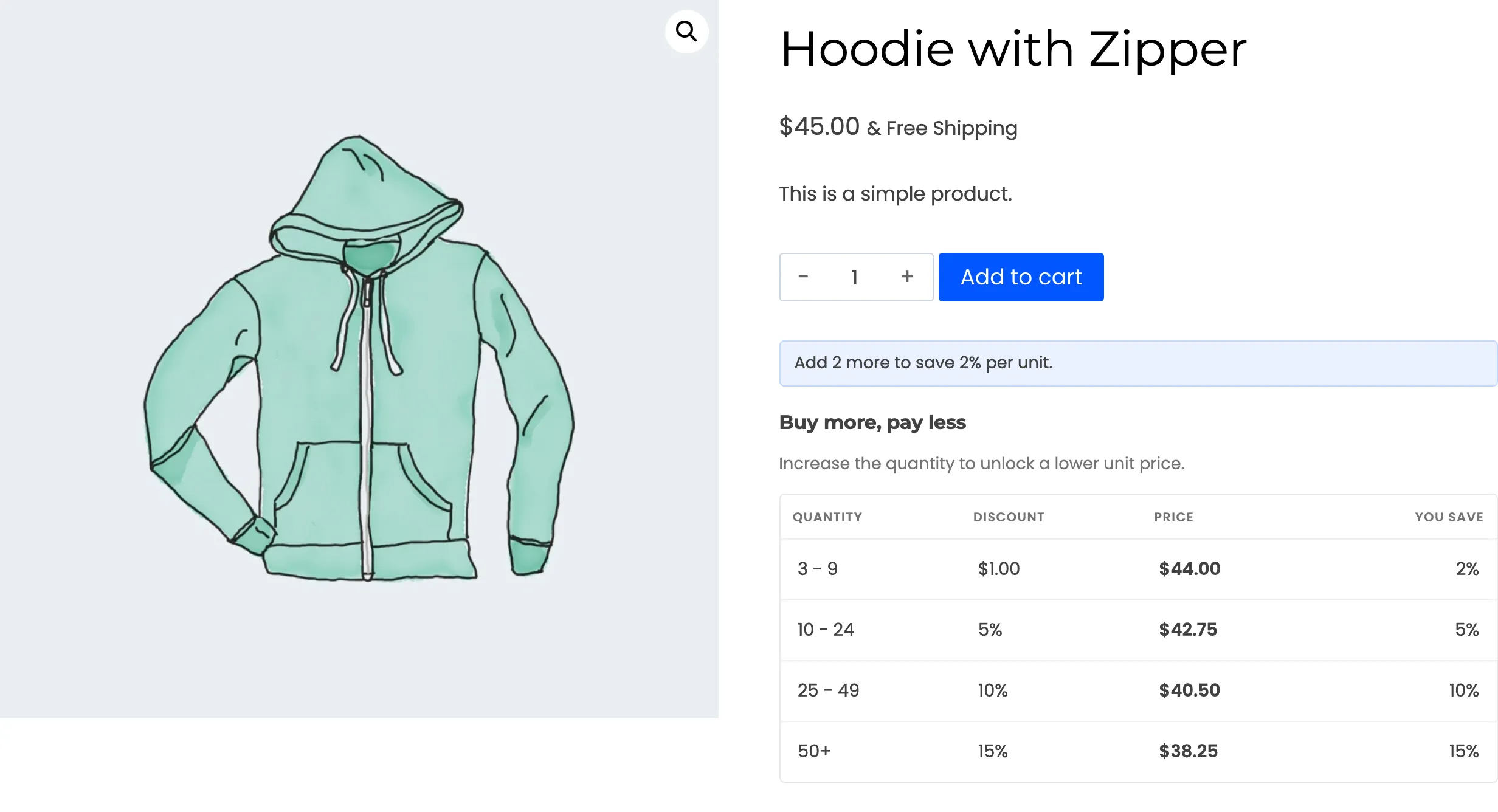
A product in the category. The Hoodie with Zipper shows the new tier first, then the ladder.
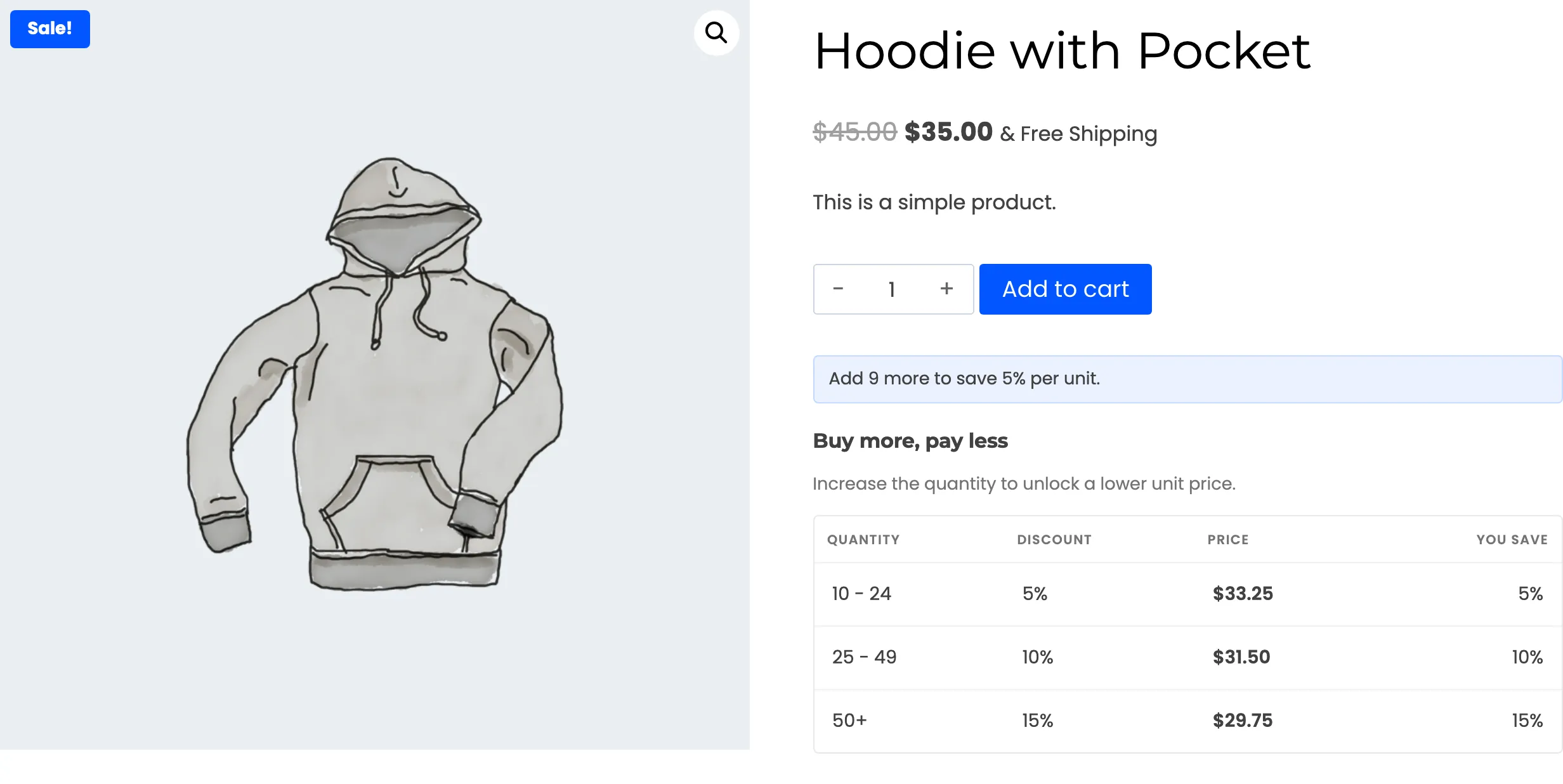
A product you excluded. The Hoodie with Pocket shows only the general ladder. The category rule does nothing for it.
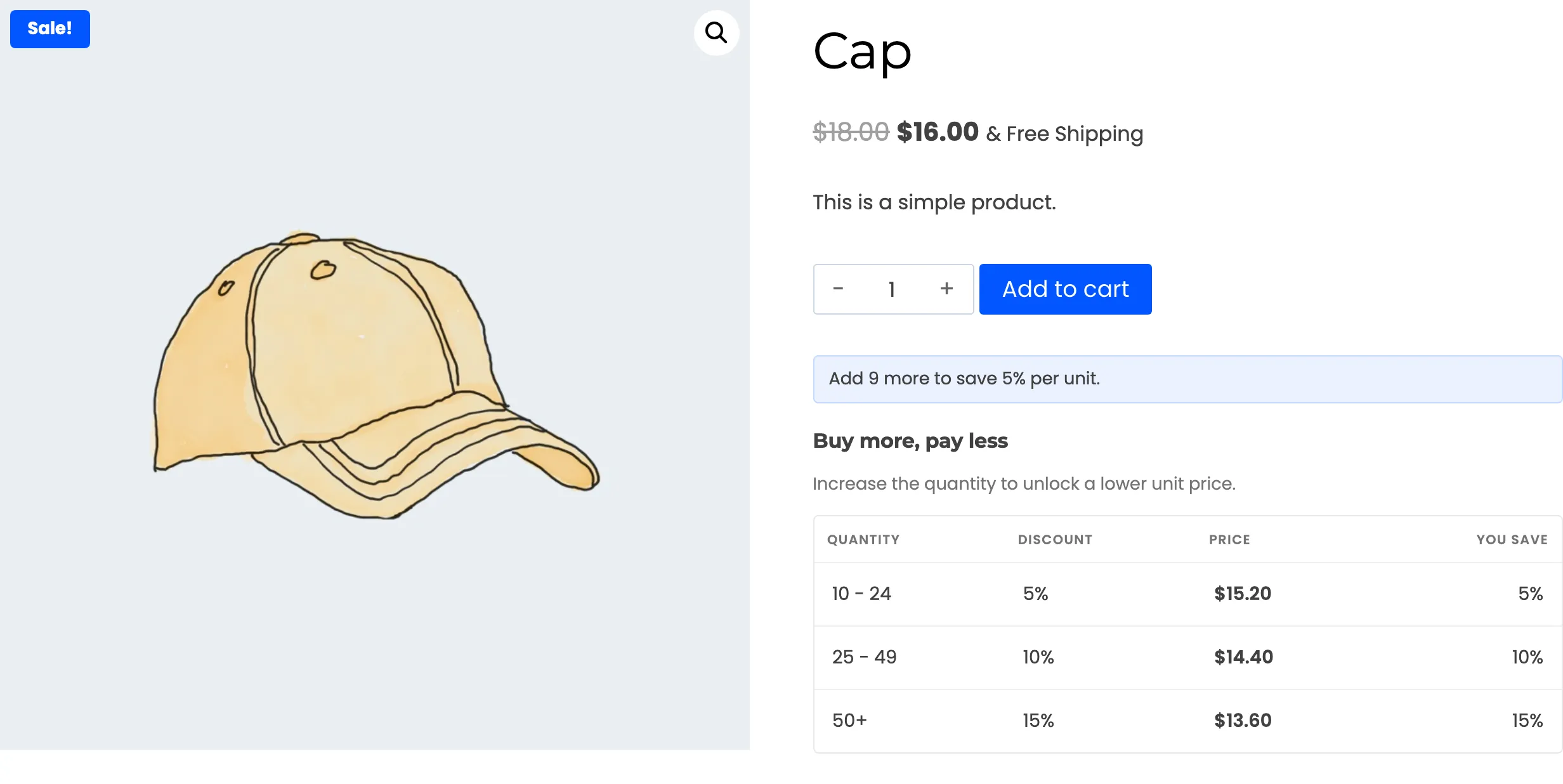
A product outside the category. The Cap is an accessory, so it also shows only the ladder.
Things to remember
Section titled “Things to remember”- A product with rules of its own is out of reach. It ignores every global rule, targeted or not. See How to Set Rules on a Single Product or Variation.
- Two rules can overlap through different targeting. A rule for All products and a rule for one category can both match a hoodie. Keep their quantity ranges apart or give them different priorities. The form tells you when targets and ranges clash at the same priority.