

Installing and Activating Tiered Pricing
The plugin installs like any WooCommerce extension. The step people miss is the licence, because the storefront does nothing until it is active.
Before you start
Section titled “Before you start”WooCommerce must be active first. Without it the plugin shows a notice and does nothing.
- WordPress 5.0 or newer.
- WooCommerce 5.0 or newer.
- The zip file from your DevDiggers order.
Install from the zip
Section titled “Install from the zip”-
Go to Plugins → Add New Plugin.

-
Click Upload Plugin at the top of the screen.

-
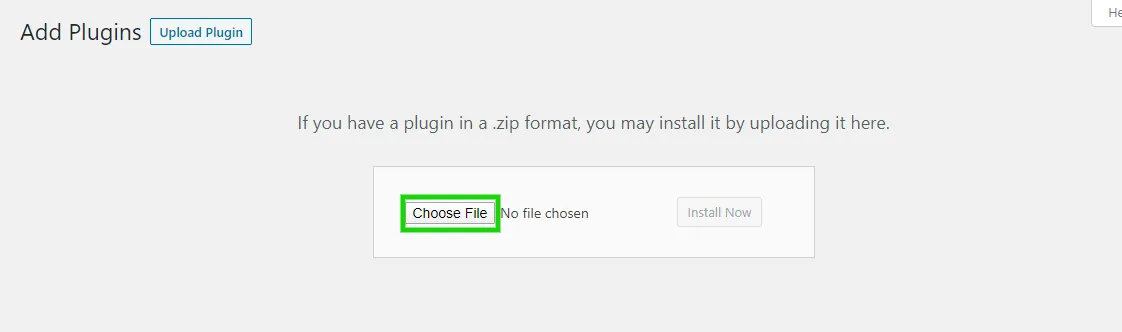
Click Choose File and select the plugin zip.
-
Click Install Now.

-
When the install finishes, click Activate Plugin.

Do not unzip the file first. WordPress expects the zip itself.
What activation sets up
Section titled “What activation sets up”A first activation opens the Setup Wizard straight away. It also writes a working starting point, so the storefront is not a blank screen.
- The plugin is switched on.
- The pricing table sits at the Default position, in the table layout, with the savings column on.
- Clicking a tier sets the quantity, and the next tier hint is on.
- The cart totals get a savings row.
The listing badge and the struck-through original price in the cart start off. You can change all of these on the Display tab.
An upgrade from an older version skips the wizard. A site that already had the plugin switched on is treated as set up.
Activate your licence
Section titled “Activate your licence”Go to DevDiggers Plugins → Tiered Pricing → Configuration → License. Enter the purchase code and the email address from your order, then click Activate License.
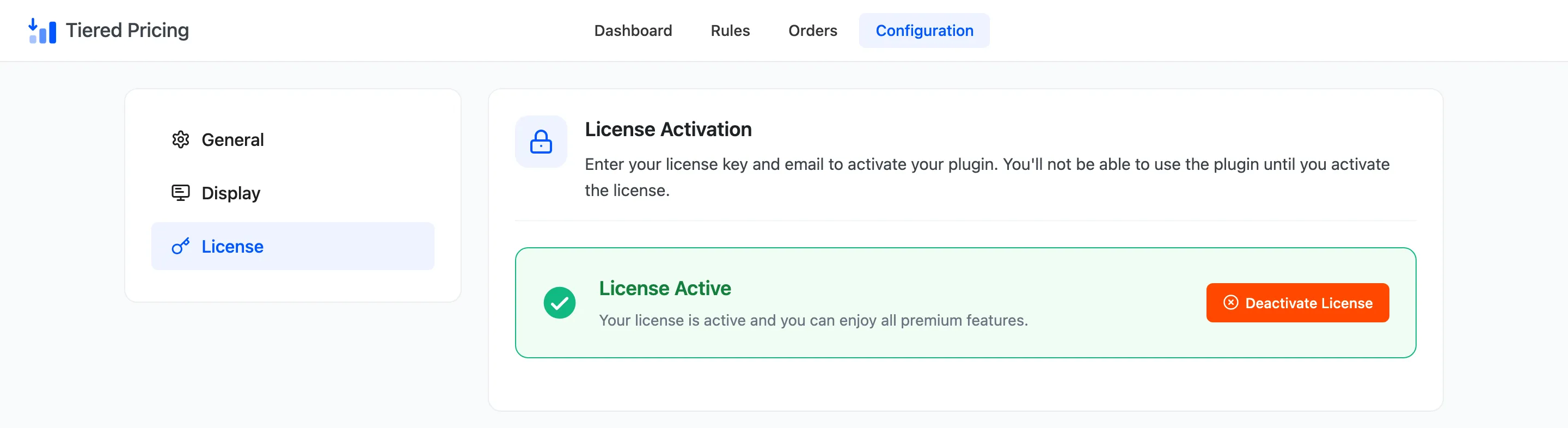
Until the licence is active, nothing from the plugin loads on the storefront. There is no pricing table, no tier price in the cart and no badge. The admin screens still open, so it is easy to build rules and wonder why the shop looks unchanged.
License Activation has the detail.
Check that it works
Section titled “Check that it works”- Create a rule. How to Create Your First Tiered Pricing Rule takes five minutes.
- Open a simple product while logged out.
- Look under the Add to cart button for the pricing table.
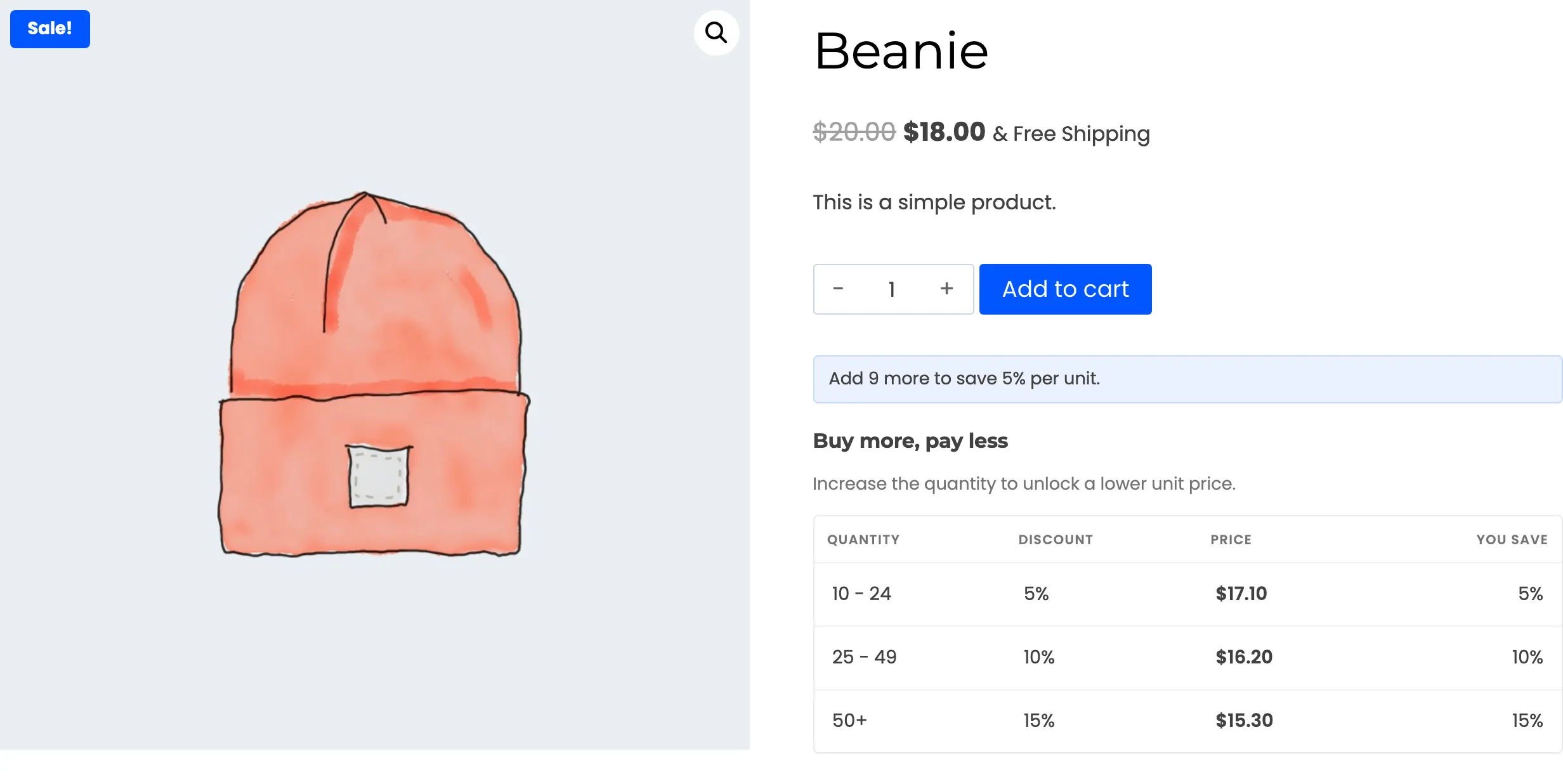
If the table is missing, work through these in order:
- The licence reads License Active.
- Activate WooCommerce Tiered Pricing is ticked under Configuration → General.
- The rule is Active, and today is inside its dates.
- The product is not in the store wide exclusions.
- The rule is not limited to a role you do not hold.
- Your host or a caching plugin is not serving an old copy of the page.
How to Fix a Tier That Does Not Apply goes through each one with screenshots.