

The Rules Screen
The Rules screen lists every global pricing rule. It is where you search, filter, switch rules on and off, copy them and delete them. Open DevDiggers Plugins → Tiered Pricing → Rules.
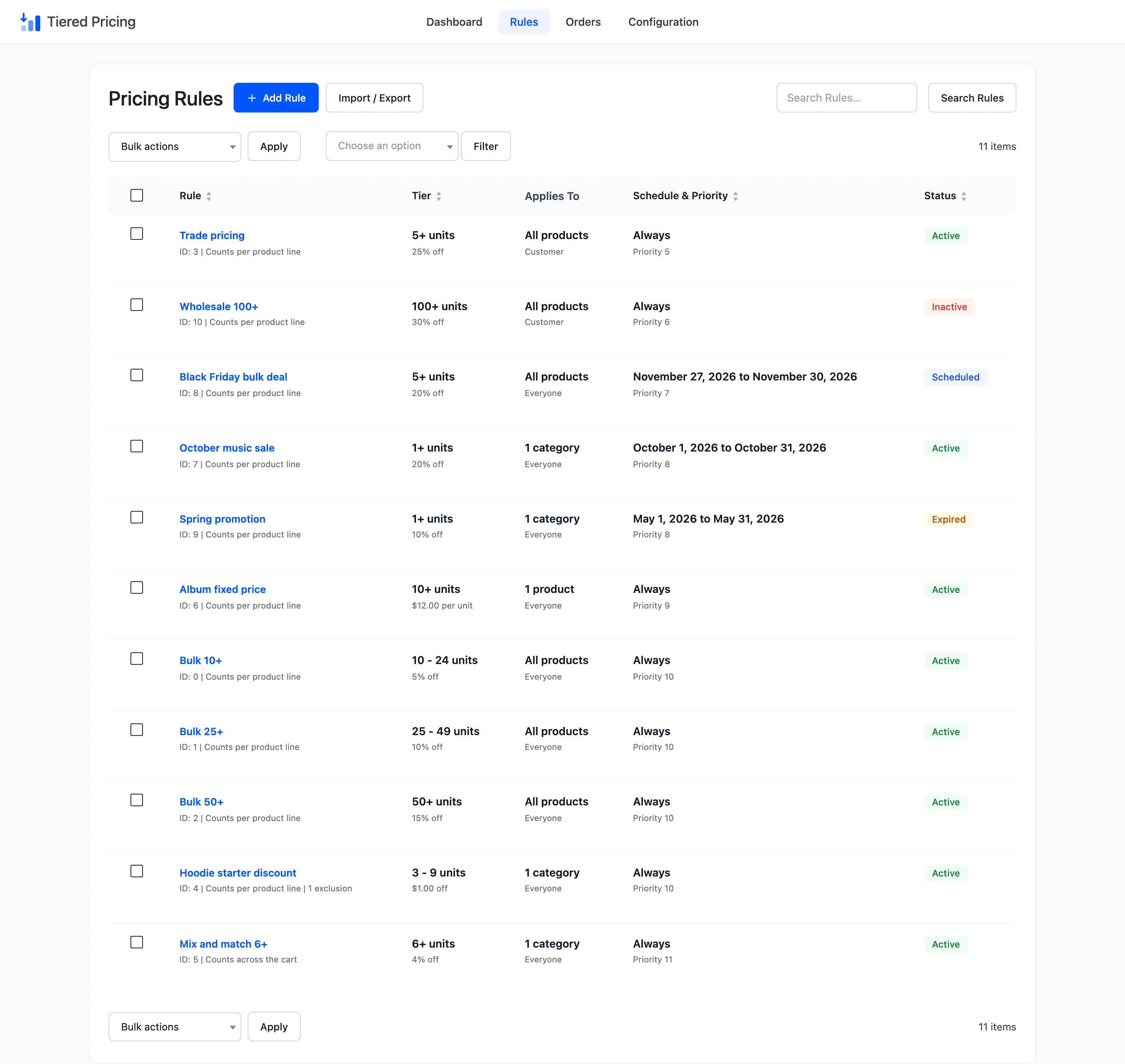
Rules added on a product’s own edit screen are not listed here. See Product and Variation Rules.
The buttons above the list
Section titled “The buttons above the list”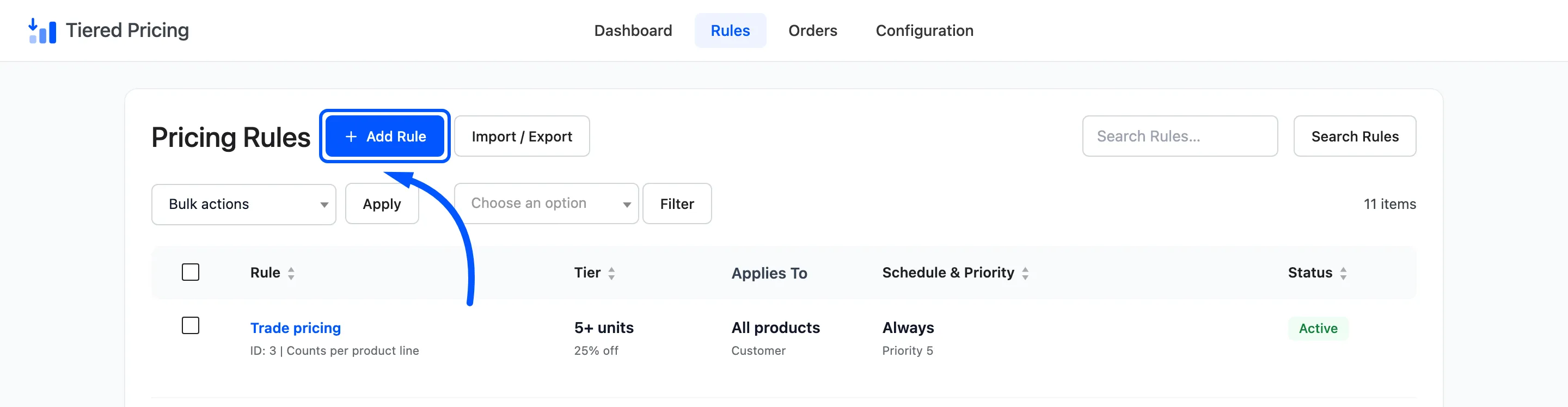
- Add Rule: Opens the Rule Editor with an empty form.
- Import / Export: Opens the screen that copies your rules to another store. See Import and Export.
The columns
Section titled “The columns”- Rule: The name, which opens the editor. Under it sit the rule’s ID and whether it counts quantity per product line or across the cart. A count of excluded products shows when there are any.
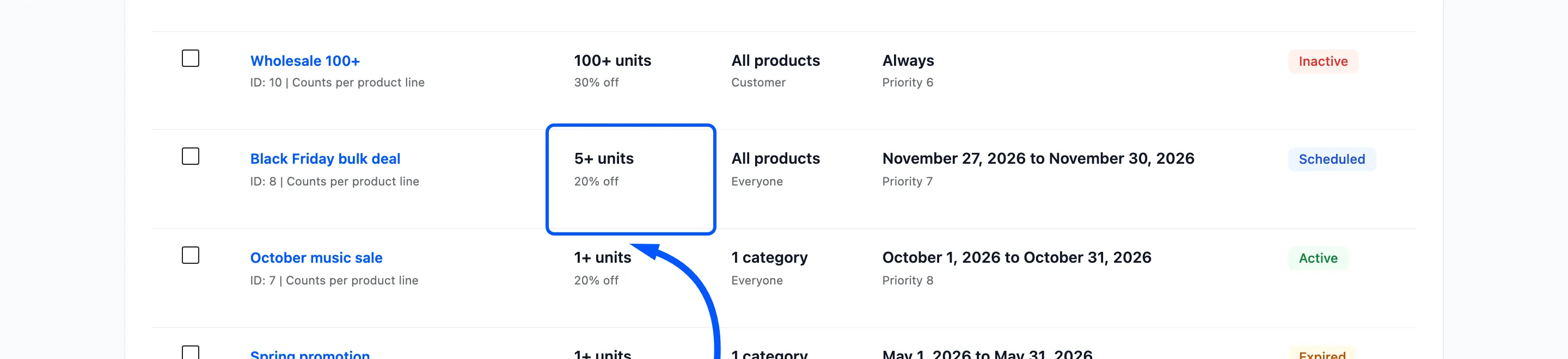
- Tier: The quantity range, such as 10 - 24 units or 50+ units. Under it is the discount: 5% off, $1.00 off or $12.00 per unit.
- Applies To: All products, a count of products or categories, and under it the roles allowed, or Everyone.
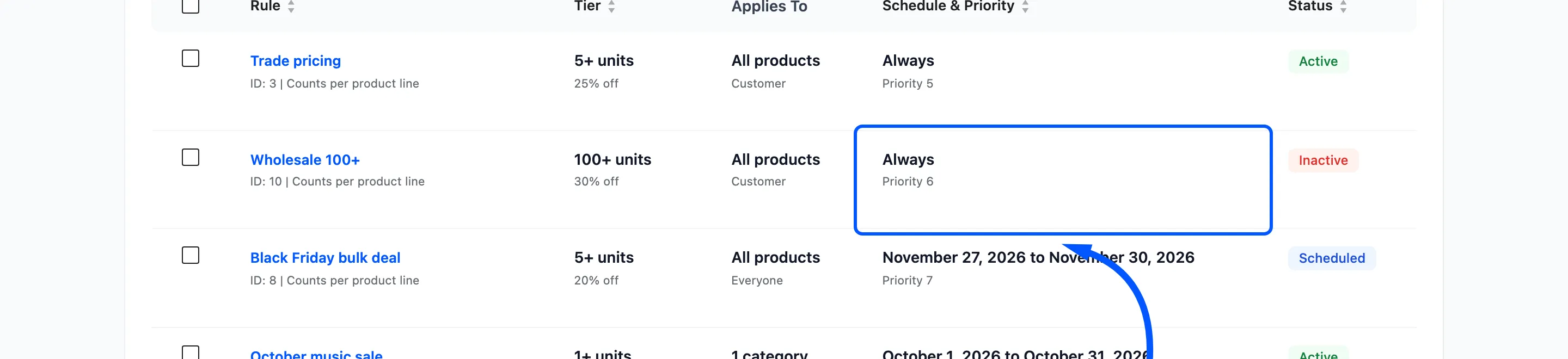
- Schedule & Priority: Always, a date range, From a date or Until a date, and under it the priority.
- Status: Active, Inactive, Scheduled or Expired.
Click the Rule, Tier, Schedule & Priority or Status heading to sort by it. The list starts sorted by priority, lowest number first, which is the order the cart checks the rules in.
The four statuses
Section titled “The four statuses”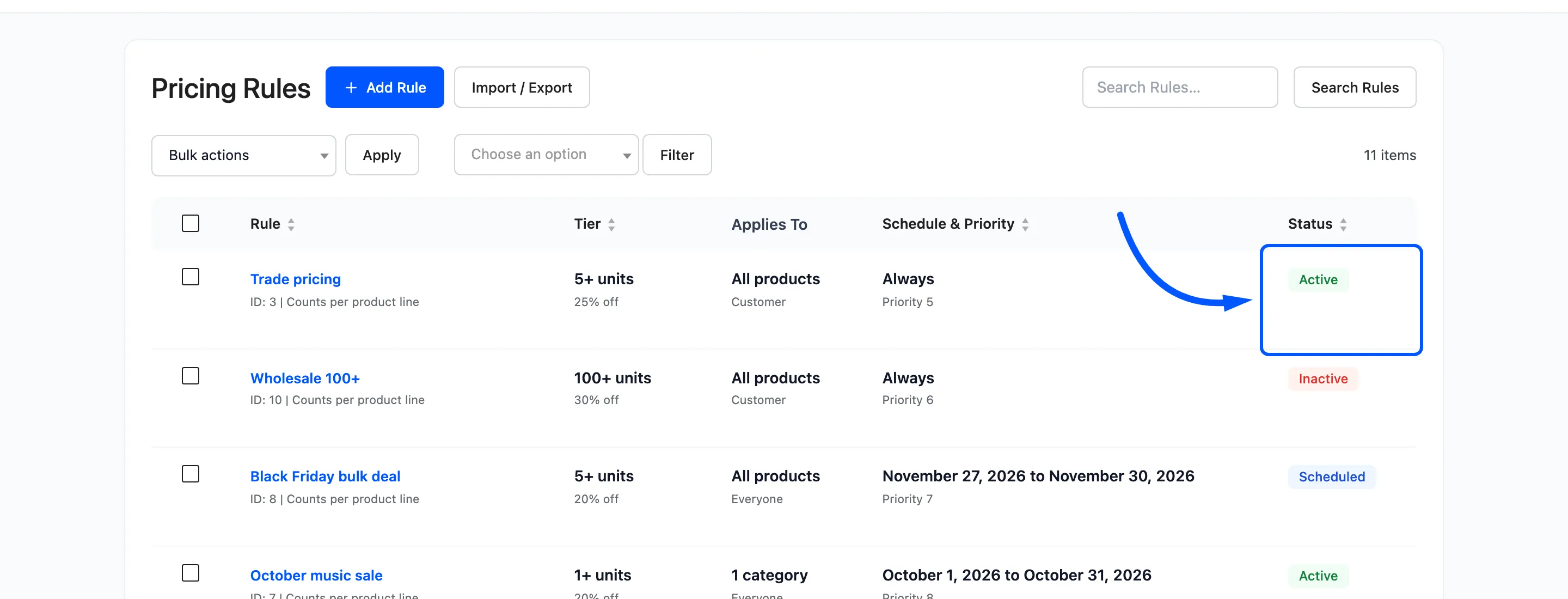
- Active: The rule is on, and today is inside its dates. Customers get it.
- Inactive: You switched the rule off. It is kept but never priced.
- Scheduled: The rule is on, but its start date has not arrived. It starts by itself.
- Expired: The rule is on, but its end date has passed. It stops by itself.
Dates use the site’s own calendar day. A rule with an end date of the 31st is still live all day on the 31st.
Filter by status
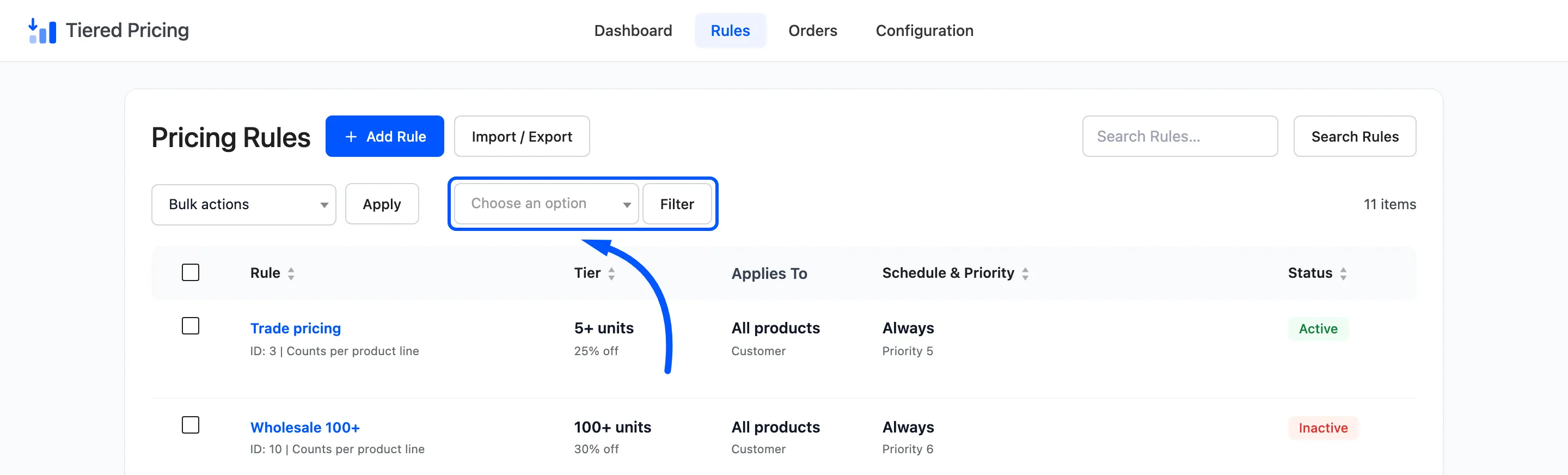
Section titled “Filter by status”Choose a status in the drop-down above the list and click Filter. Reset appears while a filter is on and clears it.
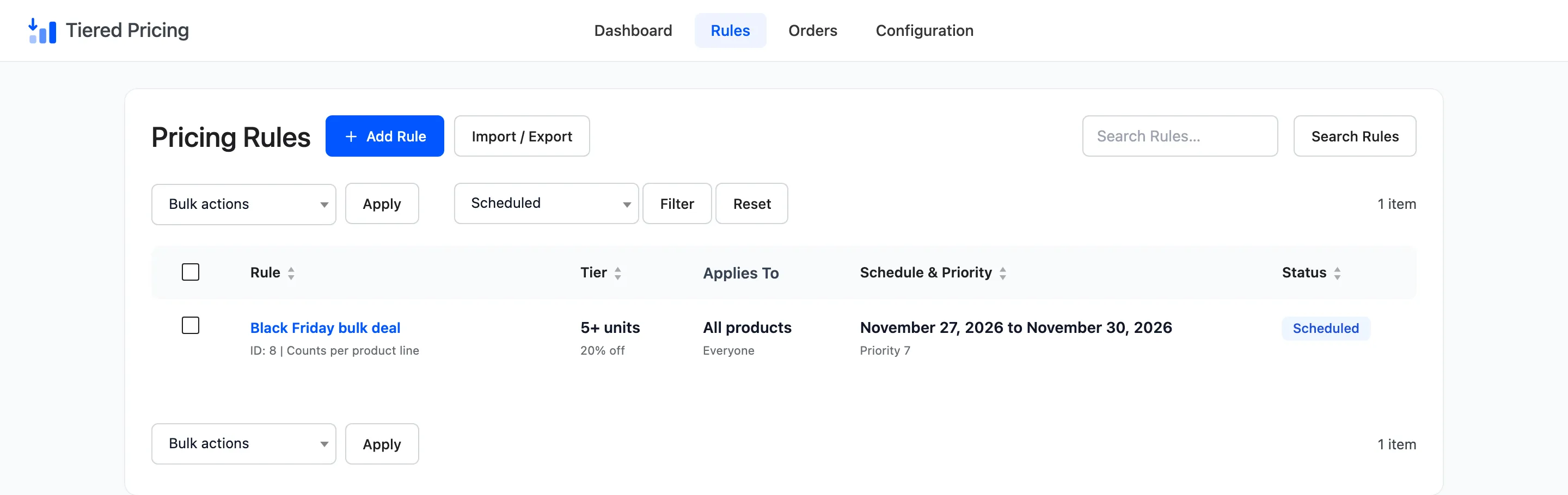
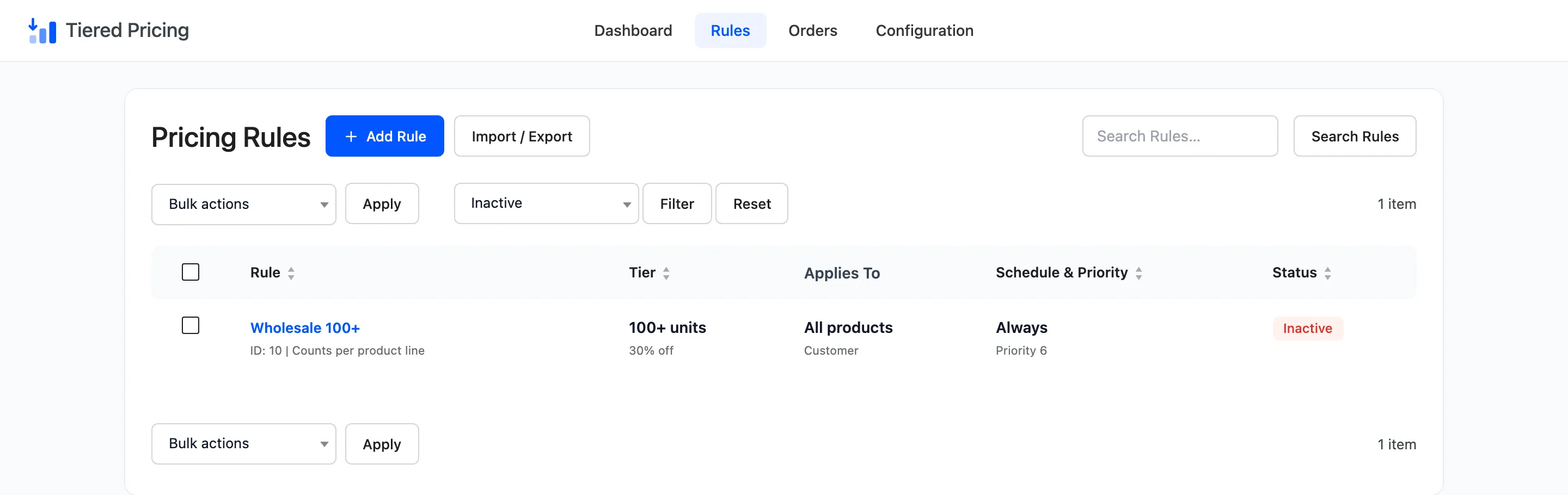
Use the Expired and Inactive filters for housekeeping. The same rules appear on the dashboard under Rules Needing Attention.
Search
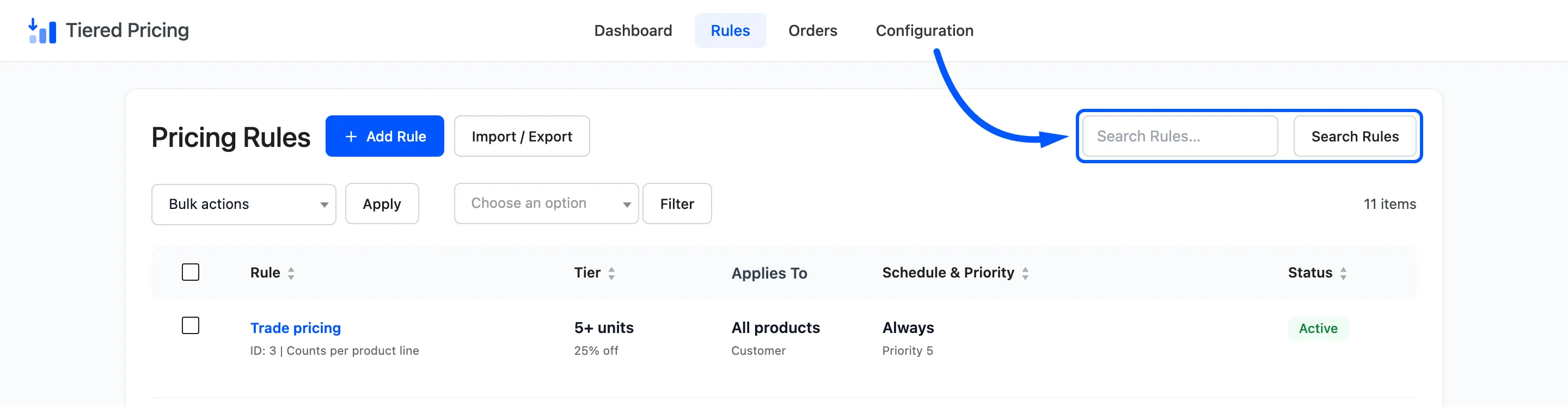
Section titled “Search”Type part of a rule name in Search Rules and press Enter. The match ignores capital letters and looks anywhere in the name.
Row actions
Section titled “Row actions”Hover a row to see its actions under the name.
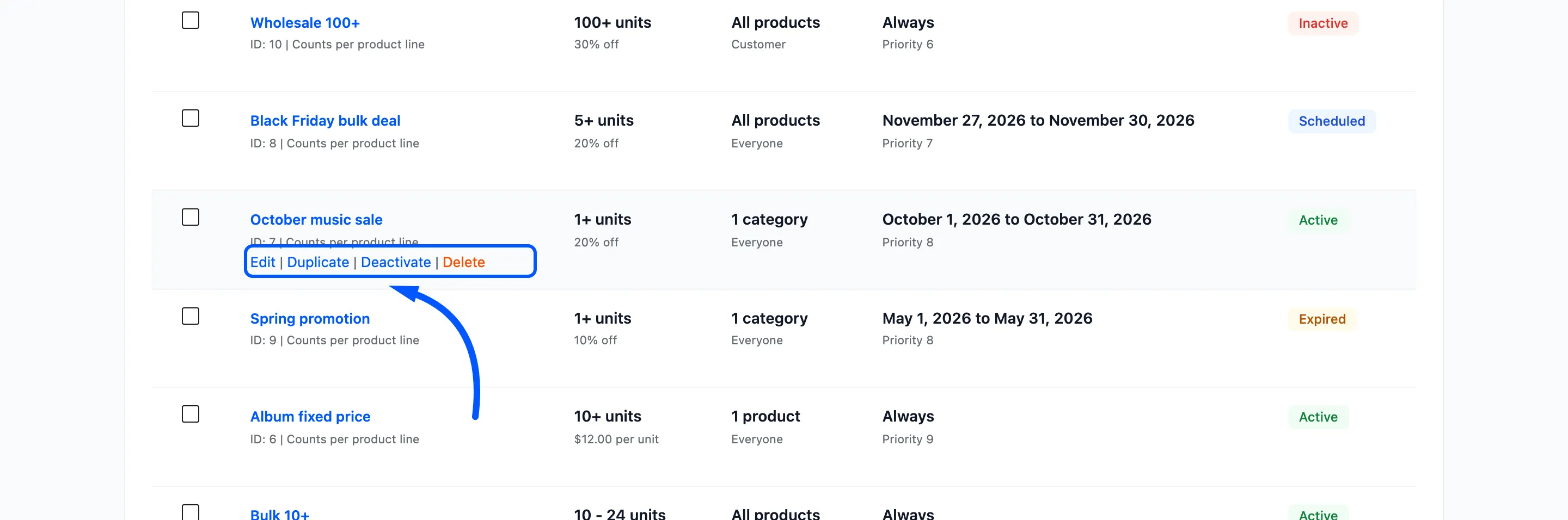
- Edit: Opens the editor.
- Duplicate: Makes a copy called “Name (copy)”. The copy is Inactive, so it does nothing until you switch it on.
- Deactivate or Activate: Flips the rule between Active and Inactive. The link shows the action that is not true yet.
- Delete: Removes the rule after your browser asks you to confirm. It cannot be undone.
Bulk actions
Section titled “Bulk actions”Tick the boxes beside several rules, choose an action and click Apply.
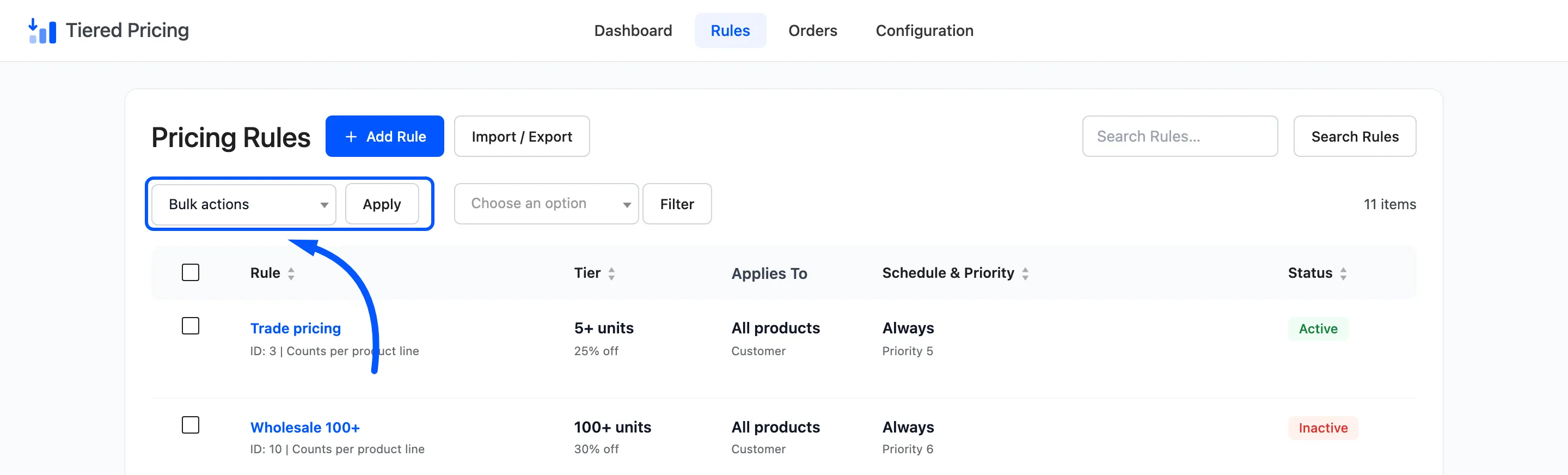
The actions are Activate, Deactivate, Duplicate and Delete. A notice reports how many rules changed.
Applying an action with nothing ticked shows Select at least one rule first. How to Pause, Duplicate and Delete Rules walks through them.
Screen options
Section titled “Screen options”Open Screen Options at the top right of the screen. Untick a column to hide it, or change Rules Per Page. The default is 20.
Both settings are saved for your user.