

Dashboard Overview
The dashboard answers one question: what are your quantity discounts doing? It shows what you gave away, how many orders used a tier, and which rules and products did the work. Open DevDiggers Plugins → Tiered Pricing → Dashboard.
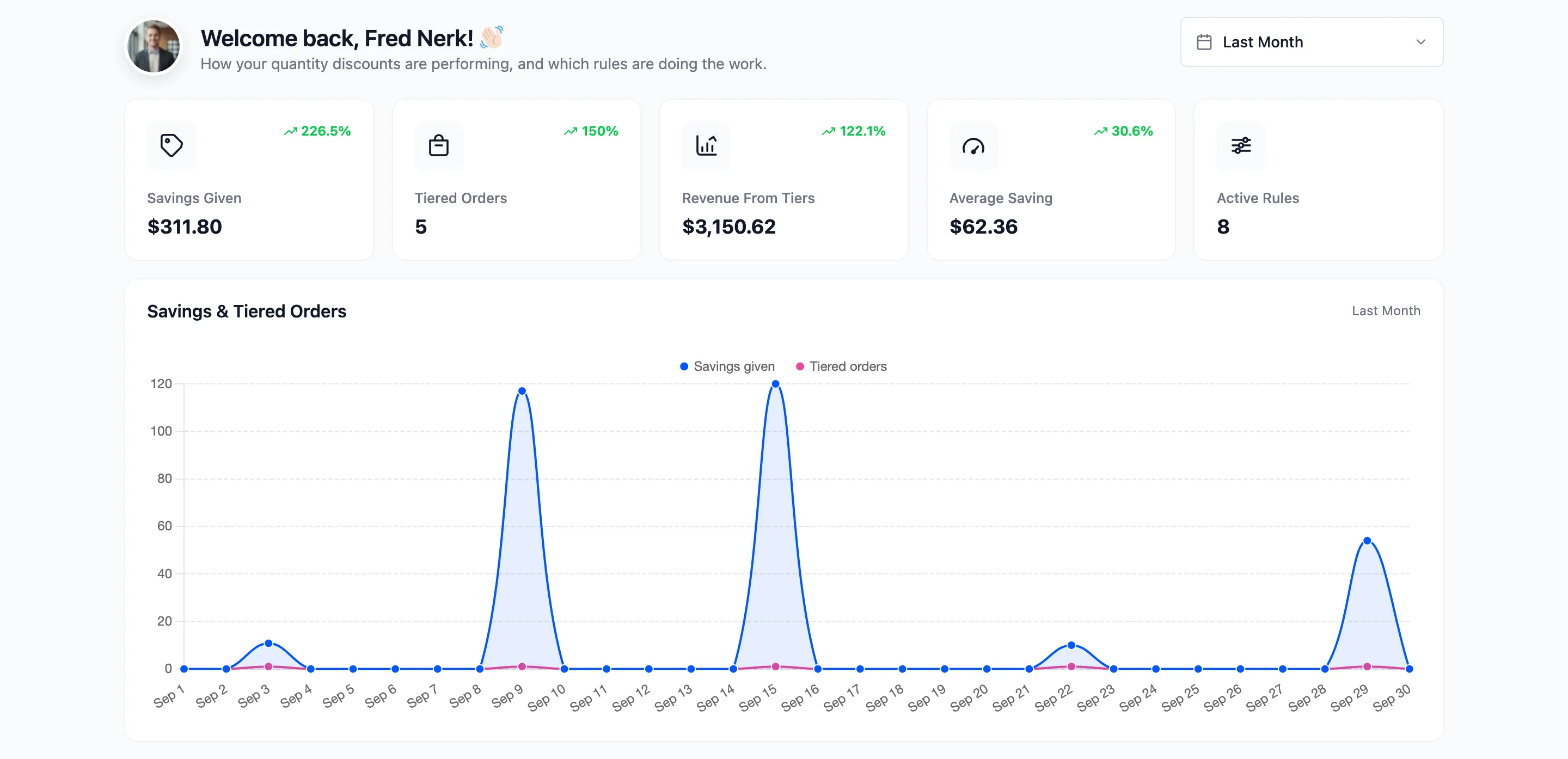
The numbers come from the records saved on each order. See Order Records. An order placed before you installed the plugin, or one with no tier price, adds nothing here.
The date range
Section titled “The date range”The picker at the top right sets the period for every card, the chart and the lists. It starts on This Month.
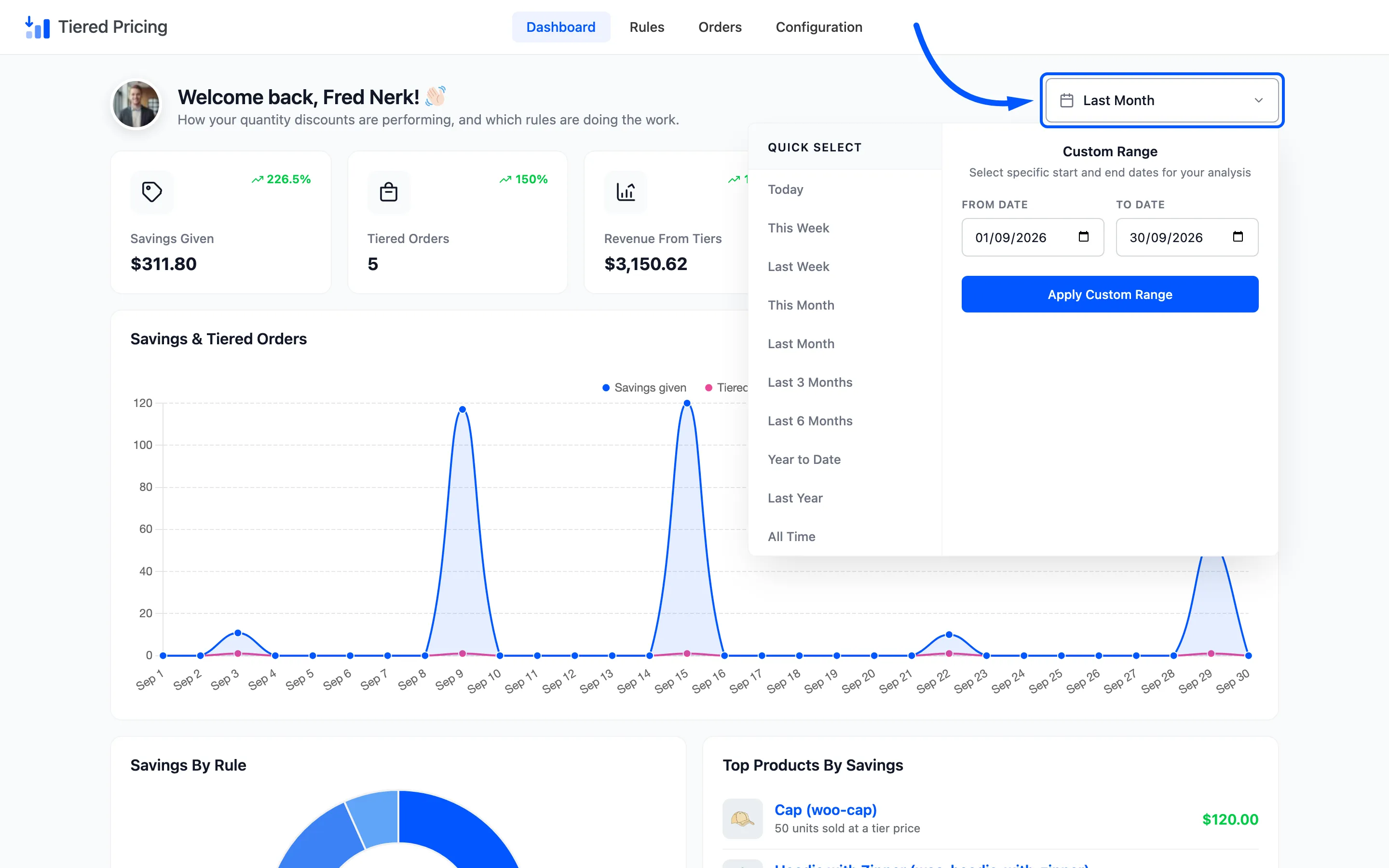
- Quick select: Today, This Week, Last Week, This Month, Last Month, Last 3 Months, Last 6 Months, Year to Date, Last Year and All Time. A week starts on Monday.
- Custom Range: Pick a From Date and a To Date, then click Apply Custom Range.
Every percentage on the cards compares the period with the one just before it, of the same length. If you choose Last Month, the comparison is the month before that.
The five cards
Section titled “The five cards”
- Savings Given: The total taken off prices by tiers. This is what the discounts cost you.
- Tiered Orders: The number of orders that received at least one tier price.
- Revenue From Tiers: The order totals of those orders, including shipping and tax. It is the revenue the discounted orders brought in, not the revenue the discount created.
- Average Saving: Savings Given divided by Tiered Orders.
- Active Rules: How many rules are live right now. It has no comparison, because it is a count of today.
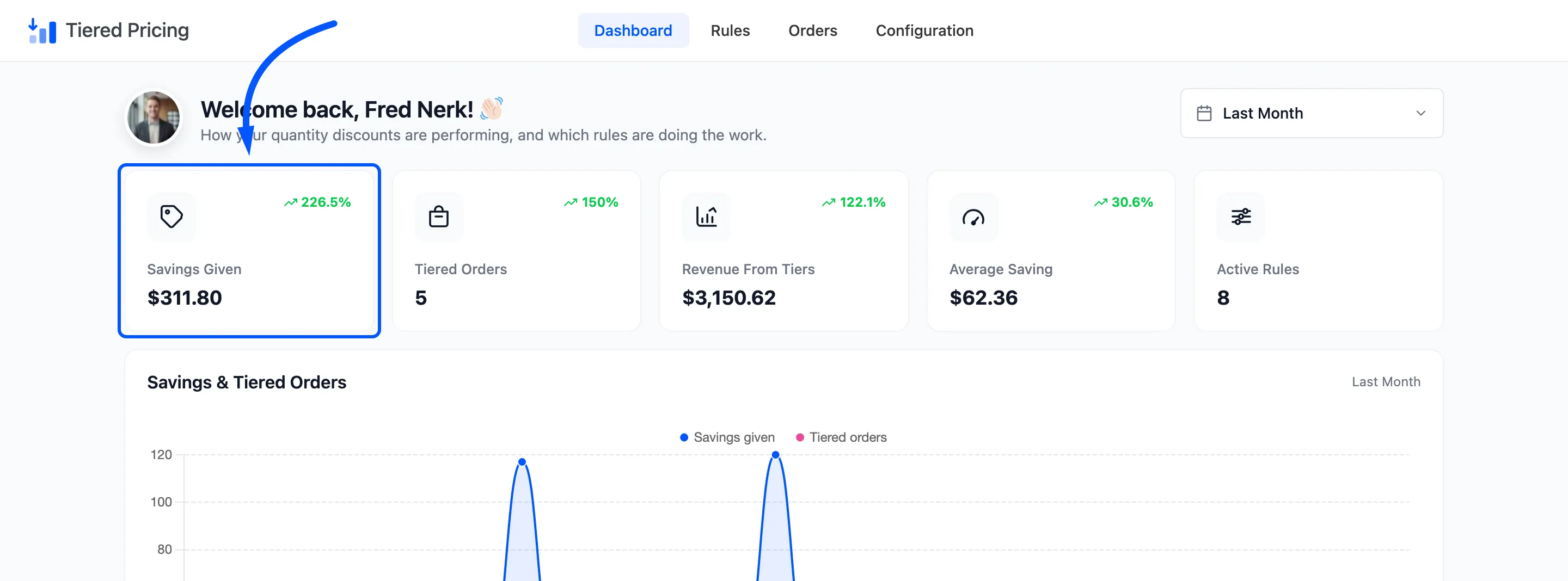
The green percentage is the change against the previous period. When the previous period had nothing and this one has something, the card reads 100%.
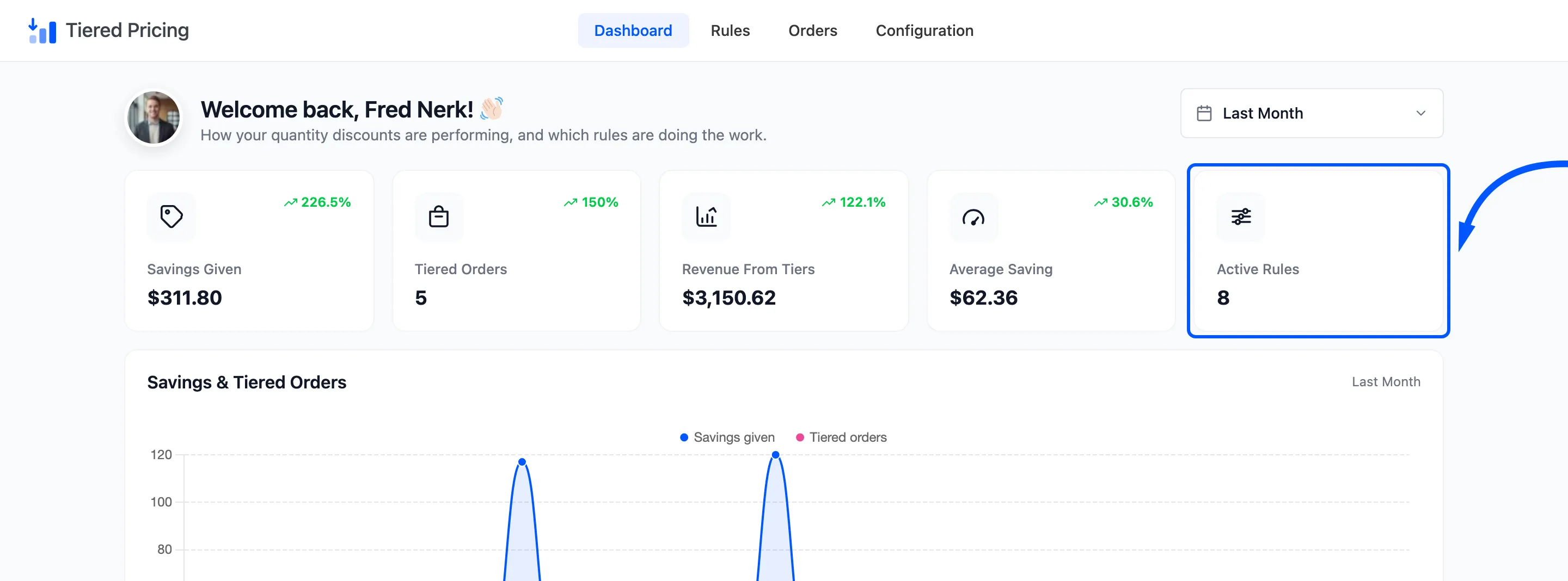
Active Rules counts rules that are switched on and inside their dates. A rule that is Inactive, Scheduled or Expired is not counted.
Savings & Tiered Orders
Section titled “Savings & Tiered Orders”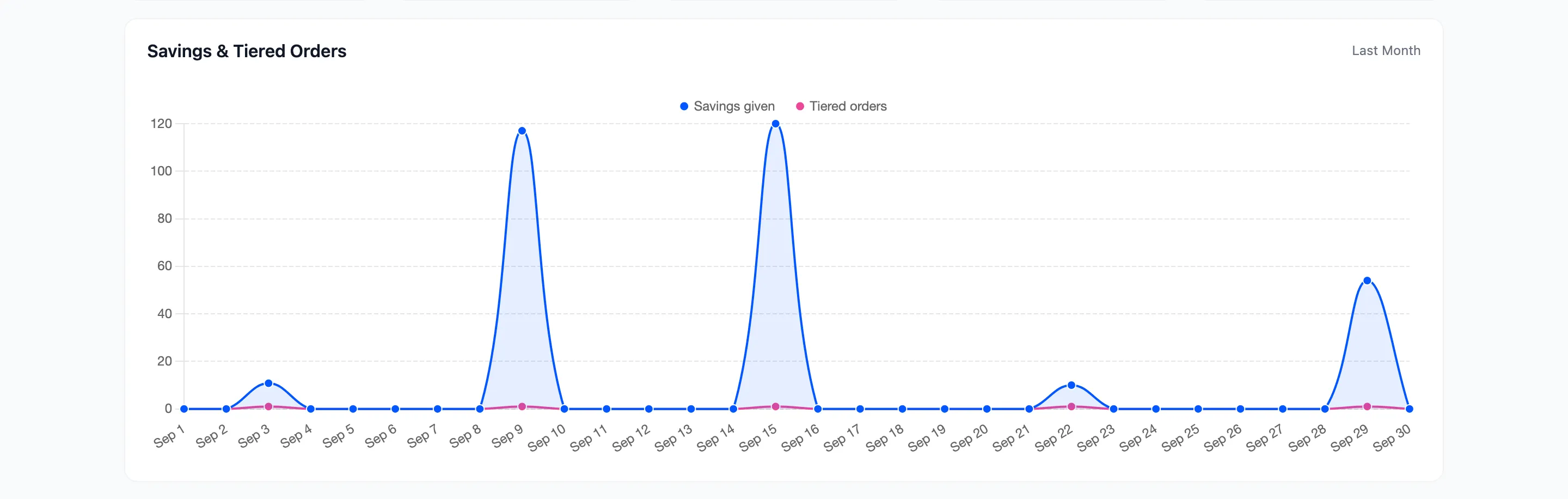
A line chart with one point for each day in the period. The blue line is the money saved. The pink line is the number of tiered orders.
Peaks mark the days when large orders landed. A period with no tiered orders shows a short message instead of a chart.
Savings By Rule and Top Products By Savings
Section titled “Savings By Rule and Top Products By Savings”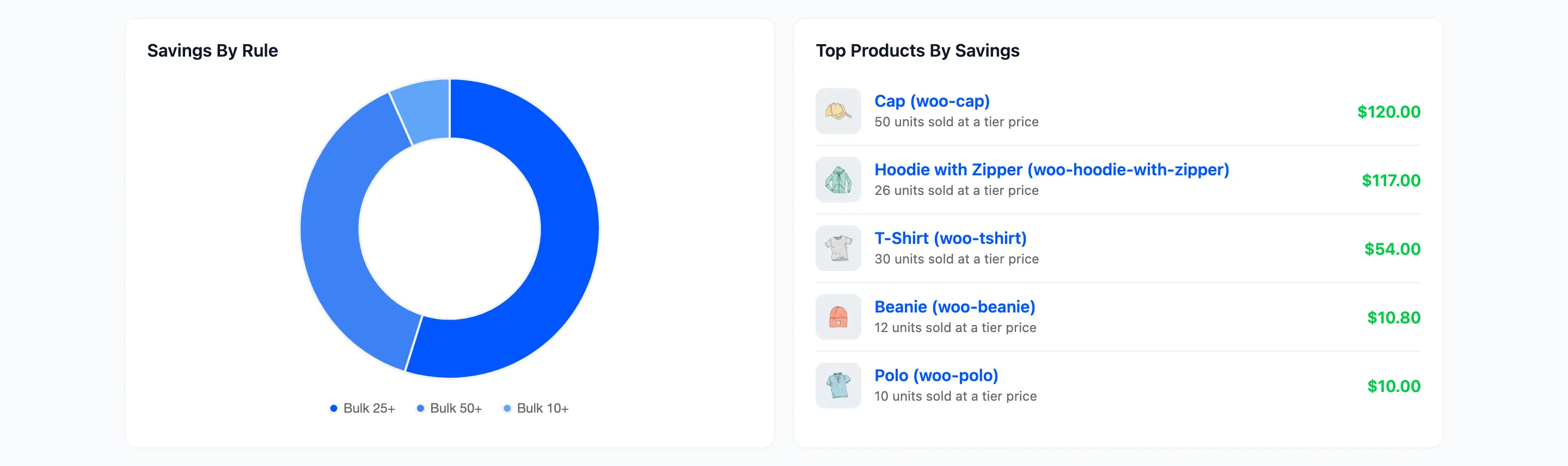
- Savings By Rule: A doughnut chart of the six rules that saved customers the most. It tells you which tier customers actually reach, so you know which one to promote.
- Top Products By Savings: The six products with the largest total saving. Each shows a thumbnail, the units sold at a tier price and the amount. Click a product to open its edit screen.
A variation is listed under its own name.
Recent Tiered Orders and Rules Needing Attention
Section titled “Recent Tiered Orders and Rules Needing Attention”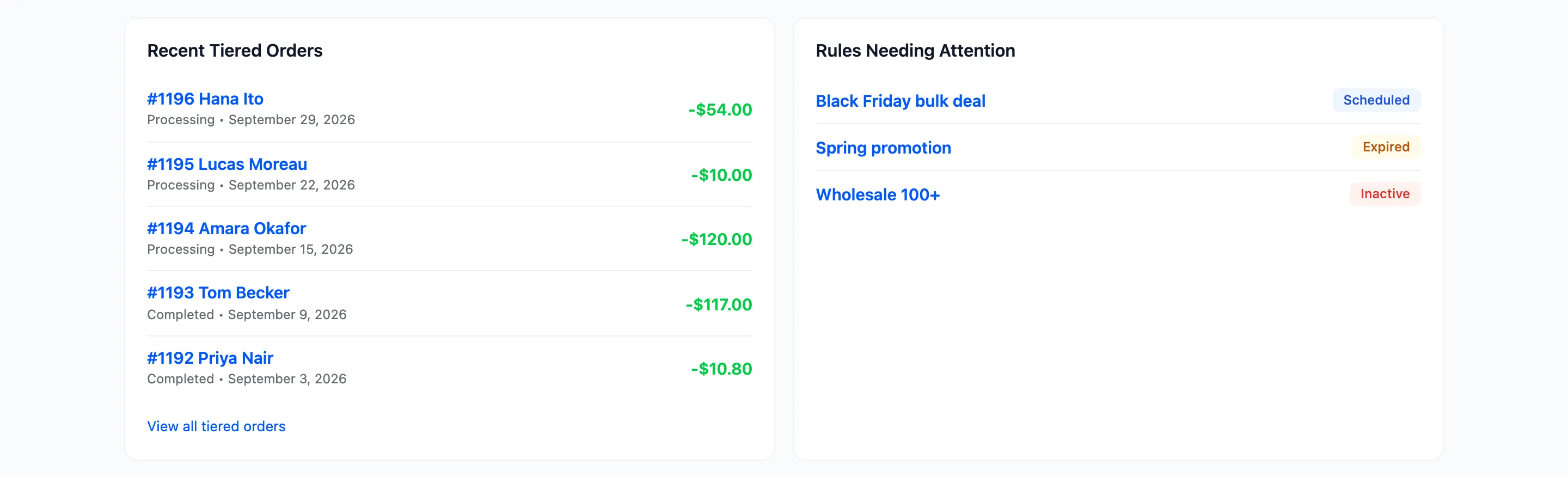
- Recent Tiered Orders: The six latest orders in the period, with the status, the date and the saving. Click one to open it. View all tiered orders goes to the Tiered Orders list.
- Rules Needing Attention: Rules that are not live: Inactive, Scheduled or Expired. It lists up to six, each with its status. Click one to open it in the editor.
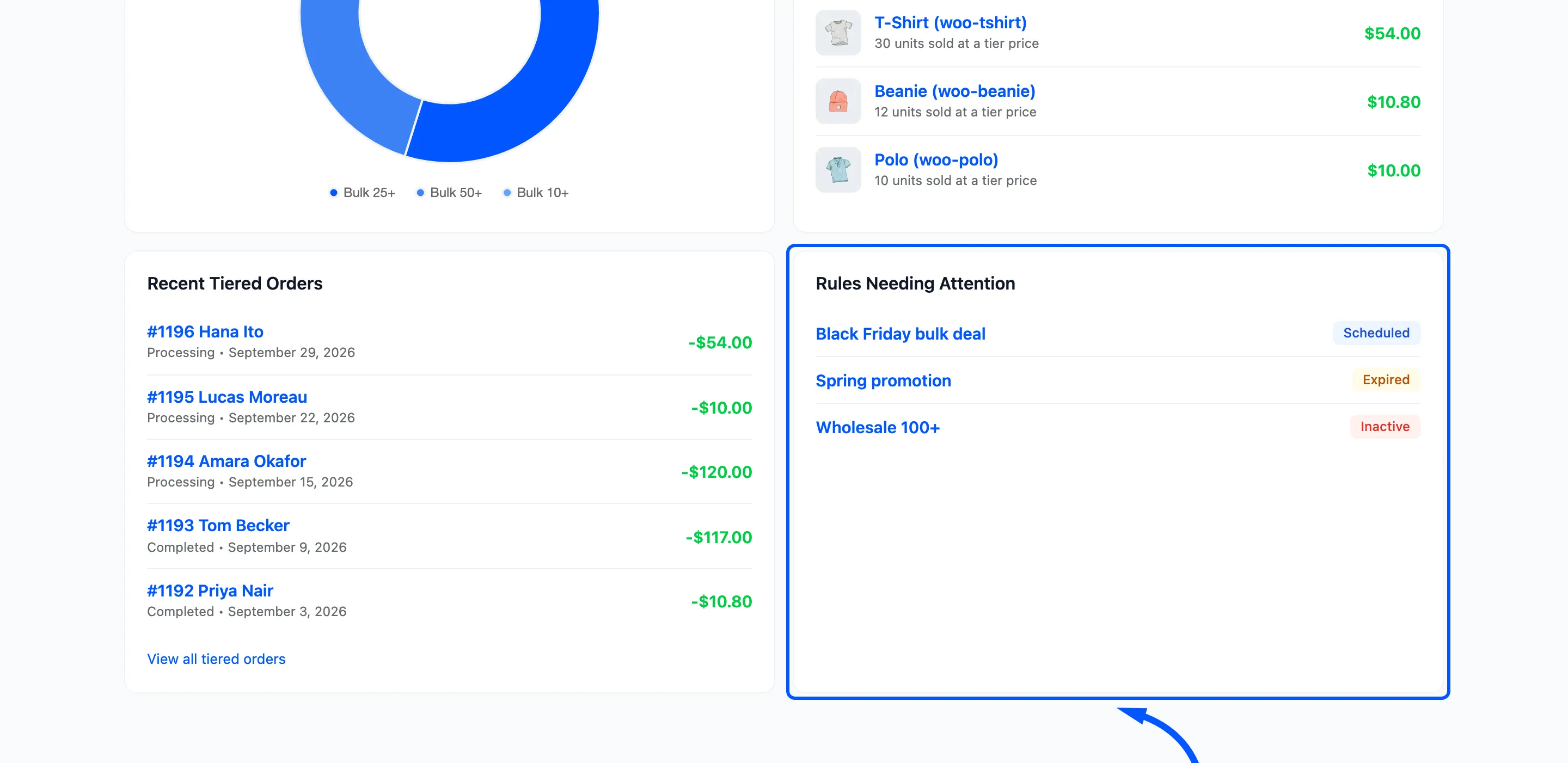
The list is a reminder, not an error. A scheduled promotion belongs here until it starts. When the list says Every rule is live, nothing is paused, waiting or finished.
Which orders are counted
Section titled “Which orders are counted”The dashboard counts orders in every status except Cancelled, Failed and Refunded. Pending payment and on-hold orders are counted. The numbers therefore show discounts that stuck.

The picture shows the effect. Cancelling one $10.00 order moved Savings Given from $311.80 to $301.80 and Tiered Orders from 5 to 4. The Tiered Orders screen still lists that order, marked Cancelled.
For performance the dashboard reads the 2,000 most recent matching orders in the period. A very busy store should choose a shorter range for exact figures.