

How Tiered Pricing Works
Every cart line gets its price from one rule, or from none. This page follows that choice from start to finish. Read it once and the rest of the plugin is easy to predict.
The short version
Section titled “The short version”The plugin looks at one product and one quantity at a time. It builds a list of rules that could apply and puts them in order.
It takes the first rule whose quantity range contains the quantity and whose price is lower than the normal price. That rule sets the unit price.
Step by step
Section titled “Step by step”1. The gates
Section titled “1. The gates”Nothing happens on the storefront unless two things are true.
- The licence is active.
- Activate WooCommerce Tiered Pricing is ticked under Configuration → General.
Rules are kept either way. Switching the plugin off hides every discount without deleting a rule.
2. Store wide exclusions
Section titled “2. Store wide exclusions”A product in Excluded Products, or in an excluded category, never gets a tiered price. The same is true of its variations and of products in a sub category of an excluded one. This check comes before any rule, so no rule can override it.
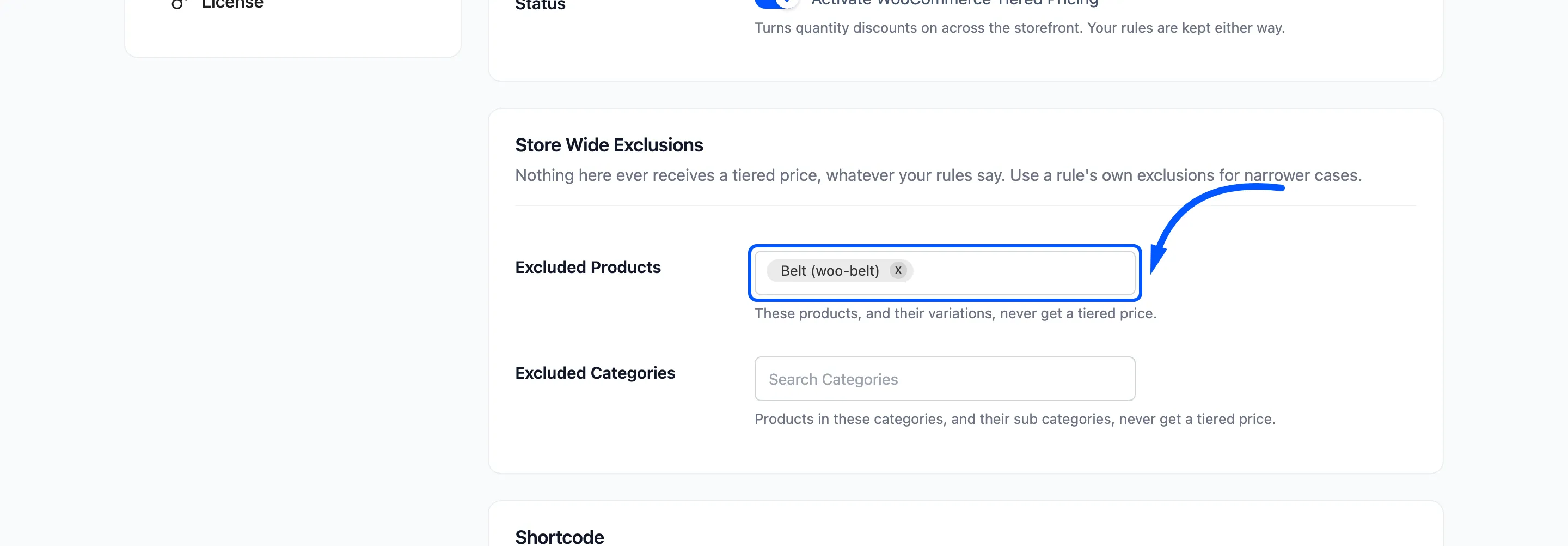
See How to Exclude Products From Tiered Pricing.
3. Which rules are candidates
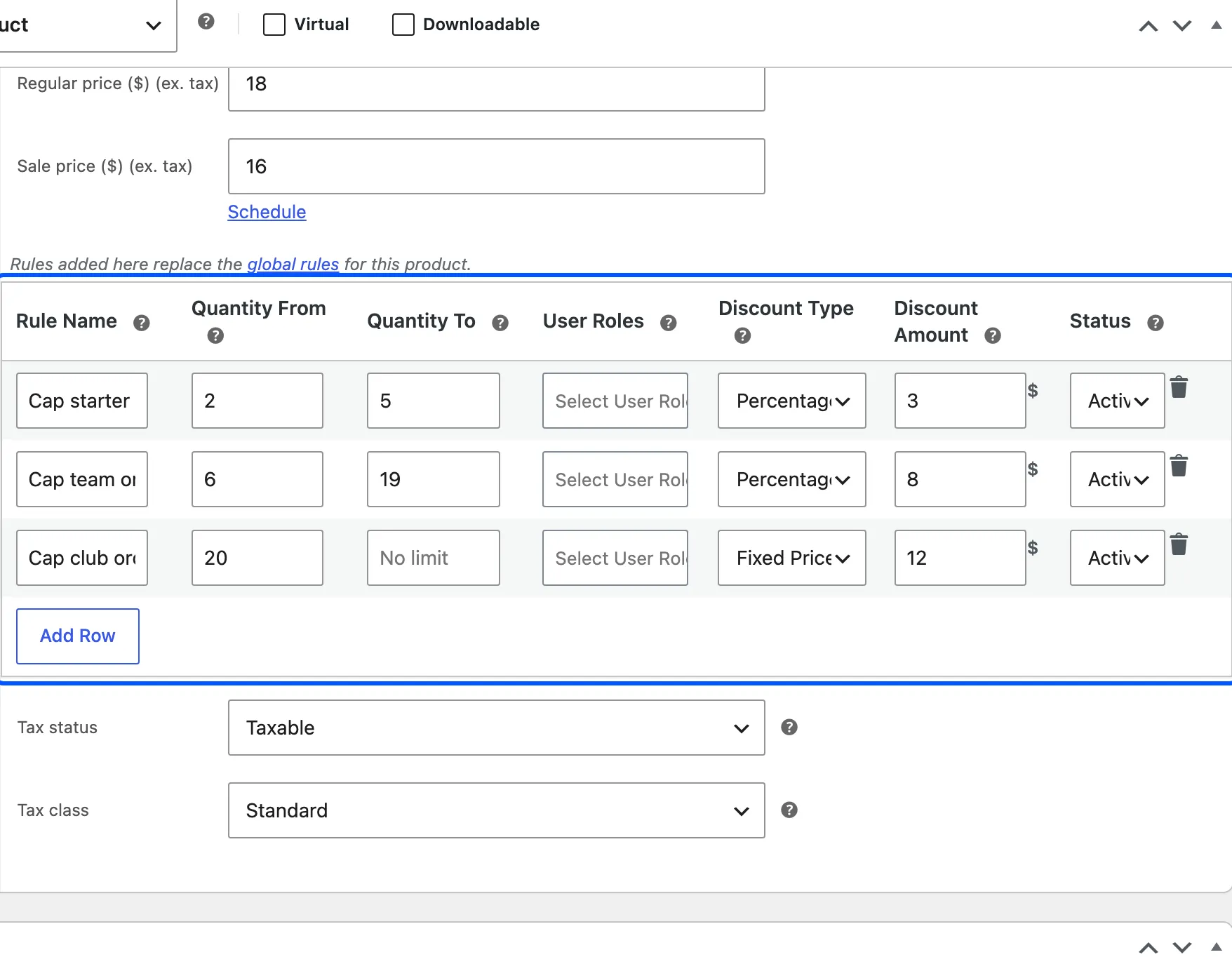
Section titled “3. Which rules are candidates”- A product with its own rules uses only those. Rules added under the price fields on the product edit screen replace every global rule for that product. See How to Set Rules on a Single Product or Variation.
- Every other product uses the global rules that target it. A rule can target all products, selected products or selected categories, and it can exclude products. A category includes its sub categories.
4. Which candidates are live
Section titled “4. Which candidates are live”A rule stays in the list only if all of these hold.
- Its status is Active.
- Today falls between its Start Date and End Date, where they are set.
- The visitor holds one of its User Roles, or the rule has no roles. A visitor who is not logged in counts as Guest.
5. The order
Section titled “5. The order”Rules are sorted by Priority. A lower number is checked first. Rules with the same priority keep the order they have in the Rules list, which is the order they were created or imported.
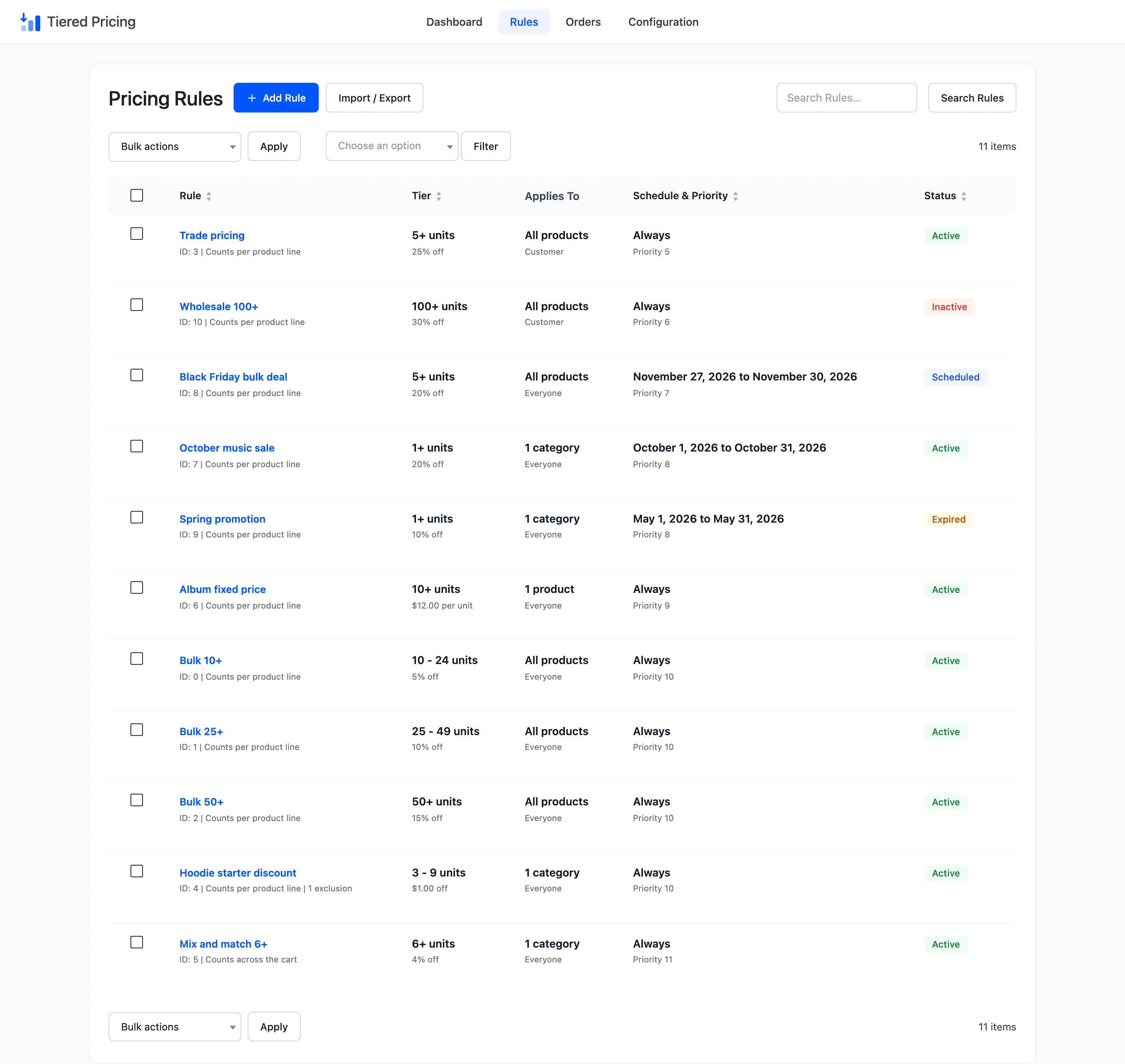
Priority and list order are the only things that decide between two rules. A rule is never compared with another on which discount is bigger.
6. The quantity test
Section titled “6. The quantity test”For each rule in order, the plugin asks whether the quantity sits inside From and To. An empty To means no upper limit.
The quantity is normally the quantity of that cart line. A rule set to Across the cart uses the total of every cart line the rule targets instead, and never less than the line itself. See How to Count Quantity Across the Whole Cart.
7. The price test
Section titled “7. The price test”The unit price comes from the product’s current price. When the product is on sale, that is the sale price, not the regular price.
| Discount type | New unit price |
|---|---|
| Percentage discount | Current price minus the percentage of it |
| Fixed discount per unit | Current price minus the amount |
| Fixed unit price | The amount you entered |
The result never goes below zero and is rounded to the store’s number of price decimals. If the result is not lower than the current price, the rule is skipped and the next one is tried. A fixed unit price above the normal price therefore never applies.
8. The first match wins
Section titled “8. The first match wins”The first rule that passes the quantity test and the price test sets the price. If none does, the customer pays the normal price.
A worked example
Section titled “A worked example”The demo sells a Beanie at a sale price of $18.00. Three global rules share priority 10.
| Rule | Quantity | Discount |
|---|---|---|
| Bulk 10+ | 10 to 24 | 5% |
| Bulk 25+ | 25 to 49 | 10% |
| Bulk 50+ | 50 and over | 15% |
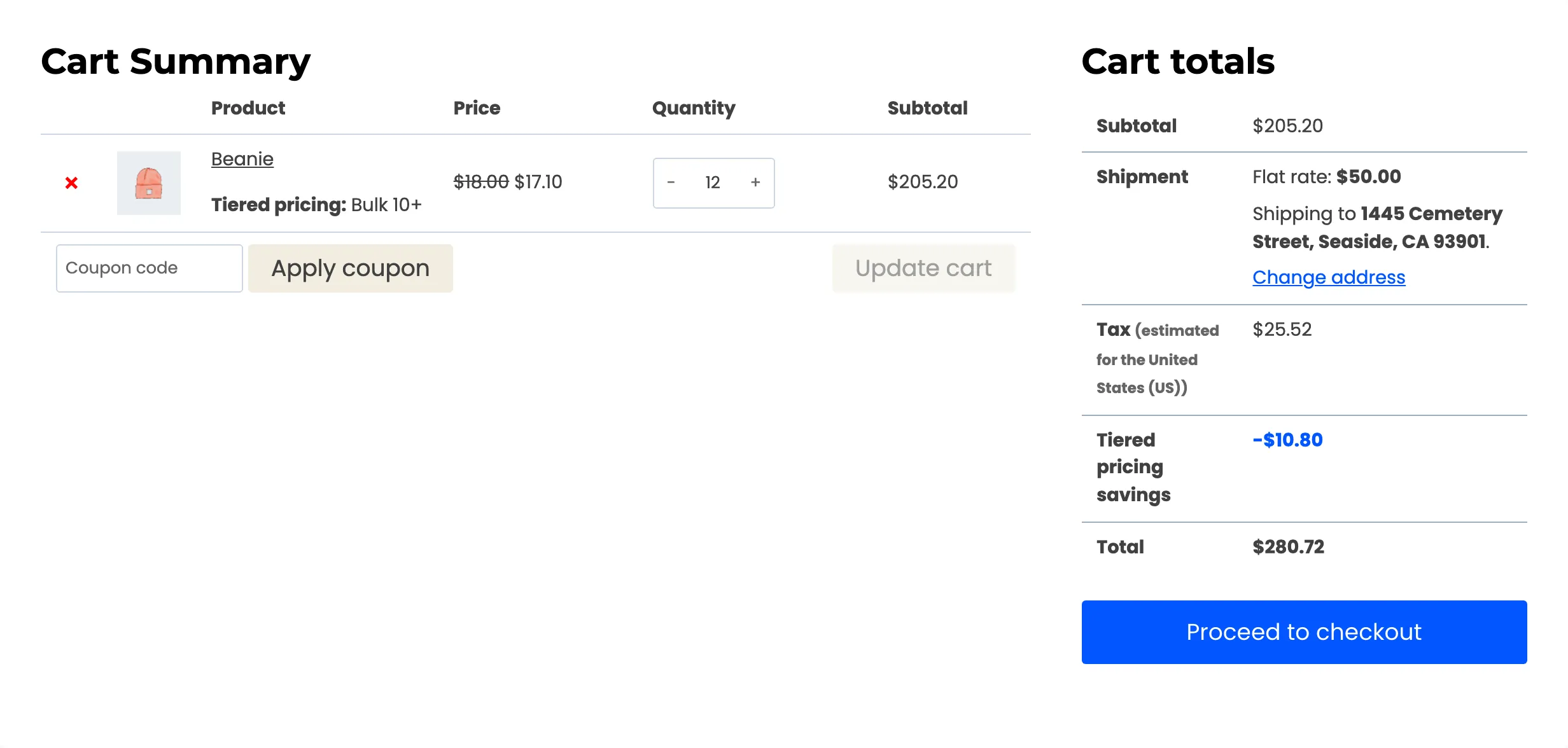
A customer who adds 12 Beanies matches Bulk 10+. The unit price is $17.10, the line is $205.20, and the saving is $10.80. At 30 units the same customer matches Bulk 25+ and pays $16.20 each.
Add a rule called Trade pricing: 25 percent off from 5 units, for the Customer role, priority 5. For a logged-in customer it is checked first. At 12 units that customer pays $13.50, not $17.10, because priority 5 comes before priority 10.
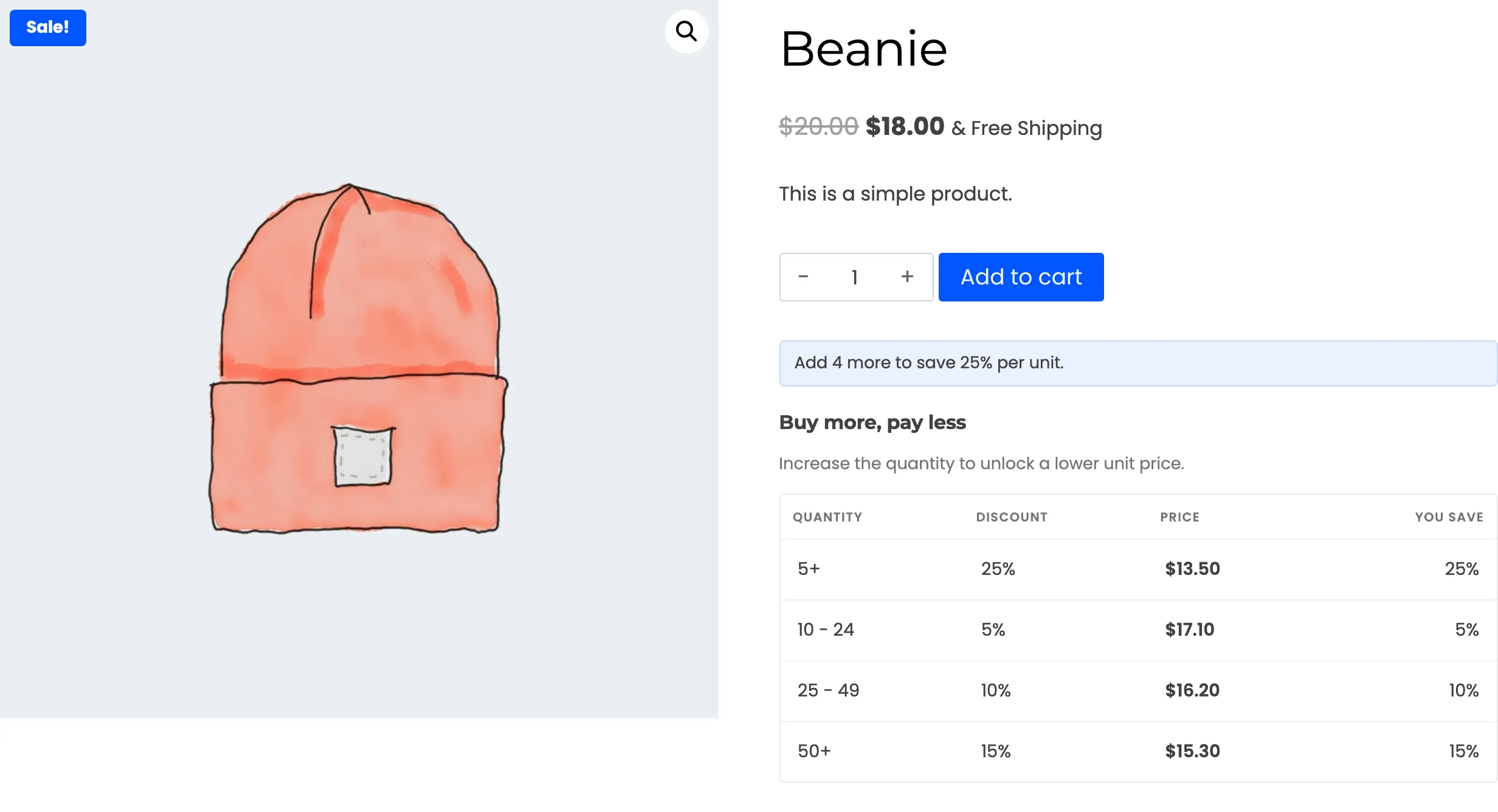
The table lists tiers, the cart picks one
Section titled “The table lists tiers, the cart picks one”The pricing table on the product page lists every tier that applies to the visitor, sorted by quantity. A tier that would not lower the price, such as a fixed unit price above the normal price, is left out. The cart uses the order in step 5.
When tiers overlap, the table shows both rows and the cart charges the one with the lower priority number.
The picture above shows it. The customer sees a 5+ row at 25 percent and the three bulk rows beneath it. The bulk rows never apply to that customer, because the trade rule always matches first.
Keep ranges from overlapping unless you mean it. How to Give Wholesale Prices to a User Role shows how to keep the table clean.
Where the price shows up
Section titled “Where the price shows up”- Product page: The table, the highlighted tier and the next tier hint.
- Shop and category pages: The listing badge, when it is on.
- Cart and mini cart: The tier price, the rule name, and optionally the struck-through normal price. The cart totals add a savings row.
- Checkout: The tier price and the rule name on the line.
- The order: The rule, the normal price, the unit price and the saving for every line, saved with the order. See Order Records.
The price is recalculated every time the cart changes. Change the quantity in the cart and the line moves to the tier for the new quantity.
What the plugin does not do
Section titled “What the plugin does not do”- It does not add a discount line. The unit price itself is lowered. The savings row in the totals is only a summary.
- It does not discount past the top tier. If the highest tier has an upper limit, quantities above it pay the normal price. See How to Close the Top of Your Price Ladder.