

Import and Export
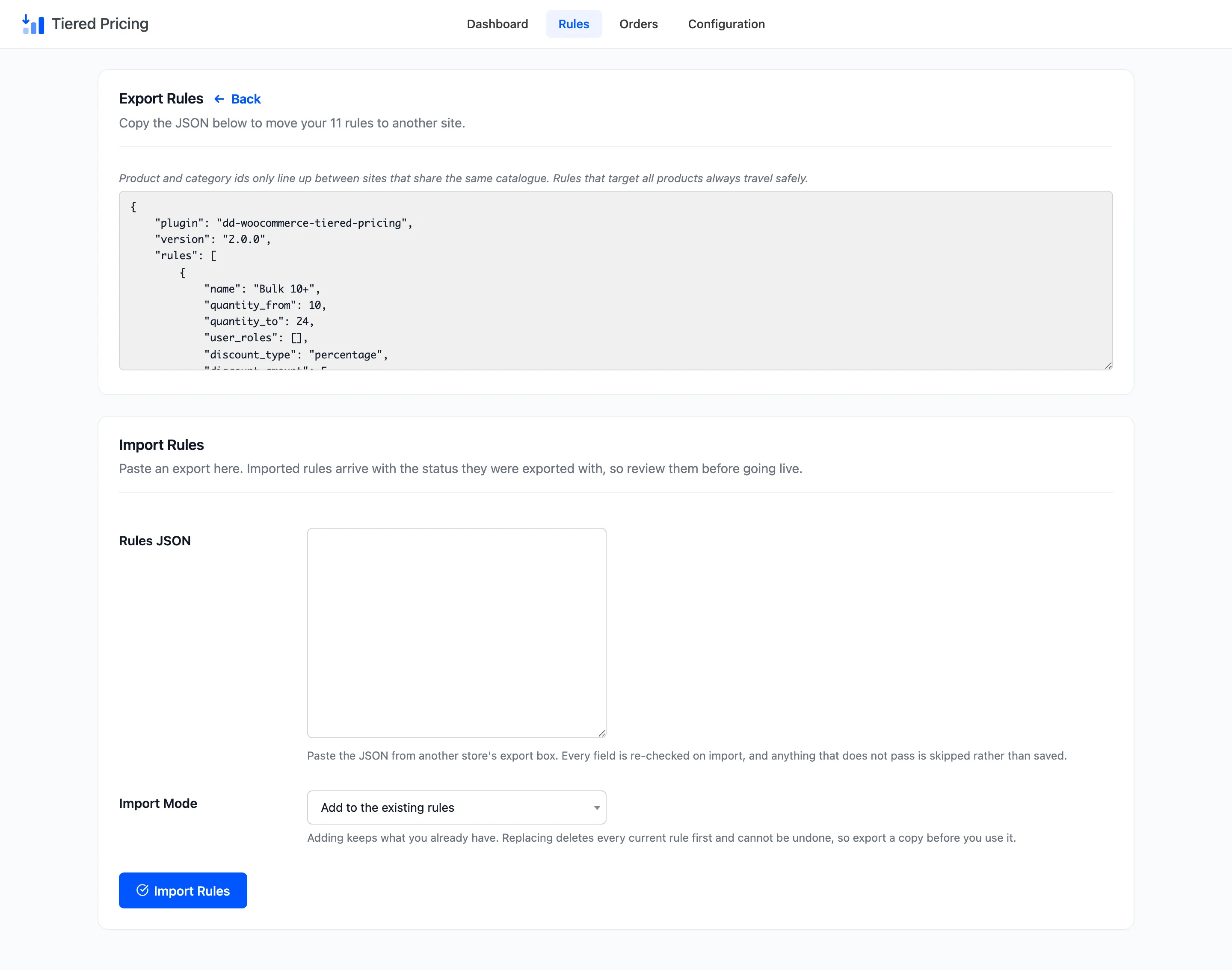
One screen copies your rules out of the store as text and reads them back in. Use it to move a price list from staging to the live store. It also keeps a backup before a big change and sets up a second shop.
Open Rules → Import / Export, or go to the Rules screen and click Import / Export.
Export
Section titled “Export”The top half is the export. It lists how many rules it holds, for example “Copy the JSON below to move your 11 rules to another site”. Click inside the box and the text is selected for you, so you can copy it.
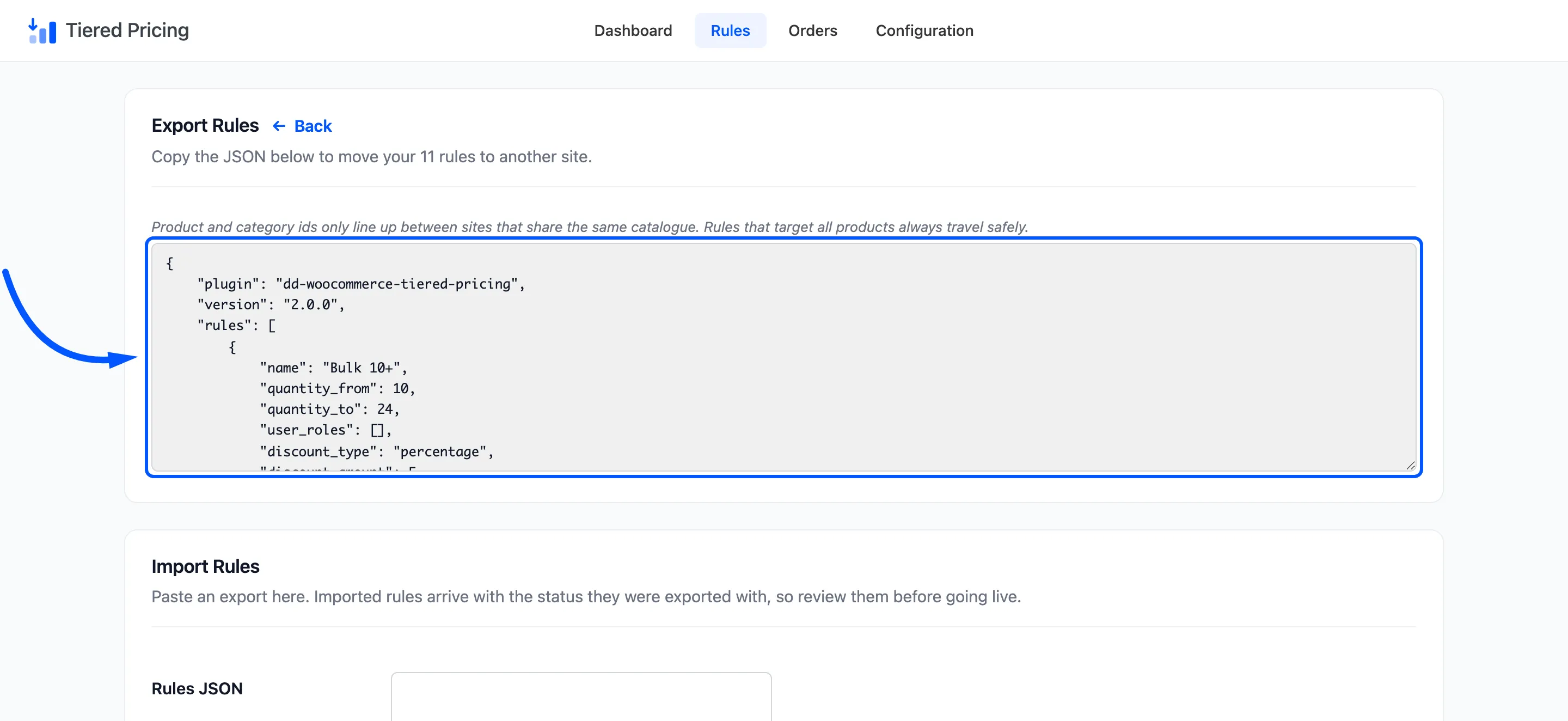
The export holds every rule on the Rules screen, whatever its status. It does not hold the rules saved on single products or variations, and it does not hold the Display or General settings.
A note under the heading explains the catch: product and category ids only line up between sites that share the same catalogue. A rule that targets All products always travels safely. A rule that targets selected products or categories points at ids, so check those rules after importing into a different store.
Import
Section titled “Import”The bottom half is the import.
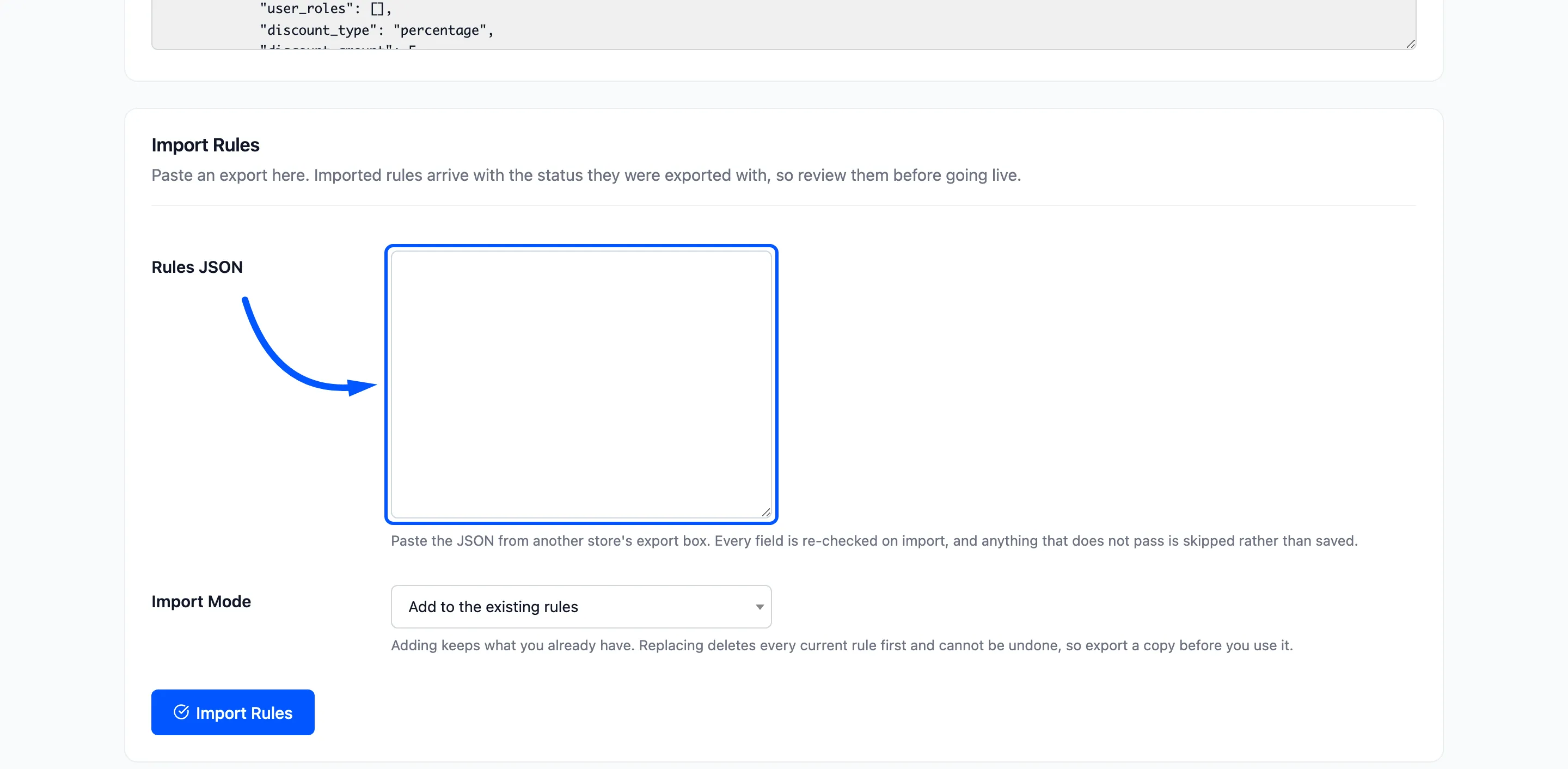
- Rules JSON: Paste the text from another store’s export box. It accepts the whole export, or a bare list of rules.
- Import Mode: Add to the existing rules keeps what you have and adds the new ones at the end. Replace all existing rules deletes every current rule first and cannot be undone. Export a copy before you use it.
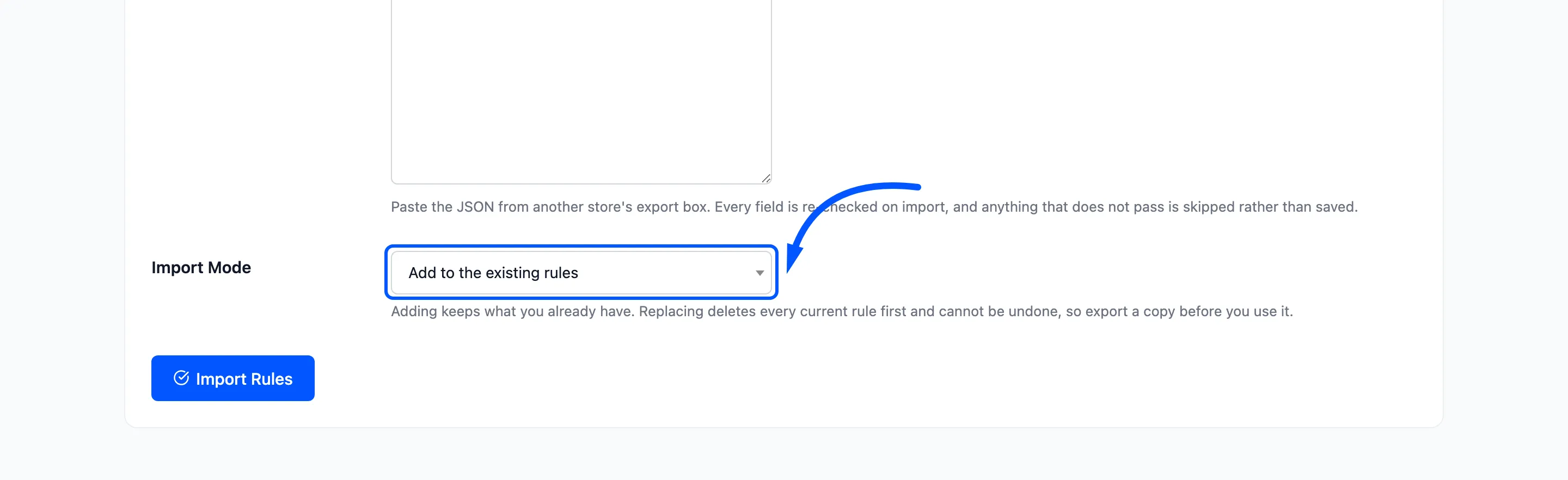
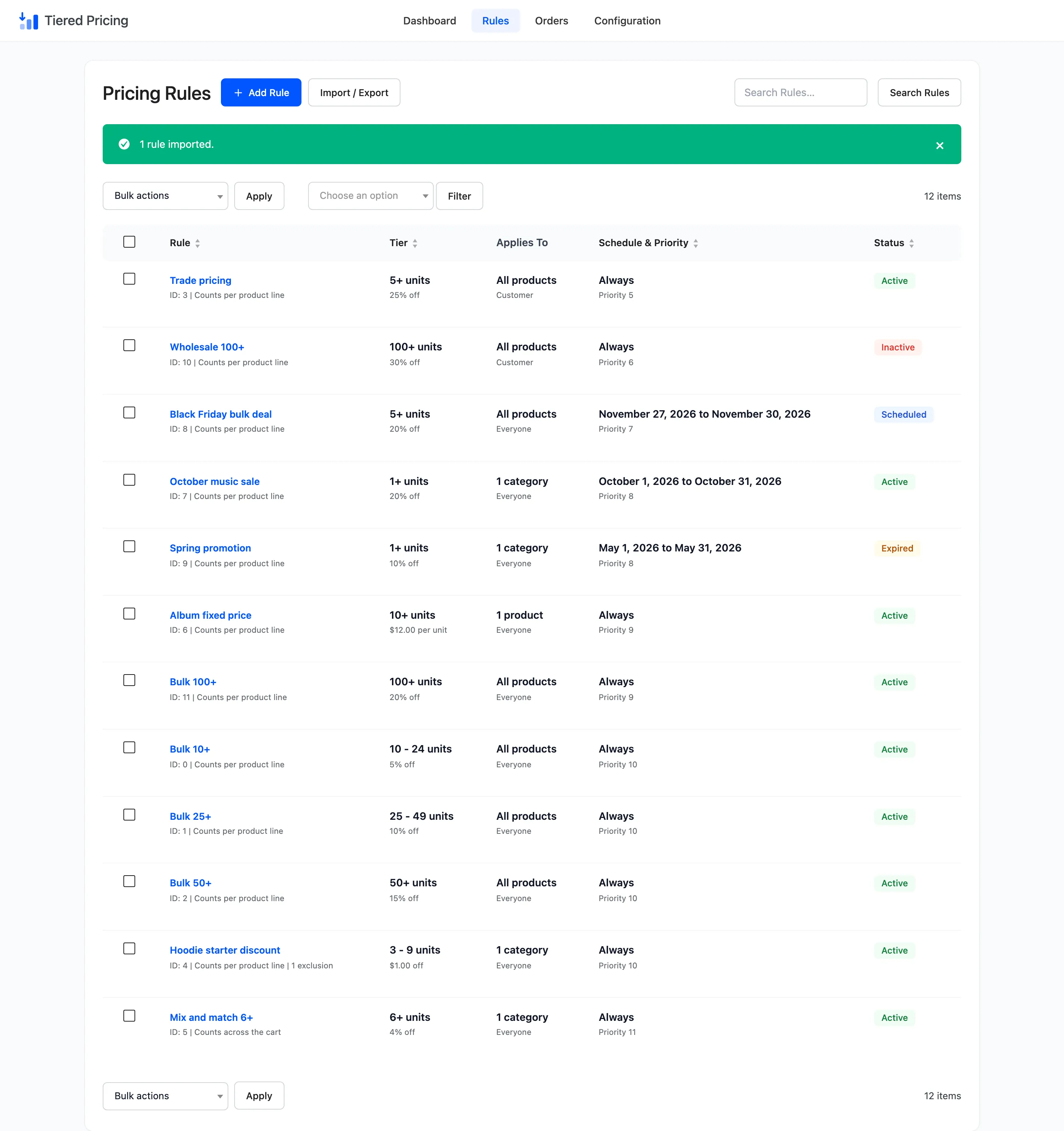
Click Import Rules. You return to the Rules screen with a notice such as 1 rule imported.
What the import checks
Section titled “What the import checks”Every field of every rule is cleaned before it is saved. A rule is skipped, not saved, when it has no name or a From quantity below 1. Otherwise the import repairs what it can.
- A discount type it does not know becomes Percentage discount.
- A status other than active becomes Inactive.
- A date that is not in the form
2026-10-31is cleared. - Product and category ids are turned into whole numbers.
If nothing usable is left, you see No usable rules were found in that JSON. Text that is not JSON gives That does not look like valid rule JSON. An empty box gives Paste the exported rules first.
What the import does not check
Section titled “What the import does not check”The import does not run the checks the Rule Editor runs. It does not refuse a duplicate name, and it does not refuse overlapping quantity ranges. Importing the same export twice in Add mode gives you every rule twice.
When two imported rules share a priority and overlap, the one that comes first in the list wins. Review the Rules screen after an import and fix any overlap in the editor.
Imported rules arrive with the status they were exported with, so an active rule is live the moment it lands. Review them before you import into a store that is trading.