

How to Set Rules on a Single Product or Variation
Global rules cover many products at once. A product rule is the opposite: it belongs to one product, and it replaces the global rules for that product. Use it for the odd product that does not fit the shop’s ladder.
This tutorial gives the Cap its own three tiers, then does the same for one variation of the V-Neck T-Shirt.
Step 1: Open the product editor
Section titled “Step 1: Open the product editor”Go to Products → All Products and edit the Cap. In Product data, stay on the General tab. Under Sale price you will find Tiered Pricing Rules.
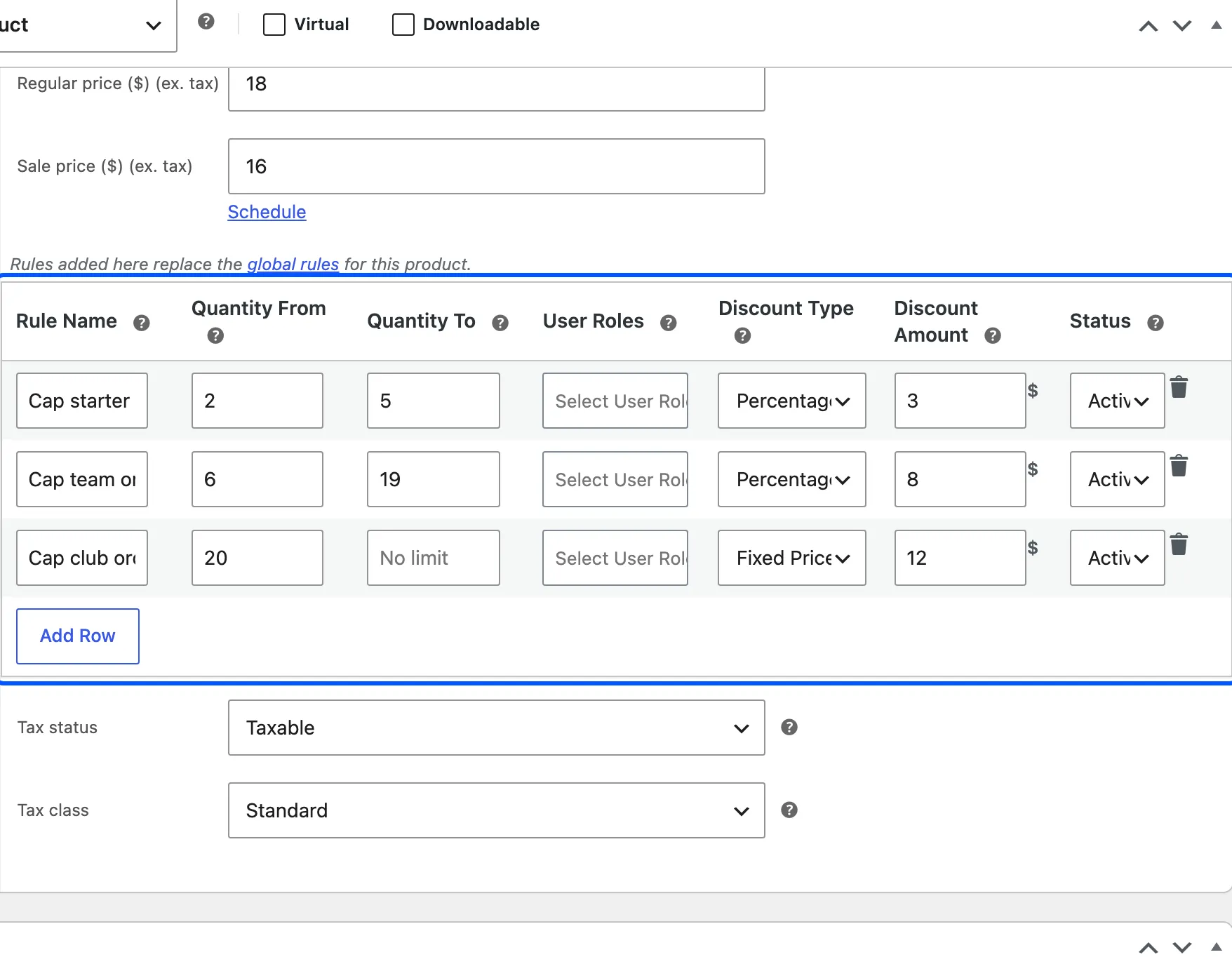
The line above the table reads “Rules added here replace the global rules for this product.”
Step 2: Add a row for each tier
Section titled “Step 2: Add a row for each tier”Click Add Row for each tier.
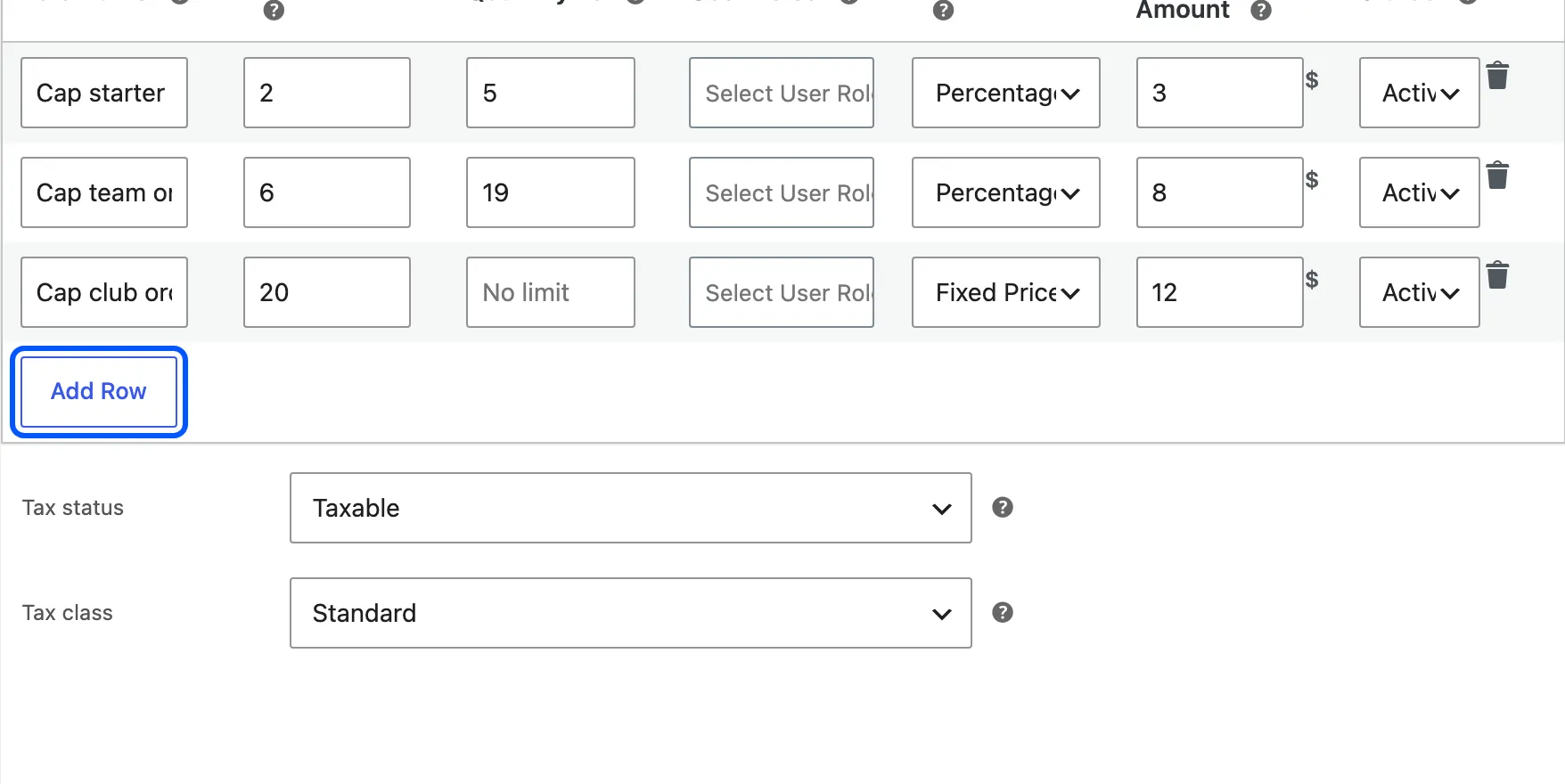
For the Cap, use three rows.
| Rule Name | From | To | Type | Amount |
|---|---|---|---|---|
| Cap starter | 2 | 5 | Percentage Discount | 3 |
| Cap team order | 6 | 19 | Percentage Discount | 8 |
| Cap club order | 20 | empty | Fixed Price | 12 |
Leave User Roles empty to give the rows to everyone, and keep Status on Active. The bin icon beside a row removes it.
Step 3: Update the product and read the table back
Section titled “Step 3: Update the product and read the table back”Click Update. The plugin keeps a row only when it is valid, and it drops the others without a message.
A row goes if its name is empty or repeats an earlier row. A row also goes if Quantity From is below 1 or its range overlaps an earlier row.
Open the product again and compare the table with what you typed. Fixing a dropped row means changing its name or range, then updating once more.
Step 4: Check the product page and the cart
Section titled “Step 4: Check the product page and the cart”Open the Cap while logged out. The table shows the three rows and nothing from the global ladder.
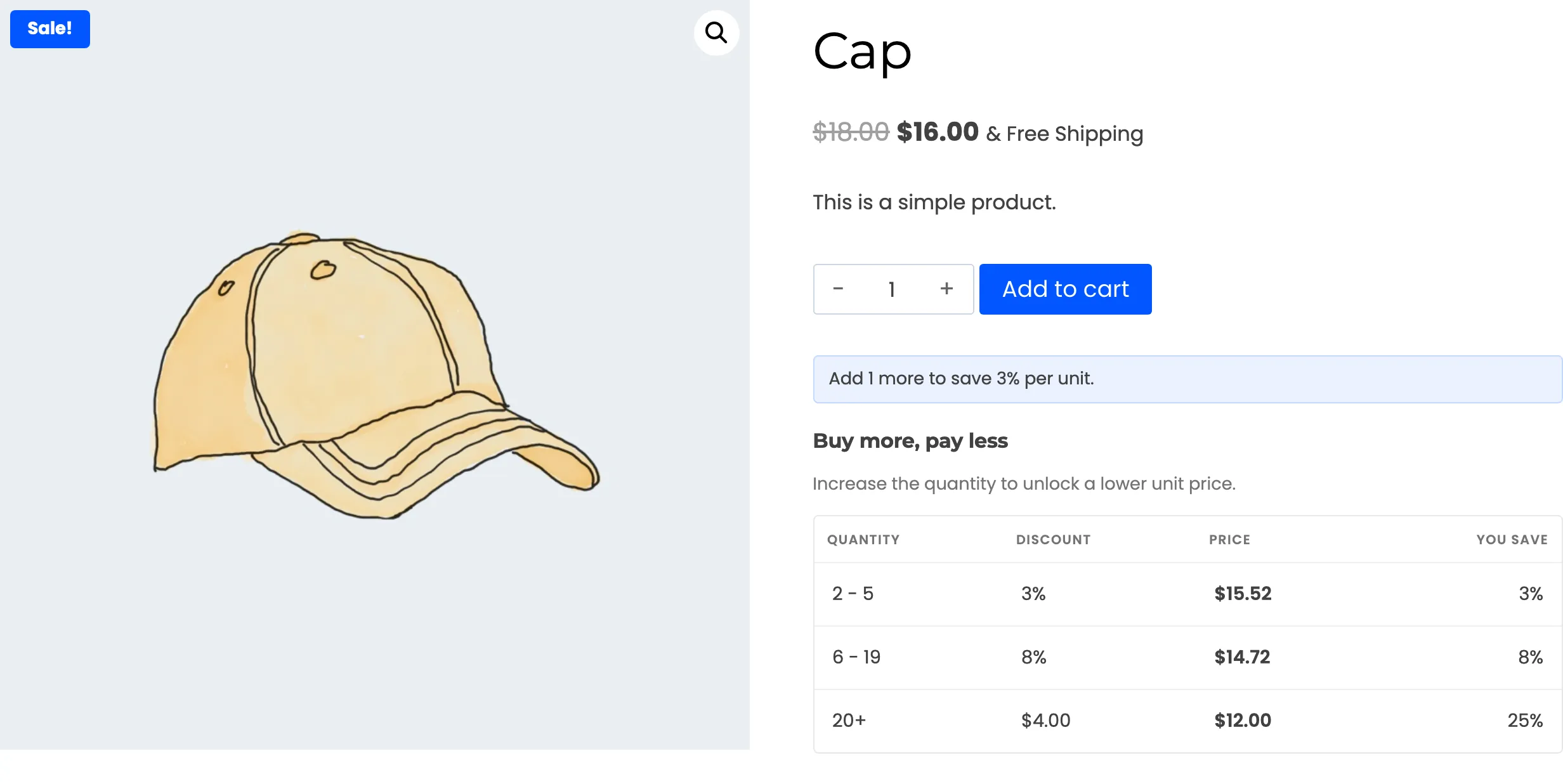
Add 6 to the cart. The line is priced by Cap team order: $14.72 each against the $16.00 sale price.
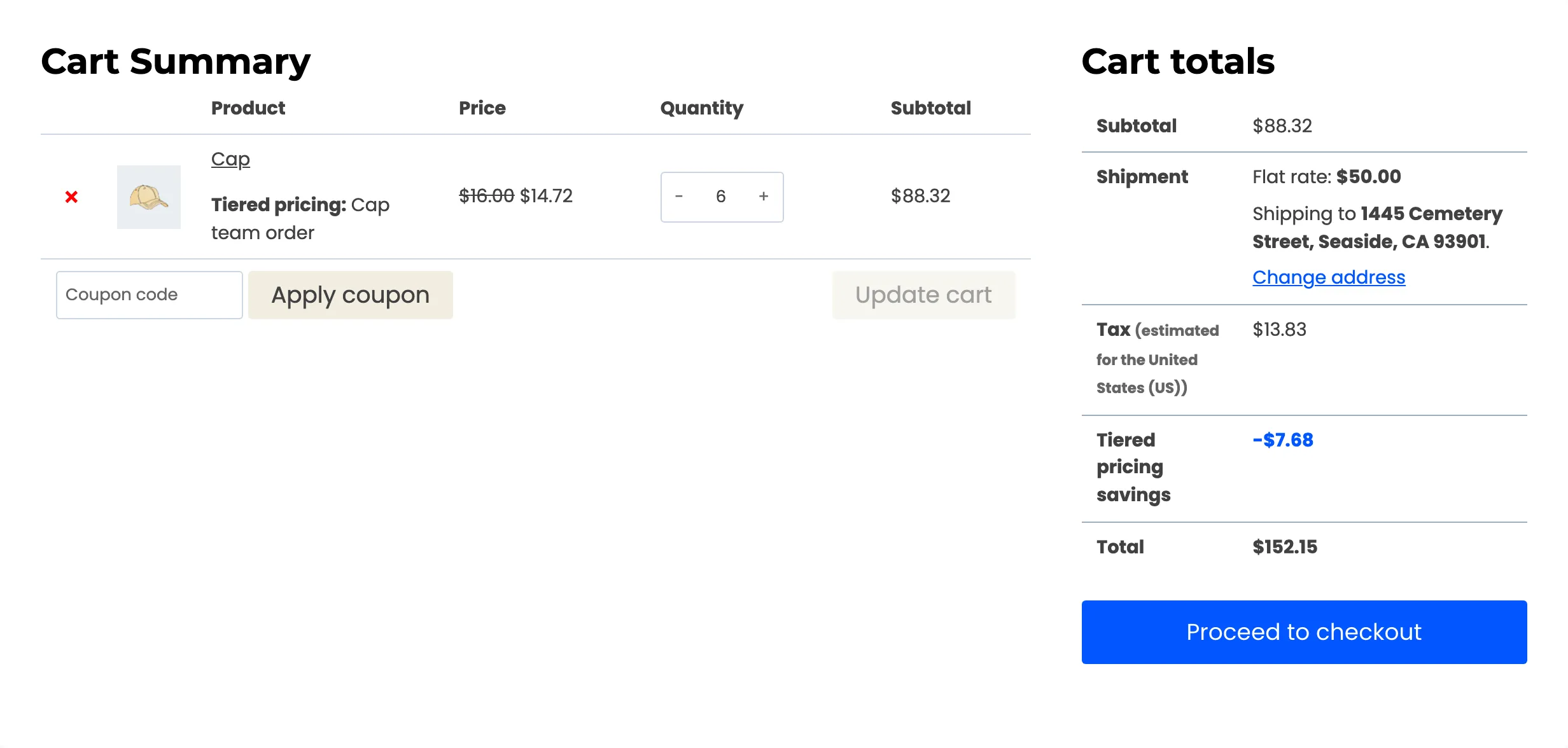
A customer who buys 12 Caps gets 8 percent off here. They do not get the global 5 percent tier, because the global rules are out of play for this product.
Step 5: Add rules to a variation
Section titled “Step 5: Add rules to a variation”A variable product has no table at the top. Each variation does. Edit the V-Neck T-Shirt, open the Variations tab, and expand the Blue variation.
The same table sits under its price fields.
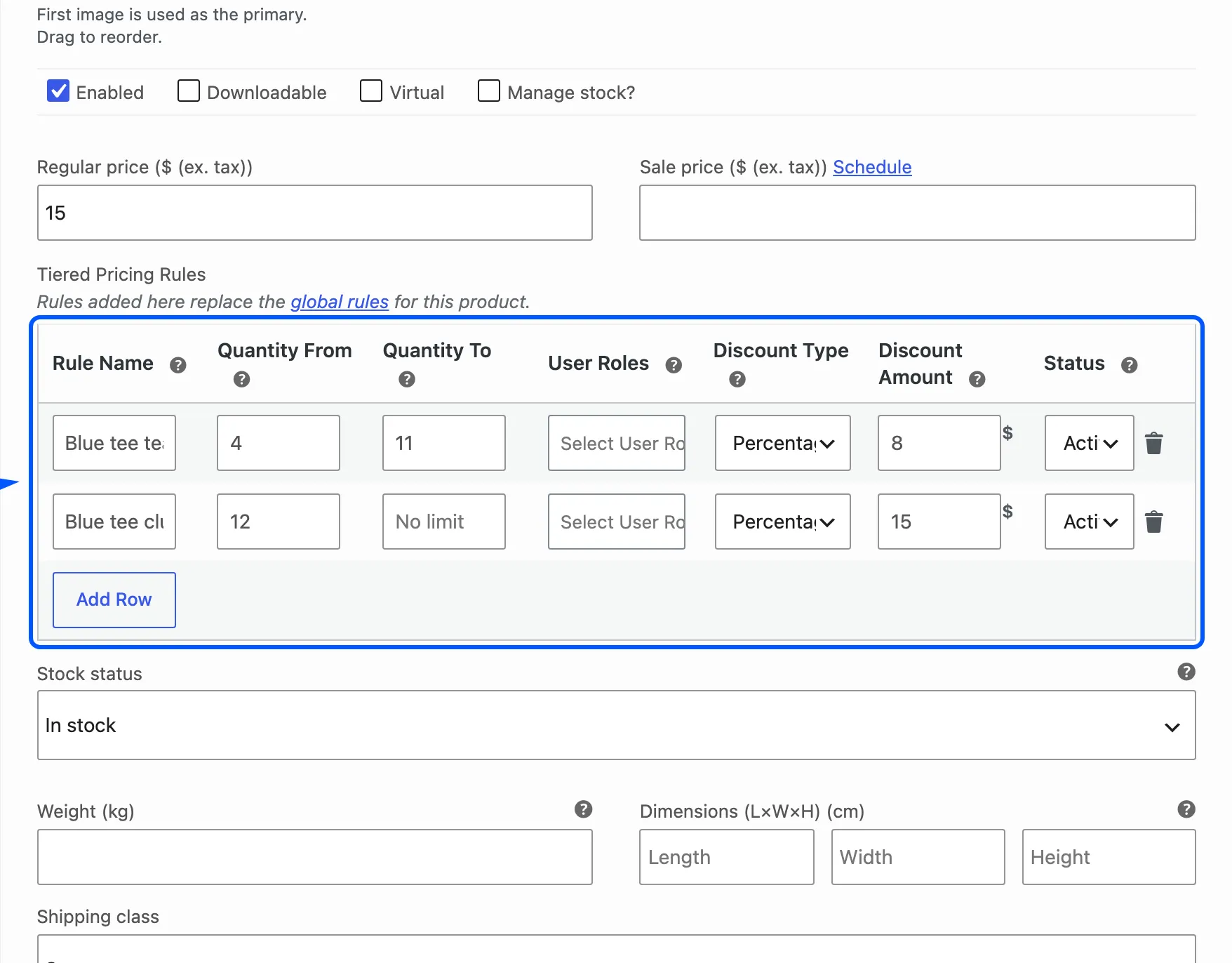
Add two rows. Blue tee team order runs from 4 to 11 at 8 percent.
Blue tee club order starts at 12 with no limit at 15 percent. Click Save changes on the Variations tab.
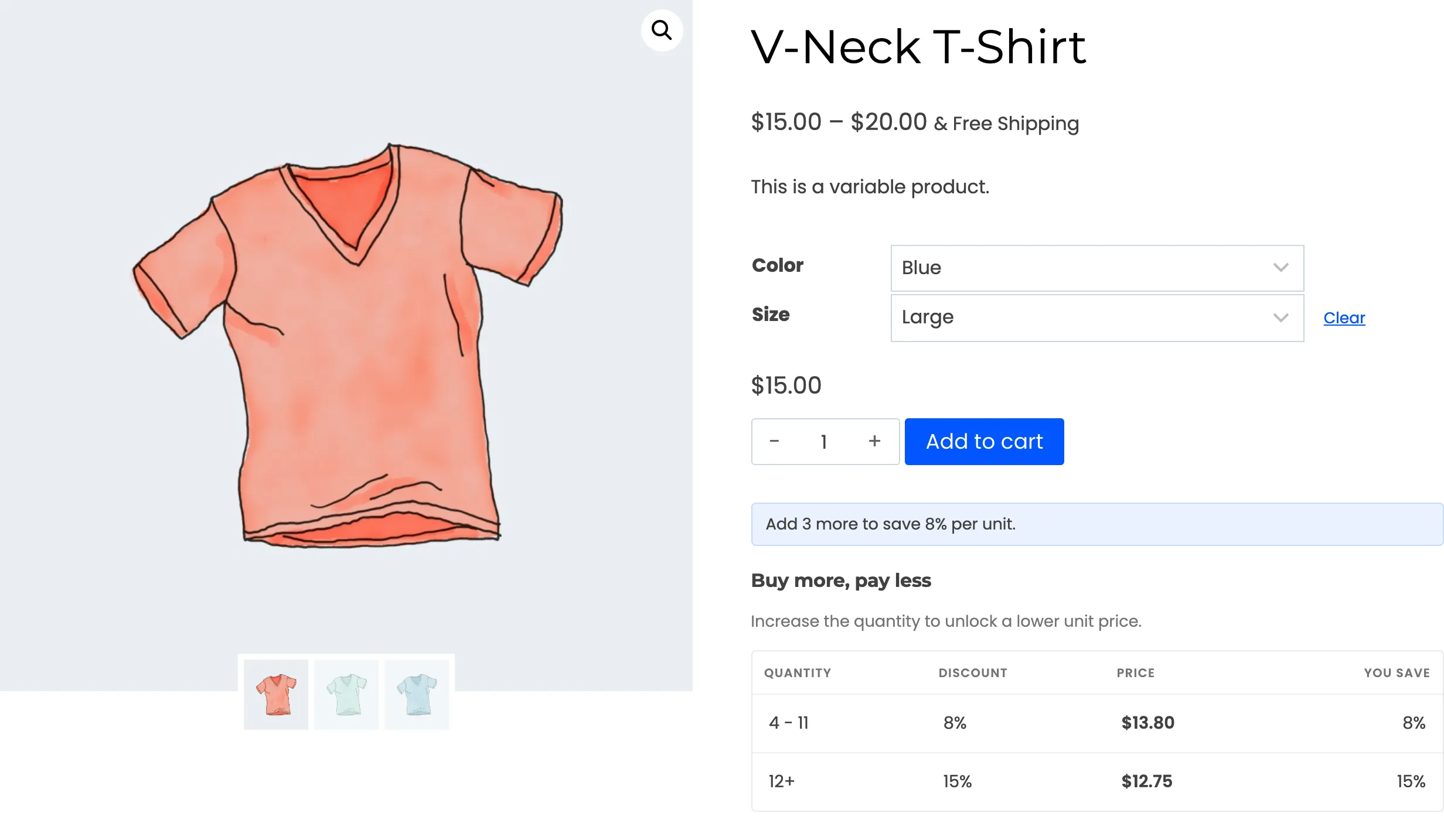
On the product page, choose Blue and a size. The table appears with the variation’s own rows.
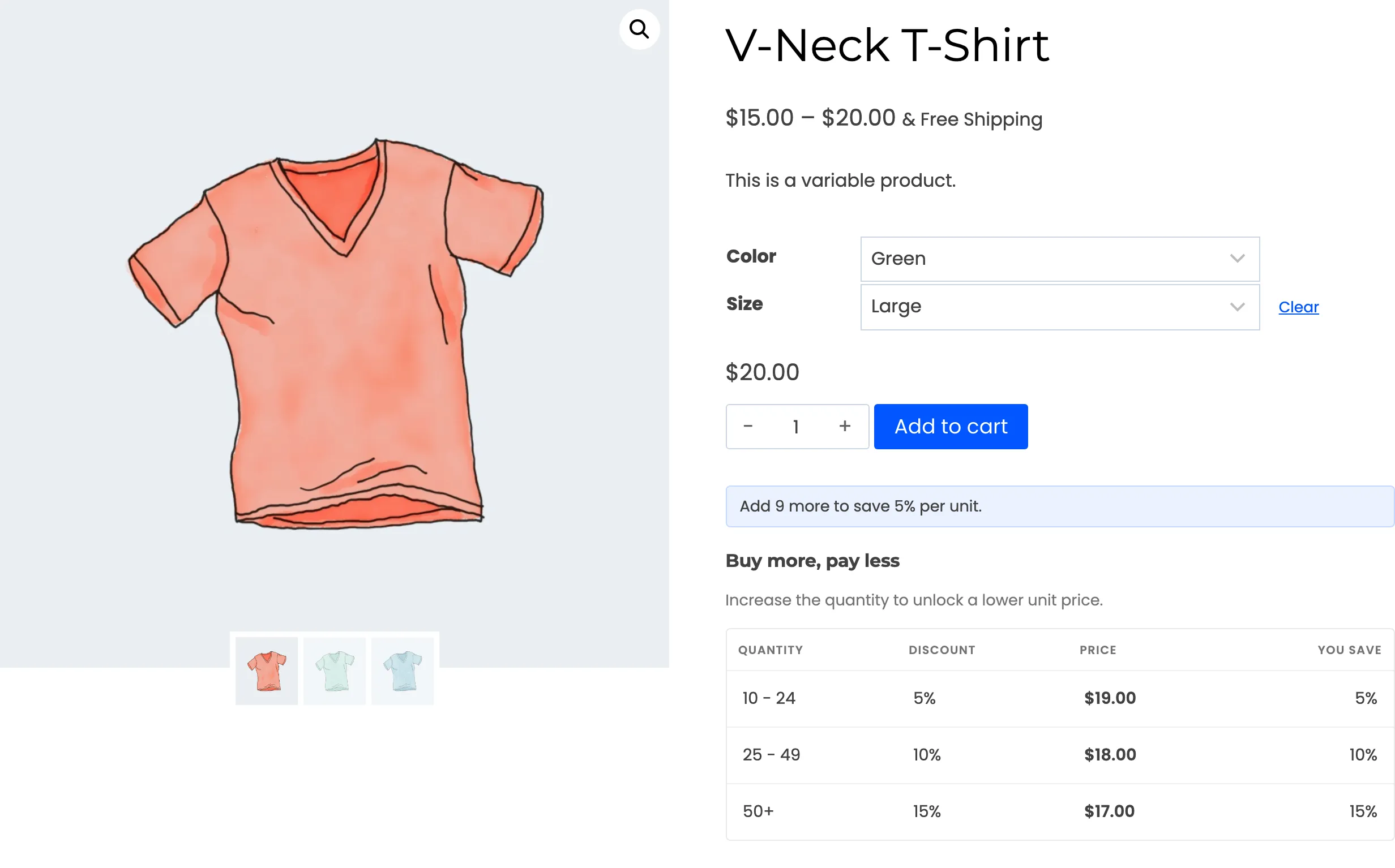
Choose Green instead, and the table swaps to the global ladder, because the Green variation has no rows of its own.
Hand a product back to the global rules
Section titled “Hand a product back to the global rules”Remove every row and update. With no rows, the product uses the global rules again. A row set to Inactive does not do this.
A product with only inactive rows gets no tier at all.