

How to Move Rules Between Stores
A price list is work. Retyping it on a second store invites mistakes.
The export and import tools copy every rule as text. You can move a ladder from staging to the live shop, or open a sister store with the same prices.
Step 1: Open Import / Export on the source store
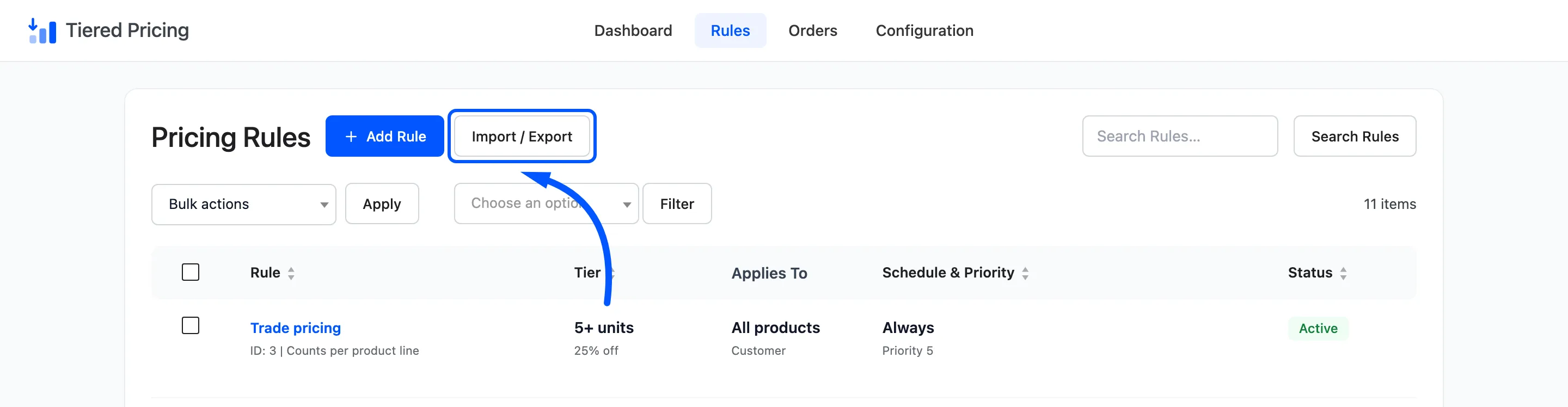
Section titled “Step 1: Open Import / Export on the source store”Go to DevDiggers Plugins → Tiered Pricing → Rules and click Import / Export.
Step 2: Copy the exported JSON
Section titled “Step 2: Copy the exported JSON”The export box sits at the top. It holds every rule on the Rules screen.
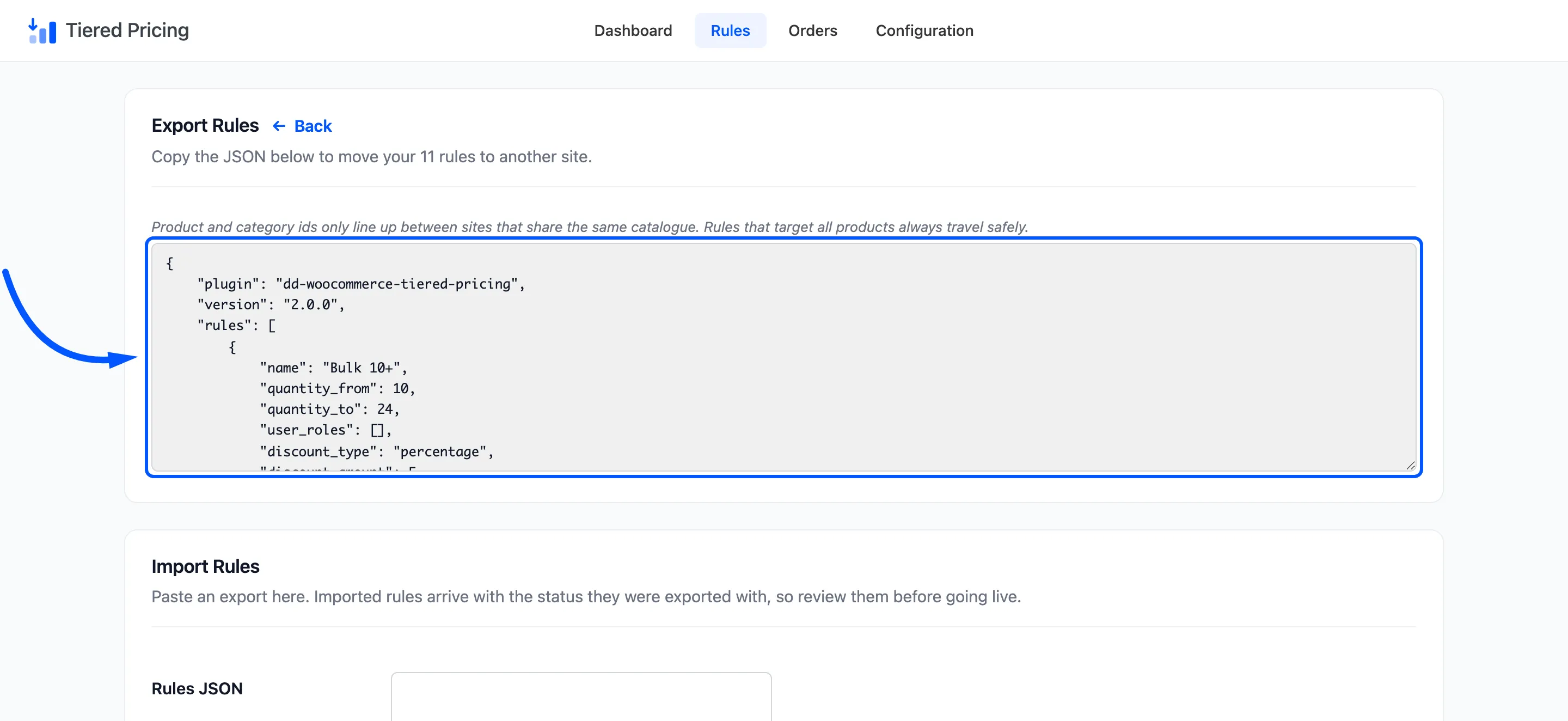
Click inside the box. The text is selected for you. Copy it.
The export covers the global rules only. It leaves out the rules saved on single products and variations, and it leaves out the General and Display settings. Make those by hand on the new store.
Step 3: Paste it into the other store
Section titled “Step 3: Paste it into the other store”On the other store, open Rules → Import / Export and click inside Rules JSON. Paste the text.
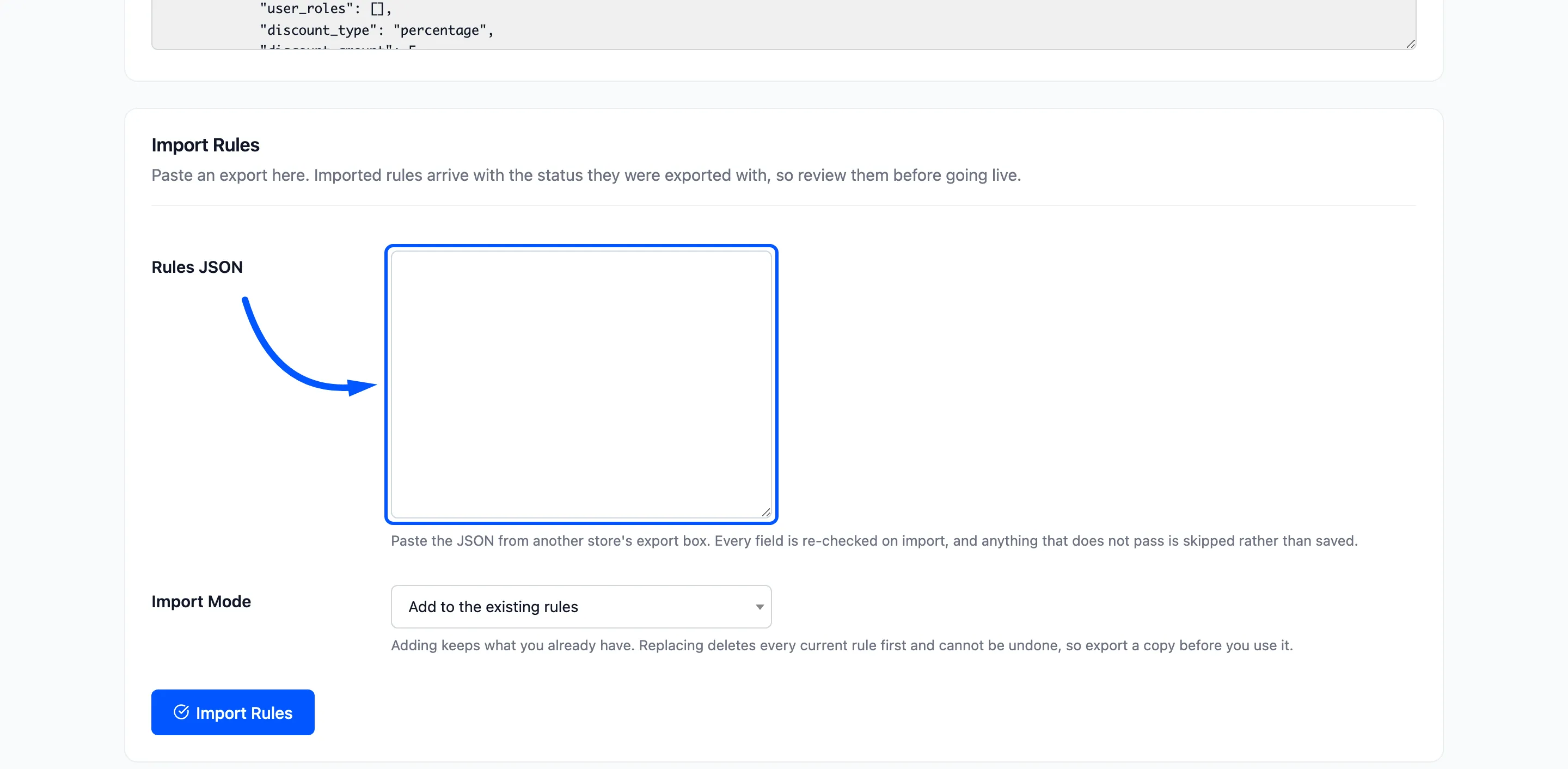
The box accepts the whole export, or a bare list of rules.
Step 4: Choose how to import
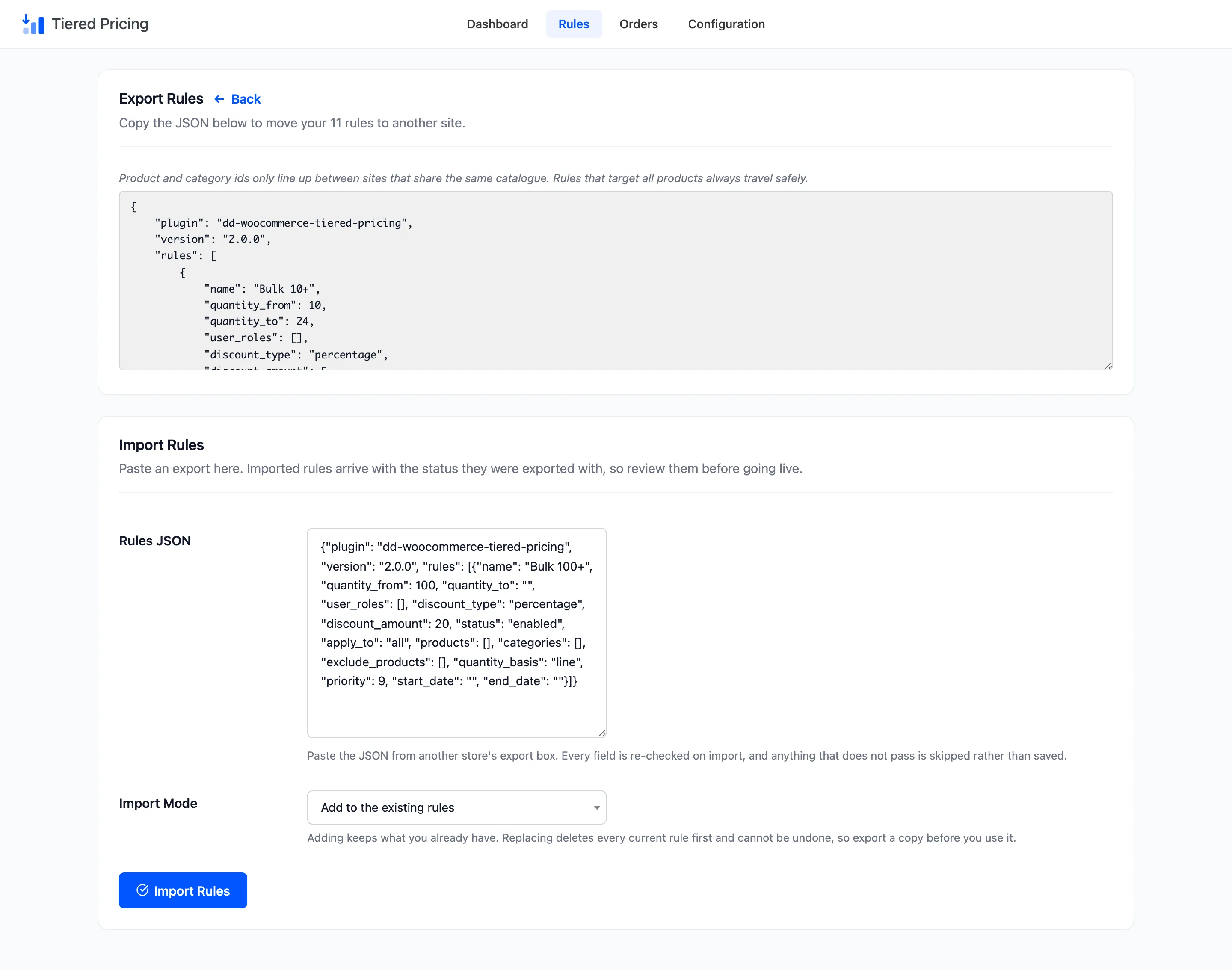
Section titled “Step 4: Choose how to import”Import Mode has two choices.
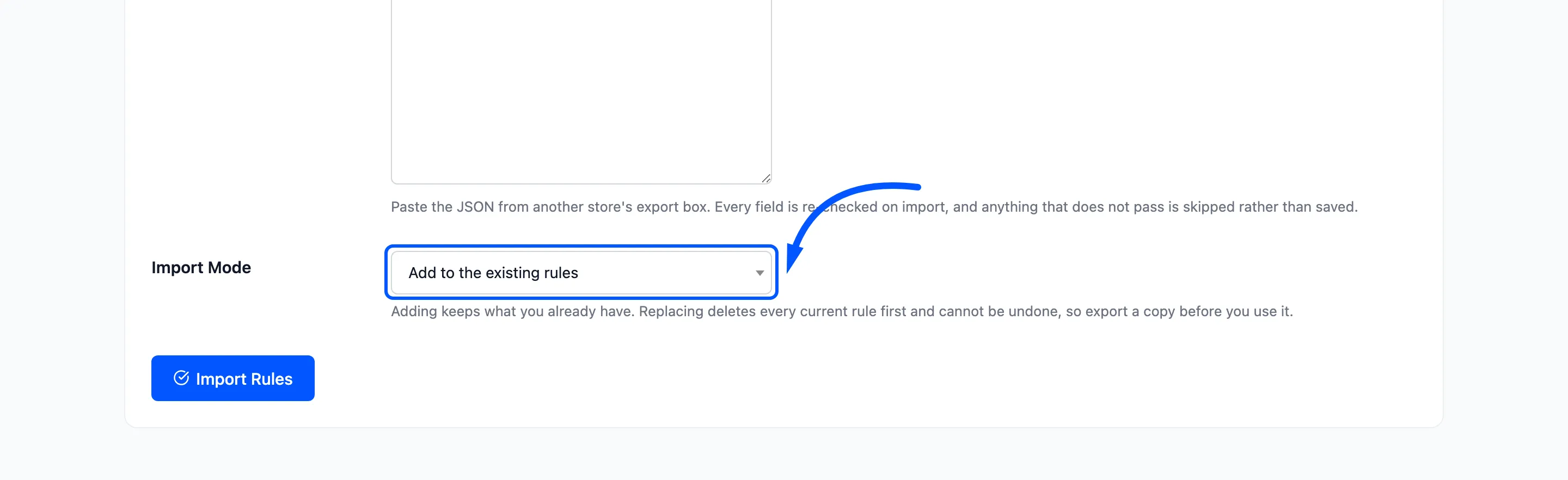
- Add to the existing rules: Keeps every rule on the store and adds the new ones at the end.
- Replace all existing rules: Deletes every current rule first, then imports. It cannot be undone, so export a copy of the current rules before you use it.
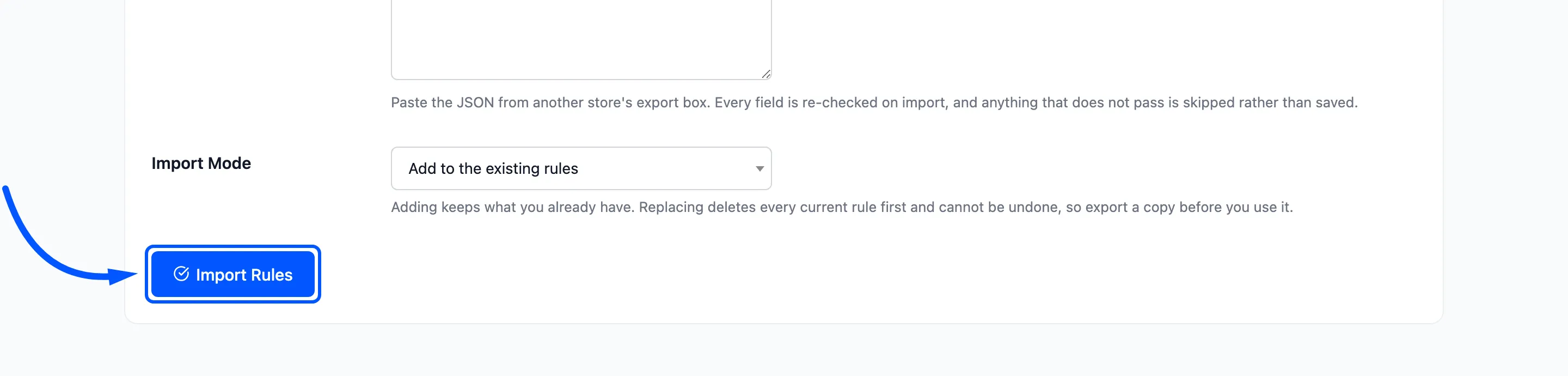
Click Import Rules.
Step 5: Review the imported rules
Section titled “Step 5: Review the imported rules”You land on the Rules screen with a notice that says how many rules arrived.
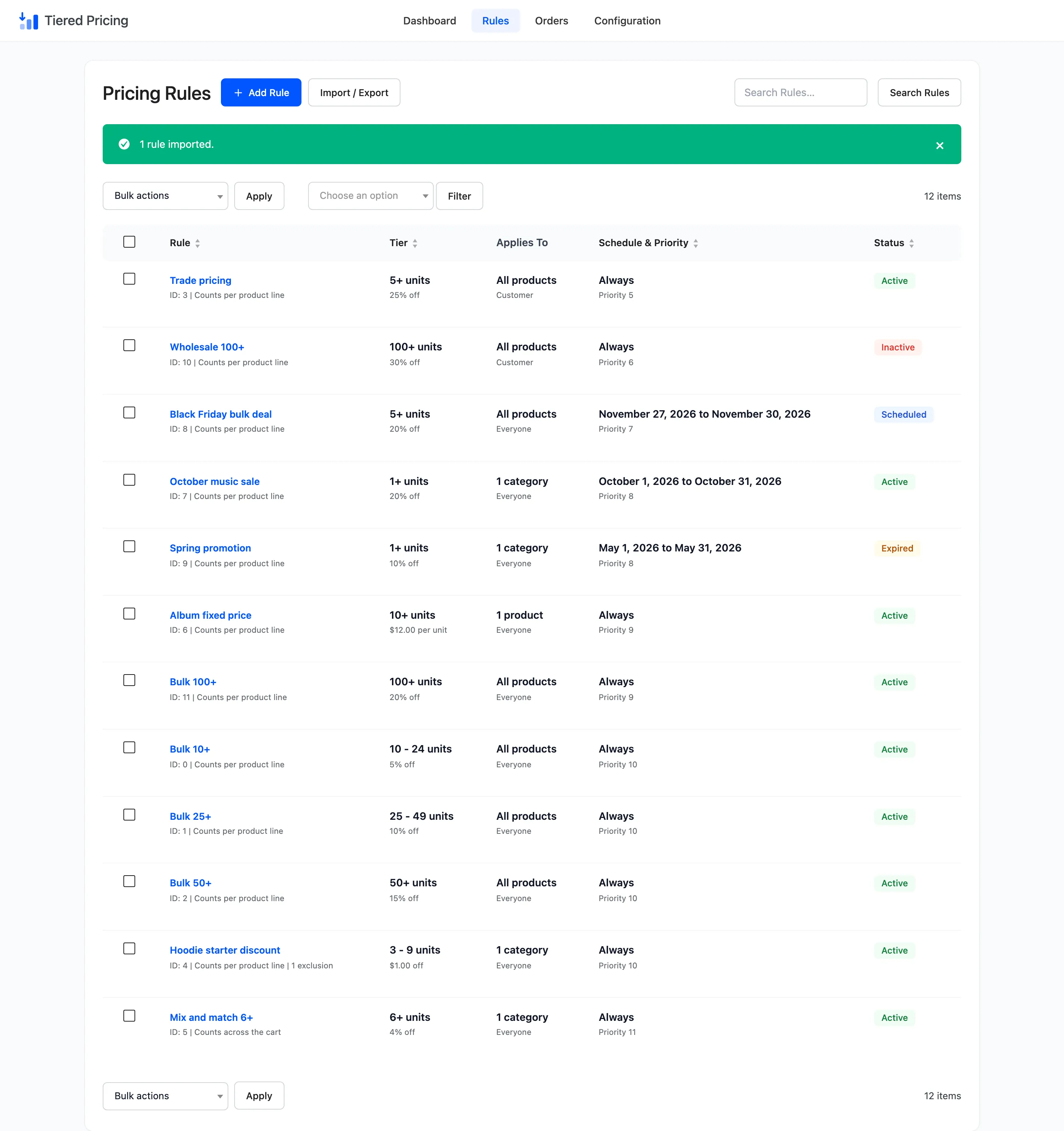
Check three things before real customers see the rules.
- Ids for products and categories: A rule for selected products or categories points at ids. Those ids match only when the two stores share the same catalogue, such as a staging copy of the live store. On a different shop, open each such rule and pick the products again. Rules for All products always travel safely.
- Overlaps and duplicates: The import does not run the editor’s checks. Importing the same file twice in Add mode gives you every rule twice, and two imported rules can overlap at the same priority. Fix them in the editor.
- Statuses: Rules arrive with the status they were exported with, so an active rule is live as soon as it lands. To keep a new set off until you are ready, set every rule to Inactive in the export before you import.
Rows the import skips are not reported one by one. A rule without a name, or with a From quantity below 1, is left out. If the notice shows fewer rules than the export held, look for those two causes.