

Order Records
When a customer buys at a tier price, the plugin writes down what happened on the order itself. That record is the answer to the support question “why was this price lower?” and it feeds the dashboard and the Tiered Orders screen.
What is saved
Section titled “What is saved”For every order line that received a tier price, the plugin saves four values on the line:
- The name of the rule.
- The normal unit price at that moment.
- The tier unit price the customer paid.
- The total saved on that line.
On the order itself it saves one more value, the total saving across all lines. An order with no tier price on any line gets none of these.
The values are text and numbers stored with the order. They do not point back at the rule. Editing, renaming or deleting a rule later does not change an order that has already been placed.
Where you see it
Section titled “Where you see it”Open any tiered order from WooCommerce → Orders, or from the
Tiered Orders list. Under the product name on
each discounted line you will find the four saved values, listed as _ddwctp_ fields. One small line of
text sits below them.
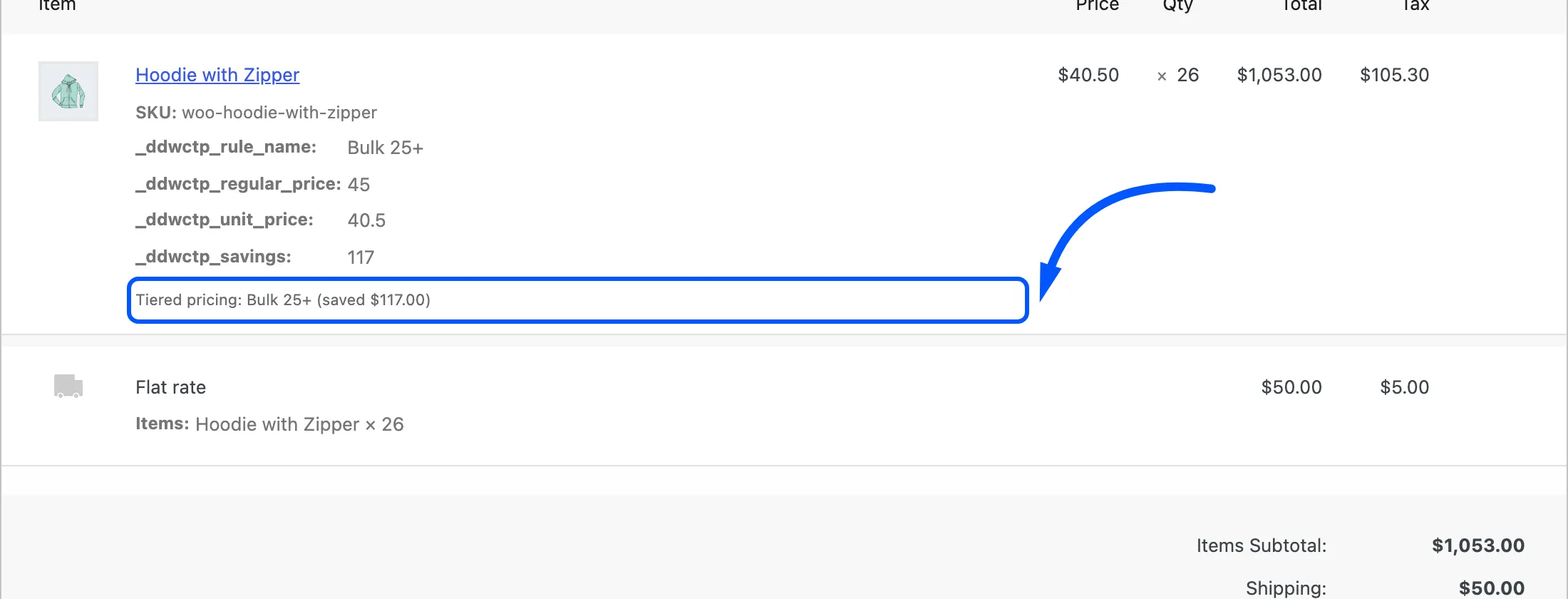
The line of text reads Tiered pricing: Bulk 25+ (saved $117.00). The fields above it are the raw values: the rule name, the normal price, the tier price and the saving. Lines with no tier price show nothing extra.
The fields and the note appear in the order editor only. The plugin does not add them to emails or to the invoice.
What the customer sees
Section titled “What the customer sees”The customer meets the rule name earlier, in the cart and at checkout, as Tiered pricing: Bulk 25+ under the product. After the order is placed, the thank-you page lists the product, the quantity and the total as for any other order.
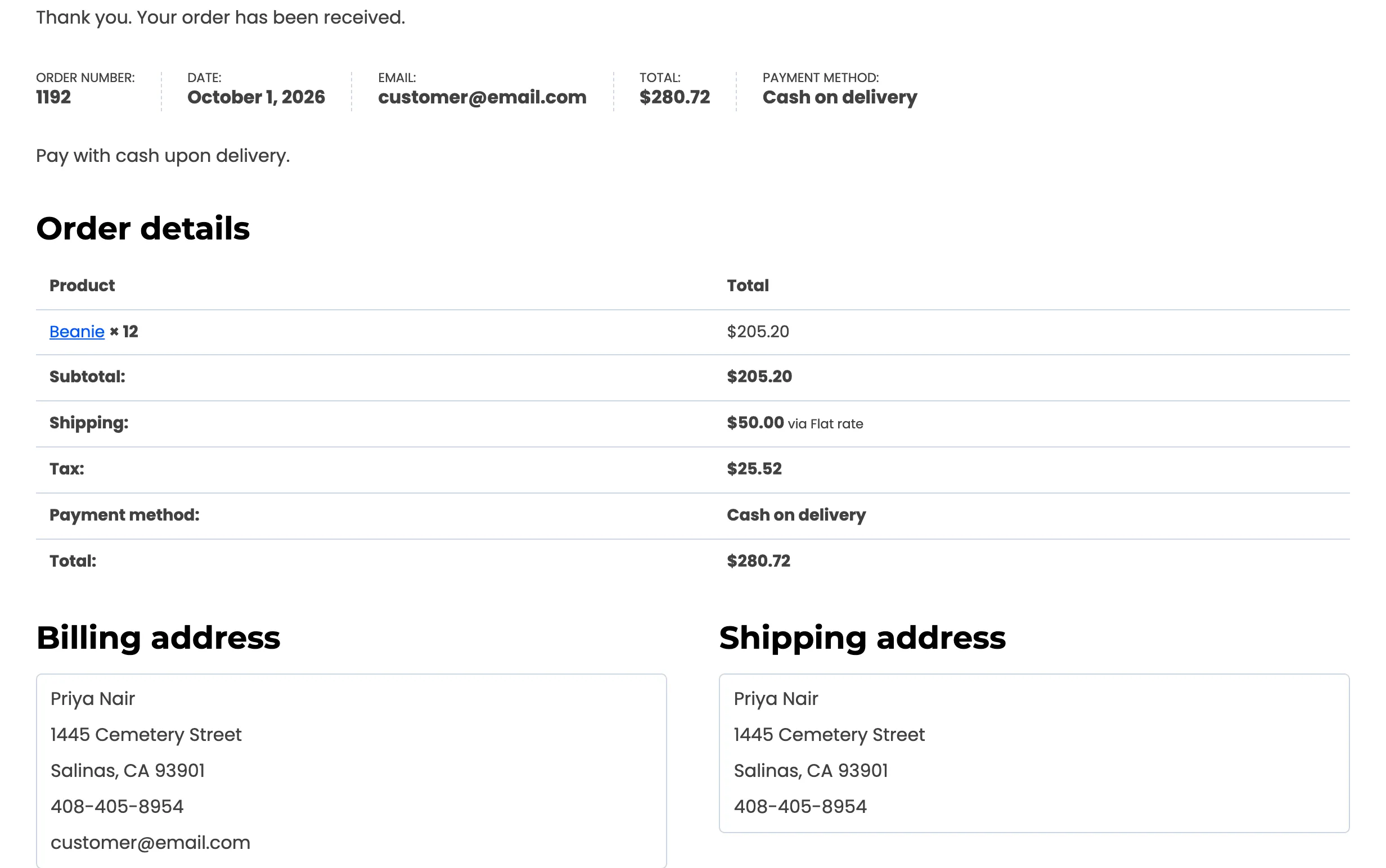
The price on the order line is the tier price, so the subtotal and total already include the discount. Nothing is deducted later.
Using the records
Section titled “Using the records”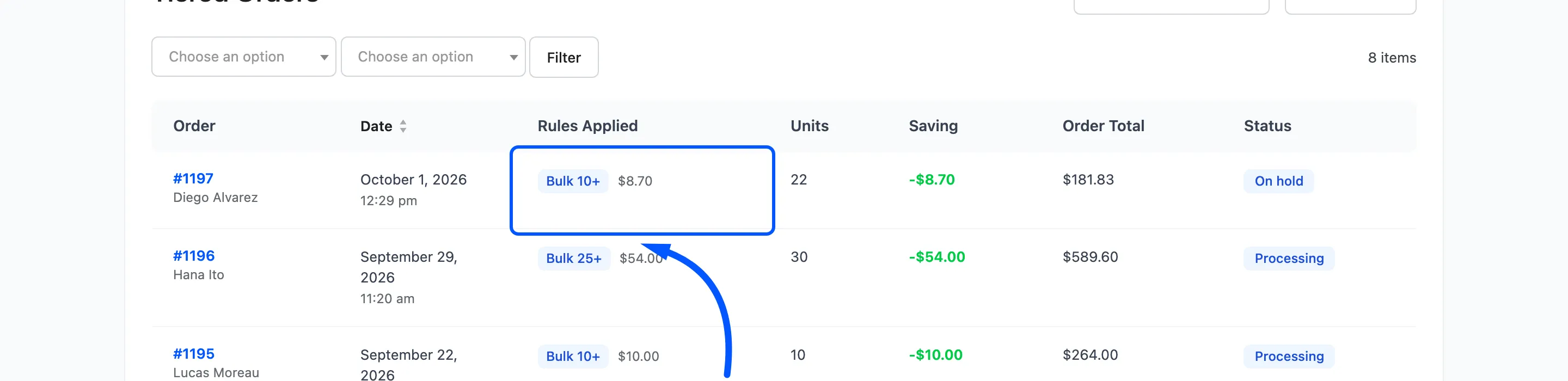
- Answer a support question. Open the order, read the note, then check the rule on the Rules screen.
- Find every order a rule discounted. The Rules Applied column names the rule on each order.
- Measure a promotion. The dashboard adds the line savings up by rule and by product.