

How to Schedule a Promotion
A promotion is an ordinary rule with a window. Set the dates once and the sale starts and ends on its own. Nobody has to remember to switch it off on the last day.
This tutorial runs an October music sale: 20 percent off every product in the Music category, for the month of October.
Step 1: Create the promotion rule
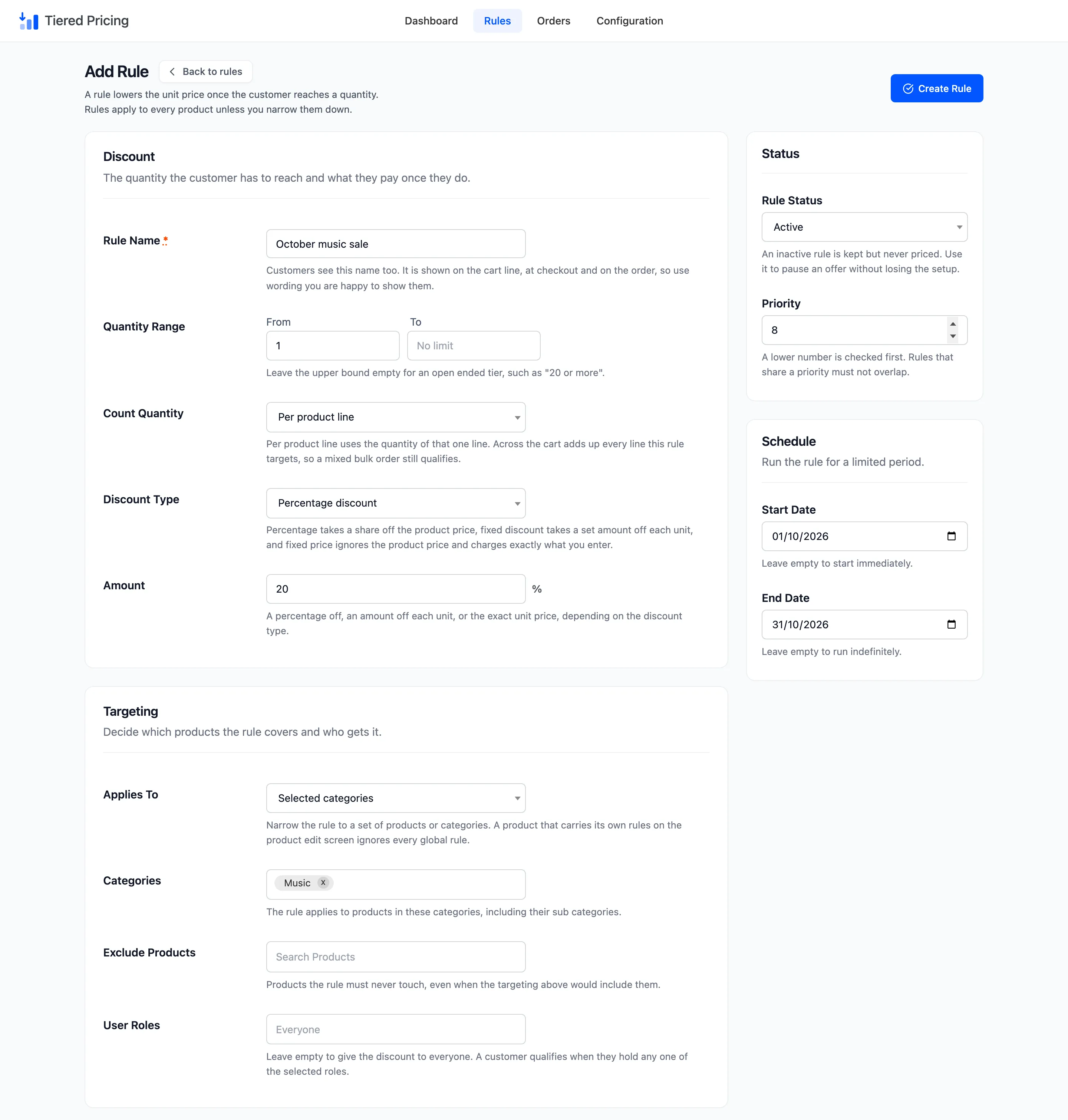
Section titled “Step 1: Create the promotion rule”Add a rule called October music sale. Set From to 1 and leave To empty. Choose Percentage discount and enter 20.
Under Targeting, set Applies To to Selected categories and pick Music.
Give it Priority 8. The regular ladder sits at 10, so a lower number means the sale is checked first and wins for Music products. At priority 10 the form would refuse the rule, because 1 and over overlaps the ladder’s tiers.
Step 2: Set the start and end dates
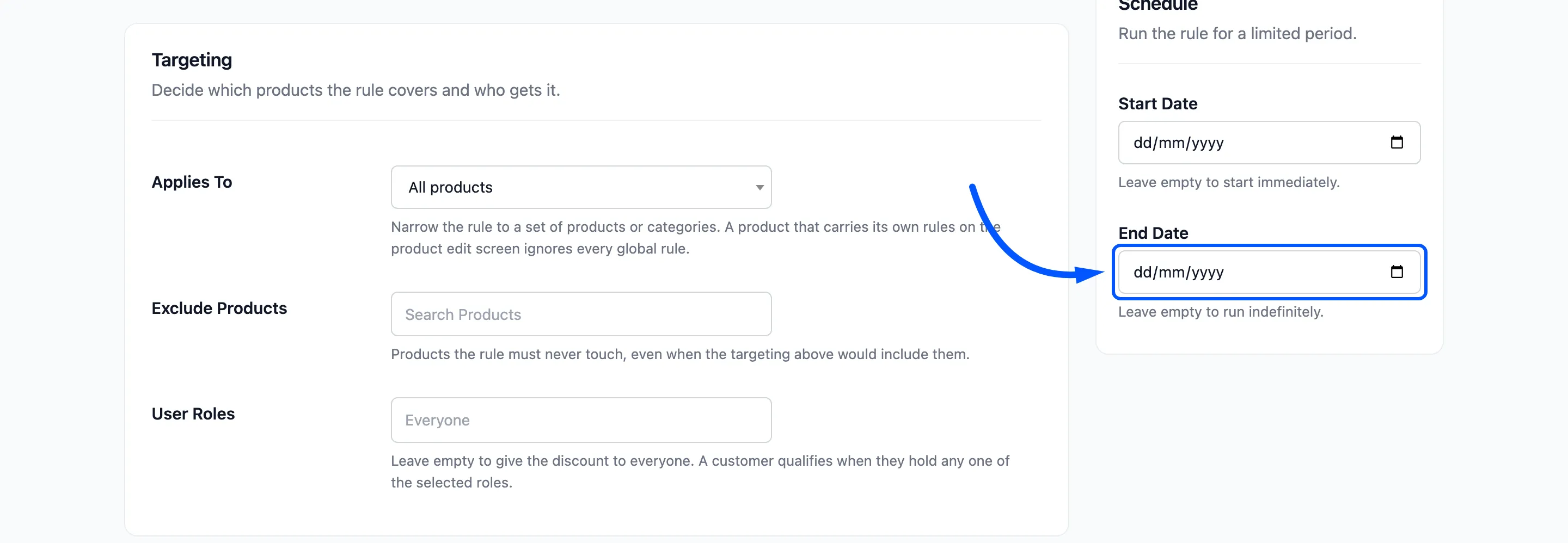
Section titled “Step 2: Set the start and end dates”The Schedule panel is in the narrow column on the right.
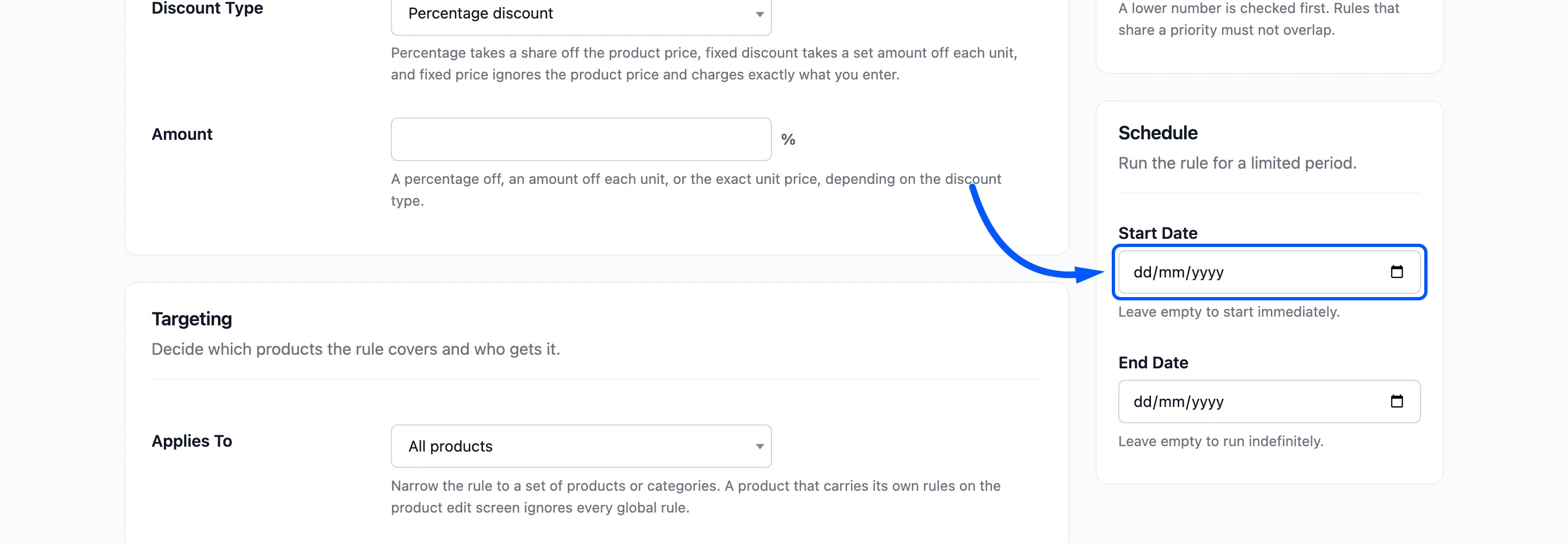
- Start Date: Leave it empty to start immediately.
- End Date: Leave it empty to run indefinitely.
Pick 1 October 2026 as the start and 31 October 2026 as the end. The end date must not be before the start date, or the form answers The end date must be after the start date. The two may be the same day.
Step 3: Save and read the status
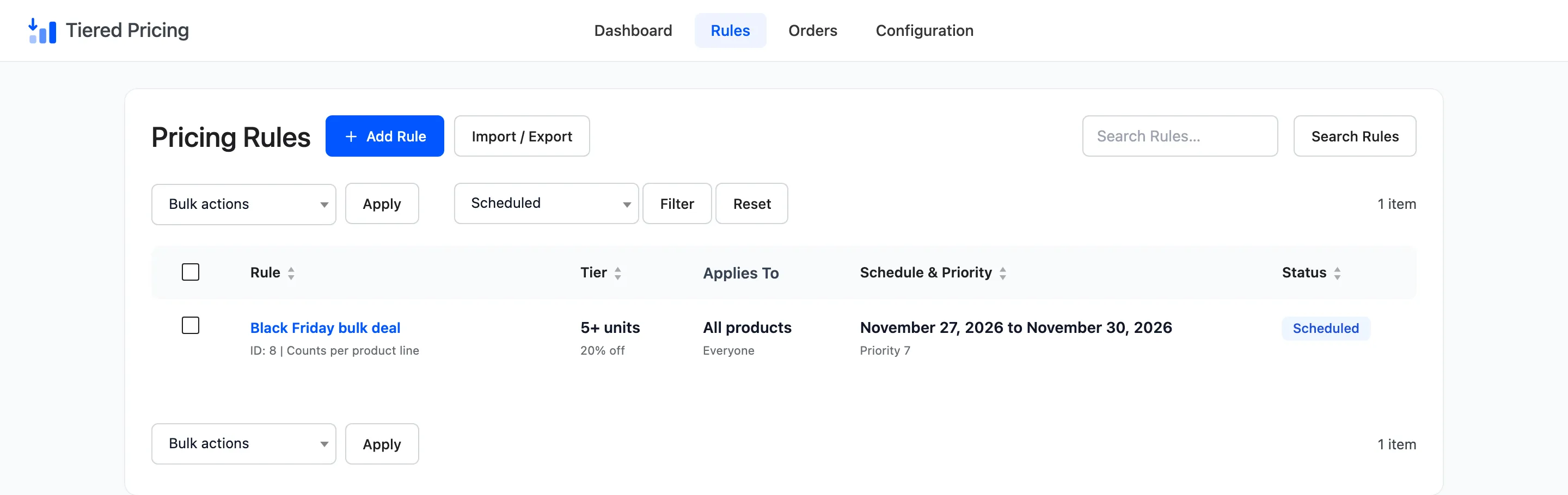
Section titled “Step 3: Save and read the status”Click Create Rule. On the Rules screen the Schedule & Priority column shows the window.
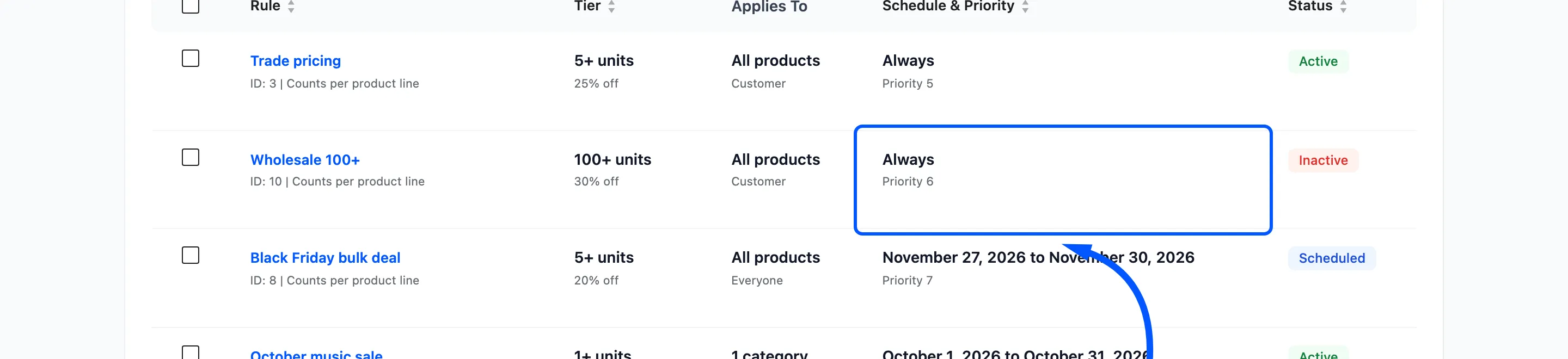
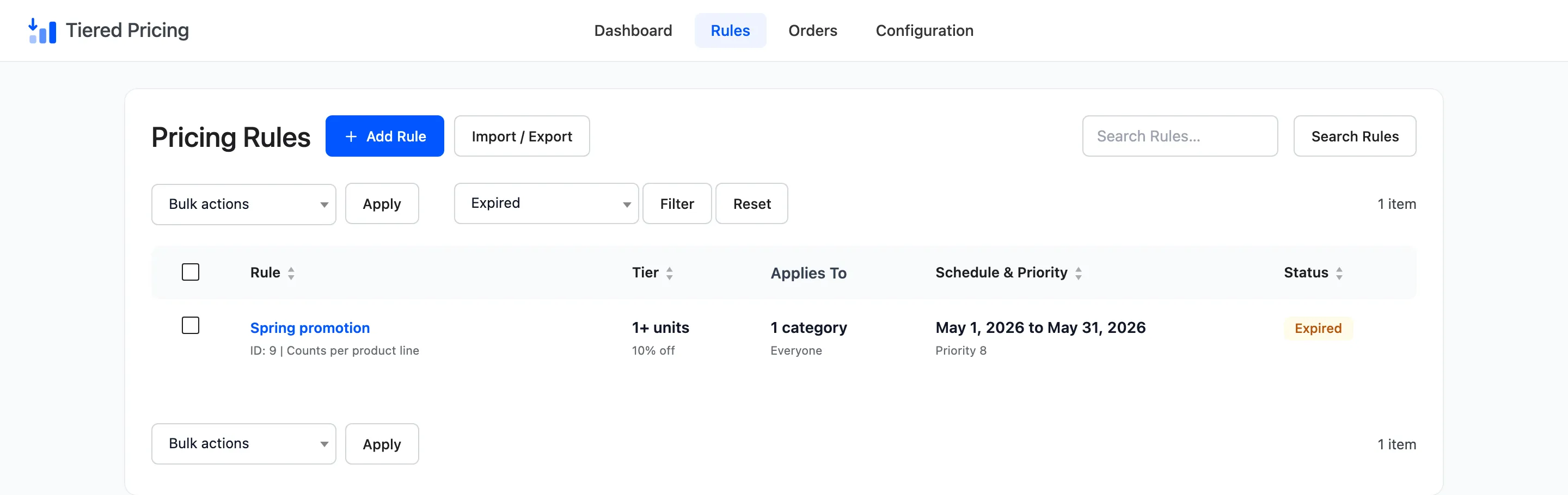
The Status column tells you where the rule is in its life.
- Scheduled: Switched on, but the start date has not arrived.
- Active: Switched on and inside the window.
- Expired: Switched on, but the end date has passed.
The window uses the site’s calendar day. A rule that ends on 31 October is still live all of 31 October and stops when the next day begins. Nothing runs in the background to switch it.
The plugin compares the date every time a price is worked out.
Step 4: Check the storefront
Section titled “Step 4: Check the storefront”While the sale runs, open a Music product, such as the Single. The sale tier is at the top of the table.
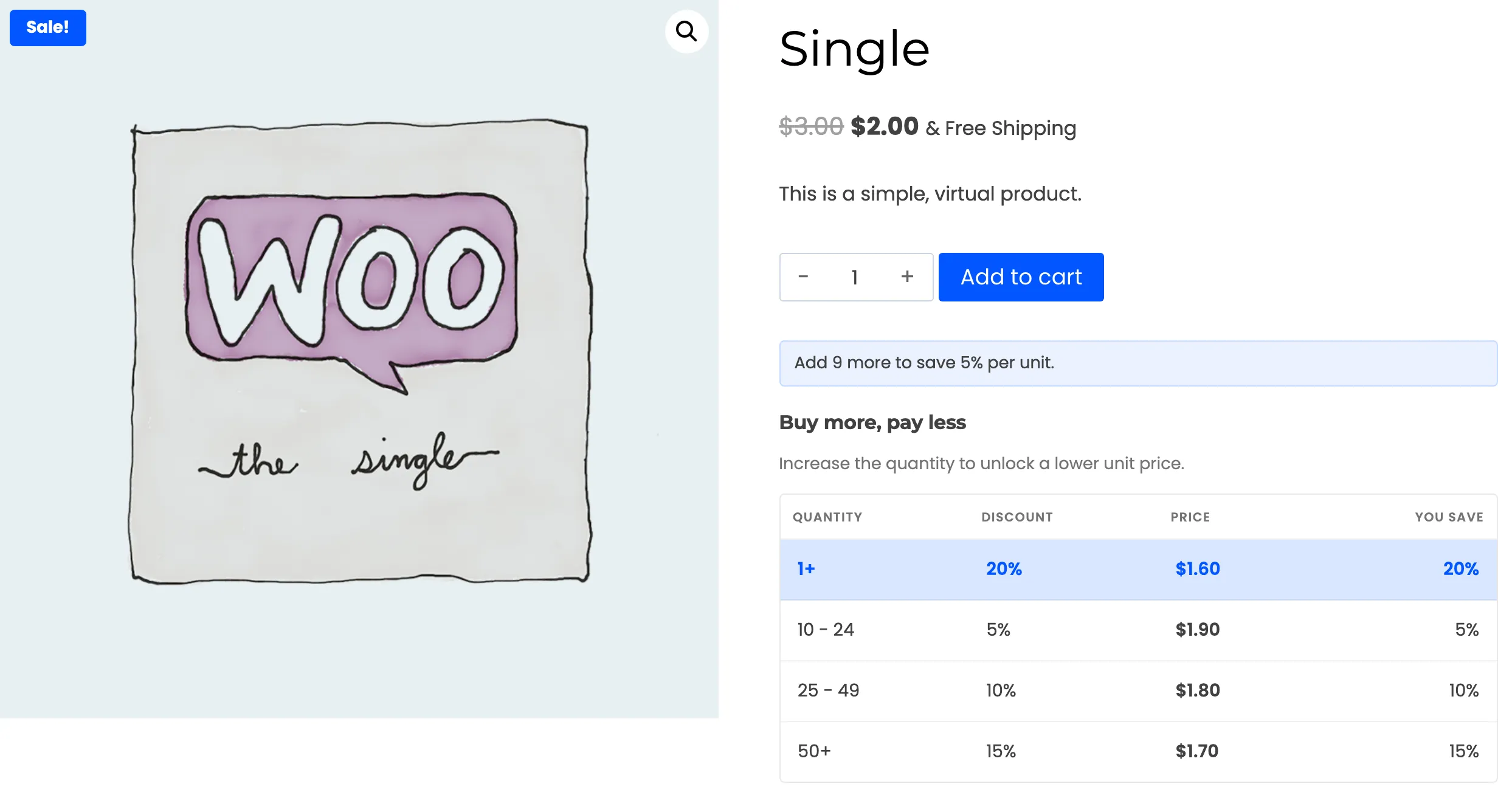
The cart recalculates on every change, so it always uses today’s rules. A host or caching plugin may store the product page itself.
Then the table can lag a day behind a rule that has just started or ended. Purge the cache when a promotion begins or ends.
Step 5: Review ended promotions
Section titled “Step 5: Review ended promotions”Filter the Rules screen to find rules that are waiting or finished. Choose a status next to Filter.
The dashboard collects the same rules under Rules Needing Attention.
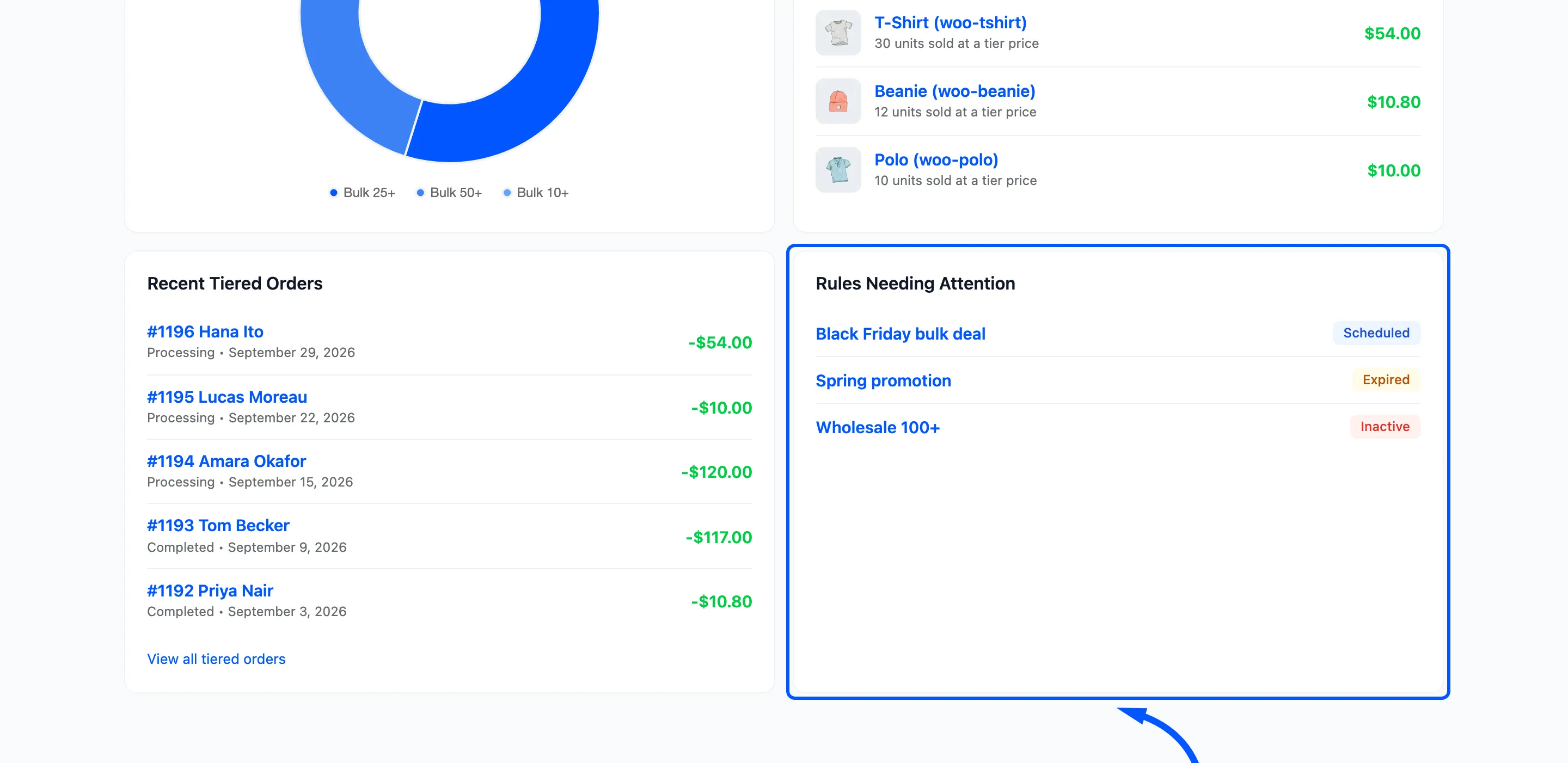
An expired rule is harmless. Delete it, or edit its dates to run the promotion again next year. Orders placed during the sale keep their record, because the rule name and amounts are saved on each order.