

General Settings
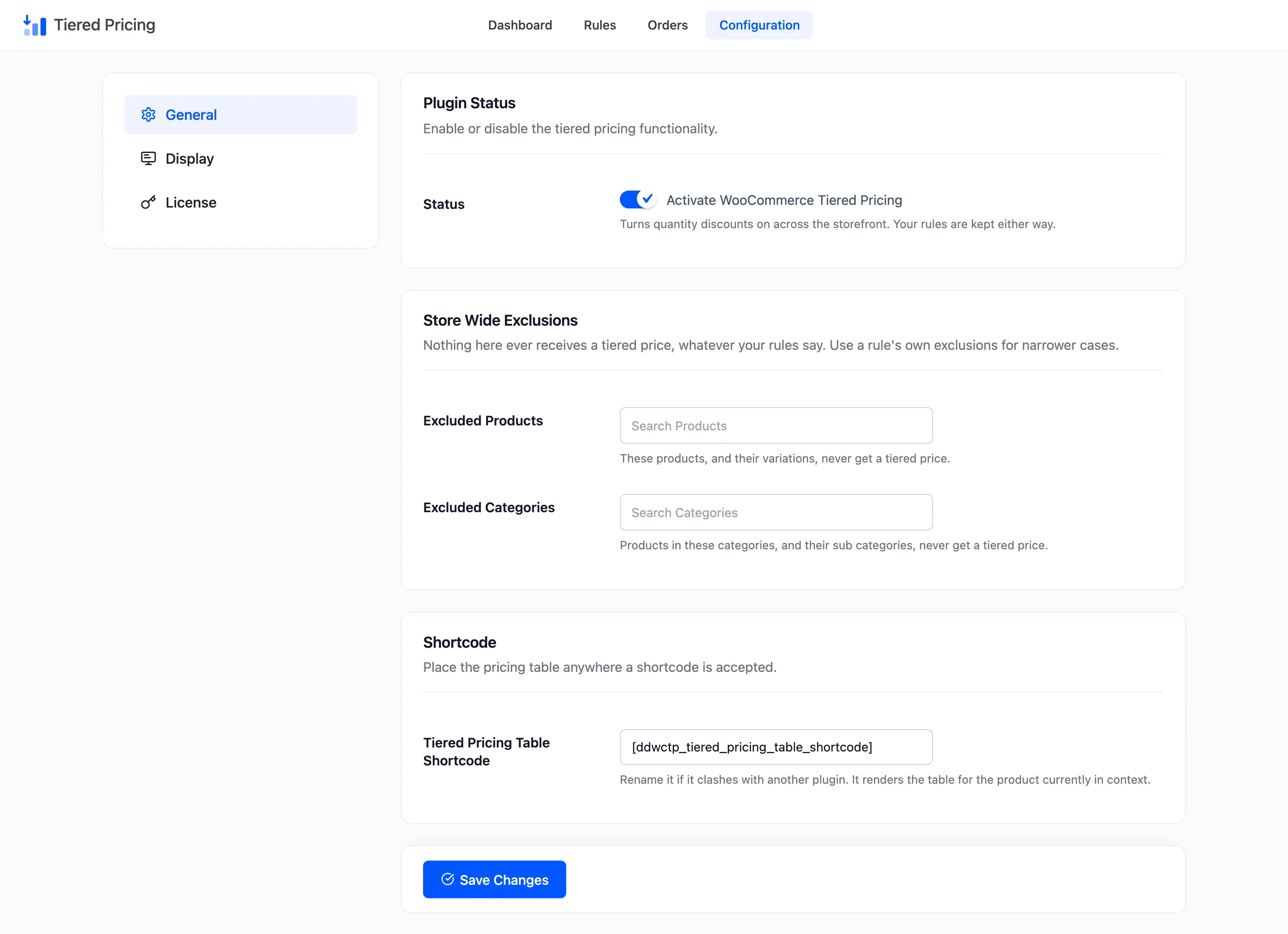
The General tab holds the settings that apply to the whole plugin rather than to one rule. It has three sections and five fields.
Go to DevDiggers Plugins → Tiered Pricing → Configuration → General.
Plugin Status
Section titled “Plugin Status”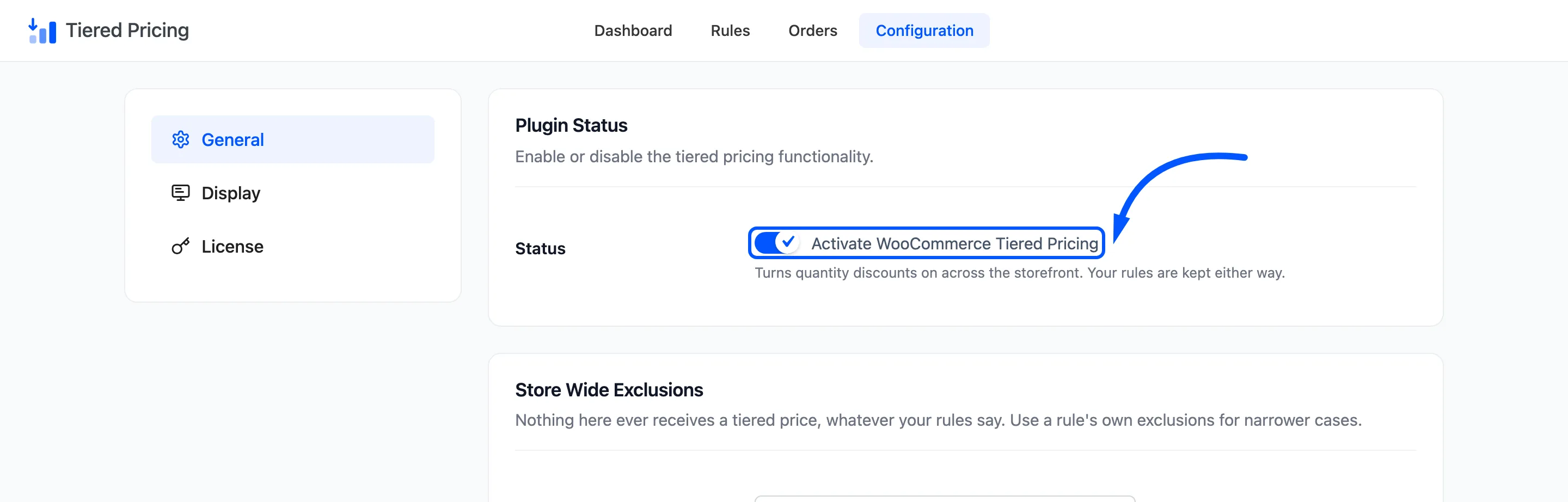
- Status: Tick Activate WooCommerce Tiered Pricing to turn quantity discounts on across the storefront. It is ticked after a fresh install.
Your rules are kept whether it is ticked or not. Untick it to hide every discount at once, for example while you test a change. The pricing table, the hint, the badge and the cart prices all stop, and they return when you tick it again.
Store Wide Exclusions
Section titled “Store Wide Exclusions”Nothing listed here ever receives a tiered price, whatever your rules say. Use it for products that must never be discounted, such as gift cards or a clearance line already at its lowest price.
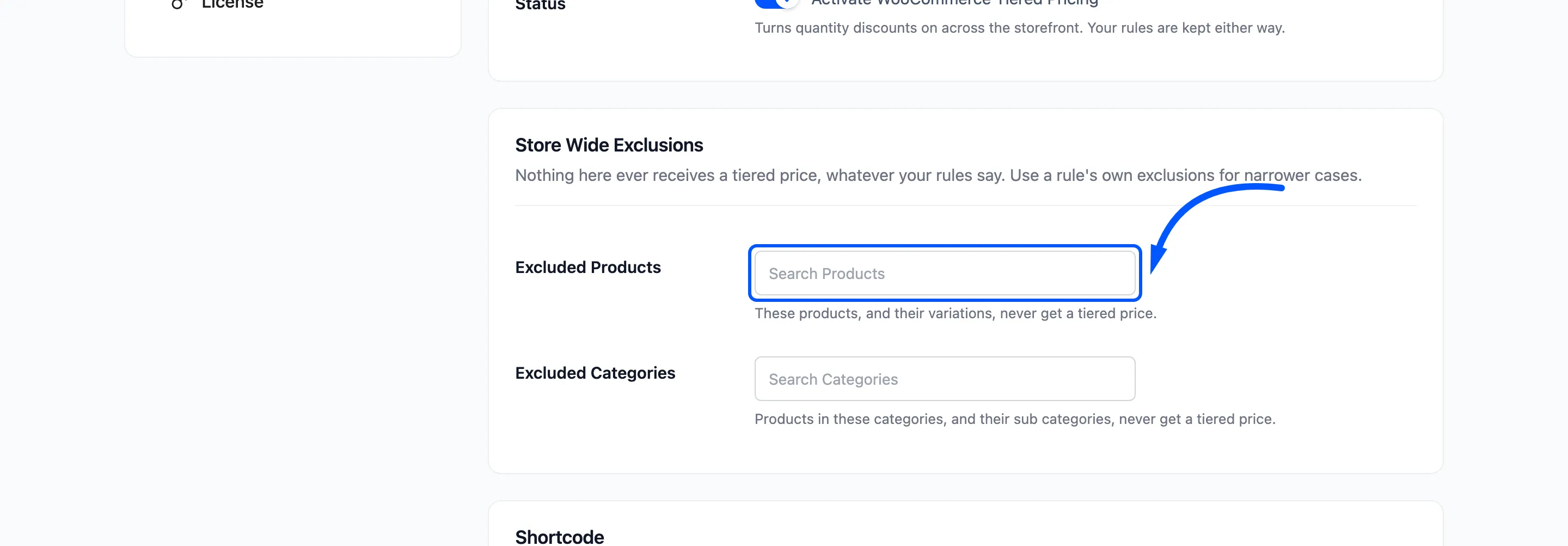
- Excluded Products: Search and pick products. They and their variations never get a tiered price. The field is empty by default.
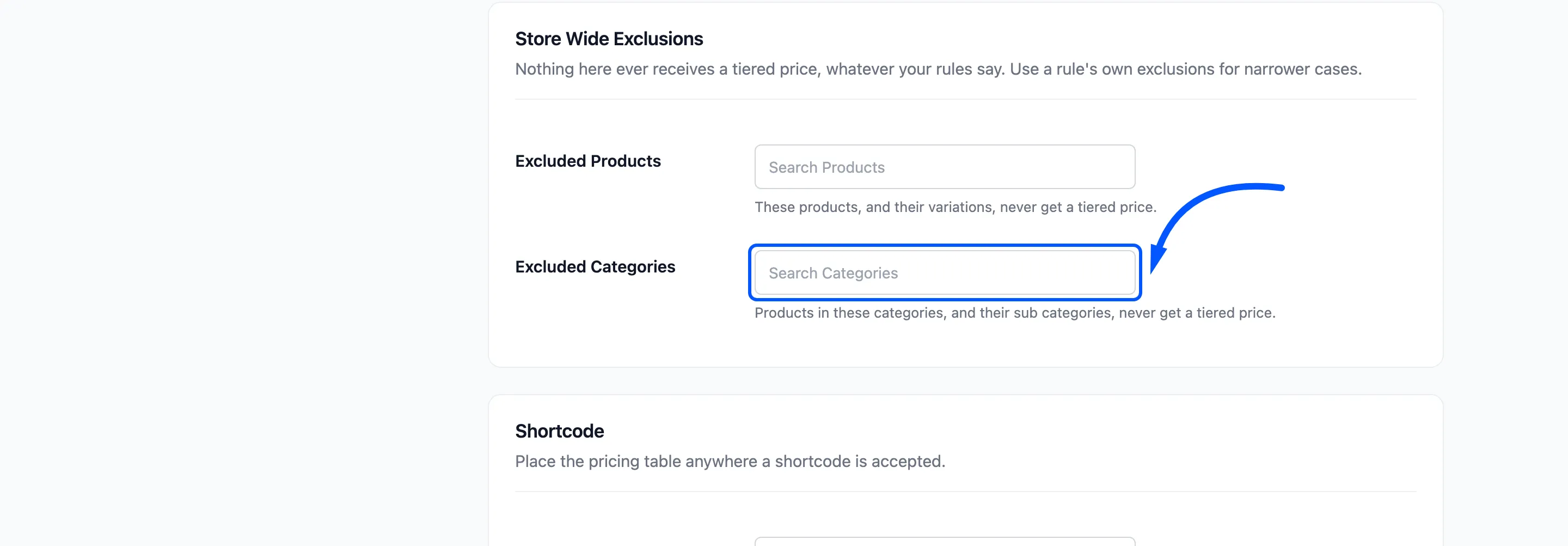
- Excluded Categories: Pick categories. Products in them, and in their sub categories, never get a tiered price. The field is empty by default.
For a narrower case, use the exclusions on a single rule instead. A rule’s Exclude Products field keeps one product out of that rule only. How to Exclude Products From Tiered Pricing shows both.
Shortcode
Section titled “Shortcode”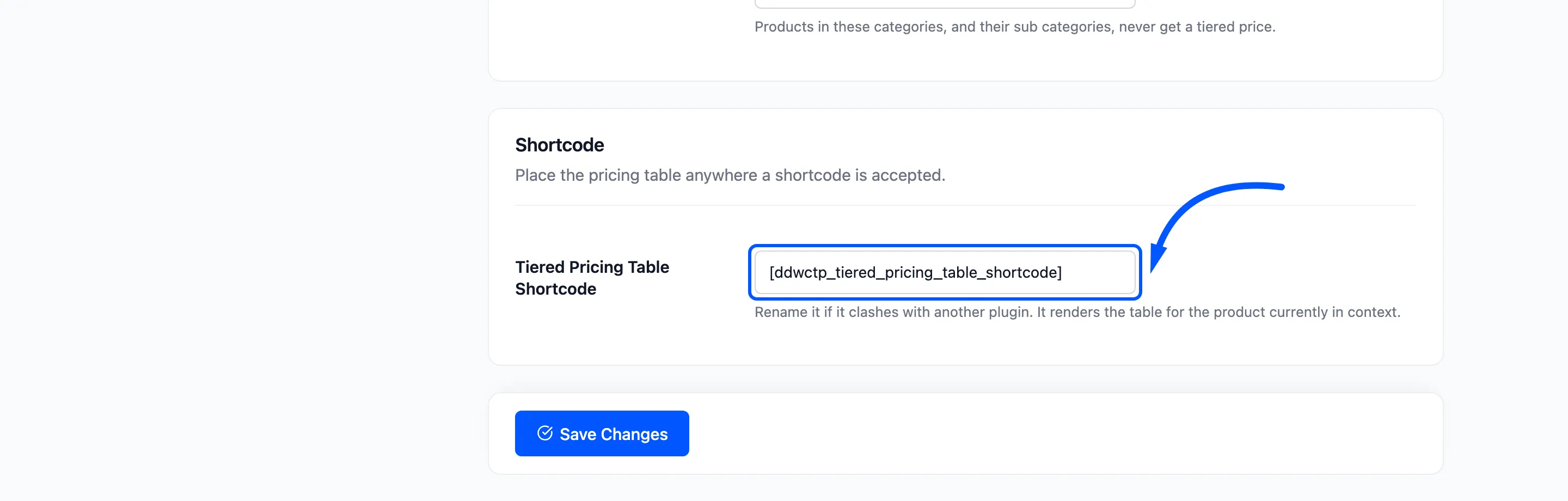
- Tiered Pricing Table Shortcode: The tag that renders the pricing table for the product in
context. The default is
[ddwctp_tiered_pricing_table_shortcode].
The plugin uses this same tag to put the table on the product page, at the position you choose on the Display tab. Rename it only if another plugin already uses the name. Square brackets and spaces are ignored, and an empty field falls back to the default.
If you rename it, use the new tag wherever you place the table by hand.
The shortcode takes no options. It always shows the table for the product the page is about, so it belongs in a product context such as a product template.
Saving
Section titled “Saving”Click Save Changes at the bottom of the tab. The settings take effect on the next page load.