

How to Build a Multi-Tier Price Ladder
A ladder is a set of tiers where each one starts where the last one ends. A customer buying 12 gets one price, a customer buying 30 gets a better one, and a customer buying 60 gets the best. The plugin has no ladder object.
A ladder is simply several rules that fit together.
Step 1: Plan the ladder
Section titled “Step 1: Plan the ladder”Write the tiers down before you open the form. Each row is one rule.
| Rule name | From | To | Discount |
|---|---|---|---|
| Bulk 10+ | 10 | 24 | 5% |
| Bulk 25+ | 25 | 49 | 10% |
| Bulk 50+ | 50 | empty | 15% |
Three habits keep a ladder honest.
- No gaps. Each From is one more than the last To. A gap, say 10 to 24 then 30 and up, leaves 25 to 29 at the full price.
- A bigger discount for a bigger quantity. A ladder that dips in price and then rises again will confuse buyers.
- An open top. Leave To empty on the last tier. See How to Close the Top of Your Price Ladder.
Step 2: Create one rule per tier
Section titled “Step 2: Create one rule per tier”Add each row as its own rule, the way How to Create Your First Tiered Pricing Rule does. Keep Applies To on All products and leave Priority at 10 for all three.
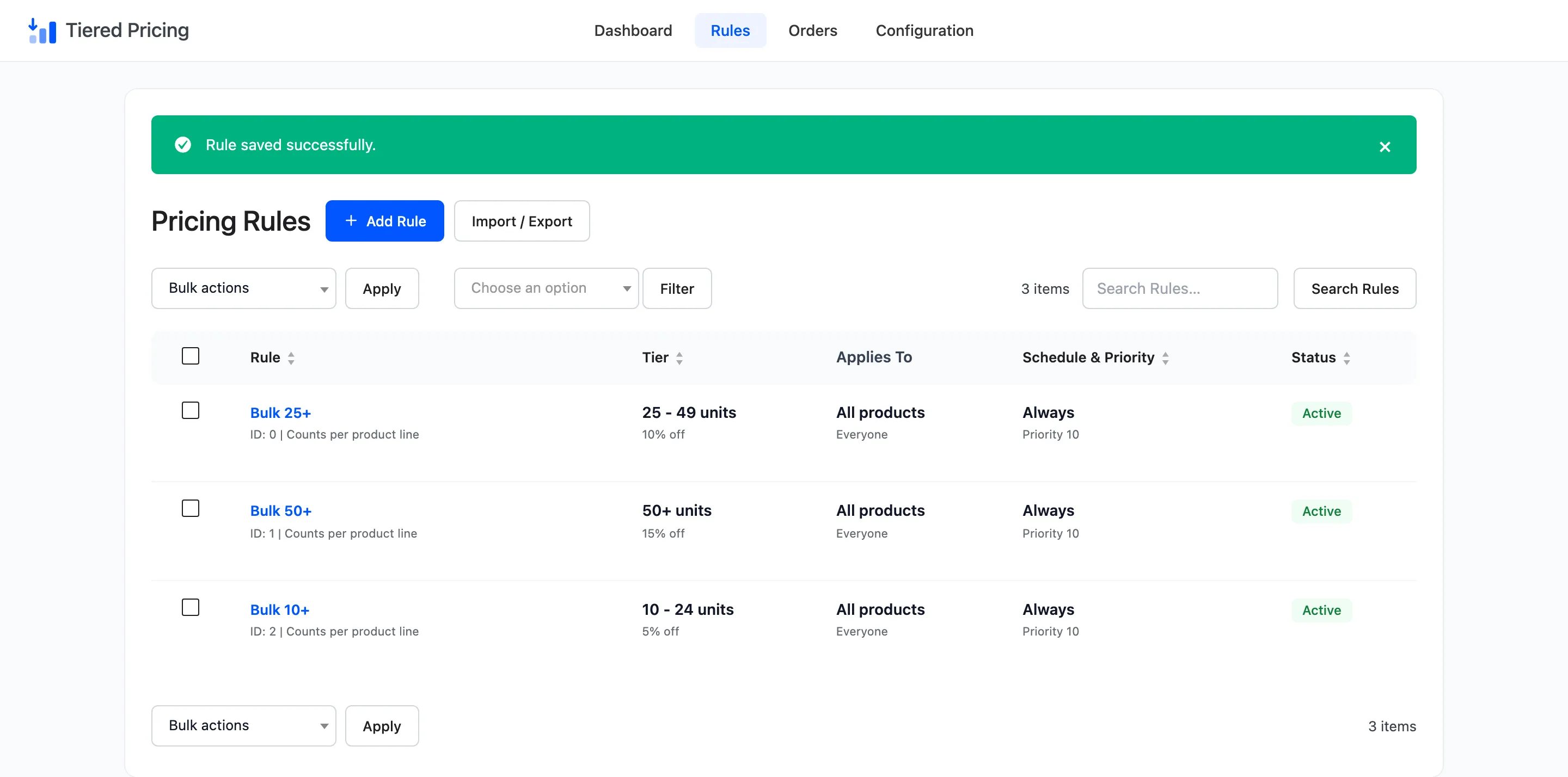
Equal priorities are fine for a ladder because the ranges do not overlap, so only one tier can match a quantity.
Step 3: Fix any overlap the form reports
Section titled “Step 3: Fix any overlap the form reports”If you type a range that shares a number with another rule at the same priority, the form refuses the save and names the clash.
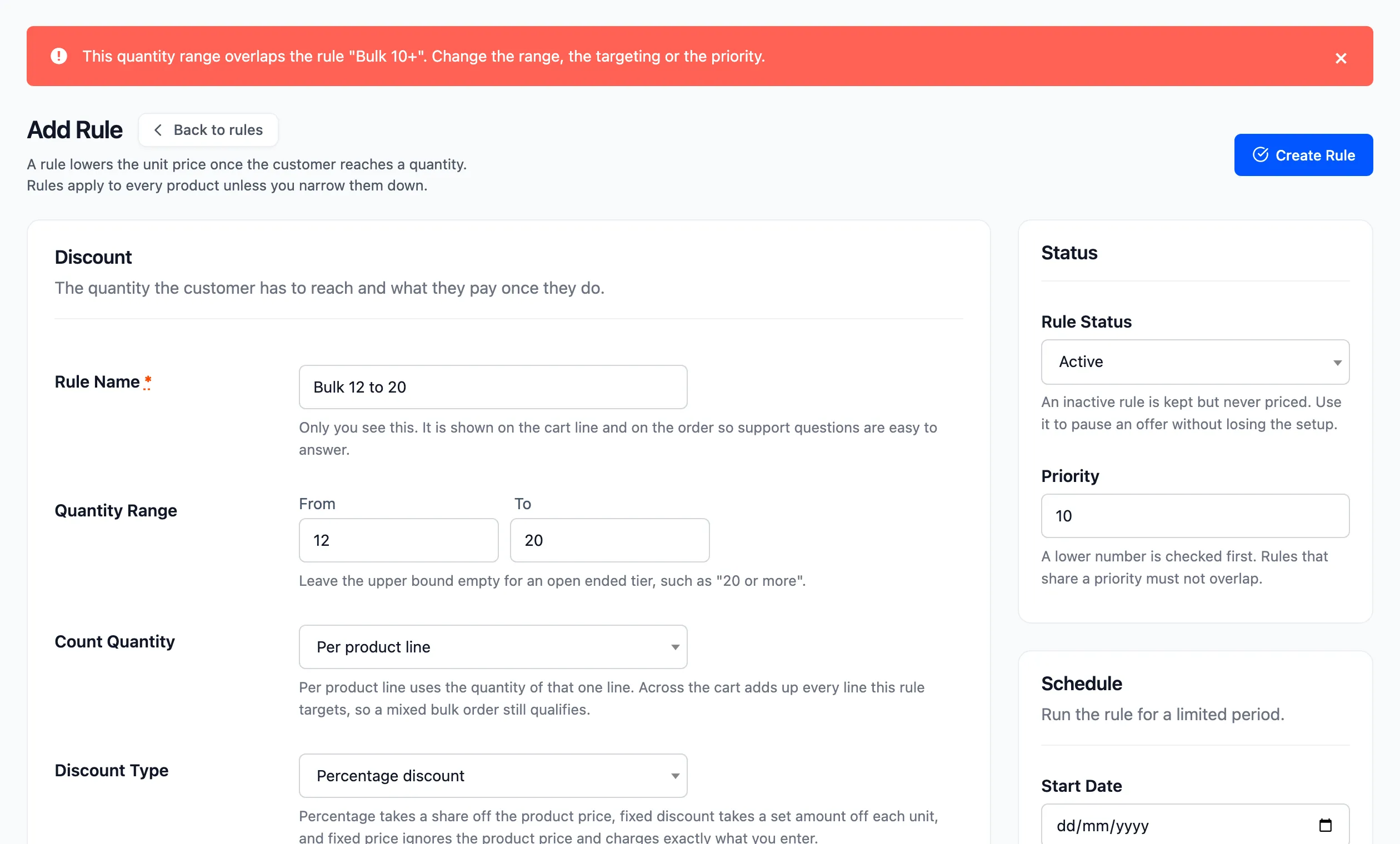
Change the range so the two no longer share a quantity. The message also offers two other ways out: a different targeting, or a different priority. A lower priority number makes the rule win where both match.
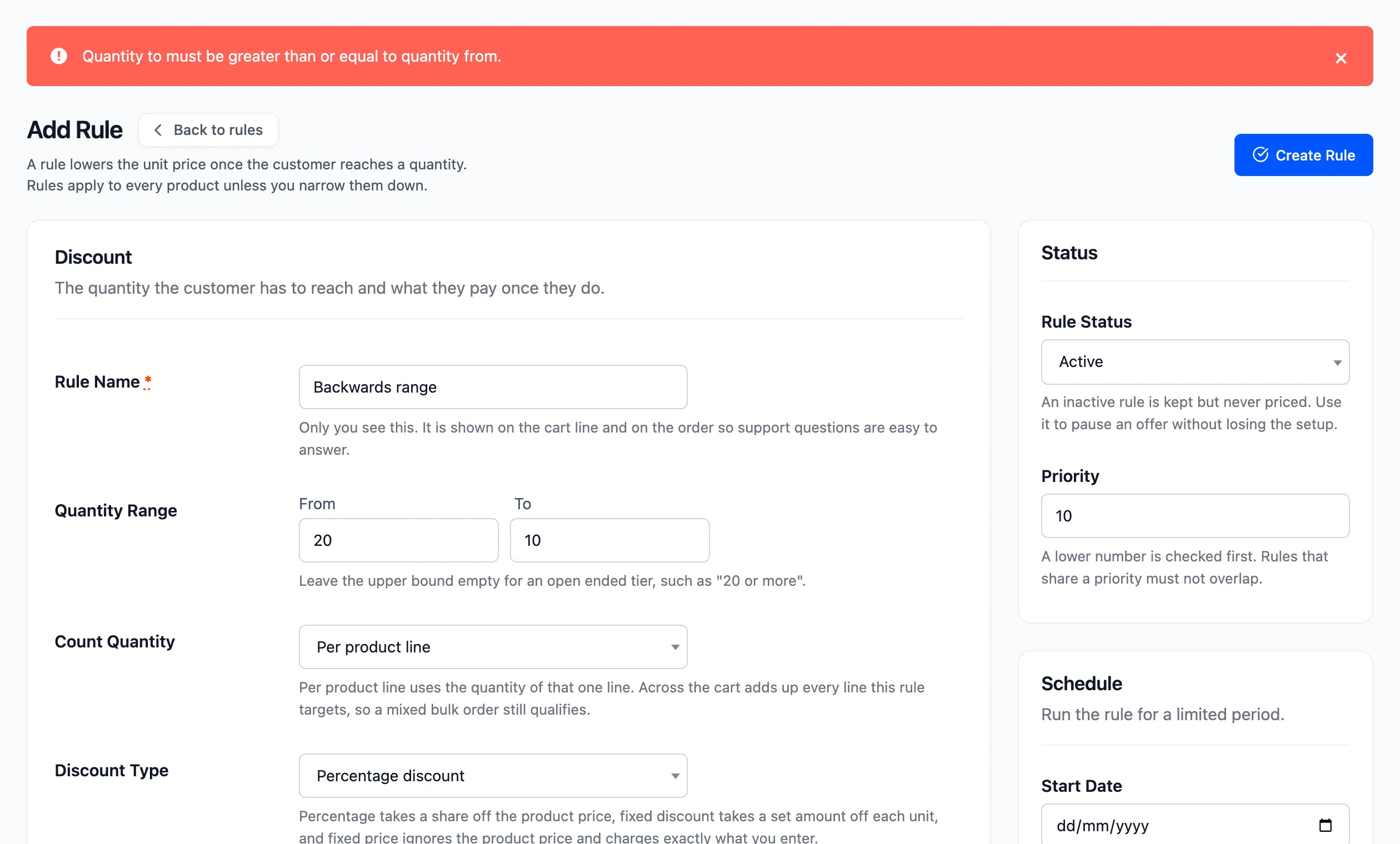
A backwards range gets its own message.
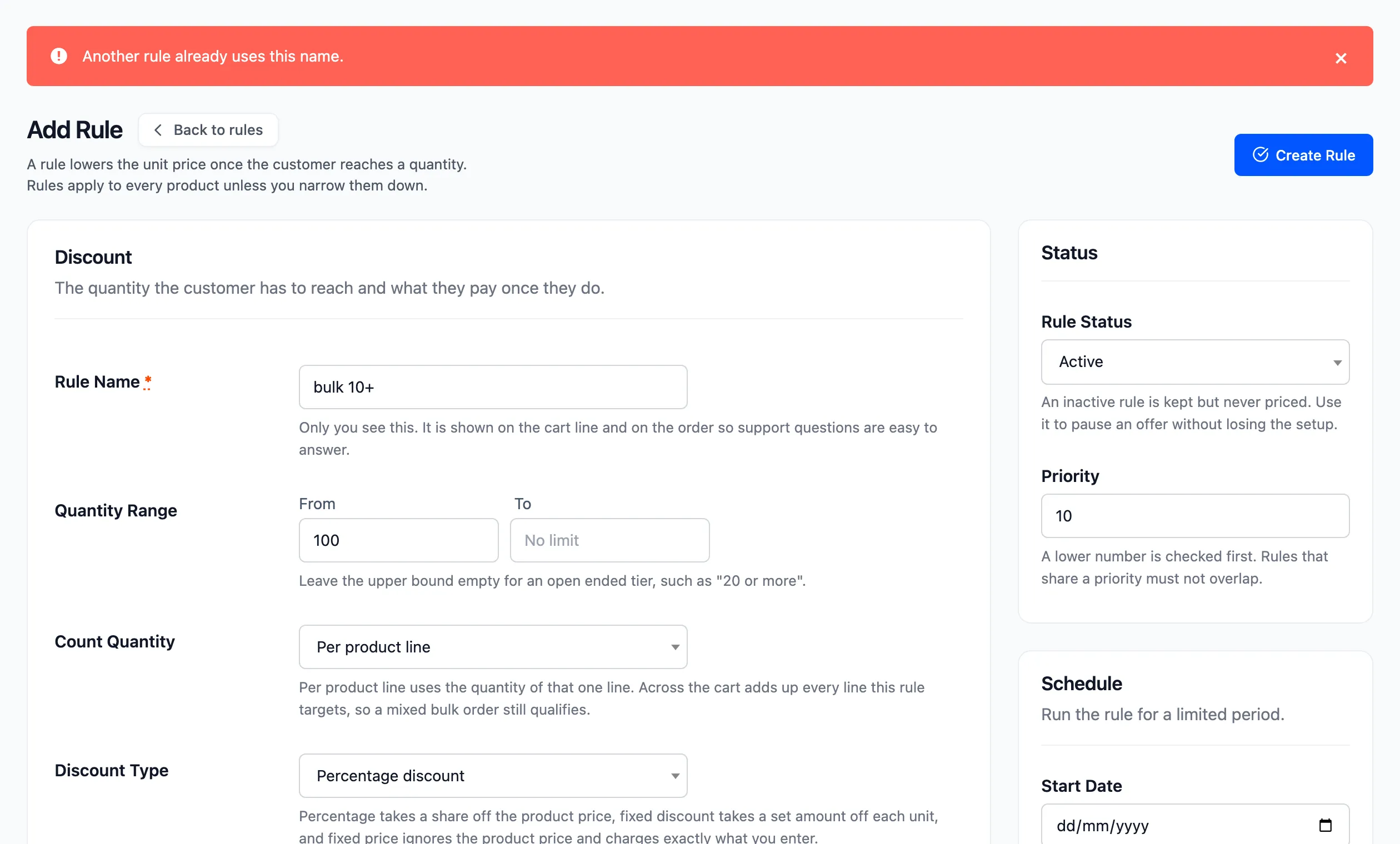
A name that another rule already uses is refused too, and capital letters do not make it different.
Step 4: Check the table and the cart
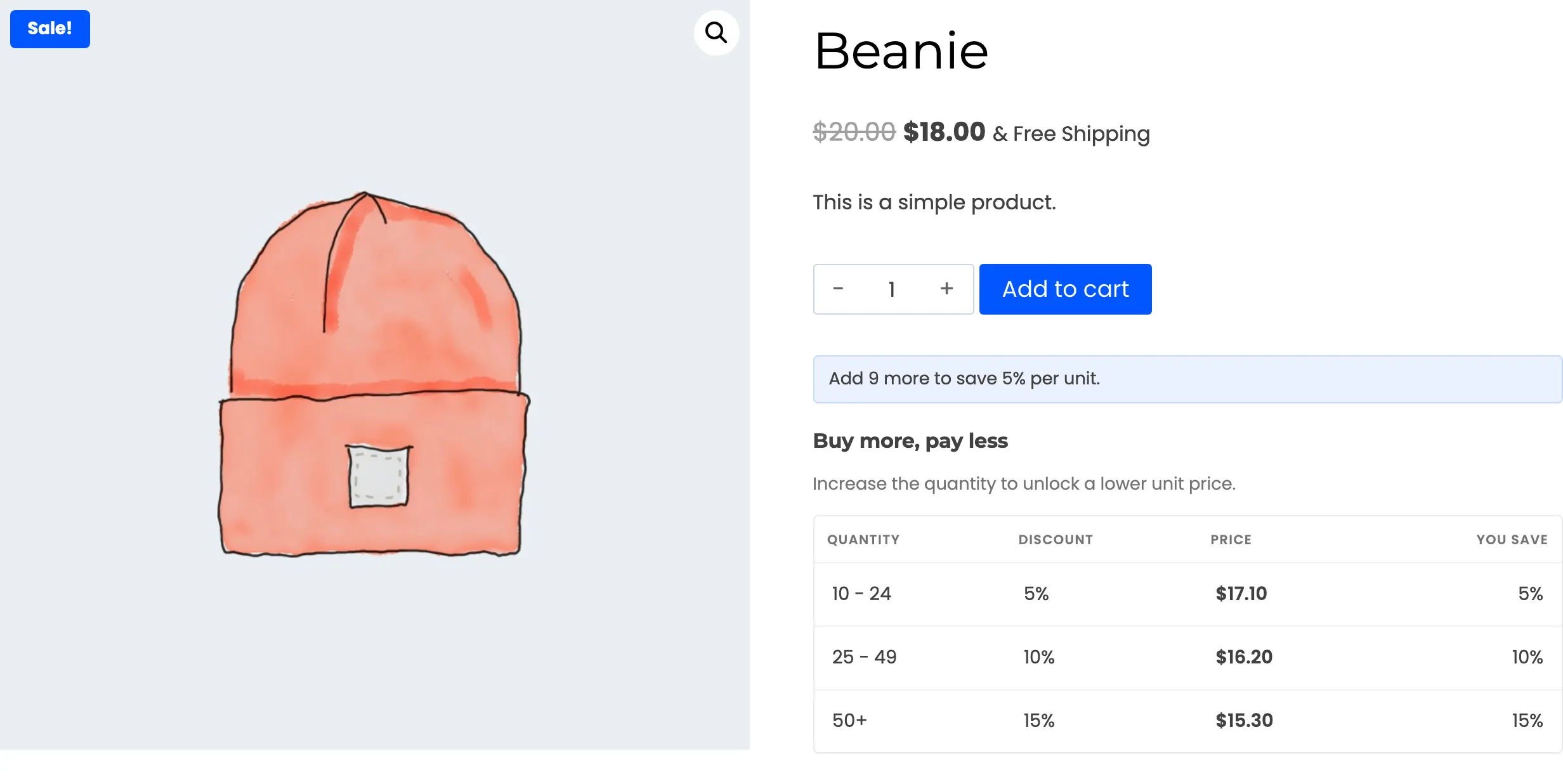
Section titled “Step 4: Check the table and the cart”Open a product while logged out. The table lists the three tiers in order.
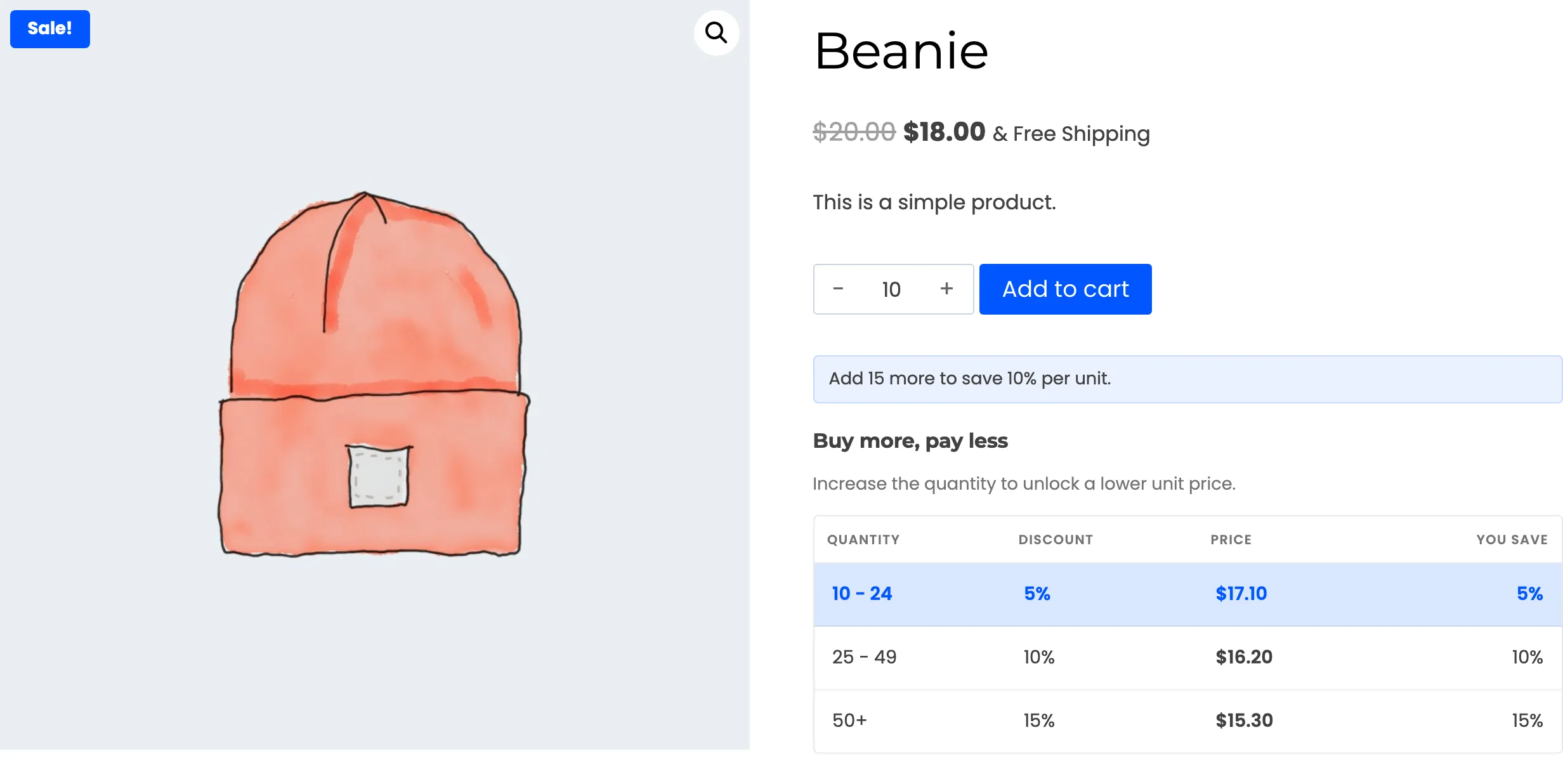
Click the middle row. The quantity box becomes 25 and that tier is highlighted.
Add 30 to the cart. The line takes the Bulk 25+ price.
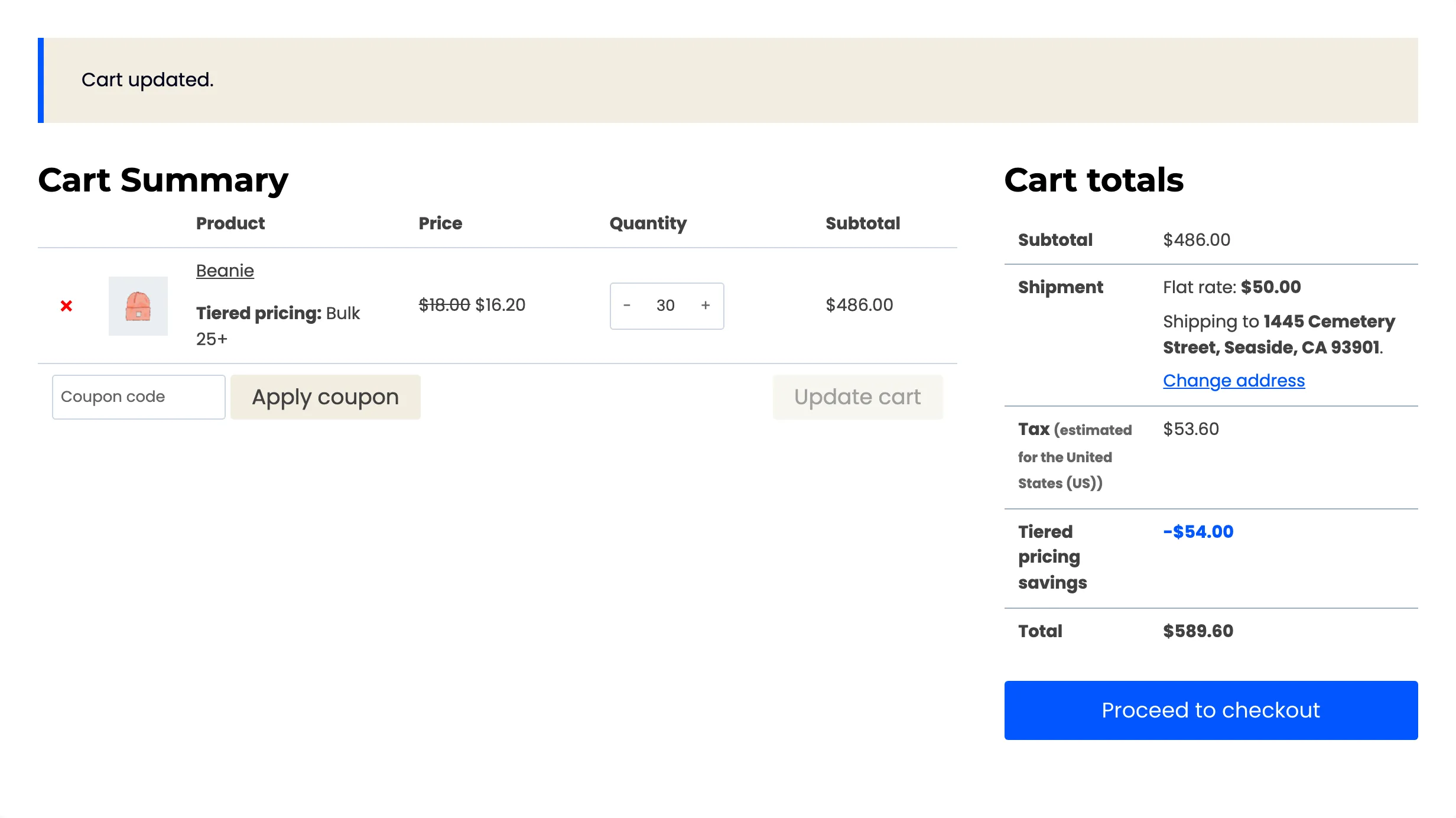
At 30 units a Beanie costs $16.20, which is 10 percent off the $18.00 sale price, and the savings row reads $54.00.
Step 5: Add a tier at the top later
Section titled “Step 5: Add a tier at the top later”Say you want a fourth tier for 100 units or more. The open ended Bulk 50+ already covers 100, so a new rule from 100 would overlap it at priority 10. There are two clean ways.
- Shorten the old top tier. Edit Bulk 50+ and set To to 99. Then create Bulk 100+ with To empty.
- Give the new tier a lower priority number. Create Bulk 100+ at priority 9. The cart checks it first. Quantities of 100 and over match it, and everything from 50 to 99 falls through to Bulk 50+.
The first way keeps every rule at one priority and is easier to read. The second is quicker when you do not want to touch a rule that is already live.