

How to Pause, Duplicate and Delete Rules
Rules change as the season does. A promotion pauses, a ladder gets a sibling, an old offer goes. The Rules screen handles all of it without opening the editor.
Pause or restart one rule
Section titled “Pause or restart one rule”Hover a rule’s row. The actions appear under its name.
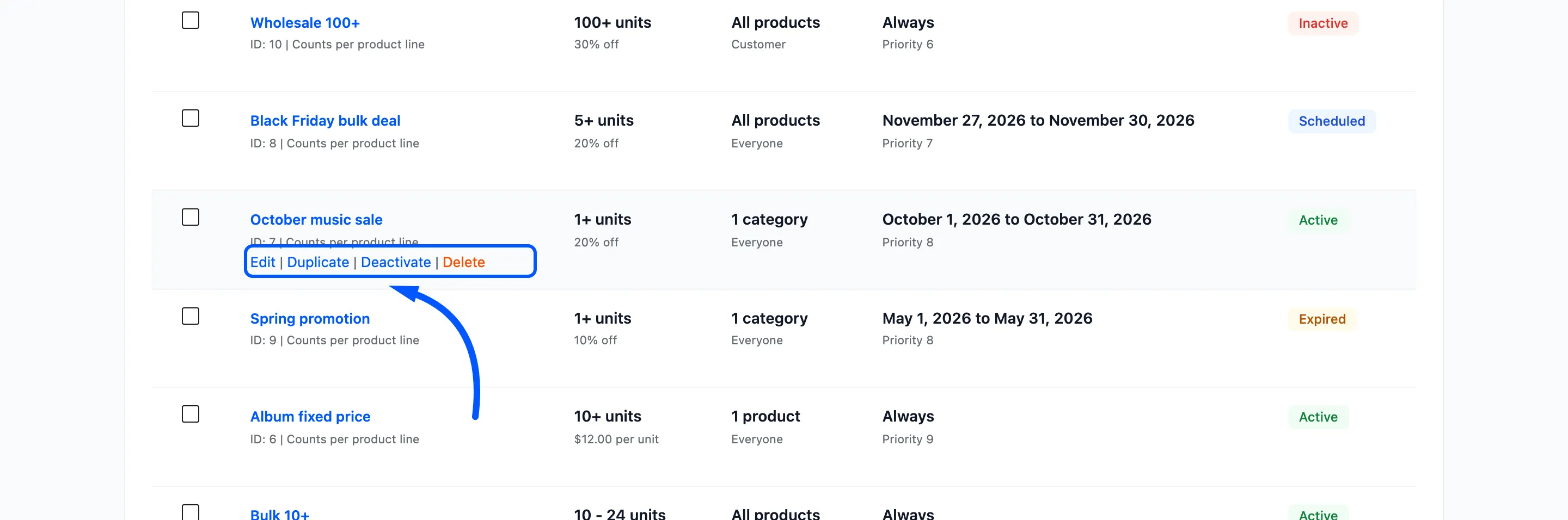
Click Deactivate. The rule turns Inactive and stops pricing straight away. Nothing is lost, and Activate brings it back.
The link always shows the action that has not happened yet.
Pausing is the safe way to test. If a price looks wrong, deactivate the suspect rule, reload the product page, and see whether the table changes.
Change several rules at once
Section titled “Change several rules at once”Tick the box beside each rule, then use the Bulk actions menu above the list.
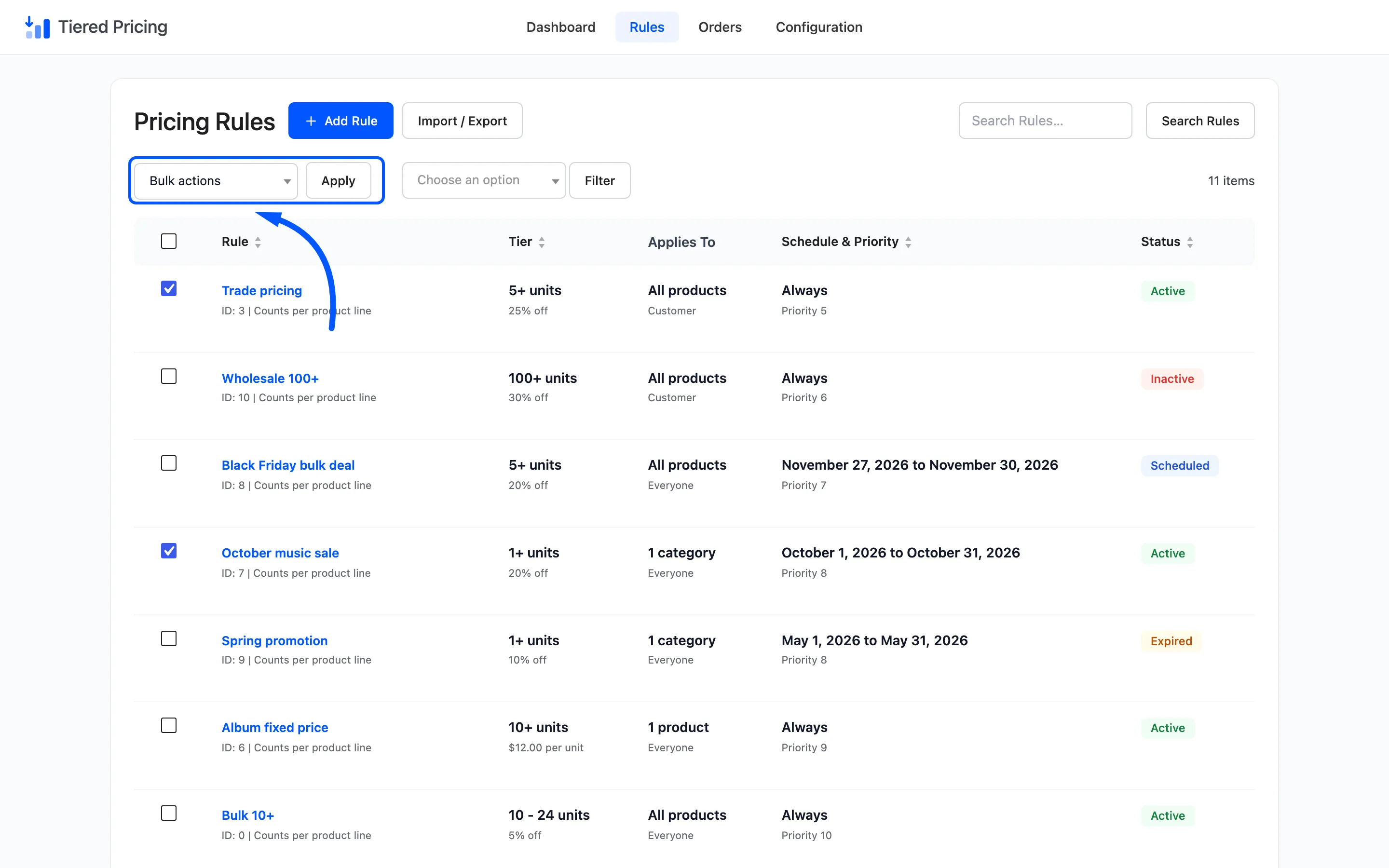
Choose Deactivate and click Apply. A notice reports how many rules changed.
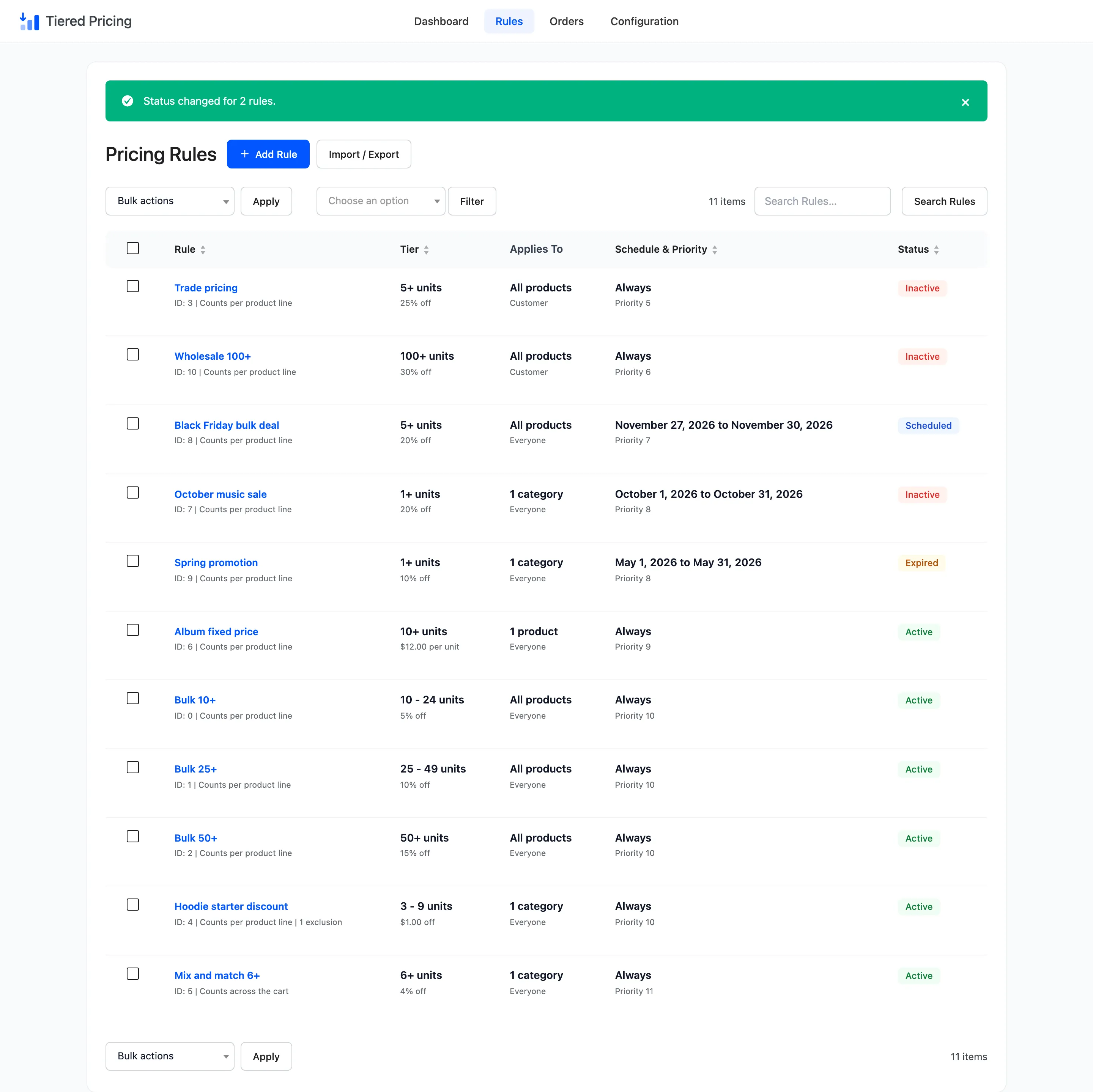
The two rules now read Inactive. Bring them back with Activate the same way.
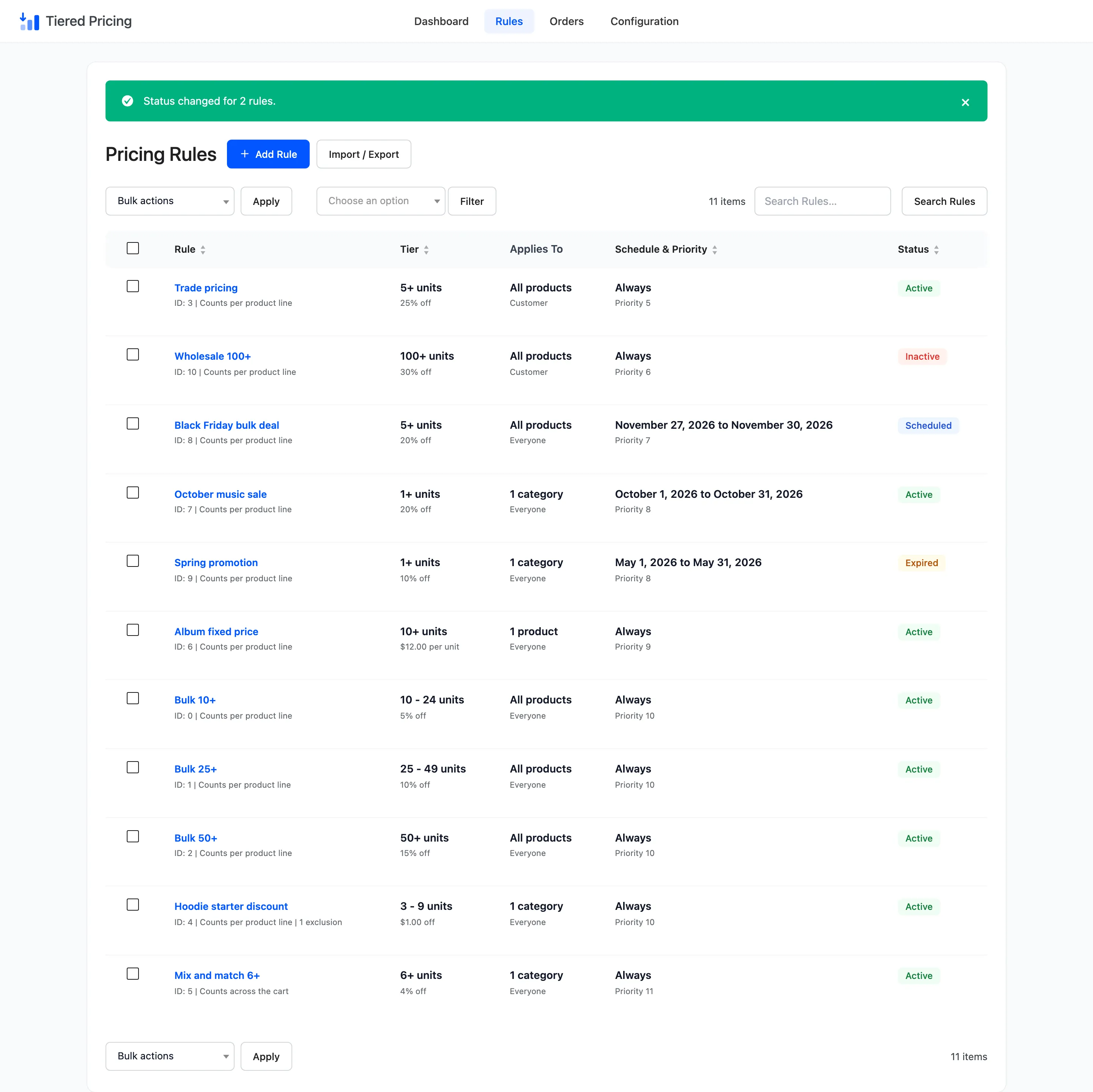
Applying an action with nothing ticked shows Select at least one rule first. The menu also holds Duplicate and Delete, which work on every ticked rule.
Duplicate a rule
Section titled “Duplicate a rule”A copy is the quickest way to build a sibling, such as the same tier for another category. Hover the rule and click Duplicate.
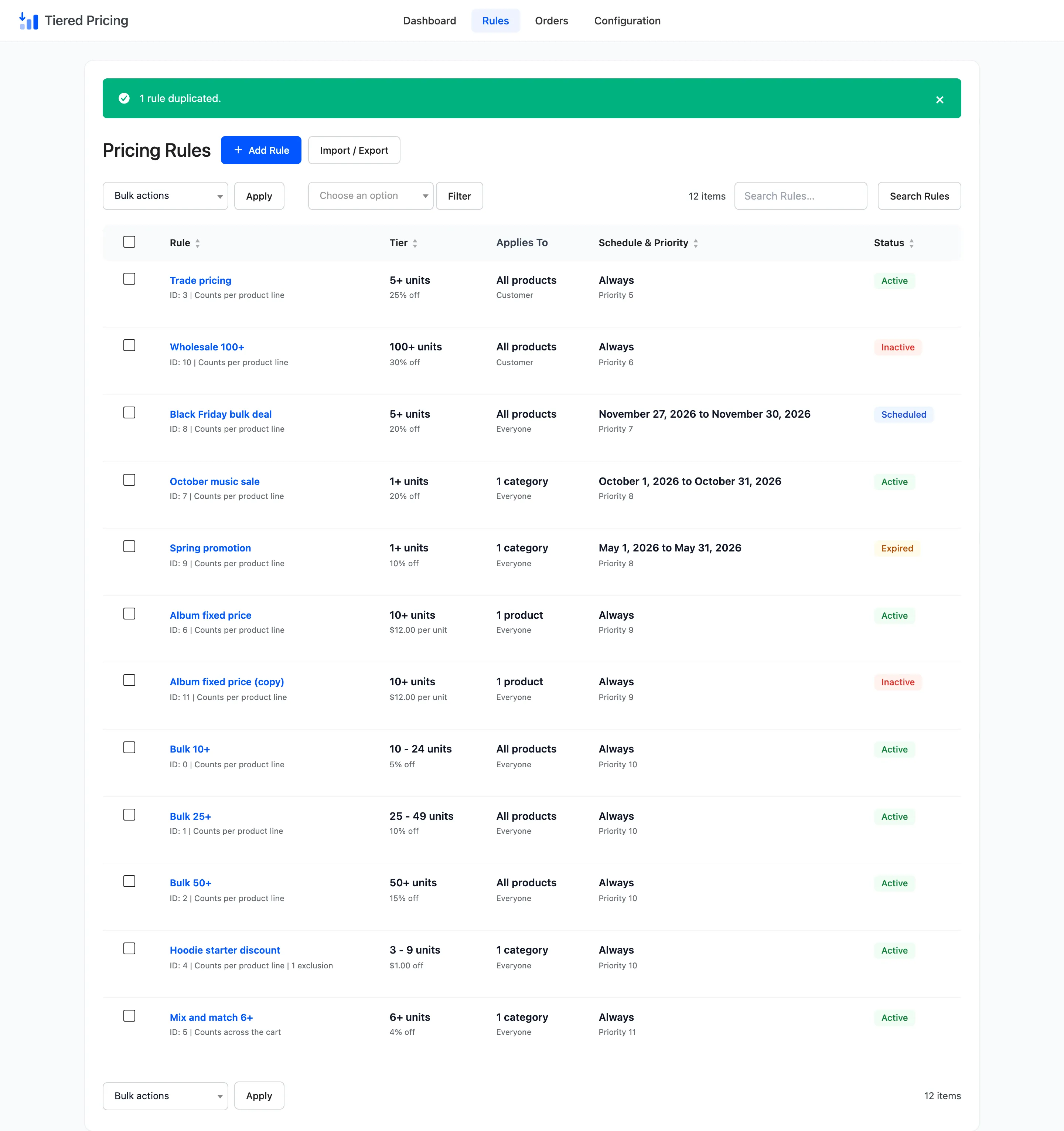
The copy is called “Album fixed price (copy)”. It is added at the end of the list and starts Inactive, so it never prices anything before you have looked at it. Open it, change the name and the targeting, set it Active, and save.
Give the copy its own targeting, and a name that says what it is for, before you switch it on.
Delete a rule
Section titled “Delete a rule”Hover the rule and click Delete. Your browser asks you to confirm with Delete this rule? This cannot be undone.
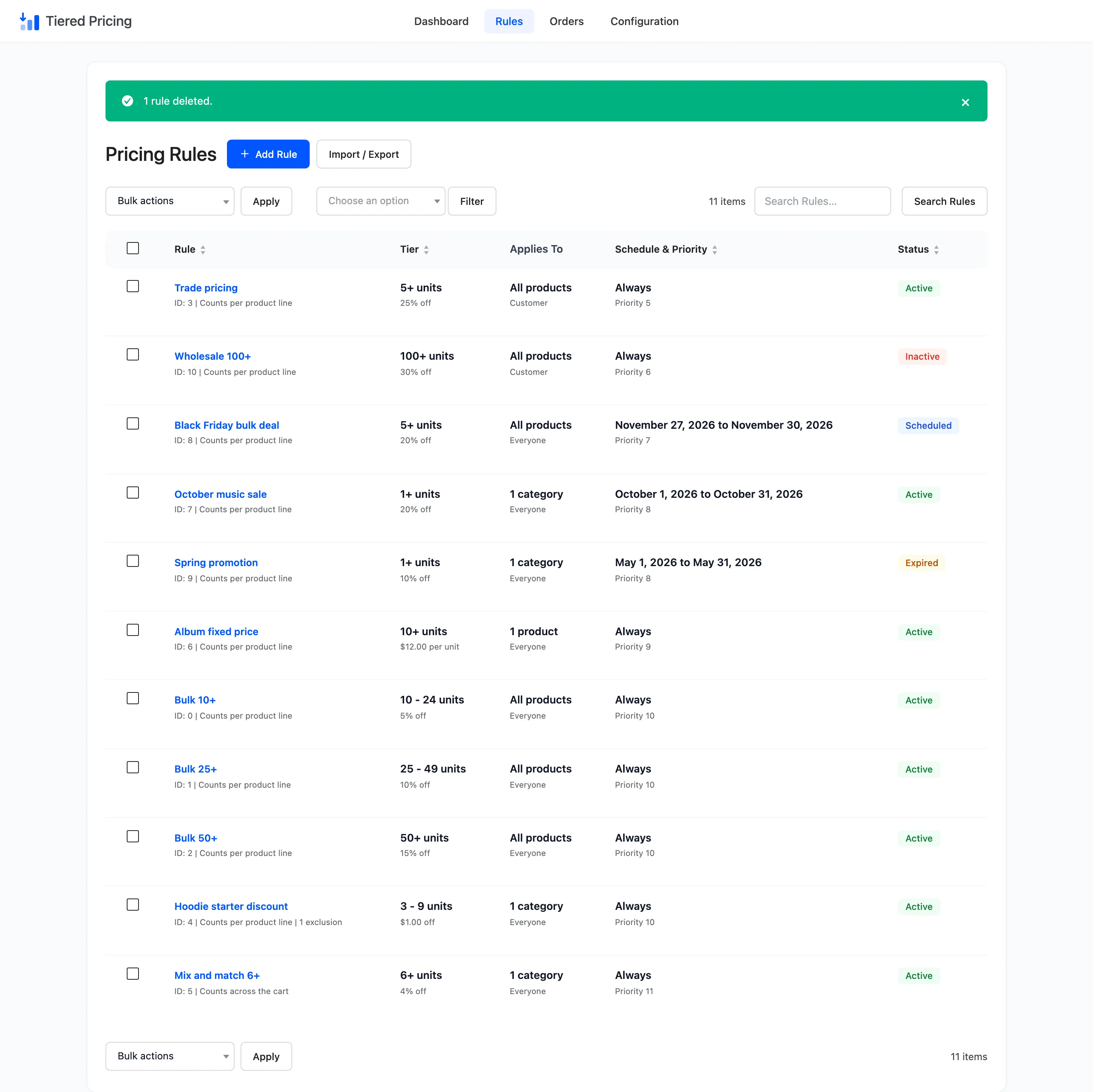
A deleted rule is gone for good, so export first if you may want it back. See How to Move Rules Between Stores. Orders placed under the rule keep their record, because each order stores the rule’s name and amounts.
The Tiered Orders screen and the dashboard still show them.
Find the rule you want
Section titled “Find the rule you want”On a long list, narrow it down before you act.
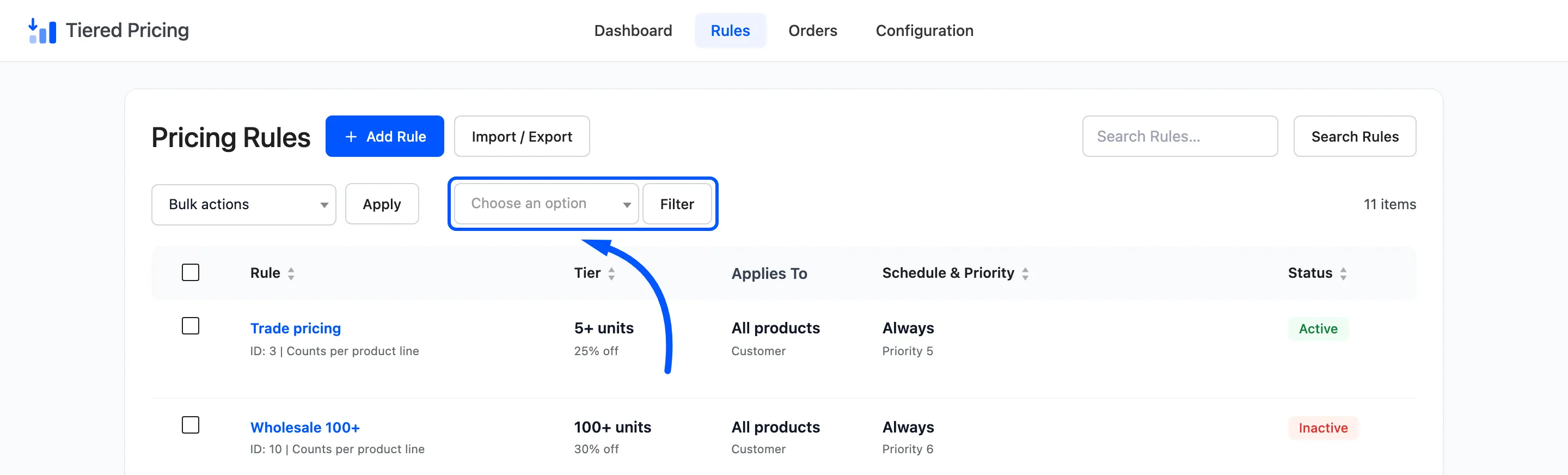
Filter by Active, Inactive, Scheduled or Expired, or type part of a name into Search Rules. The bulk actions work on the rules you tick.