

How to Close the Top of Your Price Ladder
A ladder with a closed top has a cliff. Say the last tier runs 41 to 60 units. A customer who buys 60 pays the best price.
A customer who buys 61 pays the full price, and so does everyone who buys more. The biggest buyers are treated worst. This tutorial closes the gap.
Step 1: Look at your highest tier
Section titled “Step 1: Look at your highest tier”Open Rules and sort the list by Tier. The last rule has the largest From. Read its Tier column.
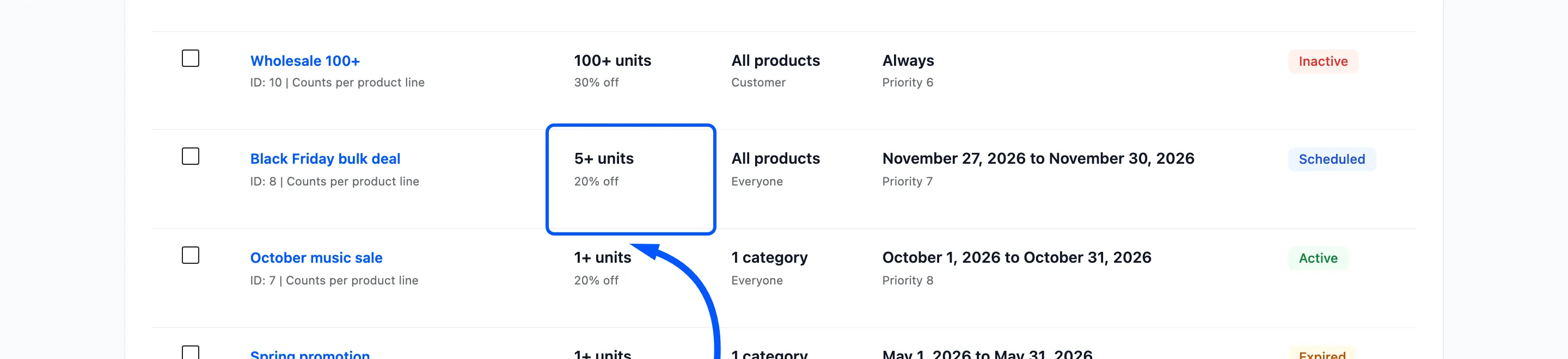
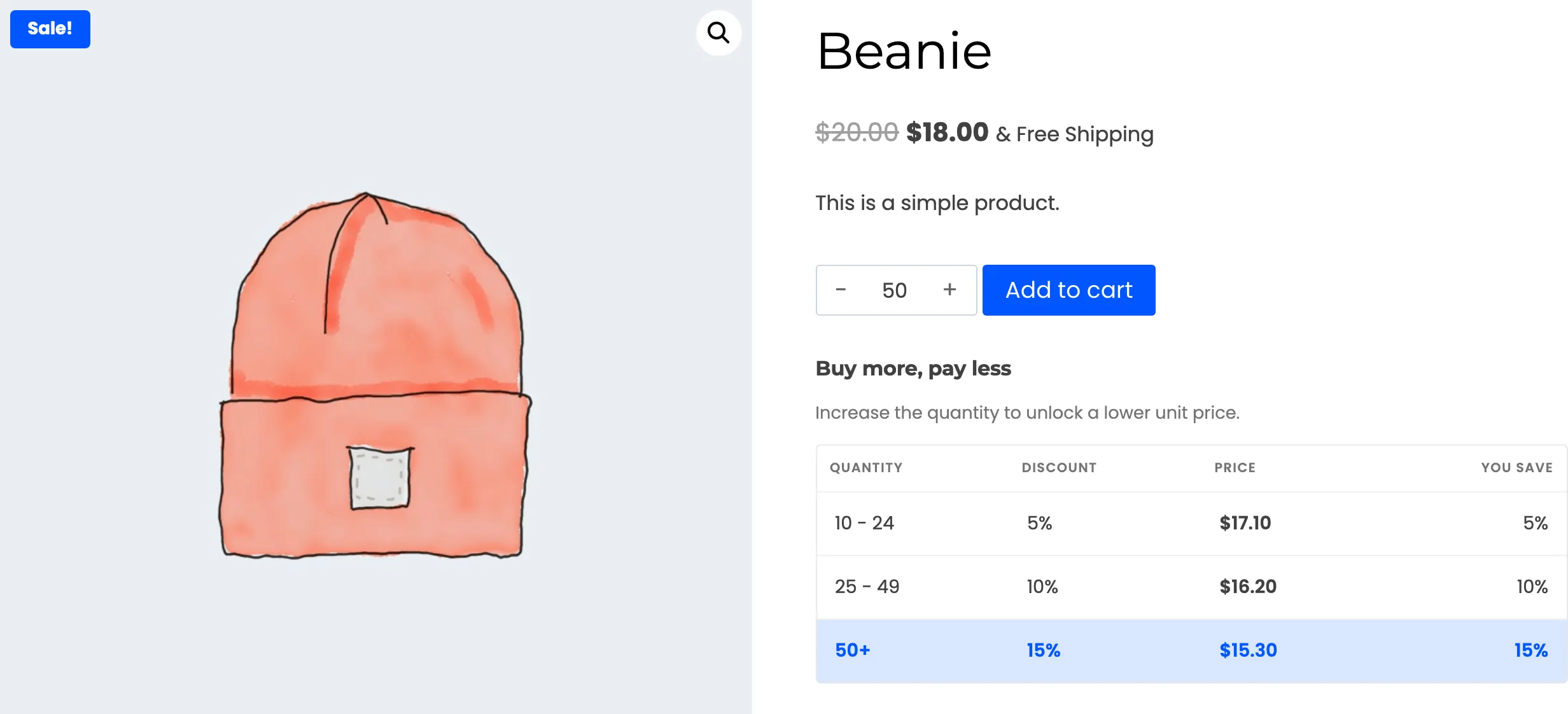
A tier that reads 50+ units is open ended. A tier that reads 50 - 99 units has a ceiling, and nothing sits above 99.
Step 2: See what the cliff looks like
Section titled “Step 2: See what the cliff looks like”With a ladder that ends at 49 units, a basket of 30 is inside the second tier.
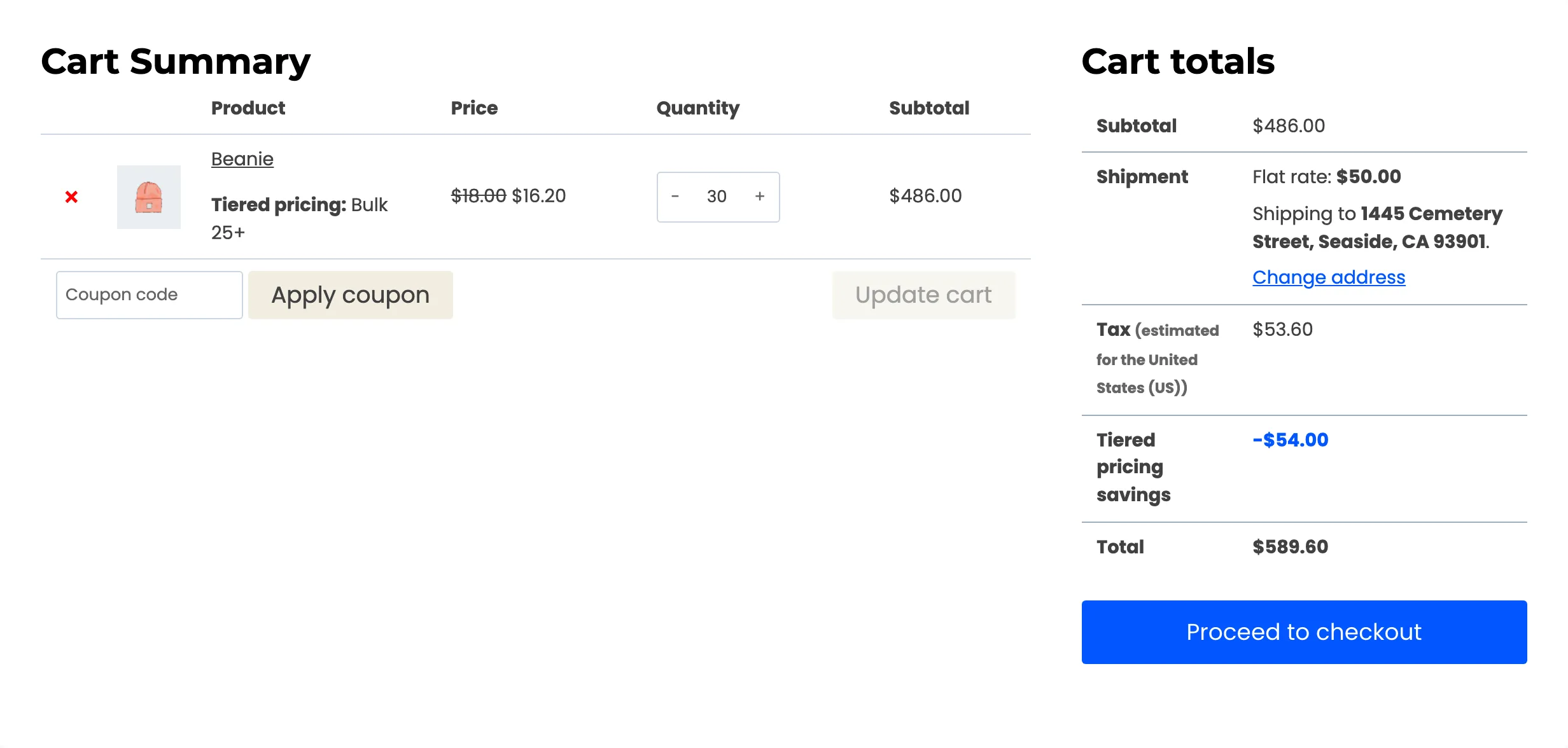
Raise the quantity to 60, and nothing matches. The unit price jumps back to the normal $18.00, and the savings row is gone.
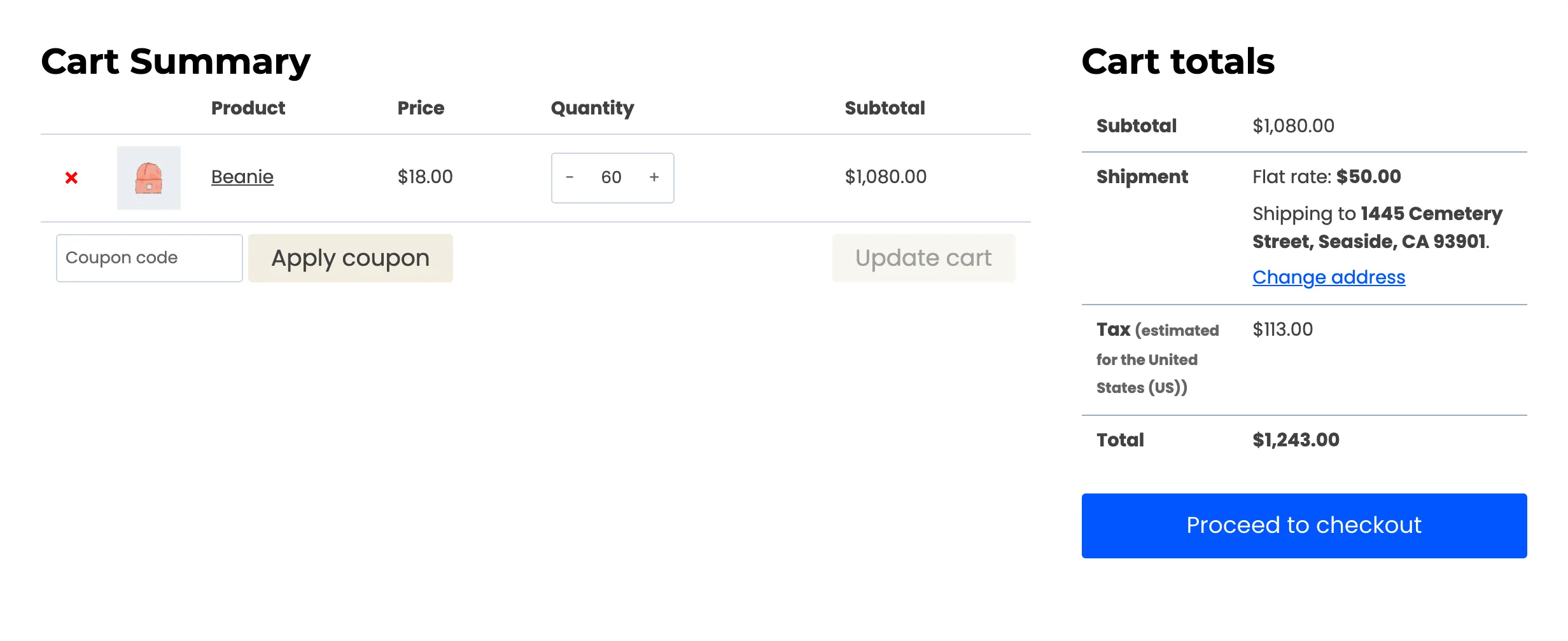
The product page does not warn about this. The table lists its tiers, and the hint disappears once no higher tier exists. A customer who types 60 sees nothing wrong until the cart.
Step 3: Empty the To box
Section titled “Step 3: Empty the To box”Edit the top rule. In Quantity Range, clear To. The box shows the placeholder No limit.
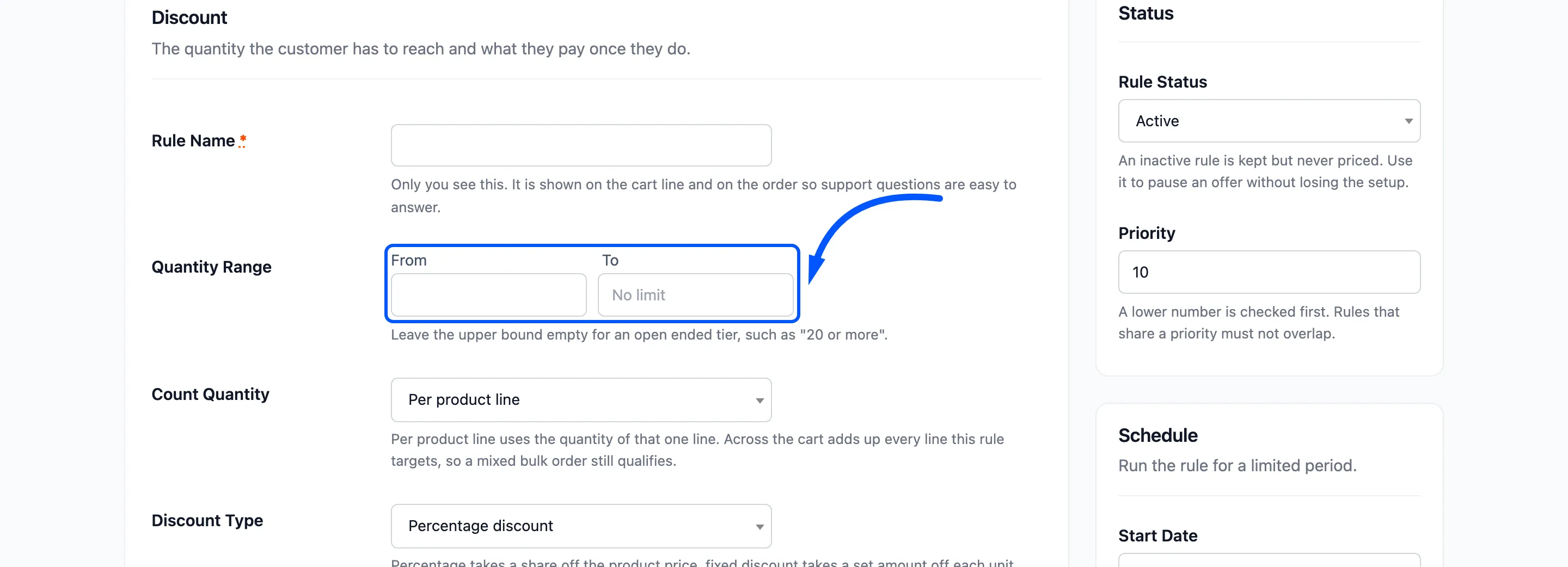
Click Update Rule. The rule now covers its From quantity and everything above it.
Step 4: Test a quantity above the old limit
Section titled “Step 4: Test a quantity above the old limit”Put a large quantity in the cart, well above the old ceiling. The line takes the top tier.
If the top tier is still not used, work through How to Fix a Tier That Does Not Apply.
When a ceiling is on purpose
Section titled “When a ceiling is on purpose”Sometimes the top is closed by design. A promotion may be capped at 24 units per order, or a wholesale price may stop where a pallet price starts.
In that case, say so in the product page copy. Also make sure a rule above the ceiling picks the customer up.
A gap is fine only when it is a decision.