

The Customer Experience
A shopper never opens the plugin. They meet it on the storefront, at six moments. This page walks through them in the order they happen, with the settings that control each one.
On the shop and category pages
Section titled “On the shop and category pages”With Listing Badge on, a small badge sits under the product title on shop and category pages. It reads Save up to 15% on bulk orders until you change the wording.
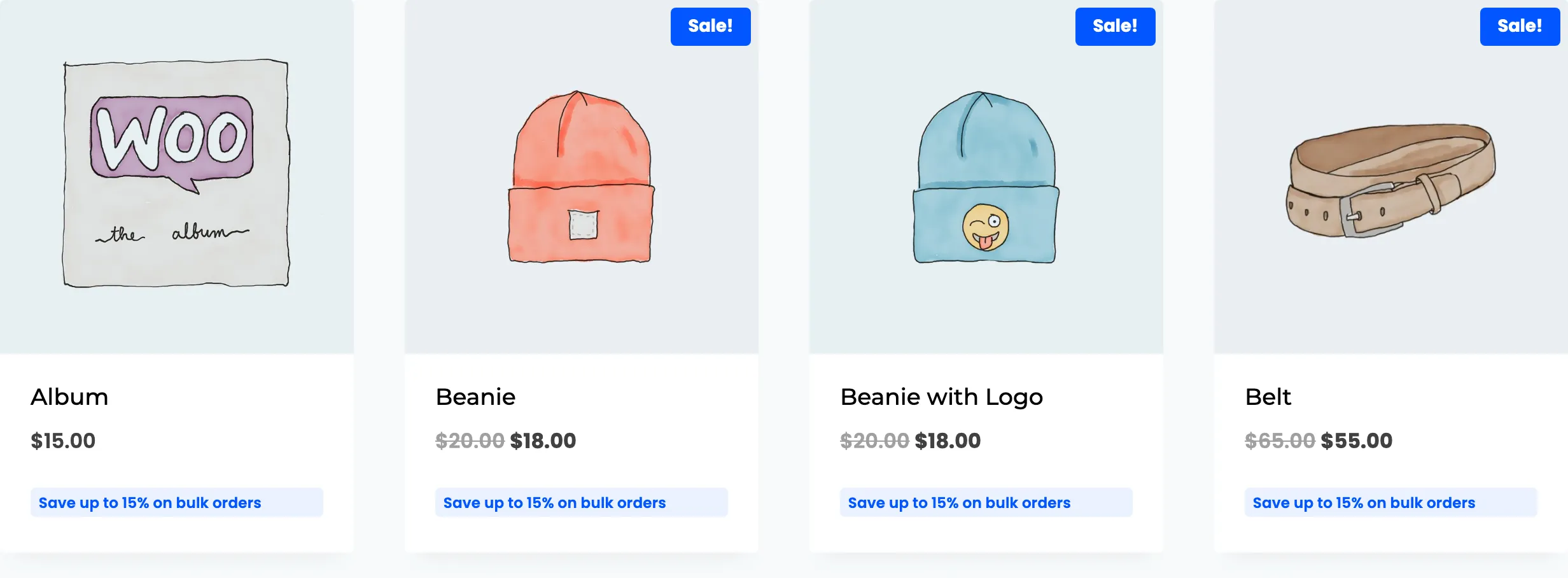
The percentage is the best saving available to that visitor on that product. A product with no tier for them shows no badge. The badge starts off.
See How to Advertise Bulk Pricing on Shop Pages.
On the product page
Section titled “On the product page”The pricing table lists every tier: the quantity range, the discount, the price per unit and, when the savings column is on, the percentage saved.
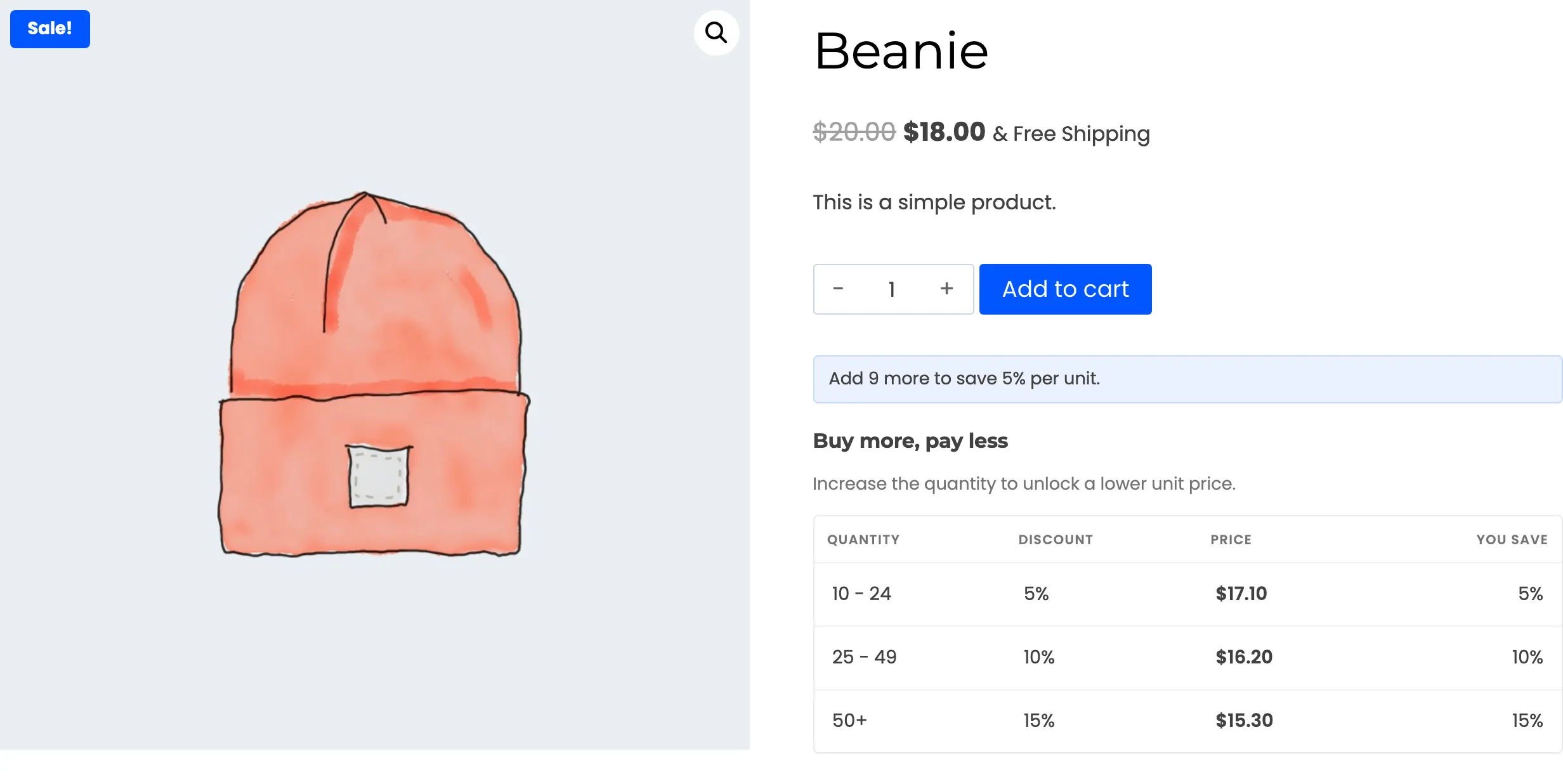
Under the Add to cart button, the next tier hint says how many more units earn the next discount. When the customer types a quantity, the matching tier is highlighted and the hint updates. Clicking a tier sets the quantity to that tier’s minimum.
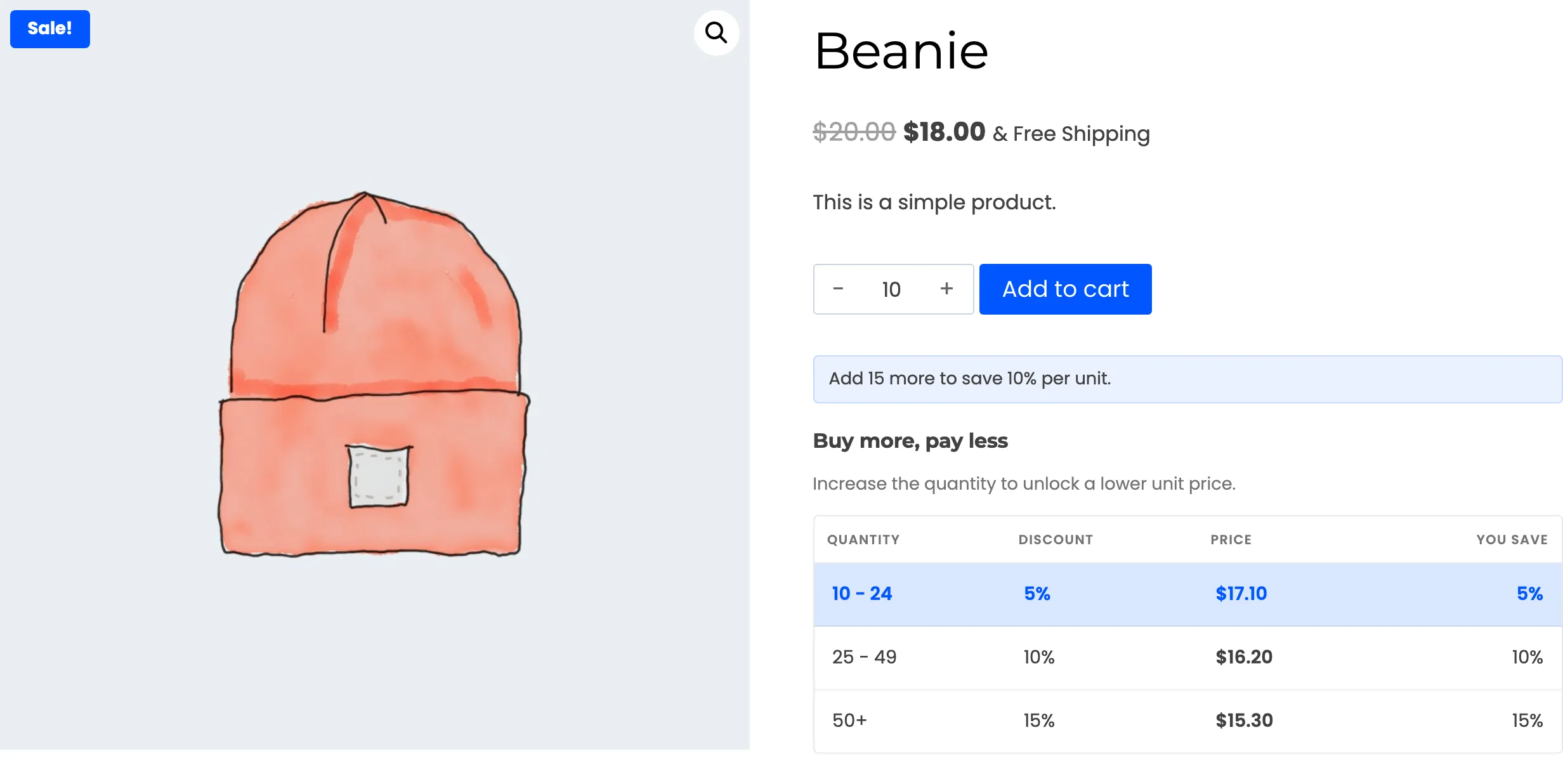
- Logged out or logged in: A rule limited to a role shows only to people who hold that role. The table is built for the person looking at it.
- Layout and place: The table can be a grid of cards or a compact list, and sit above or below the form. See Display Settings.
Variable products
Section titled “Variable products”On a variable product there is no table until the customer chooses a variation.
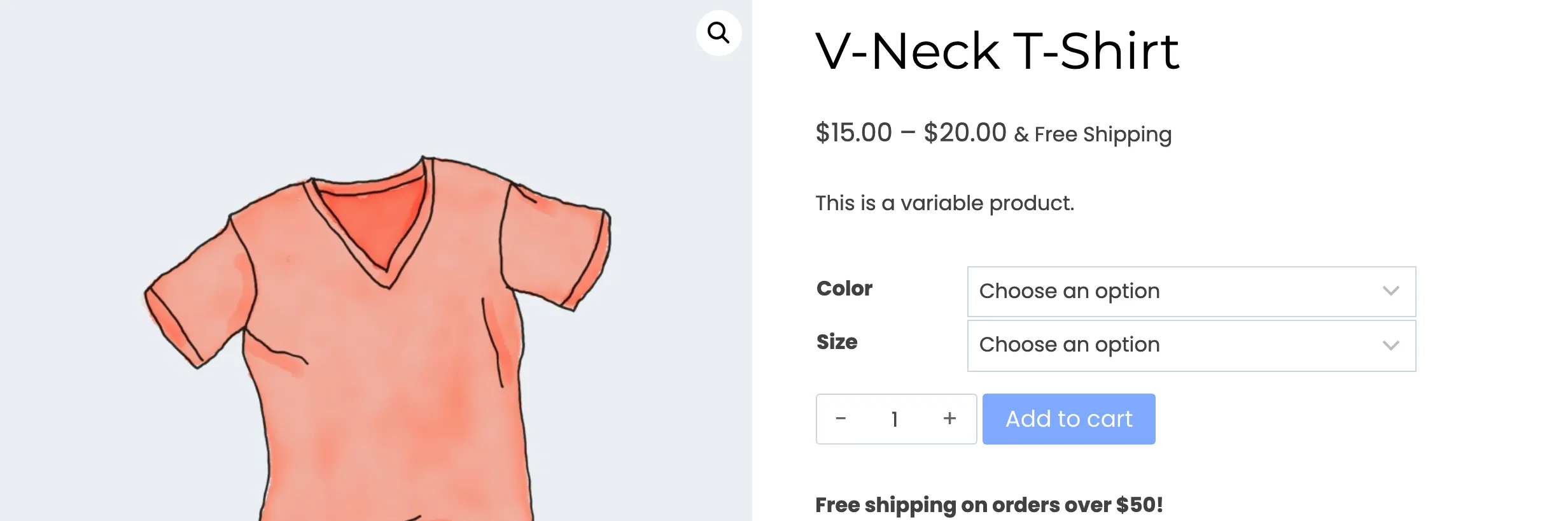
The table then appears under the form, and it changes if they pick another variation.
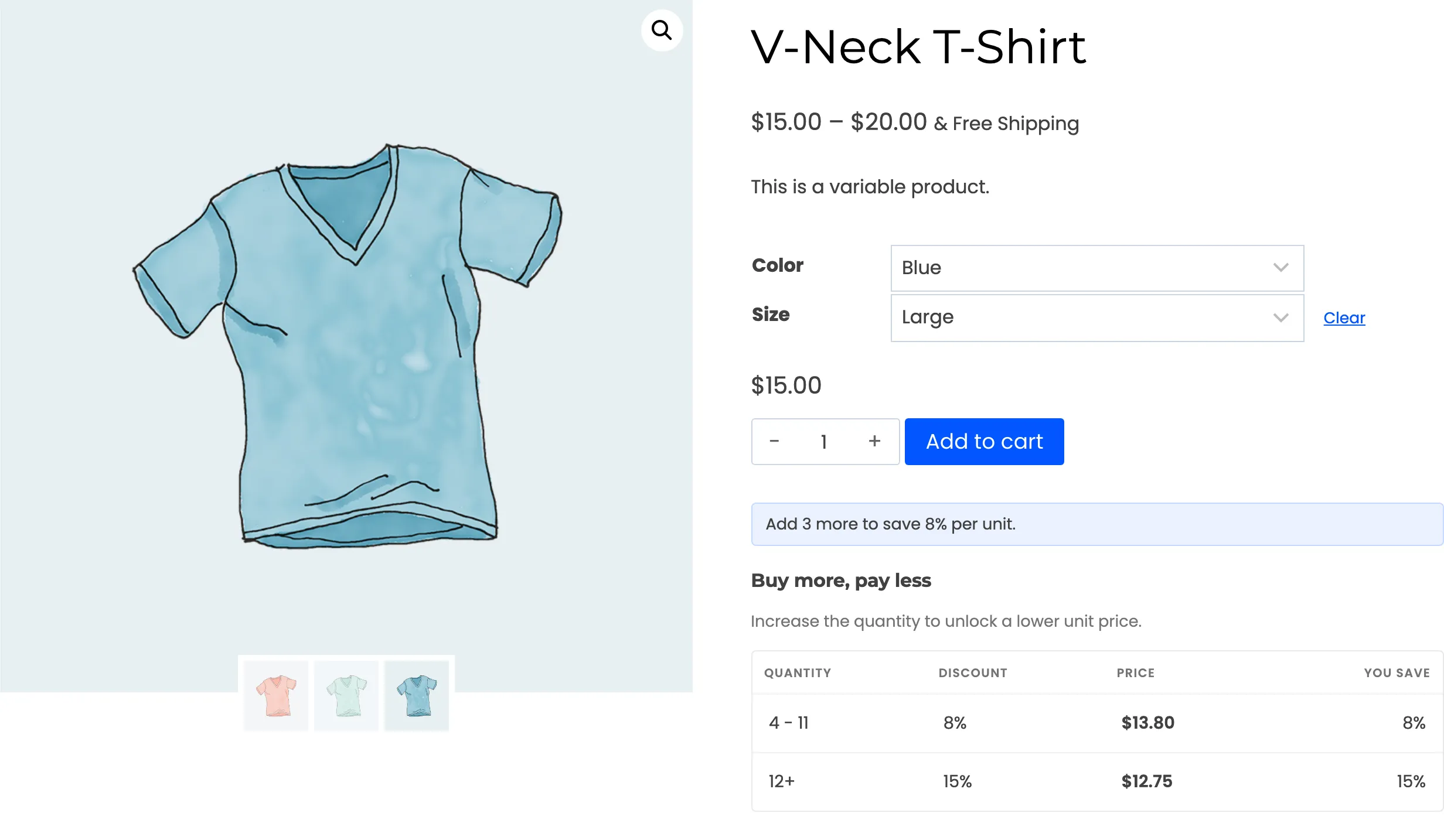
A variation with rules of its own shows those rules. One without them shows the global ladder.
After Add to cart
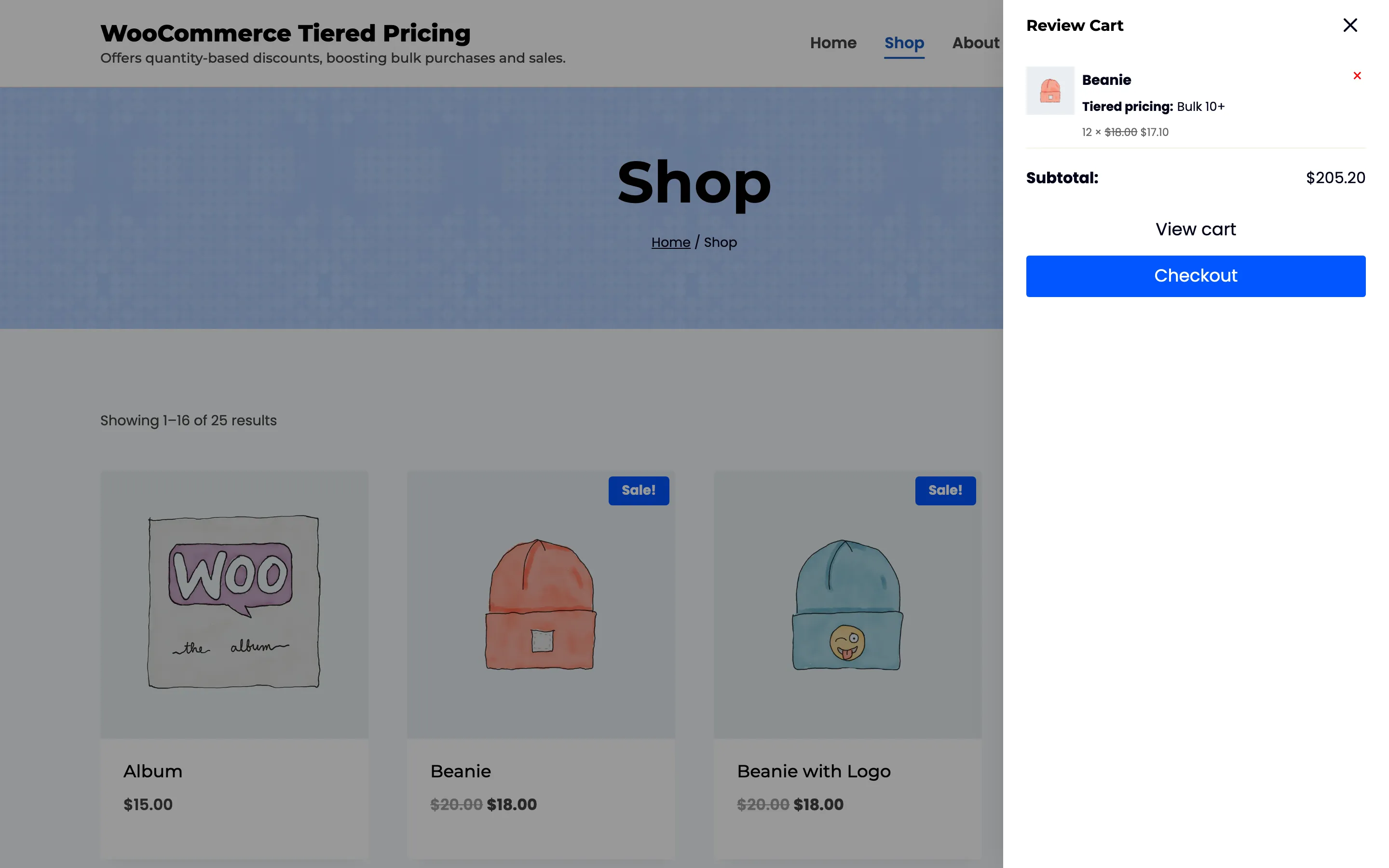
Section titled “After Add to cart”The theme’s mini cart lists the line with the tier price. With Original Price on, the normal price is struck through beside it, and the rule name sits under the product.
In the cart
Section titled “In the cart”The cart shows the tier price and the rule name as Tiered pricing: Bulk 10+. A row in the totals adds up everything the customer saved.
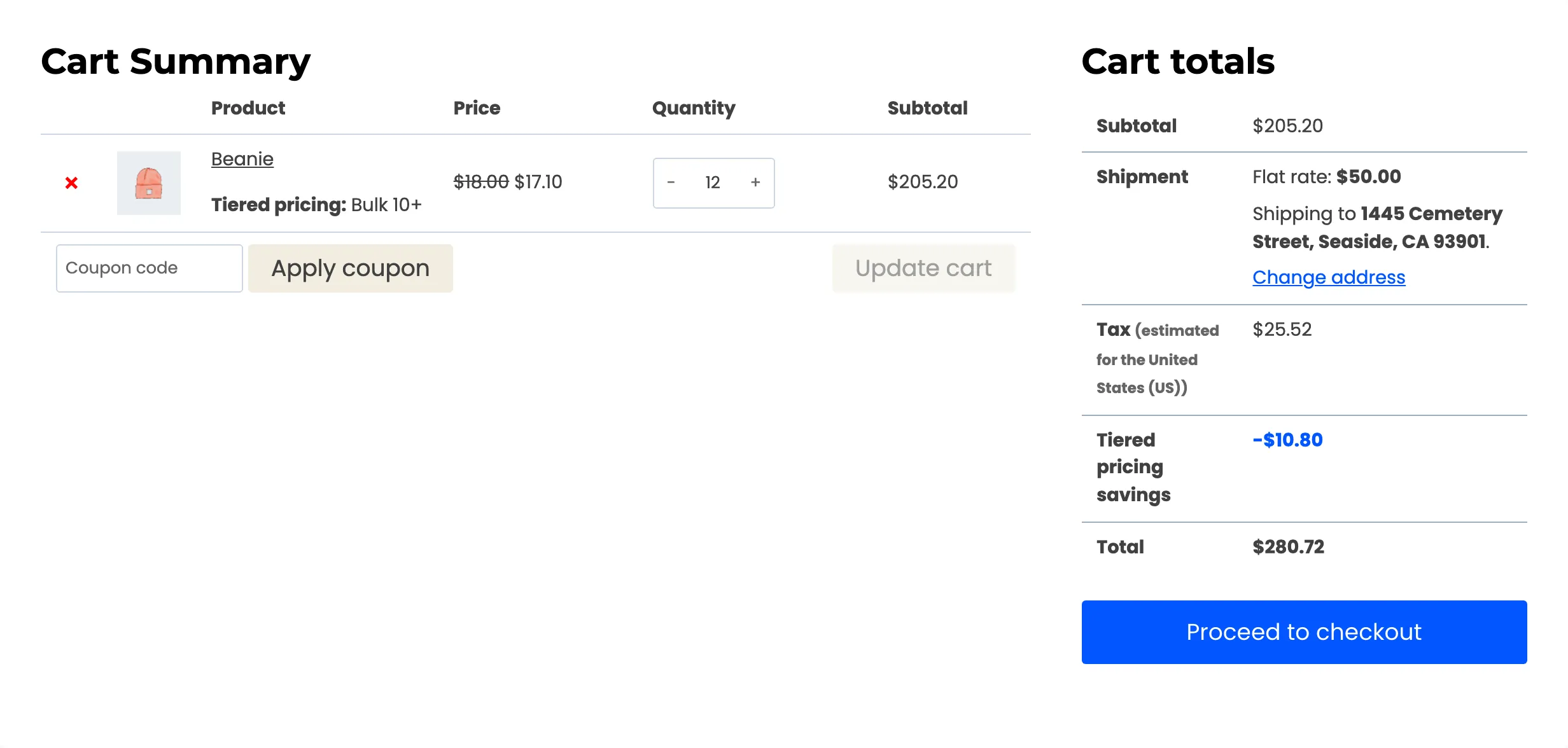
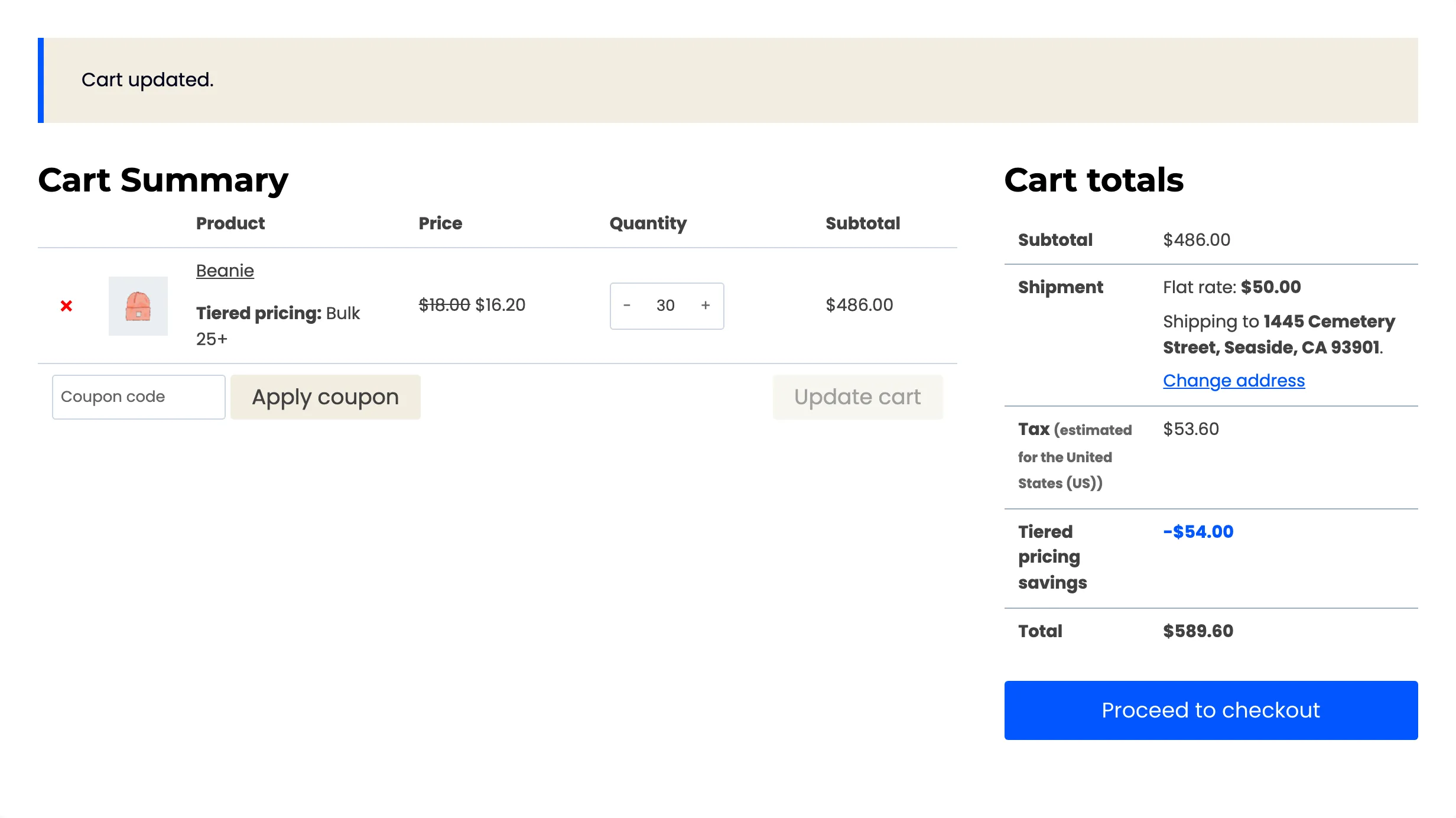
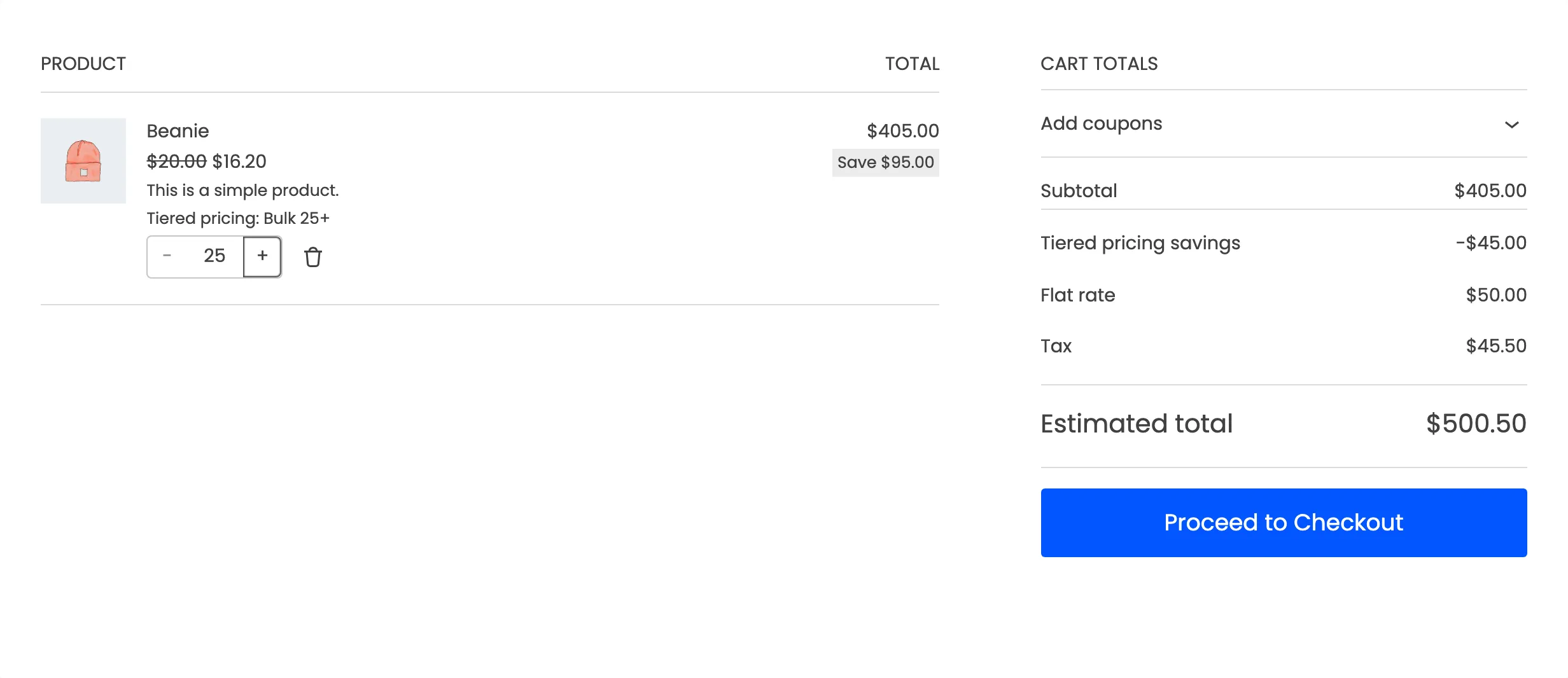
If the customer changes the quantity and clicks Update cart, the line moves to the tier for the new quantity. Thirty Beanies instead of twelve change the rule from Bulk 10+ to Bulk 25+ and the unit price from $17.10 to $16.20.
At checkout
Section titled “At checkout”The order review at checkout keeps the tier price and the rule name on the line.
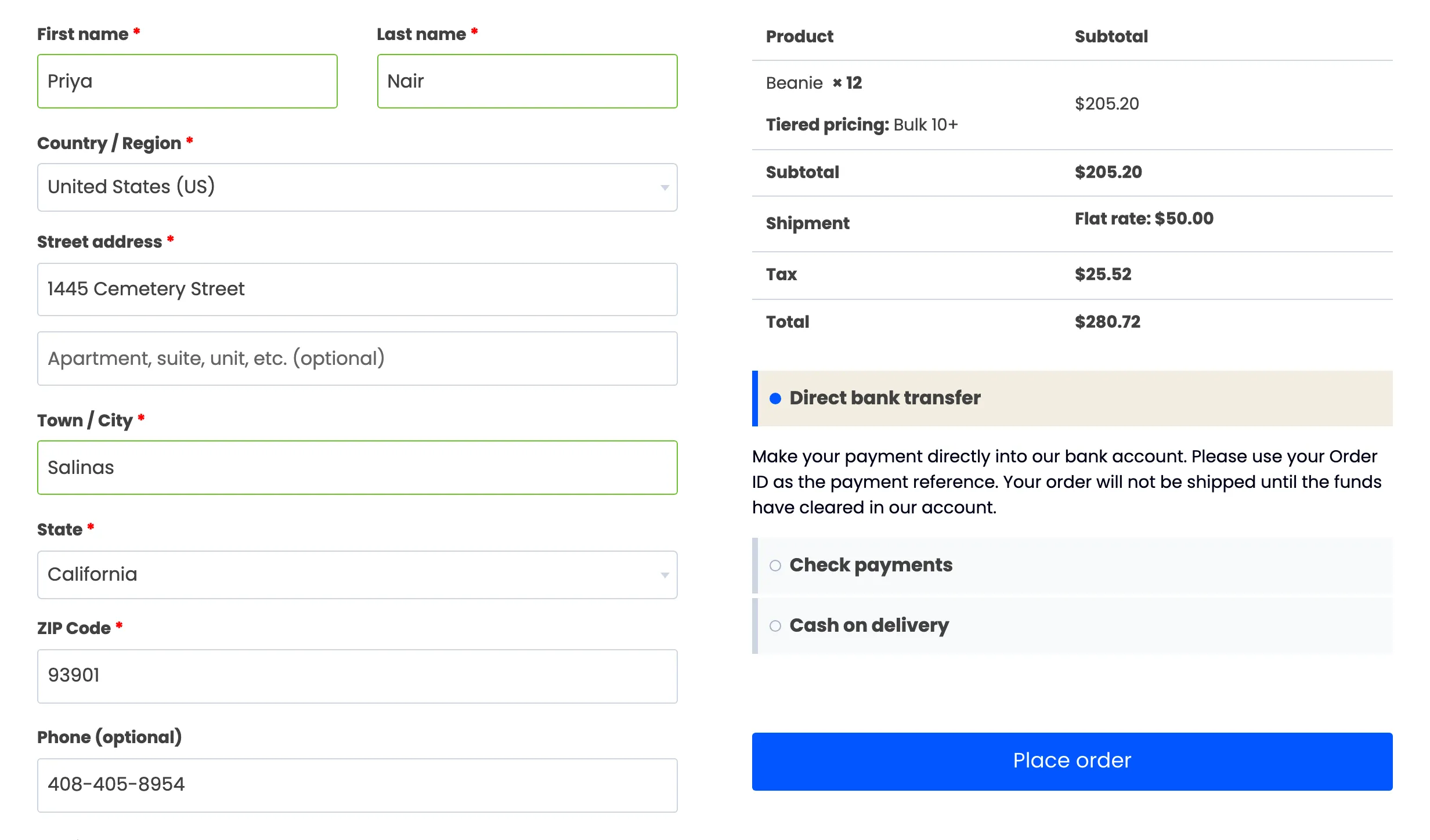
The savings row shows in the cart totals. The classic checkout review table does not repeat it.
After the order
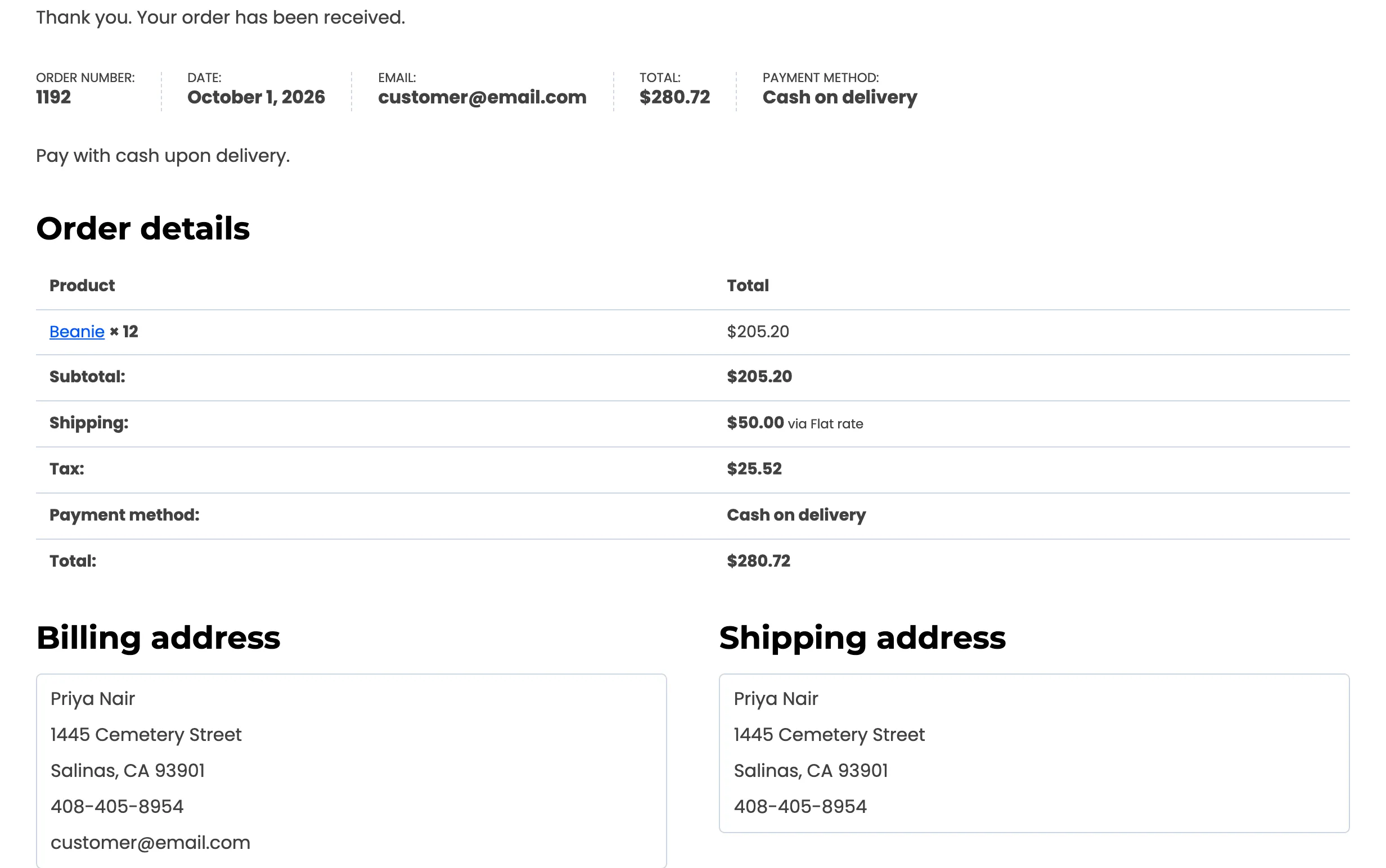
Section titled “After the order”The thank-you page lists the product, the quantity and the discounted total. The rule name is no longer shown, and the customer pays the amount they saw at checkout.
The Cart and Checkout blocks
Section titled “The Cart and Checkout blocks”The plugin supports the WooCommerce Cart and Checkout blocks as well as the classic pages. The tier price, the rule name and the savings row reach the block pages through WooCommerce’s own store data. The savings row uses the label you set.
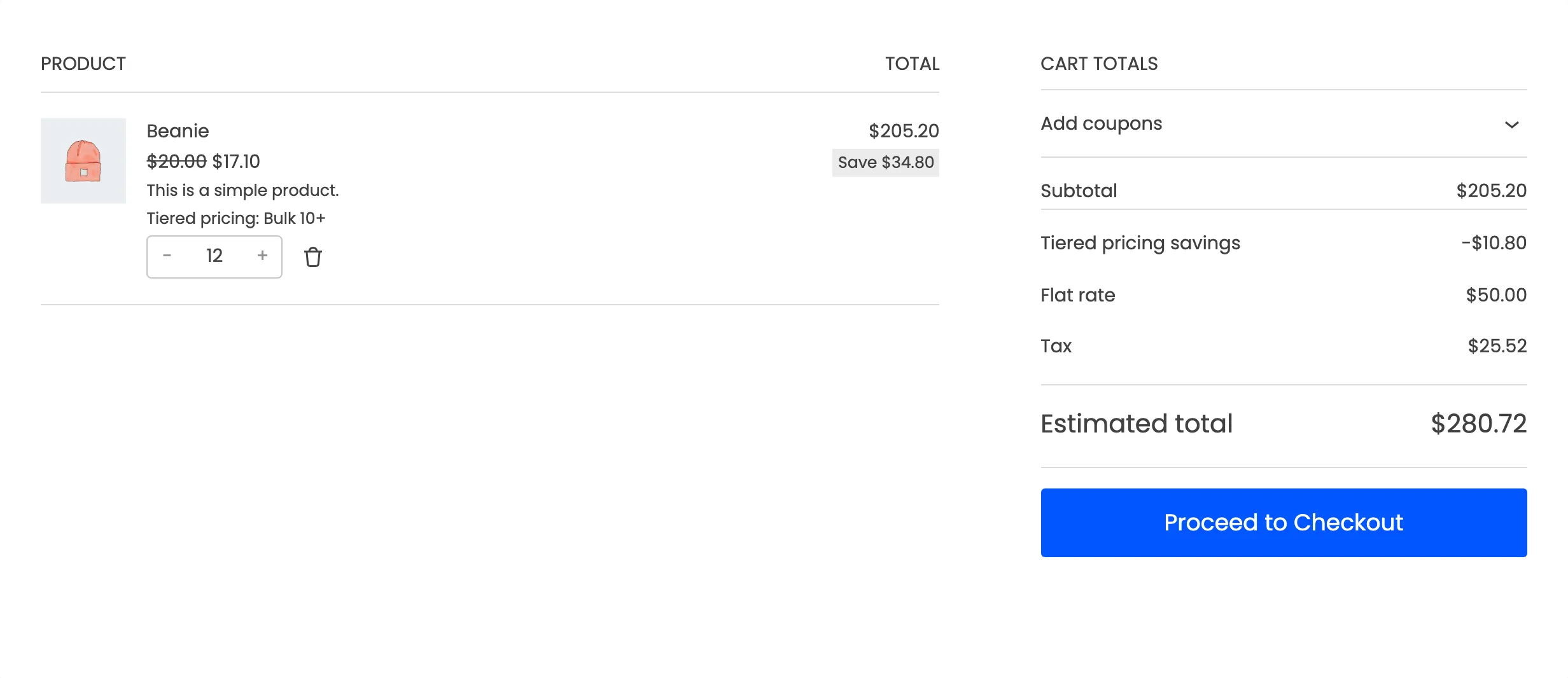
It recalculates when the customer changes the quantity, without a page reload. Moving from 12 to 25 units drops the price to $16.20 and the row to -$45.00.
The block checkout shows the same line and the same row in its order summary.
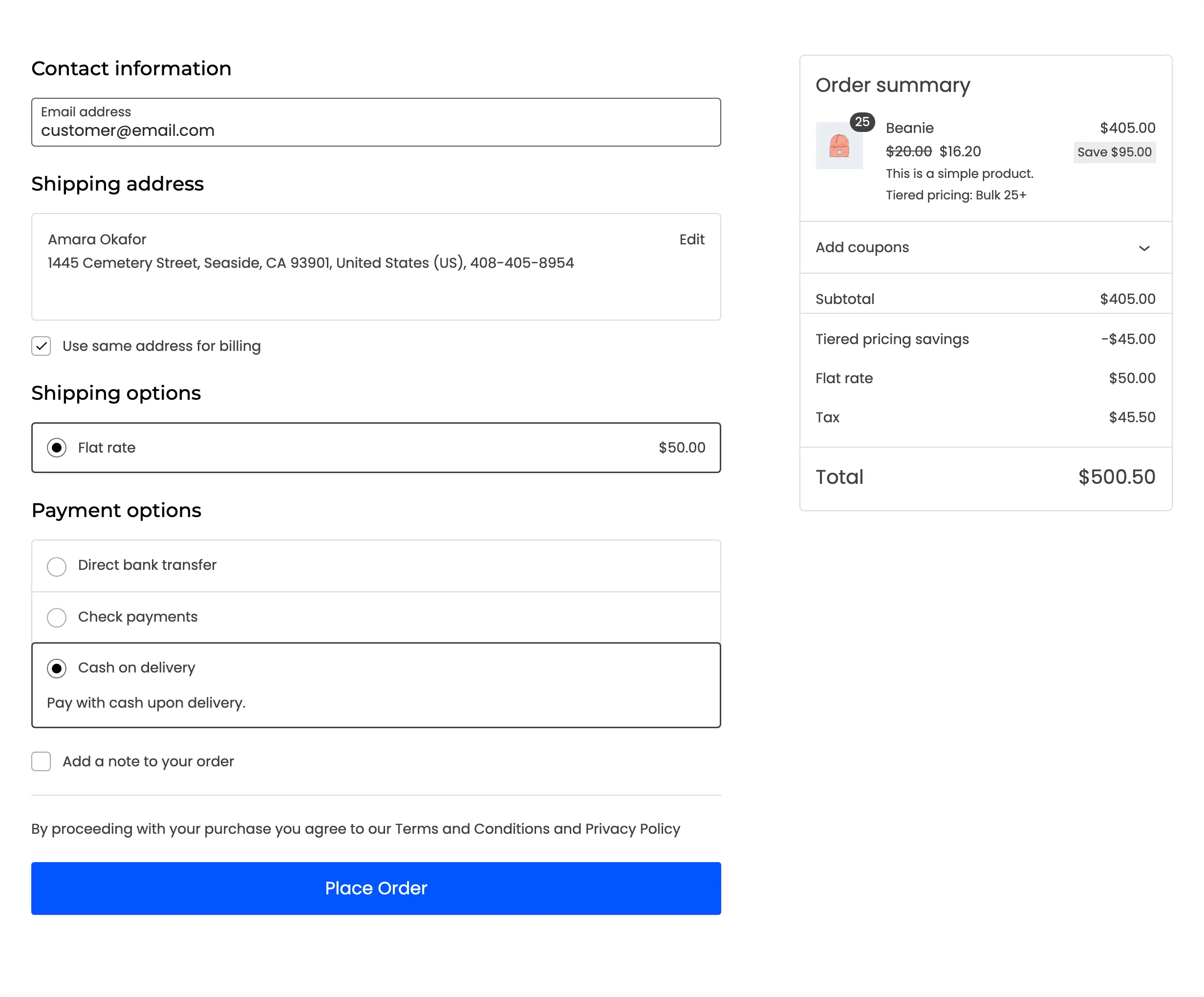
The block cart also draws two things of its own. It strikes through the product’s regular price, where the classic cart strikes through the sale price. It adds a Save badge under the line total as well.
Both compare with the regular price. Take the Beanie, at $20.00 with an $18.00 sale price.
For 12 units the badge reads Save $34.80. The plugin’s own row reads -$10.80, because it measures against the $18.00 sale price the tier started from.
What the customer does not see
Section titled “What the customer does not see”- The names and priorities of rules they do not qualify for.
- Any rule limited to a role they do not hold.
- Anything at all while the licence is inactive or the plugin is switched off.