

How to Choose a Pricing Table Layout
The same tiers can read as a table, as cards or as a short list. The choice changes how quickly a customer takes the ladder in. This tutorial walks through the layout options, and the four settings that go with them.
Go to DevDiggers Plugins → Tiered Pricing → Configuration → Display. Everything below is in the Pricing Table section.
Step 1: Choose the layout
Section titled “Step 1: Choose the layout”Open Layout.
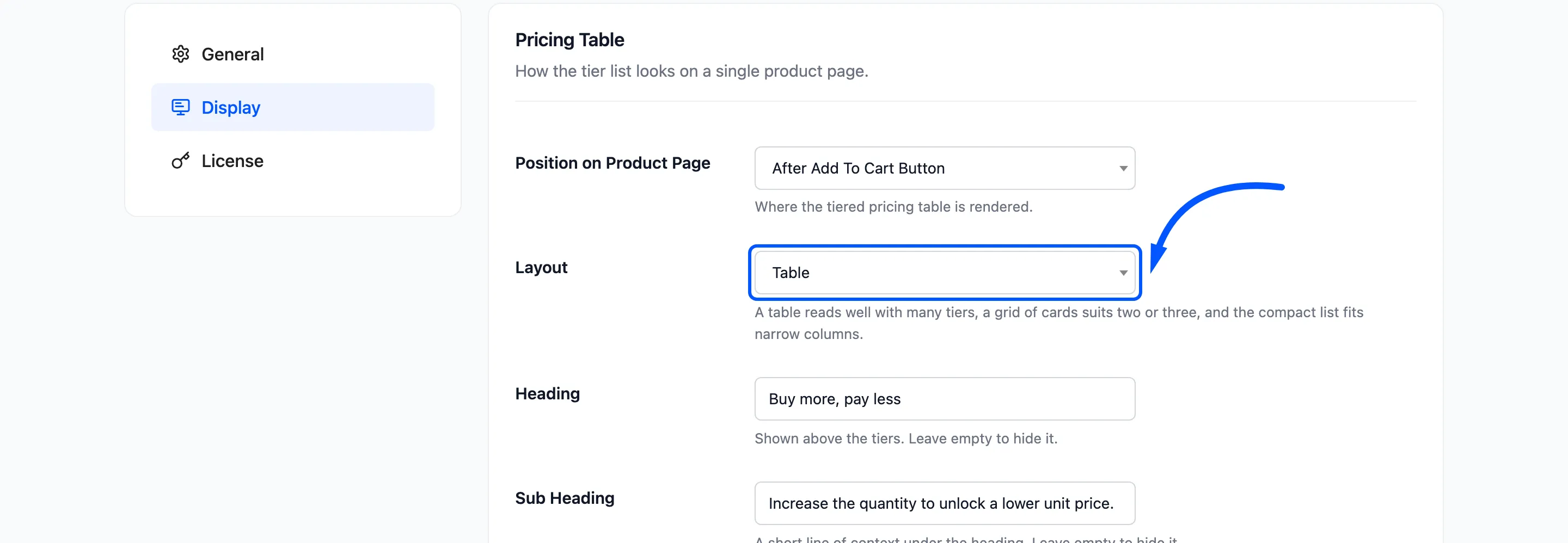
- Table: Columns for quantity, discount, price and saving. It reads best with many tiers. This is the default.
- Grid of cards: One card for each tier. It suits two or three tiers.
- Compact list: One line for each tier, with the price and a small saving chip. It fits a narrow column.
Click Save Changes and reload a product page.
The table
Section titled “The table”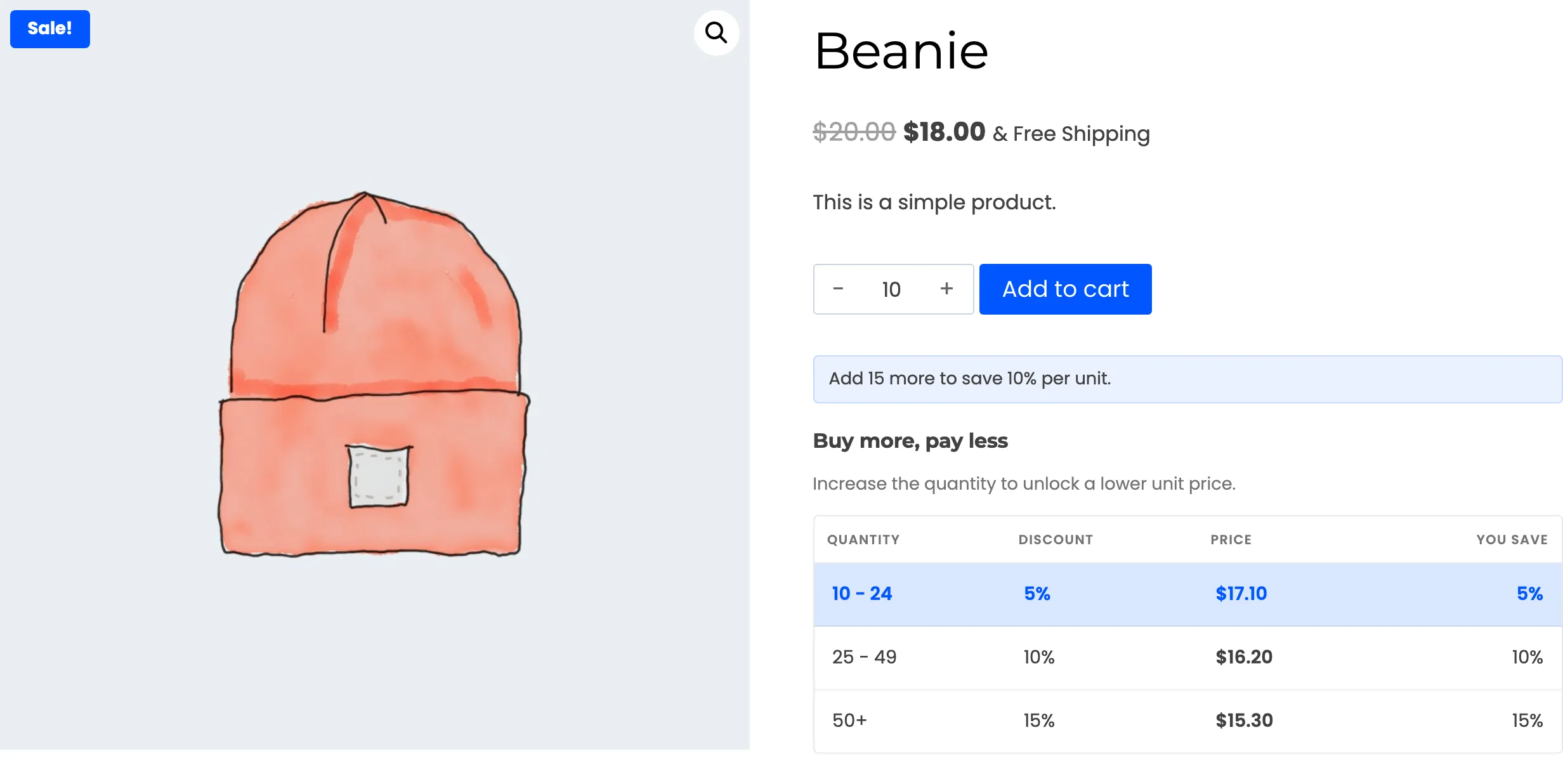
The grid of cards
Section titled “The grid of cards”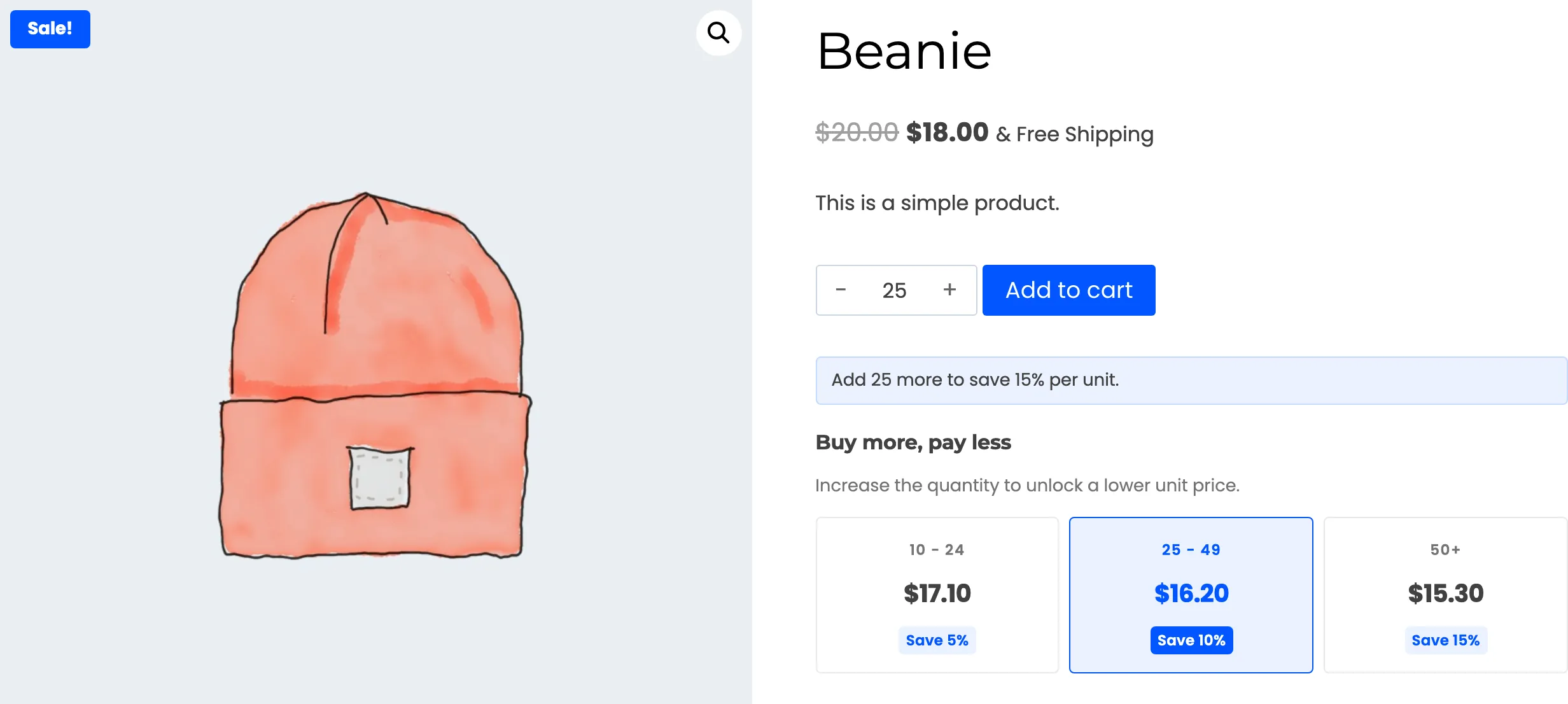
The compact list
Section titled “The compact list”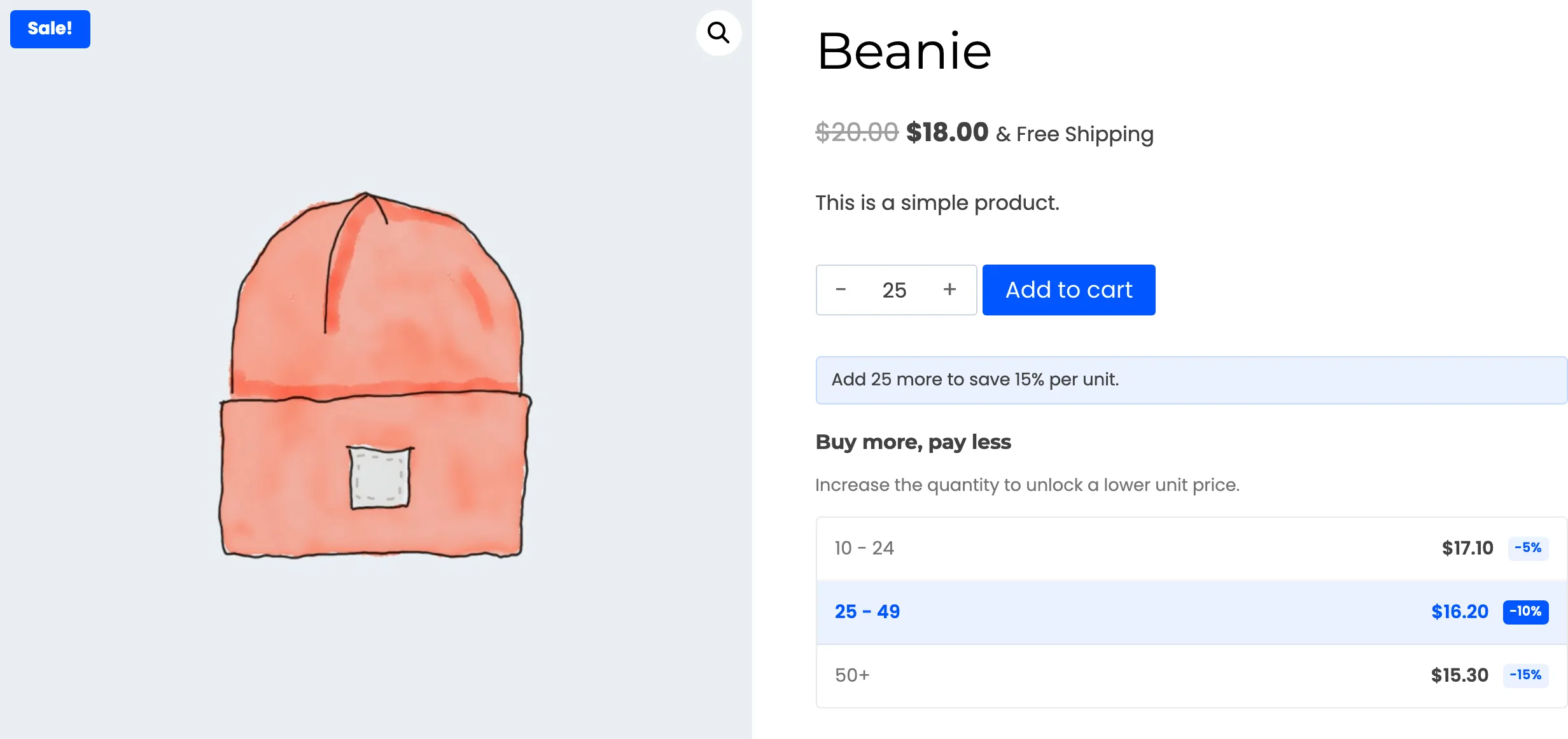
The grid and the list show the saving as a chip only while Savings Column is ticked. The grid says Save 10% and the list says -10%.
Step 2: Set the order of the tiers
Section titled “Step 2: Set the order of the tiers”Sort by Quantity lists the tiers Low to High or High to Low. The default is Low to High.
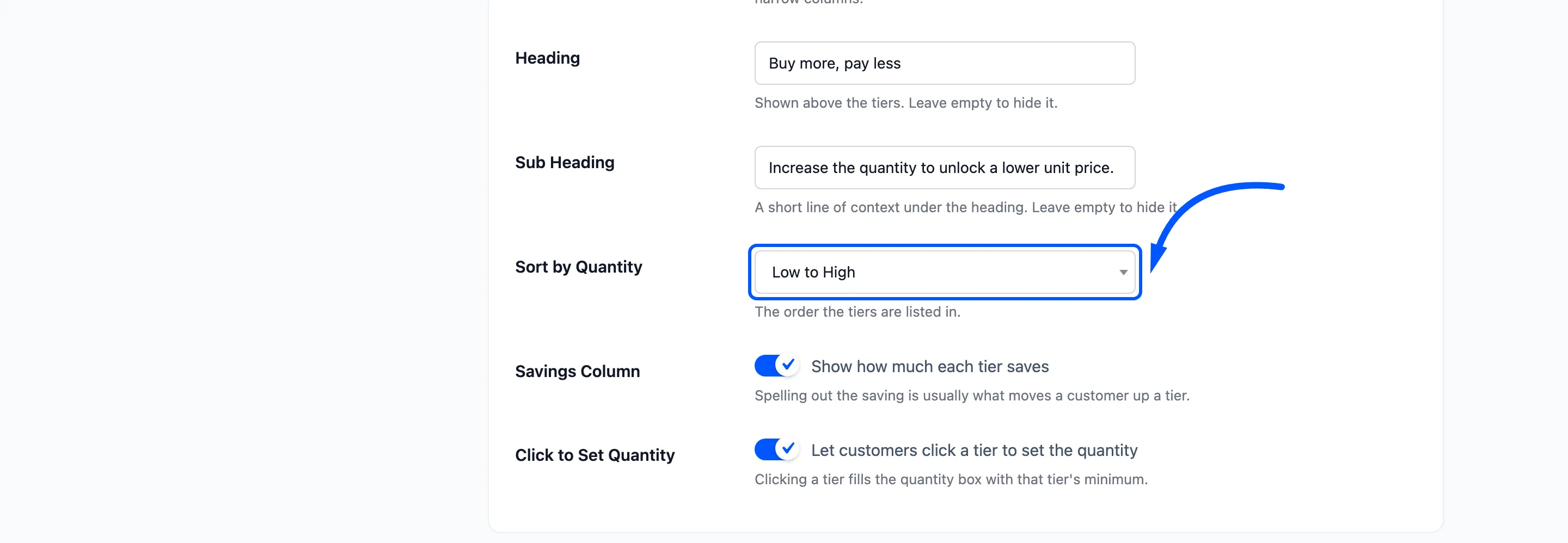
Low to high reads like a ladder. High to low puts the best price first, which is a good nudge when most of your customers buy small quantities.
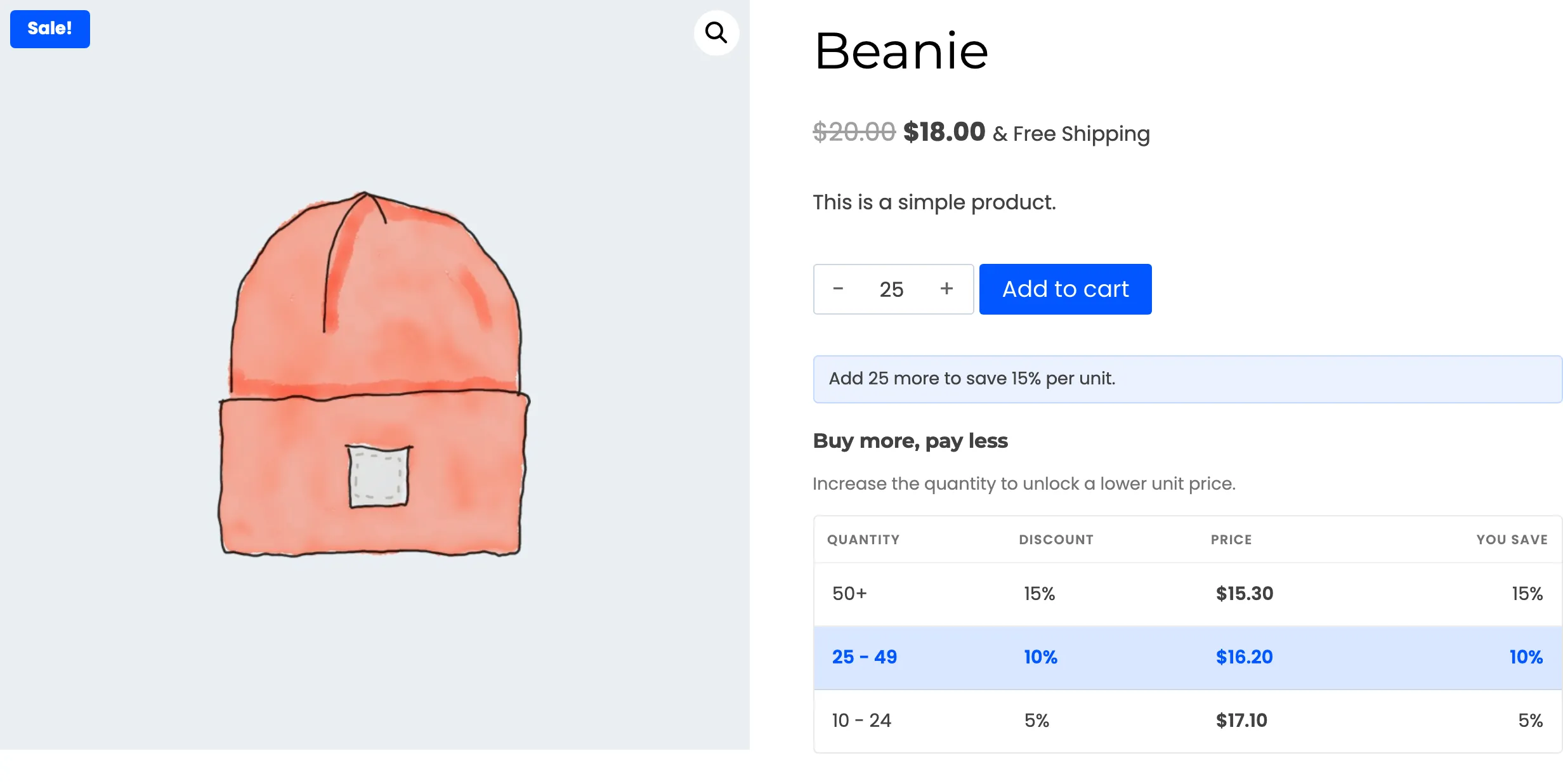
The sort only changes the display. It never changes which tier the cart uses.
Step 3: Write the heading and sub heading
Section titled “Step 3: Write the heading and sub heading”Heading is the title above the tiers. Sub Heading is the line under it.
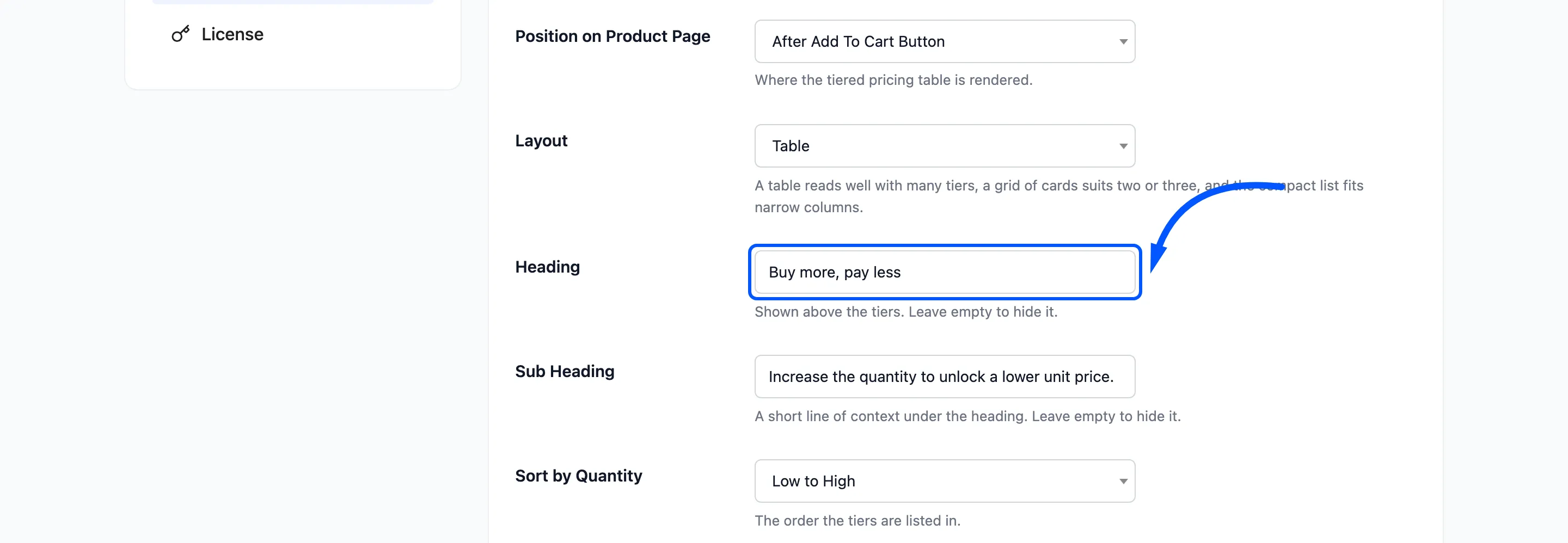
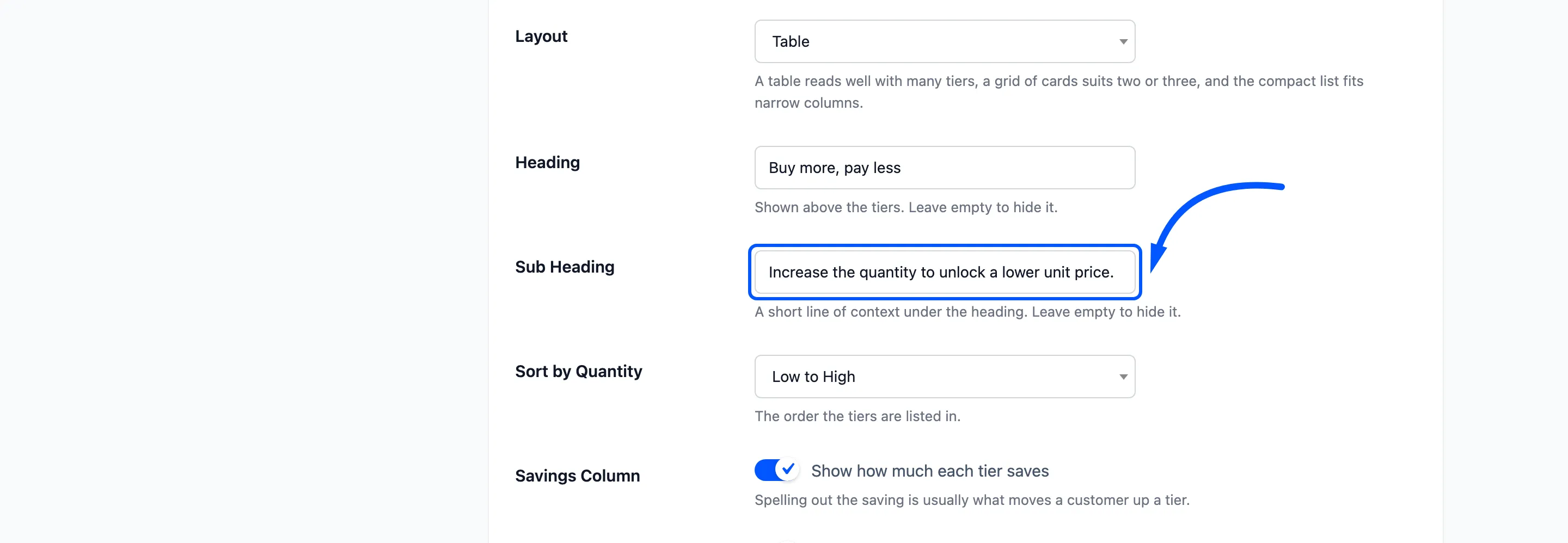
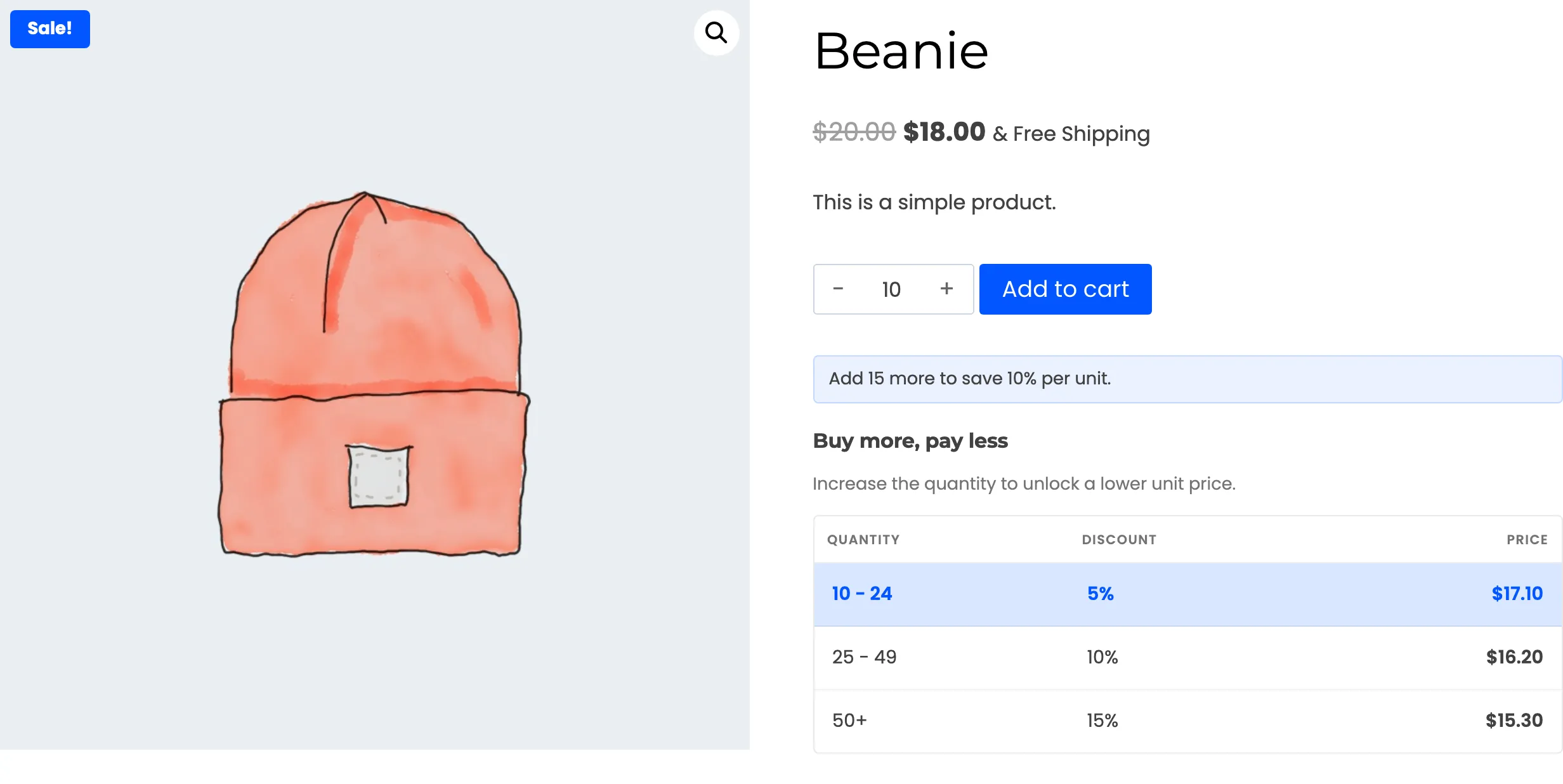
The defaults are Buy more, pay less and Increase the quantity to unlock a lower unit price. Change them to match your voice. For a trade store, “Trade price ladder” may suit better.
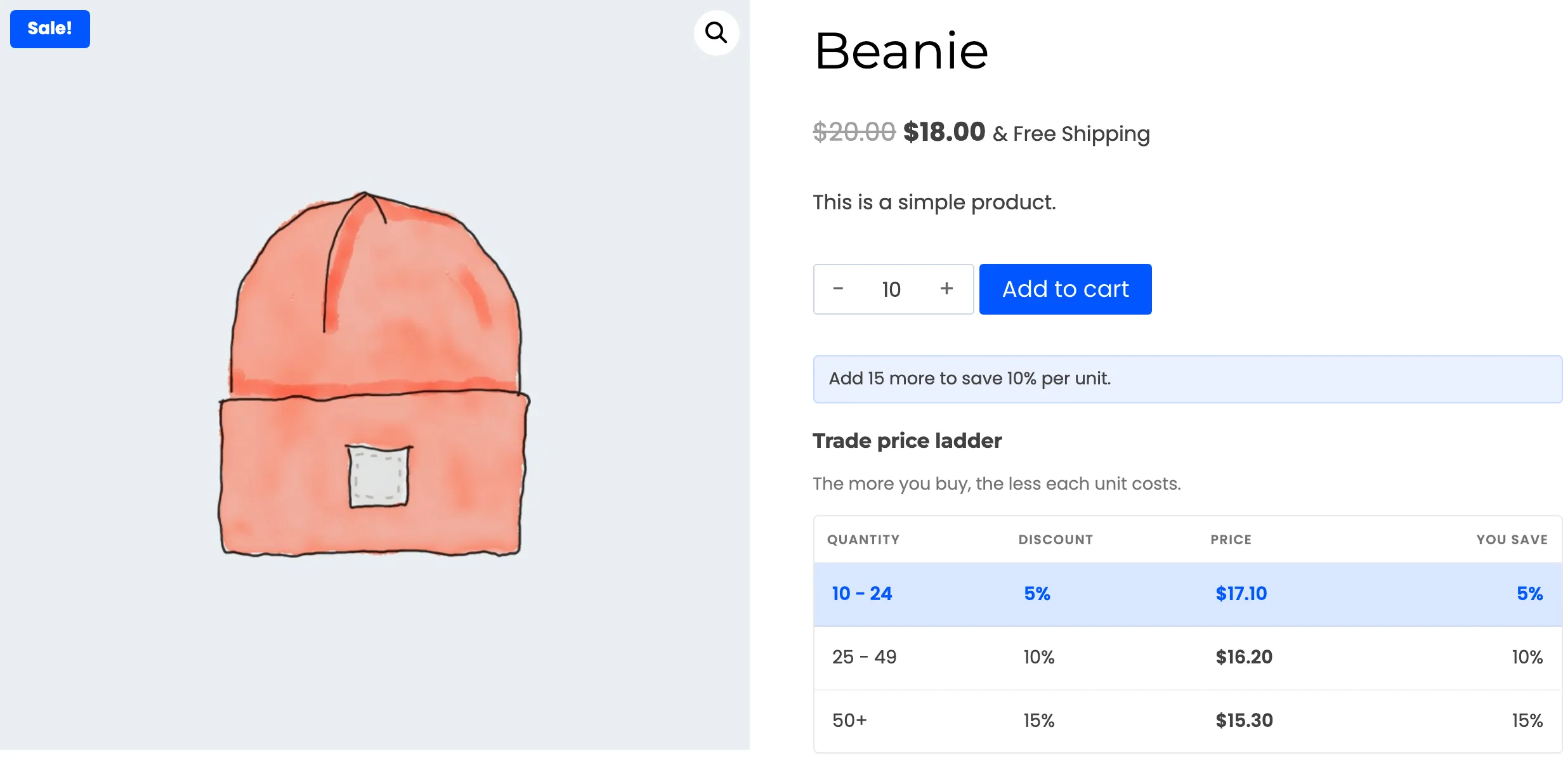
Empty both boxes and the heading block disappears, leaving only the tiers.
Step 4: Decide on the savings column
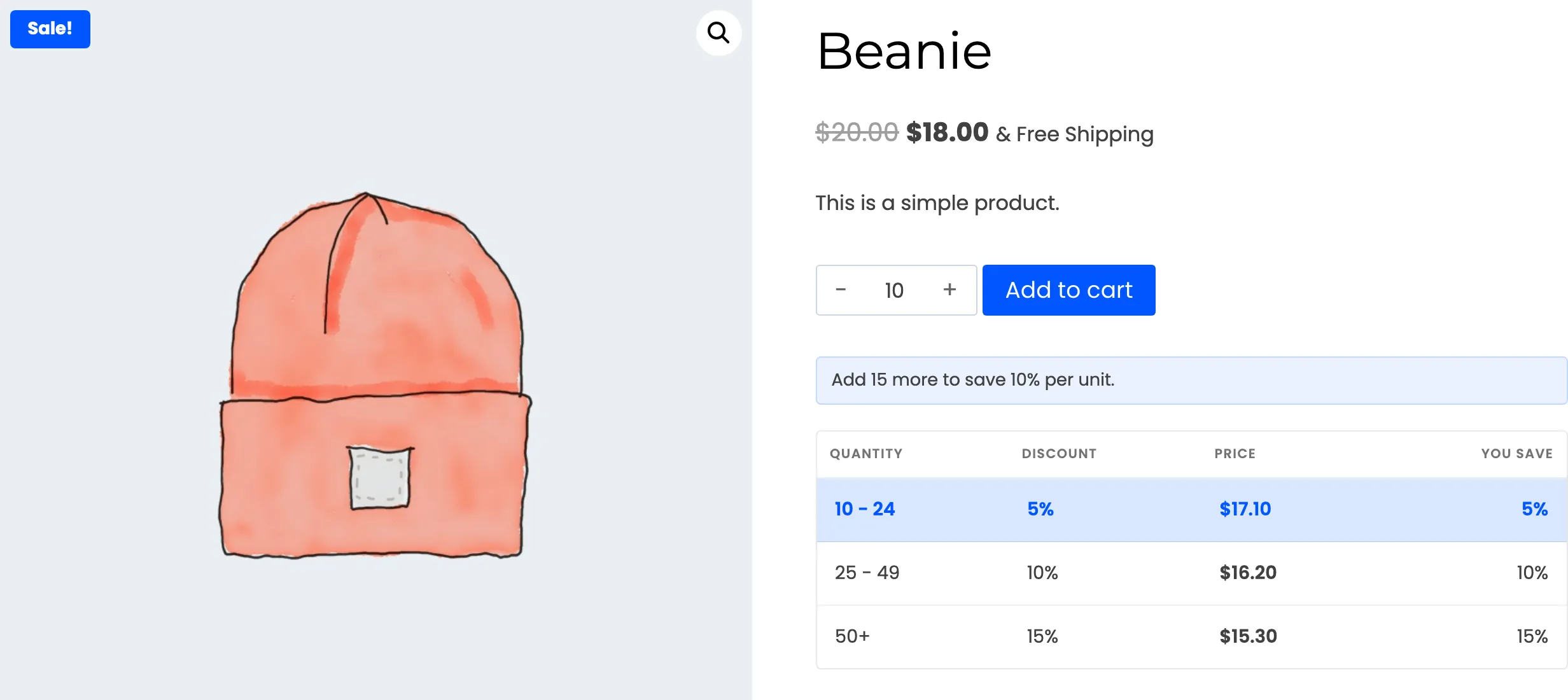
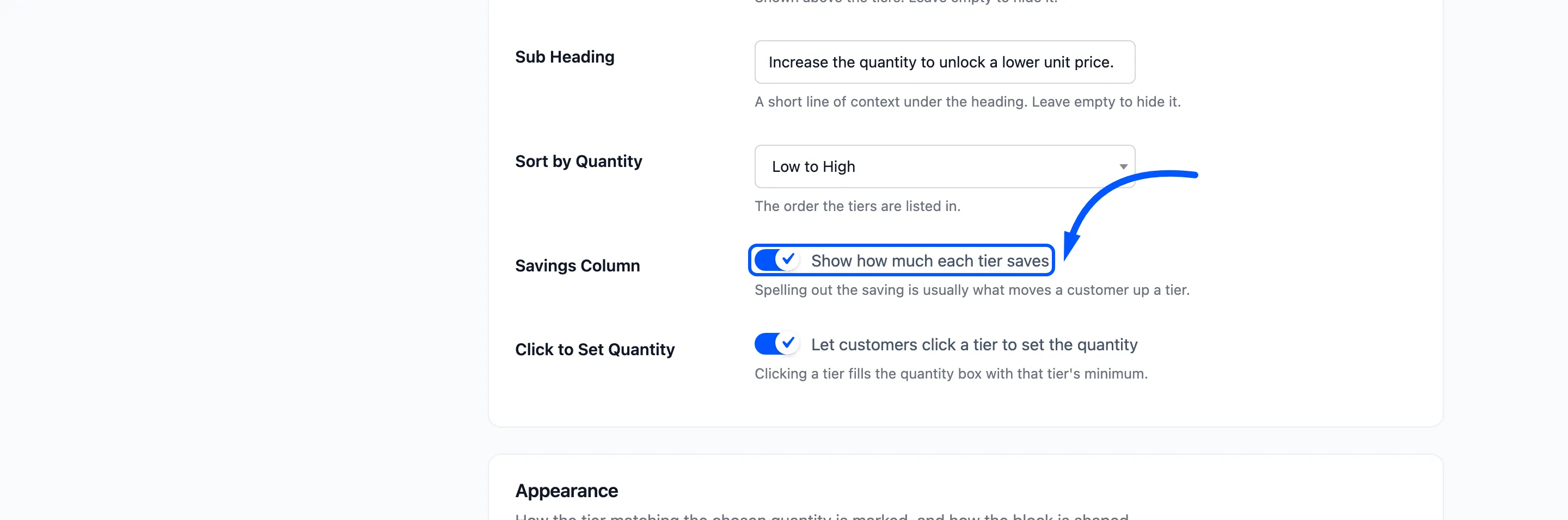
Section titled “Step 4: Decide on the savings column”Savings Column adds the percentage each tier saves. Spelling out the saving is usually what moves a customer up a tier.
Clear it for a plainer table with quantity, discount and price only.
Step 5: Decide on click to set quantity
Section titled “Step 5: Decide on click to set quantity”Click to Set Quantity lets a customer click a tier to fill the quantity box with that tier’s minimum.
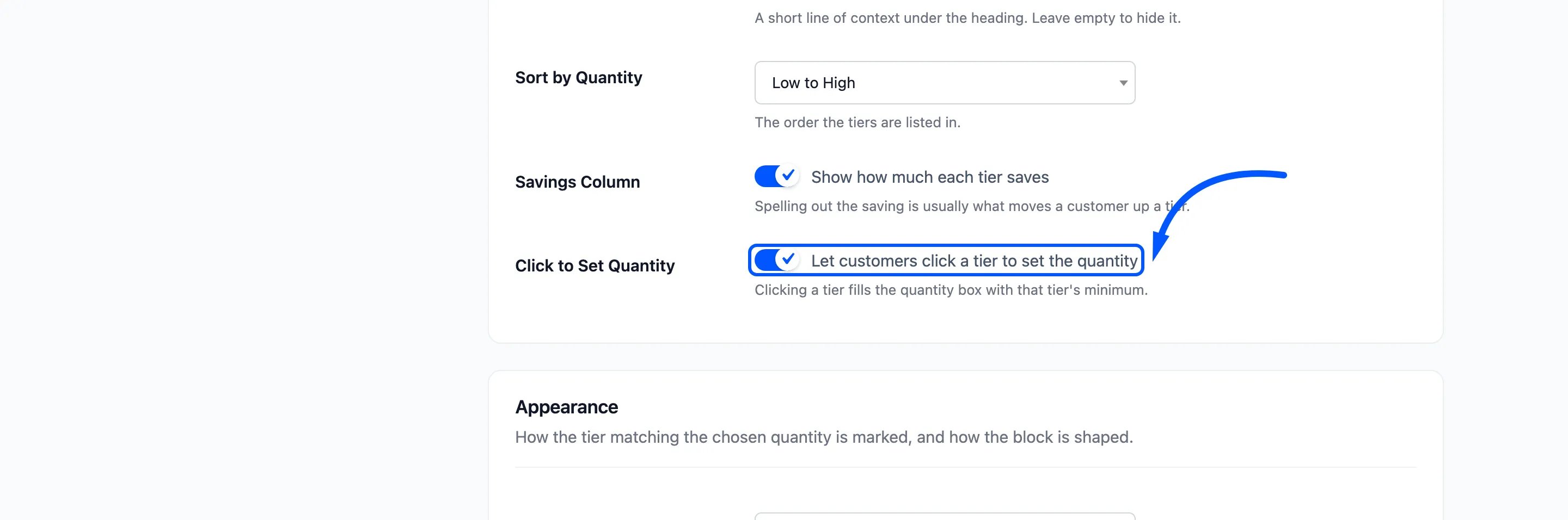
It is ticked by default. Leave it on.
It turns the table from a price list into a set of shortcuts. The customer sees the tier highlight and the hint change the moment they click.