

How to Advertise Bulk Pricing on Shop Pages
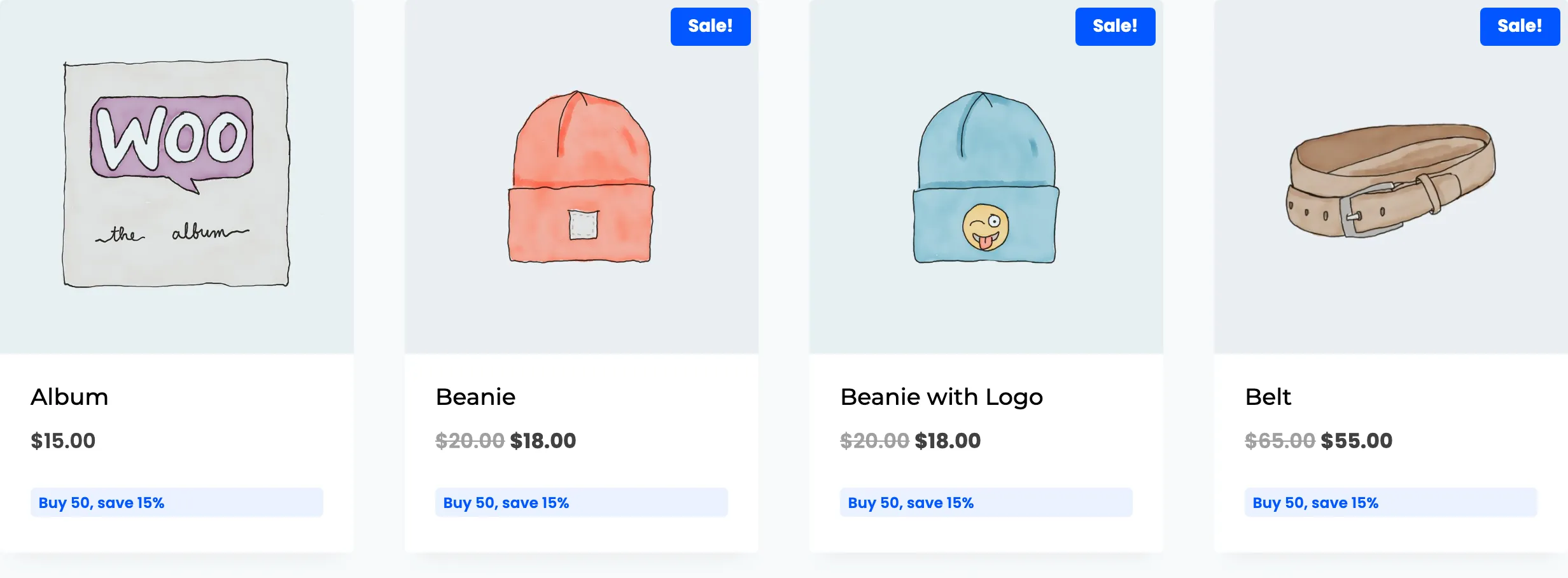
A customer who never opens a product never sees the pricing table. The listing badge puts one line under the product title on shop and category pages, so the offer shows while they browse.
Step 1: Open the section
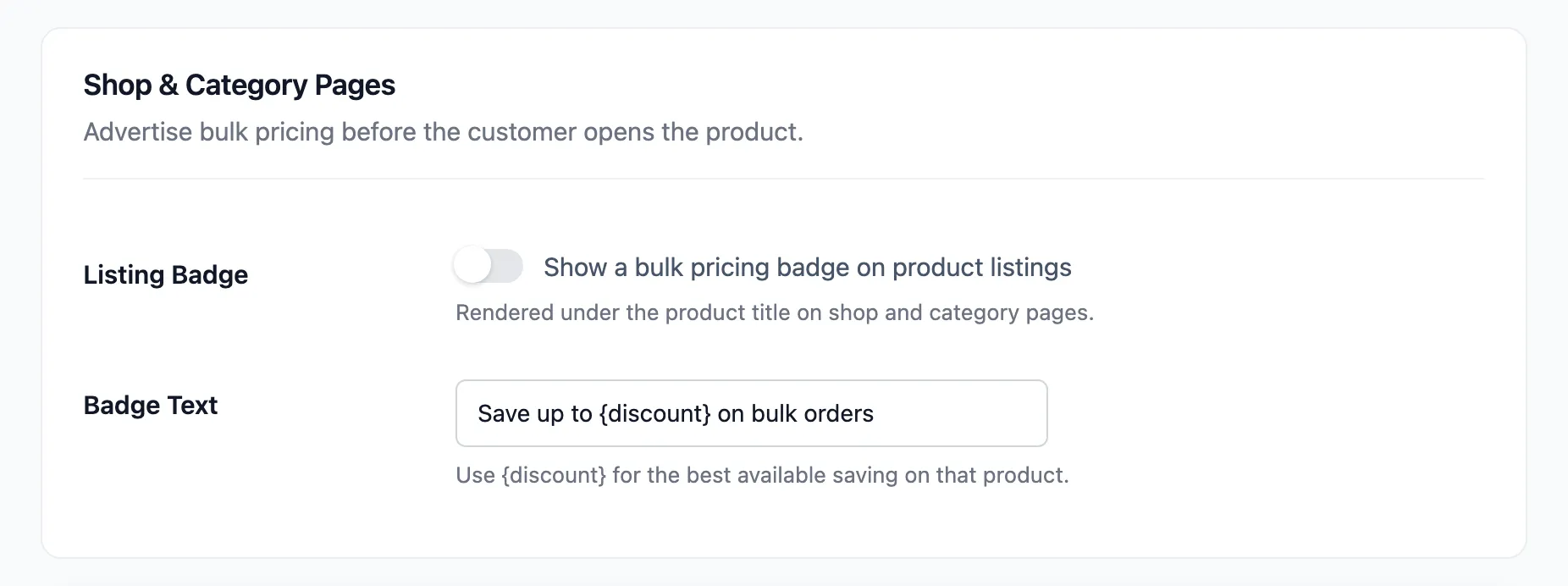
Section titled “Step 1: Open the section”Go to DevDiggers Plugins → Tiered Pricing → Configuration → Display and scroll to Shop & Category Pages.
Step 2: Turn on the listing badge
Section titled “Step 2: Turn on the listing badge”Tick Listing Badge, labelled “Show a bulk pricing badge on product listings”.
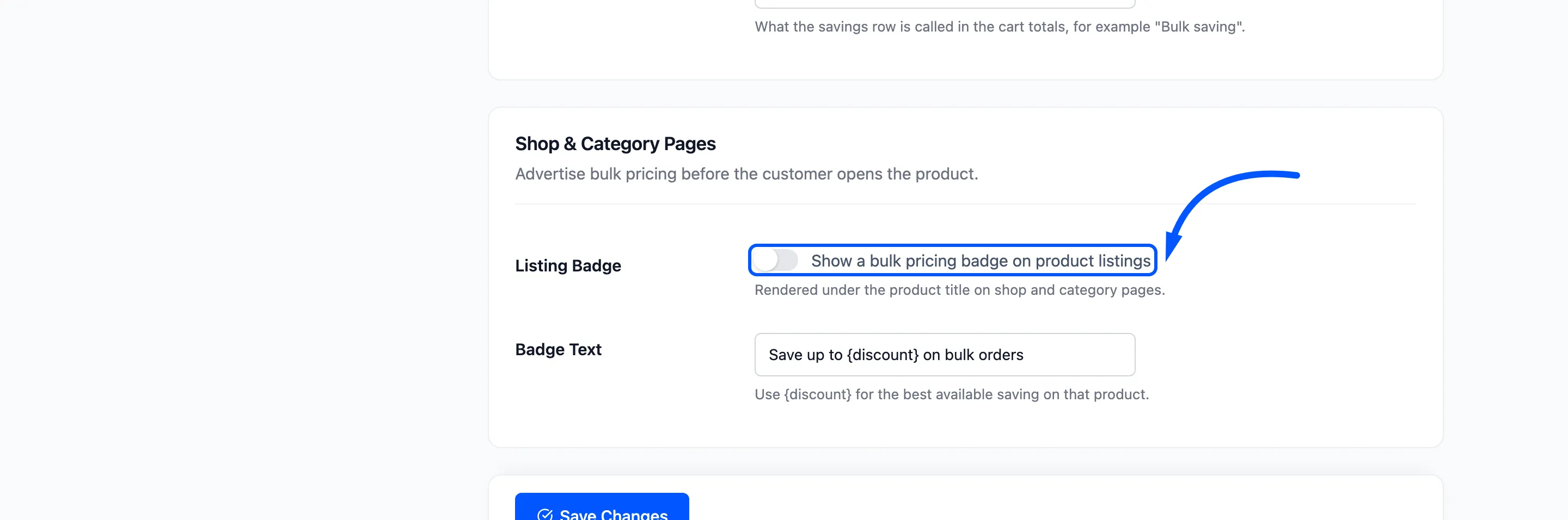
The badge is off after a fresh install. The setup wizard asks for it as Shop Page Badge. Its reminder says that without the badge a customer only finds the discount after opening the product.
Step 3: Write the badge text
Section titled “Step 3: Write the badge text”Badge Text holds the line. The default is Save up to {discount} on bulk orders.
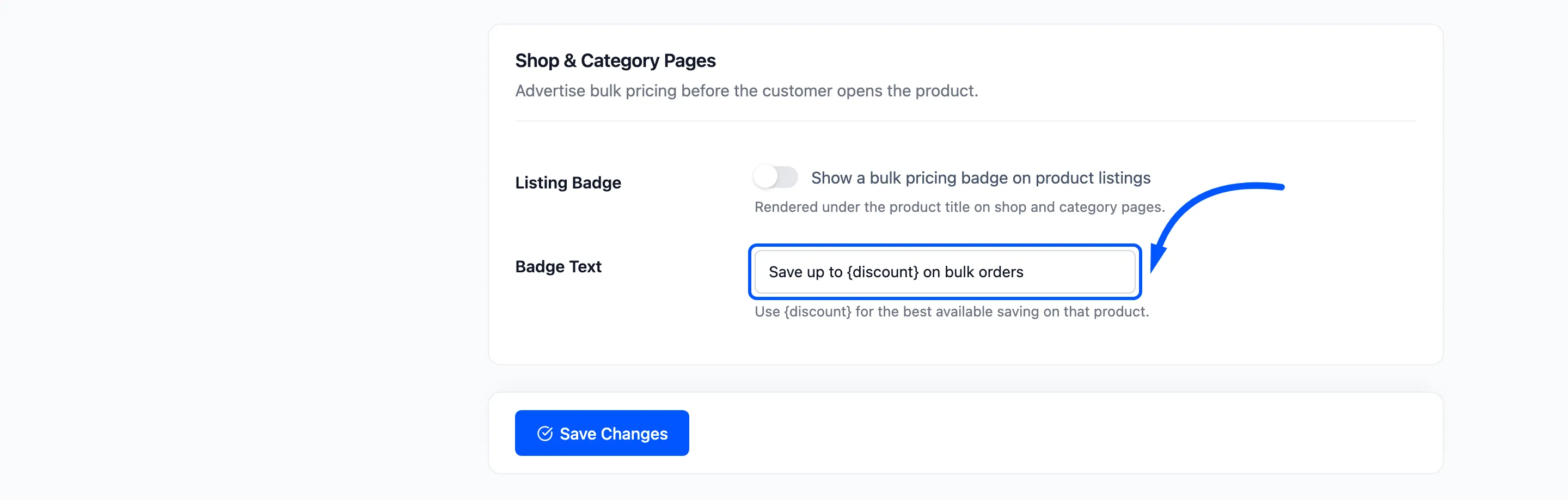
{discount} becomes the best saving available on that product to the person looking, as a percentage.
For a product whose top tier is 15 percent off, the badge reads Save up to 15% on bulk orders.
Step 4: Save and check the shop
Section titled “Step 4: Save and check the shop”Click Save Changes, then open the shop page while logged out.
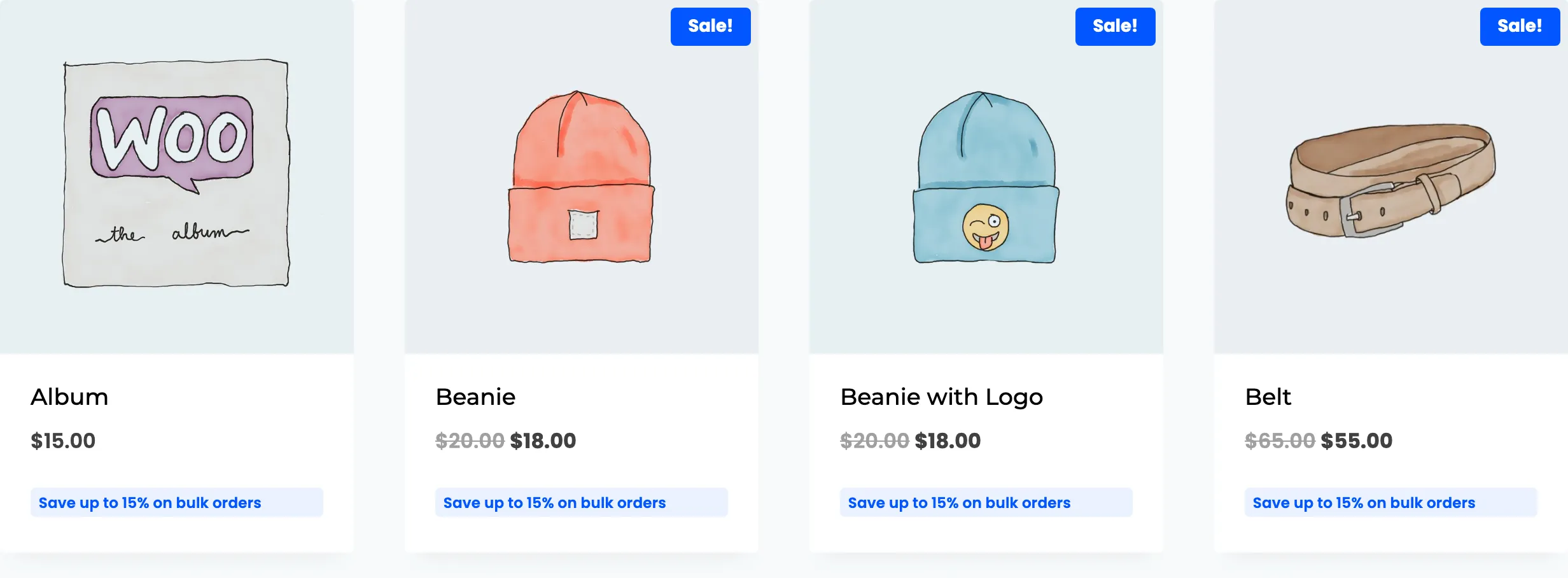
Compare it with the same row before the badge was on.
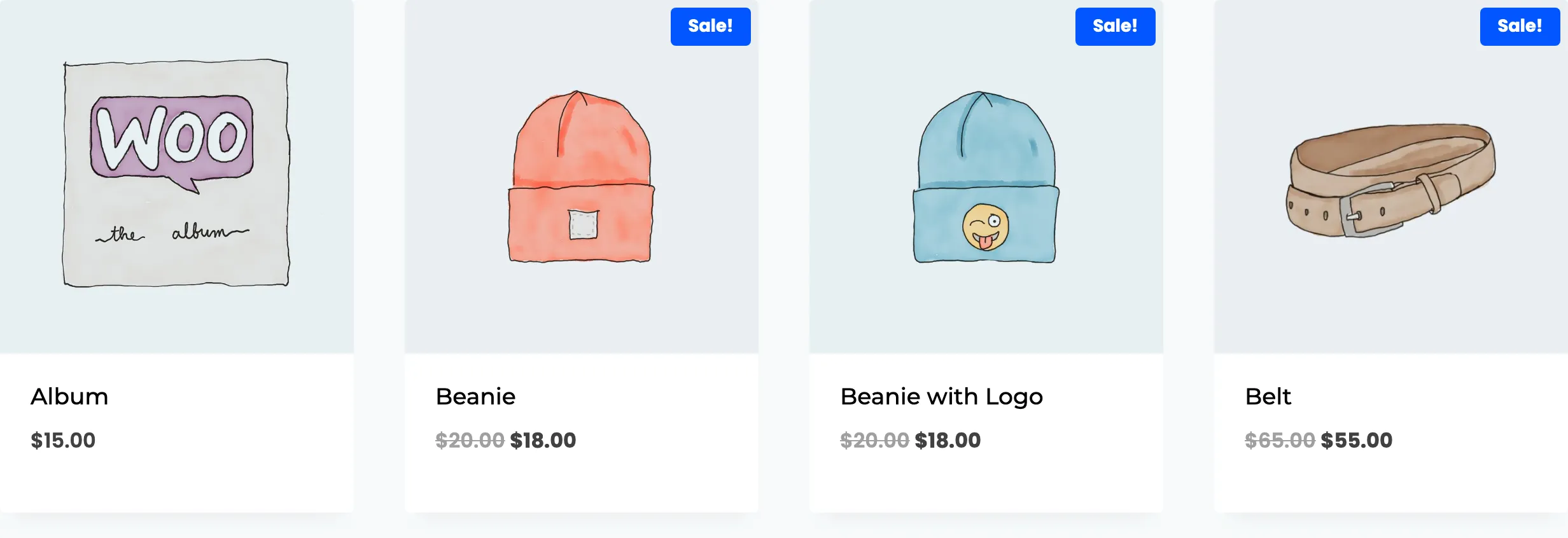
Shorter wording fits a narrow card. Try Buy 50, save {discount}.
What decides whether a badge shows
Section titled “What decides whether a badge shows”- A product with no tier for the visitor shows no badge. A role-limited rule only counts for people who hold the role.
- Excluded products show none. A product on the store wide exclusion list is skipped.
- Product rules change the number. A product with its own rules shows the best saving among them.
- The figure is a percentage. A fixed discount or a fixed unit price is turned into the percentage of the unit price it saves.
The badge is generated on the product listing, so a cached shop page can show an old figure after you change a rule. Purge the cache after a change.