

How to Read the Dashboard
The dashboard is a scoreboard for your discounts. It does not tell you what to do. It shows you where to look.
This tutorial reads the demo’s September numbers and says what each one suggests.
Step 1: Choose a period long enough to mean something
Section titled “Step 1: Choose a period long enough to mean something”Open the picker and choose Last Month, or a custom range. A day or a week holds too few orders to see a pattern.
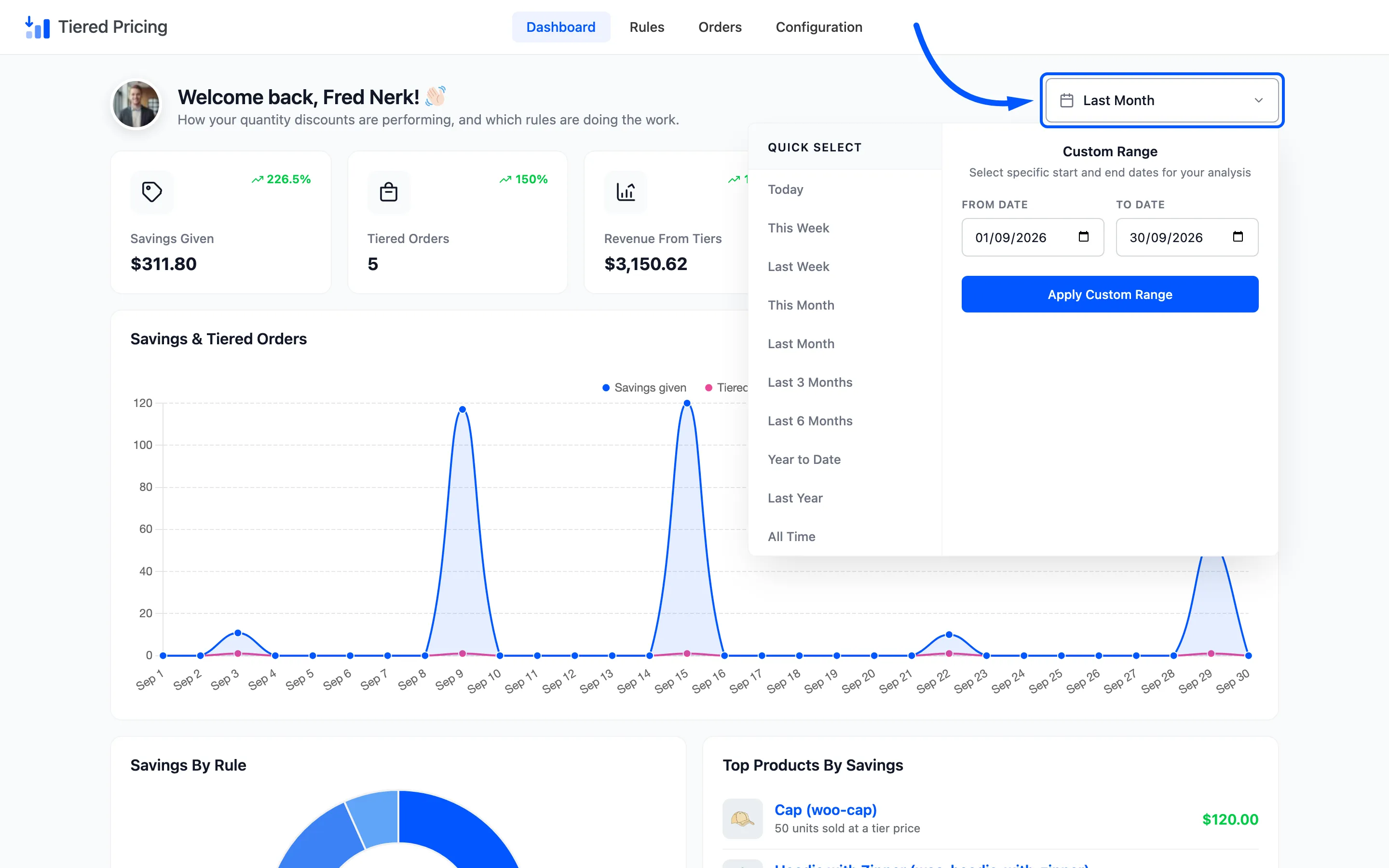
Each percentage compares the period with the one just before it, of the same length. A comparison is only fair when both periods are about the same size, so prefer whole months.
Step 2: Read the five cards together
Section titled “Step 2: Read the five cards together”
On the demo, September shows $311.80 given away across 5 tiered orders that brought in $3,150.62, with an average saving of $62.36.
- Savings Given against Revenue From Tiers: Divide one by the other. $311.80 on $3,150.62 is about 10 percent. If that share creeps up each month, customers are moving to the deeper tiers, or you added a generous rule.
- Average Saving: A rising average means bigger orders are earning bigger discounts. That is the ladder doing its job.
- Tiered Orders against your total orders: The card counts only tiered orders. Compare it with the order count in WooCommerce to see how many of your orders use a tier at all.
Revenue From Tiers is the full order total, including shipping and tax. It overstates the product revenue slightly. Use it for trends, not for accounts.
Step 3: Find the tier customers reach
Section titled “Step 3: Find the tier customers reach”The chart and the doughnut sit side by side.
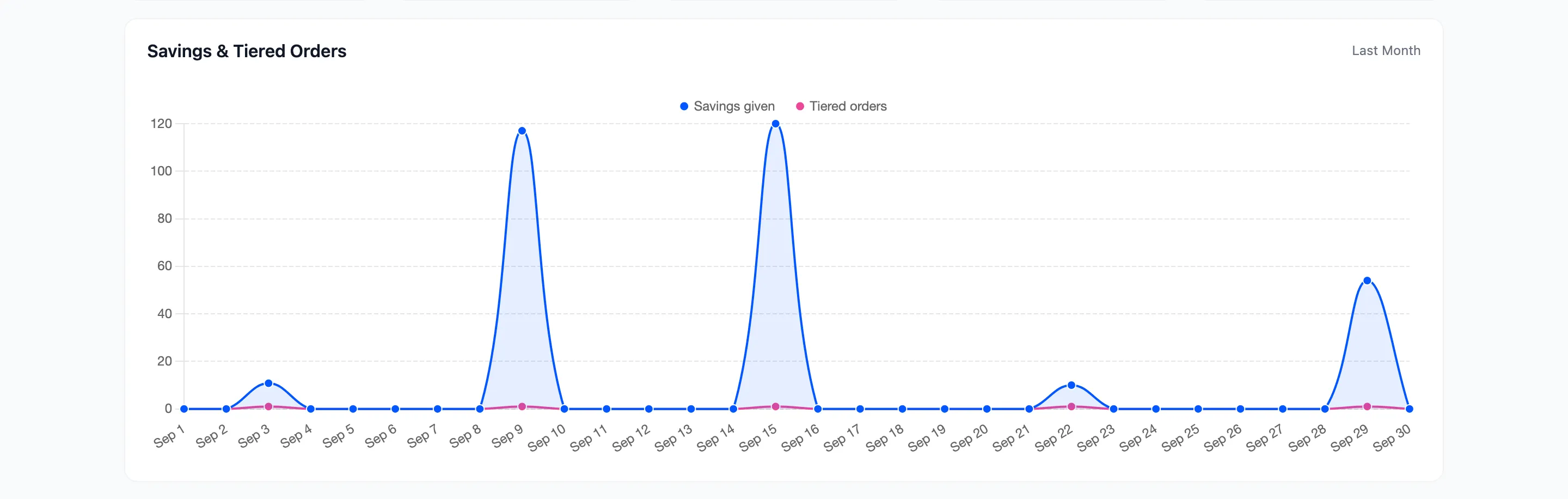
Each peak is a day when a large tiered order landed. A few big days in a month tell you the ladder is used by a handful of large buyers rather than by many small ones.
Then open Savings By Rule.
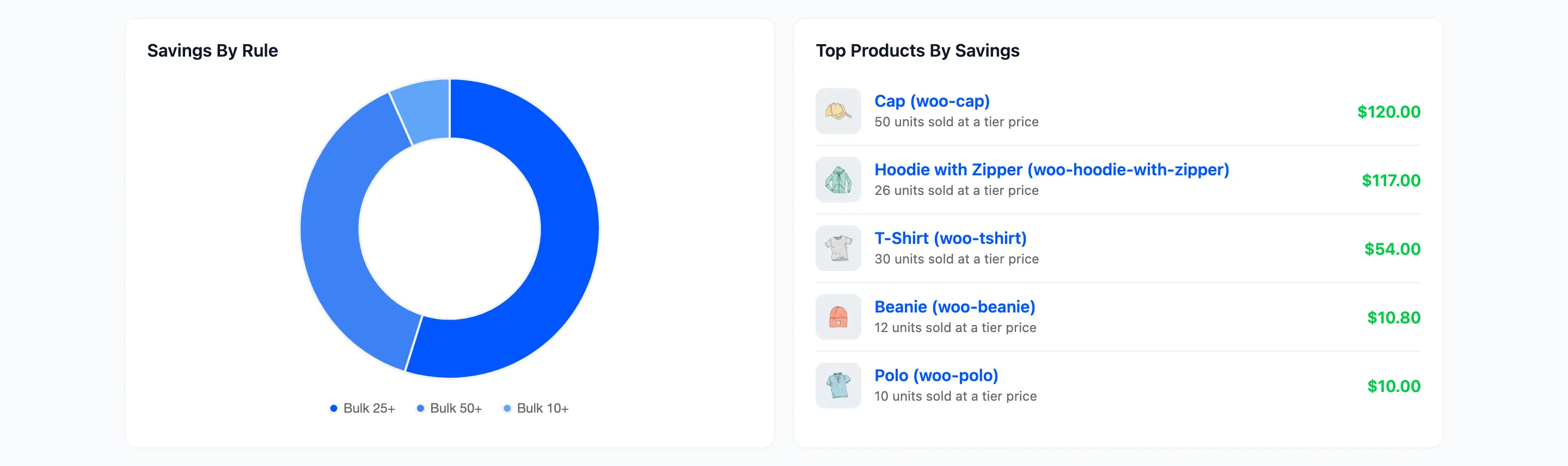
The biggest segment is the tier that cost you the most, which is not always the tier customers reach most often. A deep tier with few orders can still dominate the chart. Use the Tiered Orders list to count orders for each rule.
Step 4: Check the products behind the numbers
Section titled “Step 4: Check the products behind the numbers”Top Products By Savings names the six products where the discount went, with the units sold at a tier price. If one product takes most of it, ask whether that product’s margin can carry the discount. Click it to open its edit screen.
Step 5: Clear the Rules Needing Attention list
Section titled “Step 5: Clear the Rules Needing Attention list”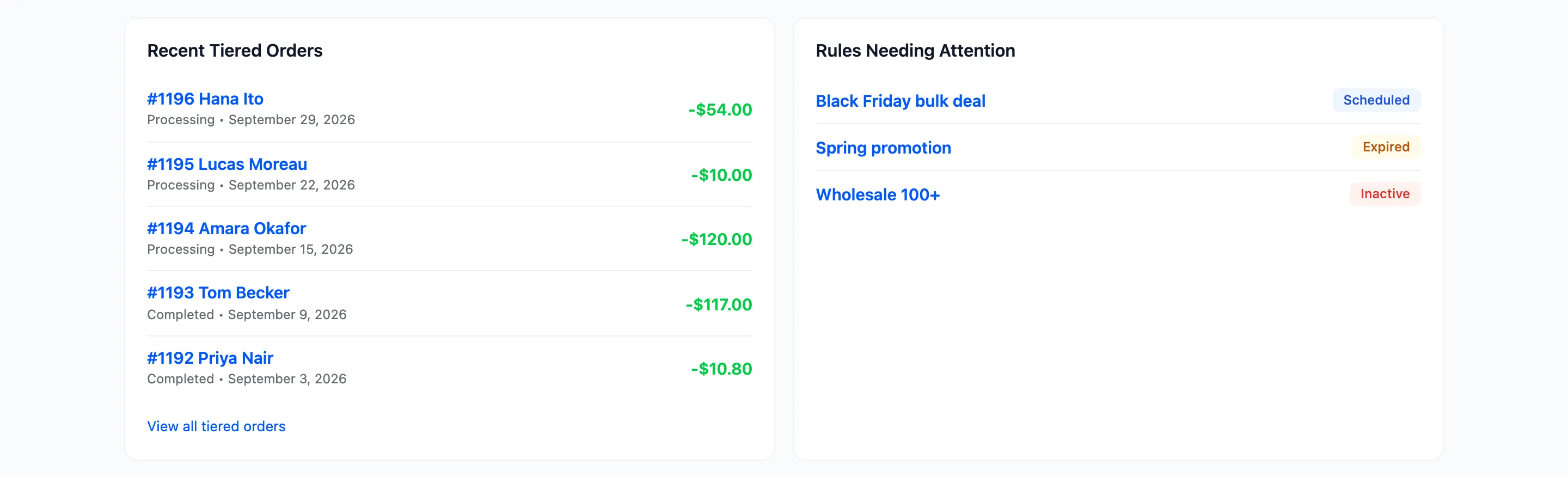
The list holds every rule that is Inactive, Scheduled or Expired, up to six. Open each one and decide.
- Scheduled: Fine. It starts by itself. Check the date.
- Expired: Delete it, or move the dates forward for another run.
- Inactive: Someone paused it. Find out why, then restart or delete it.
A message that says Every rule is live means nothing is paused, waiting or finished.
What the dashboard leaves out
Section titled “What the dashboard leaves out”Cancelled, failed and refunded orders are not counted. Moving an order to one of those statuses therefore takes its saving off the dashboard. The Tiered Orders screen still lists it.

If the dashboard and the Orders screen disagree about a month, look for orders in those three statuses.