

How to Use 2FA with the Checkout Login
The WooCommerce checkout has its own login form. With 2FA on, it leads to the same code screen and back.
Step 1: Turn on the checkout login
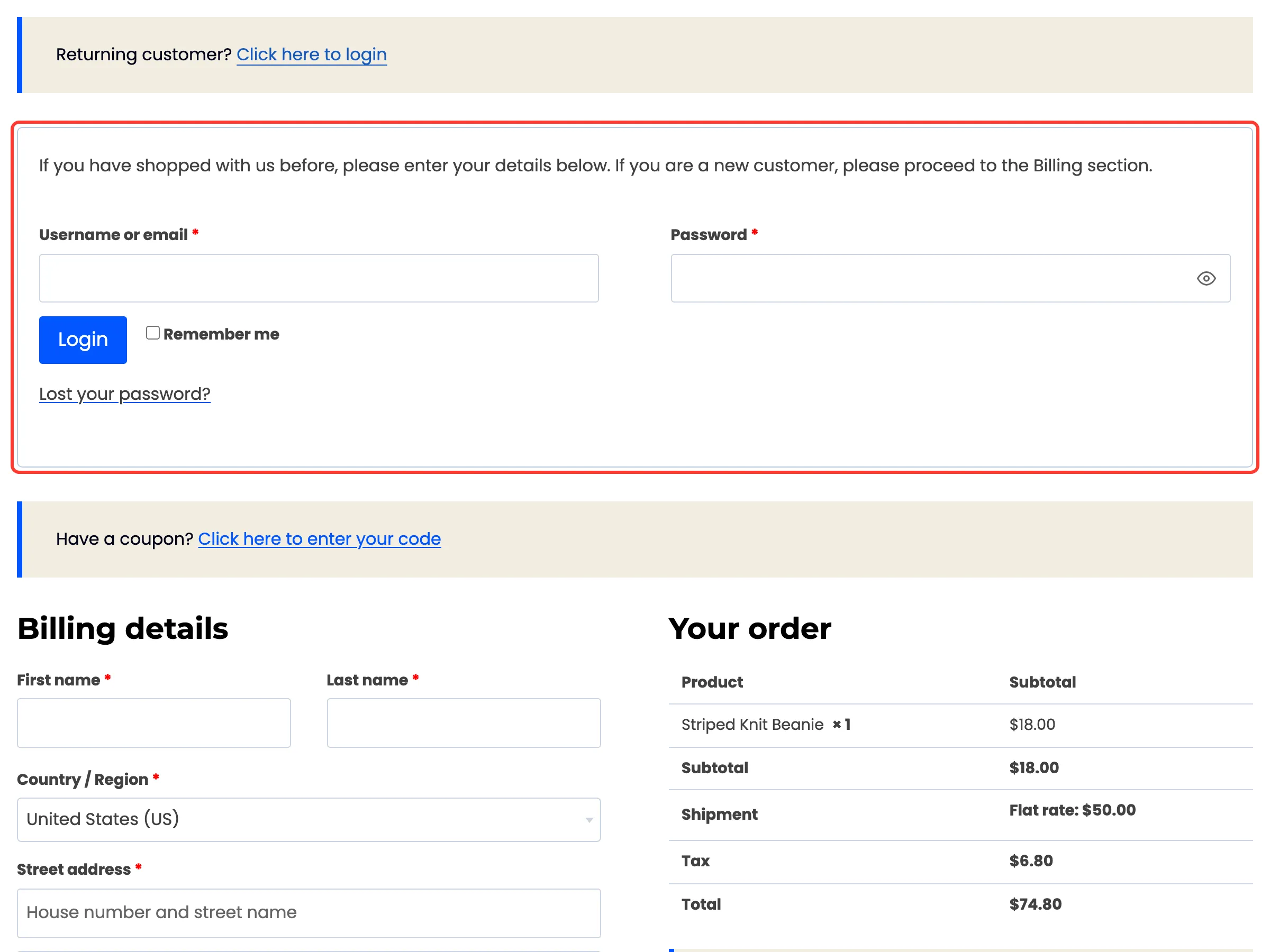
Section titled “Step 1: Turn on the checkout login”This is a WooCommerce setting: WooCommerce → Settings → Accounts & Privacy → Allow customers to log into an existing account during checkout. The plugin needs nothing else.
Step 2: Sign in at checkout
Section titled “Step 2: Sign in at checkout”Under Returning customer? Click here to login, the customer types their username and password.
Step 3: Type the code
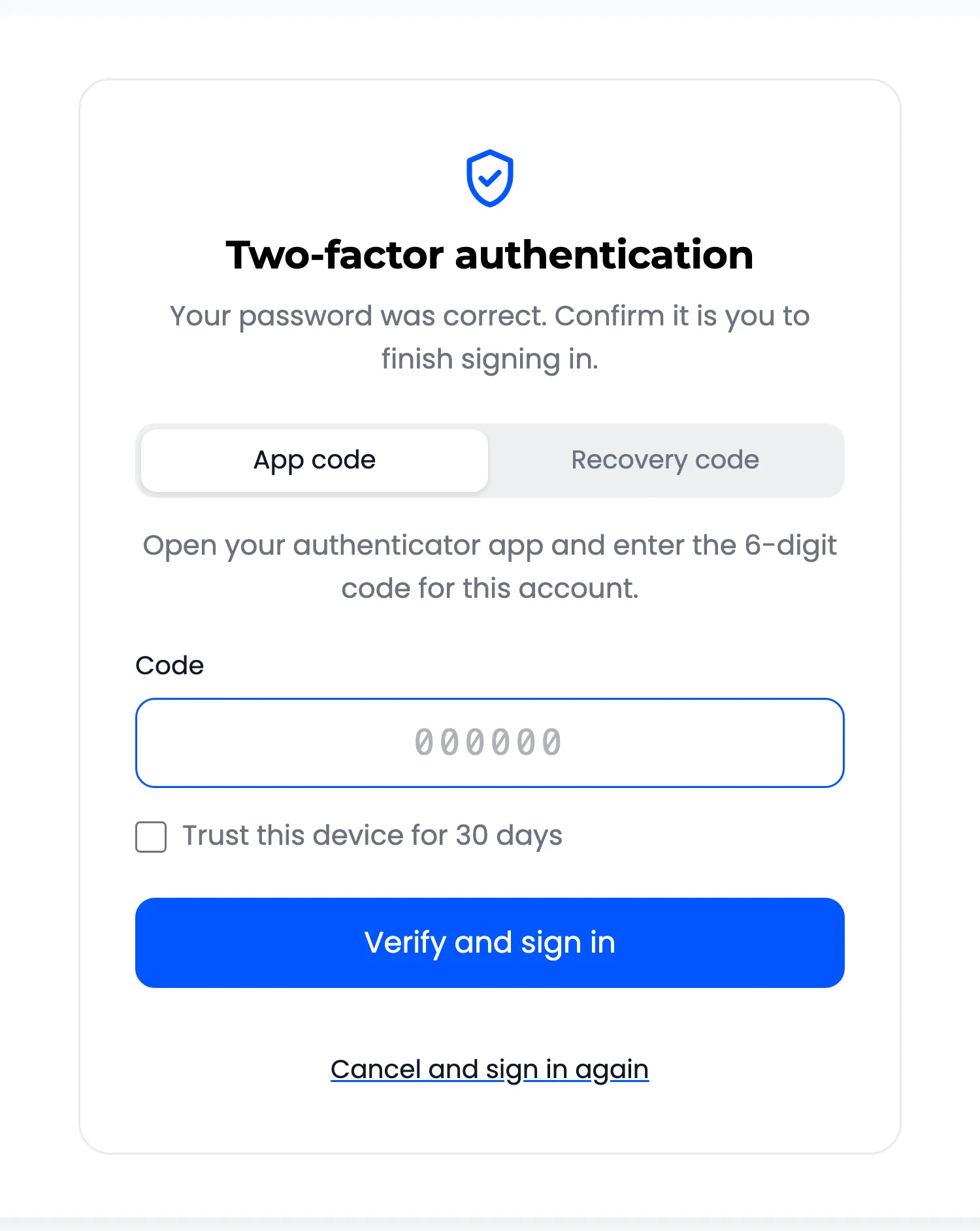
Section titled “Step 3: Type the code”The code screen opens on the My Account page, as for any sign in.
Step 4: Back at checkout
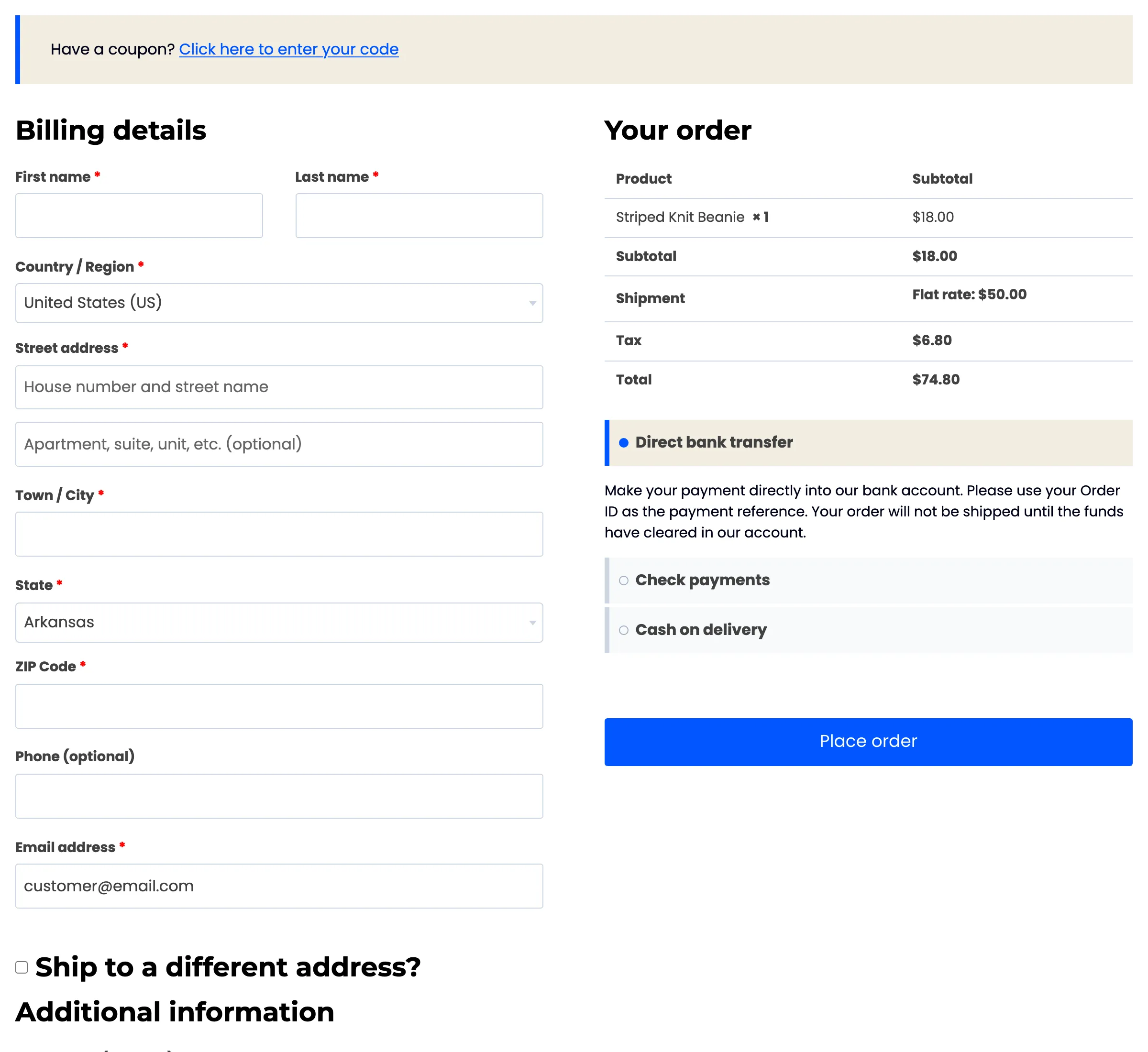
Section titled “Step 4: Back at checkout”After the code, the customer is back at checkout, signed in, with the cart and their saved address in place. On the demo, Amara went from the code screen straight back to checkout with her beanie in the cart.
The activity log records this sign in under Where: My Account, because it used the WooCommerce login form.