How to Sign In with an Authenticator App Code
Once 2FA is on, every sign in with a password has a second step.
Step 1: Sign in with the password
Section titled “Step 1: Sign in with the password”On My Account, the customer types their username or email and password as usual.
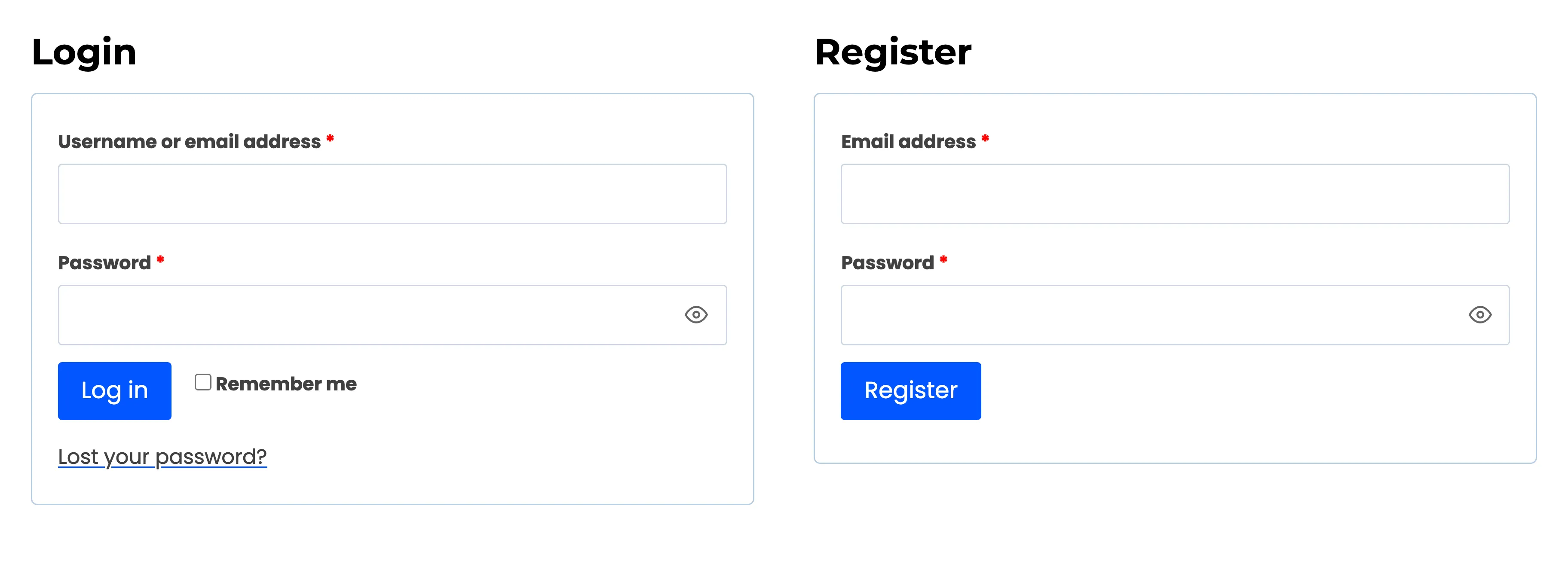
A wrong password gets WooCommerce’s usual message. The code step only follows a correct one.
Step 2: Open the authenticator app
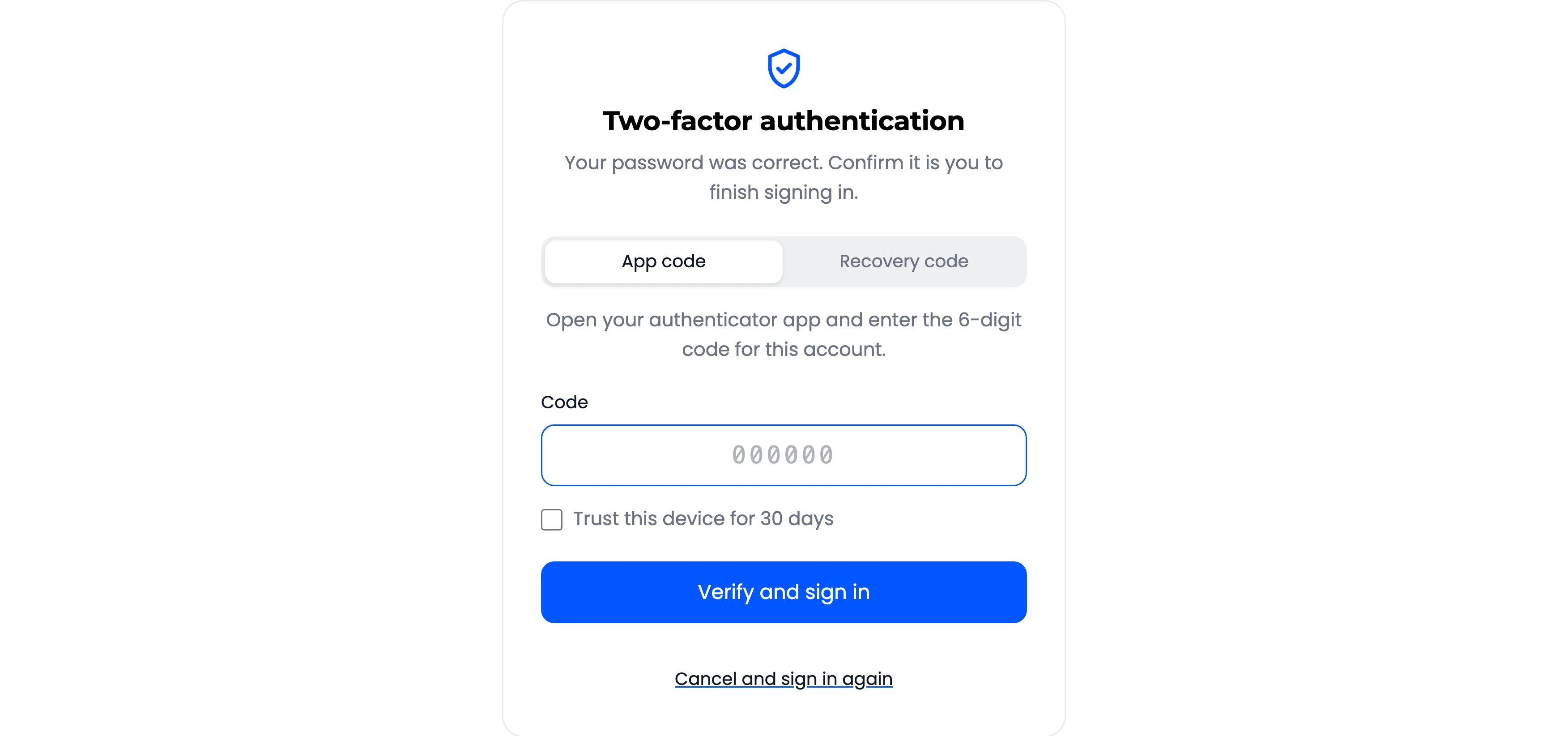
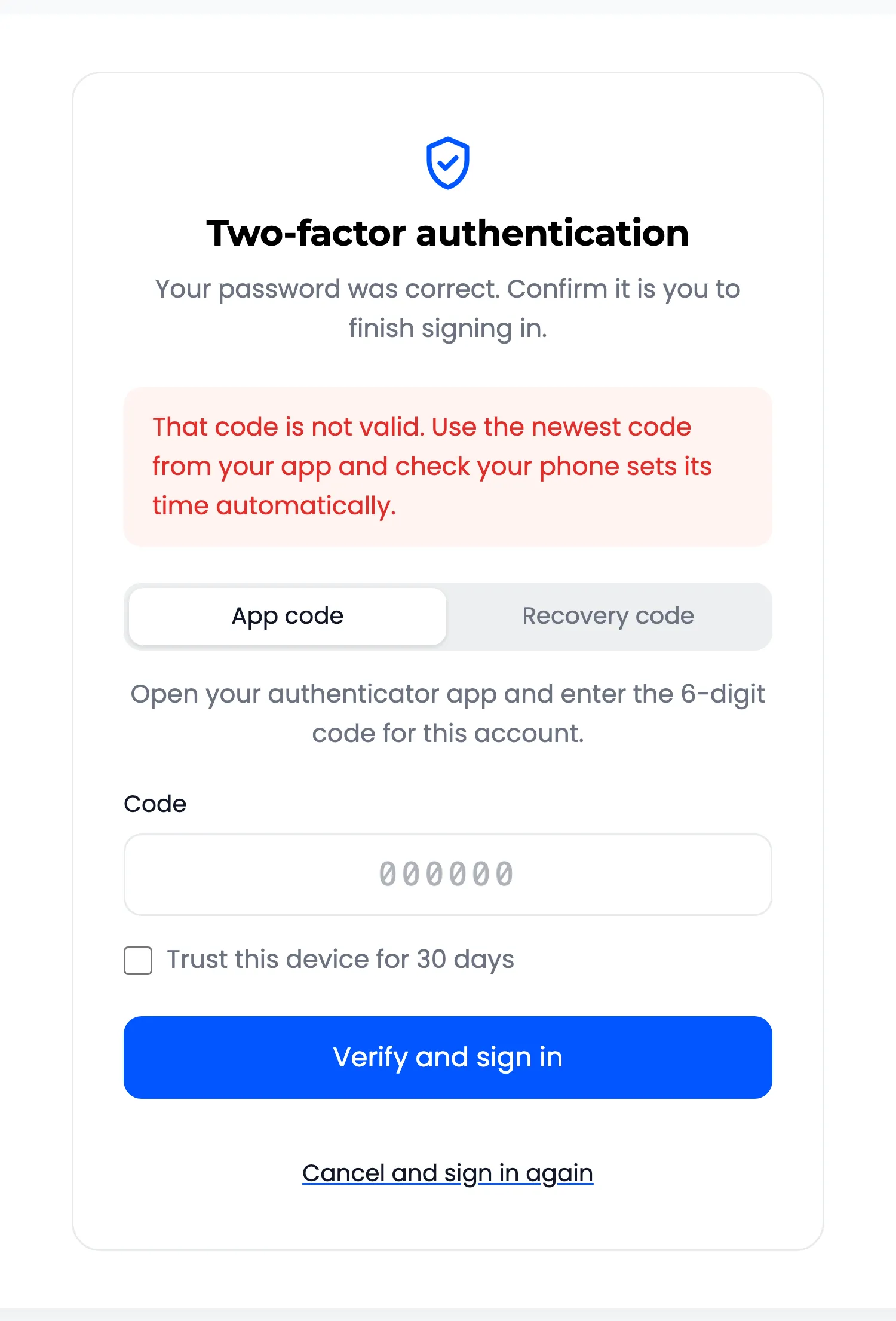
Section titled “Step 2: Open the authenticator app”The code screen replaces the login form: “Your password was correct. Confirm it is you to finish signing in.”
Step 3: Type the code
Section titled “Step 3: Type the code”The customer types the 6-digit code for your store. The form sends itself at the sixth digit, so there is nothing to press. They land signed in, on the page the login form was taking them to. Remember me on the login form is kept.
When the code is wrong
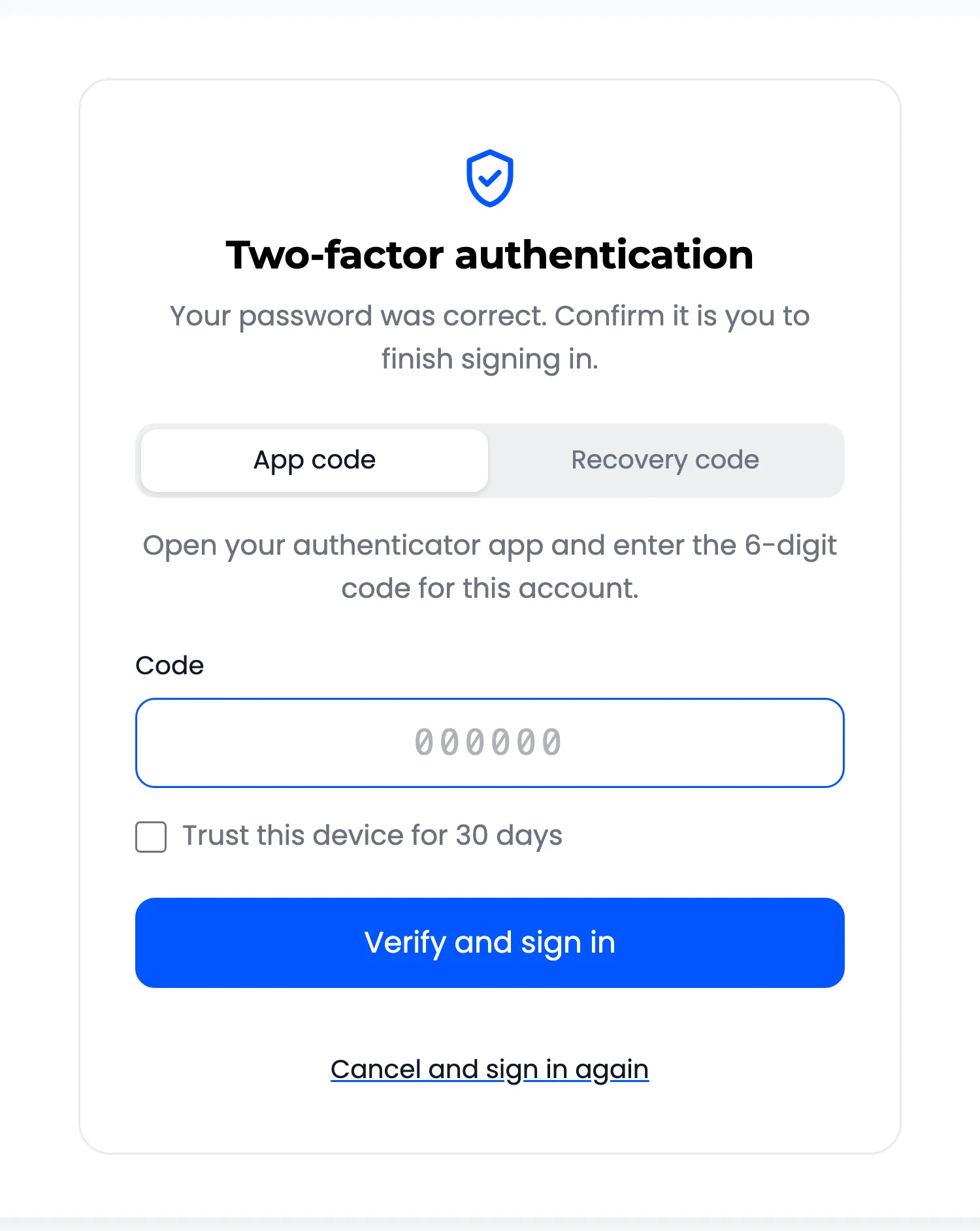
Section titled “When the code is wrong”“That code is not valid. Use the newest code from your app and check your phone sets its time automatically.”
- A code works once. If they just used it, they wait for the next one.
- After five wrong codes in a row the account is locked for 15 minutes. See How to Lock Out Repeated Wrong Codes.
Good to know
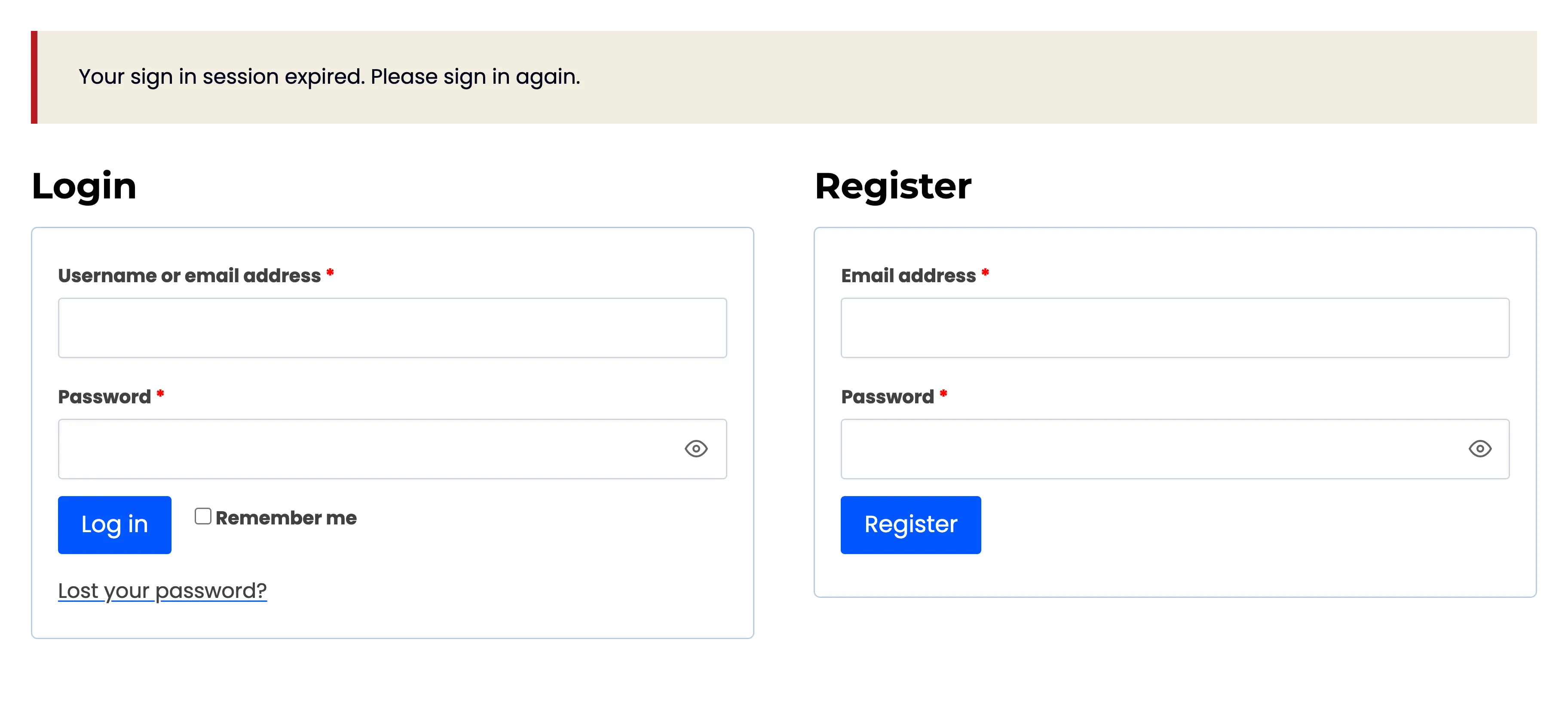
Section titled “Good to know”- The code screen lasts 10 minutes. After that, “Your sign in session expired. Please sign in again.”
- Cancel and sign in again goes back to the login form.
- Signing in from a login popup that uses Ajax shows “This account uses two-factor authentication. Continue to enter your code”, with a link to the code screen.