

How to Create New Recovery Codes
A new set replaces the old one completely. Customers do this when they are running low, or when the old codes may have been seen.
Step 1: Open Create new codes
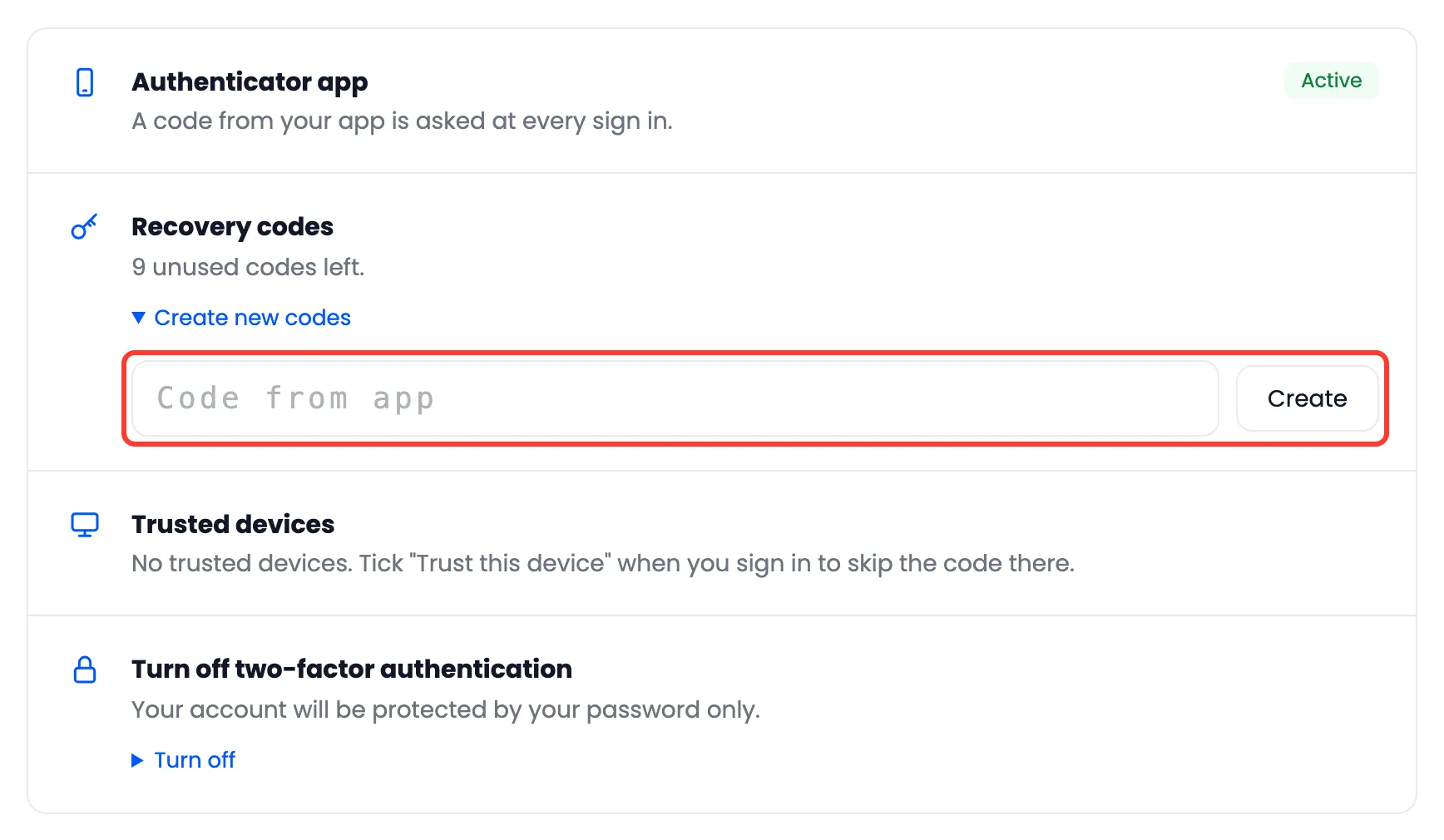
Section titled “Step 1: Open Create new codes”On My Account → Two-Factor Authentication, under Recovery codes, click Create new codes.
Step 2: Type a code from the app
Section titled “Step 2: Type a code from the app”Only an app code works here, not a recovery code. Type it and press Create.
Step 3: Save the new codes
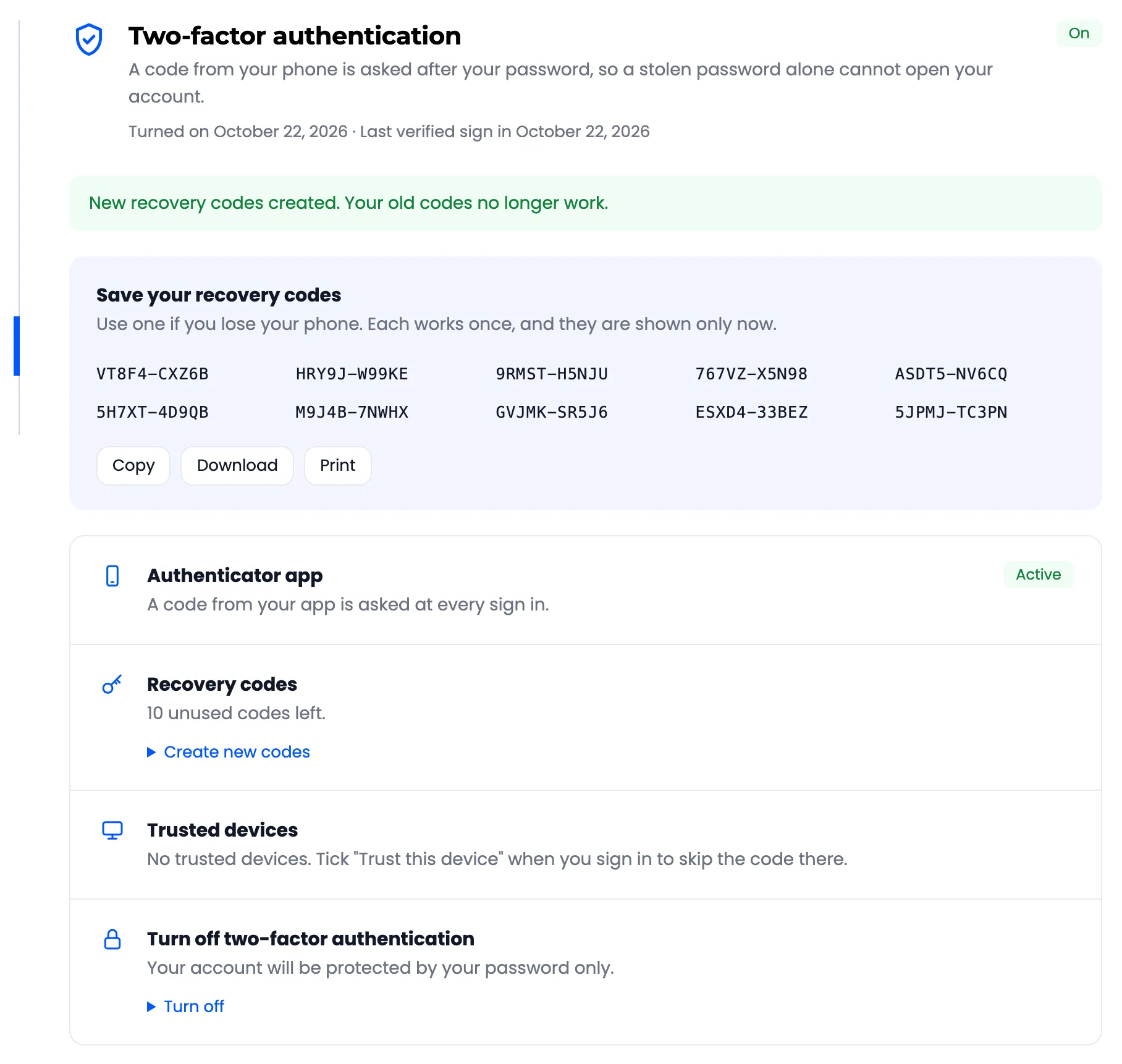
Section titled “Step 3: Save the new codes”“New recovery codes created. Your old codes no longer work.” The new set shows once, with Copy, Download and Print.
Good to know
Section titled “Good to know”- The number of codes follows Recovery Codes per User at the time the set is made.
- A wrong app code here counts towards the lockout, so nobody can keep guessing from a signed in browser.
- The activity log records Recovery codes created.