

How to Lock Out Repeated Wrong Codes
Someone who knows a password could keep trying codes until one works. The lockout stops that after a few tries. A lockout also means the password was right, which is worth knowing about.
Step 1: Set the limit
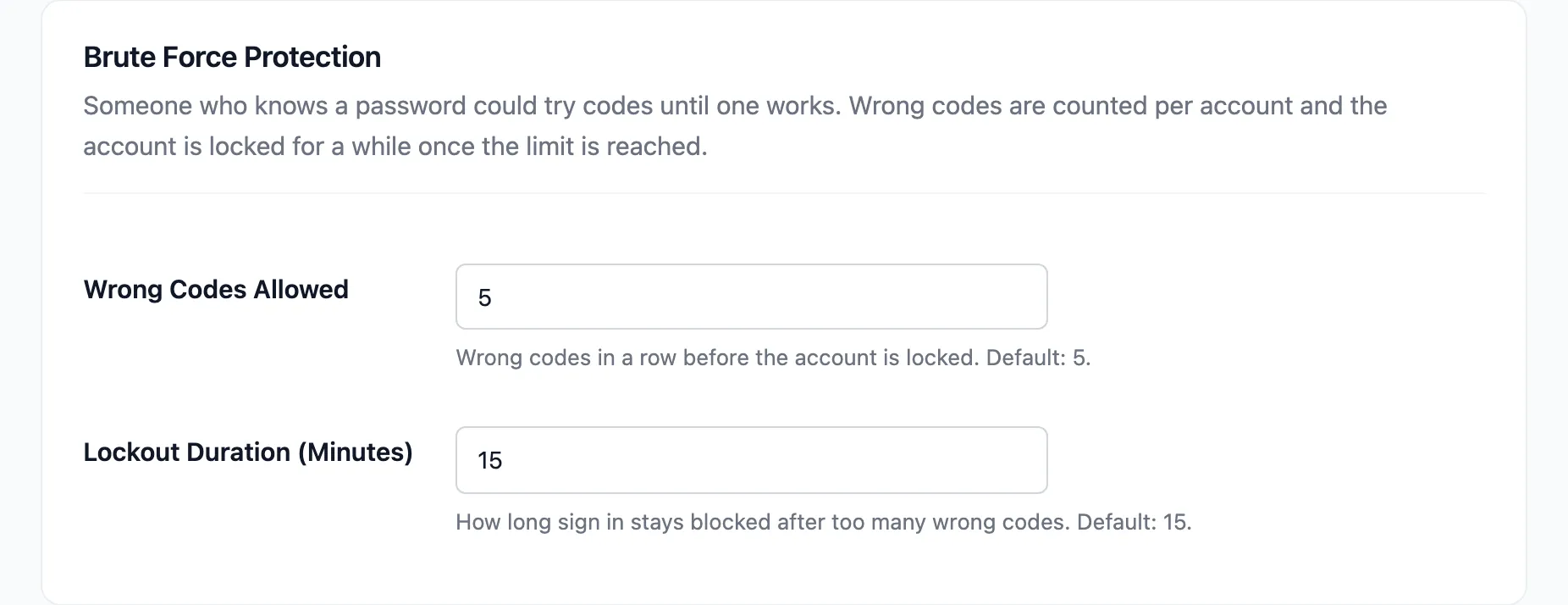
Section titled “Step 1: Set the limit”Open Configuration → Login Security. Wrong Codes Allowed is 5 by default. A correct code sets the count back to zero.
Step 2: Set the duration
Section titled “Step 2: Set the duration”Lockout Duration (Minutes) is 15 by default.
Step 3: Turn on the alert
Section titled “Step 3: Turn on the alert”Under Configuration → Emails, tick Lockout Alert. It goes to the site admin email unless you set Alert Recipient.
What happens
Section titled “What happens”On the demo, five wrong codes in a row on Amara’s account:
-
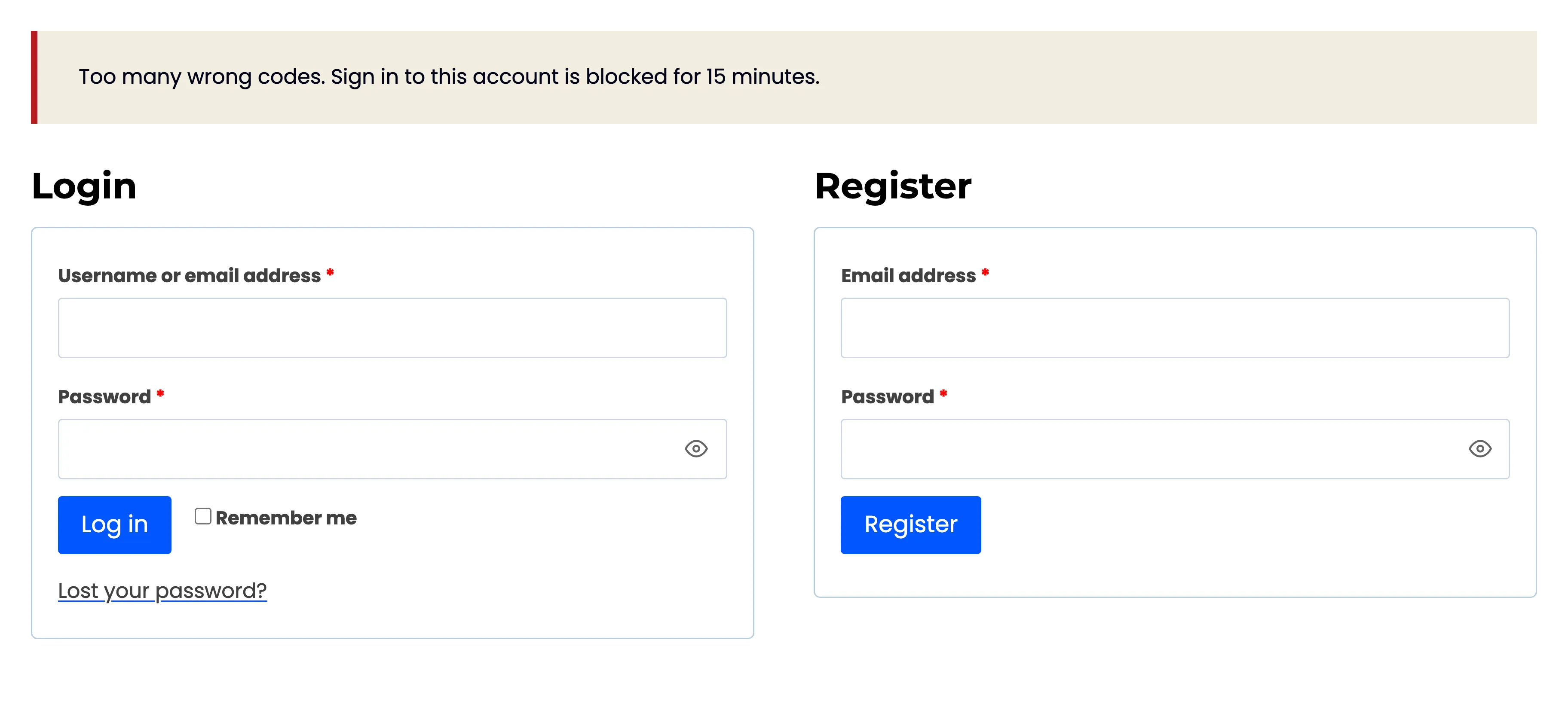
The fifth answer ended the sign in: “Too many wrong codes. Sign in to this account is blocked for 15 minutes.”
-
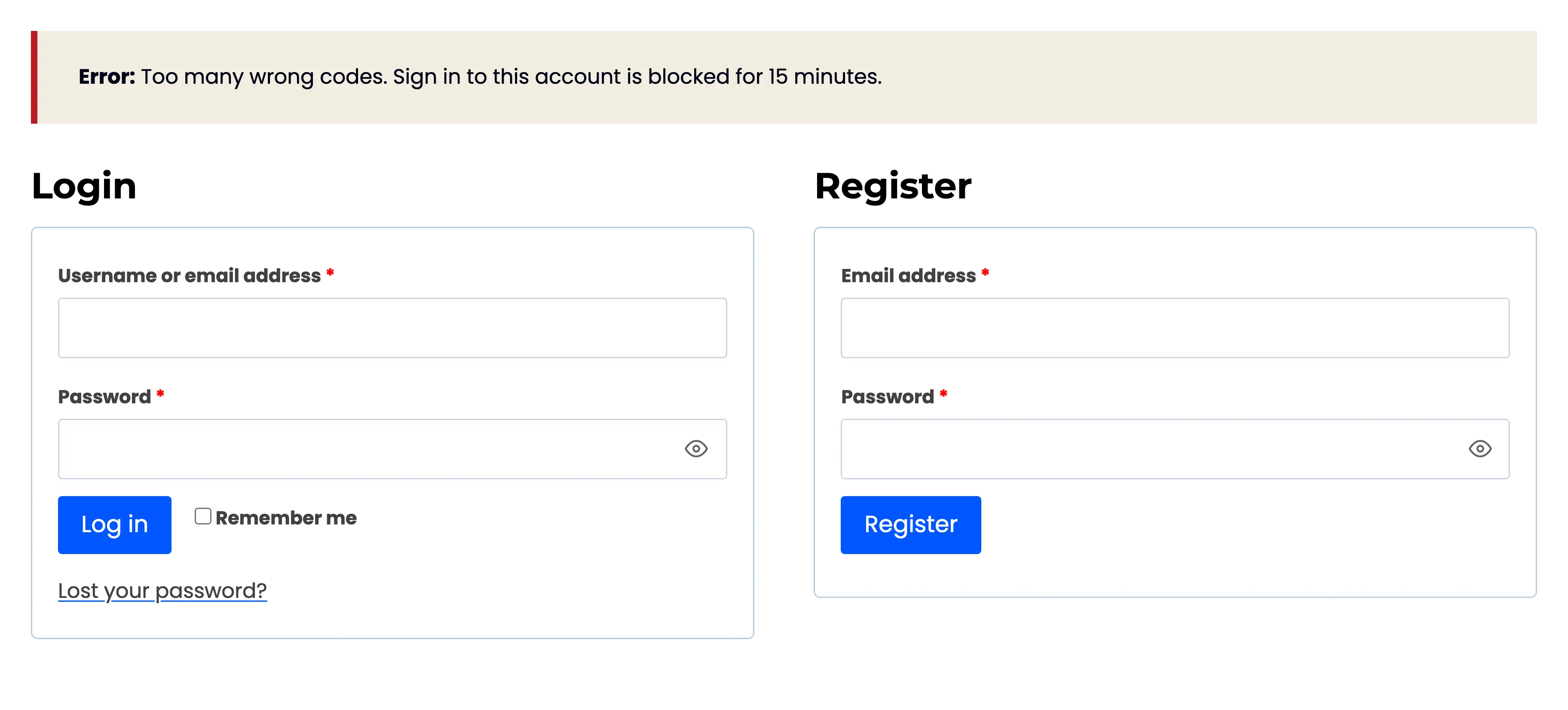
Her password alone could not sign her in either, until the time was up.
-
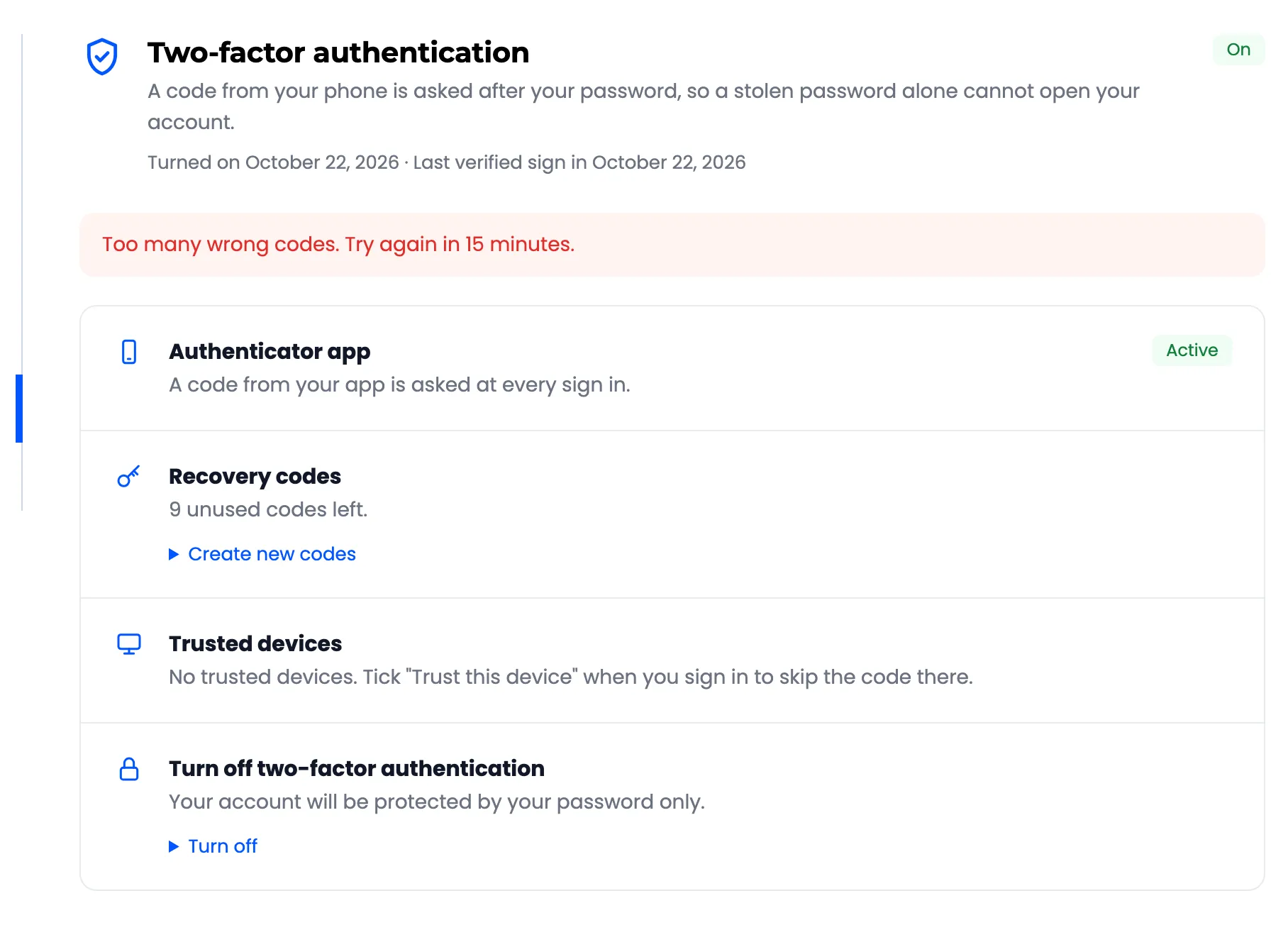
Her security page said so too, and its buttons that need a code waited.
-
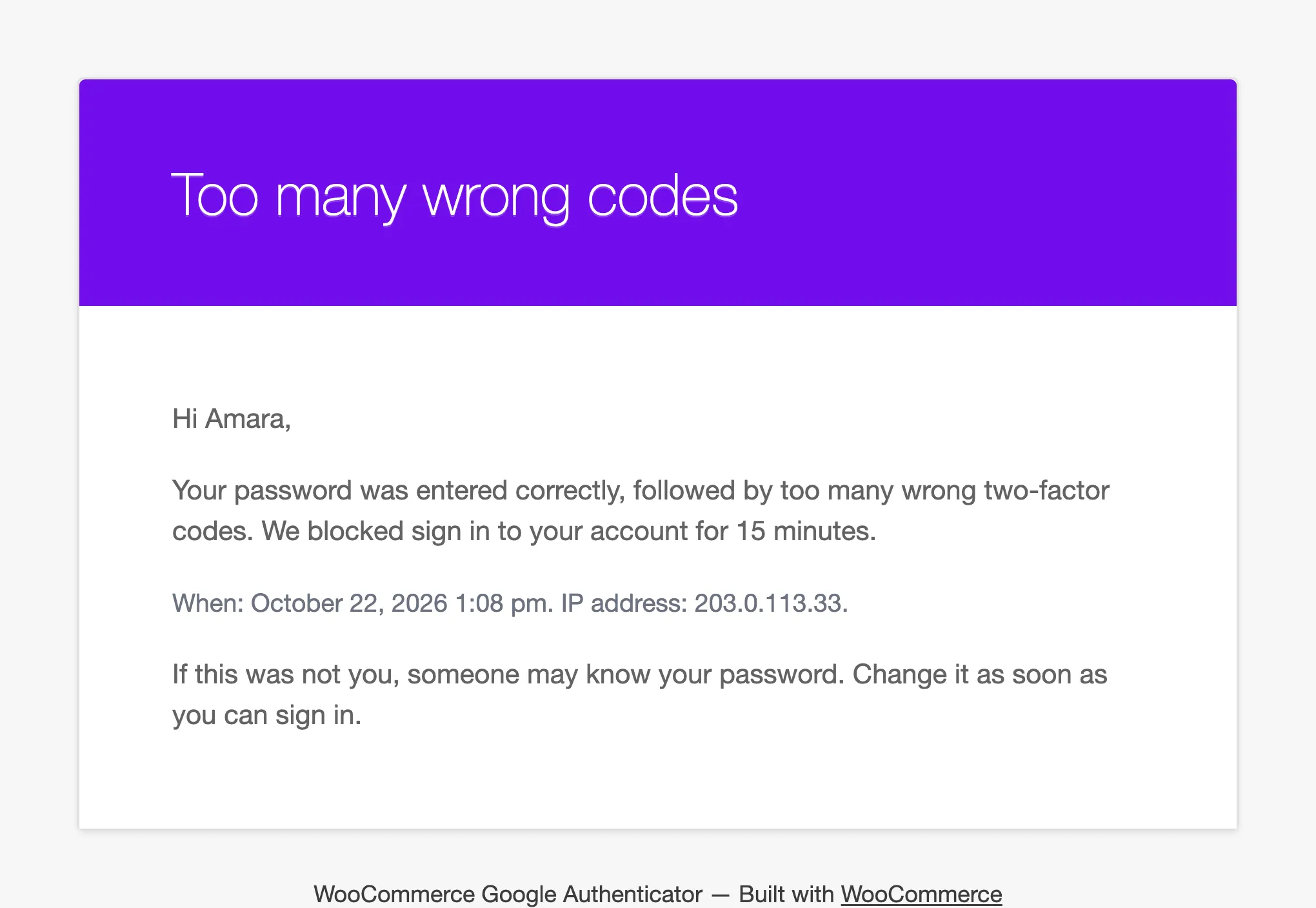
She got an email saying sign in was blocked, with the IP address, and advice to change her password.
-
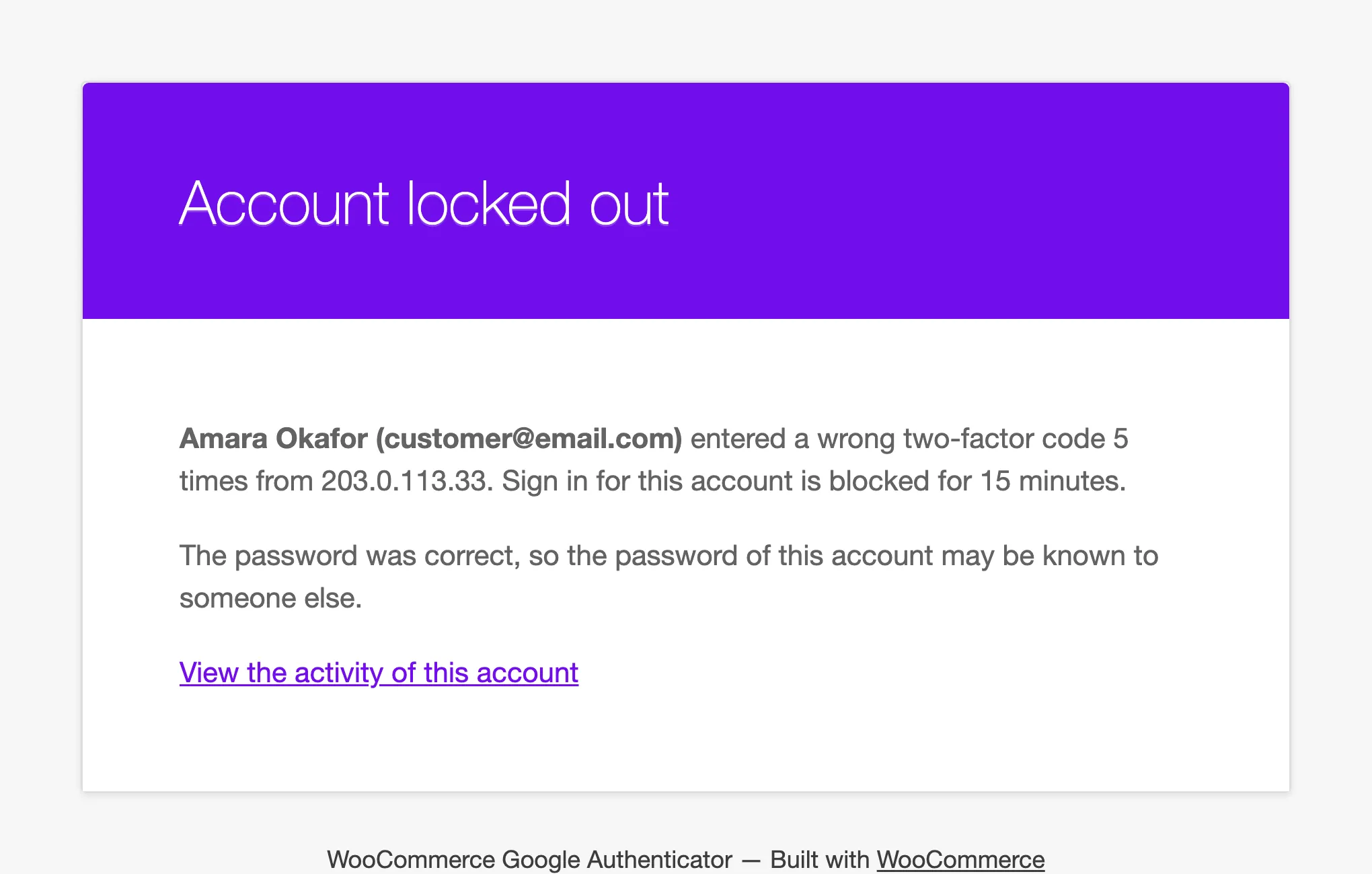
The store owner got the alert, with her name, the IP address and a link to her activity.
-
The activity log recorded five Wrong code rows and a Locked out row.
Good to know
Section titled “Good to know”- The count is per account. A different IP address does not start a new count.
- Wrong codes count on the code screen, on custom one-step forms, and when turning 2FA off or creating new recovery codes. A typo during setup does not.
- To unlock someone early, wait it out or reset their 2FA. A reset clears the lockout.