

How to Exclude Service Accounts from 2FA
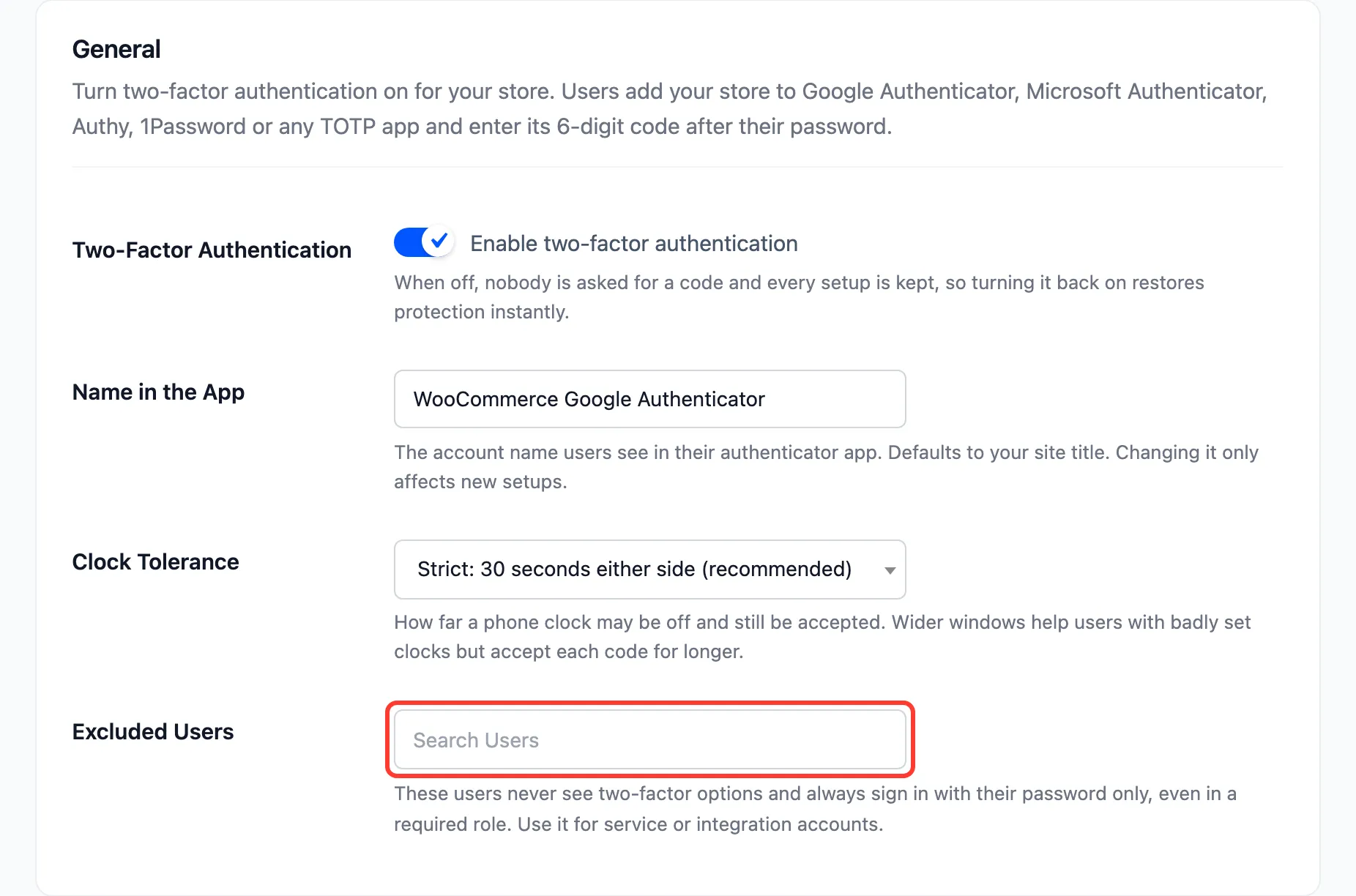
Some accounts sign in from a script or another system and cannot type a code. Excluding them keeps them working.
Step 1: Open the General tab
Section titled “Step 1: Open the General tab”Configuration → General.
Step 2: Add the accounts
Section titled “Step 2: Add the accounts”Pick them in Excluded Users.
Step 3: Save
Section titled “Step 3: Save”Press Save Changes.
What changes for an excluded user
Section titled “What changes for an excluded user”On the demo, Fred Nerk was excluded:
- He was never asked for a code.
- His My Account menu had no Two-Factor Authentication item.
- The WordPress Users screen showed Excluded in the 2FA column.
Excluding an account that already has 2FA on works the same way. Tillie Warren had her app set up, was added to the list, and signed in to the dashboard with her password alone. Her setup is kept, not deleted, so taking her off the list asks her for codes again.
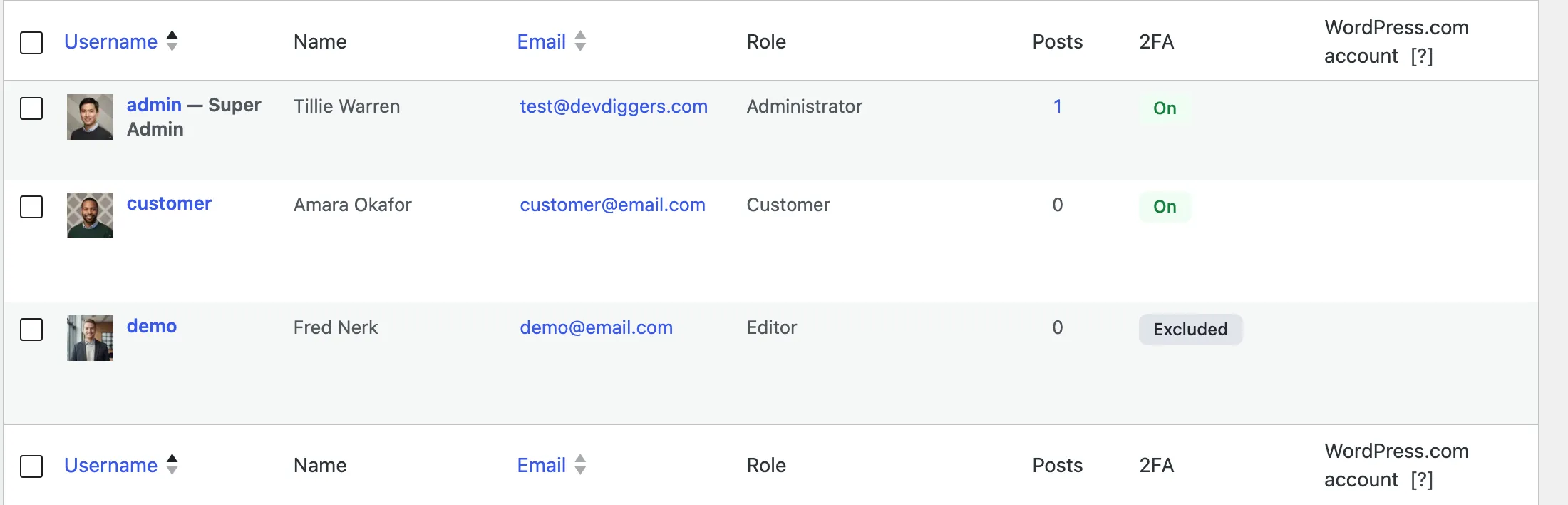
An excluded user is never required to set up 2FA, even when their role is required.
Before you exclude
Section titled “Before you exclude”An integration that only reads or writes data over the REST API does not need this. Give it an application password. See How to Connect Apps with Application Passwords.