

Introduction to WooCommerce Google Authenticator
WooCommerce Google Authenticator adds two-factor authentication (2FA) to every password sign in on your store. After the password, the customer types a 6-digit code from an app on their phone. A leaked or reused password alone no longer opens the account.
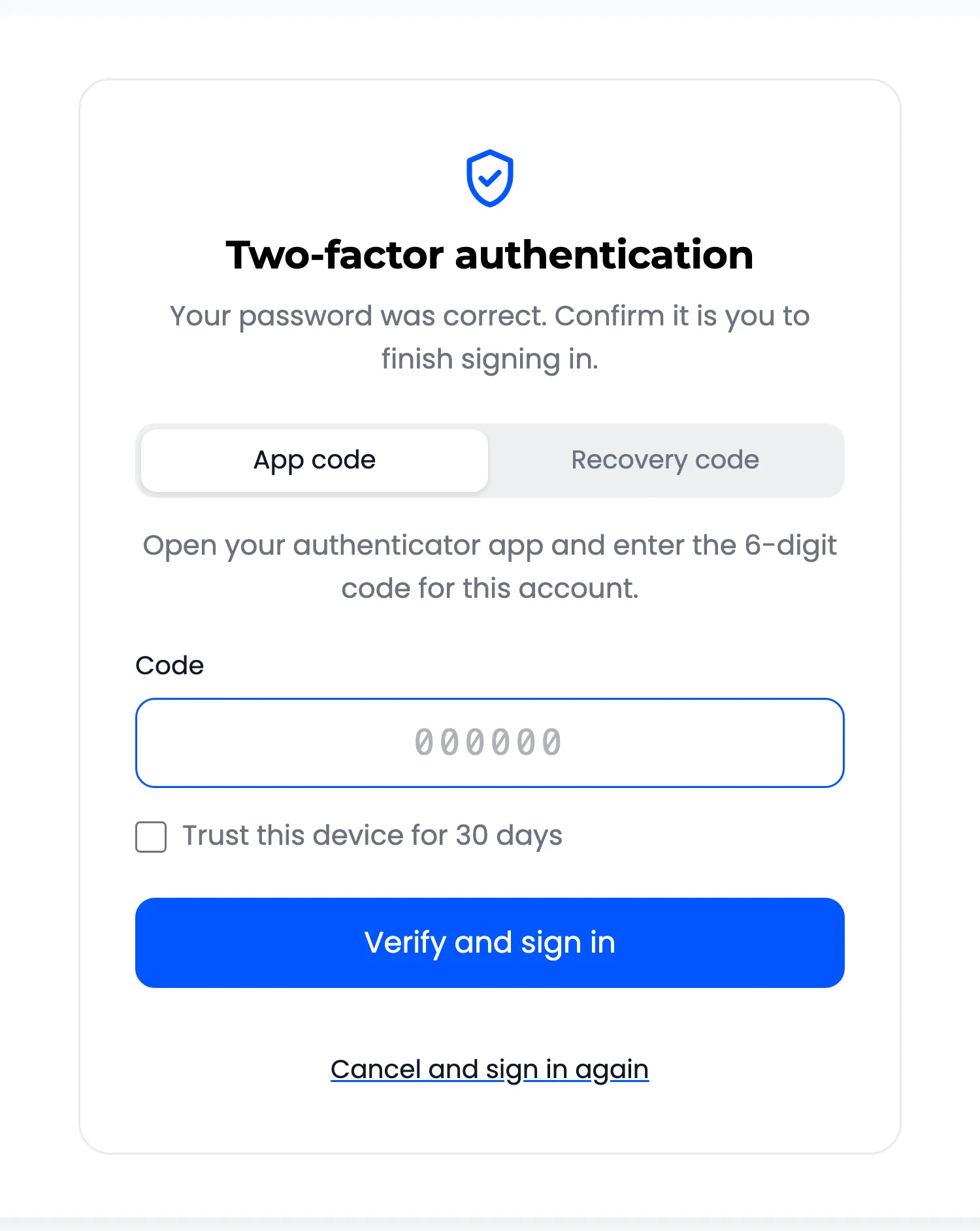
The codes come from Google Authenticator or any app that makes time-based codes: Microsoft Authenticator, Authy, 1Password, Bitwarden and others. Each code lasts 30 seconds and works once.
It is a paid plugin with one edition, so every feature on these pages is included.
What customers see
Section titled “What customers see”- A setup page in My Account: Three steps. Get an app, scan a QR code, type one code. 2FA turns on only after that code is right, so a bad scan cannot lock anyone out.
- A code screen after the password: On the My Account and checkout login forms and on the WordPress login screen.
- Ways back in: One-time recovery codes for a lost phone, an optional code by email, and “Trust this device” to skip the code on their own browser for a while.
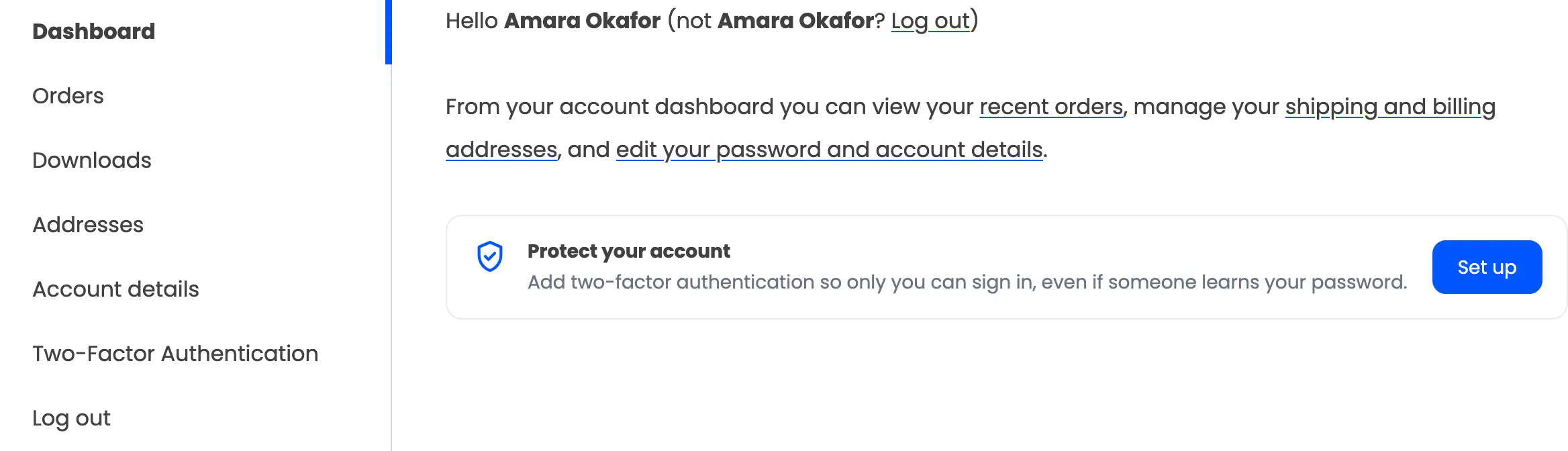
- A reminder: A small card on the My Account dashboard until they turn 2FA on.
What you control
Section titled “What you control”- Required 2FA by role: Make it mandatory for administrators, shop managers or any other role, with a grace period. After it, those users can only open the setup page until 2FA is on.
- Brute force lockout: An account is blocked for a while after too many wrong codes.
- Security emails: Users hear when 2FA is turned on or off, reset, used with a recovery code, or locked. You can get an alert for every lockout.
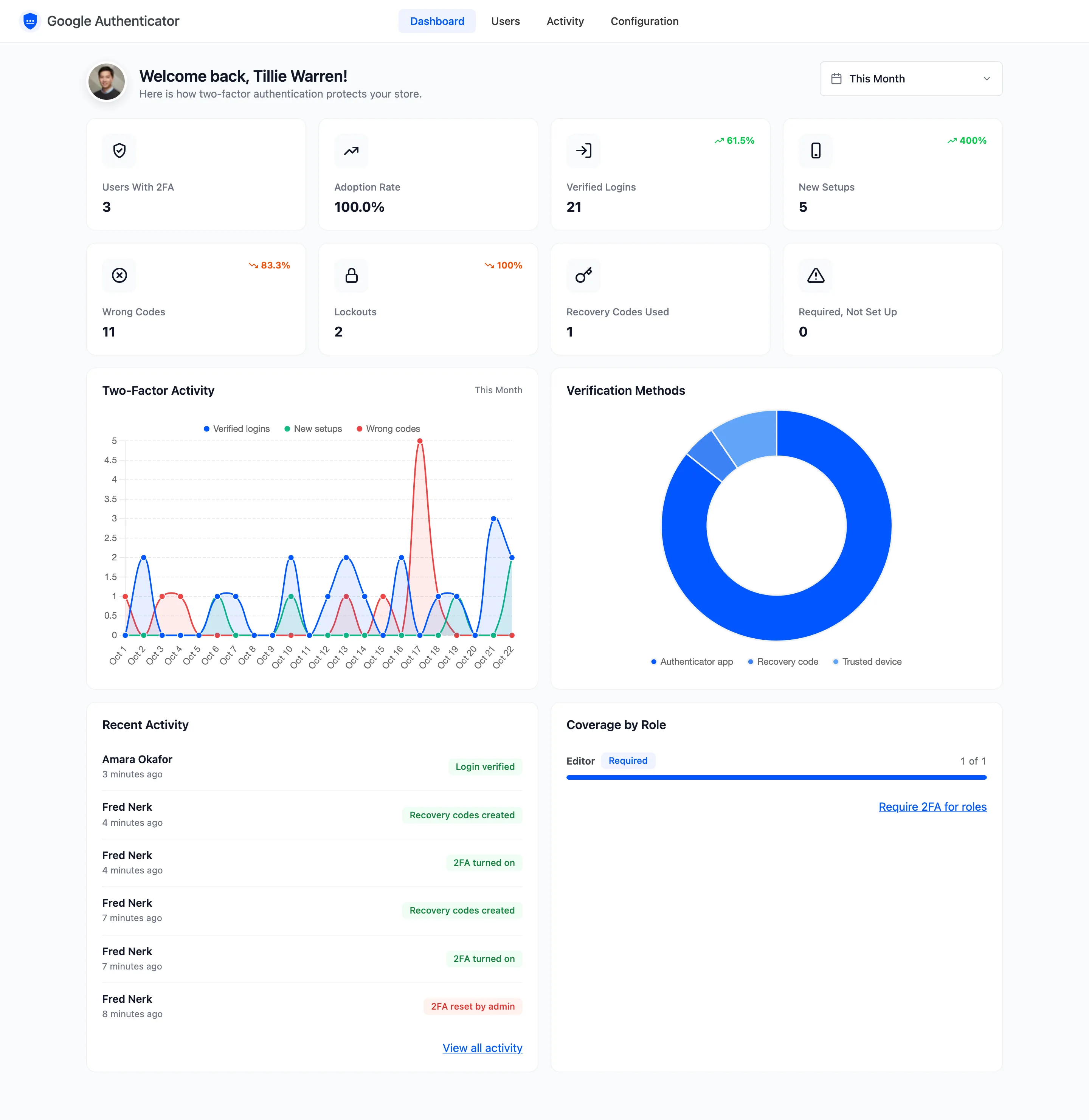
- Dashboard, Users and Activity: Who has 2FA, who still needs it, and every setup, sign in, wrong code and lockout with its IP address.
Where things live
Section titled “Where things live”Everything is under DevDiggers Plugins → Google Authenticator, in four menus: Dashboard, Users, Activity and Configuration. Configuration has seven tabs: General, Login Security, Required 2FA, My Account, Emails, Advanced and License.
WordPress’s own Users screen also gets a 2FA column, and every user profile gets a status section with a Reset 2FA button.
Requirements
Section titled “Requirements”- WordPress 6.0 or newer, WooCommerce 6.0 or newer and PHP 7.4 or newer.
- An active license. Until it is active, nobody is asked for a code.
It works with the WooCommerce order tables (HPOS), the classic My Account and checkout login forms, and the WordPress login screen.
Where to go next
Section titled “Where to go next”- How Two-Factor Sign In Works follows one customer from setup to sign in.
- Installing and Activating gets the plugin running.
- How to Turn On Two-Factor Authentication in My Account is what your customers do first.