

General Settings
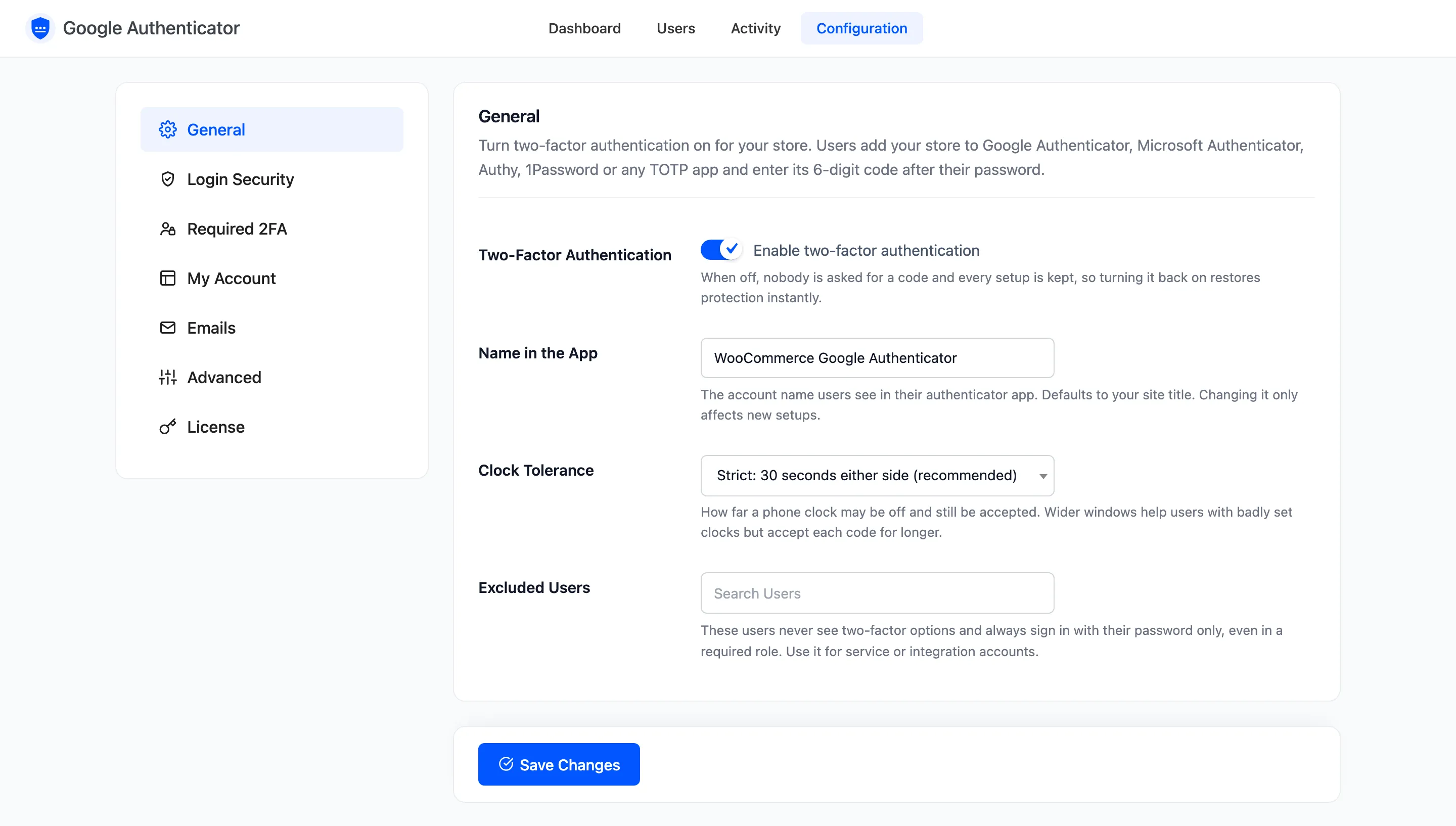
The General tab holds the main switch and three settings that apply to everyone. Open DevDiggers Plugins → Google Authenticator → Configuration → General.
The fields
Section titled “The fields”- Two-Factor Authentication: Ticked by default. Unticked, nobody is asked for a code and the My Account page goes away, but every setup is kept. Ticking it again restores protection at once.
- Name in the App: The name customers see next to their account in the app. Your site title by default. Changing it affects new setups only, because the name is part of the QR code.
- Clock Tolerance: How far a phone’s clock may be off and still be accepted. Strict: 30 seconds either side is the default and the recommended choice. The wider options are 1 minute, 2 minutes and 4 minutes either side.
- Excluded Users: These users never see 2FA and sign in with their password only, even in a required role. Empty by default.
Name in the App
Section titled “Name in the App”On the demo, with Name in the App set to DevDiggers Demo Store, the setup page and the QR code carry the new name.
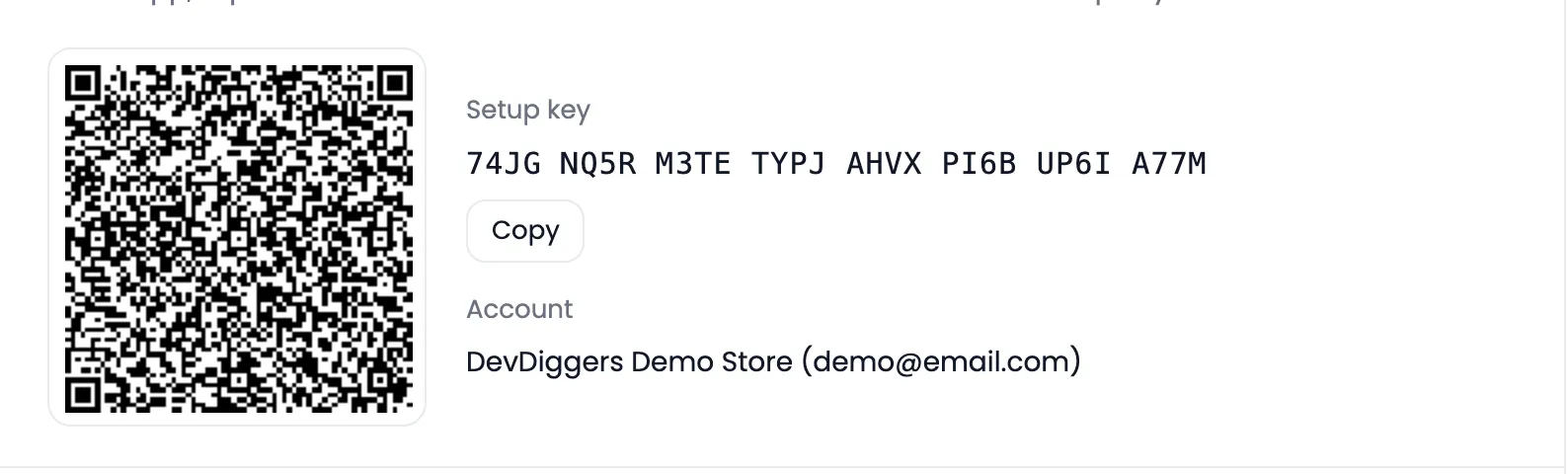
Customers who set up before the change keep the old name in their app. Their codes still work.
Clock Tolerance
Section titled “Clock Tolerance”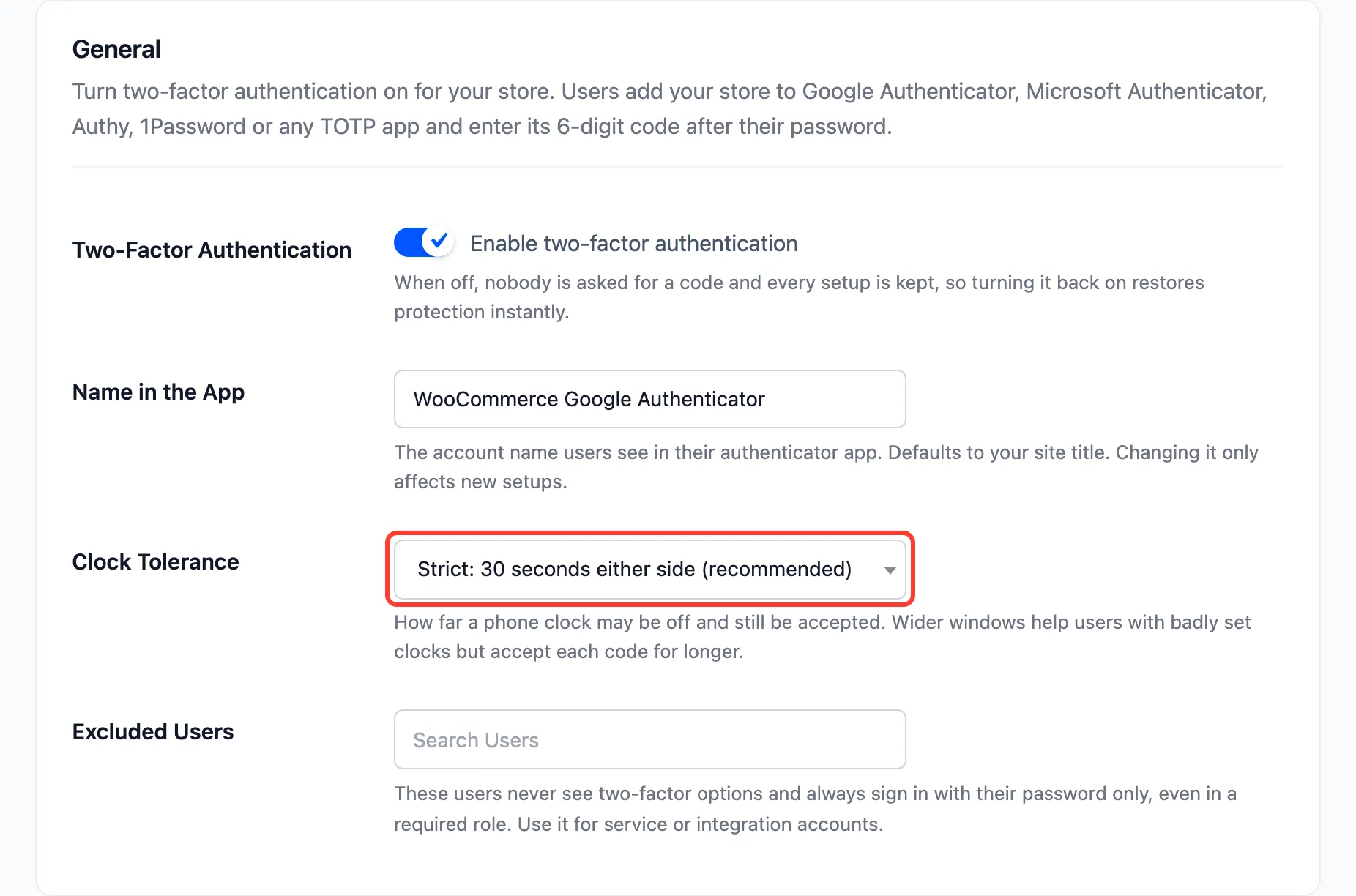
A wider window lets a phone with a badly set clock sign in, but it also keeps every code valid for longer. On the demo, a code from 60 seconds earlier was refused on Strict and accepted on 1 minute either side.
Most phones set their time automatically. Widen this only if several customers report codes that never work.
Excluded Users
Section titled “Excluded Users”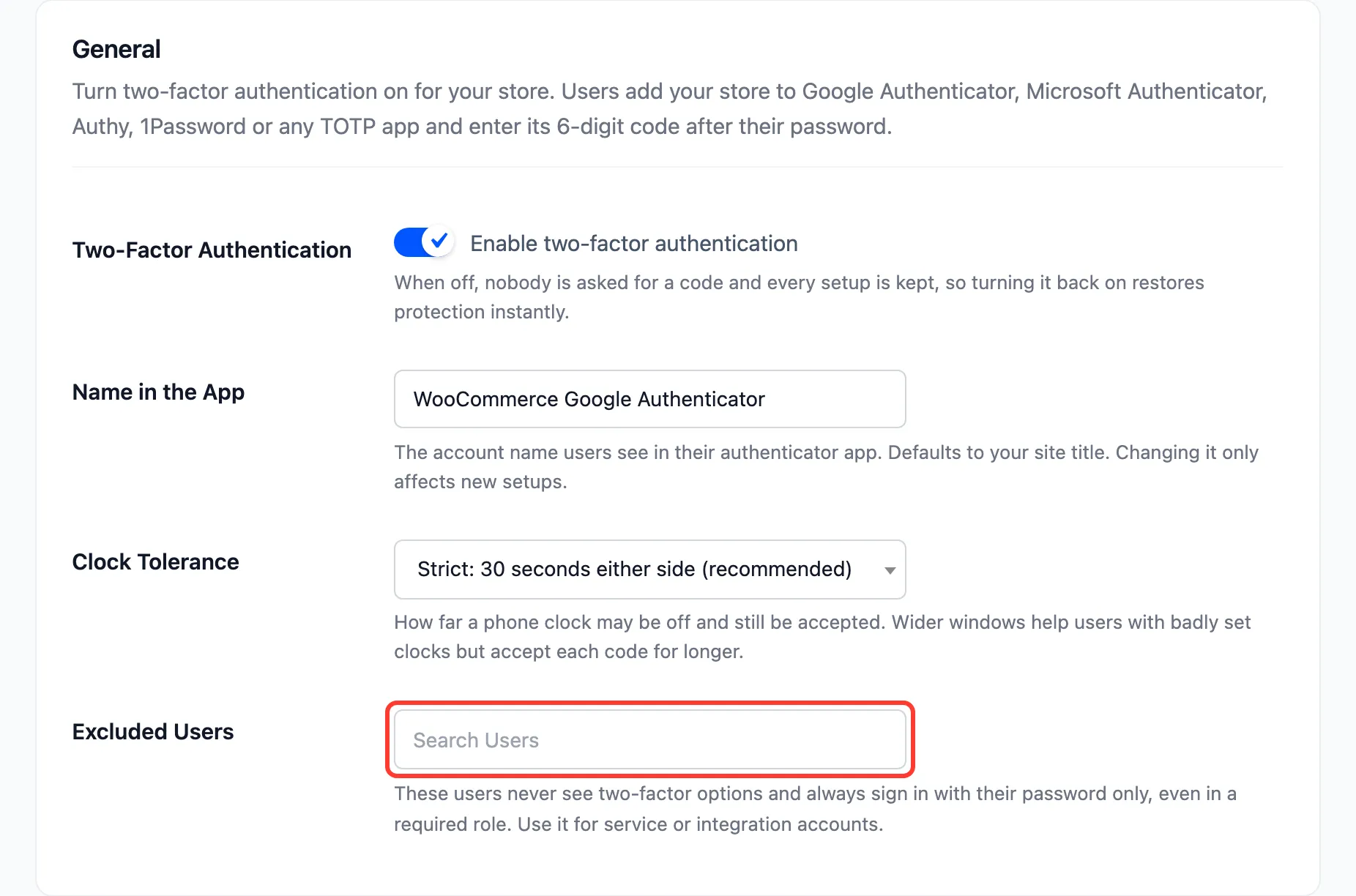
Use it for accounts that sign in from a script or an integration and cannot answer a code. An excluded user:
- is never asked for a code, whatever their settings;
- gets no Two-Factor Authentication item in My Account;
- shows as Excluded on the Users screens;
- is never required to set up 2FA, even when their role is required.