

How Two-Factor Sign In Works
This page follows one customer on the demo store, Amara, from setup to her everyday sign in. Each step says what the plugin checks and what it records.
1. Amara sets it up
Section titled “1. Amara sets it up”Amara opens My Account → Two-Factor Authentication. The page gives her a secret of her own, as a QR code and as a setup key. She scans it with her authenticator app, and the app starts showing a new 6-digit code every 30 seconds.
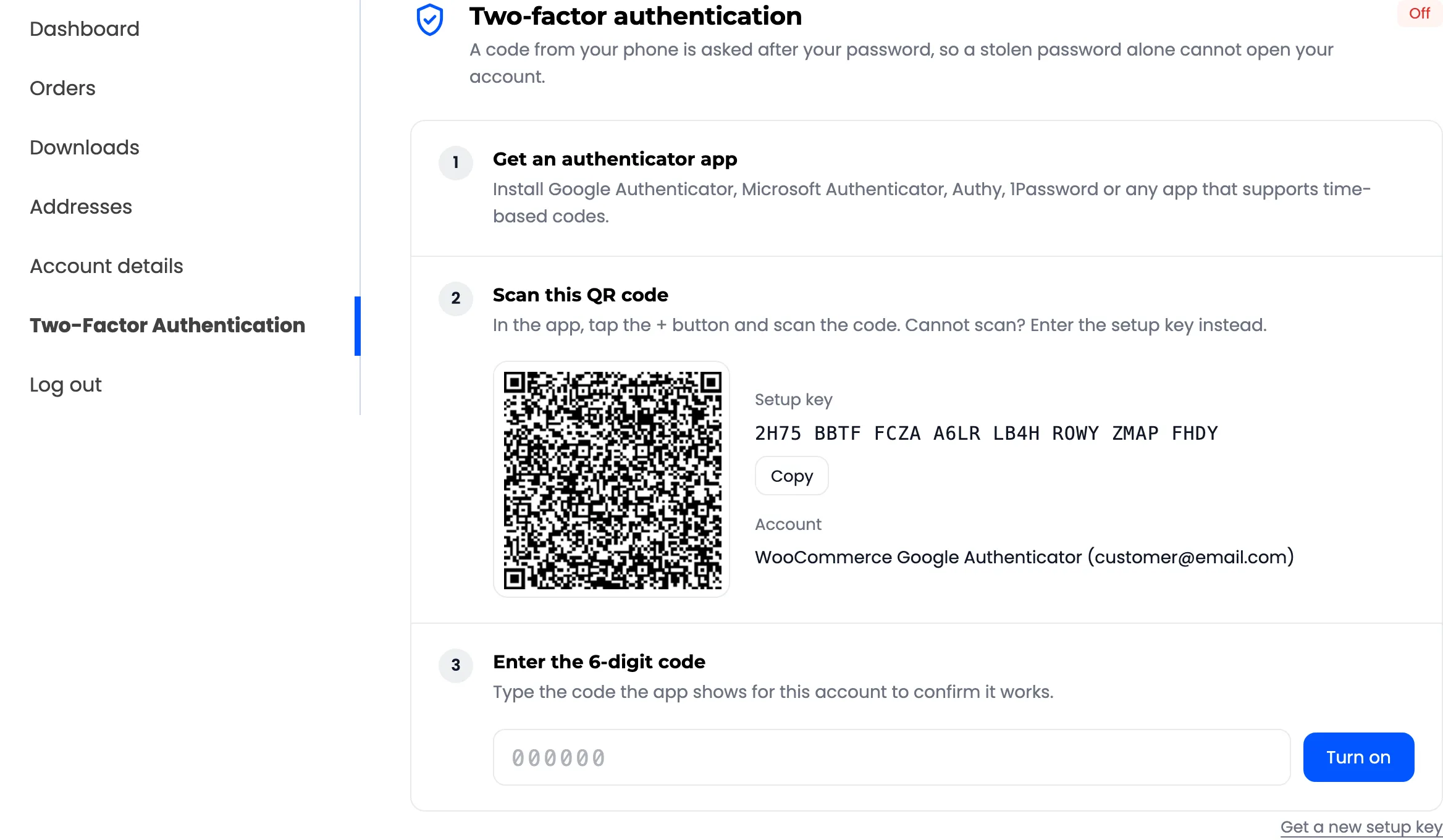
She types the current code and presses Turn on. Only now is 2FA on. A typo just shows “That code did not match”, and nothing changes. She gets an email saying 2FA is on.
The secret is stored encrypted with a key made from your site’s salts. Nobody can read it back from the database, the admin screens included.
2. She saves her recovery codes
Section titled “2. She saves her recovery codes”Right after setup, the page shows ten one-time recovery codes, once. She downloads them.
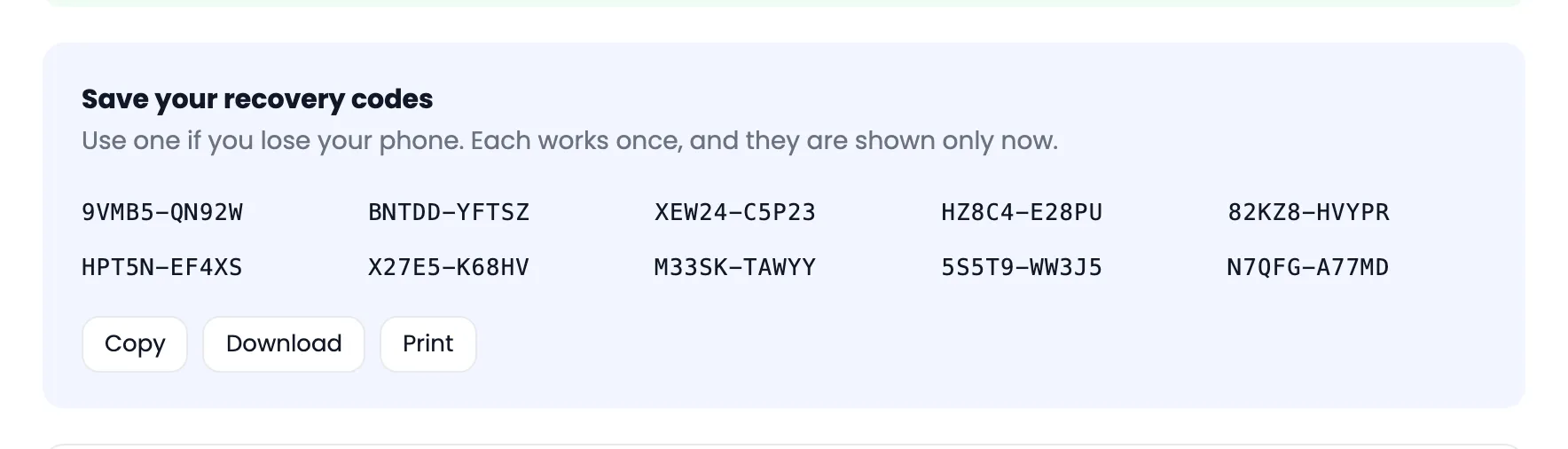
Your site keeps only scrambled copies. A code works once, in place of the app code.
3. She signs in
Section titled “3. She signs in”Next time, Amara types her username and password as usual. The password is checked first. Only when it is right does the plugin step in: it signs nobody in yet, and shows the code screen instead.
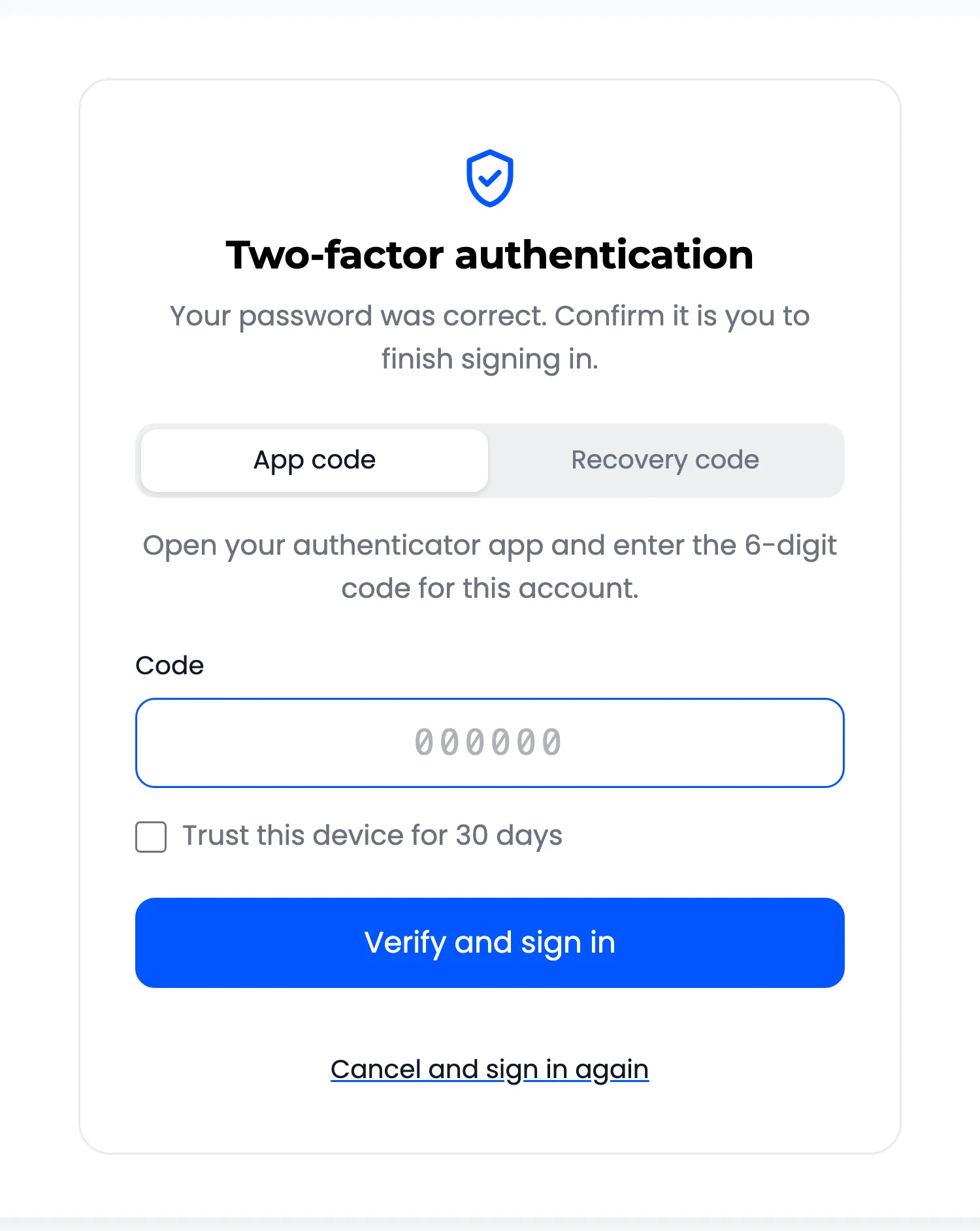
The code screen is valid for 10 minutes. She types the code from her app, and the form sends itself at the sixth digit. She lands where she was heading, signed in.
4. What the plugin checks
Section titled “4. What the plugin checks”- The code matches her secret for the current 30 second slot. Clock Tolerance decides how many slots either side count.
- The code is newer than her last one. A code that signed in once never works again, even inside its 30 seconds.
- The account is not locked. Five wrong codes in a row block sign in for 15 minutes, by default.
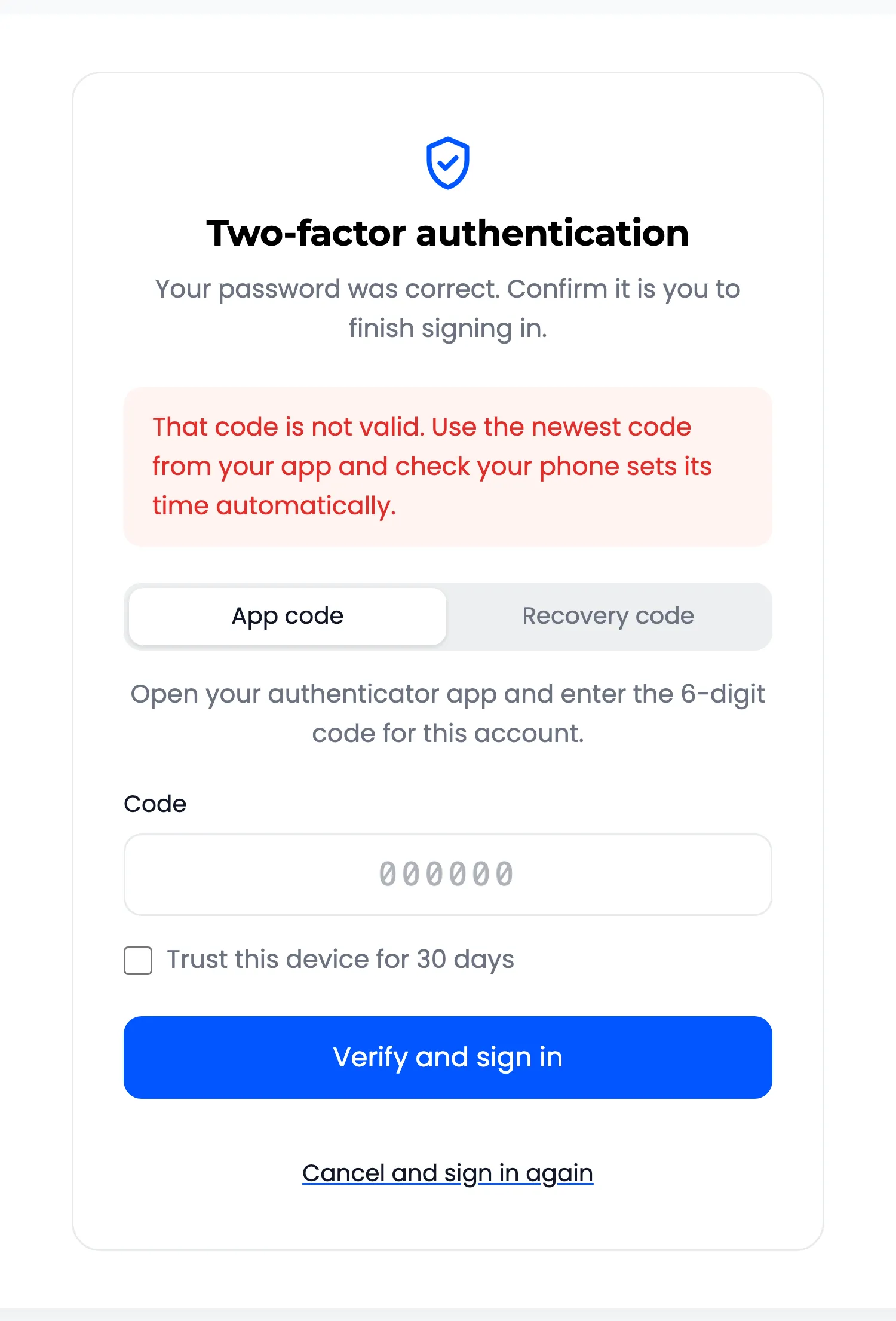
A wrong code shows “That code is not valid” and counts towards the lockout.
5. She trusts her laptop
Section titled “5. She trusts her laptop”On her own laptop, Amara ticks Trust this device for 30 days before typing the code. The browser keeps a random cookie that scripts cannot read, and your site keeps only its scrambled copy.
For 30 days that browser signs in with the password alone. Another browser still asks for the code.
6. She loses her phone
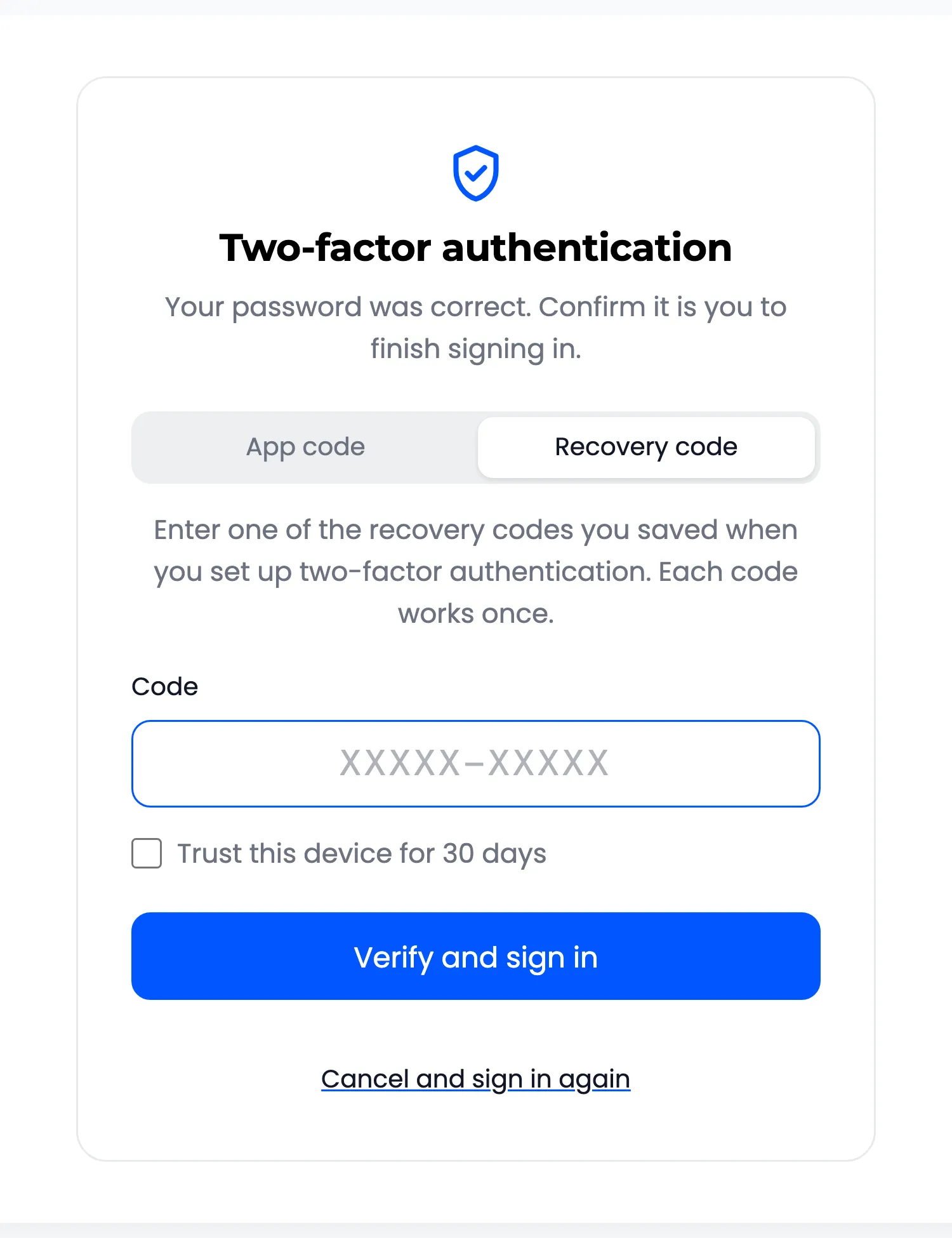
Section titled “6. She loses her phone”Amara picks Recovery code on the code screen and types one of her saved codes. She is in, that code is spent, and she gets an email saying how many are left.
What is recorded
Section titled “What is recorded”Every step above is a row on the Activity screen, with the time, the IP address and the browser: 2FA turned on, recovery codes created, login verified, wrong code, trusted device login, recovery code used. The dashboard counts them.
Where else it works
Section titled “Where else it works”The same code step follows every password sign in: the checkout login form, the WordPress login screen, and custom login forms that sign in through WordPress. Apps that connect over XML-RPC or the REST API need an application password instead. See The Customer Experience.