

How to Require 2FA for Administrators and Shop Managers
Staff accounts can see orders and customer data, so they are the ones worth protecting first. On the demo the rule was set for the Editor role, and Fred Nerk, an editor, went through every stage below.
Step 1: Pick the roles
Section titled “Step 1: Pick the roles”Open Configuration → Required 2FA and add the roles to Required for Roles.
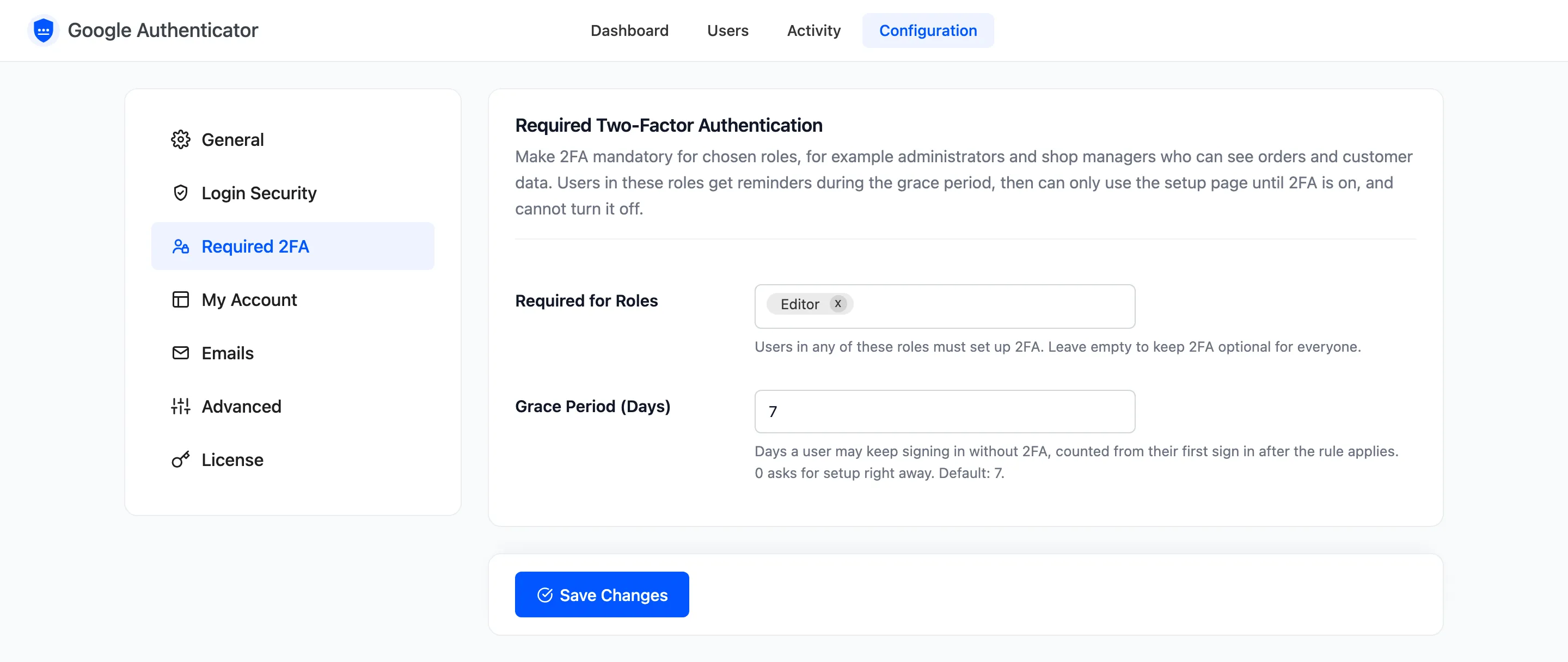
Set up 2FA on your own account first. Excluded users are never required, so a service account in a staff role keeps working. See How to Exclude Service Accounts from 2FA.
Step 2: Set the grace period
Section titled “Step 2: Set the grace period”Grace Period (Days) is 7 by default. It starts at each user’s first sign in after you save the rule. 0 asks for setup straight away.
Step 3: During the grace period
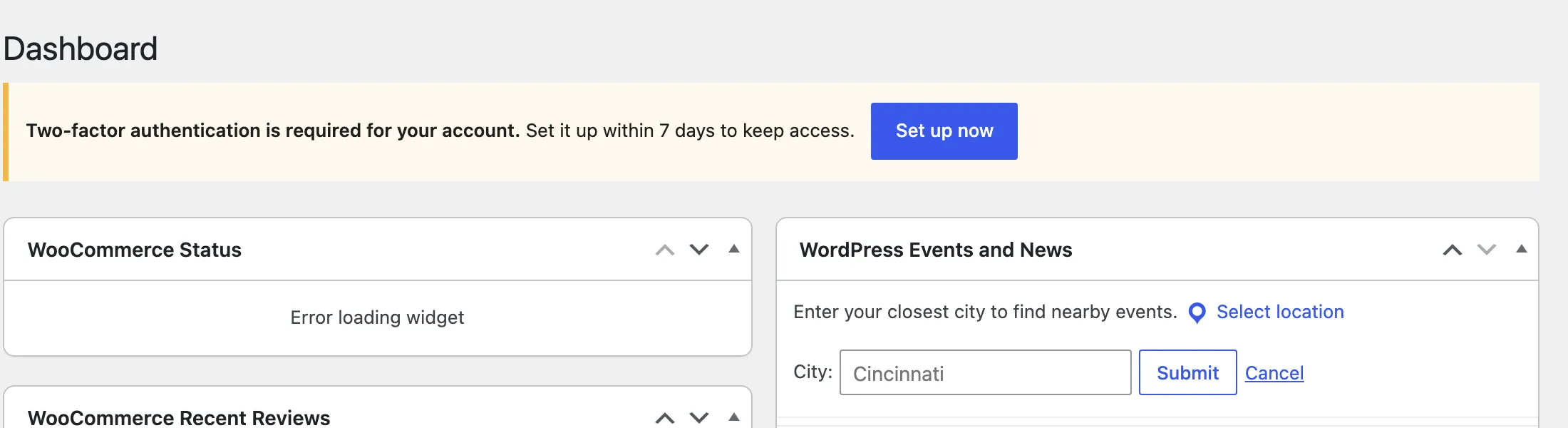
Section titled “Step 3: During the grace period”Fred signed in and found a reminder in wp-admin with the days left and Set up now.
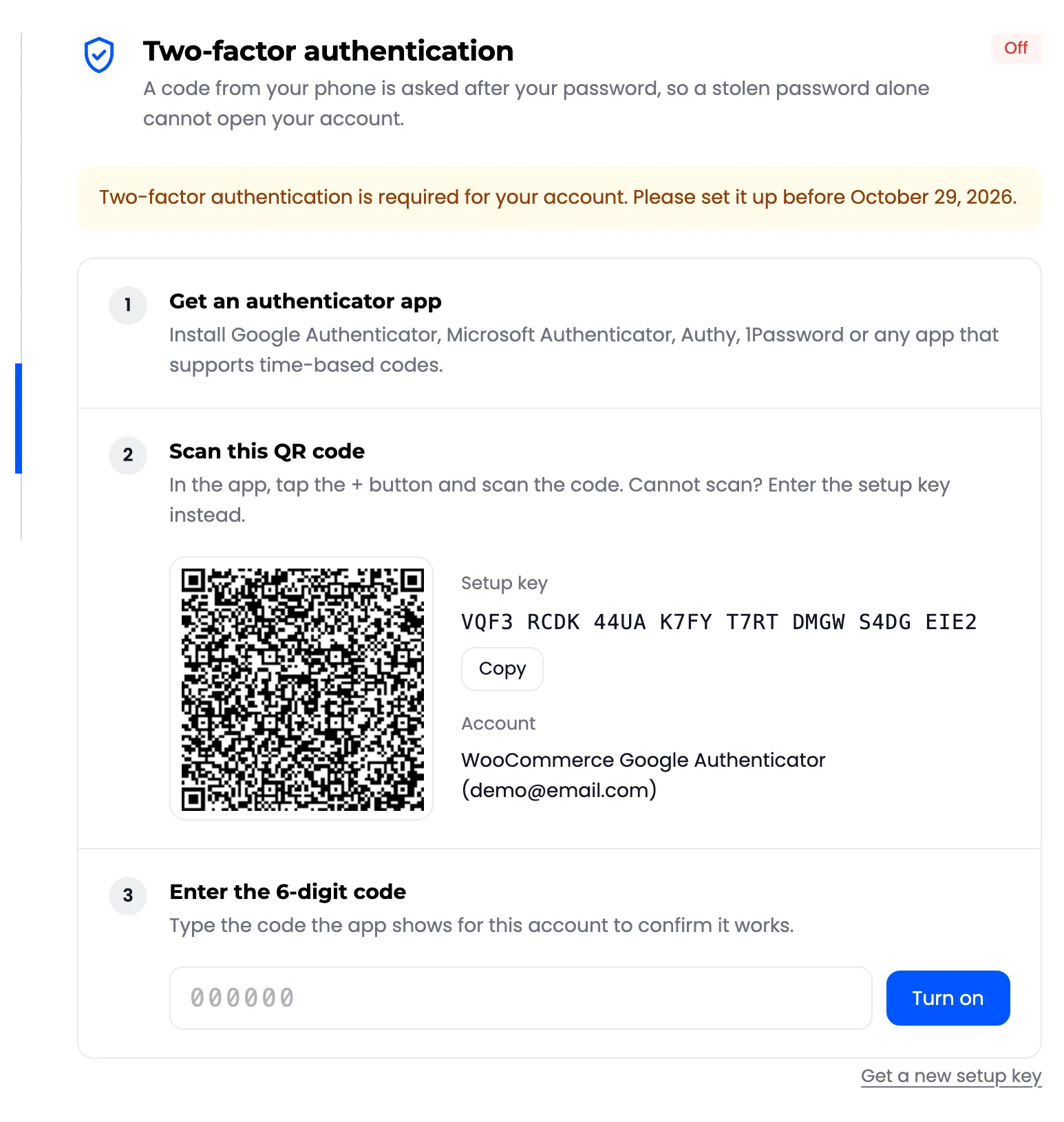
His setup page gave the deadline.
Step 4: After the grace period
Section titled “Step 4: After the grace period”Eight days later, every page Fred opened, in the shop and in wp-admin, sent him to the setup page: “Set it up below to continue.” He could still log out.
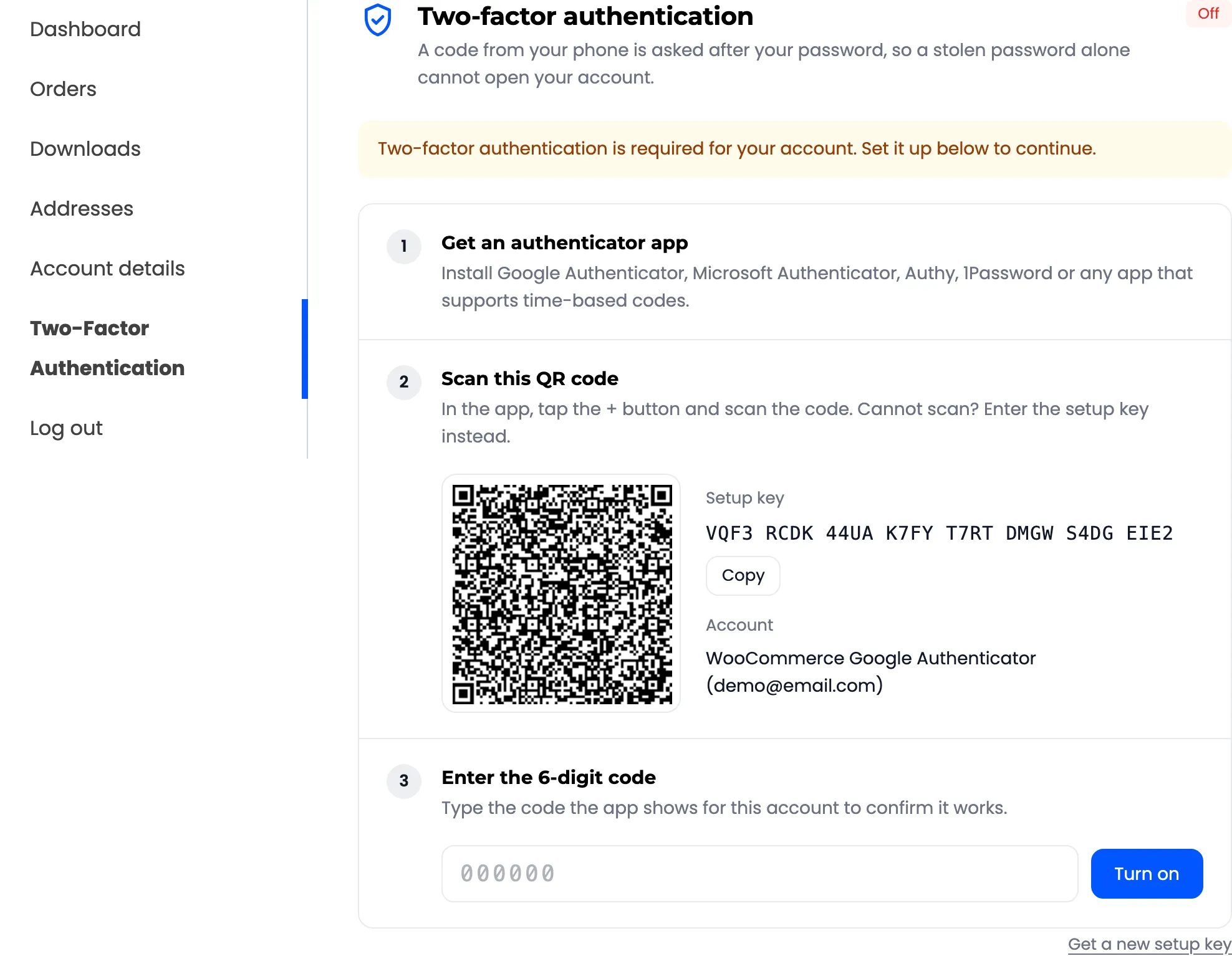
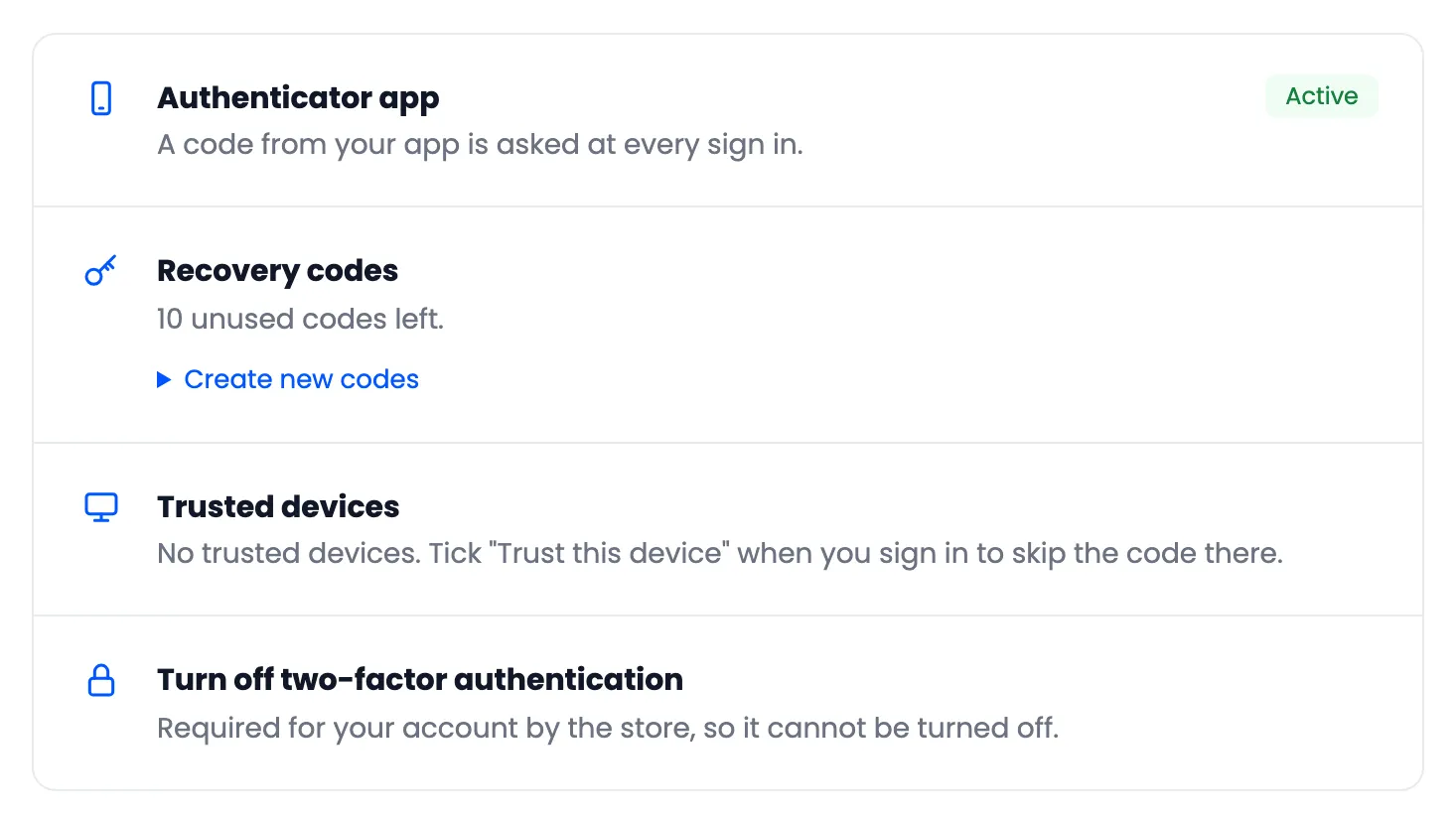
Once he turned 2FA on, wp-admin opened normally. His security page now says it cannot be turned off.
Watch who still needs it
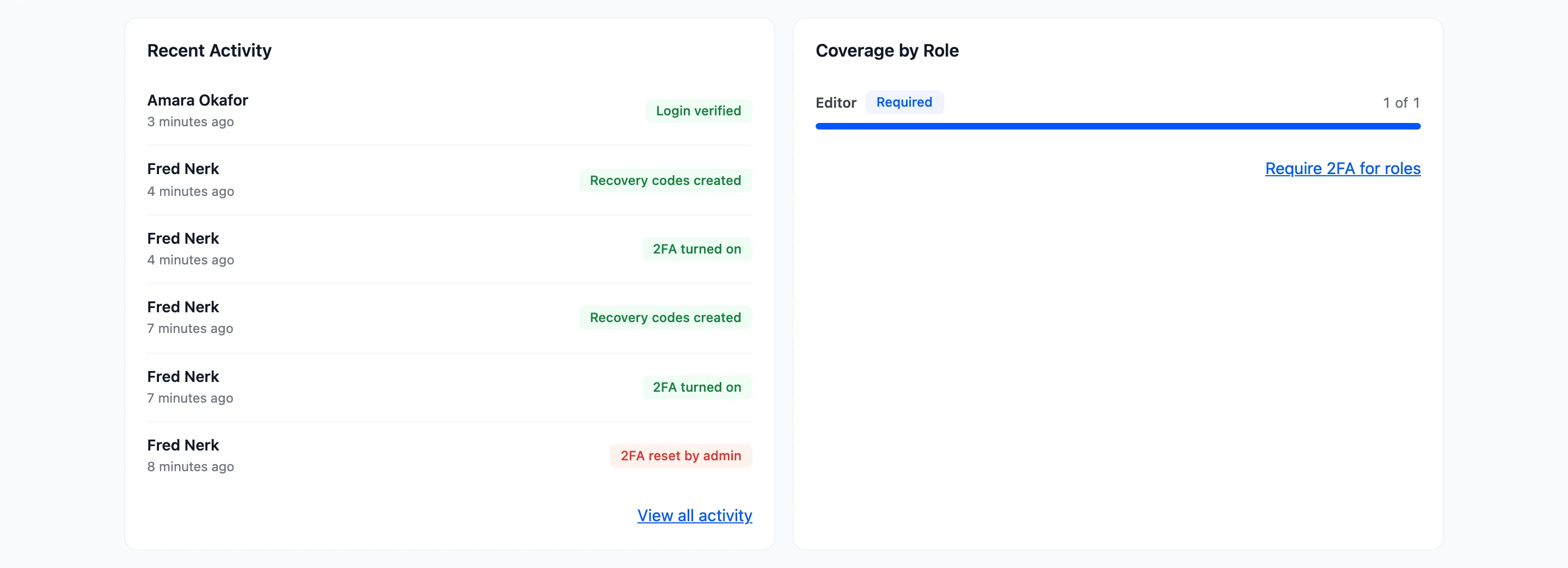
Section titled “Watch who still needs it”- The dashboard card Required, Not Set Up counts them, and Coverage by Role shows each required role.
- The Setup Required view on the Users screen lists them by name.
Good to know
Section titled “Good to know”- Resetting a required user’s 2FA starts a new grace period at their next visit.
- Background requests keep working past the deadline, so no part of the site breaks.
- Turn off Email Code for staff if you can. Anyone who reads their mailbox could use it.