

Login Security Settings
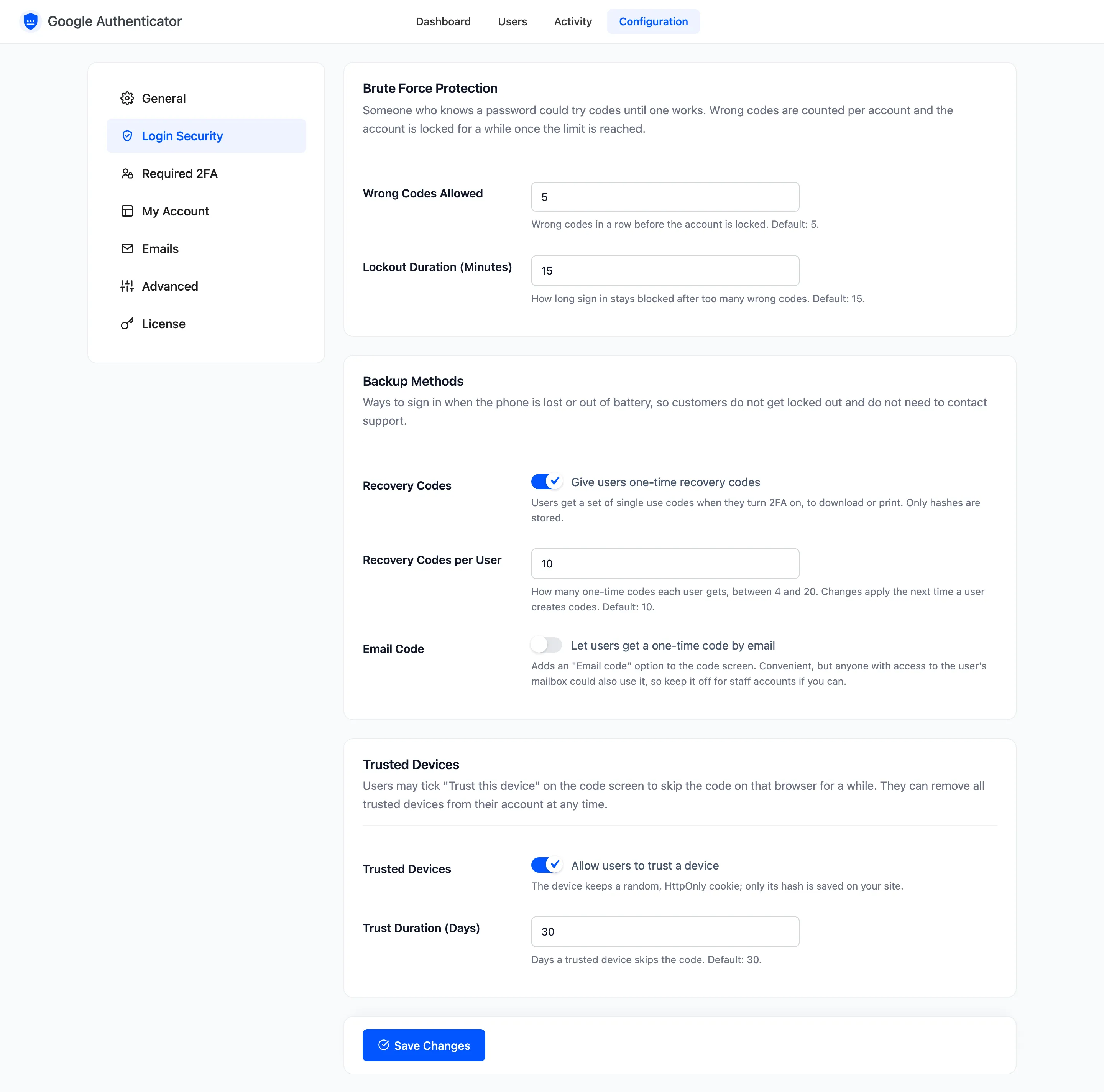
The Login Security tab has three sections: the lockout, backup methods, and trusted devices. Open Configuration → Login Security.
Brute Force Protection
Section titled “Brute Force Protection”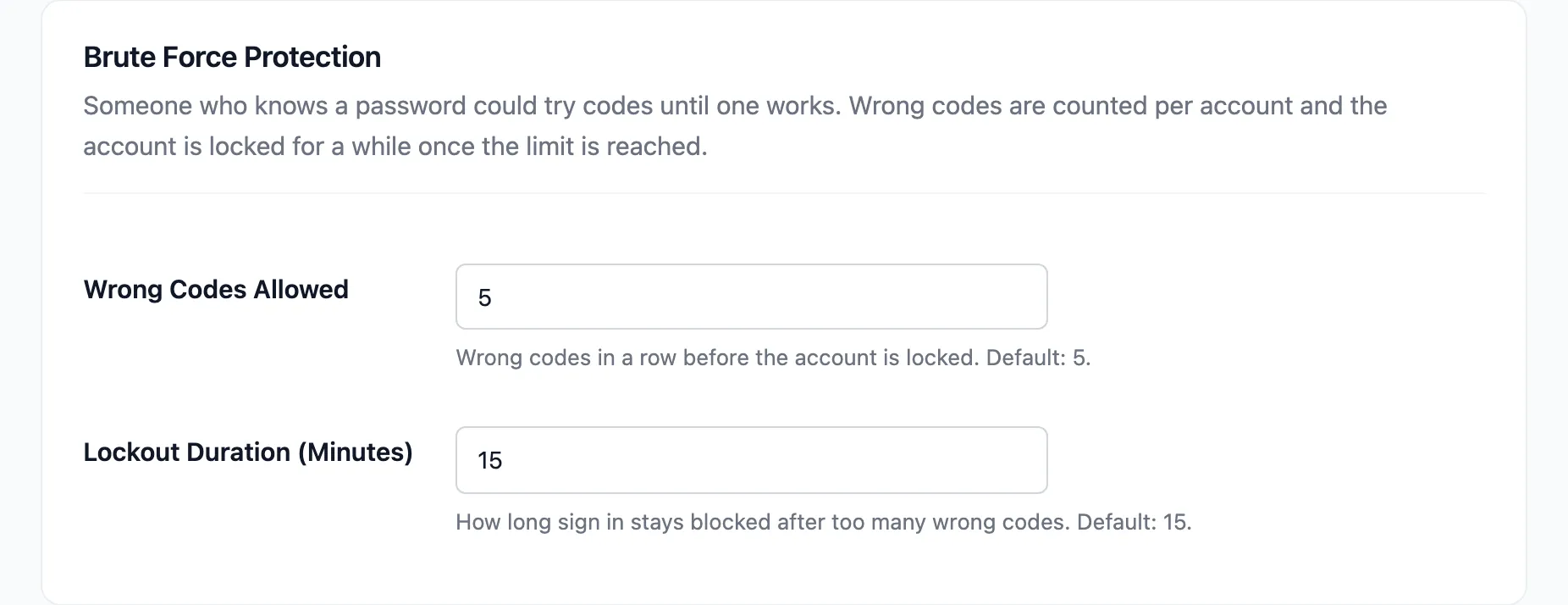
- Wrong Codes Allowed: Default 5, from 1 to 20. Wrong codes in a row before the account is locked. A correct code sets the count back to zero.
- Lockout Duration (Minutes): Default 15, up to 1,440 (a day).
Wrong codes count per account, not per IP address. They are counted on the code screen, on custom forms that post the code with the password, and when someone types a wrong code to turn 2FA off or create new recovery codes. A typo while setting up 2FA is not counted.
A locked account cannot sign in with its password either, until the time is up. See How to Lock Out Repeated Wrong Codes.
Backup Methods
Section titled “Backup Methods”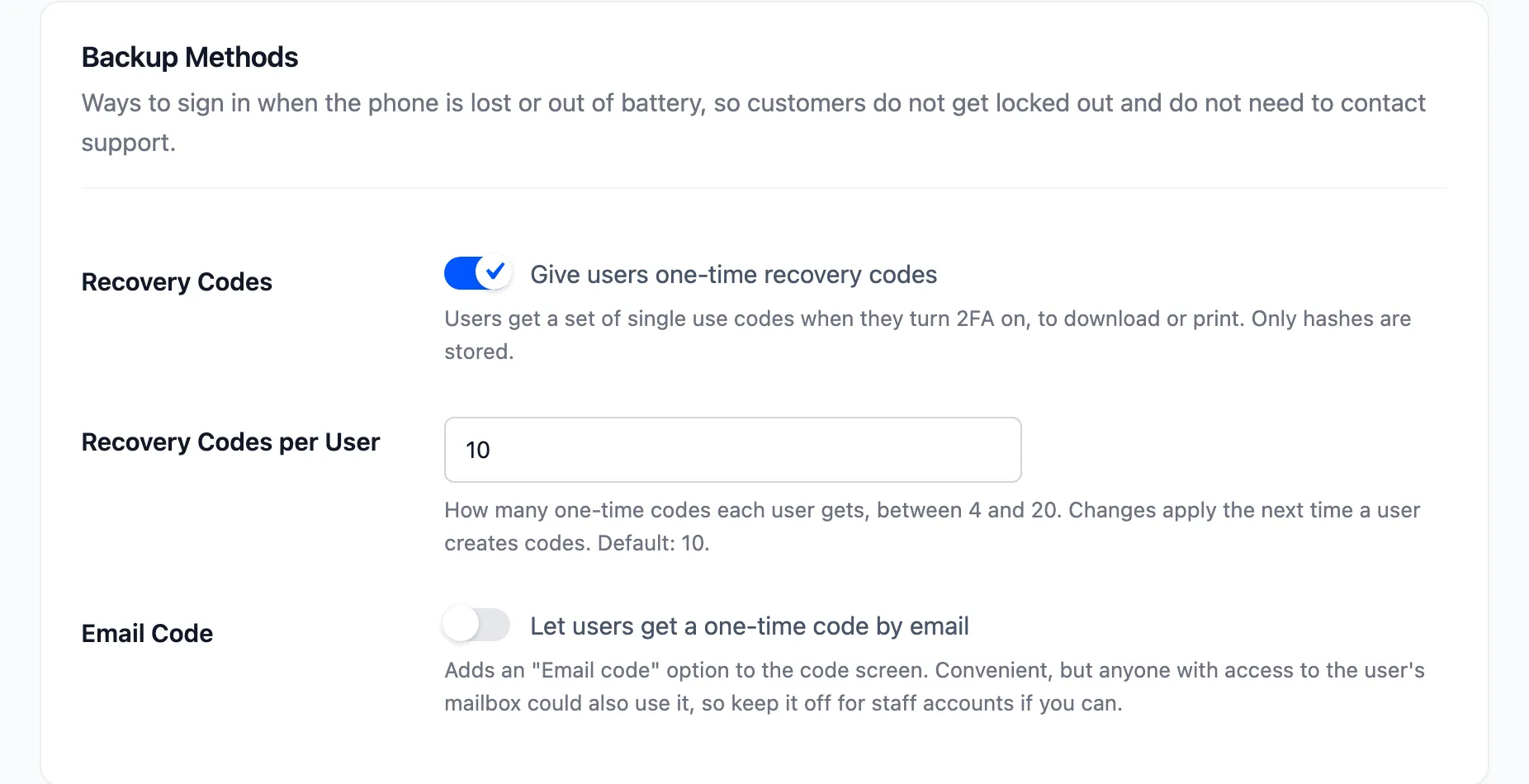
- Recovery Codes: Ticked by default. Users get one-time codes when they turn 2FA on, shown once, to copy, download or print. Only scrambled copies are stored.
- Recovery Codes per User: Default 10, from 4 to 20. A change applies the next time a user creates codes.
- Email Code: Off by default. Adds an Email code tab to the code screen, which sends a one-time code to the account’s email address. Anyone who can read that mailbox could use it too, so keep it off for staff if you can.
An email code has 6 digits and lasts 10 minutes. A customer can ask for one per minute, and three per sign in.
Trusted Devices
Section titled “Trusted Devices”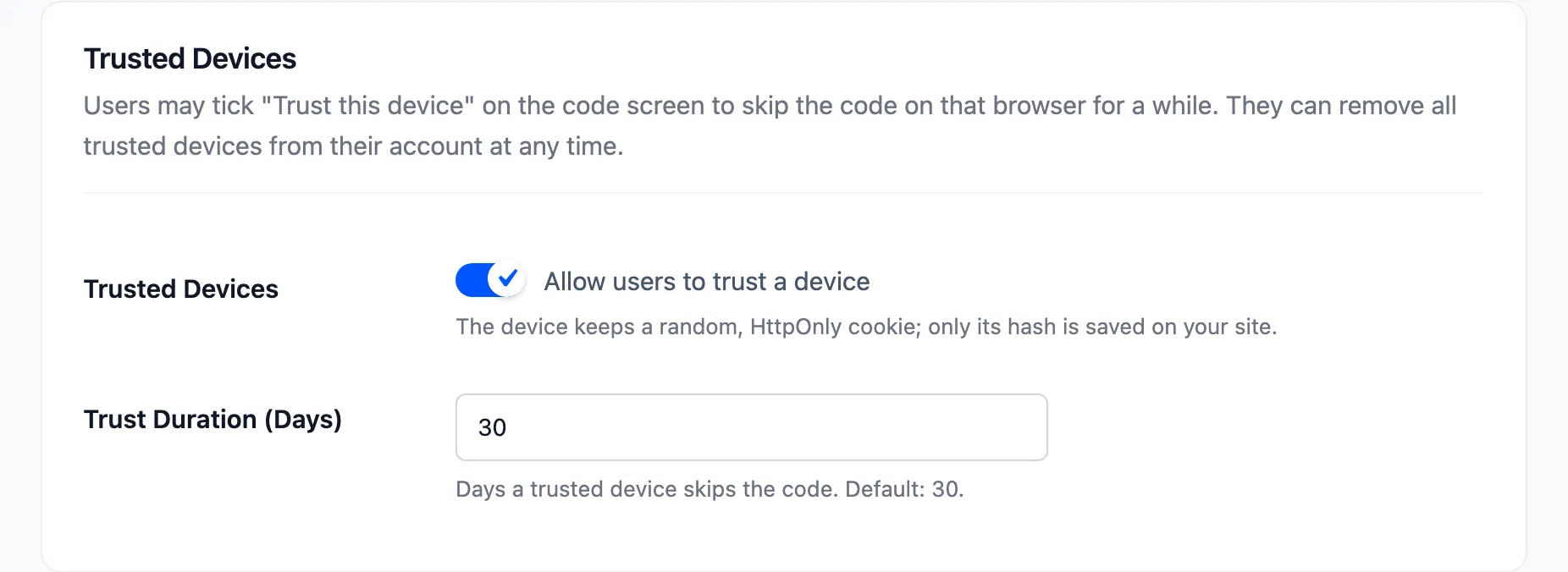
- Trusted Devices: Ticked by default. Adds Trust this device to the code screen.
- Trust Duration (Days): Default 30, from 1 to 365.
A trusted browser signs in with the password alone until the time is up. Customers can remove all their trusted devices from My Account. Each user keeps up to ten. Unticking the setting stops every trusted device from skipping the code.