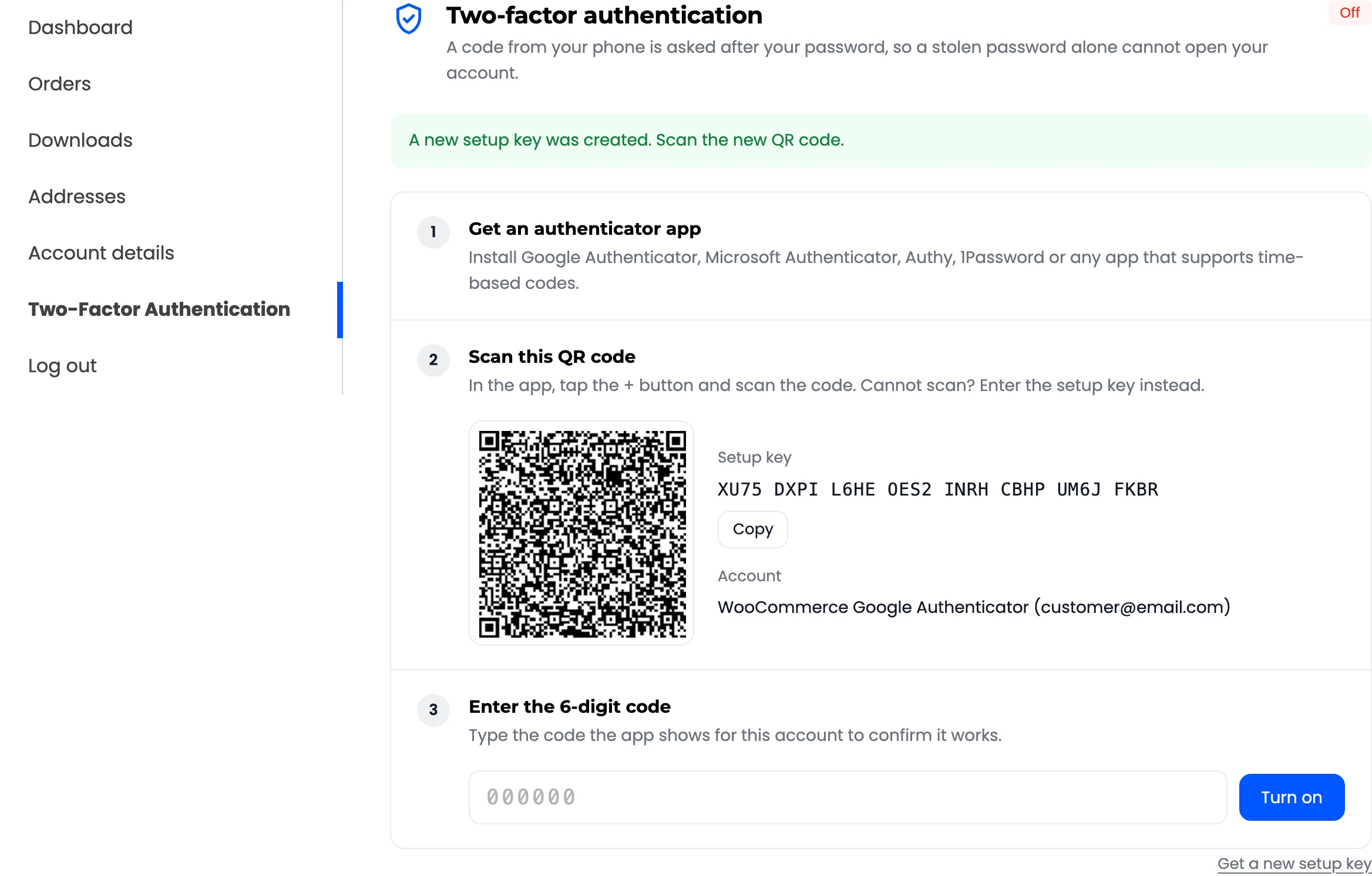
How to Turn On Two-Factor Authentication in My Account
This is what your customers do to protect their account. It takes about a minute. Staff set it up the same way, from their own My Account page.
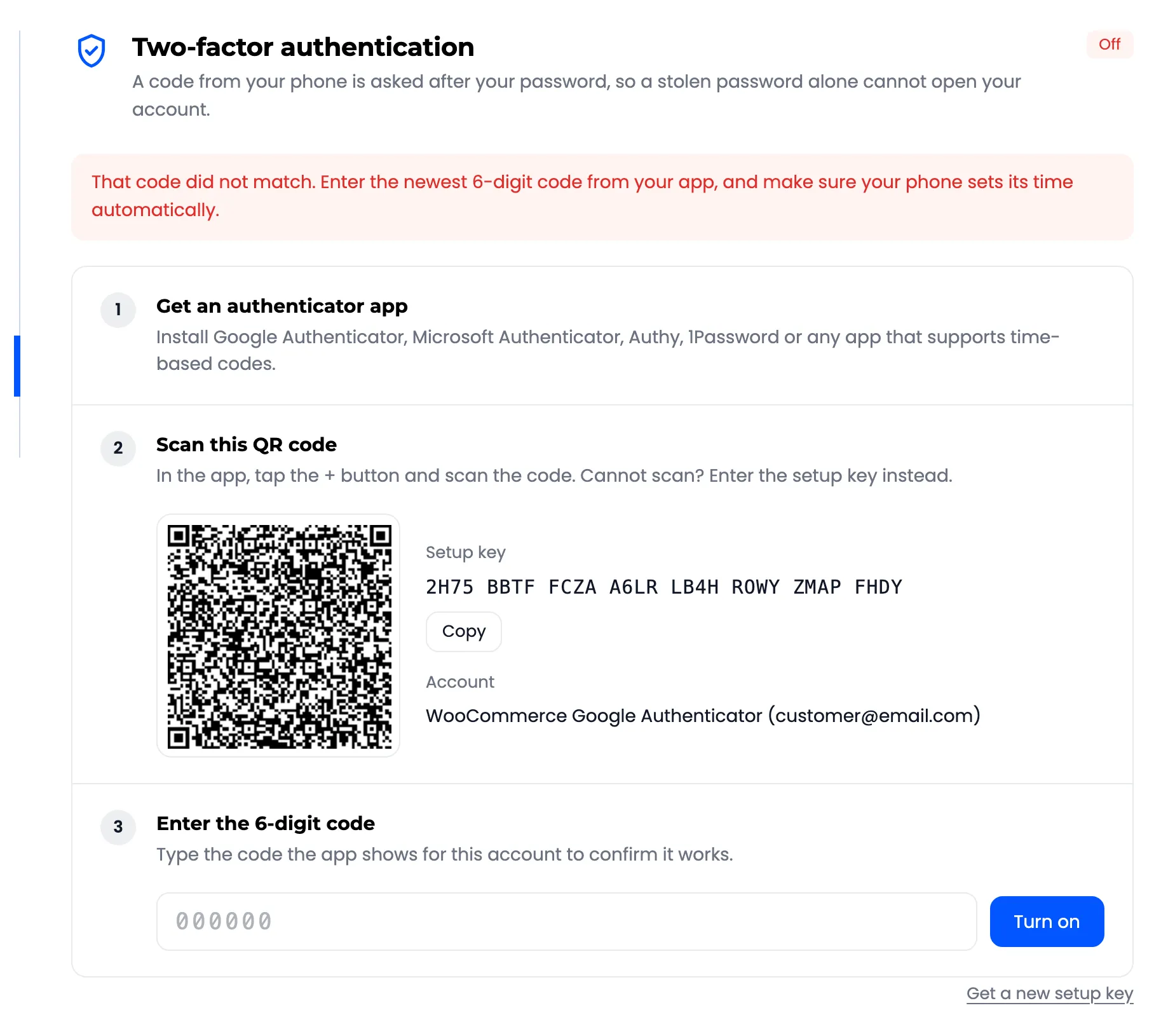
Step 1: Open the setup page
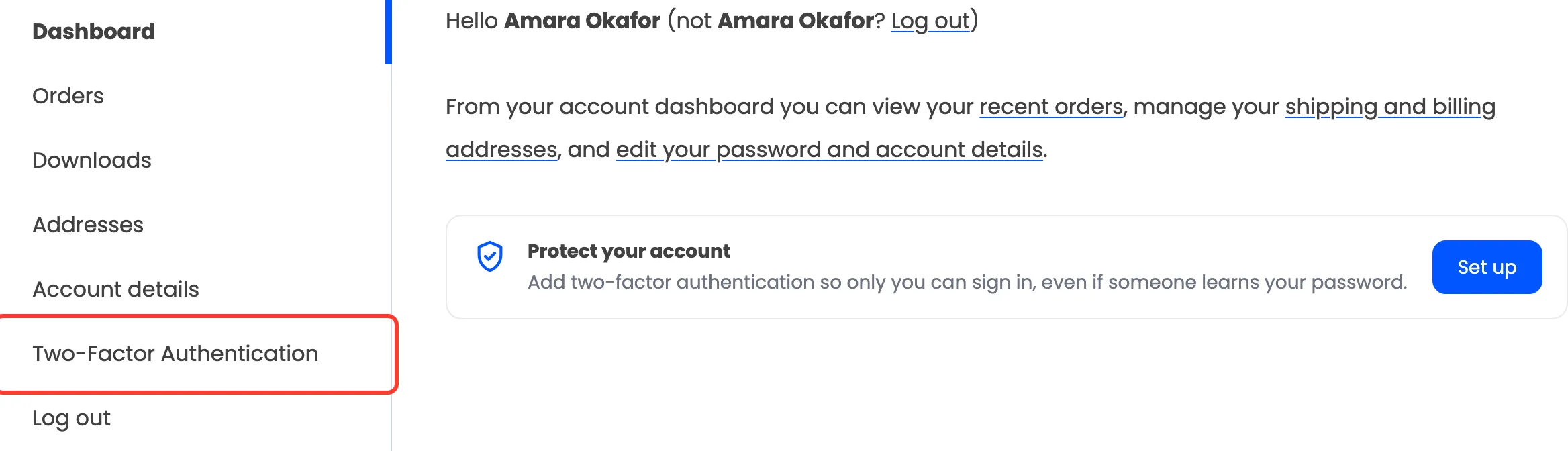
Section titled “Step 1: Open the setup page”In My Account, click Two-Factor Authentication. Customers can also press Set up on the reminder card on their dashboard.
The page shows three numbered steps, with Off in the corner.
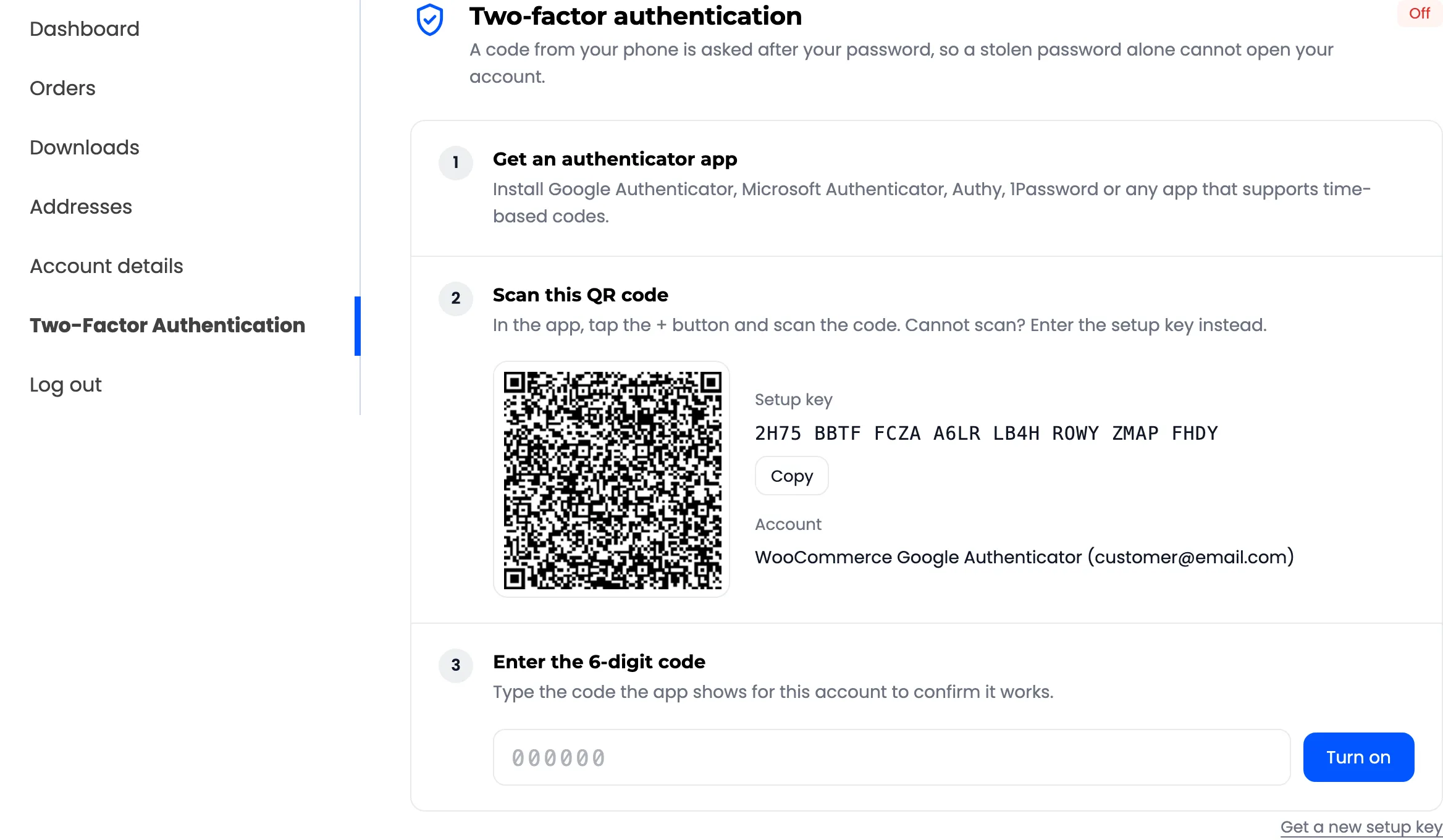
Step 2: Get an authenticator app
Section titled “Step 2: Get an authenticator app”Any app that makes time-based codes works: Google Authenticator, Microsoft Authenticator, Authy, 1Password, Bitwarden and others. A customer who already uses one adds your store to it.
Step 3: Scan the QR code
Section titled “Step 3: Scan the QR code”In the app, tap the + button and scan the code. The app adds an account named after your store, with the customer’s email.
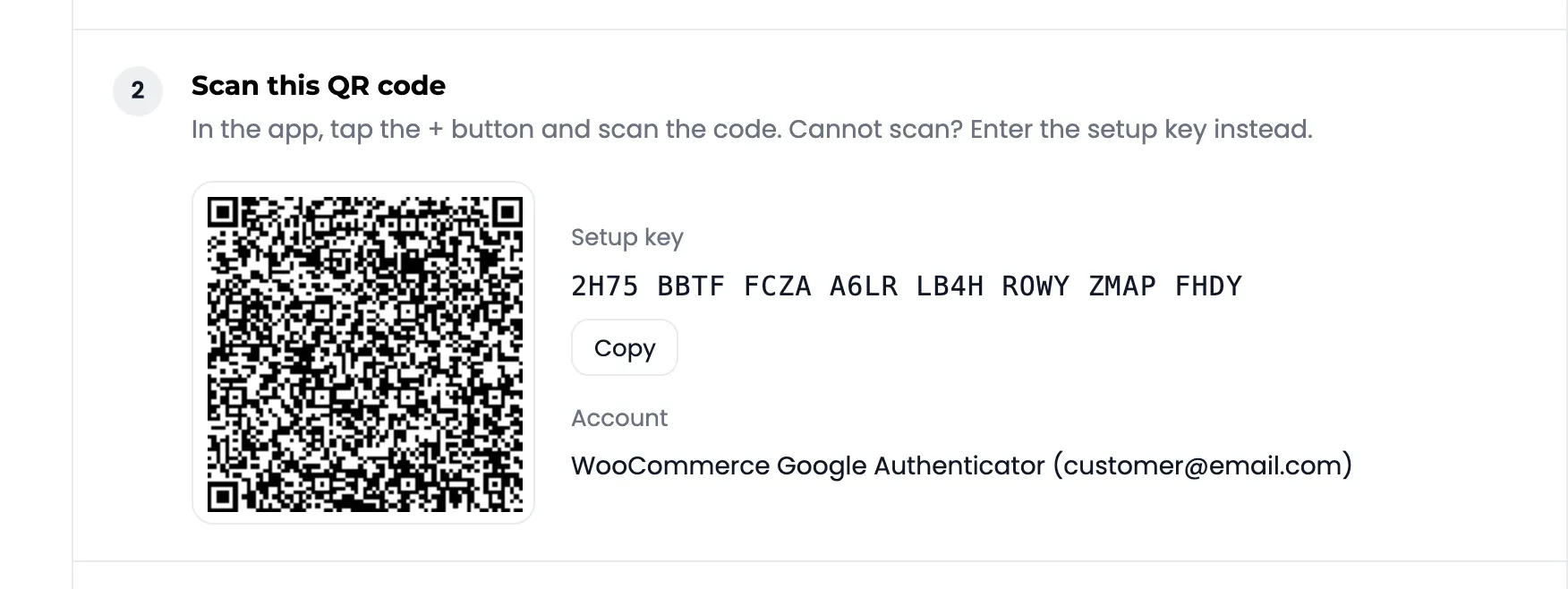
Cannot scan, for example on the phone that has the app? Type the Setup key into the app instead. Copy copies it without the spaces.
Step 4: Type the code and turn it on
Section titled “Step 4: Type the code and turn it on”Type the 6-digit code the app shows for your store, then press Turn on.
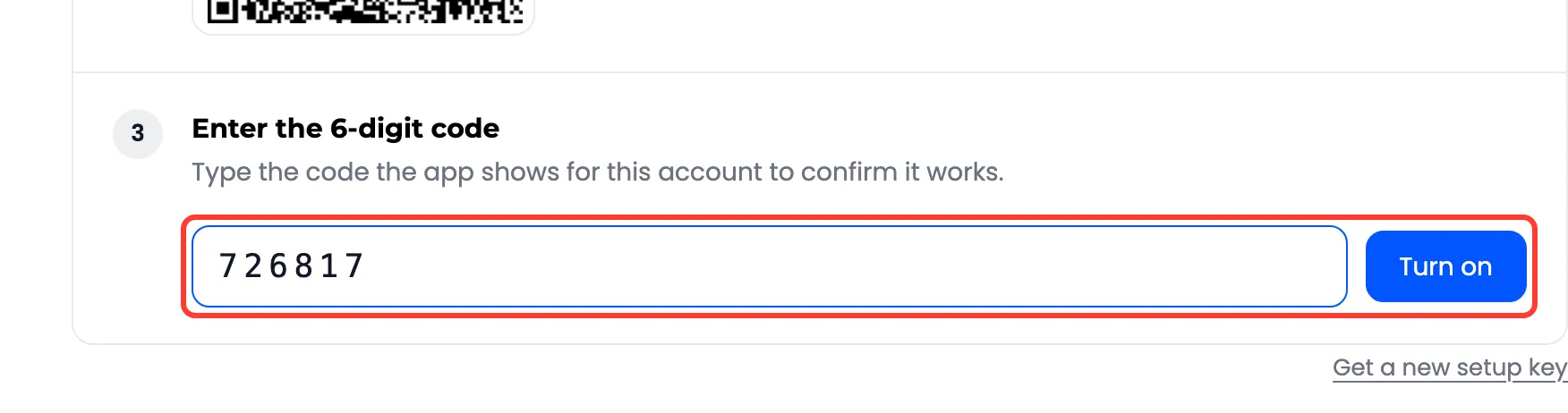
A typo shows “That code did not match” and nothing changes. Type the newest code and try again. A code that never matches usually means the phone’s clock is off: set it to update automatically.
Step 5: Save the recovery codes
Section titled “Step 5: Save the recovery codes”2FA is now on. The page shows ten recovery codes, once.
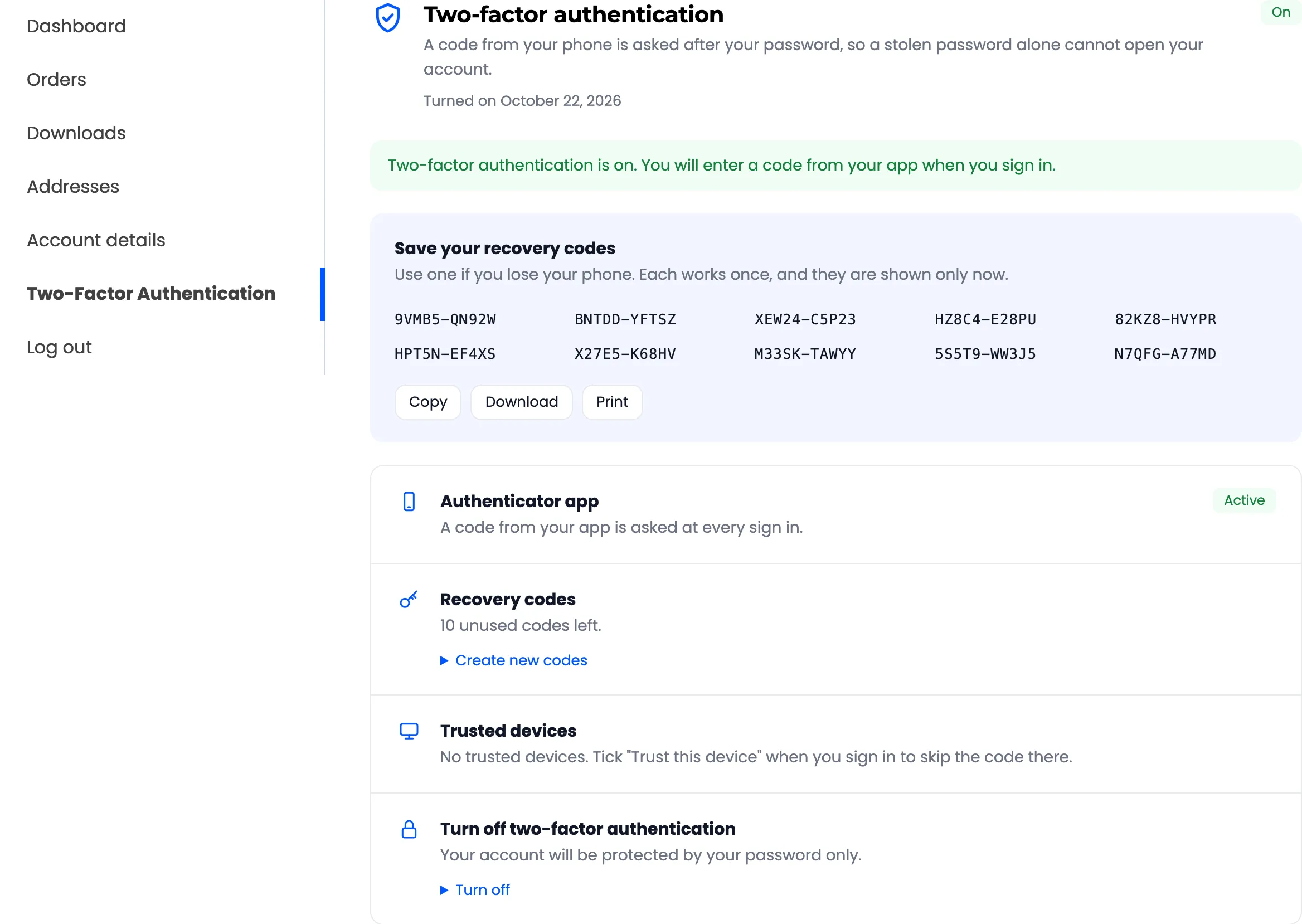
Copy, Download or Print them and keep them somewhere other than the phone. Download saves a text file named after your store. After a reload the codes are gone from the page for good, and only the number left shows.
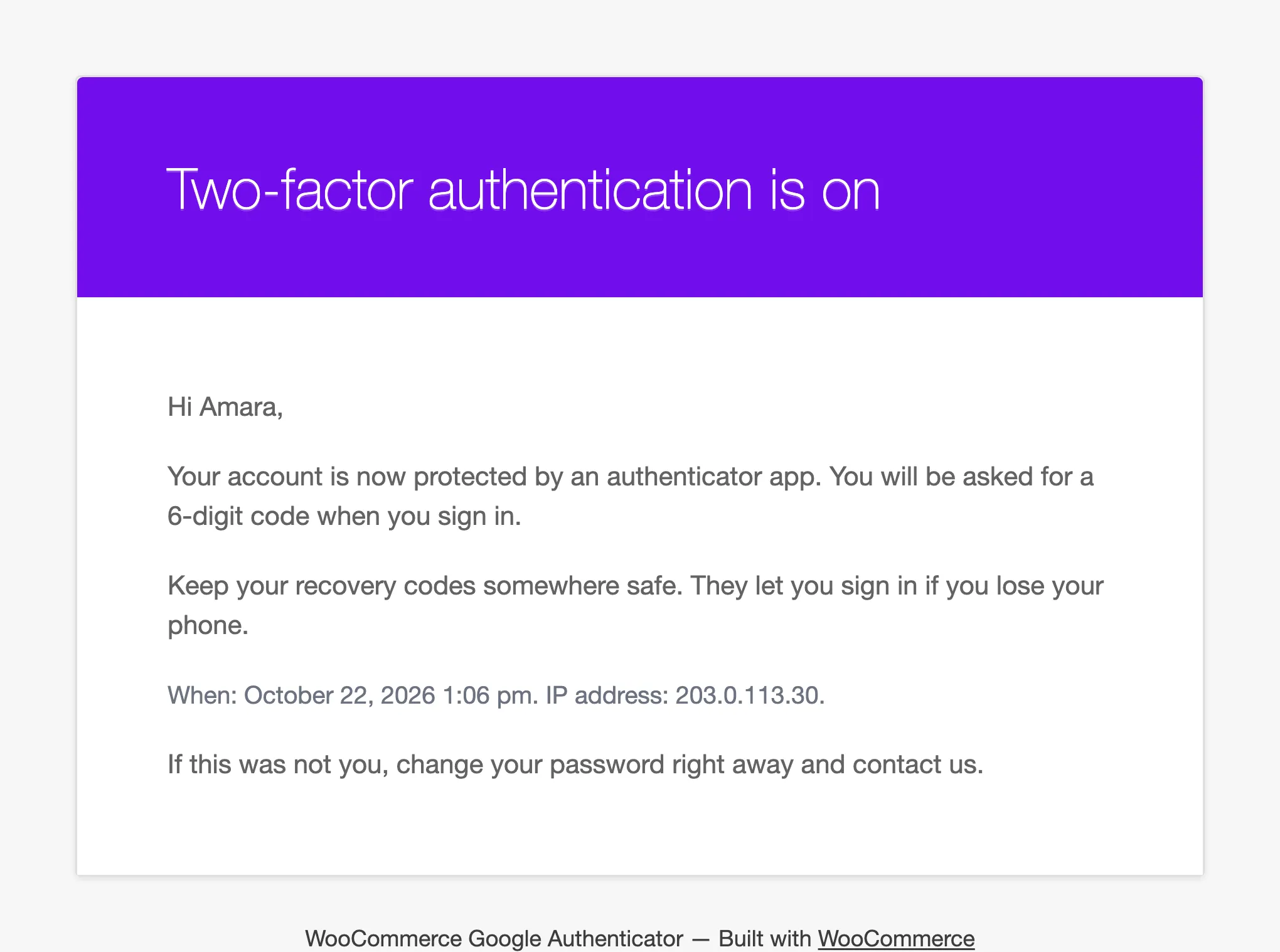
The customer also gets an email saying 2FA is on.
Get a new setup key
Section titled “Get a new setup key”Shared a screenshot of the QR code by mistake? Before turning 2FA on, Get a new setup key under the steps makes a new one. The old QR code stops working.