

How to Sign In with a Recovery Code
Recovery codes are the way in when the phone is lost, broken or flat. Each works once.
Step 1: Sign in with the password
Section titled “Step 1: Sign in with the password”As usual, on any login form.
Step 2: Pick Recovery code
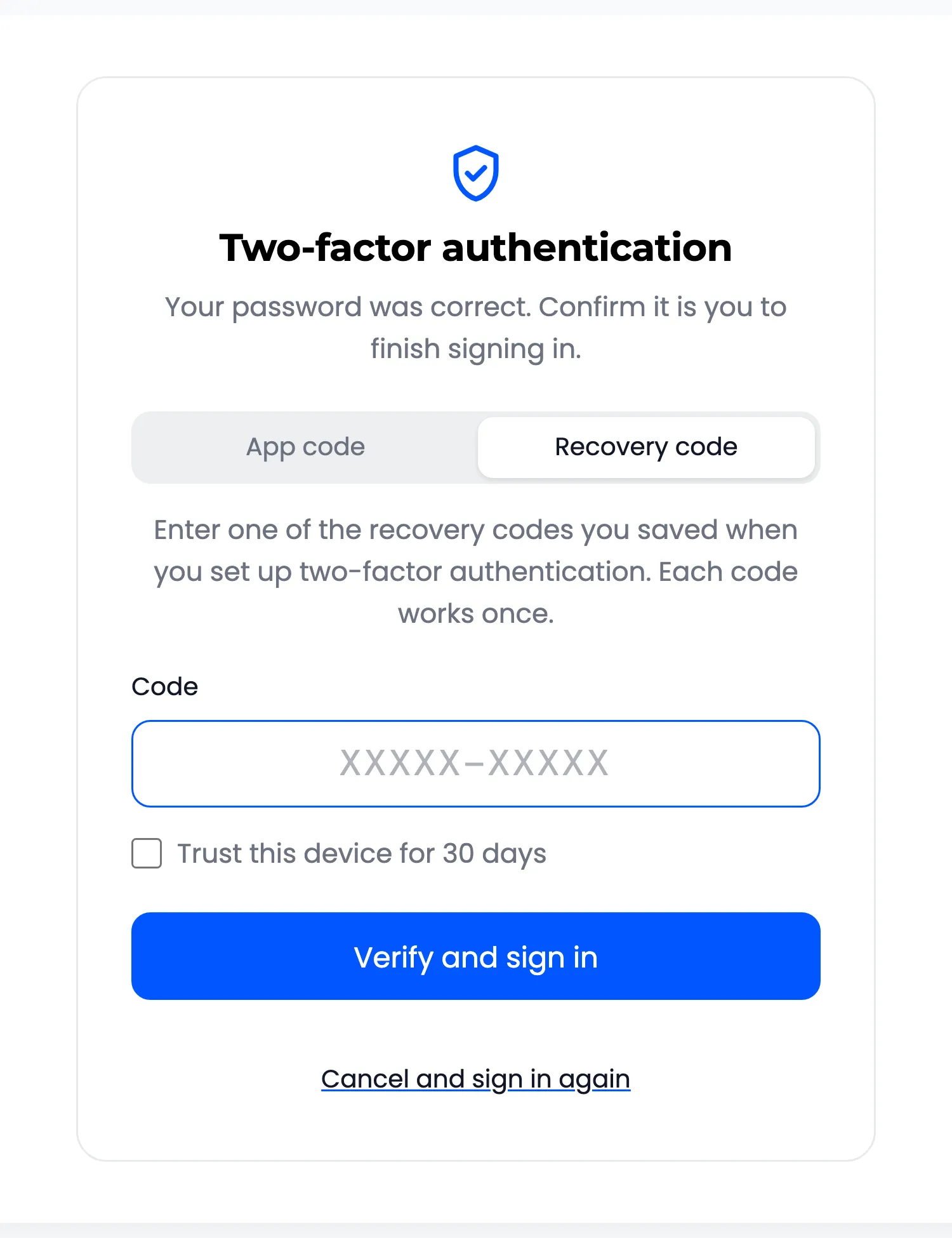
Section titled “Step 2: Pick Recovery code”On the code screen, click Recovery code. The tab only shows while the customer has codes left.
Step 3: Type a recovery code
Section titled “Step 3: Type a recovery code”Type one saved code and press Verify and sign in. Capitals and the dash do not matter.
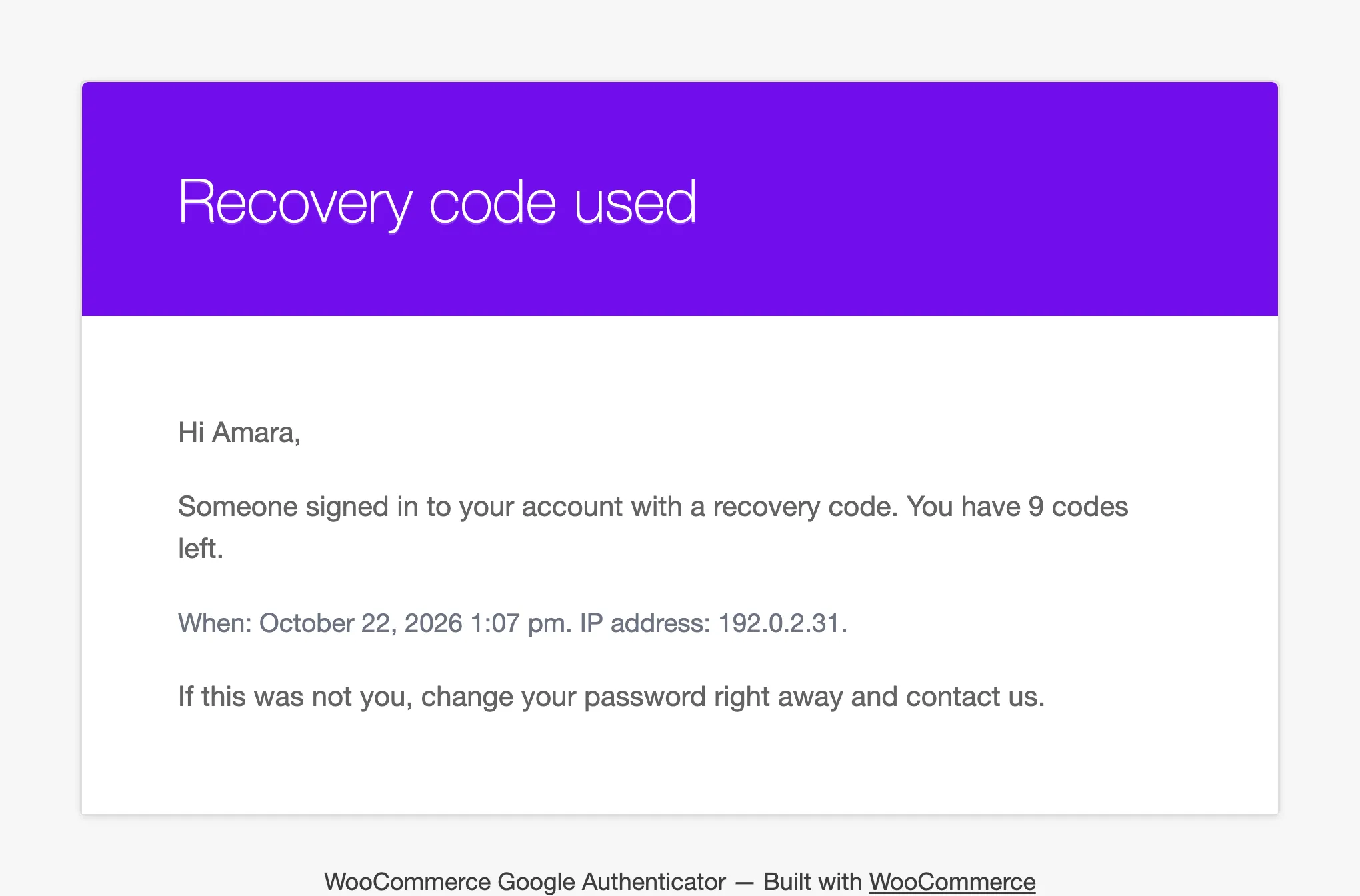
The customer is signed in, the code is spent, and they get an email with the number left.
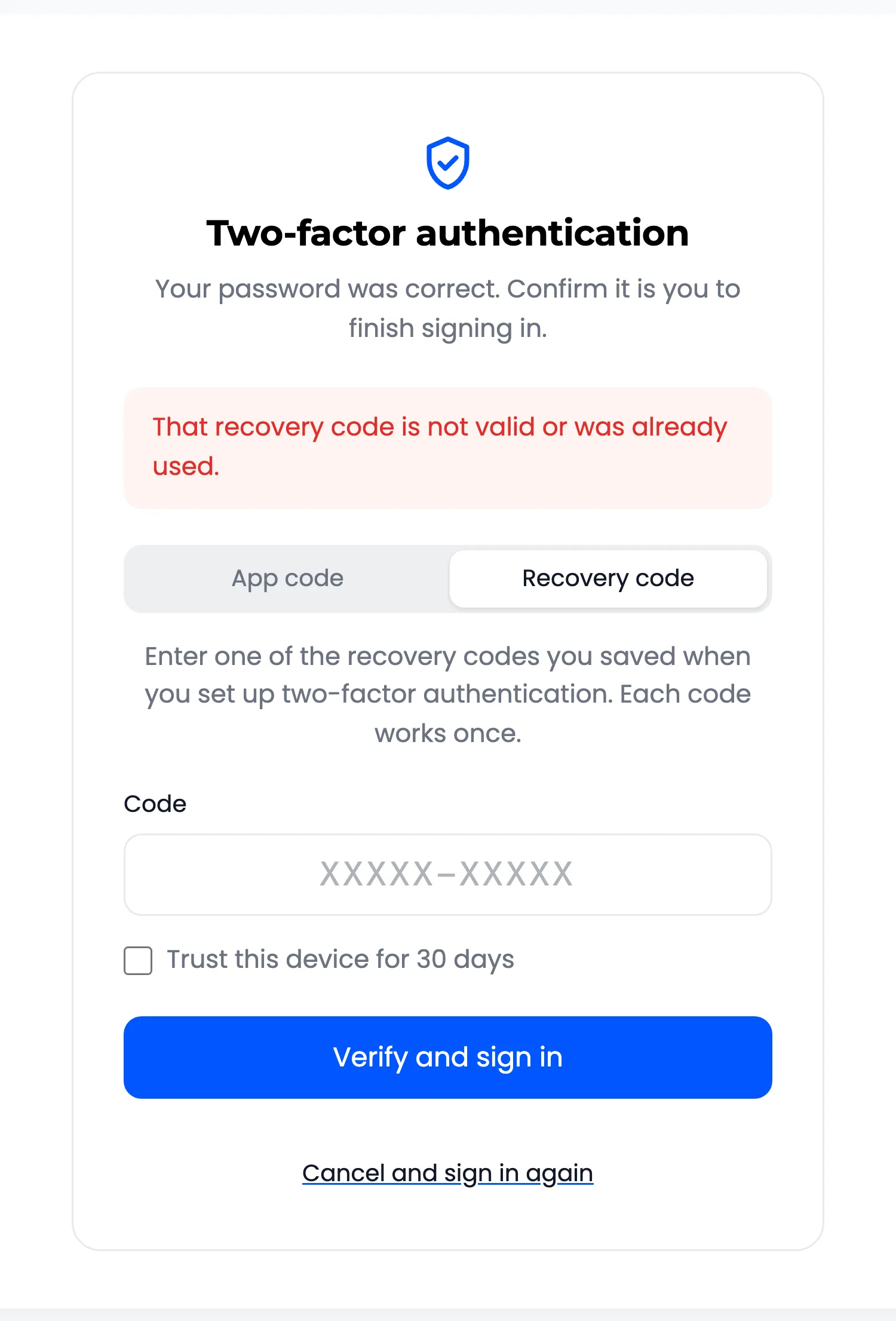
The same code a second time is refused: “That recovery code is not valid or was already used.” Wrong recovery codes count towards the lockout.
Step 4: Check what is left
Section titled “Step 4: Check what is left”My Account → Two-Factor Authentication shows one code fewer.
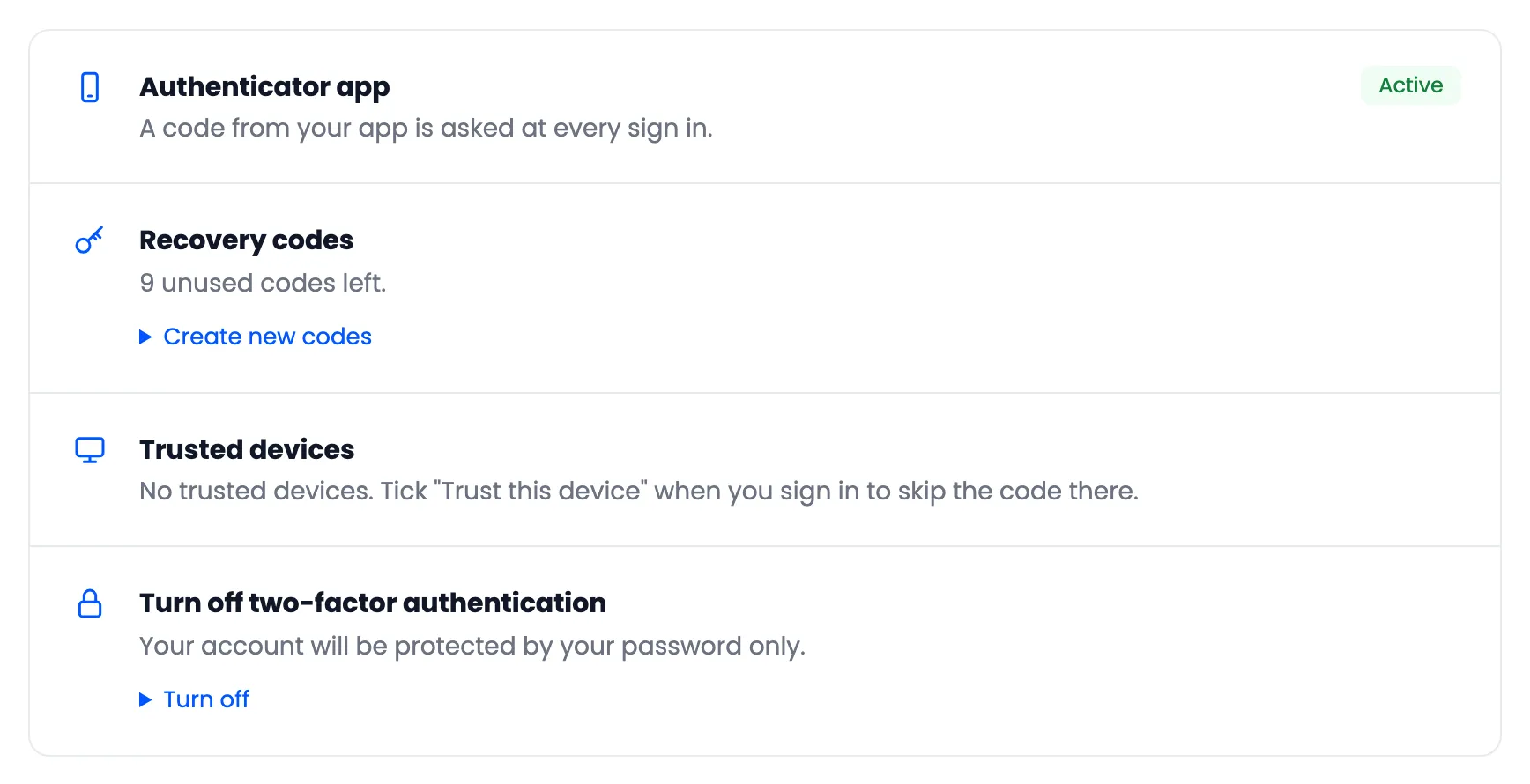
When only a few are left, they create a new set. See How to Create New Recovery Codes.
No codes and no phone
Section titled “No codes and no phone”The customer asks you. Reset their 2FA from the Users screen. See How to Reset a Customer’s 2FA After a Lost Phone.