How to Add 2FA to the WordPress Login Screen
There is nothing to switch on. Every password sign in goes through WordPress’s own check, and the plugin adds the code step there, so wp-login.php is covered too.
Step 1: Set up 2FA on the account
Section titled “Step 1: Set up 2FA on the account”Staff set up 2FA from My Account → Two-Factor Authentication, like customers. Their WordPress profile links there. See How to Turn On Two-Factor Authentication in My Account.
Step 2: Sign in at wp-login.php
Section titled “Step 2: Sign in at wp-login.php”The login screen does not change.
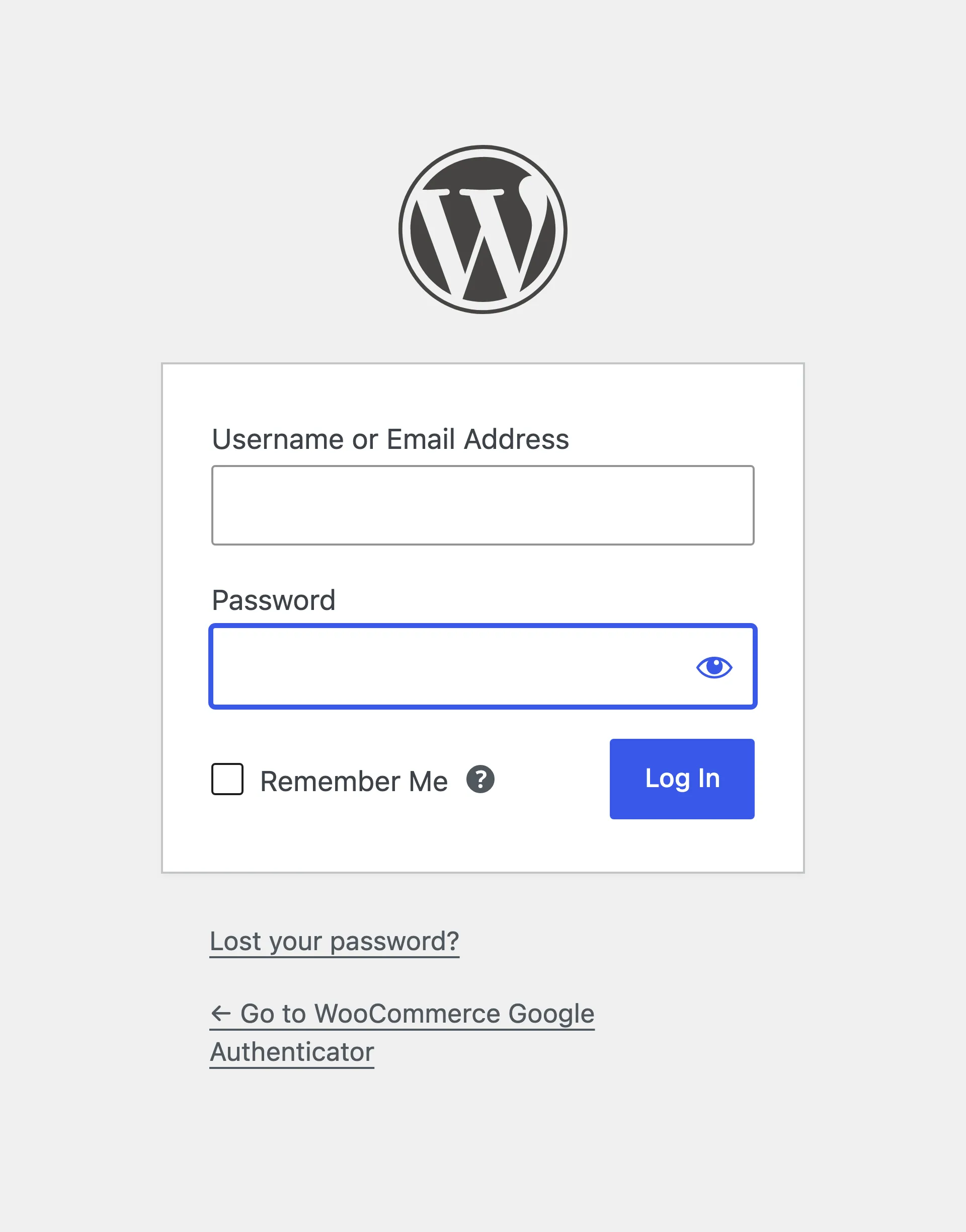
Step 3: Type the code
Section titled “Step 3: Type the code”After a correct password, the code screen opens in place of the login form.
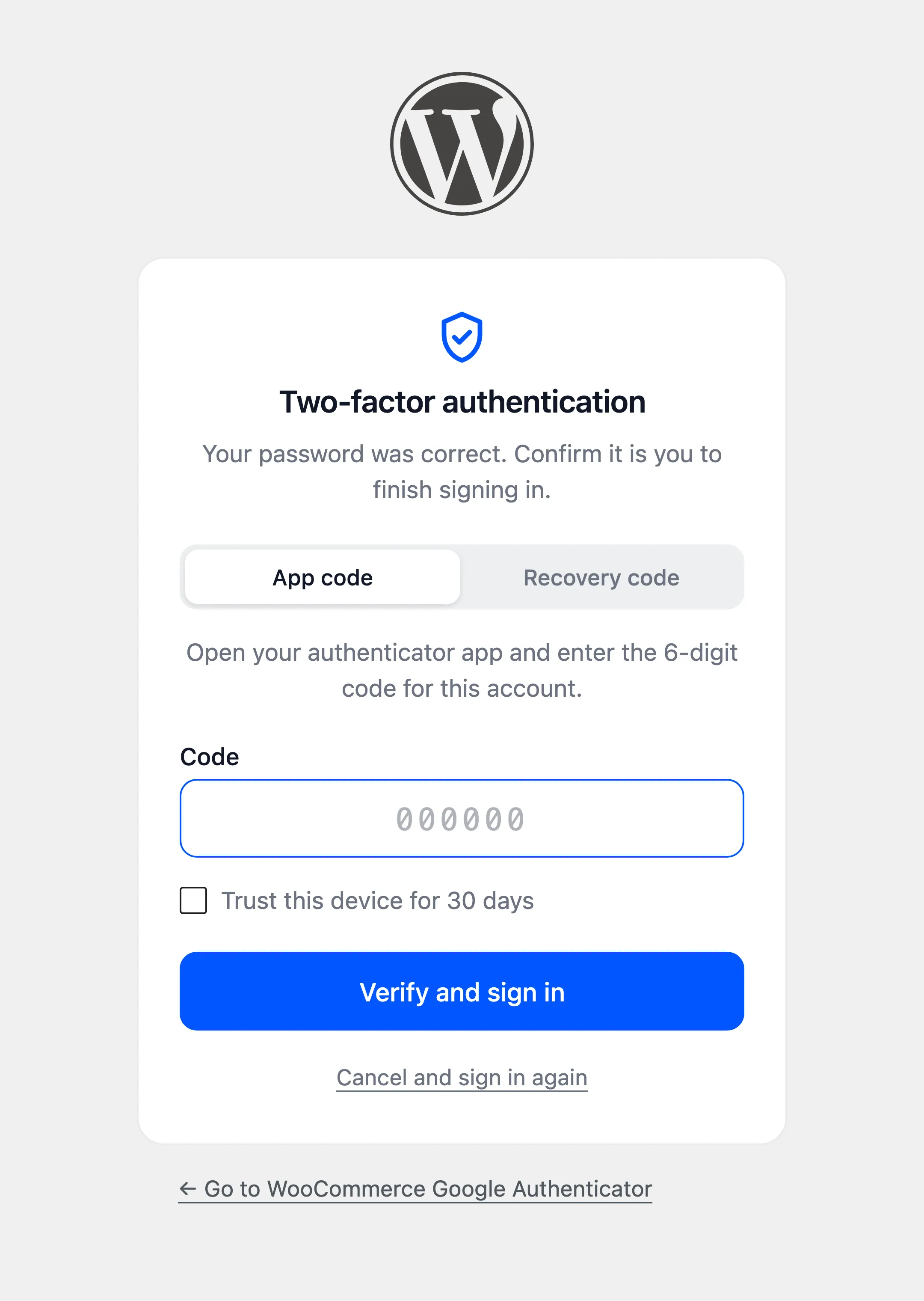
After the code, staff land in wp-admin, or on the page they asked for. Users who cannot use the dashboard go to My Account instead, as on a normal WordPress sign in.
An old link
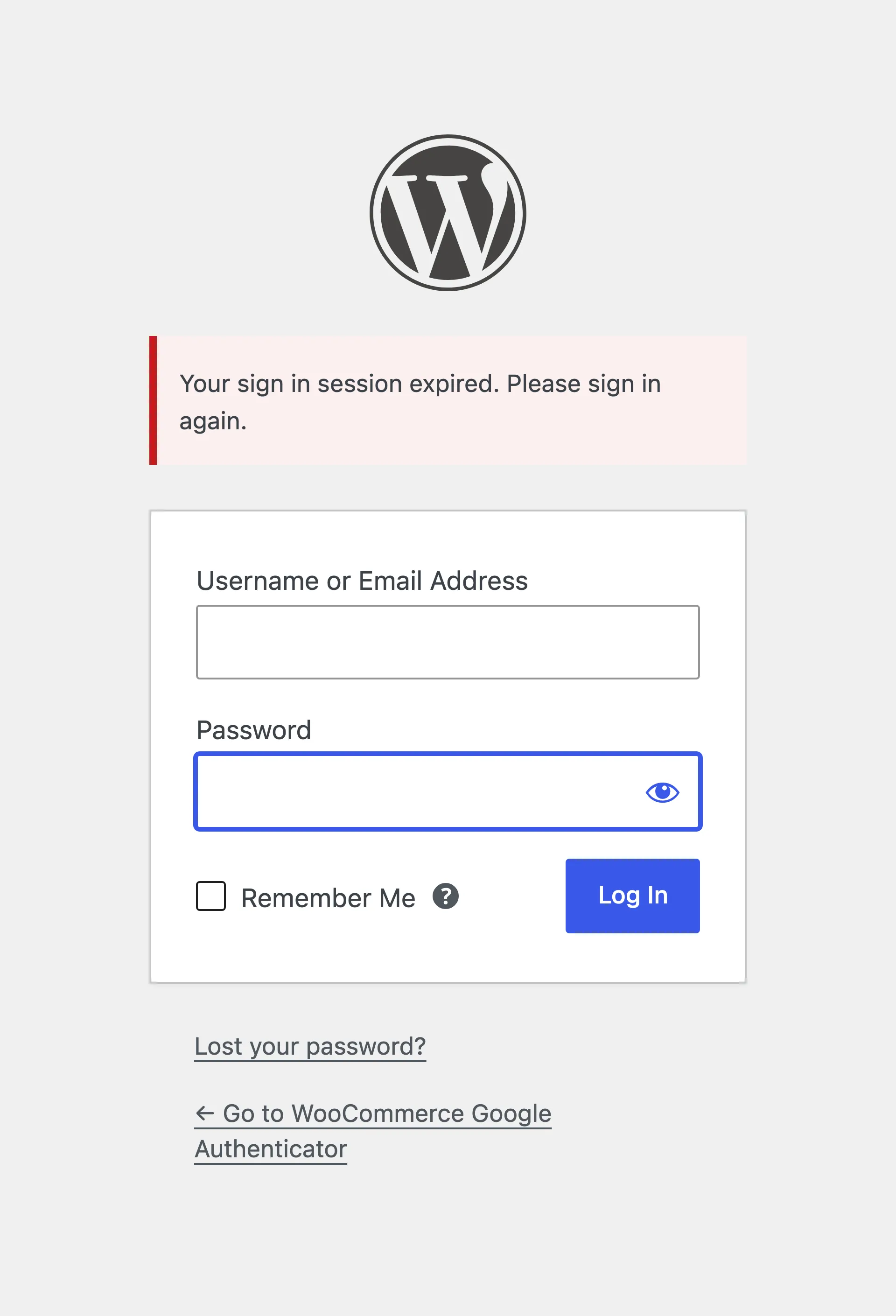
Section titled “An old link”Opening the code screen after 10 minutes, or from an old link, sends the user back to the login form with the reason.