

How to Show Progress in My Account Orders
A customer with several orders should not have to open each one to see where it is. The Progress column shows them all at once.
Step 1: Switch the column on
Section titled “Step 1: Switch the column on”Under Configuration → General, My Account Orders is on by default: “Add a Progress column to the orders list”.
Step 2: Save
Section titled “Step 2: Save”Click Save Changes if you changed it.
Step 3: Check as a customer
Section titled “Step 3: Check as a customer”Open My Account → Orders. The Progress column sits before Actions.
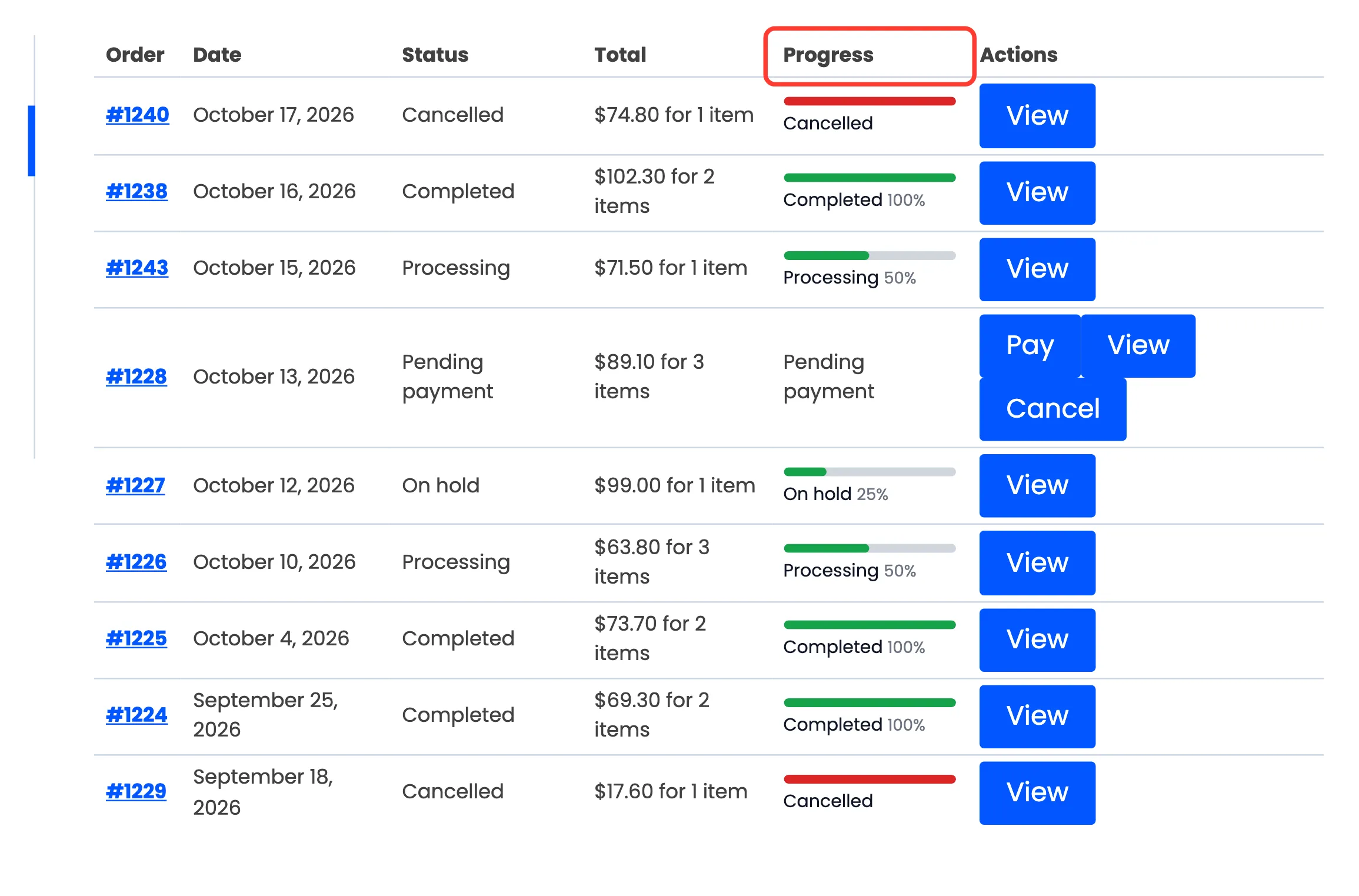
- An order on its way shows a green bar, its step and how far along it is, such as Processing 50%.
- A completed order shows a full bar and 100%.
- A cancelled, refunded or failed order shows a red bar and its status.
- An order outside the flow, such as Pending payment, shows its status name only.
View opens the order, with the full bar above its details.
Good to know
Section titled “Good to know”- The column always uses the slim bar, whatever layout the Appearance tab picks.
- The percentage counts the moves between steps. Step 3 of 5 has made 2 of its 4 moves, so it reads 50%.