

The Customer Experience
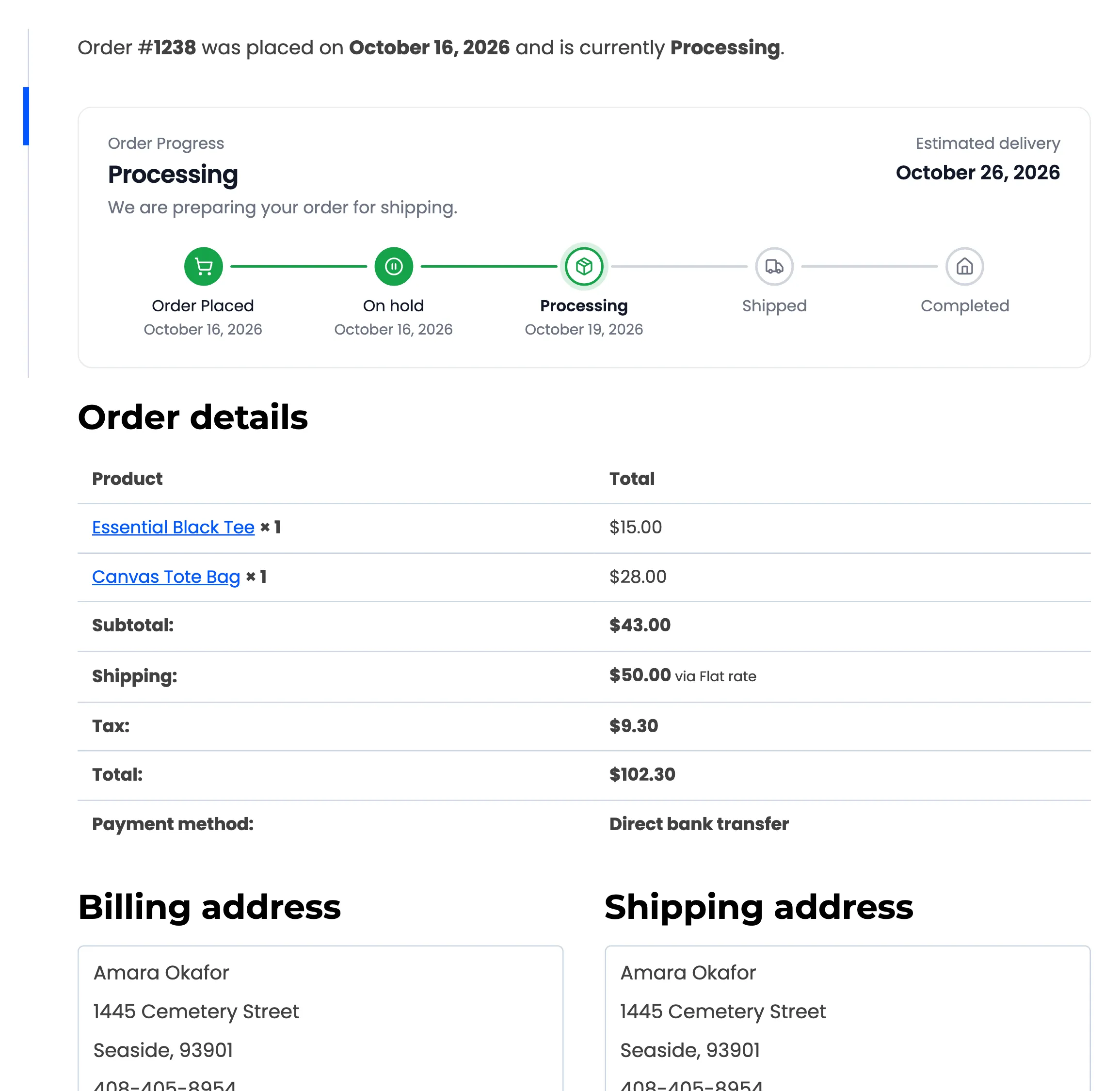
This page walks through what a customer sees, in the order they meet it. The screens come from the demo, where Amara bought a tee and a tote bag by bank transfer, and a guest, Nina, bought a mug.
Right after checkout
Section titled “Right after checkout”The thank-you page shows the bar above Order details. The top line names the current step and its message. The estimated delivery sits on the right.
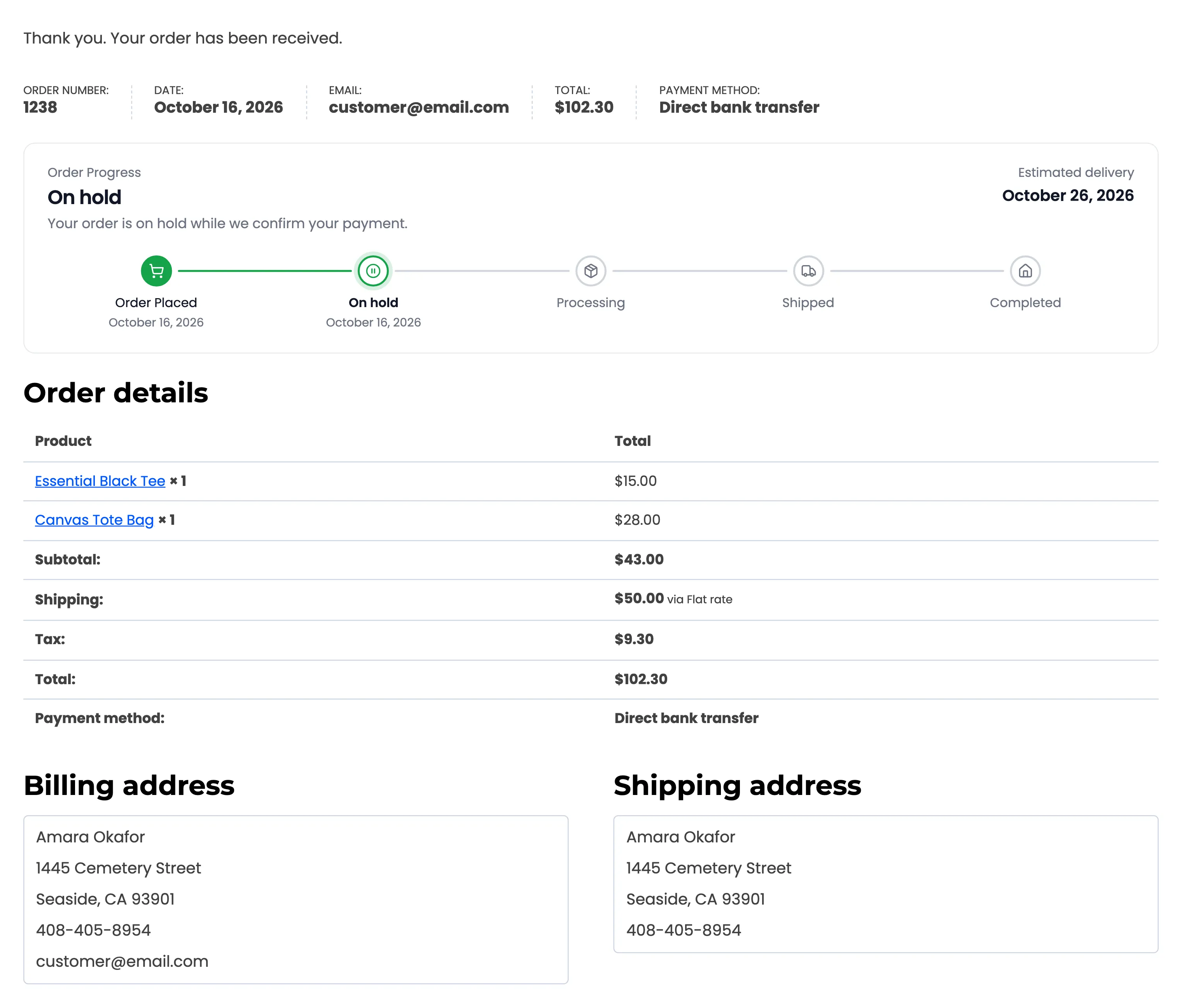
Guests see the same bar on their thank-you page. When a guest opens that page again later, WooCommerce asks them to log in or verify their email first. The Track Order page is the better link to give them.
In the order emails
Section titled “In the order emails”The order confirmation already carries a compact version of the bar. Five WooCommerce emails include it by default: Order on-hold, Processing order, Completed order, Order details and Customer note.
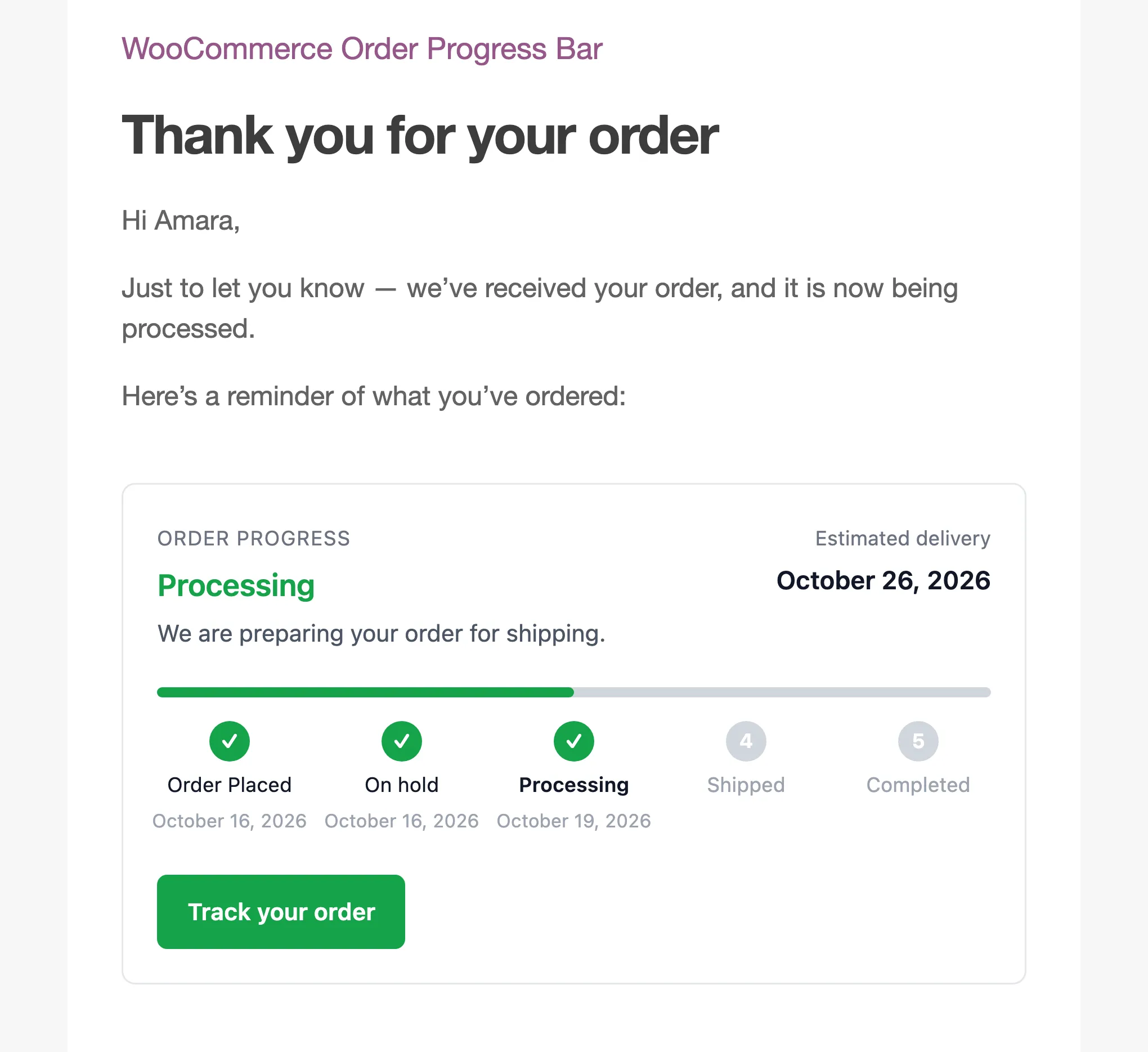
The email bar uses check marks and step numbers instead of icons. Its Track your order button opens the order in My Account for a registered customer. A guest is sent to the Track Order page, with the order number already filled in.
When the order moves on
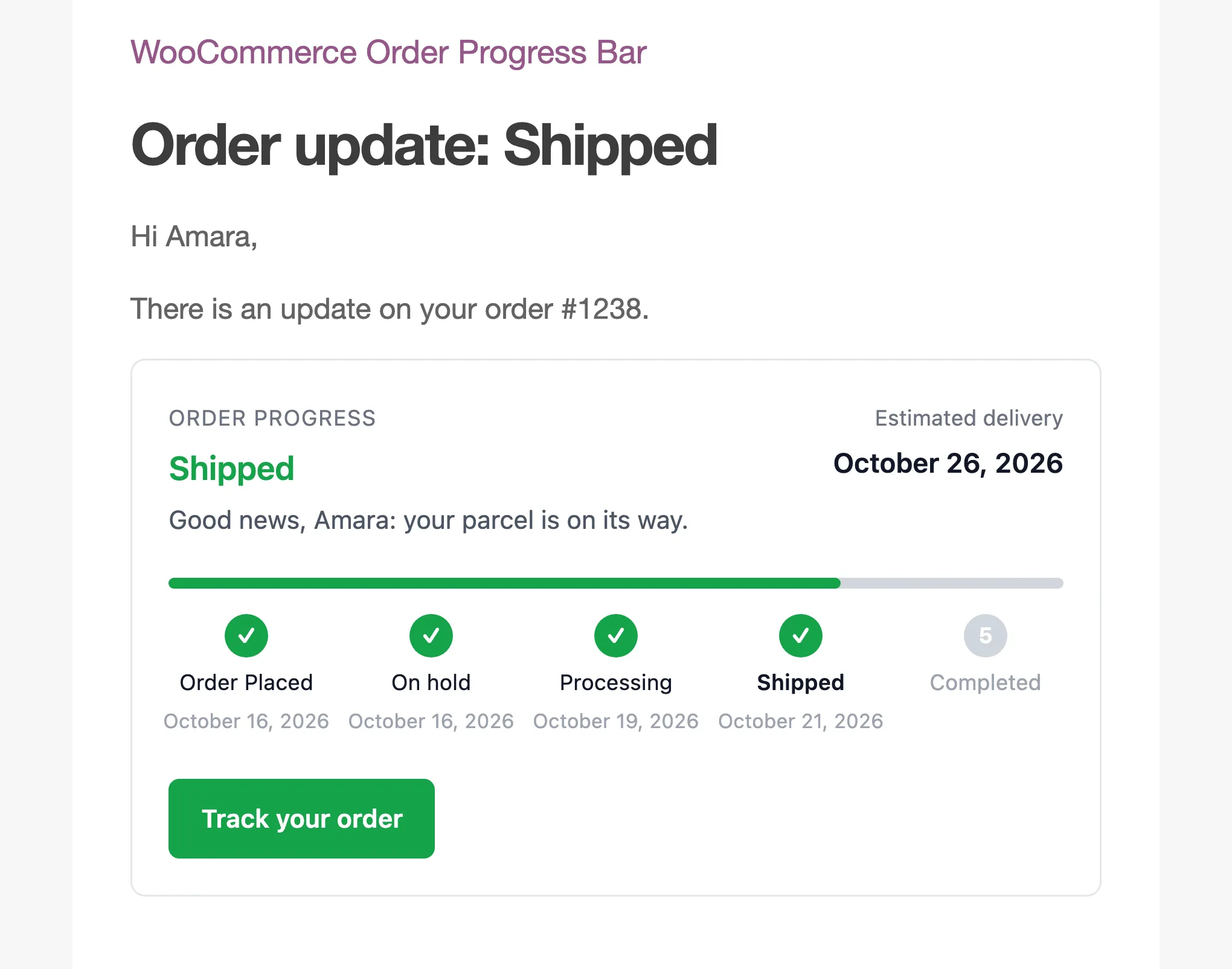
Section titled “When the order moves on”Each time the status changes, the next email WooCommerce sends shows the new state. A step WooCommerce does not email about, such as a custom Shipped, can send its own step update email.
In My Account
Section titled “In My Account”The Orders list gets a Progress column: a slim bar per order, with its step and how far along it is. A cancelled order shows a red bar. An order outside the flow, such as Pending payment, shows its status name instead.
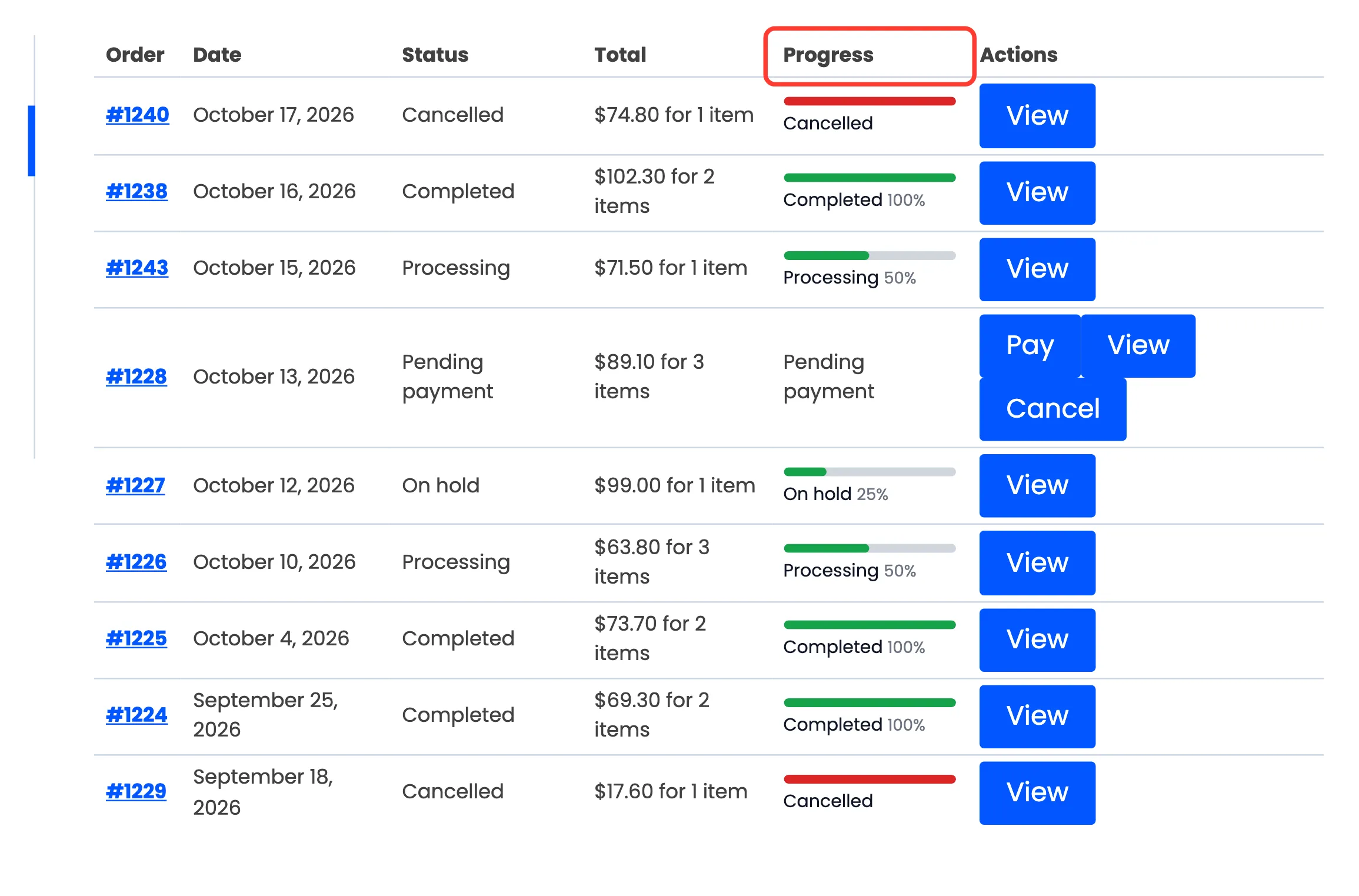
View opens the order, with the full bar above its details.
On the Track Order page
Section titled “On the Track Order page”Anyone can open the Track Order page, type the order number and billing email, and see the live bar. It works for guests, who have no account to log in to.
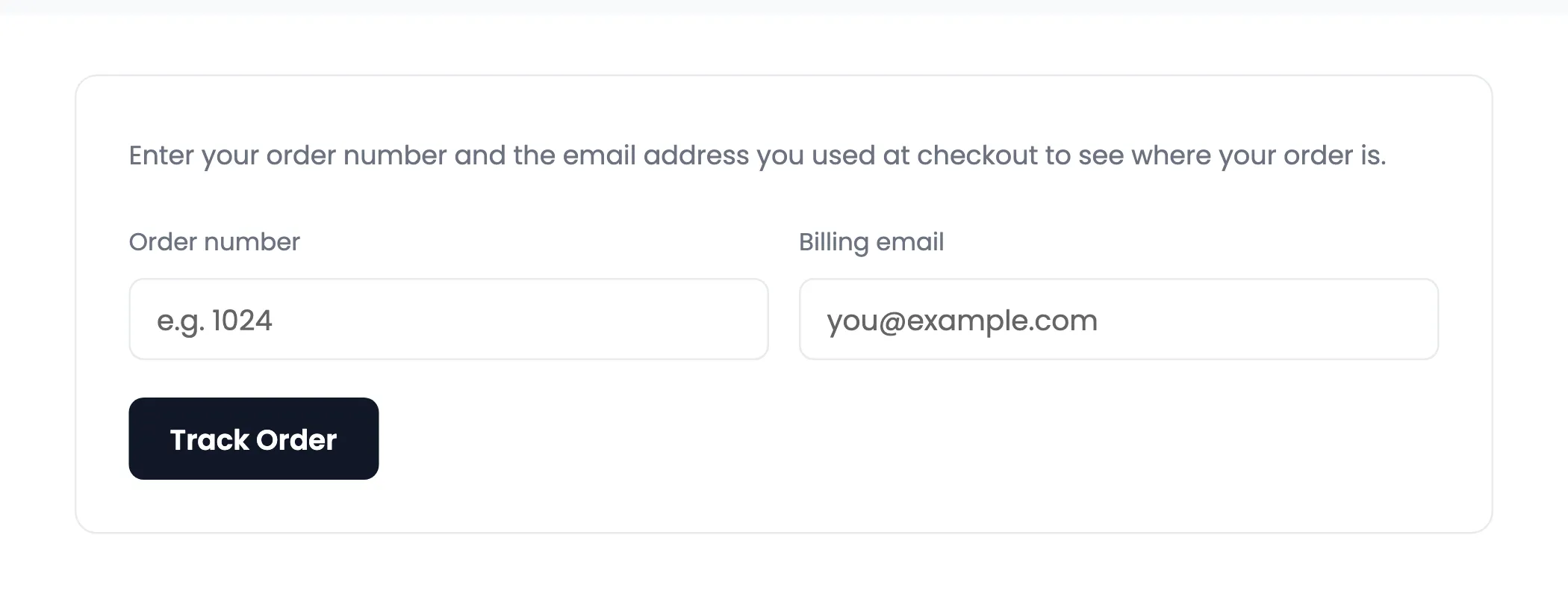
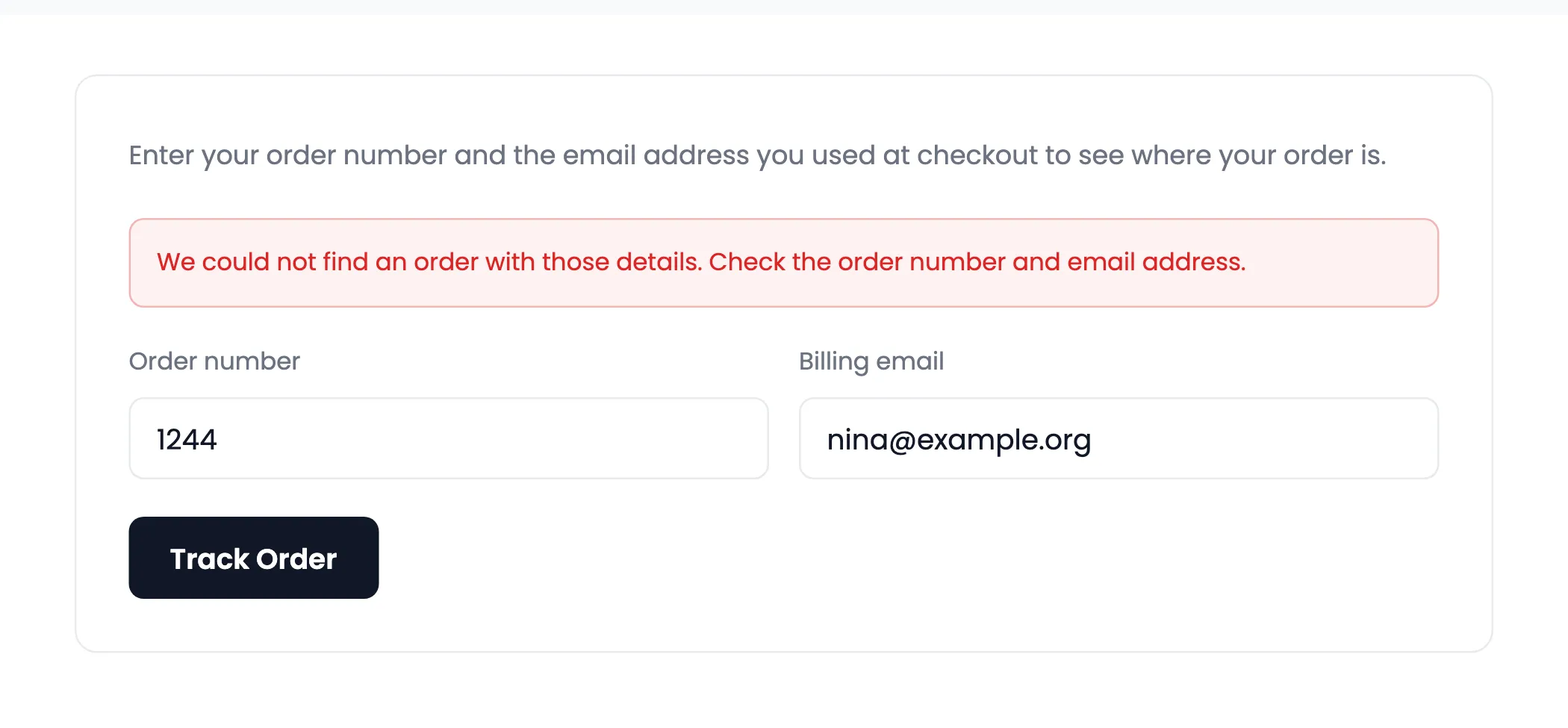
A wrong number or a wrong email gets the same answer, so the form cannot be used to find other people’s orders.
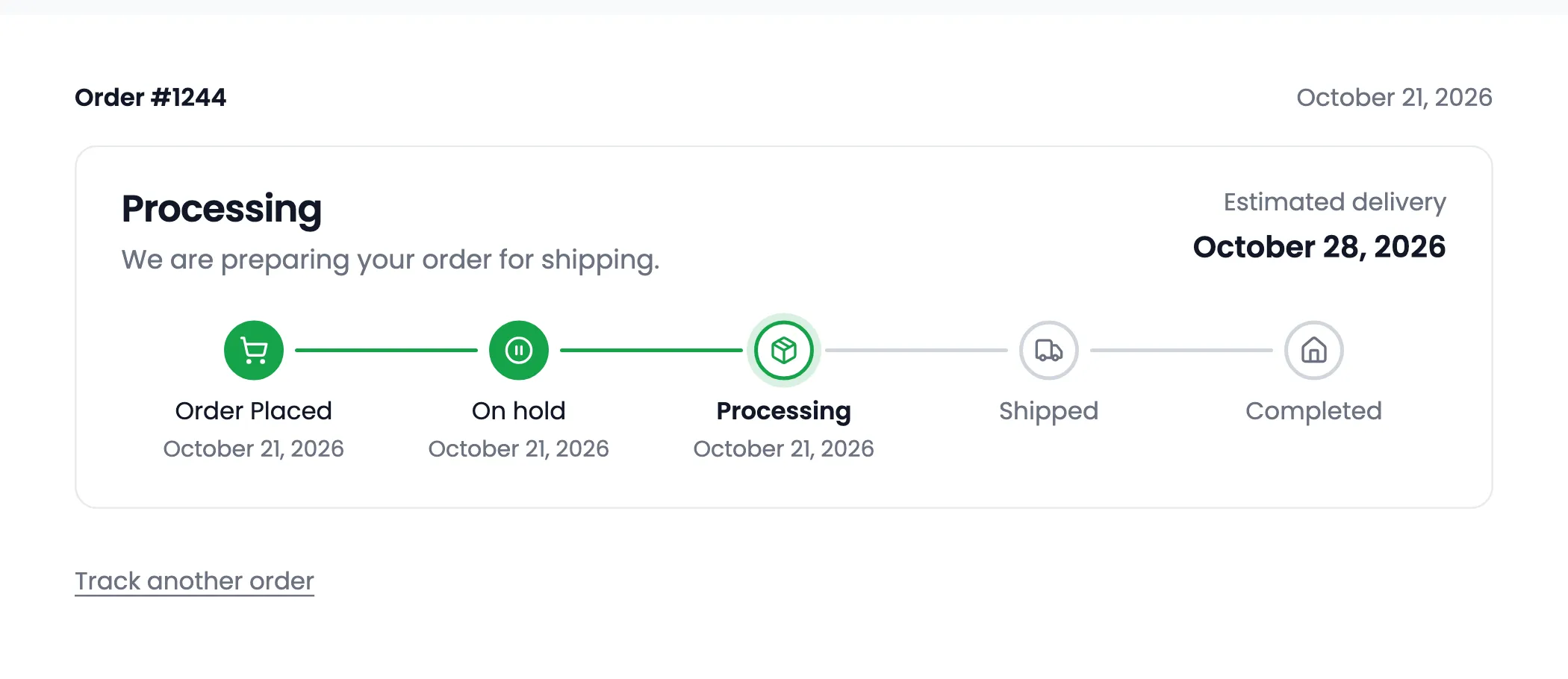
The right pair shows the order number, its date and the bar. Track another order clears the form.
When something goes wrong
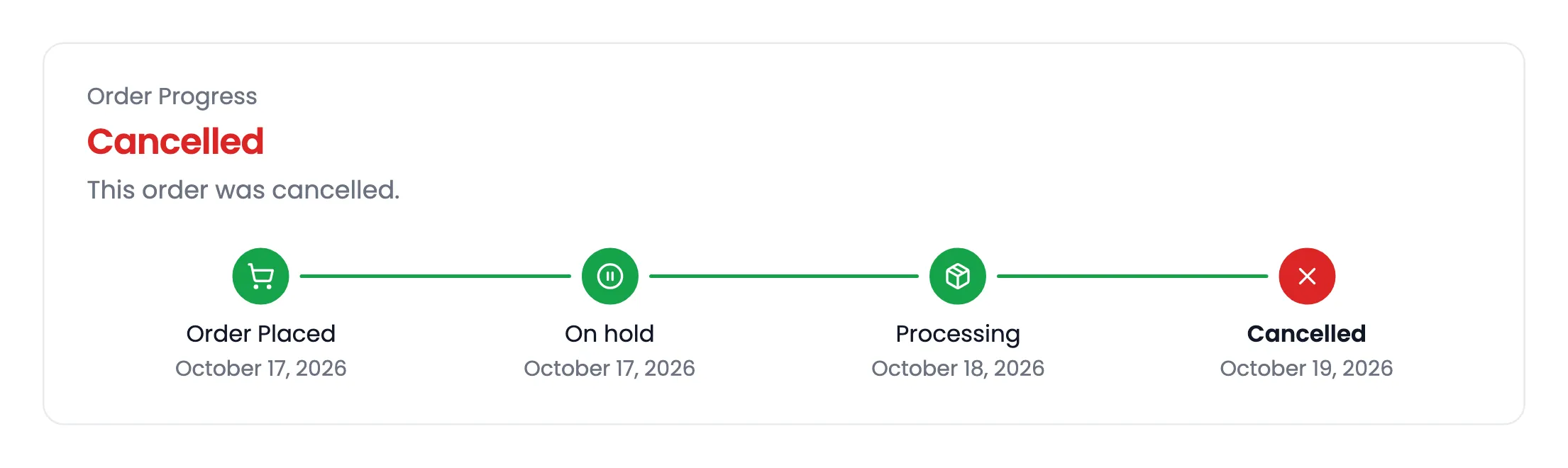
Section titled “When something goes wrong”A cancelled, refunded or failed order shows the steps it reached, then the failed status in red. The failed status has its own message.
On small screens and in other languages
Section titled “On small screens and in other languages”Every layout narrows to fit a phone, and right-to-left languages mirror the bar on their own. The text on the bar comes from your step names and messages, and from translatable strings.