

How to Set a Delivery Date on One Order
Sometimes you know better than the estimate: a carrier gave you a date, a product ships from a supplier, or a customer arranged a day. Type it on the order and the customer sees it.
Step 1: Open the order
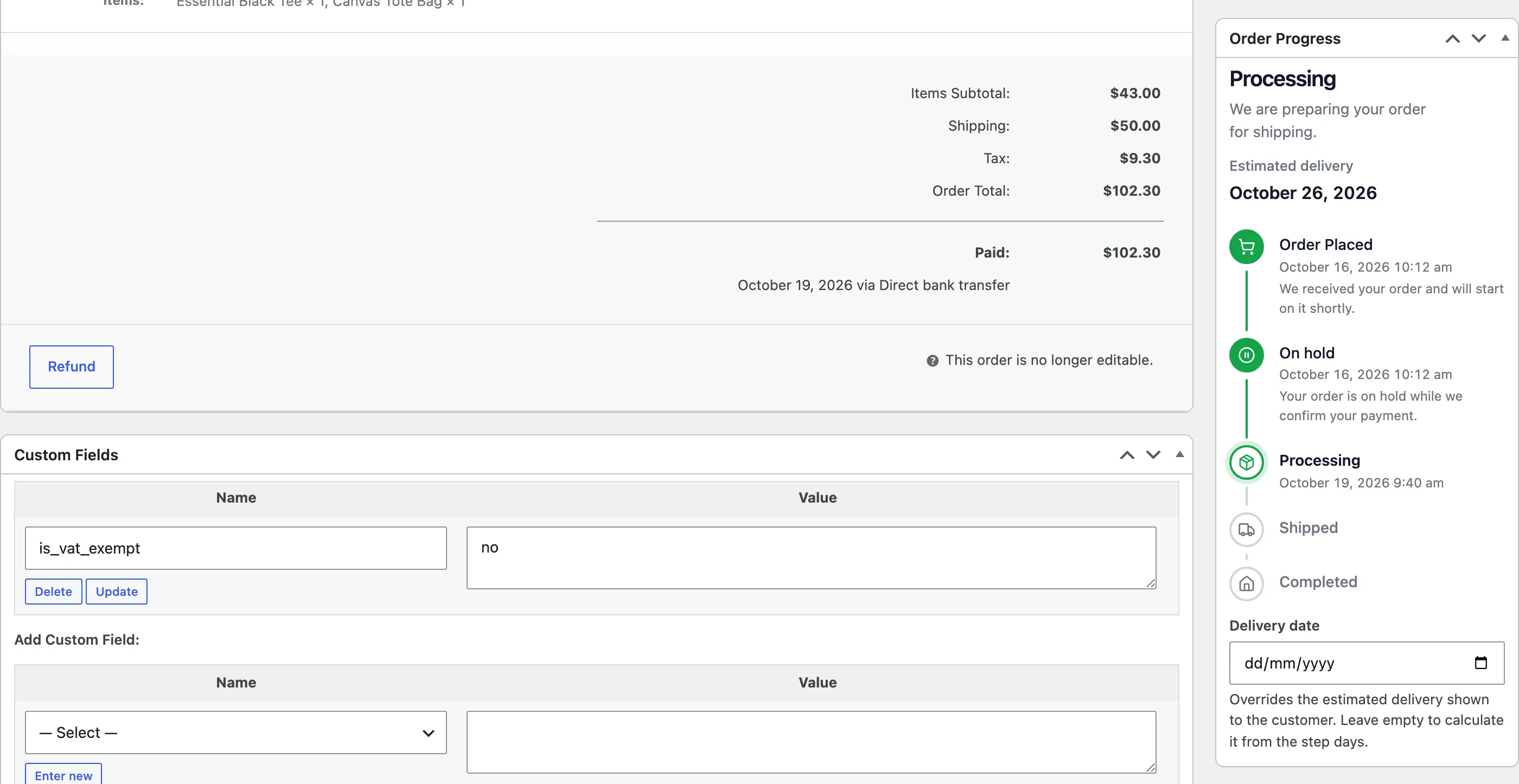
Section titled “Step 1: Open the order”Go to WooCommerce → Orders and open the order. The Order Progress box sits in the side column.
Step 2: Pick the date
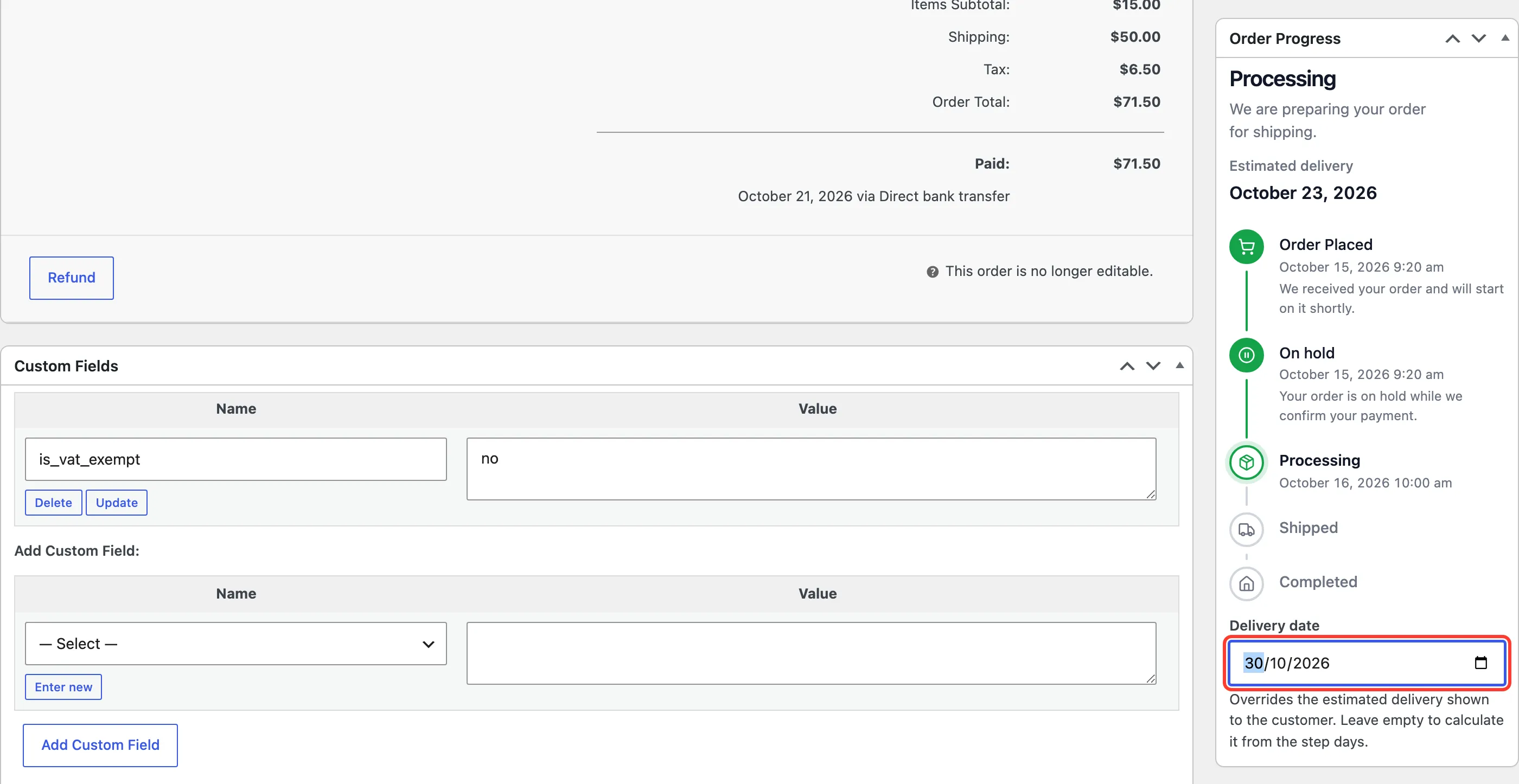
Section titled “Step 2: Pick the date”Under Delivery date, pick the day.
Step 3: Update the order
Section titled “Step 3: Update the order”Click Update. The demo order had been estimated for 23 October. After the update, its bar showed 30 October.
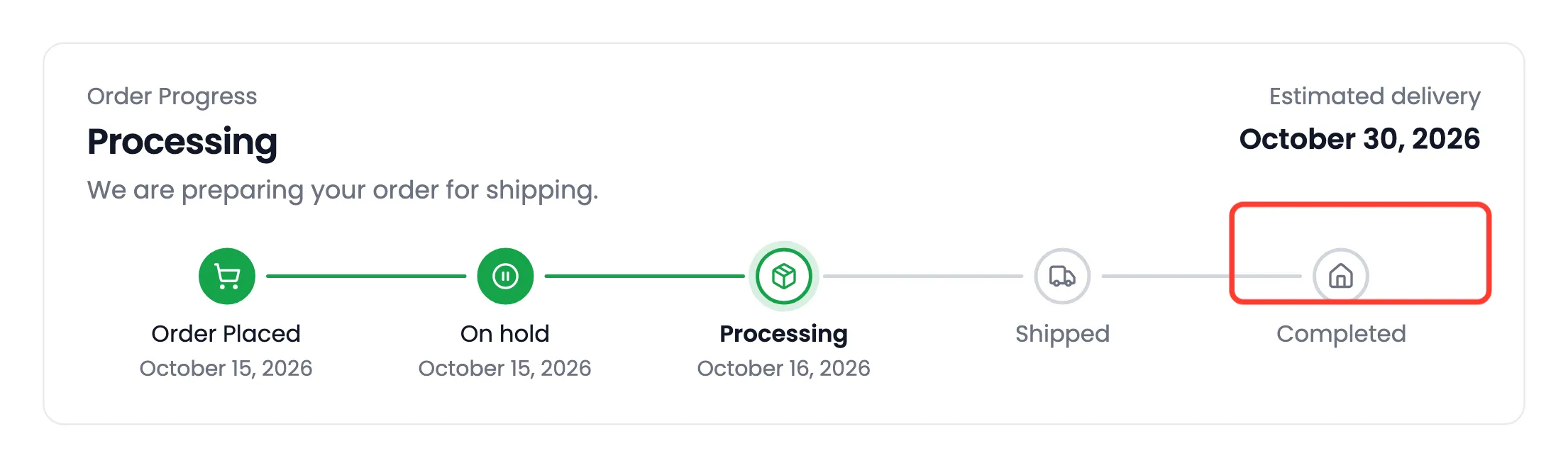
The date also replaces the estimate in emails and on the Track Order page.
Step 4: Go back to the estimate
Section titled “Step 4: Go back to the estimate”Clear the field and click Update. The estimate from the step days comes back.
Good to know
Section titled “Good to know”- The date stays when the order moves on. Clear it if a later step should bring the estimate back.
- It shows only while Delivery Estimate is on, and until the order reaches its last step.
- Saving a date does not change the order’s status, so it does not hide the order from stuck order alerts.