

Email Settings
The Emails tab has two parts: the bar inside WooCommerce’s own customer emails, and a step update email of the plugin’s own. Open DevDiggers Plugins → Order Progress Bar → Configuration → Emails.
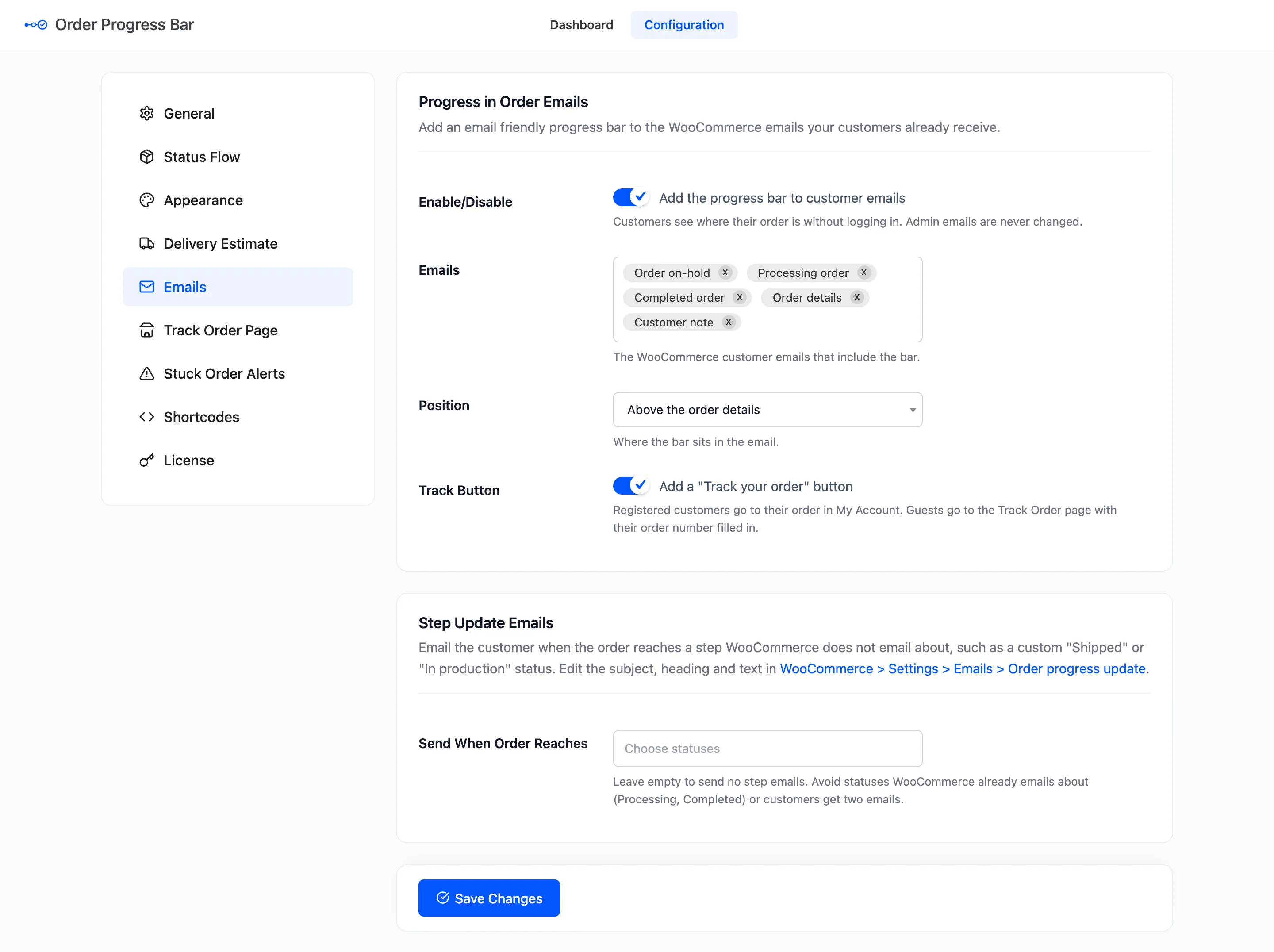
Progress in Order Emails
Section titled “Progress in Order Emails”- Enable/Disable: “Add the progress bar to customer emails”. On by default. Admin emails are never changed.
- Emails: The WooCommerce customer emails that carry the bar. Default Order on-hold, Processing order, Completed order, Order details and Customer note. Cancelled, failed and refunded order emails can be added. So can customer emails from other plugins, when they are about an order.
- Position: Above the order details (default) or Below the order details.
- Track Button: “Add a ‘Track your order’ button”. On by default.
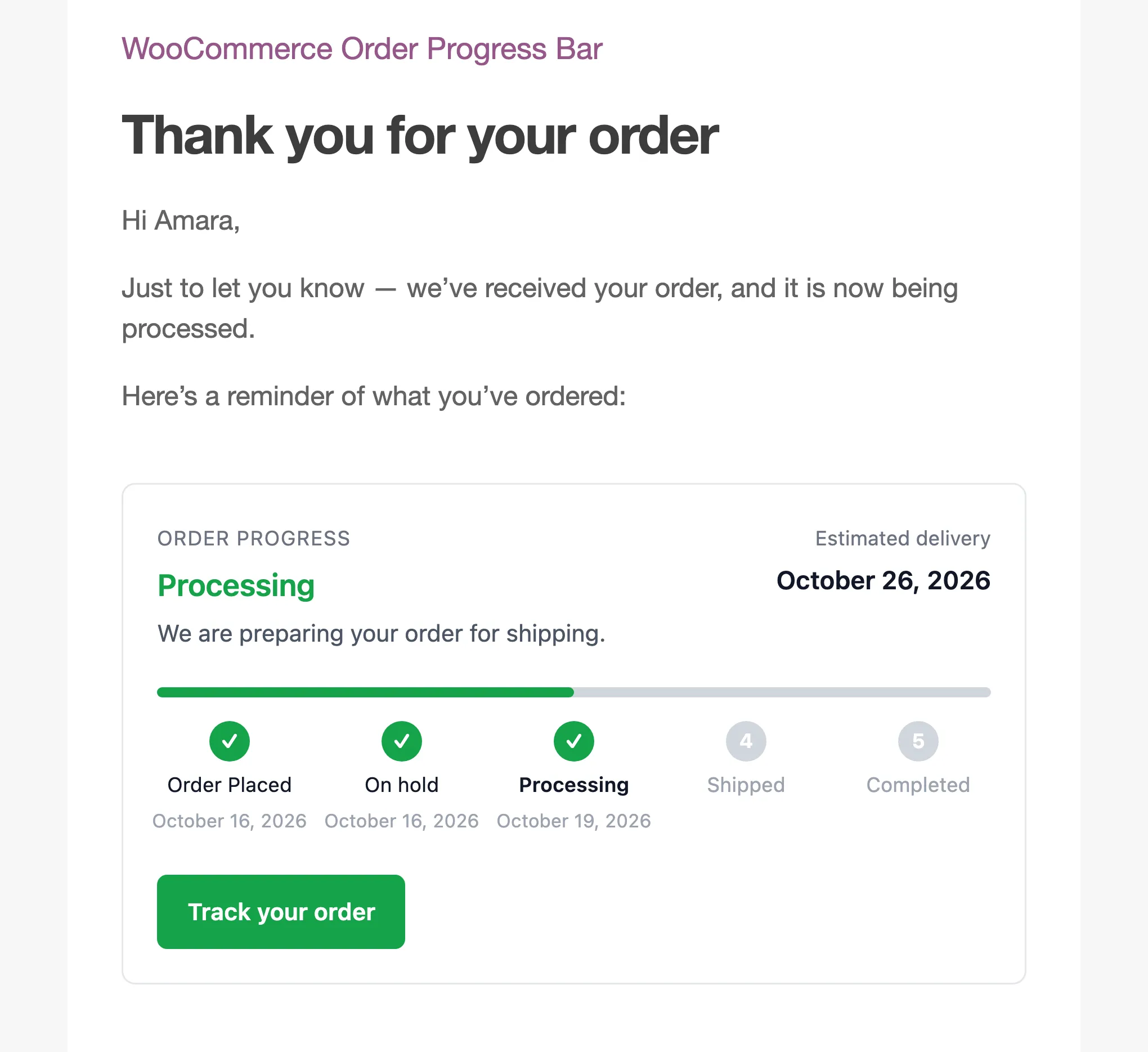
The button sends a registered customer to the order in My Account. A guest goes to the Track Order page, with the order number filled in. With no Track Order page set, guests get no button.
An email for an order outside the flow, such as a Pending payment invoice, carries no bar.
Step Update Emails
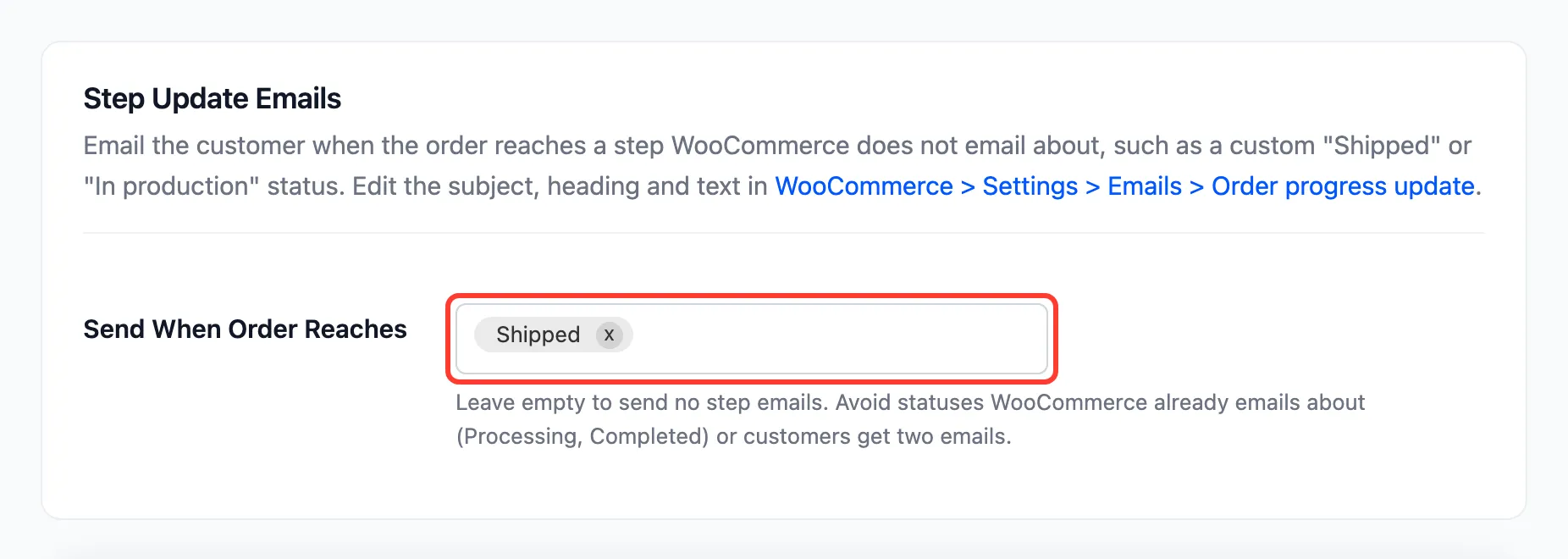
Section titled “Step Update Emails”- Send When Order Reaches: The statuses that send the Order progress update email. Empty by default, so no step email is sent.
Pick the steps WooCommerce does not email about, such as a custom Shipped or In production. Avoid Processing and Completed: WooCommerce already emails about those, so customers would get two emails.
The email names the step, shows its message and the bar, and lists the order.
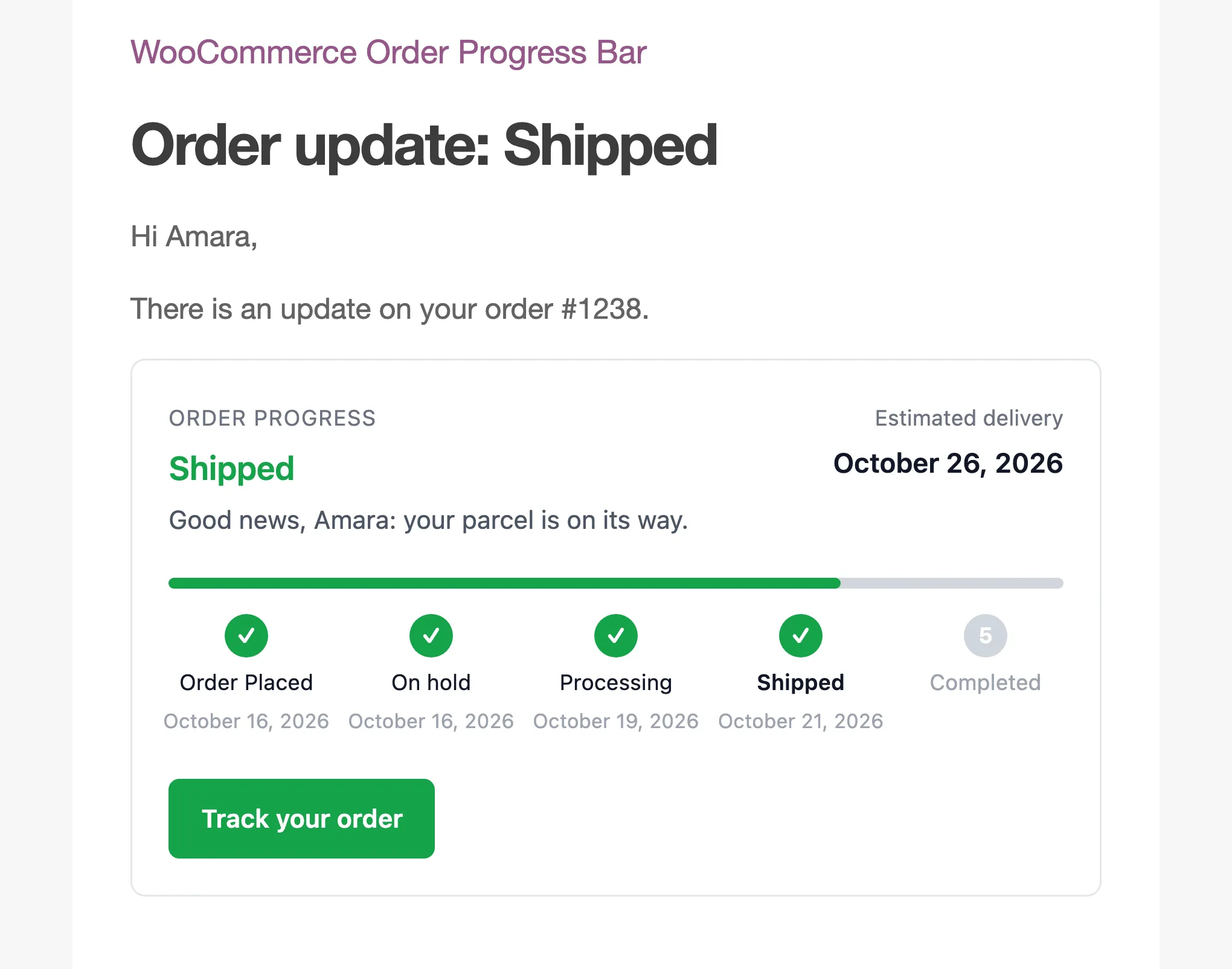
The Order progress update email
Section titled “The Order progress update email”Its wording lives with WooCommerce’s other emails, under WooCommerce → Settings → Emails → Order progress update. The link on the tab goes straight there.
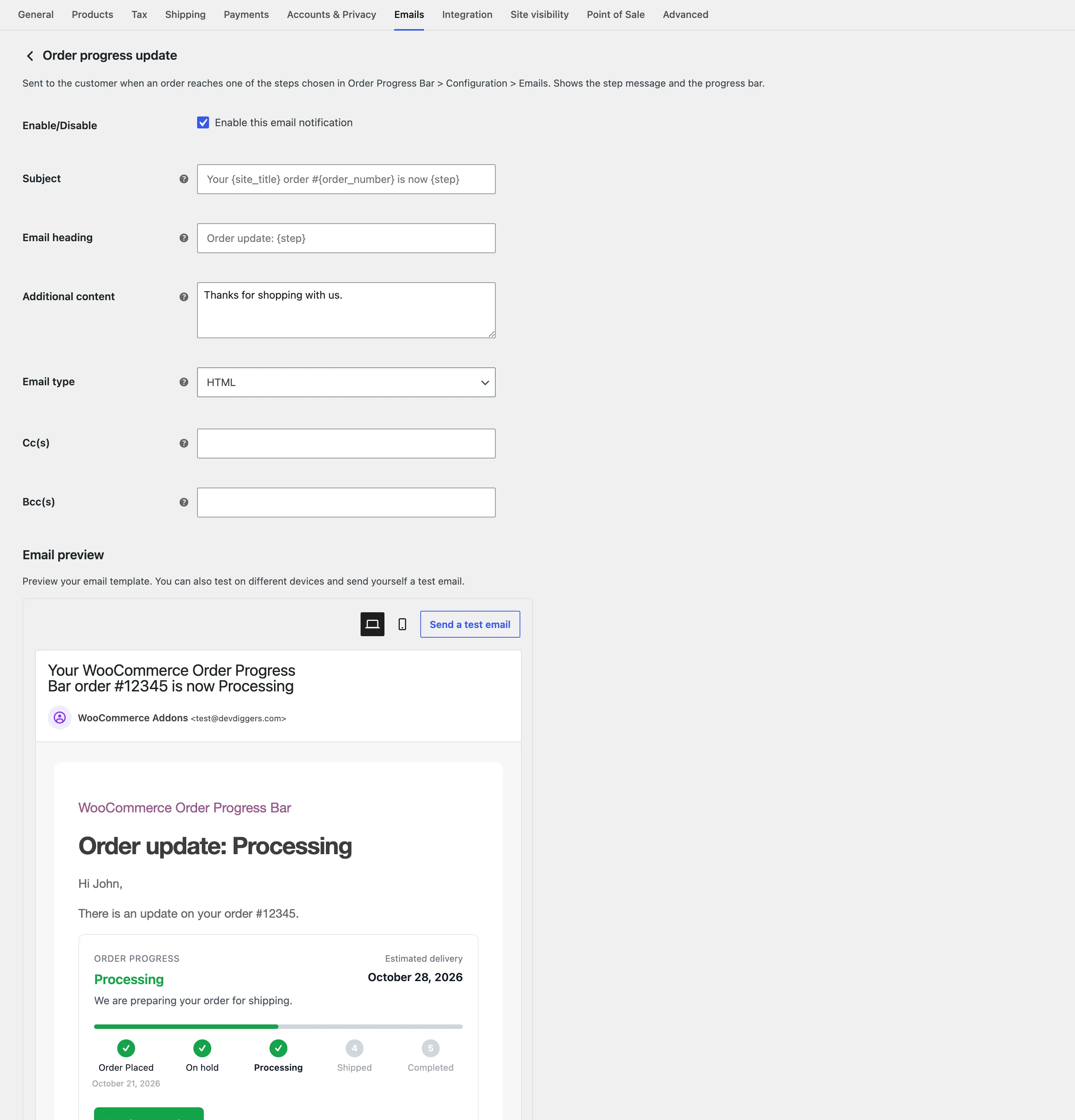
- Subject: Default
Your {site_title} order #{order_number} is now {step}. - Email heading: Default
Order update: {step}. - Additional content: Default “Thanks for shopping with us.”
- Email type, Cc(s) and Bcc(s): As on any WooCommerce email.
{step} is the step’s name from Status Flow, so a renamed step reads the way you named it. WooCommerce’s
email preview shows a sample order, with a real step name and bar.
Neither email part sends anything while the plugin is switched off or the license is inactive.
Click Save Changes at the bottom of the tab.