

How Order Progress Works
The bar is driven by the order’s status. This page follows one real order on the demo, #1238, from a bank transfer checkout to Completed. The store had added On hold and a custom Shipped status to its steps.
1. The order is placed
Section titled “1. The order is placed”The customer pays by bank transfer, so WooCommerce puts the order On hold. Every status change is recorded with its date, from the first one, whether or not the plugin shows a bar for it.
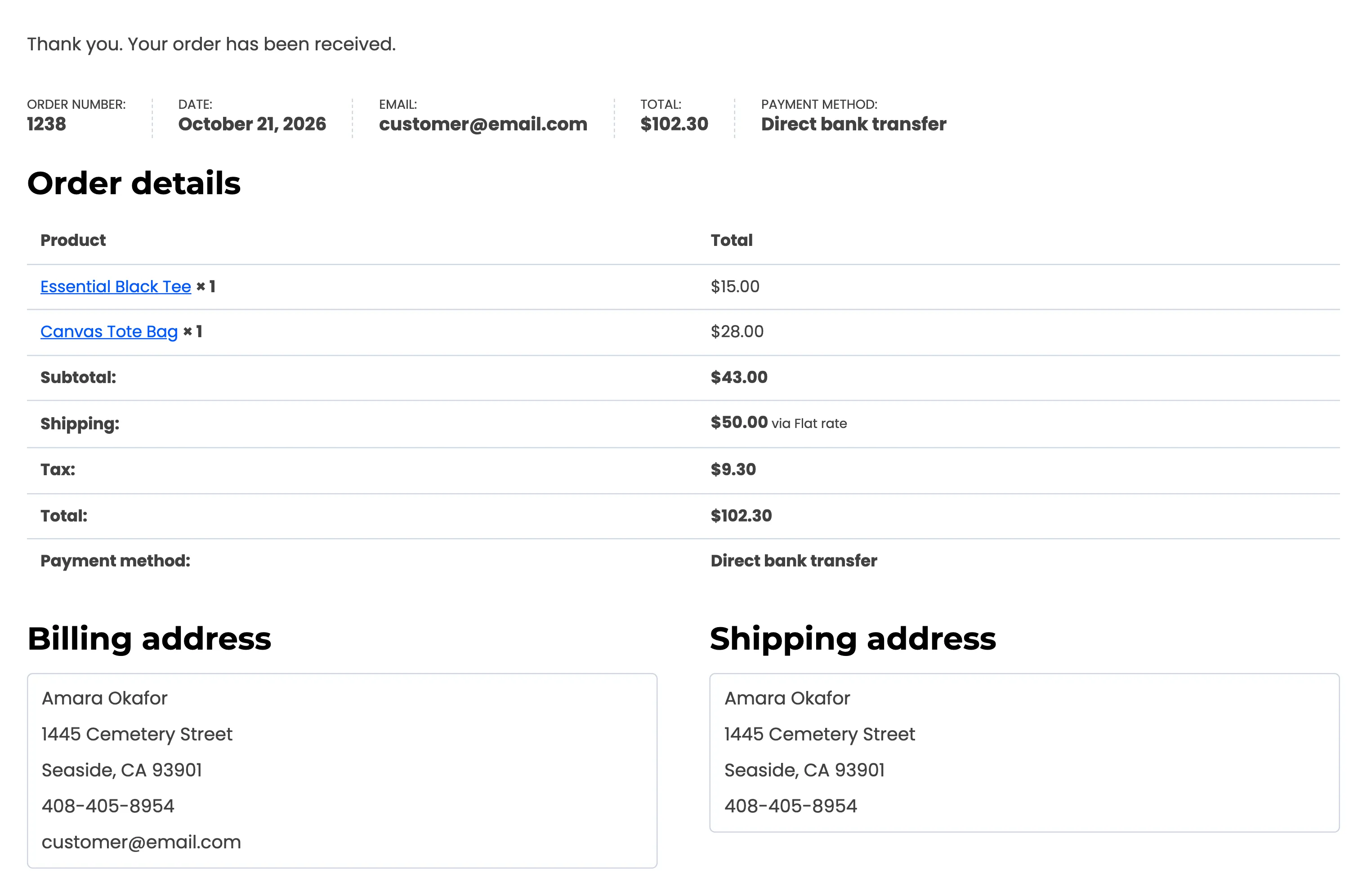
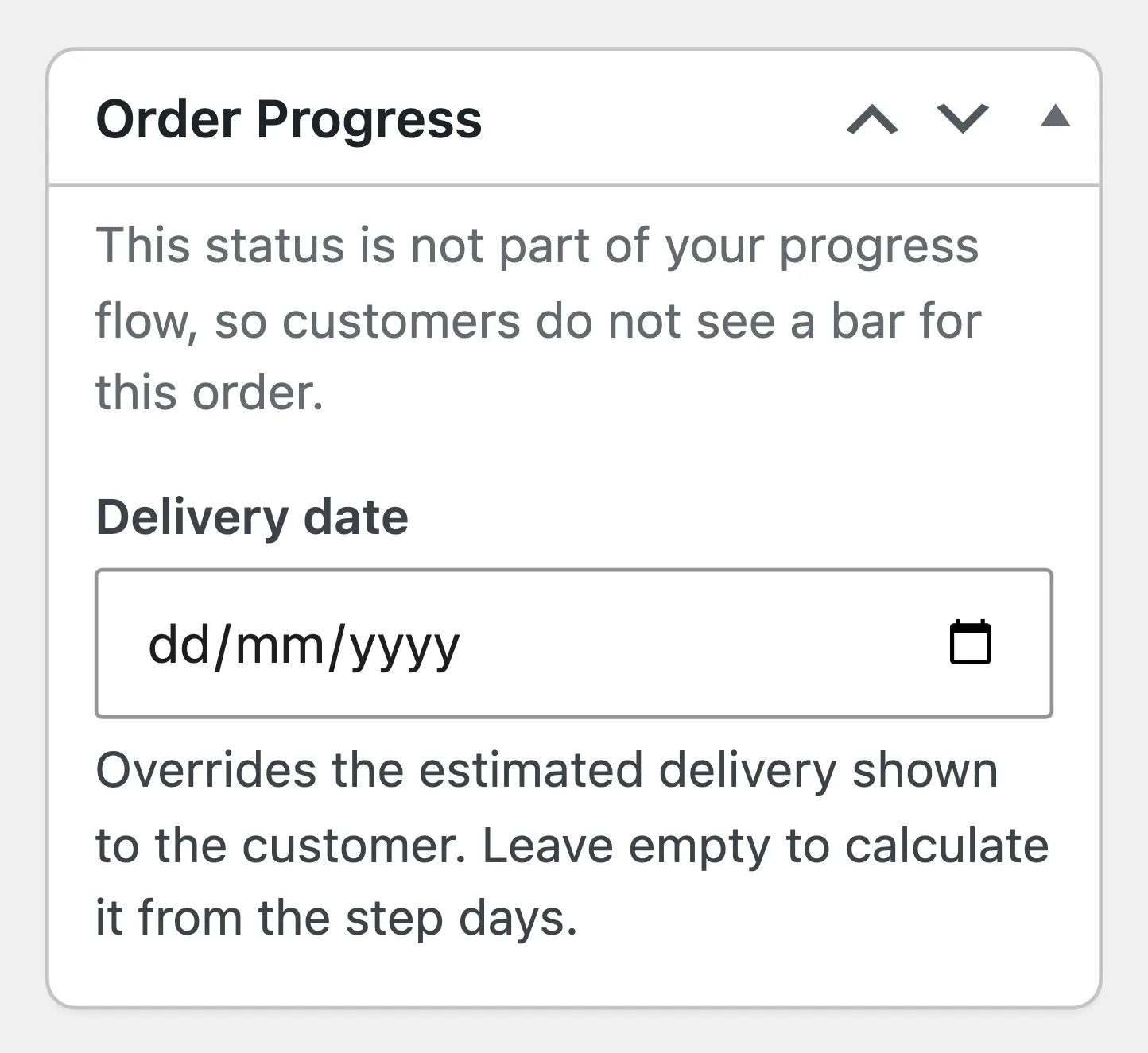
With the shipped flow, On hold is not a step. The thank-you page shows the order with no bar at all, and the order’s Order Progress box says why.
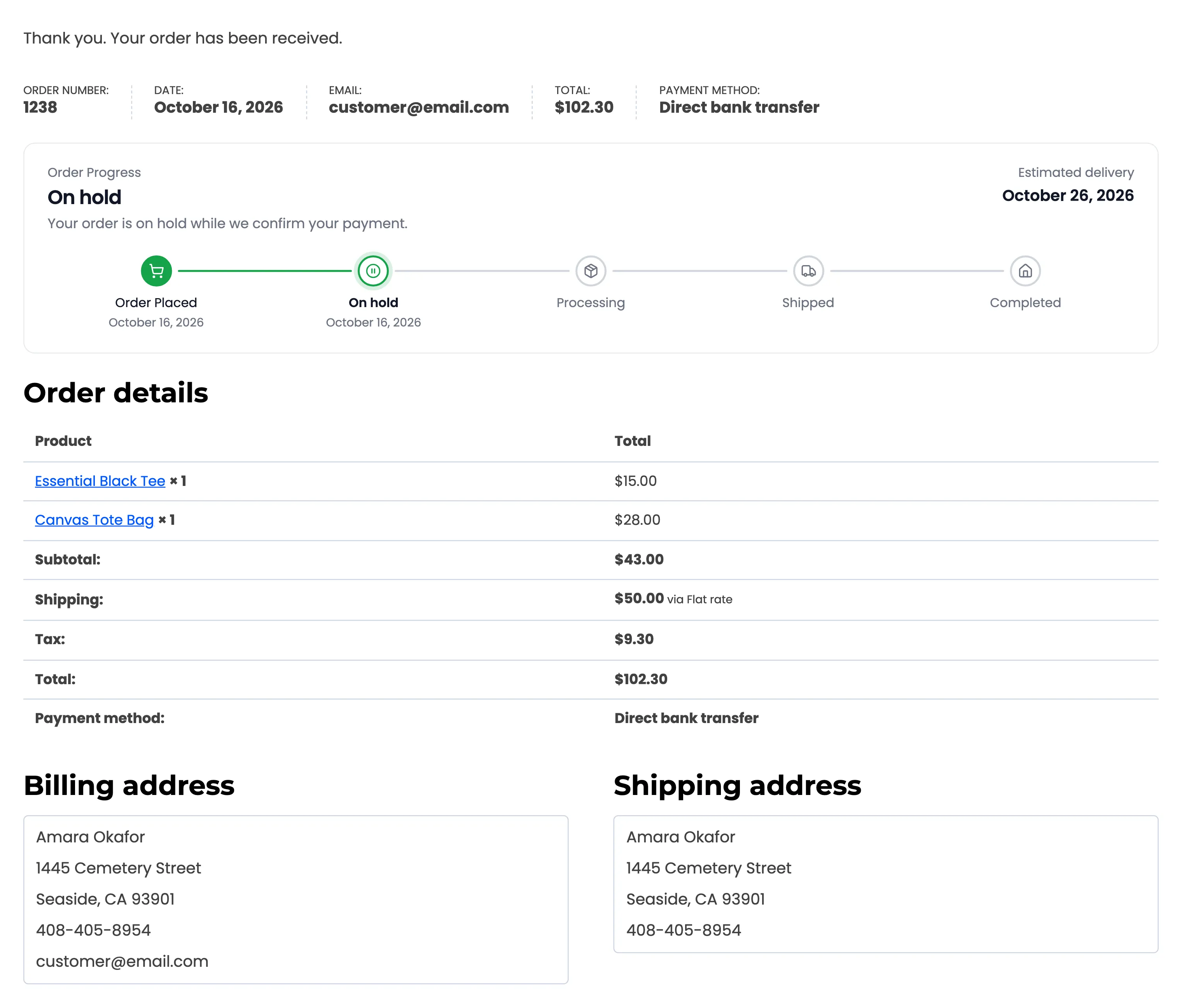
After On hold was added to the flow, the same order shows its bar. The status changes were recorded all along, so nothing was lost.
2. Each status is a step
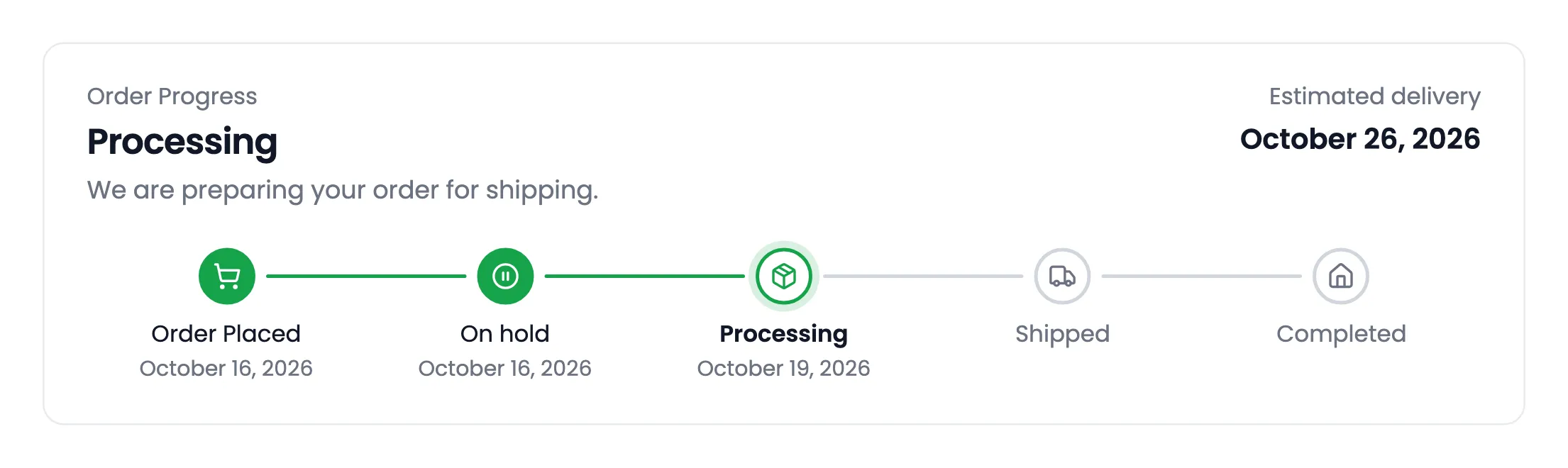
Section titled “2. Each status is a step”The bar always opens with Order Placed, dated when the order was created. Then come the statuses listed under Status Flow, in that order. A step is:
- Done: Filled with the success color, with the date it was reached.
- Current: Ringed, with its name and message at the top of the bar.
- Upcoming: Grey, with no date.
When the shop owner marks the order Processing on the order screen, the bar moves on. The step’s message replaces the previous one.
3. A custom step
Section titled “3. A custom step”The store’s Shipped status comes from a small status snippet, not from WooCommerce. Once it is in the
flow, it is a step like any other, with its own truck icon and message. Here the message uses the
{first_name} placeholder.
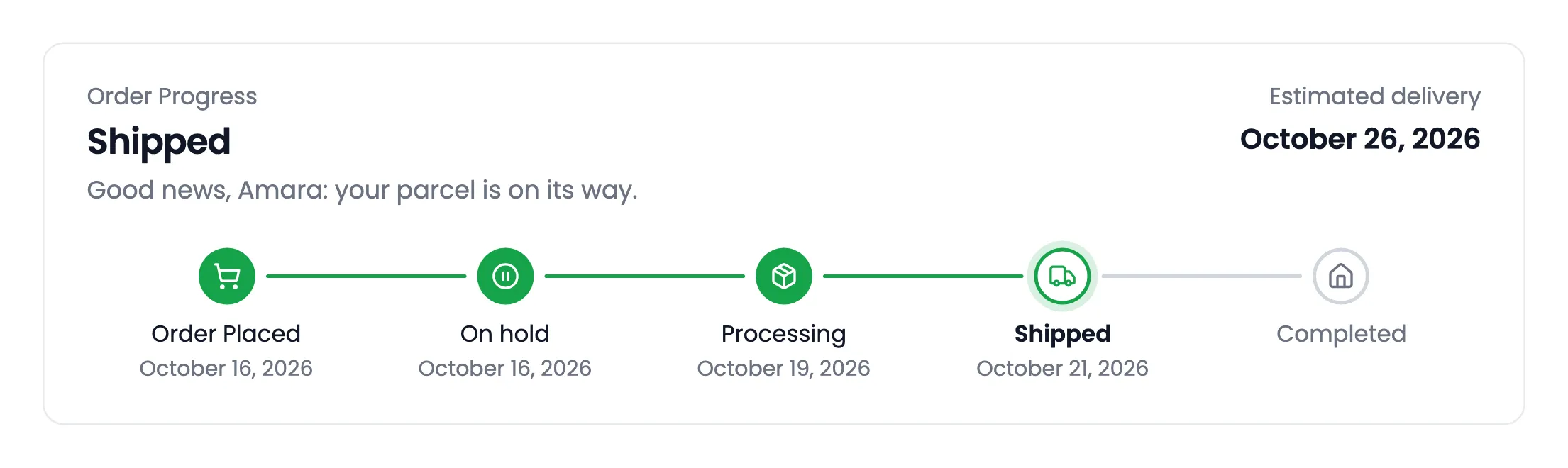
The store also picked Shipped under Step Update Emails, so the customer got an email the moment the order reached it.
4. The last step
Section titled “4. The last step”Your last success step is the end of the journey. On Completed, every step is filled, and the delivery estimate is replaced by the date the order got there.
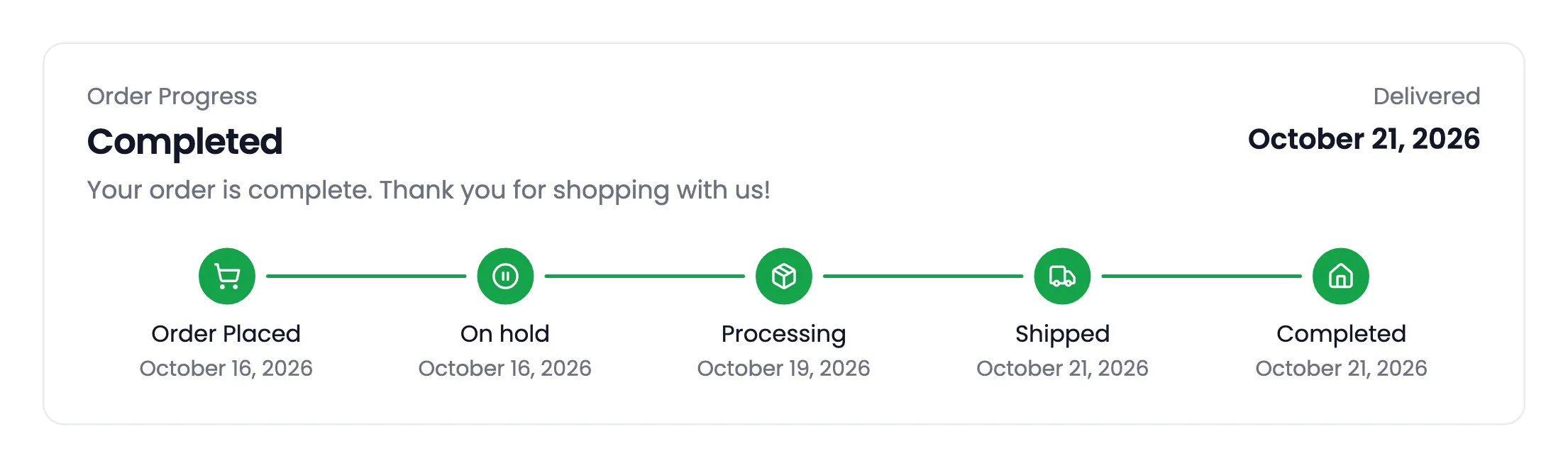
Where the dates come from
Section titled “Where the dates come from”Each step’s date is the moment the order last reached that status. If an order skips a step, for example going straight from Processing to Completed, the skipped step shows as done with no date.
Orders from before the plugin was installed have no recorded changes. For them, Processing uses the paid date, Completed the completed date, and the current step the order’s last change.
How the delivery estimate works
Section titled “How the delivery estimate works”Each step carries Days to reach this step. The estimate is the date of the current step, plus the days of every step still ahead. Weekends are skipped by default.
The demo’s flow gives On hold 1 day, Processing 1, Shipped 2 and Completed 3. An order reaching Processing on a Friday is estimated 5 business days later: 2 for Shipped, then 3 for Completed.
- The estimate is recalculated at every step, from that step’s own date.
- A late order never shows a date in the past. It shows today instead.
- A date typed on the order, under Order Progress → Delivery date, replaces the estimate.
- The estimate shows until the last step. Cancelled and refunded orders have none.
When an order fails
Section titled “When an order fails”A cancelled, refunded or failed order shows the success steps it really reached, then the failed status in red. Steps it never reached are not shown.
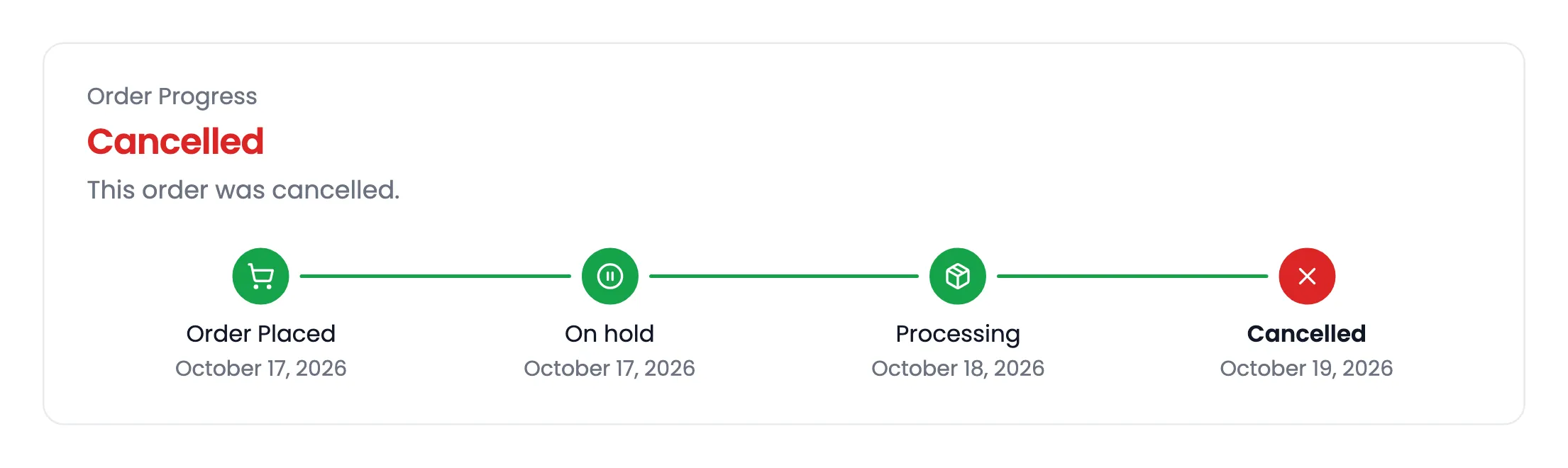
What moves the bar, and what does not
Section titled “What moves the bar, and what does not”- Moves it: Any status change, from the order screen, a payment gateway, a bulk action, a shipping plugin or the REST API.
- Does not: Editing items, adding a note or saving a delivery date. Those do not change the status.
- Hides it: A status that is not in either flow, such as Pending payment by default. Customers then see no bar, and the Track Order page shows “Current status” instead.