

How to Set Up a Track Order Page
“Where is my order?” is the email every store gets most. A Track Order page lets customers answer it themselves, including guests who have no account.
Step 1: Find the page the plugin made
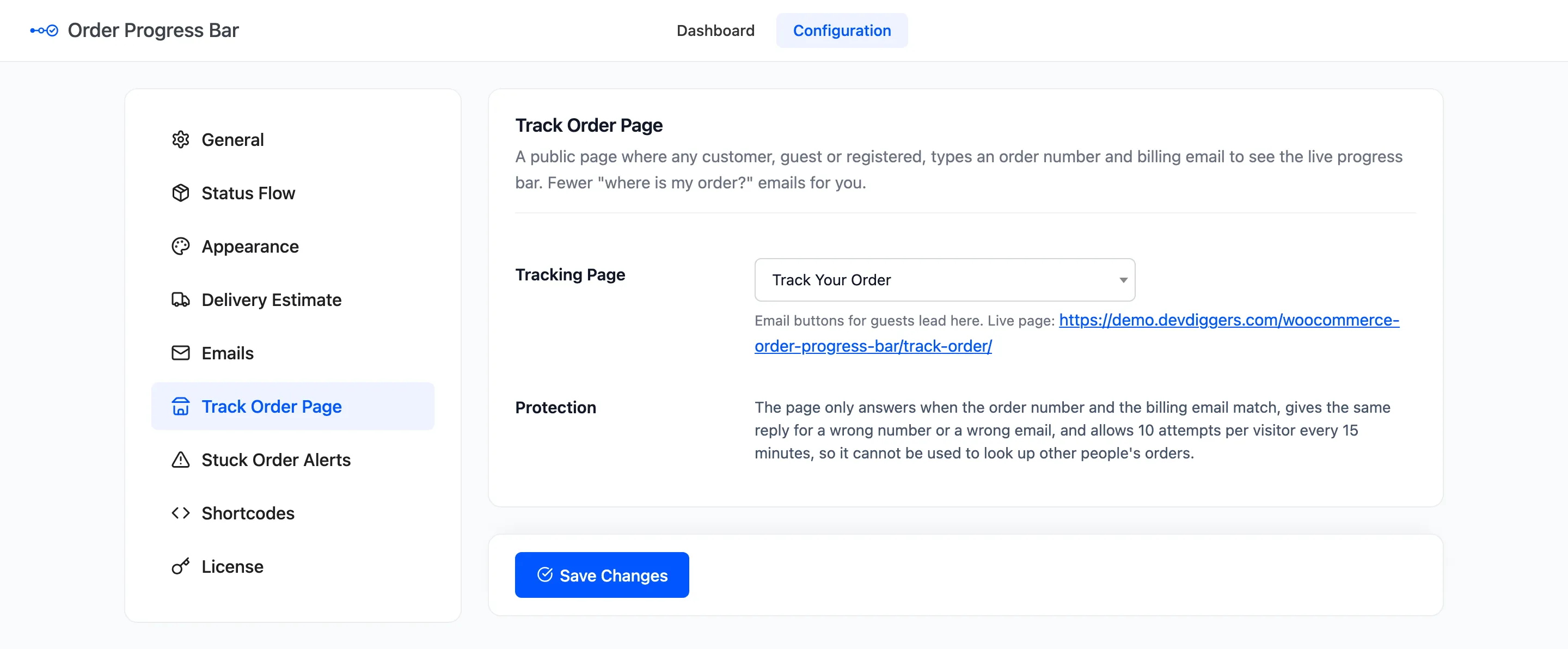
Section titled “Step 1: Find the page the plugin made”Activation publishes a page called Track Your Order at /track-order/, with the tracking form on it.
Open Configuration → Track Order Page to see it picked, with its live address.
Step 2: Or use your own page
Section titled “Step 2: Or use your own page”To use another page, add the Track Order block to it, or the shortcode:
[ddwcopb_track_order title="Where is my order?" button="Find my order"]Then pick that page under Tracking Page and click Save Changes. The page must hold the form: picking it does not add one.
Step 3: Link it from your store
Section titled “Step 3: Link it from your store”Add the page to your menu, footer or help pages. Guests’ email buttons already lead to it, with the order number filled in.
Step 4: Try a lookup
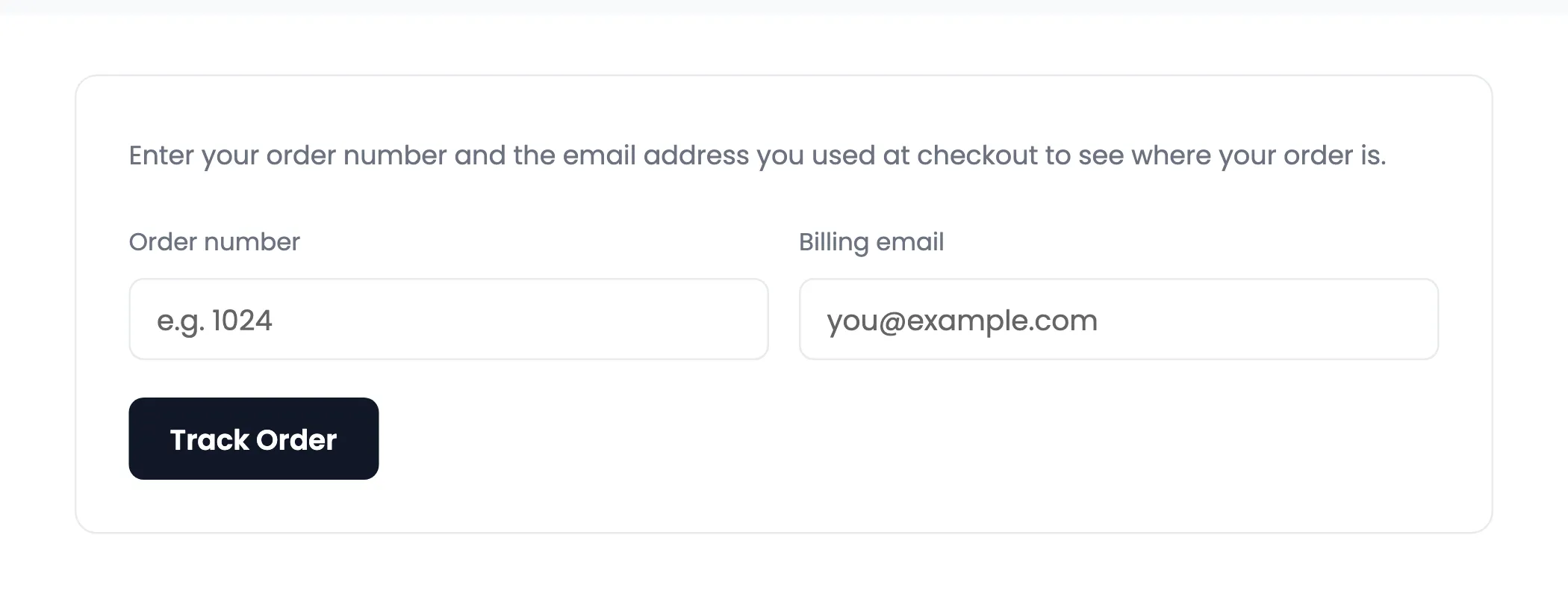
Section titled “Step 4: Try a lookup”Open the page as a visitor, type an order number and the billing email, and click Track Order.
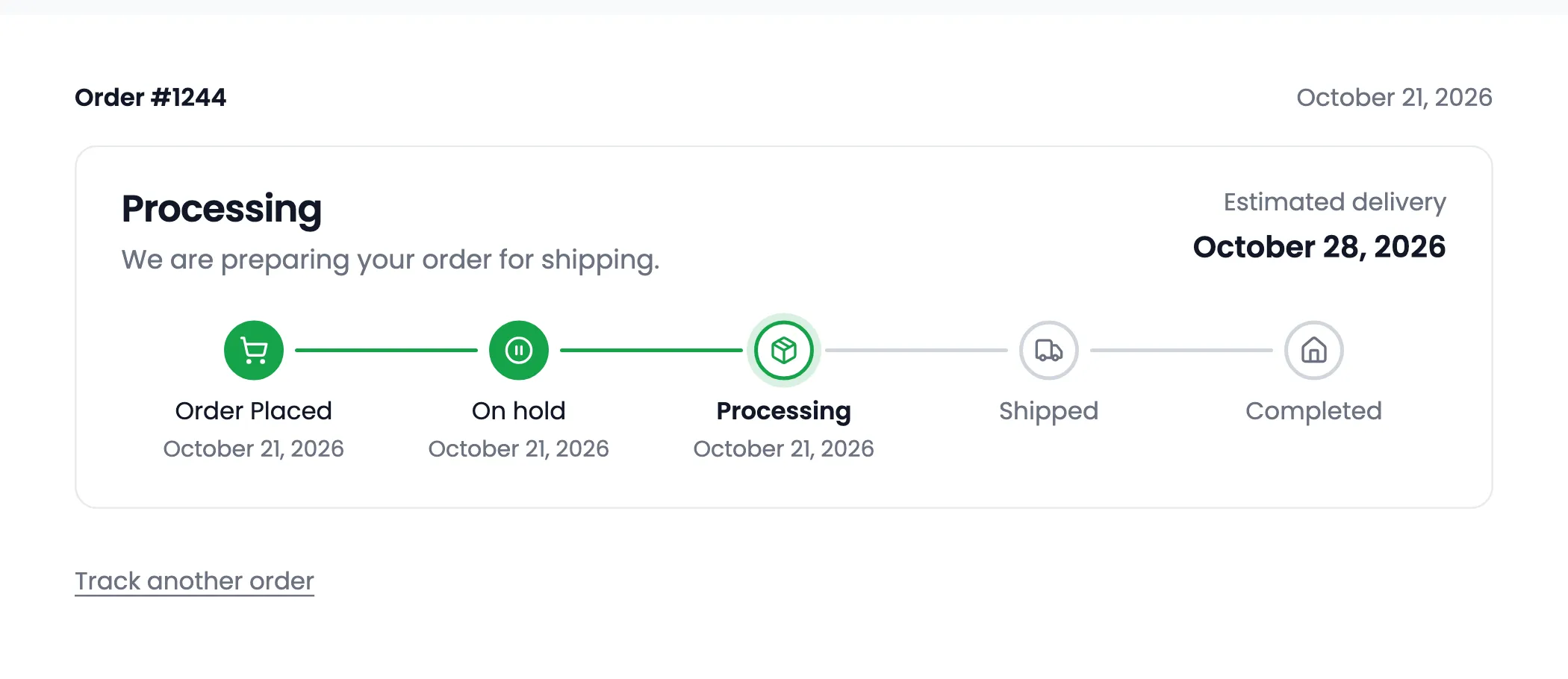
On the demo, Nina’s guest order #1239 showed its date and the live bar.
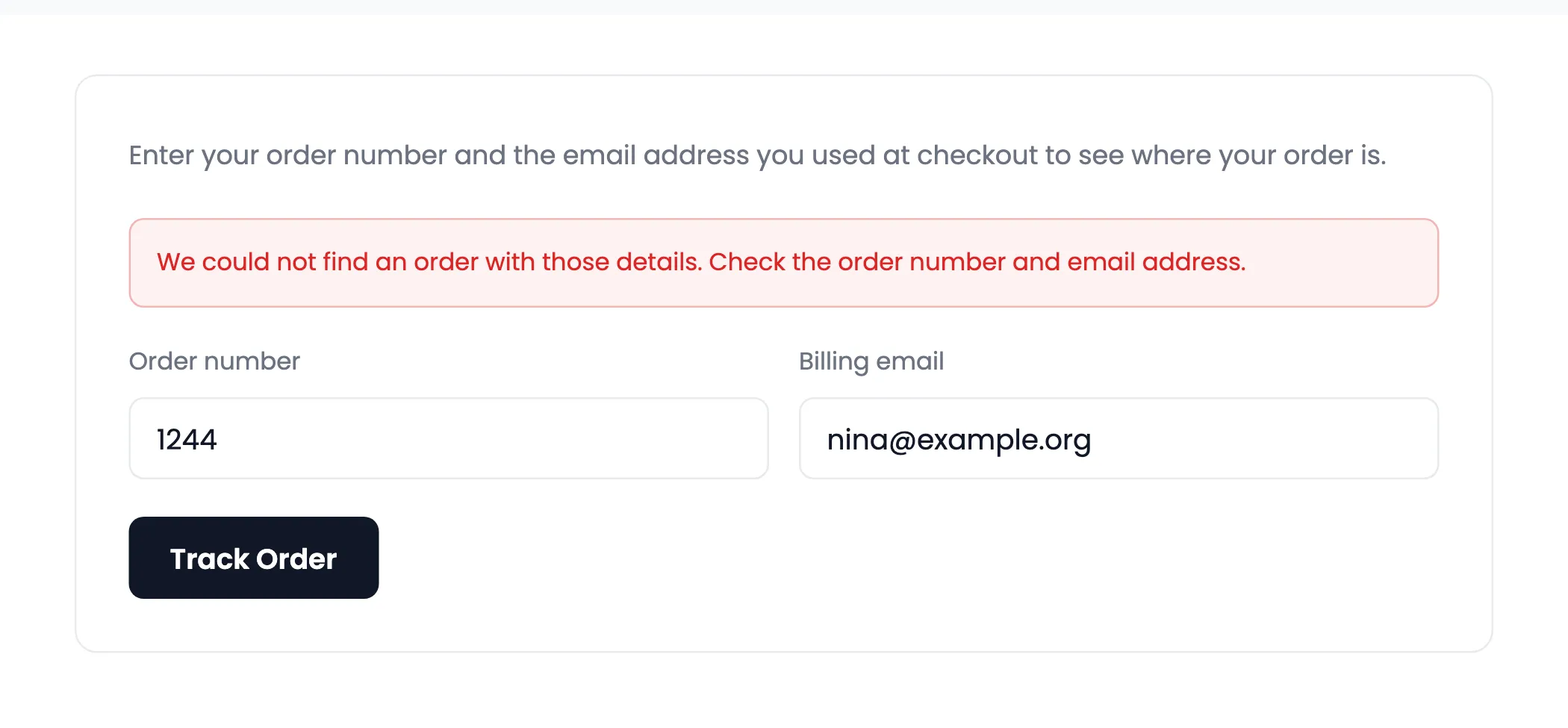
A wrong email gets the same answer as a wrong number, so the page cannot be used to find other people’s orders.
Good to know
Section titled “Good to know”- Each visitor gets 10 attempts every 15 minutes. Behind a CDN, read Behind a CDN or proxy.
- The form works on cached pages, because it needs no security token.
- Every successful lookup is counted on the dashboard under Tracking Lookups.