

The Setup Wizard
The wizard sets the handful of options that decide where the bar shows and what it tells customers. It takes about a minute. Everything it sets can be changed later under Configuration.
Step 1: Welcome
Section titled “Step 1: Welcome”The wizard opens on its own after the first activation. To run it again, click Setup Wizard under the plugin’s name on the Plugins screen. Click Continue, or Skip Setup to keep the shipped settings.
Step 2: License
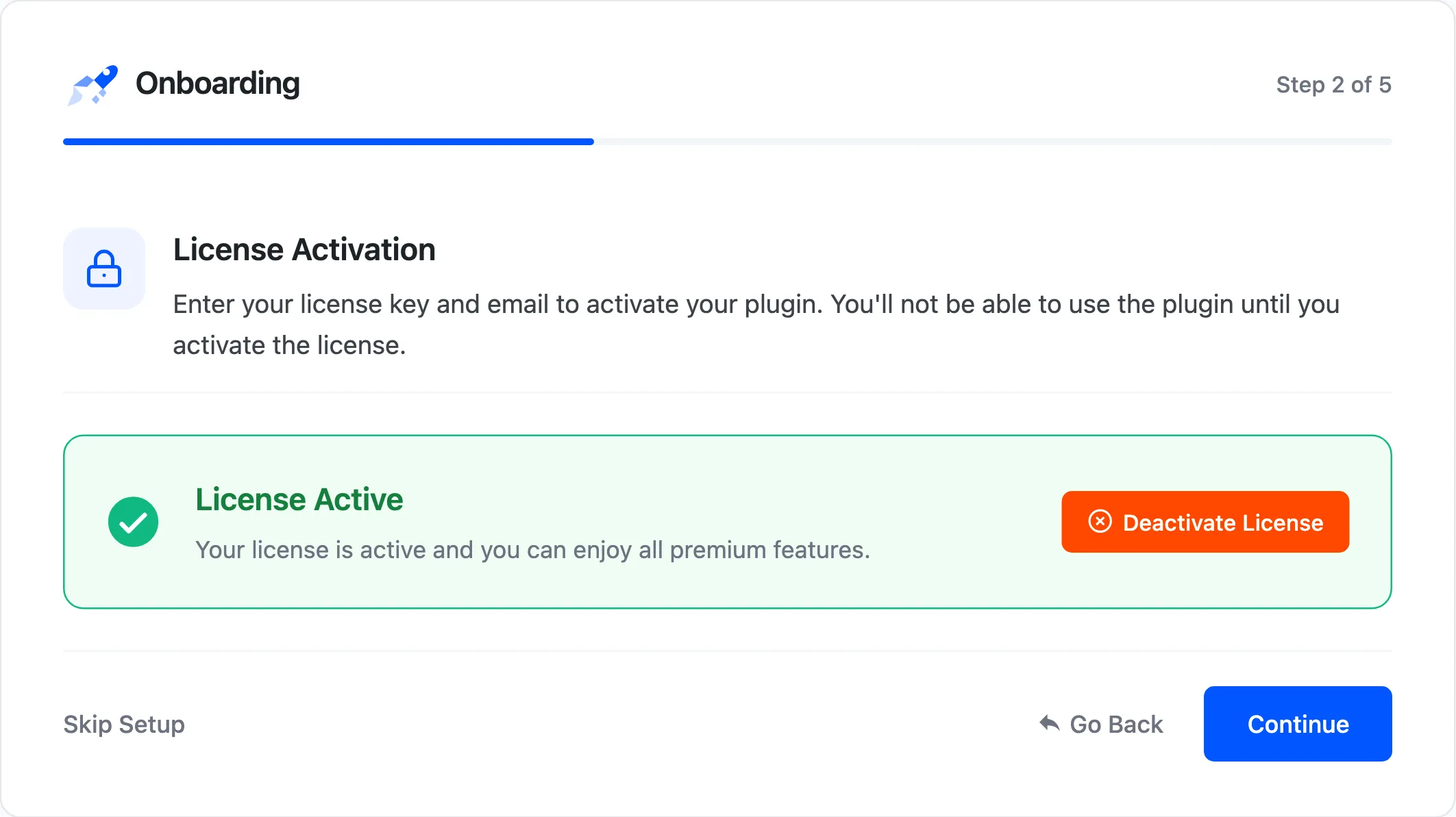
Section titled “Step 2: License”Enter the purchase code and email from your order. The wizard does not move on until the license is active, because customers see no bar without it.
Step 3: Place your progress bar
Section titled “Step 3: Place your progress bar”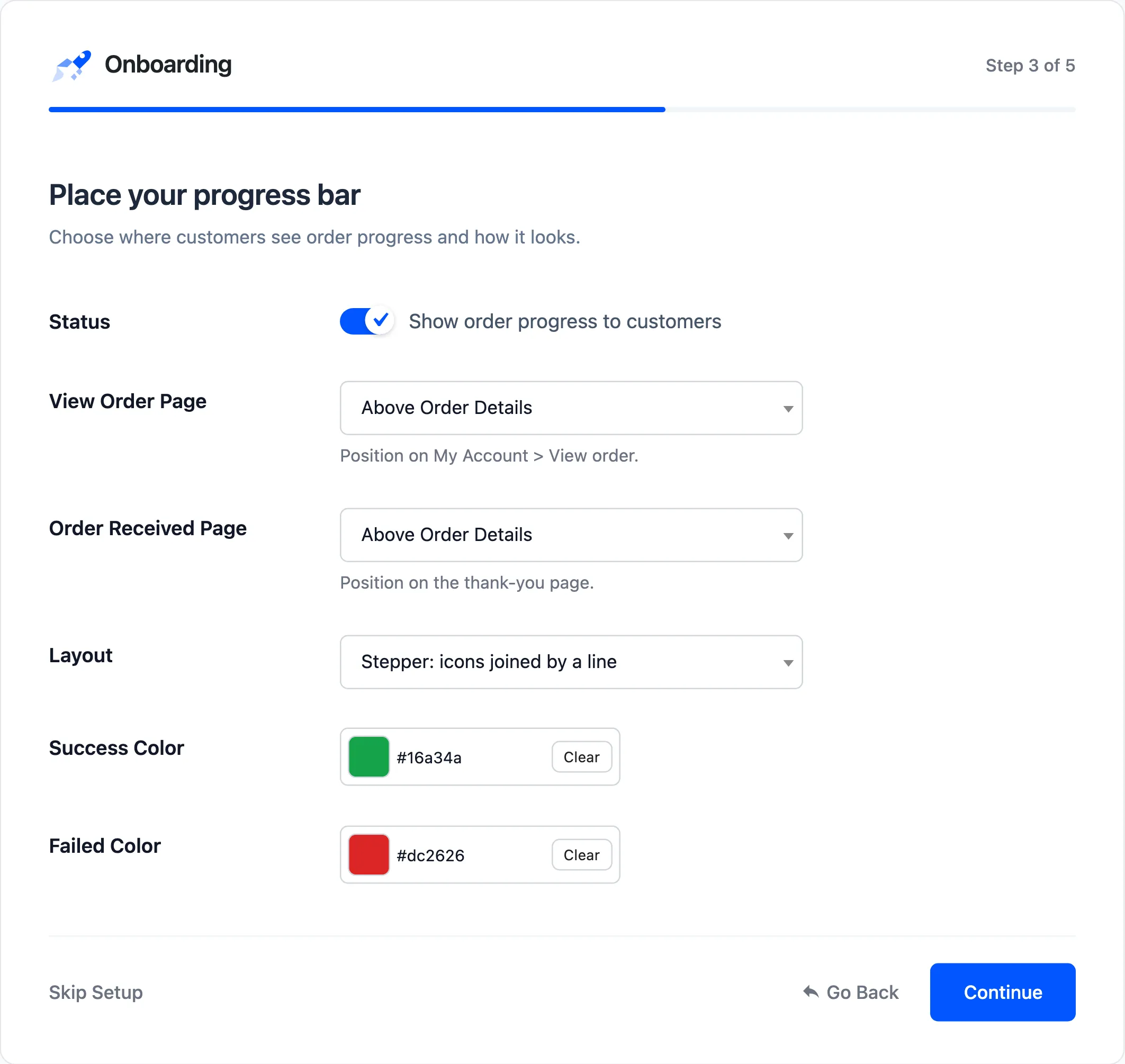
- Status: “Show order progress to customers”. On by default.
- View Order Page: Where the bar sits on My Account → Orders → View. Default Above Order Details.
- Order Received Page: Where it sits on the thank-you page. Default Above Order Details.
- Layout: Stepper, Timeline, Segments, Pills or Minimal. Default Stepper.
- Success Color and Failed Color: Green
#16a34aand red#dc2626by default.
The position menus offer seven choices, from Above Title to Below Customer Details, plus Disabled. They are the same menus as on the General tab.
Step 4: Answer “where is my order?” for you
Section titled “Step 4: Answer “where is my order?” for you”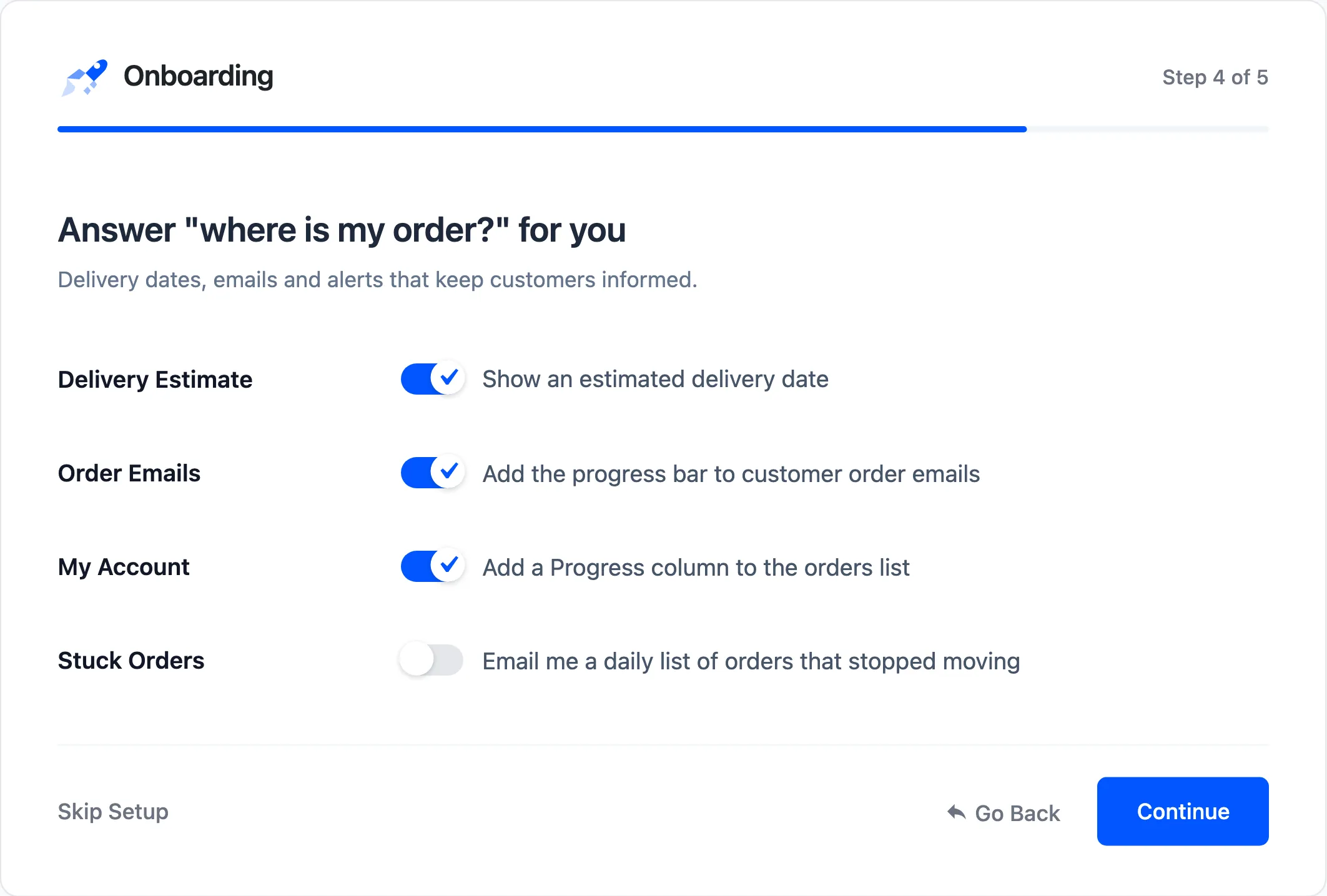
- Delivery Estimate: “Show an estimated delivery date”. On by default.
- Order Emails: “Add the progress bar to customer order emails”. On by default.
- My Account: “Add a Progress column to the orders list”. On by default.
- Stuck Orders: “Email me a daily list of orders that stopped moving”. Off by default. On, it goes to the site’s admin email. Change the recipient on the Stuck Order Alerts tab.
Each step saves when you click Continue. An unticked box saves as off. On the demo, picking Timeline and unticking My Account saved exactly that.
Step 5: Ready
Section titled “Step 5: Ready”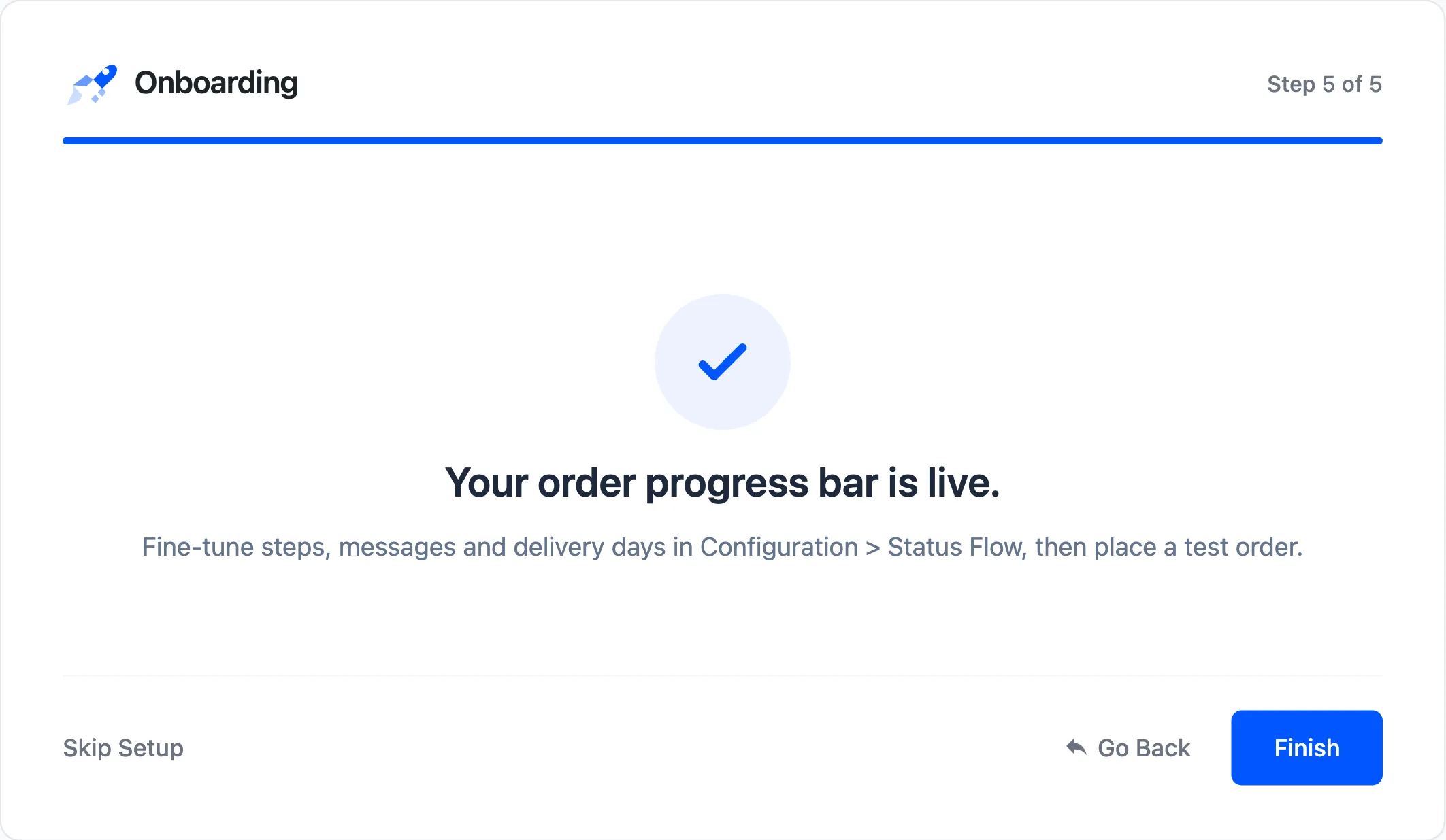
Click Finish to open the dashboard. The wizard does not touch the steps themselves. Adjust them under Status Flow, then place a test order.
Running it again
Section titled “Running it again”Running the wizard again changes only its own fields. Your steps, step messages, email list and Track Order page are left as they are.