

How to Add On Hold to the Progress Bar
Out of the box the steps are Processing and Completed. A bank transfer or cheque order starts On hold. Its customer sees no bar on the thank-you page, the moment they most want one. Adding On hold fixes that.
Step 1: Open Status Flow
Section titled “Step 1: Open Status Flow”Go to DevDiggers Plugins → Order Progress Bar → Configuration → Status Flow.
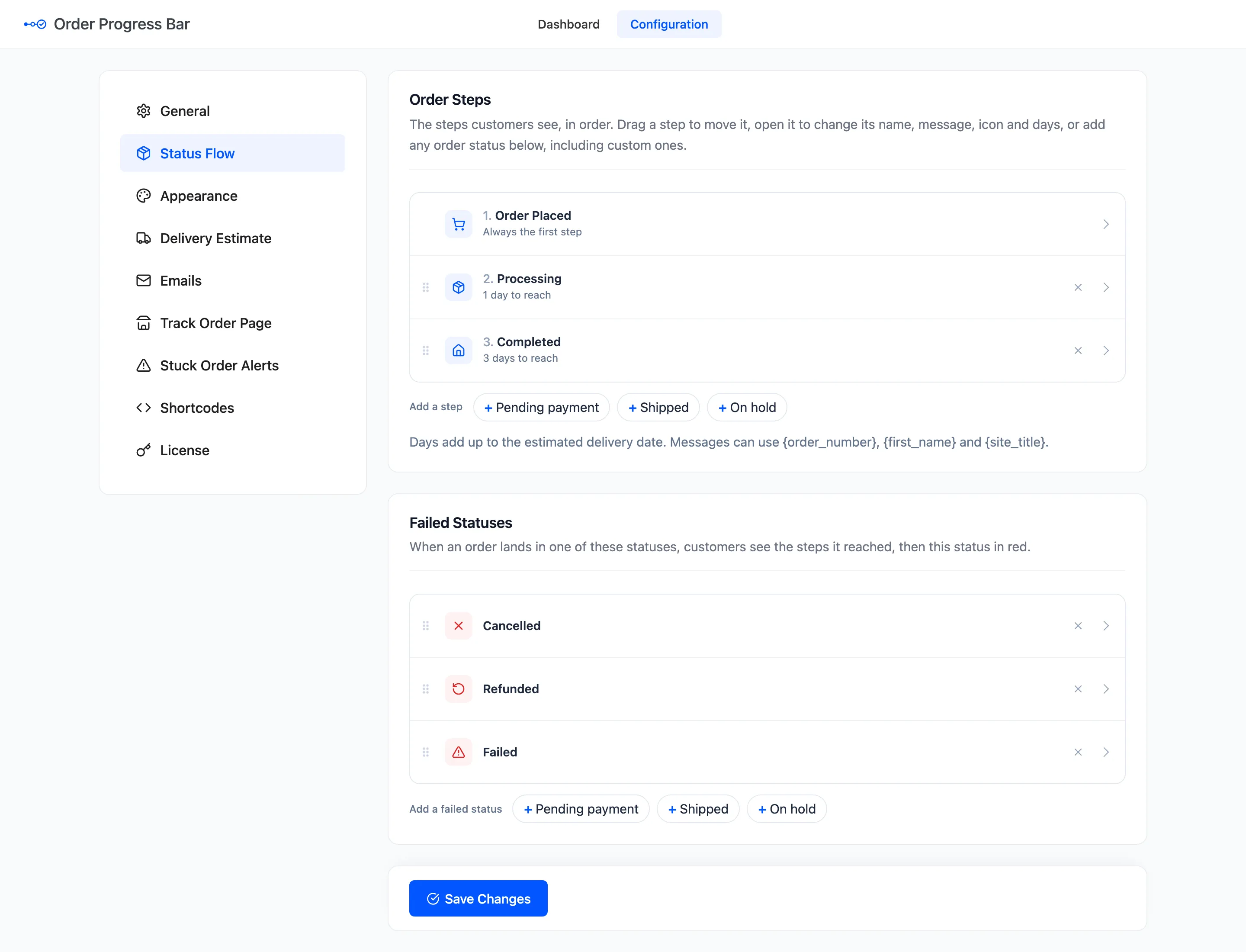
Step 2: Add On hold
Section titled “Step 2: Add On hold”Under the list, Add a step shows every status not used yet. Click + On hold.
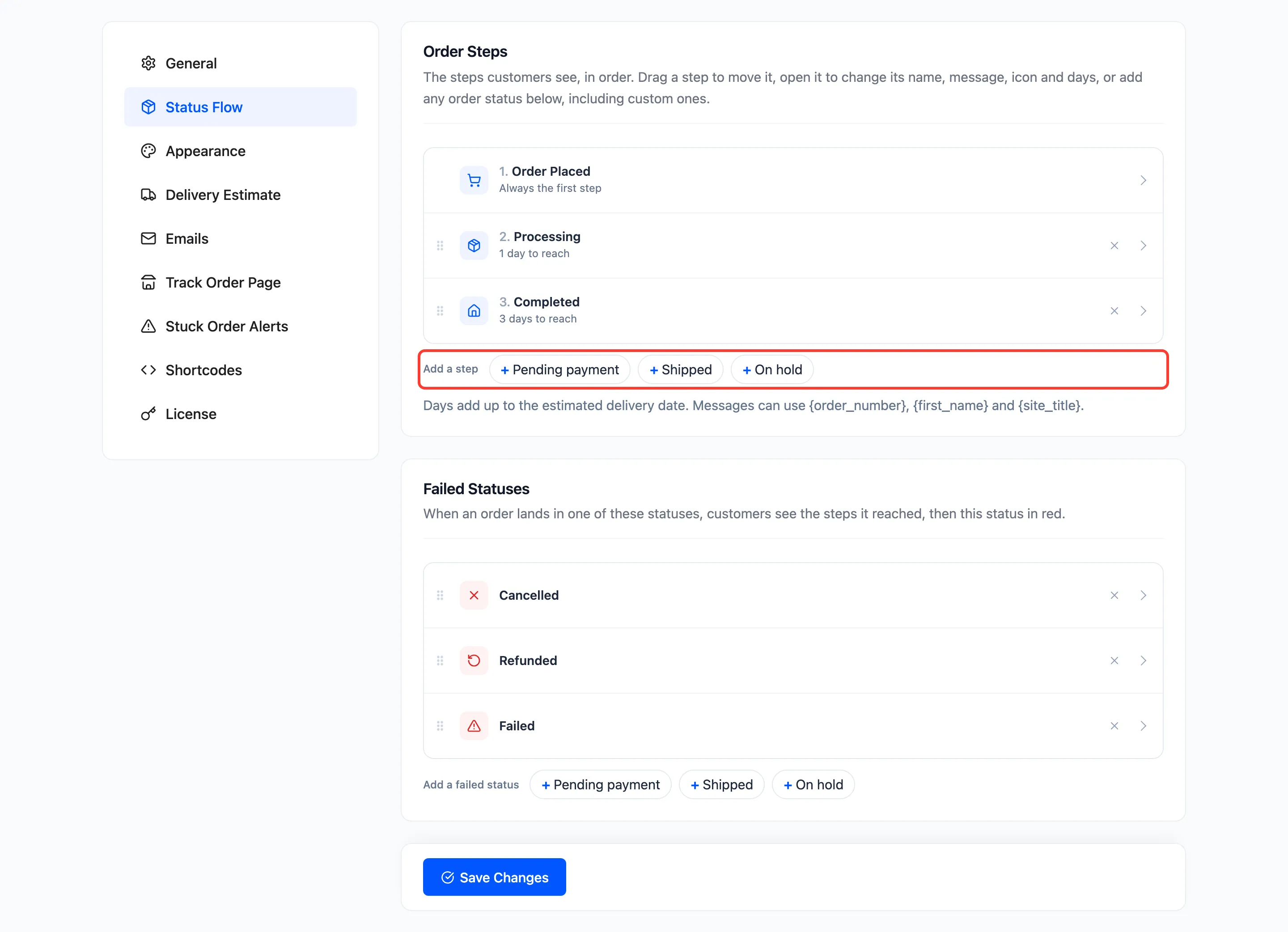
It joins the end of the list, open. It starts with the Pause icon, 1 day, and the message “Your order is on hold while we confirm your payment.”
Step 3: Drag it before Processing
Section titled “Step 3: Drag it before Processing”Drag On hold by the dots on its left, up between Order Placed and Processing. The step numbers update as you drop it.
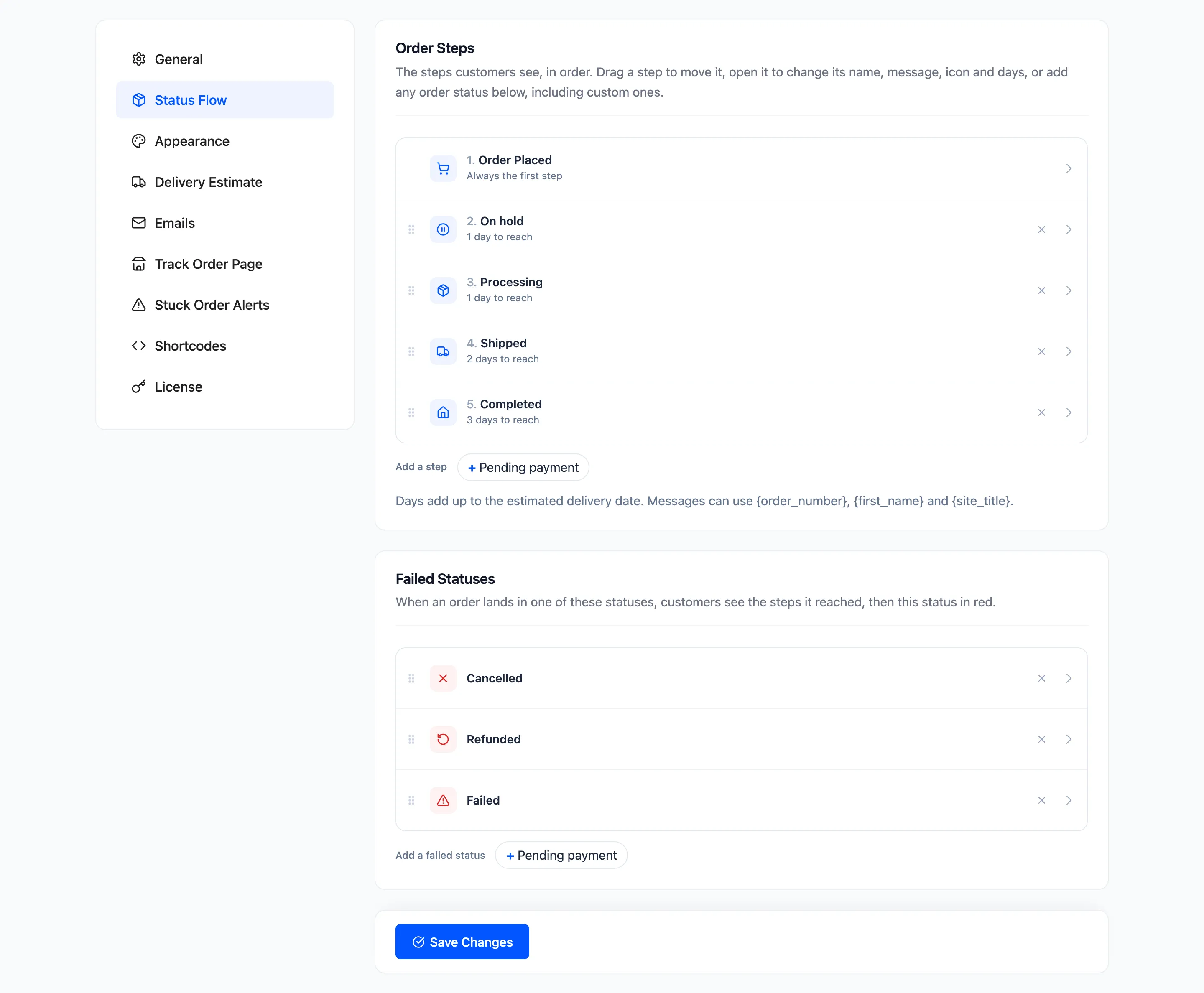
Step 4: Save and check
Section titled “Step 4: Save and check”Click Save Changes. On the demo, the On hold order #1238 had shown no bar on its thank-you page.
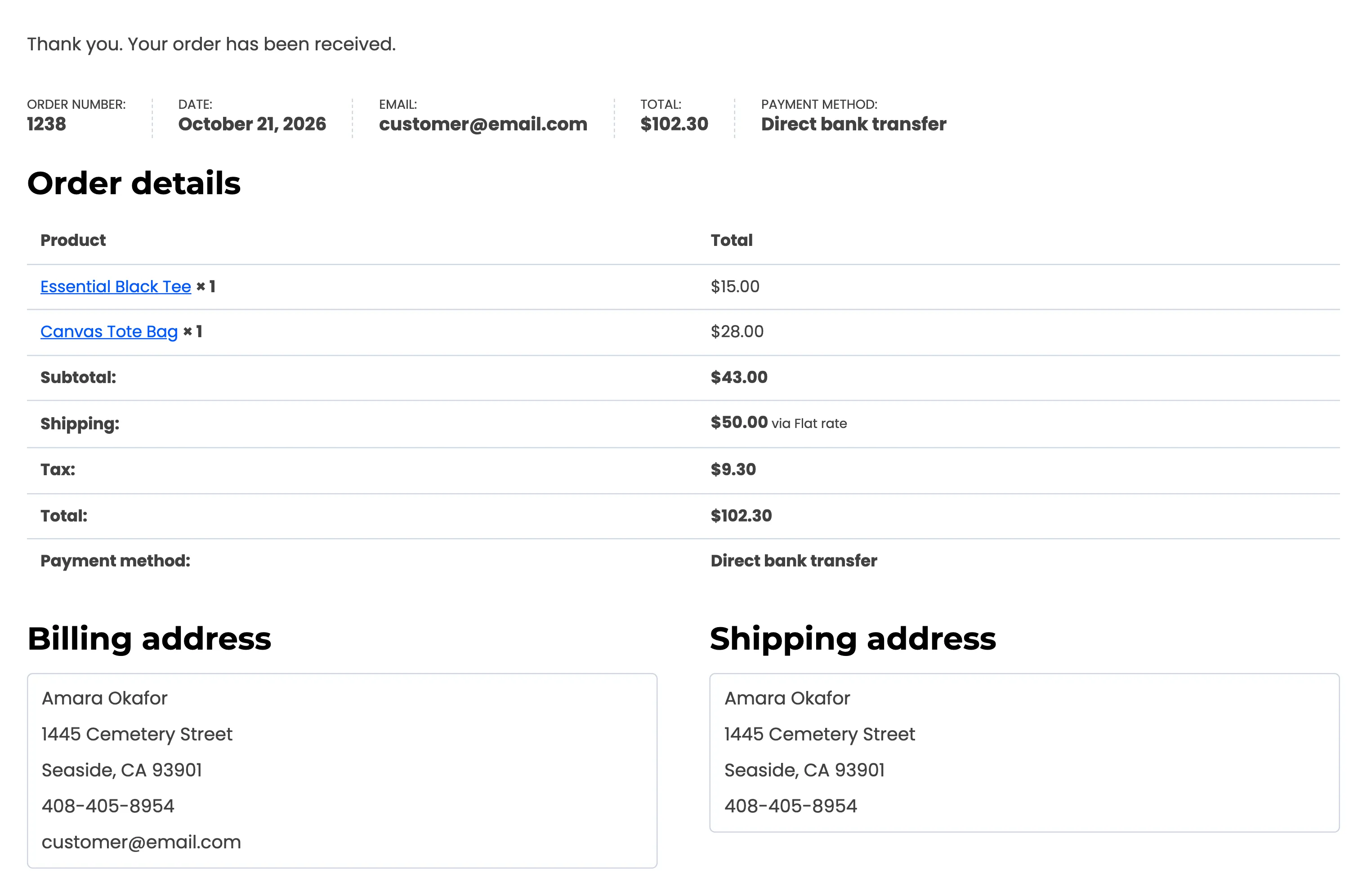
After the save, the same page showed the bar on its On hold step, dated from checkout.
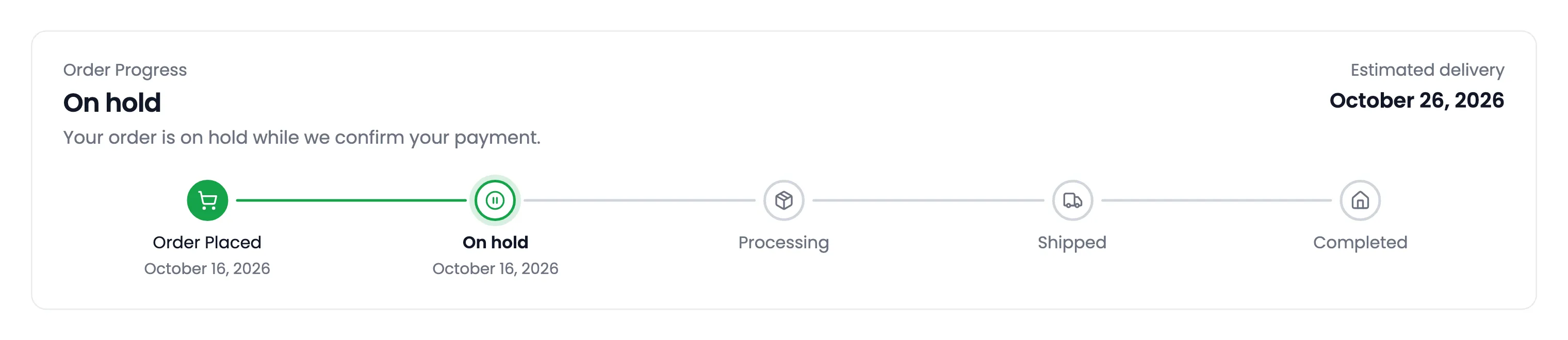
Nothing needed redoing on the order. The plugin had recorded the On hold date at checkout, whether or not it was a step.
Good to know
Section titled “Good to know”- On hold now counts toward the delivery estimate: its 1 day is added while an order is before it.
- On hold is also watched by the stuck order alerts by default. A bank transfer that is never paid shows up there after 3 days.
- Add Pending payment the same way for gateways that leave unpaid orders Pending.
- WooCommerce already emails customers when an order goes On hold. With the email bar on, that email carries the bar too.