

How to Show Cancelled and Refunded Orders
A bar that stays green on a cancelled order tells the customer something untrue. Failed statuses end the bar in red, after the steps the order really reached.
Step 1: Check the failed statuses
Section titled “Step 1: Check the failed statuses”Under Configuration → Status Flow, Failed Statuses lists Cancelled, Refunded and Failed by default. Add a custom status, such as Returned, with Add a failed status.
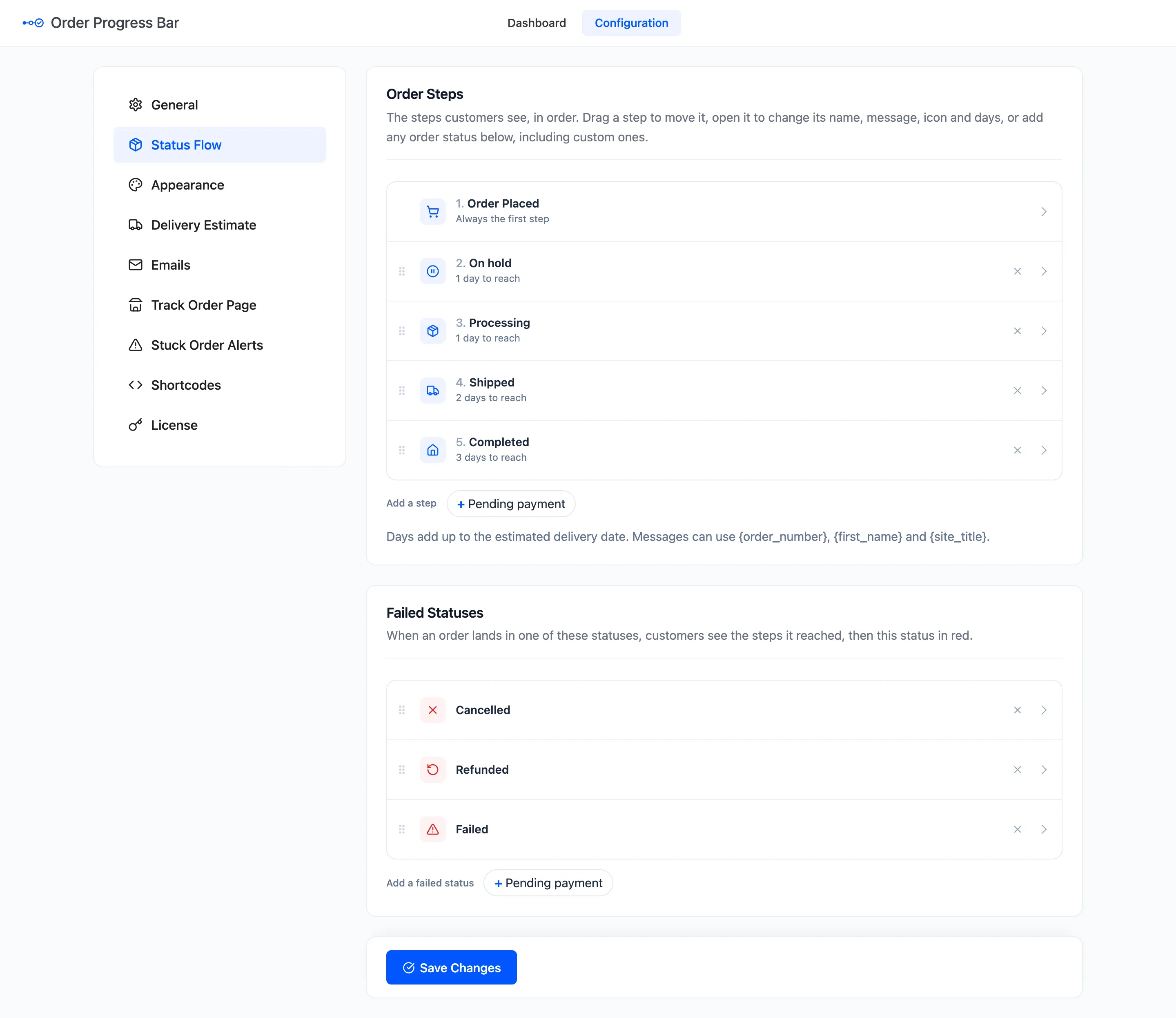
A status can be in one list only. A status in neither shows no bar at all.
Step 2: Write their messages
Section titled “Step 2: Write their messages”Open each failed status to set its name, icon and message. The shipped messages are short. A refund message is a good place to say how long the money takes to arrive.
Failed statuses have no days, and the bar shows no delivery estimate for them.
Step 3: Cancel an order
Section titled “Step 3: Cancel an order”On the demo, an order reached Processing and was then cancelled. The bar kept the three steps it reached, with their dates, and ended in Cancelled.
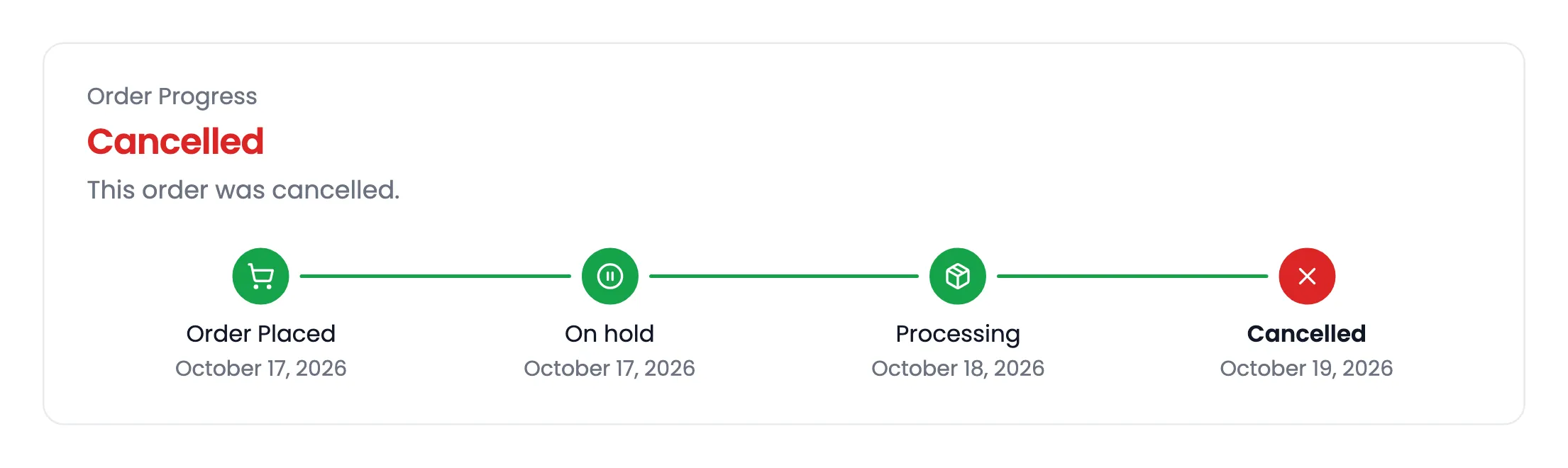
Shipped and Completed were left out, because the order never reached them. In My Account, the order shows a red bar.
Good to know
Section titled “Good to know”- The Failed Color on the Appearance tab sets the red.
- Refunding part of an order does not change its status, so the bar stays as it is. A full refund sets Refunded.
- Add Cancelled order and Refunded order under Configuration → Emails to put the red bar in those emails too.
- The dashboard counts these orders under Failed / Cancelled.