

Introduction to Order Progress Bar
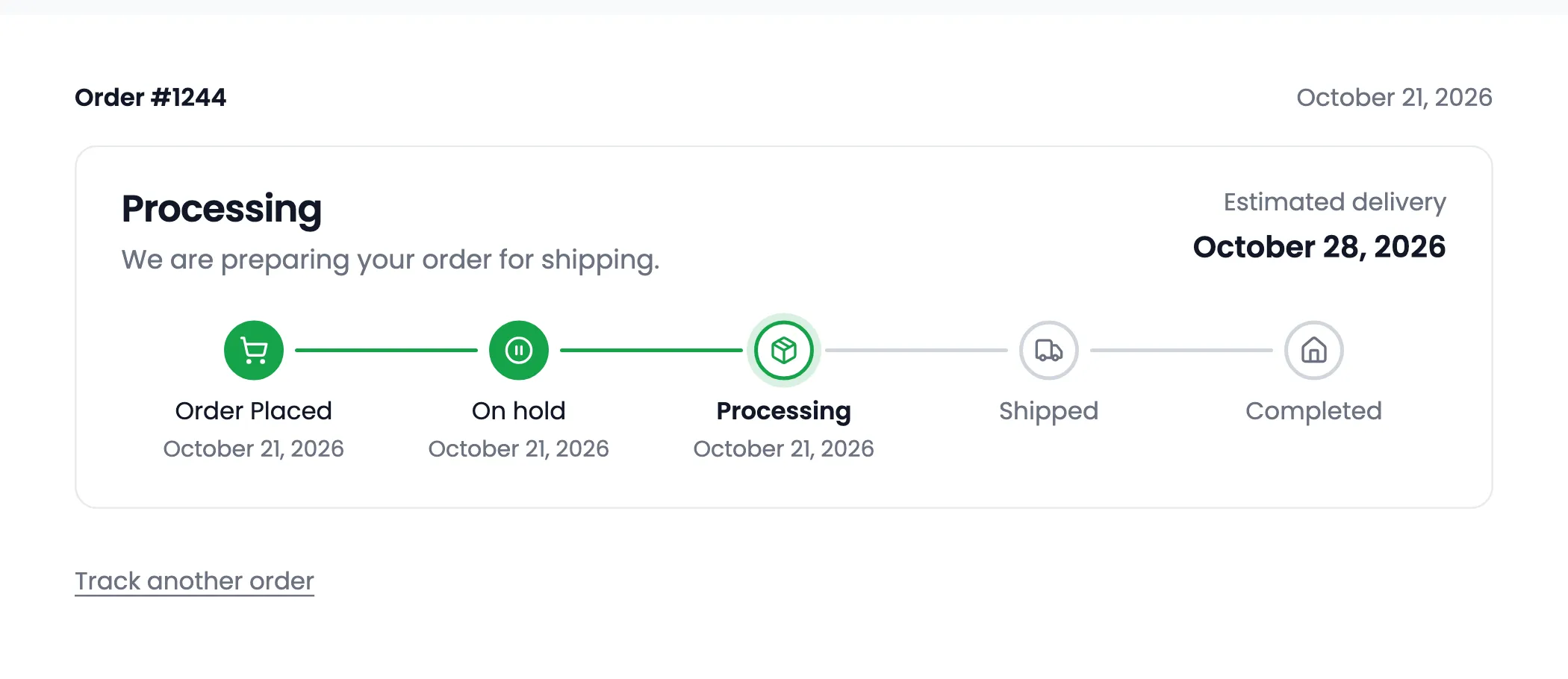
Order Progress Bar shows customers where their order is. A live bar shows each step, the date it was reached, a short message and an estimated delivery date. It appears on the thank-you page, on My Account’s View Order page, in order emails and on a public Track Order page.
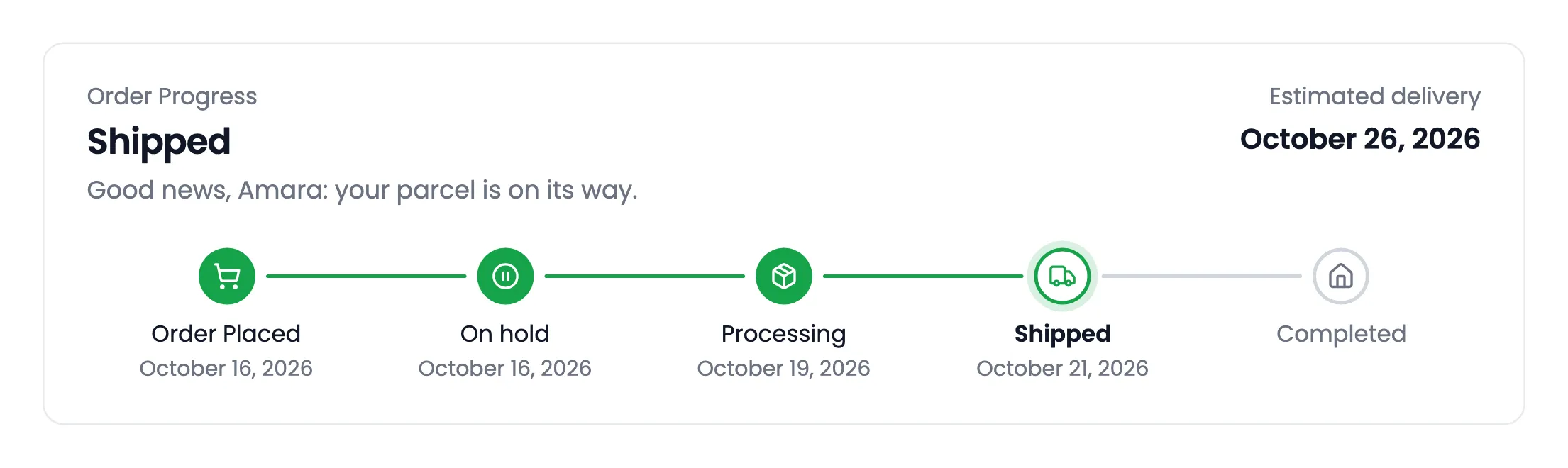
It is a paid plugin with no free edition, so every feature on these pages is part of the one plugin.
Steps come from order statuses
Section titled “Steps come from order statuses”Each step is a WooCommerce order status. The bar always starts with Order Placed, then follows the statuses you list under Configuration → Status Flow: Processing and Completed out of the box. When you change an order’s status, the bar moves on, and the date is recorded.
You can add any status as a step, including On hold, Pending payment and custom ones such as Shipped from another plugin. Each step gets its own name, icon, message and number of days.
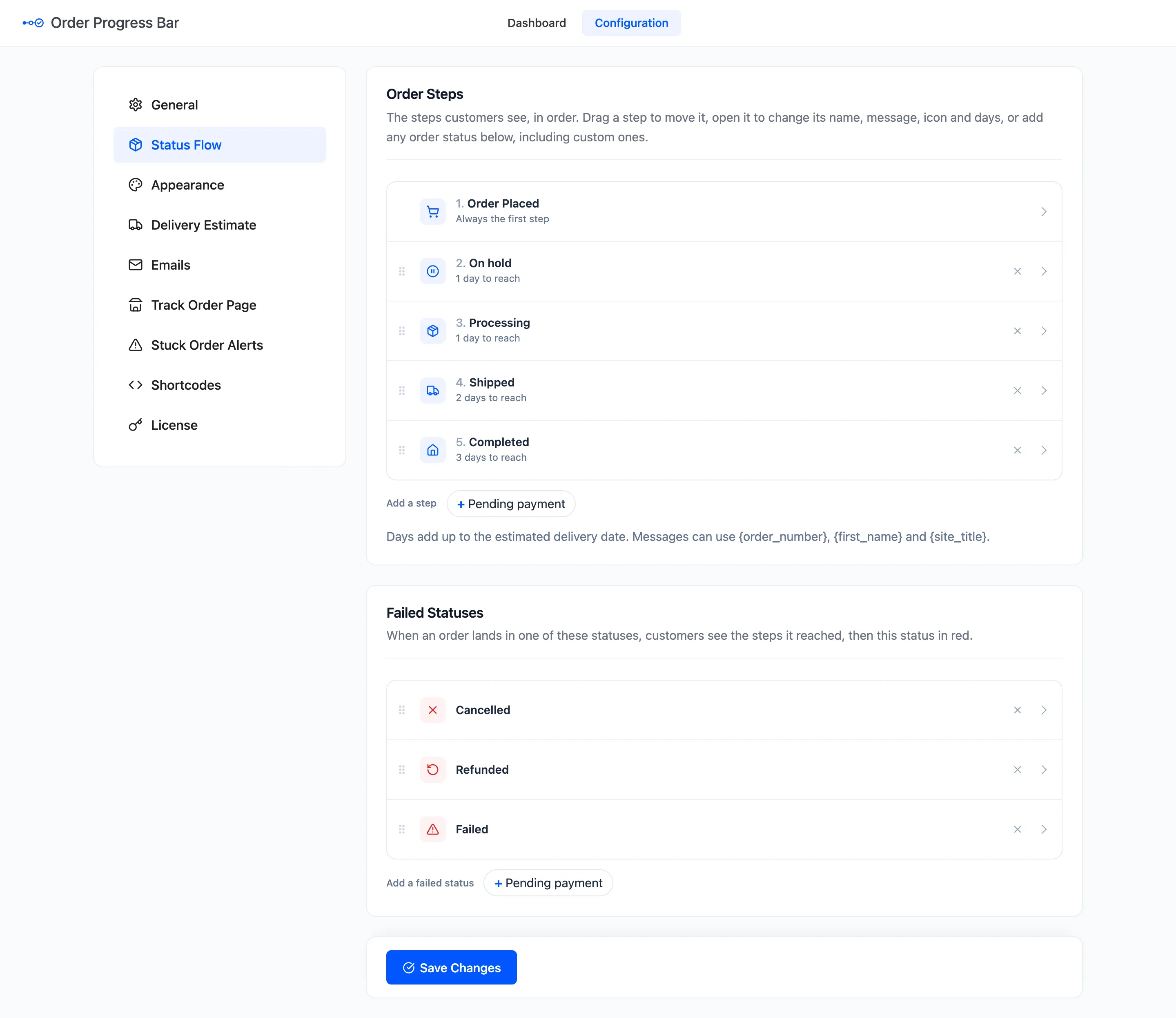
Cancelled, refunded and failed orders have a flow of their own. The bar shows the steps the order really reached, then the failed status in red.
Where customers see it
Section titled “Where customers see it”- Thank-you page: Right after checkout, above the order details by default.
- View Order page: In My Account, for every order in the flow.
- My Account orders list: A slim bar in a Progress column, one per order.
- Order emails: A compact bar with a Track your order button, in five WooCommerce emails by default.
- Track Order page: A public page where guests and customers type an order number and billing email.
- Anywhere else: Two shortcodes and two blocks, for custom pages and page builders.
What else it does
Section titled “What else it does”- Five layouts: Stepper, Timeline, Segments, Pills and Minimal, in your own colors.
- Delivery estimate: The days of the steps still ahead, added to the date of the current step. You can also type an exact date on any order.
- Step update emails: An email when an order reaches a step WooCommerce does not email about, such as Shipped.
- Stuck order alerts: A daily email listing orders that have not moved for a few days.
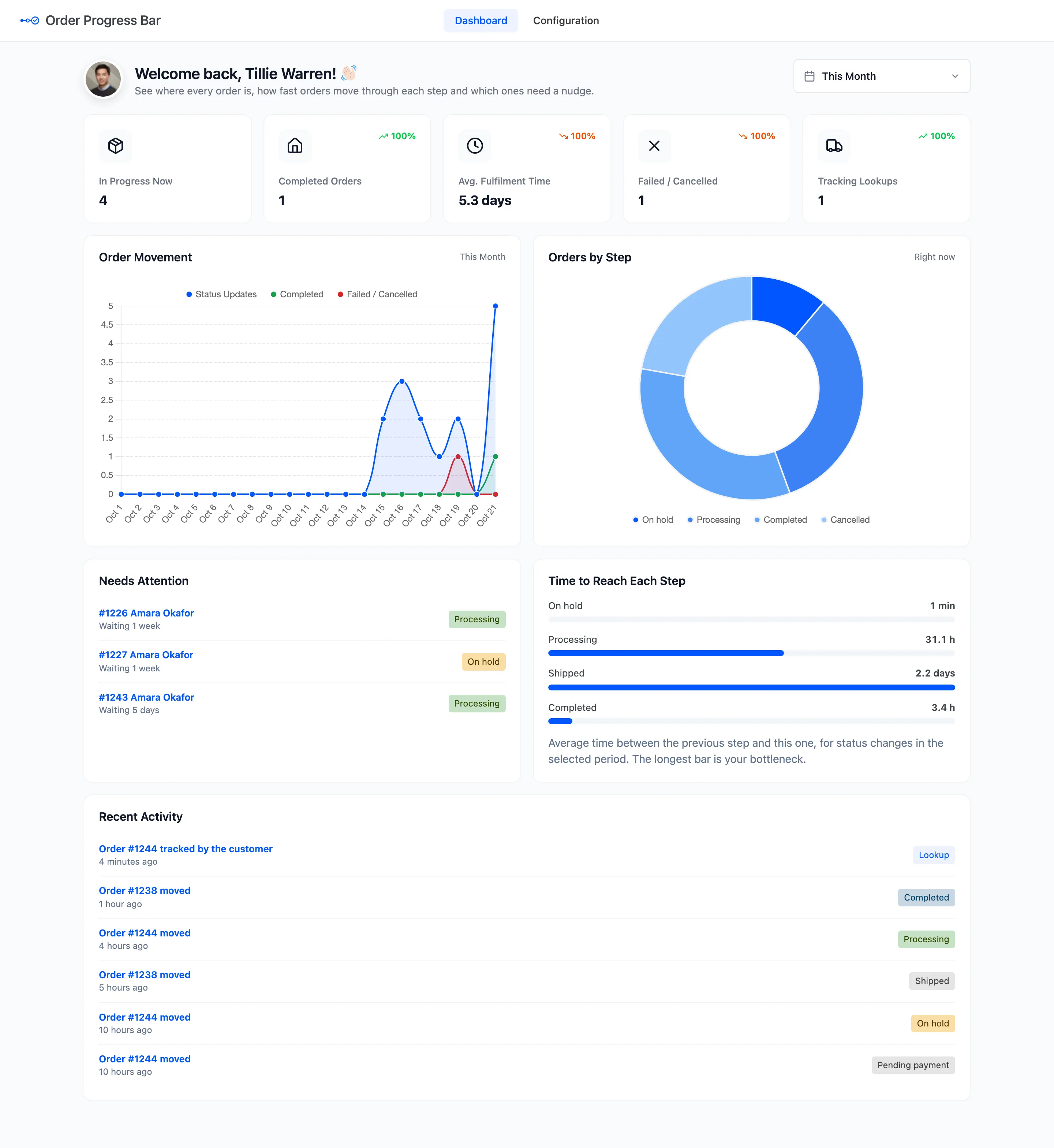
- Dashboard: How many orders are in progress, how long each step takes, and which orders need a nudge.
Where things live
Section titled “Where things live”Everything is under DevDiggers Plugins → Order Progress Bar, in two menus: Dashboard and Configuration. Configuration has nine tabs: General, Status Flow, Appearance, Delivery Estimate, Emails, Track Order Page, Stuck Order Alerts, Shortcodes and License.
Each order’s edit screen also gets an Order Progress box in its side column. See The Order Screen.
Requirements
Section titled “Requirements”- WordPress 6.2 or newer and WooCommerce 8.0 or newer.
- PHP 7.4 or newer.
- An active license. Until it is active, customers see no bar anywhere.
It works with the WooCommerce order tables (HPOS) and with legacy order storage.
Where to go next
Section titled “Where to go next”- How Order Progress Works follows one order from checkout to delivery.
- Installing and Activating gets the plugin running.
- How to Add On Hold to the Progress Bar is the first change most stores make.