

The Order Screen
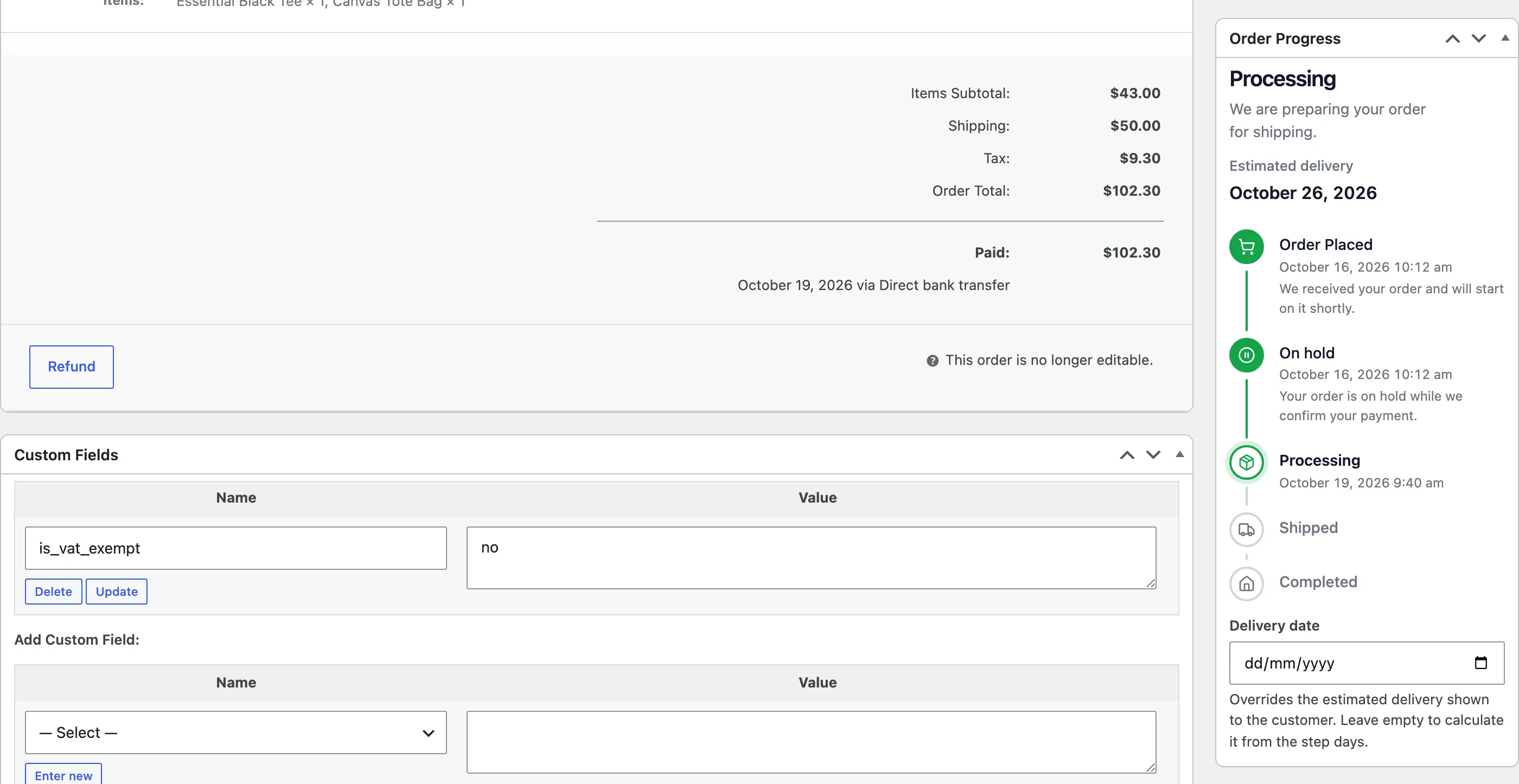
Every order’s edit screen gets an Order Progress box in its side column. It shows the order exactly as the customer sees it, with exact times, and holds the order’s own delivery date. Open any order under WooCommerce → Orders.
What the box shows
Section titled “What the box shows”- The current step’s name and message.
- The estimated delivery, or the delivered date once the order reached its last step.
- Every step as a timeline, with the date and time it was reached and its message.
An order whose status is not a step says so instead: “This status is not part of your progress flow, so customers do not see a bar for this order.”
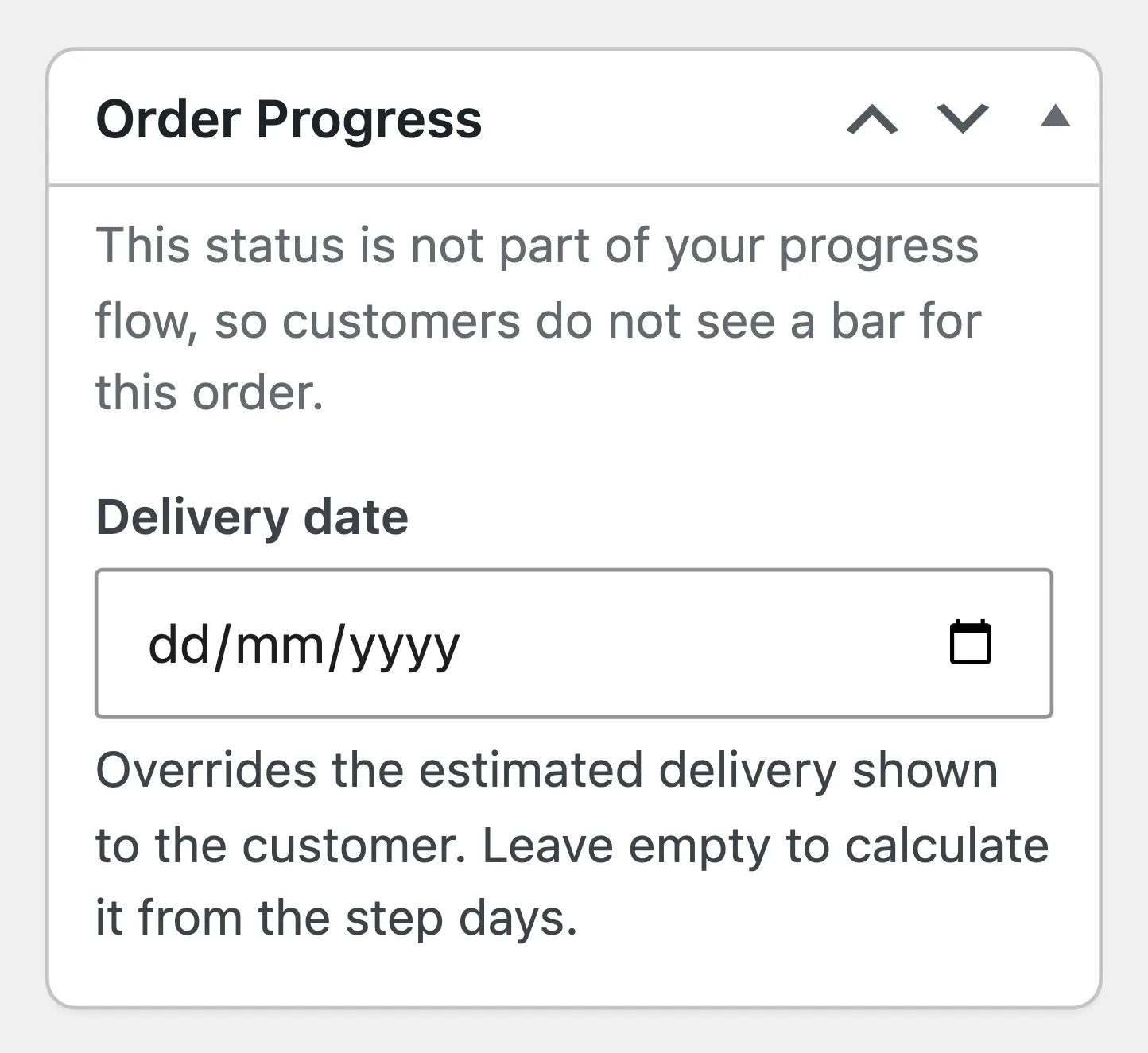
The box does not depend on the license or on Enable/Disable, so you can check a flow before customers see it.
Move an order on
Section titled “Move an order on”Change the Status in General and click Update. The bar moves on, the date is recorded, and any email WooCommerce or the plugin sends for that status goes out.
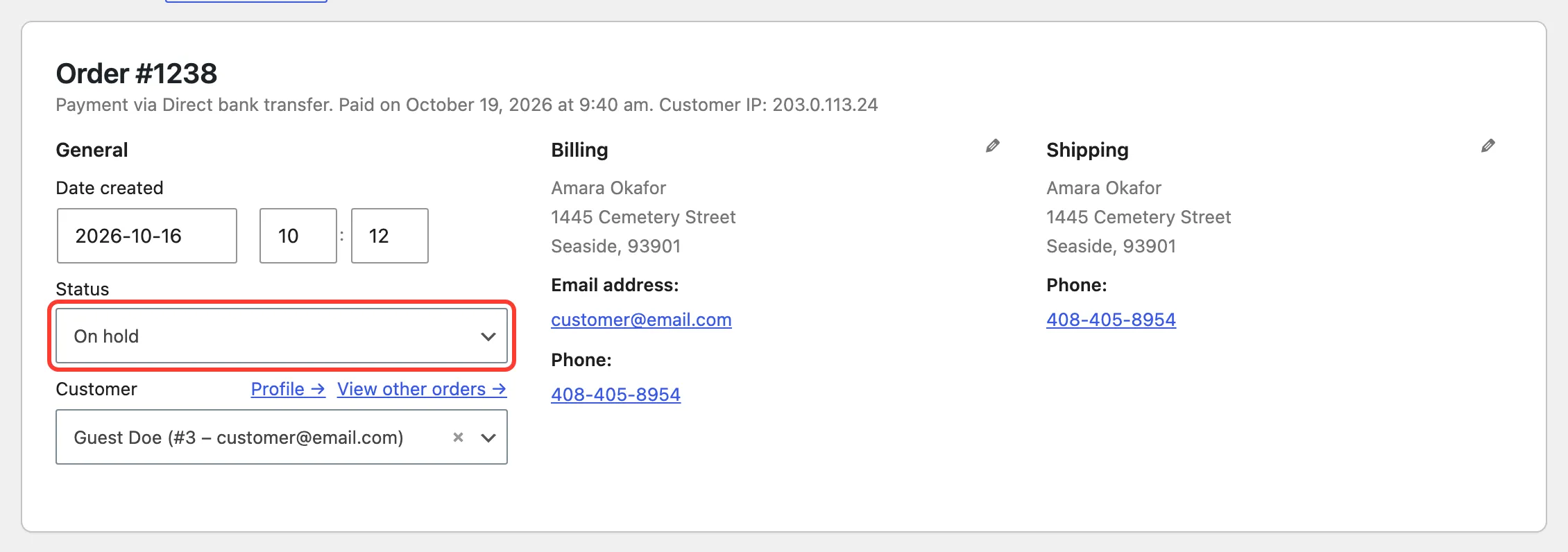
A bulk action on the Orders list, a payment gateway or a shipping plugin moves the bar the same way.
Set the delivery date by hand
Section titled “Set the delivery date by hand”Delivery date replaces the estimate for this one order, on the bar and in emails. Pick a date and click Update.
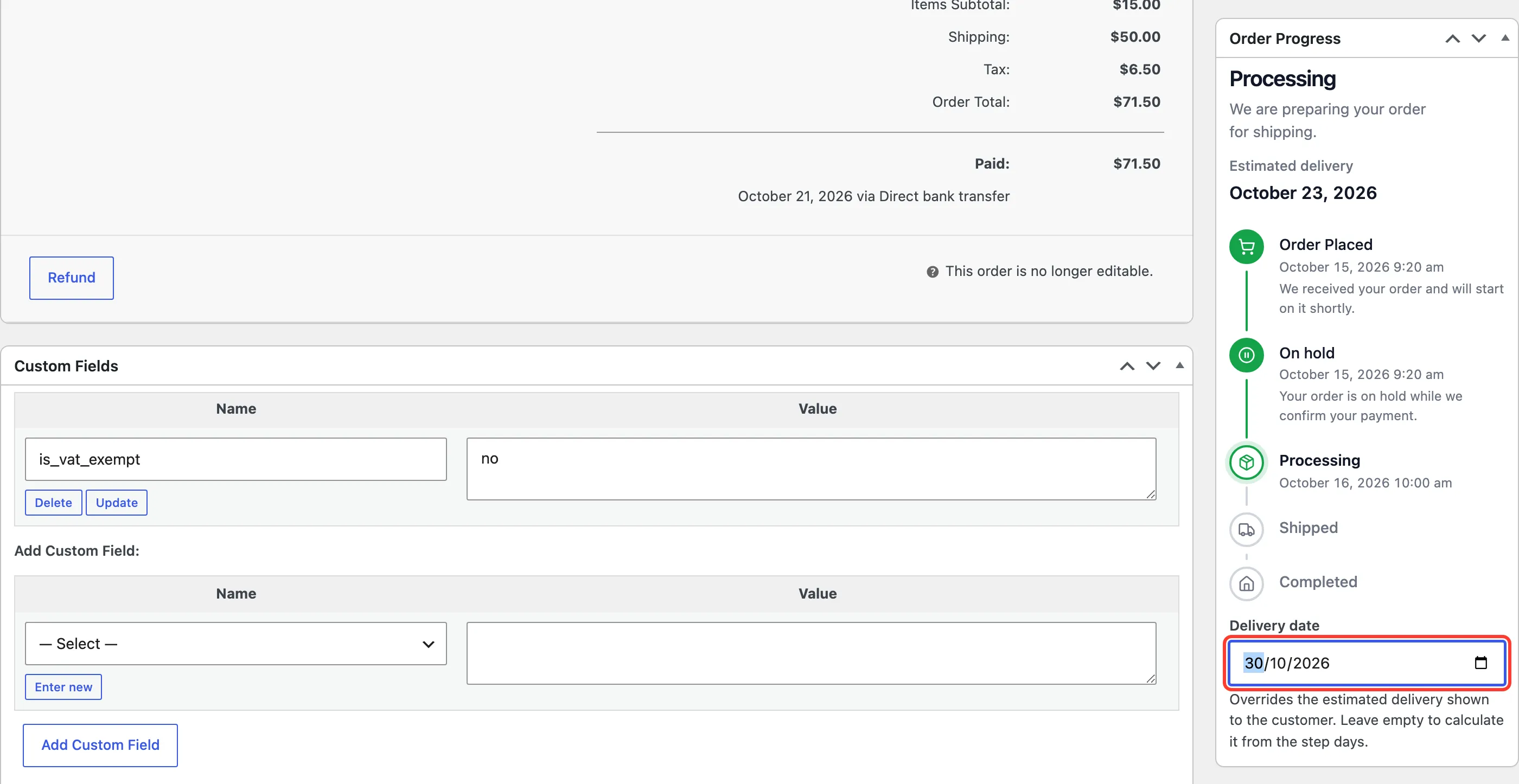
Clear the field and update to go back to the estimate. See How to Set a Delivery Date on One Order.
Deleting an order
Section titled “Deleting an order”Deleting an order for good removes its recorded dates too. Trashing it keeps them, so a restored order keeps its bar.